本教程介绍了如何将使用智能体开发套件 (ADK) 和 A2UI 扩展程序构建的智能体间 (A2A) 智能体部署到 Cloud Run。您还将学习如何向 Gemini Enterprise 注册已部署的智能体。
。此示例使用公开提供的示例代码。本教程的示例代码具有以下文件夹结构。
教程文件夹结构
该项目具有以下文件夹结构:
| 文件/目录 | 说明 |
|---|---|
/samples/community/agent/adk/gemini_enterprise/v0_9 |
包含本教程的示例配置和数据的目录。 |
__init__.py |
将目录标记为 Python 软件包。 |
__main__.py |
用于在本地运行智能体的入口点。 |
agent.py |
定义智能体、其技能和行为。 |
agent_executor.py |
管理执行流程和工具互动。 |
deploy.sh |
用于构建智能体并将其部署到 Cloud Run 的脚本。 |
examples/ |
包含组件模板示例的目录。 |
gemini_enterprise_composite_catalog.json |
定义标准 Material 和自定义 Gemini Enterprise 组件的组件目录。 |
main.py |
主要应用入口点(FastAPI 应用)。 |
prompt_builder.py |
用于为模型构建提示的帮助程序。 |
pyproject.toml |
项目配置和依赖项。 |
examples/0.9/material_table_orders.json |
包含近期订单演示的布局和模拟数据的示例界面模板。 |
tools.py |
定义智能体可以使用的工具(函数)。 |
准备工作
在开始之前,请确保满足以下条件:
现有的 Gemini Enterprise 应用。如需创建应用,请参阅创建应用。
克隆代码库并前往
v0_9示例目录:git clone https://github.com/a2ui-project/a2ui.git cd a2ui/samples/community/agent/adk/gemini_enterprise/v0_9
启用 API
为您的项目启用以下 API:
控制台
启用以下 API:
- Vertex AI API
- Cloud Build API
- Artifact Registry API
- Cloud Run API
- Cloud Logging API
- Discovery Engine API
- Cloud Storage API
- Identity and Access Management (IAM) API
REST
您可以从 Google Cloud 控制台启用这些 API,也可以使用以下 gcloud CLI 命令启用:
gcloud services enable aiplatform.googleapis.com cloudbuild.googleapis.com artifactregistry.googleapis.com run.googleapis.com logging.googleapis.com discoveryengine.googleapis.com storage.googleapis.com iam.googleapis.com
授予权限
向 Cloud Run Invoker (roles/run.invoker) 角色授予权限。
gcloud projects add-iam-policy-binding PROJECT_ID \
   --member="serviceAccount:service-PROJECT_NUMBER@gcp-sa-discoveryengine.iam.gserviceaccount.com" \
   --role="roles/run.invoker"
替换以下内容:
- PROJECT_ID:您的项目的 ID。
- PROJECT_NUMBER:您的 Google Cloud 项目编号。
部署智能体
deploy.sh 脚本会自动执行部署流程。如需部署智能体,
请使用您的 Google Cloud ID 和新服务的名称
从项目目录运行该脚本。您还可以选择指定要使用的 Gemini 模型。
该脚本会执行以下操作:
- 从源代码构建 容器映像。
- 将映像推送 到 Artifact Registry。
- 将映像部署 到 Cloud Run。
- 设置 环境变量,包括
MODEL和服务本身的公共AGENT_URL。
chmod +x deploy.sh
./deploy.sh PROJECT_ID a2ui-demo-agent MODEL_NAME
替换以下内容:
- PROJECT_ID:您的项目的 ID。
- MODEL_NAME:可选。这是脚本的第三个实参。支持的值包括
gemini-2.5-pro和gemini-2.5-flash。 如果未提供,该脚本默认使用gemini-2.5-flash。
脚本完成后,会输出已部署智能体的服务网址。您需要在下一步中使用此服务网址 。
向 Gemini Enterprise 注册智能体
现在,您的智能体已部署完毕,您需要向 Gemini Enterprise 注册该智能体,使其可被发现。
运行以下 curl 命令,将占位符替换为您自己的值:
curl -X POST -H "Authorization: Bearer $(gcloud auth print-access-token)" -H "Content-Type: application/json" https://discoveryengine.googleapis.com/v1alpha/projects/PROJECT_NUMBER/locations/LOCATION/collections/default_collection/engines/ENGINE_ID/assistants/default_assistant/agents -d '{
  "name": "a2ui-demo-agent",
  "displayName": "A2UI v0.9 Demo Agent",
  "description": "A demo agent that showcases A2UI v0.9 UI templates.",
  "a2aAgentDefinition": {
      "jsonAgentCard": "{\"protocolVersion\": \"0.3.0\", \"name\": \"A2UI v0.9 Demo\", \"description\": \"A demo agent that showcases A2UI v0.9 UIs built from the Material component catalog and Gemini Enterprise custom components (Canvas, Iframe). Ask it what can you do? to see the available demos.\", \"url\": \"AGENT_URL\", \"version\": \"1.0.0\", \"capabilities\": {\"streaming\": true, \"preferredTransport\": \"JSONRPC\", \"extensions\": [{\"uri\": \"https://a2ui.org/a2a-extension/a2ui/v0.9\", \"description\": \"Ability to render A2UI v0.9\", \"required\": false, \"params\": {\"supportedCatalogIds\": [\"https://www.gstatic.com/vertexaisearch/a2ui/v0_9/gemini_enterprise_composite_catalog.json\"]}}]}, \"skills\": [{\"id\": \"a2ui_demo\", \"name\": \"A2UI v0.9 Component Demo\", \"description\": \"Demonstrates A2UI v0.9 UIs built from the Material catalog and Gemini Enterprise custom components: cards, forms & inputs, tabs, tables, progress indicators, dialogs & menus, the Canvas side panel, and the Iframe (IFrameSrcdoc / IFrameUrl) components.\"}], \"defaultInputModes\": [\"text/plain\"], \"defaultOutputModes\": [\"text/plain\"]}"
    }
}'
替换以下内容:
PROJECT_NUMBER:您的 Google Cloud 项目编号。LOCATION:数据存储区的多区域:global、us或euENGINE_ID:您要向其注册智能体的应用的 ID。AGENT_URL:已部署智能体的服务网址。
取消注册智能体(可选)
如需取消注册智能体,请运行以下 curl 命令:
curl -X DELETE -H "Authorization: Bearer $(gcloud auth print-access-token)" -H "Content-Type: application/json" https://discoveryengine.googleapis.com/v1alpha/projects/PROJECT_NUMBER/locations/LOCATION/collections/default_collection/engines/ENGINE_ID/assistants/default_assistant/agents/AGENT_ID
替换以下内容:
PROJECT_NUMBER:您的 Google Cloud 项目编号。LOCATION:数据存储区的多区域:global、us或euENGINE_ID:智能体注册的应用的 ID。AGENT_ID:您要删除的智能体的 ID。
在 Gemini Enterprise Web 应用中使用智能体
创建并注册智能体后,您就可以开始在 Gemini Enterprise Web 应用中使用该智能体并与之互动。
获取 Web 应用网址
如需使用智能体,您首先需要获取 Web 应用网址。Gemini Enterprise 管理员可以按照以下步骤获取并分享 Web 应用网址:
在 Google Cloud 控制台中,前往 Gemini Enterprise 页面。
点击您向其注册智能体的应用的名称。
点击集成 。
复制您的 Web 应用的链接: 并将其分享给组织中的用户。
使用智能体
如需使用智能体并与之互动,请执行以下操作:
- 在新浏览器标签页中打开该 Web 应用网址。
- 在 Web 应用导航菜单中,点击智能体 。
- 前往来自您的组织 部分,然后点击您创建的智能体。
- 系统会打开智能体的对话界面。开始提问并与智能体互动。
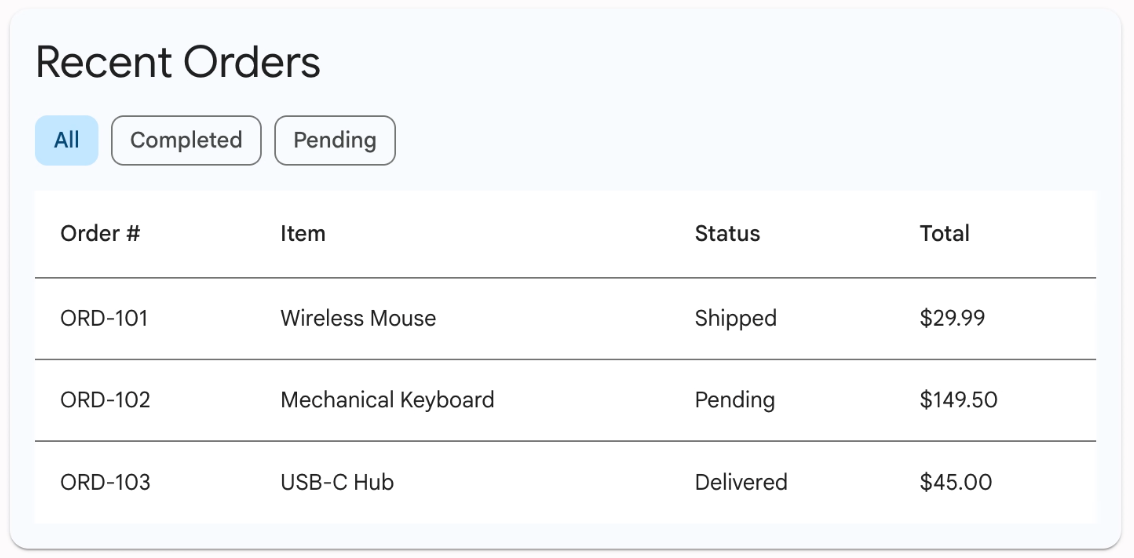
例如,您可以使用 Show me the recent orders table 等提示,获取属于抽样数据的近期订单的相关信息。智能体会从 material_table_orders.json 中检索订单信息,并使用自定义界面组件在聊天中呈现列表,如以下示例所示: