

The integration of Five9 Fusion with Salesforce Voice (formerly Salesforce Service Cloud Voice) enables Salesforce representatives to make and receive calls in Salesforce using the capabilities of the Five9 platform.
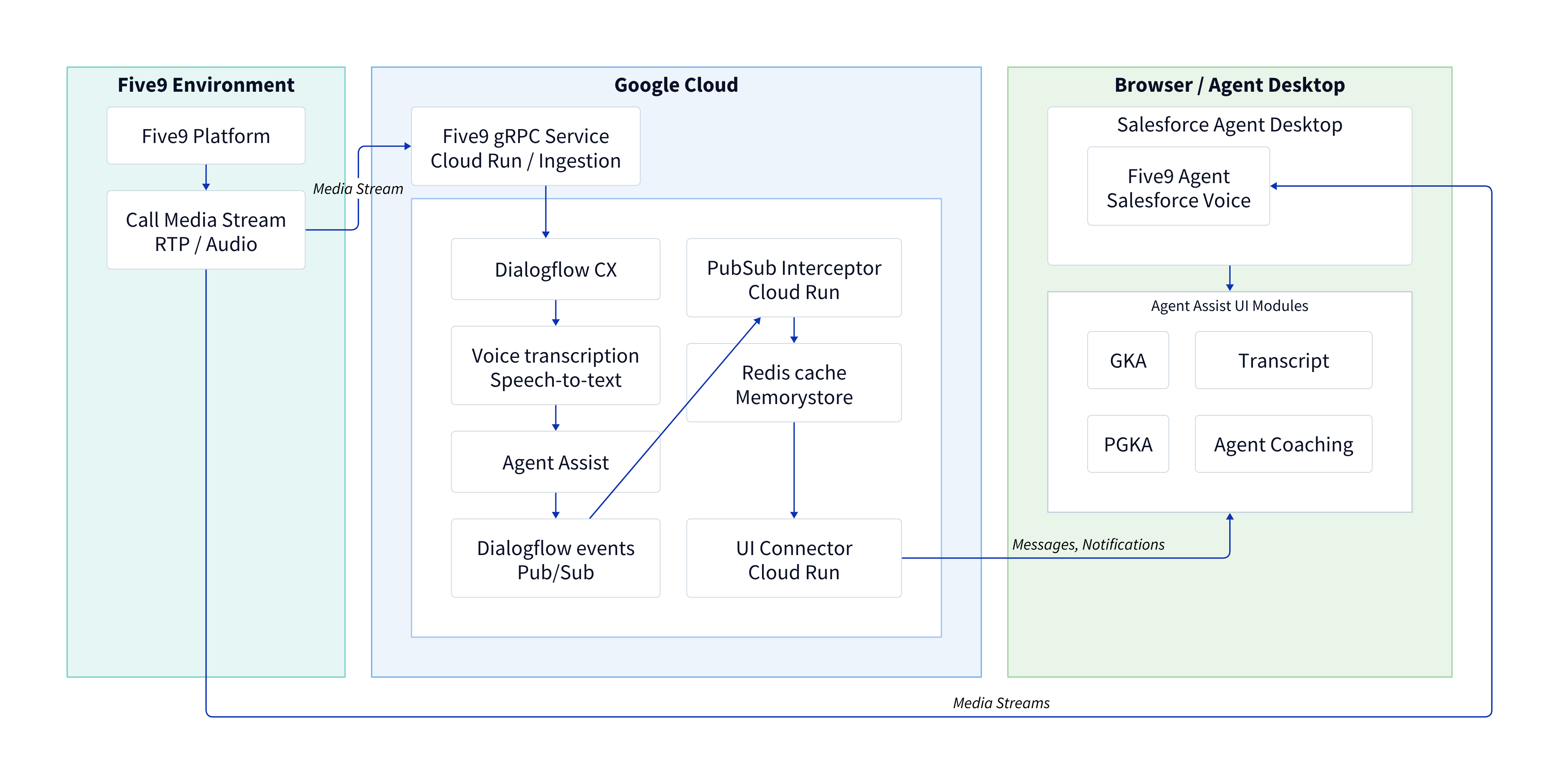
Five9 sends call audio to both Google Cloud and your agent desktop with media streams. The media stream audio goes to the gRPC service in Google Cloud and Salesforce Voice on your agent desktop. Google Cloud processes the call audio with a variety of products, then sends messages and notifications from the Cloud Run UI connector to the Agent Assist UI modules on your agent desktop. Your agent desktop also sends call audio from Salesforce Voice to your Agent Assist UI modules.
Before you begin
Follow these steps to set up the resources needed for your Salesforce Five9 Fusion integration.
- Set up your access to resources.
- Set up your Agent Assist for Salesforce app.
Configure and deploy the following:
- Instance of the Five9 media stream integration services
- Agent Assist integration services
- Salesforce voice license
- Five9 account
Configure Five9
Follow these steps to send call media streams to Five9 integration services, and configure Five9 to pass the call ID to the voice call object in Salesforce.
Media stream
Configure a Five9 media stream to stream audio from a campaign to Agent Assist.
- From the administrator console, search Media Stream.
- Click Media Stream > Create.
Enter the following details:
- Subscription Name: Agent Assist for Salesforce
- Voice Streaming: Voice Streaming
- Streaming Destination: Other (Self Service)
- Streaming Protocol:
gRPC - Primary Streaming Destination:
https://your-five9-grpc-service:443 - Stream Status Event Destination:
https://your-five9-http-service/mediastream-event-destination/ - CTI Call Event Destination:
https://your-five9-http-service/cti-call-event-destination/ - Five9 Trust Token: Generate this token using code from the Five9 integration services repository.
- Audio Streaming -> Enable third-party audio streaming: Checked
- Audio Streaming -> Enable audio streaming for all agents in agent-only conference calls: Checked
- Streaming Filter: Use this to determine which calls are sent to Agent Assist with the media stream.
Click Save.
Five9 generates an API key. Attach this value to the environment variable
FIVE9_API_KEYin your Cloud Run Five9 integration services, then redeploy them.
Call variables
Follow these steps to implement call variables.
- Login to Five9 as an administrator and search Variables, then click the corresponding tile.
- Click Create on the Variable Groups page.
- Name the variable group
f9crm. - Click the
f9crmvariable group in the table. - Click Create Variable in the variable group details panel.
- Name the variable
vcc_call_id, and give it thetextdata type.
Set variable in IVR flow
Follow these steps to set a variable in your interactive voice response (IVR) flow.
- On the Five9 administrator page, click Apps.
- Select VCC Administrator via Web.
- Create or select an IVR flow.
- After the
IncomingCallstep, add a Set variable step. - Click Add in the Set variable details box.
- On the select menu, navigate to the User CAV Variables section > the variable
f9crm.vcc_call_id. - Select Variable radio > the variable
Call.call_id.
Contact center
Follow Five9's instructions to set up a contact center.
Salesforce
Follow these steps to configure your integration from Salesforce.
Create a custom field
The variable created and set in Five9 must match a field of the same name in Salesforce. Follow these steps to create the field in Salesforce
- Navigate to Setup and search Object Manager.
- In Object Manager, search Voice Call and click the corresponding item.
- On the sidebar menu, click Fields & Relationships > New.
Enter the following details:
- Field Label: Five9 Call ID
- Field/API Name:
F9_f9crm_vcc_call_id.
Map the Five9 call ID to an Agent Assist call ID
Follow these steps to map your call ID from Five9 onto an Agent Assist call ID.
- In Setup, click the Quick Find box and search Flows.
- Click Flows > New Flow.
- Select Record-Triggered Flow and click Create.
Create elements
Follow these steps to create elements that guide your flow.
- Click Start for your flow.
In the Object field, select Voice Call (VoiceCall) and enter the following details:
- Trigger the flow when: A record is created or updated.
- Condition requirements: All Conditions Are Met (AND).
- Field: Five9 call ID
- Operator: Null.
- Value:
$GlobalConstant.False. - When to Run the Flow for Updated Records: Only when a record is updated to meet the condition requirements.
- Fast Field Updates: This is a "Before-Save" flow. It is much faster and more efficient because it updates the record before it's saved to the database.
Create a formula
Five9 creates a numeric call ID then adds five9- and pads the call ID. Agent Assist must then transform the Five9 call ID into a conversation ID. Follow these steps to create a formula that maps the Five9 call ID to an Agent Assist conversation ID.
- On the Flow toolbar, click Toggle Toolbox > New Resource.
- For Resource Type, select Formula.
- Name the formula
Five9IDMapper. - In the Data Type field, select Text.
In the Formula field, enter the following:
IF(
  ISBLANK({!$Record.F9_f9crm_vcc_call_id__c}),
  NULL,
 "five9-" &
  IF(
    LEN(TEXT(VALUE({!$Record.F9_f9crm_vcc_call_id__c}))) >= 10,
    TEXT(VALUE({!$Record.F9_f9crm_vcc_call_id__c})),
   LPAD(TEXT(VALUE({!$Record.F9_f9crm_vcc_call_id__c})), 10, "0")
  )
)
Create an assignment
Follow these steps to create an assignment that maps the Five9 call ID to the formula you created.
- On the flow canvas, click the + after the Start element.
Select the Assignment element and enter the following details:
- Label: Copy Five9 call ID to Agent Assist conversation ID.
- Variable: Search
VoiceCall>Conversation IDand hover over the info icon to ensure it'sagent_assist__ConversationId__c. - Operator: Equals.
- Value: Search Five9IDMapper.
Click Save.
Provide a label if requested.
Click Activate.