


您可以使用 Gemini 輔助功能,整合結構化和非結構化資料的技術中繼資料和業務語意。接著,您可以使用產生的脈絡圖表探索資產、驗證資料品質,並以生成式 AI 應用程式為基礎,減少幻覺。
本文適用於資料和脈絡工程師、資料科學家、資料管理員和 AI 開發人員。本文假設您熟悉資料庫和儲存系統 (例如 BigQuery 或 Cloud Storage),並對生成式 AI 概念有基本瞭解,例如檢索增強生成 (RAG) 或 Model Context Protocol (MCP)。
如需 Knowledge Catalog 的詳細逐步操作說明,請觀看下列影片:
解決產業專屬資料的複雜性
在現代企業中,資料複雜且高度分散,並以結構化和非結構化格式存在。業務需求很少會對應到單一資料庫結構定義或文件儲存空間。在安全地整合這些資訊孤島的同時,針對跨領域問題提供即時可靠的答案,是一項重大的營運挑戰。
Knowledge Catalog 可做為語意基礎,彌合這項差距,讓 AI 代理和分析工具擷取有根據的相關背景資訊。
主要使用者角色
脈絡工程師 (資料工程師)。自動彙整資料庫和 Cloud Storage 中的中繼資料、透過歷程追蹤轉換作業,以及建構充實和評估工作流程。
資料監管員 (管理團隊)。透過人工審查 AI 生成的說明、使用詞彙表標準化業務詞彙,以及定義自訂層面,將特定領域的背景資訊附加至目錄項目,藉此監督中繼資料品質。
AI 開發人員。使用 MCP 伺服器或情境擷取 API,以值得信賴的企業資料結構定義 LLM 和 AI 應用程式。
產業應用實例
下表說明實務上會出現的複雜問題、這些問題如何跨越技術界線,以及知識目錄如何協助機構解決這些問題:
| 產業別 | 資料和營運挑戰 | 要解決的業務問題 | Knowledge Catalog 如何解決這個問題 |
|---|---|---|---|
| 電子商務 |
|
「找出退貨率高的電子產品,以及顯示產品在送達時有損壞跡象的消費者相片。」 | 跨資料格式的語意基礎:自動探索交易資料庫中的中繼資料,並連結至 Cloud Storage 儲存空間值區中的非結構化圖片,讓 AI 工具解決不同儲存系統中的查詢。 |
| 製造業 |
|
「生成摘要,列出上季安全檢查未通過的西部地區所有機器檢查報告。」 | 區域和非結構化資料檢索:檢索並編目非結構化 PDF 檢查報告和資產中繼資料,讓生成式 AI 代理依區域尋找、彙整及摘要報告。 |
| 醫療照護業 |
|
「查看最近的實驗室生命徵象和預約頻率時,哪些病患在 30 天內再次住院的風險最高?」 | 資料品質和歷程:計算電子健康記錄動態消息的資料品質剖析和歷程地圖,確保臨床預測模型只採用經過驗證的高品質病患生理指標。 |
| 金融服務 |
|
「前 10 大收益客戶中,有哪些人抱怨『效能問題』?這會如何影響第 3 季的預測?」 | 統一脈絡圖:整合客戶記錄、支援意見回饋和財務表格,讓自然語言查詢將客戶收益統計資料與非結構化意見回饋檔案合併,預測財務影響。 |
為解決這些營運上的挑戰,Knowledge Catalog 提供重要功能,協助資料工程師、資料科學家和 AI 開發人員建構受控資料系統:
使用 Model Context Protocol (MCP) 奠定 AI 代理程式的基礎。使用本機或遠端 MCP 伺服器,直接向 AI 代理公開中繼資料、結構定義、歷程和業務規則。模型會先透過這些伺服器驗證運作預期結果,再建議採取行動。
加快 AI 和數據分析的探索速度。使用自然語言語意搜尋功能,尋找相關資料資產。生成式摘要和建議可協助使用者尋找資料,不必等待手動審查文件。
大規模管理資料產品。將資產集合連同服務水準協議 (SLA)、合約、擁有權詳細資料和使用附註,封裝成單一受管理單元,方便搜尋及訂閱。
Knowledge Catalog 的運作方式
Knowledge Catalog 透過三支柱生命週期,統一管理資料和背景資訊。下圖說明服務如何將實體資料資產對應至業務語意,以做為 AI 代理的基礎:
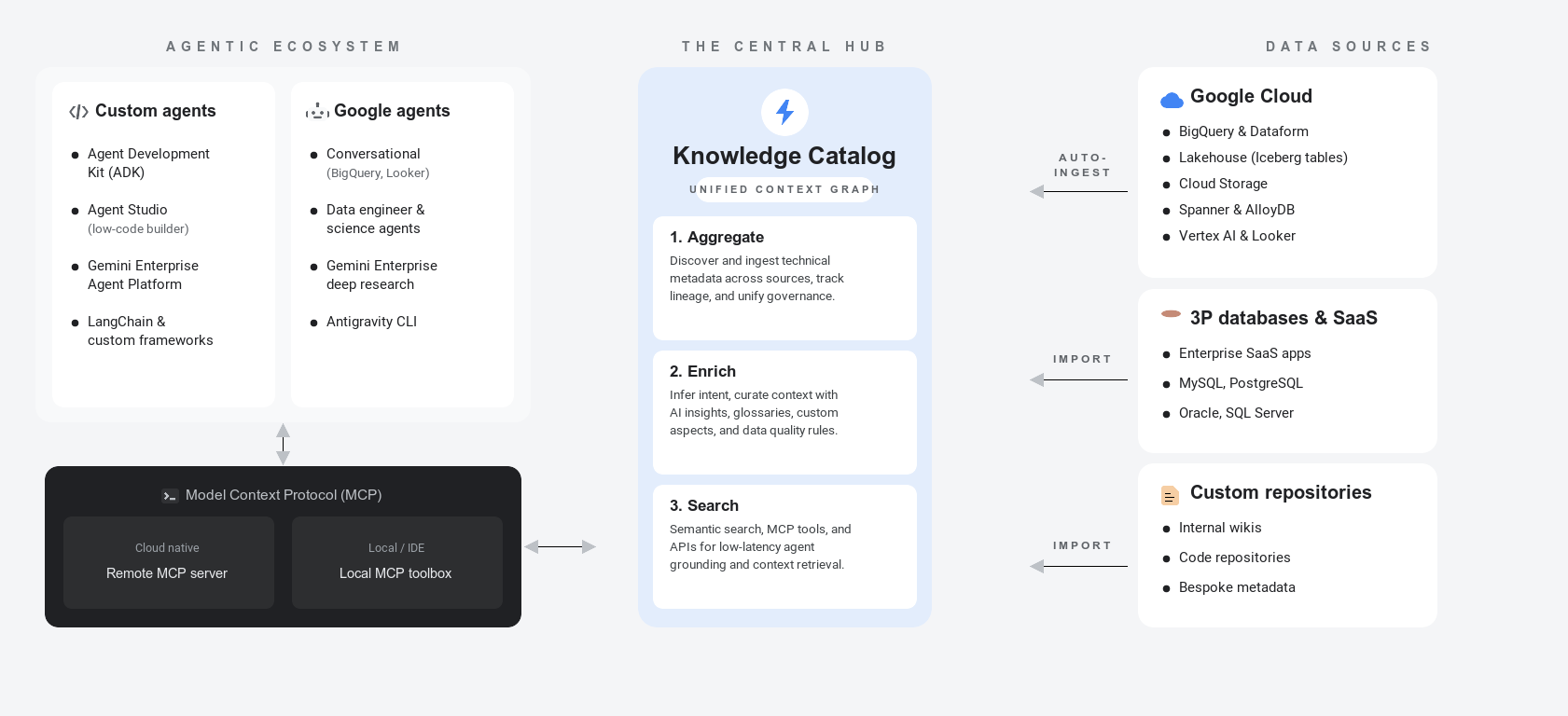
如要進一步瞭解這些中繼資料概念,請參閱「關於中繼資料」。
以下各節說明中繼資料生命週期的三大支柱,並舉例說明零售公司如何將這些支柱套用至資料庫表格、檔案和外部目錄項目:
匯總 (探索及擷取)。 Knowledge Catalog 會自動檢索及建立資料資產的技術中繼資料索引,完全不需移動基礎資料:
- 內建資料庫。自動編目功能會擷取 BigQuery、AlloyDB for PostgreSQL 和 Spanner 等平台中的結構定義和屬性。
- 受管理的連線。從 Oracle 或 PostgreSQL 等外部系統,或 Collibra 等合作夥伴登錄檔擷取定義,不必編寫自訂管道。
- 資料歷程:追蹤整個管道的資料欄層級轉換,瞭解資料來源和變更方式。
- 範例:零售公司自動擷取交易資料庫中繼資料,例如
orders和order_items資料表,並為儲存在 Cloud Storage bucket 中的非結構化產品檔案建立索引。他們會連結外部資料庫,在可探索的目錄下建立統一的中繼資料索引。
豐富度 (策劃情境並驗證信任度)。 Knowledge Catalog 會將業務意義附加至技術結構,並建立信任信號:
- AI 生成的洞察資訊:Gemini 會分析查詢記錄,生成資料欄說明、資料表摘要和建議的聯結。
- 詞彙表和切面。使用業務字詞和邏輯範本,將內部指標名稱對應至共用詞彙。
- 資料品質和異常偵測。強制執行資料清理指南,並執行機器學習掃描,偵測統計離群值或資料新鮮度問題,產生重要信任訊號。
- 治理審查。使用工作流程審查程序,在發布前驗證中繼資料更新,藉此控管風險。
- 範例:零售團隊觸發資料洞察,建議欄說明並執行資料品質規則,藉此擴充資產。他們會建立詞彙表和層面,將業務定義對應至有效訂單。
如要進一步瞭解中繼資料擴充和信任度驗證,請按一下展開
- 設定資料洞察:說明如何自動產生資料集說明和摘要。
- 管理業務詞彙表:說明如何自訂標準字詞和業務詞彙。
- 以層面擴充中繼資料:說明如何將結構化中繼資料屬性附加至邏輯資產。
- 重複使用資料品質規則:說明如何建立及重複使用資料庫驗證規則。
- 資料剖析總覽:說明如何設定掃描,以找出結構定義異常和統計資料漂移。
搜尋和檢索 (存取和基礎)。AI 應用程式和商家使用者會查詢統一的 Context Graph,安全地存取資料:
- 接地代理商。將以 LLM 為基礎的應用程式和代理程式連結至目錄。
- Context API。執行低延遲基礎有效負載要求。
- 語意搜尋:使用自然語言查詢,找出合適的資產。
- 資料封裝。將資料表、授權詳細資料和 SLA 集合成安全無虞的自助式資料包。
- 範例:分析師執行自然語言語意搜尋,找出資產。AI 應用程式會使用 MCP 伺服器或脈絡擷取 API 安全地取用這個索引,而優質資產會封裝成安全檢視畫面。
如要進一步瞭解內容擷取和代理程式基準建立功能,請按一下展開
- Model Context Protocol (MCP) 總覽:說明如何連結生成式 AI 代理和應用程式層,以存取 Knowledge Catalog 內容。
- 使用 LookupContext 擷取內容:說明如何擷取代理提示的重要作業酬載。
- 搜尋資產:說明如何使用自然語言語意查詢語法查詢資產。
Google Cloud 和 AI 生態系統中的 Knowledge Catalog
建立資料基礎時,瞭解 Knowledge Catalog 如何與相關服務整合至關重要。
Google Cloud 資料庫和模型
- BigQuery。Knowledge Catalog 會自動檢索並建立 BigQuery 資料集、資料表和檢視區塊的索引。這項功能會觸發 Gemini 支援的資料洞察功能,分析查詢記錄、發布說明,以及建議經過驗證的查詢範例。
- Looker (Google Cloud Core)。Knowledge Catalog 會擷取 Looker 資訊主頁、Look 和 LookML 結構,例如檢視畫面、探索、維度和測量指標。這項擷取作業會建立沿襲對應,追蹤作業值如何對應至業務語意。
- Lighthouse 執行階段目錄。Knowledge Catalog 會與 Lighthouse 整合,這是開放原始碼 Iceberg 工作負載的執行階段 metastore。除了 Lighthouse 工作負載,還會自動為技術中繼資料建立索引,提供統一的「有效內容」。
AI 代理平台和助理
- 對話式數據分析。分析介面會使用目錄字詞和查詢工具,讓使用者以自然語言查詢業務指標,並驗證基礎資料。
- AI 代理適用的 Gemini。高精確度助理代理程式會使用目錄中繼資料執行資料庫查詢,減少幻覺。
- Gemini Enterprise Agent Platform。 Knowledge Catalog 可做為目標廣告平台環境中的中央資料治理標準。這項服務會與 Gemini Enterprise Agent Platform 交叉連結,將工具和情境提供給該平台的 Agent Registry。
Google Cloud 資料庫和 AI 服務整合
Knowledge Catalog 可與其他Google Cloud 產品搭配使用,奠定資料基礎。下表重點說明 Knowledge Catalog 如何整合及輔助相關服務:
| 服務 | 主要角色 | 如何與 Knowledge Catalog 整合 |
|---|---|---|
| Knowledge Catalog | 管理與代理脈絡 | 做為統一的語意脈絡圖,執行資料品質檢查掃描,並向 AI 模型和應用程式公開基礎結構定義。 |
| BigQuery | 企業資料倉儲 | 儲存、查詢及處理資料集;自動檢索、建立索引,並根據業務分類層面擴充這些資料表。 |
| Gemini Enterprise Agent Platform | AI 模型開發 | 建構、部署及代管基礎模型。自訂代理會擷取中繼資料脈絡,做為邏輯推論的依據。 |
| Cloud Storage | 非結構化檔案儲存空間 | 儲存原始非結構化檔案;自動執行非結構化探索掃描,剖析 PDF 和圖片,建立關係圖。 |
語意和資料格式
如要有效指示及訓練代理式系統,請務必區分實體資料結構和語意:
- 元件資訊。與資料相關的業務意義、意圖和關係。技術架構定義的是結構化儲存空間規格,例如資料庫類型、字元長度或整數限制,而語意則說明資料集實際代表的內容。舉例來說,您可以將名為「
txn_qty」的資料欄對應至「購買數量」的業務定義。 - 結構化資料。以定義的結構定義和關聯格式儲存的資訊。例如 BigQuery 資料表、Spanner 資料庫和作業 Postgres 資料表。Knowledge Catalog 會自動檢索這項中繼資料,並記錄資料欄和限制。
代理式資料雲端脈絡自動化調度管理
在 Google 的代理式資料雲端架構中,Knowledge Catalog 是語意協調層。開發人員不必在提示中手動將資料庫結構定義和規則硬式編碼,脈絡引擎會動態提供代理做出明智決策所需的精確語意脈絡。
下圖說明 Knowledge Catalog 如何協調及提供資料環境:
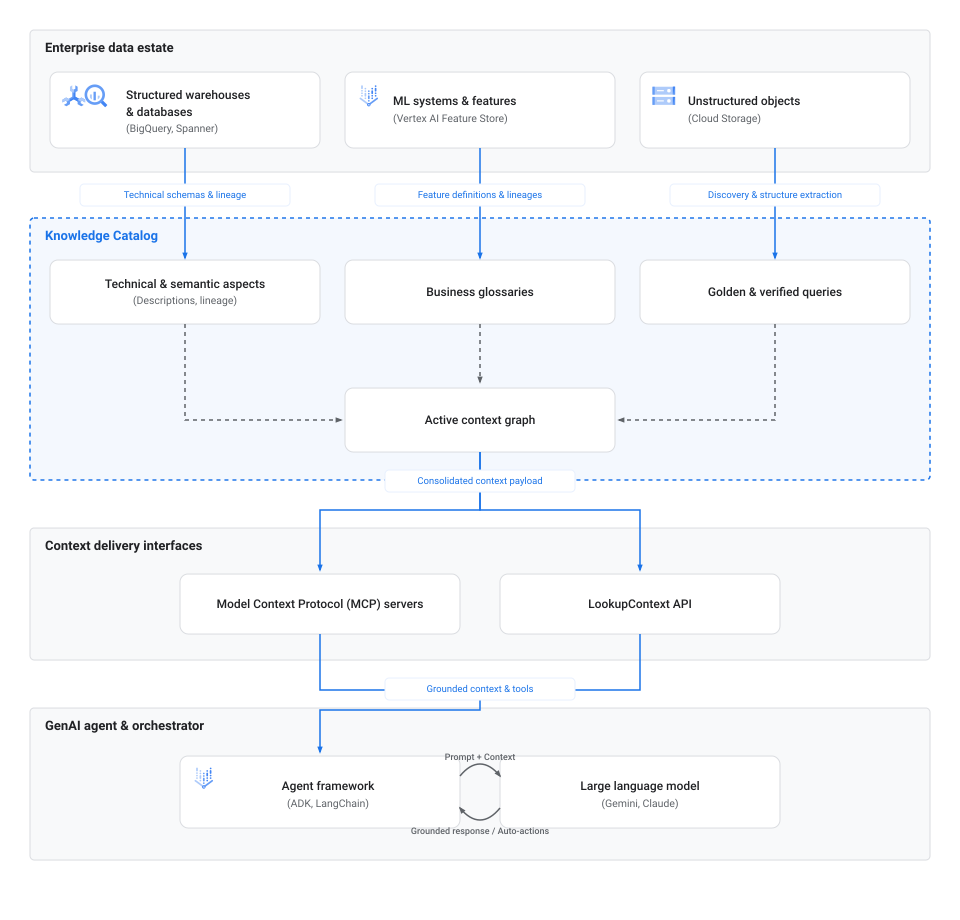
內容協調工作流程包含下列階段:
- 擷取和探索。作業資料庫、Spanner 和 BigQuery 等倉儲、Cloud Storage 等非結構化物件儲存空間,以及 Lighthouse 等執行階段 metastore,都會直接將技術結構定義、沿襲地圖和中繼資料定義提供給 Knowledge Catalog。
- 內容對應。在 Knowledge Catalog 中,這些中繼資料屬性會連結至語意元素,包括技術層面、業務詞彙表和已驗證的查詢,以組裝成作用中的脈絡圖。
- 傳送介面。AI 應用程式和協調器會使用標準連接器 (例如 MCP 或直接
LookupContextAPI 端點),以程式輔助方式擷取這個整合式內容圖表。 - 代理程式依據。自動化調度管理框架 (例如 Agent Development Kit (ADK) 或 LangChain) 會將這類中繼資料脈絡直接插入 LLM 提示。這項注入作業會根據經過驗證的機構規則,為代理的推論過程奠定基準,讓代理查詢資料庫或執行自動化動作時不會產生幻覺。
AI 代理設定檔
您可以根據要自動執行的工作流程,建構由 Knowledge Catalog 支援的不同類別代理:
- 資料探索代理程式。這些助理可協助使用者搜尋及瀏覽資料資產。這類模型不會使用關鍵字比對,而是分析自然語言中的長篇意圖和限制,以擷取最相關的實體資產。
- 中繼資料擴充代理程式。這些背景代理程式會從維基、README 檔案或即時通訊記錄檔擷取非結構化文字,將文字剖析為正式中繼資料,並將中繼資料寫入 Knowledge Catalog 中的切面,確保中繼資料保持最新狀態。
- 資料品質和管道代理程式。這些自主代理程式會評估品質規則、偵測結構定義漂移,並透過查詢資料沿襲和剖析統計資料,建構或修復資料轉換管道。
自動調度管理工具
如要建構及整合這些代理程式,可以使用下列工具:
- Model Context Protocol (MCP)。標準化開放通訊協定,可將代理程式連結至外部資源。您可以透過遠端 MCP 伺服器或本機 MCP 工具箱,設定代理程式連線至目錄。詳情請參閱「About Model Context Protocol (MCP) in Knowledge Catalog」。
- Agent Development Kit (ADK)。Google 提供的架構,可簡化生成式 AI 代理程式的建構、執行和測試作業,並提供 Catalog Service API 的內建繫結。詳情請參閱 ADK 首頁。
- LookupContext API。REST 和 gRPC API 端點,可擷取資料資產的統一 YAML 或 JSON 內容酬載,直接插入 LLM 提示。詳情請參閱「使用 LookupContext API 擷取內容」。
使用 MCP 存取內容
Model Context Protocol (MCP) 是標準化橋樑,可讓 AI 代理程式和工具順暢連結至 Knowledge Catalog 等資料來源。請參閱下表,找出最適合您整合的選項:
| 實作 | 適用情境 | 金鑰詳細資料 | 端點或設定 |
|---|---|---|---|
| 遠端 MCP 伺服器 | 雲端優先部署作業、Cloud Run 等無伺服器環境,以及受管理外部服務。 | 由 Google 代管的端點,不需要管理本機伺服器。 | 端點:https://dataplex.googleapis.com/mcp如要設定,請參閱「使用遠端 MCP 伺服器」。 |
| 本機 MCP 工具箱 | 本機代理程式開發、快速原型設計,以及 VS Code 或 Cursor 等桌面 IDE 整合。 | 指令列工具,可做為工作區環境與 Knowledge Catalog 之間的本機 Proxy。 | 需要安裝二進位檔和 .mcp.json 設定。如要設定,請參閱「使用本機 MCP 伺服器」。 |
代理式資料環境的最佳做法
如要建構可靠的代理服務,請在 Knowledge Catalog 中整理及查詢中繼資料時,留意下列最佳做法:
- 新增切面。AI 代理程式無法單憑名稱區分正式版資料表和臨時沙箱模擬。定義及套用自訂信任信號層面,認證權威資料產品,確保代理程式優先處理或限制對這些資源的查詢。
- 使用內容預算最佳化查詢。呼叫
LookupContextAPI 時,請指定context_budget參數。API 會先在指定權杖限制內,優先顯示最重要的中繼資料,例如歷程和主要說明。 - 提供相關資源,顯示聯結路徑。在情境查詢中,最多可列出 10 個相關表格或資產。提供一組資產可讓情境引擎自動填入聯結路徑和關係,協助代理程式瞭解資料表介面。
- 建構語意詞彙表。在業務詞彙表中,統一字詞和縮寫字詞的用法。這項標準化作業可協助對話式工具準確解決業務專屬的同義字和指標。
- 發布精確查詢。將經過驗證的自然語言查詢及其對應的正確 SQL 程式碼,直接附加至 Knowledge Catalog 項目。以這些經過驗證的範本為基礎進行推論,可避免文字轉 SQL 代理程式發生 SQL 轉換錯誤。
從 Dataplex Universal Catalog 轉移至 Knowledge Catalog
Dataplex Universal Catalog 已演變為 Knowledge Catalog。如要進一步瞭解這項轉移作業,請參閱「從 Dataplex Universal Catalog 轉移至 Knowledge Catalog」。
限制
規劃部署作業時,請注意下列限制:
支援的整合功能。雖然 Knowledge Catalog 支援主要第三方系統,但某些自動語意擷取作業可能僅限於內建 Google Cloud 服務。
配額限制。標準 Google Cloud API 配額適用於內容擷取和中繼資料擷取作業。