

Save a snapshot of your report by downloading it as a PDF. You can then share the file offline using email, print it, archive it on disk, or do anything else you can do with PDF files.
Download a report
To download a report, follow these steps:
- View or edit the report that you want to download.
- Apply any refinements that are available in the report, such as filter controls, date range controls, or data controls.
- In the upper right, click Share, and then click Download
 .
.
- Alternatively, you can select a button to download the report, if available.
- Configure the download options.
- Click DOWNLOAD.
Your PDF file will be saved to your downloads directory.
Download options
For multi-page reports, you can download all pages in the report, or selected pages. If you want to rearrange the pages in the PDF output, drag them into the order you want. (This won't change the page order in the report, just the PDF.)
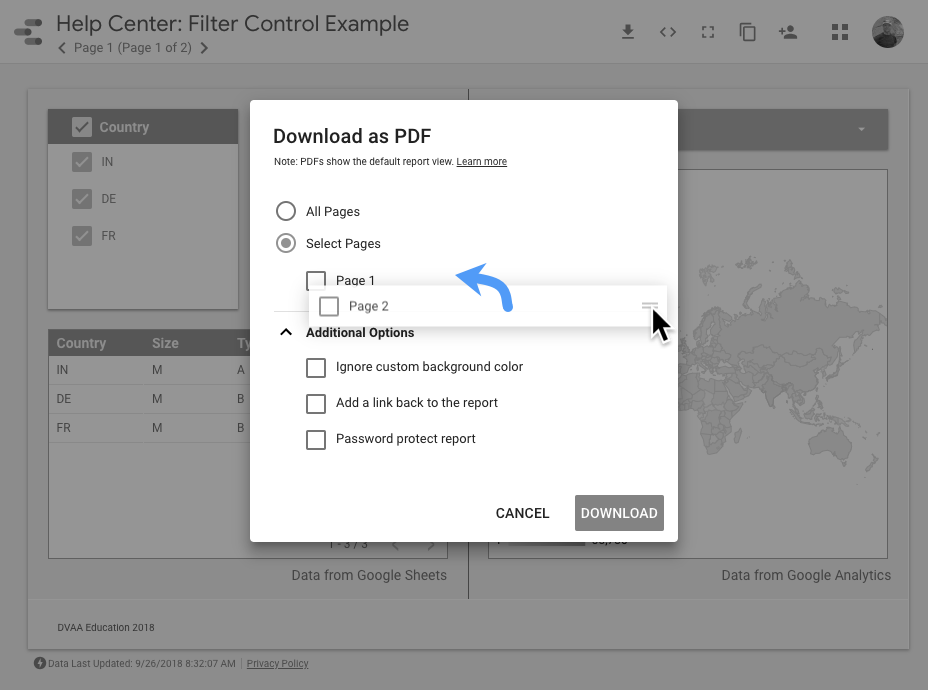
Ignore custom background color
Removes the report's background color. Select this to give your PDF a transparent background.
Add a link back to the report
Adds an "Open in Data Studio" link to the PDF bookmarks section of your PDF viewer, if your PDF viewer supports bookmarks. This lets viewers see your report directly in Data Studio.
Password protect report
Requires anyone viewing the PDF to supply the password that you specify.
Expand tables to show all rows (Pro feature)
If you have Data Studio Pro, for each table visualization with more rows than are visible in the report, you can expand the visualization to display up to 2,000 rows. Charts and other components that are adjacent to or overlapping the expanded visualization will retain their position. Only components that are located below the expanded visualization will be moved to a lower position.
Note the following limitations when you're expanding visualizations:
- You can only expand table visualizations and pivot tables.
- You can only expand visualizations vertically, not horizontally.
- You can't expand report-level components.
- If your component uses a gradient background, borders, or vertical stacking, the PDF may not render correctly.
Add page numbers to the report (Pro feature)
If you have Data Studio Pro, for PDF files with multiple pages, you can display page numbers at the bottom of each page.
Prevent others from downloading your report
You can prevent other people from downloading your report as part of the report's sharing options. Learn more.
Troubleshoot and fix download issues
This section describes the most common reasons that a download can fail, be incomplete, or display errors on downloaded charts:
Timeout issues
Exporting a Data Studio report to PDF requires shared system resources that are subject to timeout limits. When you download complex or multi-page reports, you might experience one or more of the following issues because the downloads exceeds the timeout limit:
- The browser's status bar message may close before the download is completed. Wait a few moments, and then check your downloads folder for the PDF file.
- The PDF may not include all pages. Be sure to check the download before sharing it.
- The PDF may fail to download.
- Individual charts in the PDF may display a "System Error" but look fine in the report. This error can occur when a specific chart takes too long to render, even if the data itself was fetched successfully.
If you consistently see failed or incomplete downloads or "System Error" messages on charts, try these workarounds:
- Download a subset of report pages: Try exporting only the critical pages to reduce the load.
- Split your report into segments: For large reports, try creating two or more smaller reports (for example, splitting a 14-page report into two 7-page reports). This reduces the processing load and helps ensure that all charts render within the time limit.
BigQuery data is protected with VPC Service Controls
With VPC Service Controls, administrators can define a security perimeter around the resources of services that Google manages to control communication to and between those services. If your data source connects to protected tables in BigQuery, the PDF will display an error on any charts that use protected tables.