

When you connect Data Studio to BigQuery, you might encounter timeouts, SQL syntax limits, quota limits, or VPC Service Controls errors. This guide describes common issues across the BigQuery connector. Expand Steps to resolve to investigate and fix your issue.
Query and SQL syntax errors
Custom SQL queries in Data Studio have specific limitations. If your query violates these limits, errors can occur.
Field is ambiguous join error
If your custom query contains duplicate column names, charts display this error:
User Configuration Error: Field is ambiguous
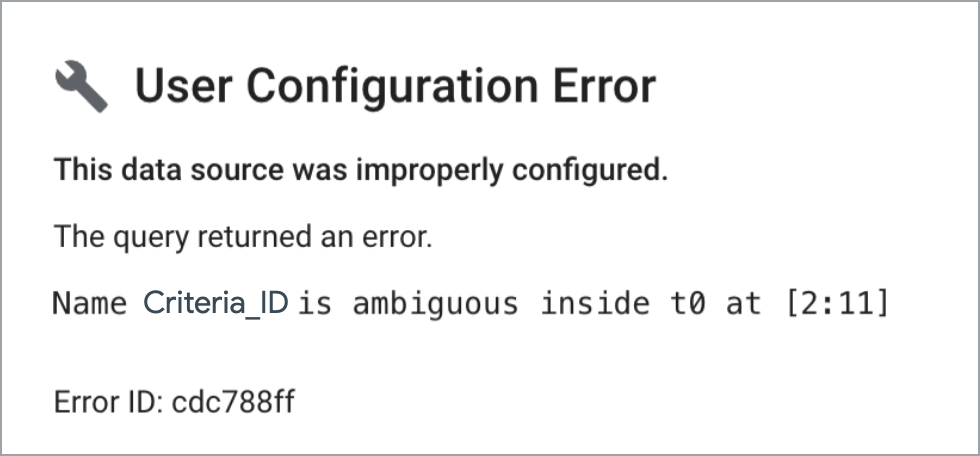
Cause: Joined tables (JOIN) cannot share duplicate column names. For example, if you join two tables with identical schemas on a Criteria_ID field, the resulting virtual table will have duplicated columns (Criteria_ID, Parent_ID, Name), which triggers an ambiguity error.
Steps to resolve
Make all column names unique by using the AS keyword or the EXCEPT clause:
Option 1: Explicitly rename duplicated fields by using aliases
SELECT *
FROM (
  SELECT
    Criteria_ID AS Criteria_ID_1,
    Parent_ID AS Parent_ID_1,
    Name AS NAME_1
  FROM
    `project.dataset.table_1` ) AS table_1
LEFT JOIN (
  SELECT
    Criteria_ID AS Criteria_ID_2,
    Parent_ID AS Parent_ID_2,
    Name AS NAME_2
  FROM
    `project.dataset.table_2` ) AS table_2
ON
  table_1.Criteria_ID_1 = table_2.Criteria_ID_2;
Option 2: Exclude and rename specific fields by using EXCEPT
If you only need to rename a small number of fields while keeping the rest, use EXCEPT:
SELECT * EXCEPT (city), city AS city_1 FROM `project.dataset.table_1`
Custom SQL query syntax error (Multiple statements)
Your custom SQL query fails if it contains variables or multiple statements (DECLARE, SET).
Cause: Data Studio runs your SQL inside an outer SELECT query (SELECT * FROM (<your_custom_sql>)). Therefore, your query must be a single SELECT statement.
For example, the following query fails because it declares a variable before selecting:
DECLARE cost_per_tb_in_dollar FLOAT64 DEFAULT 4.2;
SELECT total_bytes_billed / (1024 * 1024) * cost_per_tb_in_dollar / (1024 * 1024) FROM `billing_table`;
Steps to resolve
Combine calculations into one SELECT statement by using Common Table Expressions (CTEs or WITH clauses):
WITH constants AS (
  SELECT 4.2 AS cost_per_tb_in_dollar
)
SELECT
  total_bytes_billed / (1024 * 1024) * c.cost_per_tb_in_dollar / (1024 * 1024) AS cost
FROM `billing_table`, constants AS c;
Performance and query timeouts
When queries take more than three to five minutes to run, Data Studio times out before receiving results, returning: HTTP 504 Gateway timeout.
HTTP 504 Gateway timeout or long-running query errors
Custom queries or complex chart aggregations in Data Studio might time out after three to five minutes, which returns an HTTP 504 Gateway timeout error.
Steps to resolve
If your queries consistently time out, use these optimizations:
- Enable the BigQuery Storage Read API: Enable BigQuery Storage Read API to increase data throughput.
- Simplify your query: Remove unneeded `JOIN` commands, group data by broader time periods, and select only required columns.
- Use BigQuery BI Engine: Reserve capacity with BigQuery BI Engine for sub-second performance.
- Use database views: Save your custom SQL as a BigQuery view or materialized view, and connect Data Studio directly to that view.
- Pre-aggregate into a reporting table: Use scheduled queries in BigQuery to write summary records into a separate table, and query the summary table.
Quotas and table limitations
When your dataset contains thousands of tables or returns millions of records, limit errors can occur:
Dataset with over 5,000 tables UI responsiveness freeze
When you attempt to connect to a BigQuery dataset by using the table selection list in Data Studio, the user interface freezes or becomes unresponsive.
Cause: The connector supports up to 5,000 tables per dataset. If a dataset exceeds 5,000 tables or views, the table selection list times out and freezes.
Steps to resolve
Use one of these alternatives to connect without loading the table list:
- Connect using a custom query: Select CUSTOM QUERY and write a less complex `SELECT` statement:
SELECT * FROM `your_project.your_dataset.your_table`
- Connect directly from BigQuery: In the BigQuery console, locate your table, click Export or Explore Data, and select Open with Looker Studio.
- Split or reorganize your dataset: Move reporting tables into smaller, dedicated reporting datasets that contain fewer than 5,000 tables.
Maximum 2 million row return limit
When you visualize large datasets, your chart might display a data truncation warning or omit rows that are beyond 2 million records.
Cause: The connector returns a maximum of 2 million rows per chart query. If a query exceeds 2 million records, charts truncate the data and display a warning.
Steps to resolve
To avoid data truncation:
- Apply report-level date filters to narrow query volume.
- Query date-partitioned tables (`DATE`, `DATETIME`, `TIMESTAMP`) that require partition filters (Learn more).
- Group high-cardinality dimensions inside BigQuery before visualizing in Data Studio.
MEDIAN and PERCENTILE variance
When you calculate exact medians (MEDIAN) or percentiles (PERCENTILE) in charts that are connected to BigQuery, the output might differ slightly from identical calculations that are performed on other SQL databases or CSV exports.
Cause: In BigQuery queries, MEDIAN and PERCENTILE use the APPROX_QUANTILES approximate aggregation function. This processes petabyte-scale datasets quickly, but approximate results can differ slightly from exact calculations performed on CSV exports or other SQL databases.
Data type and encryption errors
Learn how to handle unsupported column types and organization-enforced key encryption policies.
CONDITION_NOT_MET encryption error (CMEK)
When you query a dataset, the chart fails and returns the following error:
User Configuration Error: CONDITION_NOT_MET
Cause: The connector does not support Customer-Managed Encryption Keys (CMEK). If an organization policy requires CMEK encryption for queries or temporary storage (Organization Policy Service), charts display User Configuration Error: CONDITION_NOT_MET.
Steps to resolve
Work with your organization administrator to exempt the reporting project from the CMEK policy, or export reporting data into a dataset governed by standard Google-owned and Google-managed encryption keys.
TIME data type unsupported
When you connect to a BigQuery table that contains columns of the TIME data type (e.g., 23:59:59), Data Studio converts the field to TEXT, which prevents time-based sorting or aggregations.
Cause: Data Studio does not natively support BigQuery's TIME data type (for example, 23:59:59). The connector converts TIME columns into TEXT strings upon ingestion, preventing time-based sorting.
Steps to resolve
Convert `TIME` columns into DATETIME objects by using one of these workarounds:
Workaround 1: Use a custom SQL query
Combine the `TIME` field with a base date (`1970-01-01`) directly in your SQL:
SELECT
  *,
  -- Combine a dummy date (1970-01-01) with your TIME field
  DATETIME(DATE "1970-01-01", your_time_field) AS time_as_datetime
FROM
  `your_project.your_dataset.your_table`
- Result: Data Studio ingests `time_as_datetime` as a **Date & Time** field.
- Formatting: In your report chart properties, change the field's **Display Format** to **Hour**, **Minute**, or a custom time format (`h:mm:ss`) so that you display only the time portion (Learn more).
Workaround 2: Create a calculated field in Data Studio
If you don't modify the SQL query, create a calculated field inside your data source:
PARSE_DATETIME("%H:%M:%S", CAST(your_time_field AS TEXT))
- Result: The `PARSE_DATETIME` function parses the text string into a **Date & Time** object, defaulting the calendar date to January 1, 1970 (Learn more).
VPC Service Controls errors
Troubleshoot access denied errors and background process restrictions when you work within service perimeters.
Service Control Failure when viewing reports off-VPN
When you view a report outside of your organization's VPN or corporate network, some or all charts fail with the following error:
Service Control Failure
Cause: The connector passes the report viewer's IP address to BigQuery to verify VPC Service Controls IP-based access levels. When you copy a report, legacy or "ghost" custom SQL data sources inside the copy might reference a billing project protected inside a service perimeter, even if your primary dataset resides outside.
Steps to resolve
Identify and remove or re-assign any hidden perimeter-bound billing projects in your report:
- Make a copy of the affected report to troubleshoot safely.
- In the report editor of the copy, navigate to Resource > Manage added data sources.
- Review every embedded **BigQuery** or **Custom SQL** data source attached to the report.
- Edit each custom SQL connection to verify its configured **Billing Project**. If any data source points to a billing project that is protected by a VPC Service Controls perimeter, update it to use an unshielded billing project or delete the data source if it is no longer used.
Scheduled email delivery or chart alert failures behind VPC Service Controls
When automated background features (such as scheduled email delivery or chart alerts) execute on a chart that is connected to a VPC Service Controls protected BigQuery dataset, the scheduled email is delivered without report content or attachments, or the alert fails to fire (VPC Service Controls unexpected field in error map).
Cause: Because automated background features (such as scheduled email delivery or chart alerts) run as background tasks without an end-user IP address, VPC Service Controls (VPC-SC) blocks them when evaluating IP-based access levels (VPC Service Controls unexpected field in error map).
Steps to resolve
To use automated background features behind a VPC Service Controls perimeter, configure your data source to use service account credentials or create an identity-based access level:
- See Set up a Google Cloud service account for Data Studio to configure dedicated non-human authentication.
- See Limits of VPC Service Controls for precise access level requirements.
Related resources
- Connect to Google BigQuery
- Set up a Google Cloud service account for Data Studio
- Data Studio general troubleshooting guide