


總覽
Chrome Enterprise 進階版是Google Cloud的零信任解決方案,可讓機構員工隨時隨地安全地存取網頁應用程式,無需 VPN,並有助於防範惡意軟體、網路釣魚和資料遺失。
Chrome Enterprise 進階版 結合 Google Chrome 的強大功能,讓使用者能從任何裝置存取應用程式。Chrome Enterprise 進階版正在擴充功能,以解決開發環境中的一些重要安全性挑戰。Chrome Enterprise 進階版可對 Google Cloud 控制台和 API 實施情境感知存取控管,進一步保護 Cloud Workstations API。
下表列出 Chrome Enterprise 進階版是否支援指定 Cloud Workstations 存取方法的情境感知存取權。
- 勾號表示 Chrome Enterprise 進階版限制這個 Cloud Workstations 存取方法。
- 「不支援」圖示 表示 Chrome Enterprise 進階版不會限制這個 Cloud Workstations 存取方法。
目標
本文說明系統管理員如何設定 Cloud Workstations API 的 Chrome Enterprise 進階版存取控管機制,並提供其他機制,防止原始碼從瀏覽器型 Cloud Workstations IDE 外洩。
費用
在本教學課程中,您可能需要其他團隊 (帳單或 IAM) 參與,並測試存取控管機制,證明 Chrome Enterprise 進階版 防護措施已就緒。在本文件中,您會使用下列 Google Cloud計費元件:
您可以使用 Pricing Calculator,根據預測用量估算費用。
完成本文所述工作後,您可以刪除建立的資源,避免繼續計費,詳情請參閱「清除所用資源」。
事前準備
- 登入 Google Cloud 帳戶。如果您未曾使用過 Google Cloud,歡迎 建立帳戶,親自體驗實際使用我們產品的成效。新客戶還能獲得價值 $300 美元的免費抵免額,用於執行、測試及部署工作負載。
-
In the Google Cloud console, on the project selector page, select or create a Google Cloud project.
Roles required to select or create a project
- Select a project: Selecting a project doesn't require a specific IAM role—you can select any project that you've been granted a role on.
-
Create a project: To create a project, you need the Project Creator role
(
roles/resourcemanager.projectCreator), which contains theresourcemanager.projects.createpermission. Learn how to grant roles.
-
Verify that billing is enabled for your Google Cloud project.
Enable the Workstations API, if it is not already enabled.
Roles required to enable APIs
To enable APIs, you need the
serviceusage.services.enablepermission. If you created the project, then you likely already have this permission through the Owner role (roles/owner). Otherwise, you can get this permission through the Service Usage Admin role (roles/serviceusage.serviceUsageAdmin). Learn how to grant roles.-
Make sure that you have the following role or roles on the project: Cloud Workstations > Cloud Workstations Admin.
Check for the roles
-
In the Google Cloud console, go to the IAM page.
Go to IAM - Select the project.
-
In the Principal column, find all rows that identify you or a group that you're included in. To learn which groups you're included in, contact your administrator.
- For all rows that specify or include you, check the Role column to see whether the list of roles includes the required roles.
Grant the roles
-
In the Google Cloud console, go to the IAM page.
Go to IAM - Select the project.
- Click Grant access.
-
In the New principals field, enter your user identifier. This is typically the email address for a Google Account.
- Click Select a role, then search for the role.
- To grant additional roles, click Add another role and add each additional role.
- Click Save.
-
-
In the Google Cloud console, on the project selector page, select or create a Google Cloud project.
Roles required to select or create a project
- Select a project: Selecting a project doesn't require a specific IAM role—you can select any project that you've been granted a role on.
-
Create a project: To create a project, you need the Project Creator role
(
roles/resourcemanager.projectCreator), which contains theresourcemanager.projects.createpermission. Learn how to grant roles.
-
Verify that billing is enabled for your Google Cloud project.
Enable the Workstations API, if it is not already enabled.
Roles required to enable APIs
To enable APIs, you need the
serviceusage.services.enablepermission. If you created the project, then you likely already have this permission through the Owner role (roles/owner). Otherwise, you can get this permission through the Service Usage Admin role (roles/serviceusage.serviceUsageAdmin). Learn how to grant roles.-
Make sure that you have the following role or roles on the project: Cloud Workstations > Cloud Workstations Admin.
Check for the roles
-
In the Google Cloud console, go to the IAM page.
Go to IAM - Select the project.
-
In the Principal column, find all rows that identify you or a group that you're included in. To learn which groups you're included in, contact your administrator.
- For all rows that specify or include you, check the Role column to see whether the list of roles includes the required roles.
Grant the roles
-
In the Google Cloud console, go to the IAM page.
Go to IAM - Select the project.
- Click Grant access.
-
In the New principals field, enter your user identifier. This is typically the email address for a Google Account.
- Click Select a role, then search for the role.
- To grant additional roles, click Add another role and add each additional role.
- Click Save.
-
-
請確認您已為每位使用者指派 Chrome Enterprise 進階版 Standard 授權。只有具備授權的使用者會受到存取控管。詳情請參閱「指派、移除及重新指派授權」。
第 1 部分:設定 Cloud Workstations 的 Chrome Enterprise 進階版
本節將逐步說明如何保護 Cloud Workstations API 的情境感知存取權:
- 設定 Cloud Workstations。
- 建立試用使用者和試用群組。
- 在 Access Context Manager 中建立存取層級。
- 啟用 Chrome Enterprise 進階版 CAA。
- 新增必要的 Google 群組和存取層級。
- 測試開發人員對 Cloud Workstations 的存取權。
設定 Cloud Workstations
如要與 Chrome Enterprise 進階版整合,Cloud Workstations 叢集必須使用 Identity-Aware Proxy (IAP)。如果您已設定這些資源,請略過這個部分。
如要設定 Cloud Workstations,請按照下列步驟操作:
- 建立具有自訂網域的工作站叢集。
- 啟用 IAP。
- 在叢集中建立工作站設定。
如果您是第一次使用 Cloud Workstations,請參閱總覽和架構。
建立示範使用者和示範群組
在 Google Workspace 管理控制台中,建立試用使用者和新的使用者群組。啟用後,Google Cloud 控制台的情境感知存取權 (CAA) 會套用至所有使用者和 Google 群組,因為這是全域設定。
使用 管理員帳戶 登入 Google Workspace 管理控制台,然後依序點選「選單」>「目錄」> 「使用者」>「新增使用者」。
建立試用使用者:
demo-user@<domain>。登入 Google Cloud 控制台,然後依序前往 「Menu」(選單) >「IAM & Admin」(IAM 與管理) > 「Groups」(群組)。
建立 Cloud Workstations 存取權的 IAM 群組,命名為
Cloud Workstations Users,並指派先前建立的示範使用者demo-user@<domain>。按一下 [儲存]。
另外,請建立 IAM 管理員群組,並命名為 Cloud Admin Users。將專案和組織管理員指派給這個群組。
將試用者
demo-user@<domain>新增至您建立的 Cloud Workstations 使用者群組:- 在 Google Cloud 控制台中,依序前往 「Cloud Workstations」>「Workstations」。
- 選取工作站,然後依序點選「more_vert」 more_vert「更多」>「新增使用者」。
- 選取試用使用者
demo-user@<domain>,然後選取「Cloud Workstations User」做為「Role」(角色)。 - 如要將工作站存取權授予示範使用者,請選取「
demo-user@<domain>」,然後在「 角色」部分選取「Cloud Workstations Users」,再點選「儲存」。
建立存取層級
返回 Google Cloud 控制台,在 Access Context Manager 中建立存取層級。
請按照下列操作說明測試存取權:
在Google Cloud 控制台中,依序前往 「Security」(安全性)> 「Access Context Manager」 ,設定公司管理裝置政策。
按一下「建立存取層級」,然後填寫下列欄位:
- 在「Access level title」(存取層級標題) 欄位中輸入
corpManagedDevice。 - 選取「基本」模式。
- 在「條件」下方,選取「True」啟用條件。
- 按一下「+ Device policy」(新增裝置政策) 展開選項,然後勾選「Require corp owned device」(必須使用公司擁有的裝置)。
- 按一下「Save」(儲存),儲存存取權政策。
- 在「Access level title」(存取層級標題) 欄位中輸入
為 Google Cloud 控制台啟用 Chrome Enterprise 進階版 CAA
如要為工作站指派情境感知存取控管 (CAA),請先為 Google Cloud 控制台啟用 CAA:
在Google Cloud 控制台中,依序前往「Security」(安全性)>「BeyondCorp Enterprise」。
按一下「Manage access to console and API」(管理 Google Cloud 控制台和 API 的存取權)。 系統會將您導向 Chrome Enterprise 進階版的「Organization level」(組織層級) 頁面。
在「Secure Google Cloud console & APIs」部分,按一下「啟用」。
新增必要的 Google 群組並設定存取層級
新增必要的管理員群組,並加入相關成員和正確的存取權政策。
控制台
建立名為 CloudAdminAccess 的管理員存取權政策,並將位置設為管理員工作的區域。這樣一來,即使其他政策封鎖管理員,管理員仍可存取資源。
依序前往 「IAM & Admin」(IAM 與管理) >「Groups」(群組) ,建立具備管理員存取權的 IAM 群組。
- 選取所需組織。
- 建立群組,並命名為「Cloud Admin Users」。
- 將您自己和其他管理員指派到這個群組。
- 按一下 [儲存]。
依序前往「Security」(安全性) >「Chrome Enterprise Premium」。 按一下「Manage access」(管理存取權),查看顯示的群組和存取層級清單。
按一下「Add principals to Google Cloud console & APIs」(將主體新增至 控制台和 API)。
- 在「Google Groups」部分,選取「Cloud Admin Users」。這是您在上一個步驟中選取的 Google 群組。
- 選取您為管理員存取權建立的存取層級「CloudAdminAccess」CloudAdminAccess。
- 按一下 [儲存]。
gcloud 和 API
如要啟用模擬測試,請按照 Chrome Enterprise 進階版模擬測試教學課程中的步驟操作。
將存取層級指派給 Cloud Workstations 使用者群組
如要將存取層級指派給 Cloud Workstations 使用者群組,請按照下列步驟操作:
依序前往「Security」(安全性)>「Chrome Enterprise Premium」,然後按一下 「Manage access」(管理存取權)。
查看畫面上顯示的群組和存取層級清單。
按一下「Add principals to Google Cloud console & APIs」(將主體新增至 控制台和 API)。
- 在「Google 網路論壇」部分,選取「Cloud Workstations Users」。這是您在上一個步驟中選取的 Google 群組。
- 選取您先前建立的存取層級
corpManagedDevice。 - 按一下 [儲存]。
測試開發人員對 Cloud Workstations 的存取權
從多個進入點測試開發人員對 Cloud Workstations API 的存取權。如果是公司擁有的裝置,請確保開發人員可以存取工作站 API。
測試從未受管理的裝置存取工作站 API 是否會遭到封鎖:
Chrome Enterprise 進階版會封鎖嘗試存取 Cloud Workstations API 的使用者。使用者嘗試登入時,系統會顯示錯誤訊息,告知他們沒有存取權,或應檢查網路連線和瀏覽器設定。
測試是否能從公司擁有的裝置存取工作站 API:
具備 Chrome Enterprise 進階版和 Cloud Workstations 存取權的開發人員,應能建立工作站並啟動工作站。
第 2 部分:設定 Chrome Enterprise 進階版 資料遺失防護功能
本節說明如何運用 BeyondCorp Threat and Data Protection 整合資料遺失防護 (DLP) 功能。這有助於防止原始碼從 Chrome 基礎的 Cloud Workstations 基礎編輯器 (Code OSS for Cloud Workstations) 竊取。
請按照下列步驟設定 Chrome Enterprise 進階版的資料遺失防護功能,防止下載原始碼:
啟用威脅與資料保護
如要透過 Google Workspace 管理控制台啟用威脅和資料保護功能,請按照下列步驟操作:
依序前往「裝置」>「Chrome」> 「設定」>「使用者和瀏覽器」。
選取組織單位 ID (OU ID) 後,按一下「User and Browser Settings」(使用者和瀏覽器設定) 下方的「Search or add a filter」(搜尋或新增篩選器),然後選取「Category」(類別) 子類型。
在「類別」子類型中搜尋「Chrome Enterprise 連接器」。
在「下載內容分析」中,選取「Google BeyondCorp Enterprise」。
展開「其他設定」。
- 選取「待分析完成後才能存取檔案」。
- 在「機密資料檢查」>「模式」部分,選取 「預設為開啟 (下列網址模式除外)」。
按一下「儲存」,儲存設定。
建立 Chrome Enterprise 進階版資料遺失防護規則
如要建立資料遺失防護規則,請按照下列步驟操作:
前往 Google Workspace 管理控制台,依序選取 「安全性」>「存取權與資料控管」> 「資料保護」>「管理規則」。
如要建立新規則,請依序點選「新增規則」和「建立新規則」。 「Name and scope」(名稱和範圍) 頁面隨即開啟。
在「名稱」部分輸入名稱和說明。例如,在「Name」(名稱) 欄位中輸入
CloudWorkstations-DLP-Rule1,在「Description」(說明) 欄位中輸入Cloud Workstations Data Loss Prevention Rule 1。在「Scope」(範圍) 部分,設定下列項目:
- 選取「組織單位和/或群組」。
- 按一下「包含組織單位」,然後選取「組織」。
- 按一下「繼續」。
在「應用程式」部分,設定下列項目:
- 在「Chrome」選項中,選取「已上傳檔案」和「已下載檔案」。
- 按一下「繼續」。
在「條件」頁面中,進行下列設定:
- 按一下「新增條件」,建立新條件。
- 選取「所有內容」。
- 選取「與預先定義的資料類型相符 (建議)」。
- 在「選取資料類型」部分,選取「文件 - 原始碼檔案」。
- 在「可能性門檻」欄位中,選取「高」。
- 在「不重複相符項目數下限」欄位中,輸入 1。
- 在「相符項目數下限」欄位中輸入 1。
- 按一下「繼續」。
在「Actions」(動作) 頁面中,設定下列項目:
- 在「動作」選項中,依序選取 「Chrome」>「封鎖內容」。
- 在「Alerting」(警告) 選項中,設定下列項目:
- 在「嚴重性」部分,選取「中」。
- 選取「傳送到快訊中心」。
- 按一下「繼續」。
檢查設定並建立規則
在「Review」(檢閱) 頁面中,檢查您在先前頁面中設定的項目:
- 確認設定正確無誤。
- 如要繼續,請按一下「Create」(建立)。
- 在下一頁,確認已選取「啟用」。
- 按一下「完成」,即可完成規則建立程序。
測試資料遺失防護規則
資料遺失防護規則新增完畢後,您可以在 Chrome 中透過 Cloud Workstations 進行測試:
在新的 Chrome 分頁中輸入
chrome://policy,然後按一下「Reload policies」(重新載入政策),確認 Chrome 政策已更新。向下捲動,確認畫面上顯示政策清單。如果看到這些,表示政策已成功提取。在本例中,請尋找 OnFileDownloadEnterpriseConnector 政策。
前往 Google Cloud 控制台,建立 Cloud Workstations 設定。
建立工作站設定時,請務必選取「Code editors on base images」(基本映像檔上的程式碼編輯器),然後選取「Base Editor (Code OSS for Cloud Workstations)」(基本編輯器 (Code OSS for Cloud Workstations)) 預先設定的基本映像檔。
啟動工作站並連線至通訊埠 80 後,存取顯示的 Code OSS for Cloud Workstations 網址。
在 IDE 中使用「Clone Git Repository」(複製 Git 存放區) 選項複製存放區。複製存放區後,請嘗試下載含有原始碼的檔案。
如要在 Code OSS for Cloud Workstations 檔案總管檢視畫面中下載檔案,請使用下列任一方法:
從「Explorer」檢視畫面拖曳檔案。
前往要使用的檔案和目錄,按一下滑鼠右鍵,然後選擇「Download」(下載)。
下載後,資料遺失防護政策就會生效。您會看到下載遭封鎖的通知,指出不符合貴機構的政策規定:
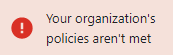
恭喜!您已成功防止原始碼檔案遭到下載。
清除所用資源
如要避免系統向您的 Google Cloud 帳戶收取本教學課程所用資源的費用,請刪除含有相關資源的專案,或者保留專案但刪除個別資源。詳情請參閱「刪除資源」。
後續步驟
- 如要進一步瞭解 Chrome Enterprise 進階版,請參閱「Chrome Enterprise 進階版總覽」。
- 請參閱套用 Chrome Enterprise 進階版 至您的 Google Cloud 和地端部署資源的大致步驟。