

Gemini CLI is an open source AI agent that brings Gemini to your terminal. All Cloud Workstations workstation images include Gemini CLI and the Cloud Workstations base editor includes the Gemini CLI Companion extension.
With access to your workspace, Gemini CLI provides features like in-editor diffs for code suggestions.
Before you begin
Before you use Gemini CLI, ensure you have the following:
- A workstation configuration, created by you or a team member.
- A running workstation. For instructions, see Create and launch your workstation.
Start AI agent-assisted coding
To begin using Gemini CLI for AI agent-assisted coding, follow these steps:
- In your workstation's base editor, open a folder or
workspace using one of the following methods:
- Click Open Folder from the explorer view.
- Select Menu > File > Open Folder.
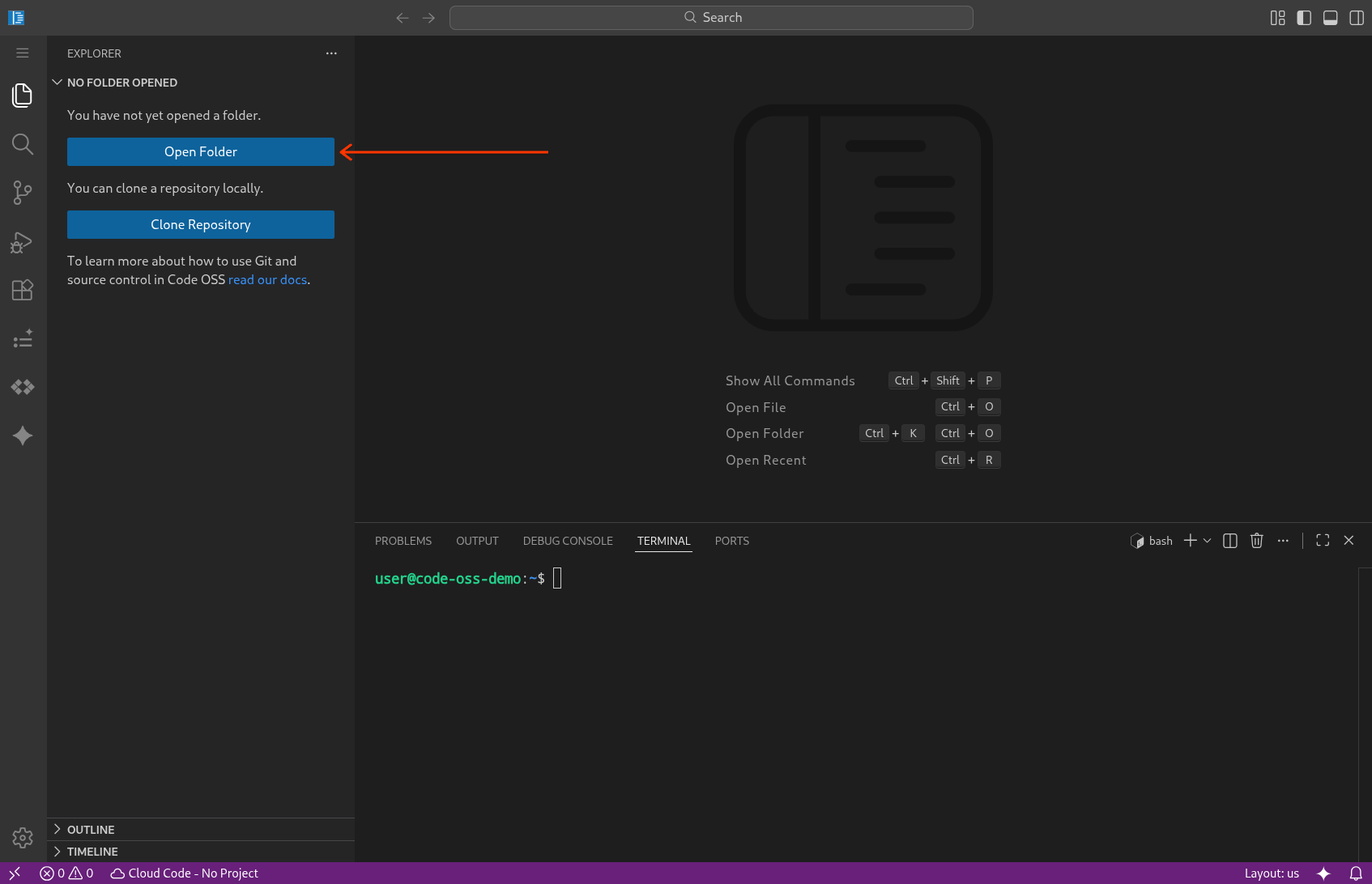
Open an integrated terminal. Use one of the following methods:
- Press Control+
</kbd> (or <kbd>Command+on macOS). - Select Terminal > New Terminal.
- Press Control+
In the terminal, run the following command to start Gemini CLI:
geminiThe first time you run Gemini CLI, follow the prompts to sign in with your Google Account.
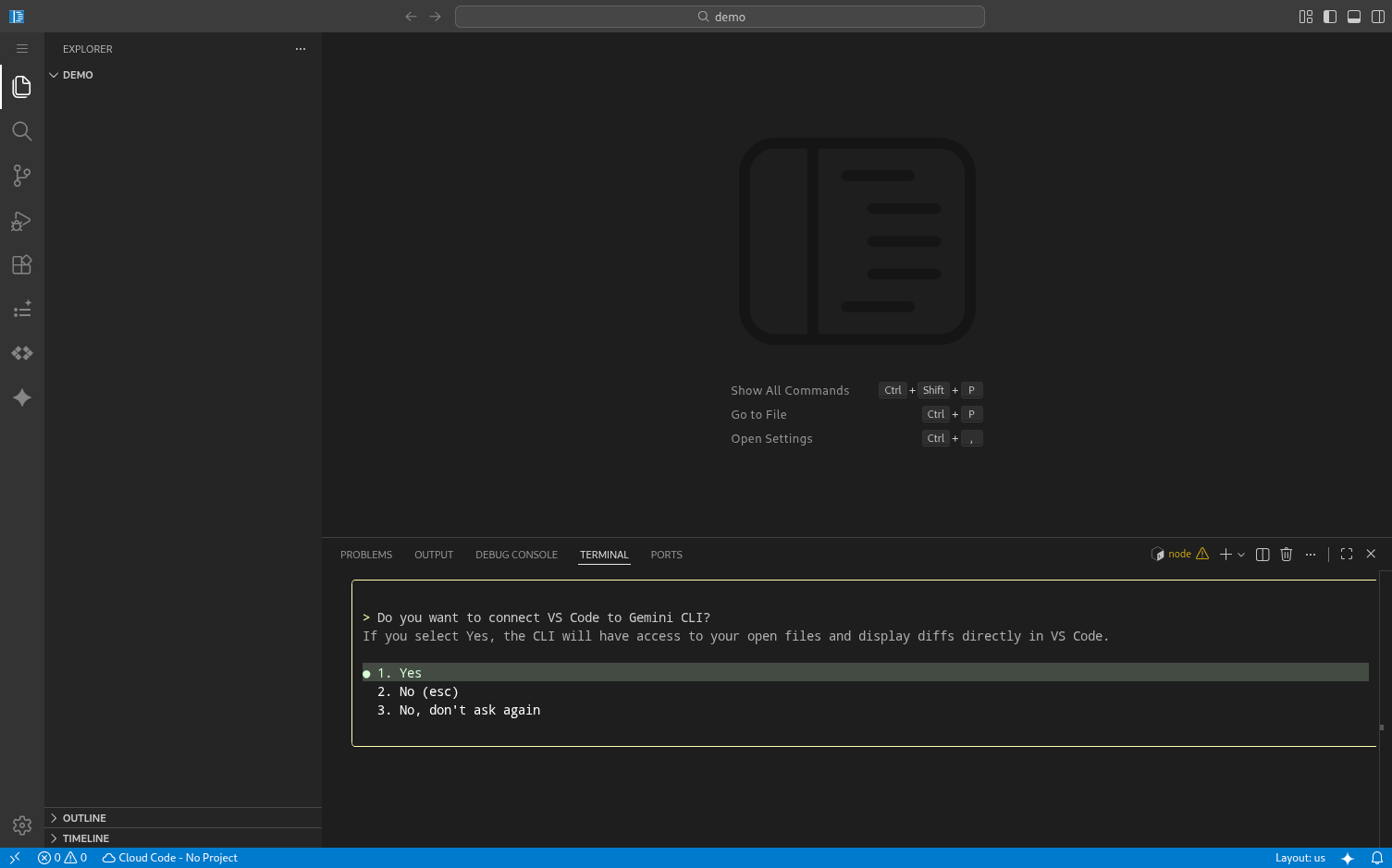
If prompted to connect to the Gemini CLI Companion extension, respond with
yes. This enables the connection between the CLI and your editor workspace.
Use Gemini CLI
Once started, you can interact with Gemini CLI using natural language. For example:
Explain the architecture of this codebaseWrite a unit test for the function in main.pyRefactor the current file to use async/await
Work with diffs
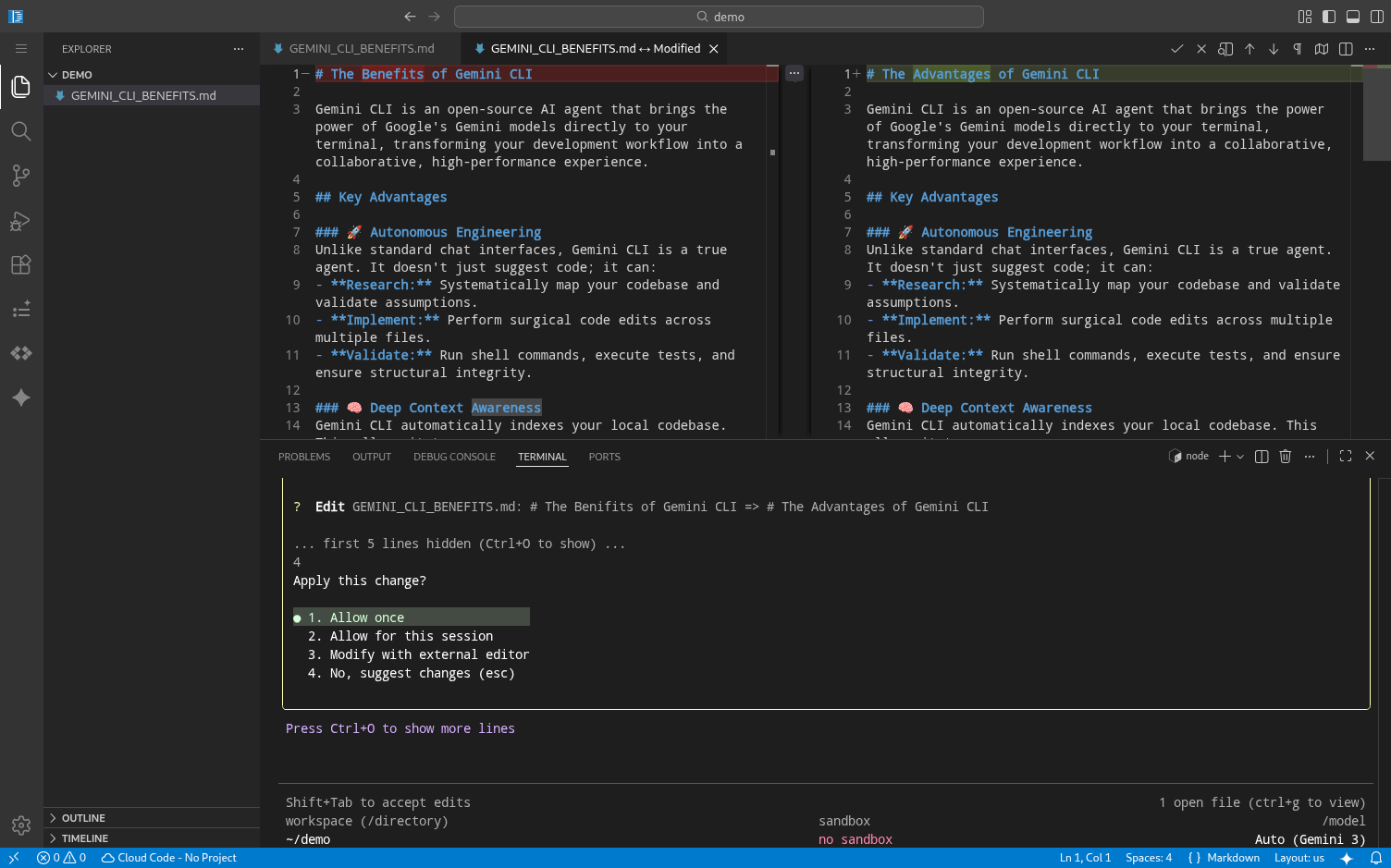
When Gemini CLI suggests code modifications, it can open a diff view directly within your editor. This lets you review the changes before accepting them.
To accept a suggested change:
- Click the icon in the diff editor's title bar.
- Open the Command Palette (Cmd+Shift+P or Ctrl+Shift+P) and run Gemini CLI: Accept Diff.
- Respond with
yesin the terminal when prompted.
To reject a change:
- Click the icon in the diff editor's title bar.
- Close the diff editor tab.
- Respond with
noin the terminal when prompted.
Troubleshooting
If you encounter issues with the IDE integration, you can check the connection status by running the following command inside Gemini CLI:
/ide status
What's next
- Learn more about using the Gemini CLI on Google Cloud.
- Explore the IDE integration documentation.