


이 페이지에서는 이미지에 객체를 삽입하는 방법(인페인팅이라고도 함)을 설명합니다. Vertex AI 기반 Imagen을 사용하면 마스크 영역을 지정하여 이미지에 객체를 삽입할 수 있습니다. 자체 마스크를 가져오거나 Imagen을 사용하여 마스크를 생성할 수 있습니다.
다음 모델은 이미지에 객체 삽입을 지원합니다.
콘텐츠 삽입 예시
인페인팅을 사용하면 기본 이미지, 이미지 마스크, 텍스트 프롬프트를 사용하여 콘텐츠를 기존 이미지에 추가할 수 있습니다.
입력
| 수정할 기본 이미지* | Google Cloud 콘솔에서 도구를 사용하여 지정한 마스크 영역 | 텍스트 프롬프트 |
|---|---|---|

|
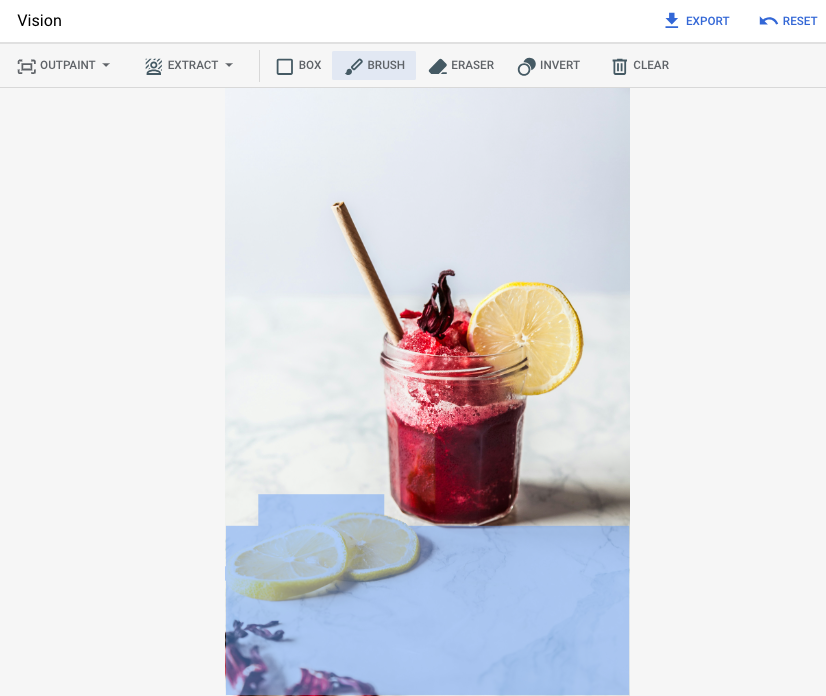
|
딸기 |
Google Cloud 콘솔에서 마스크 영역을 지정한 후 출력
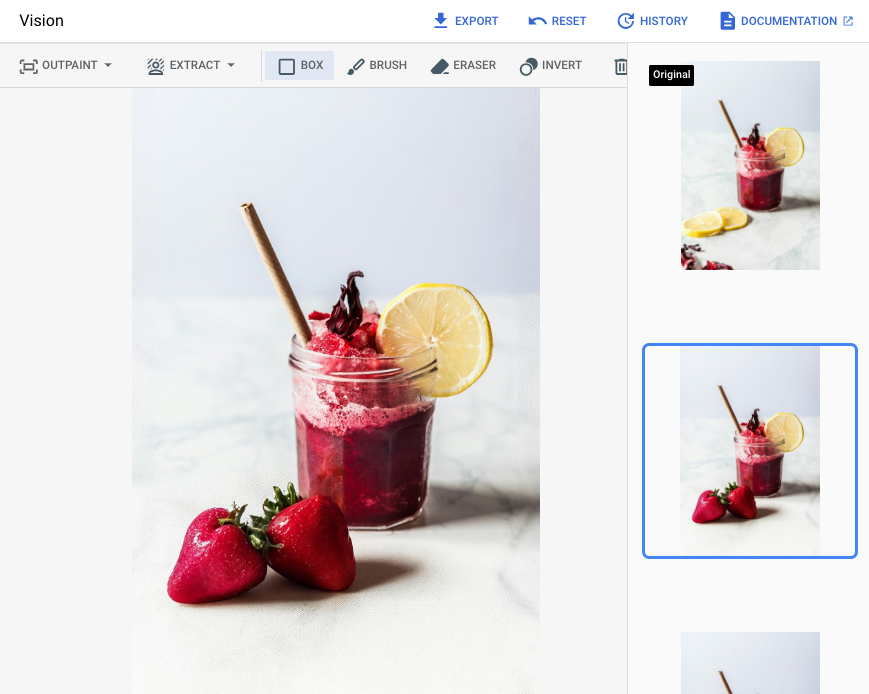
|
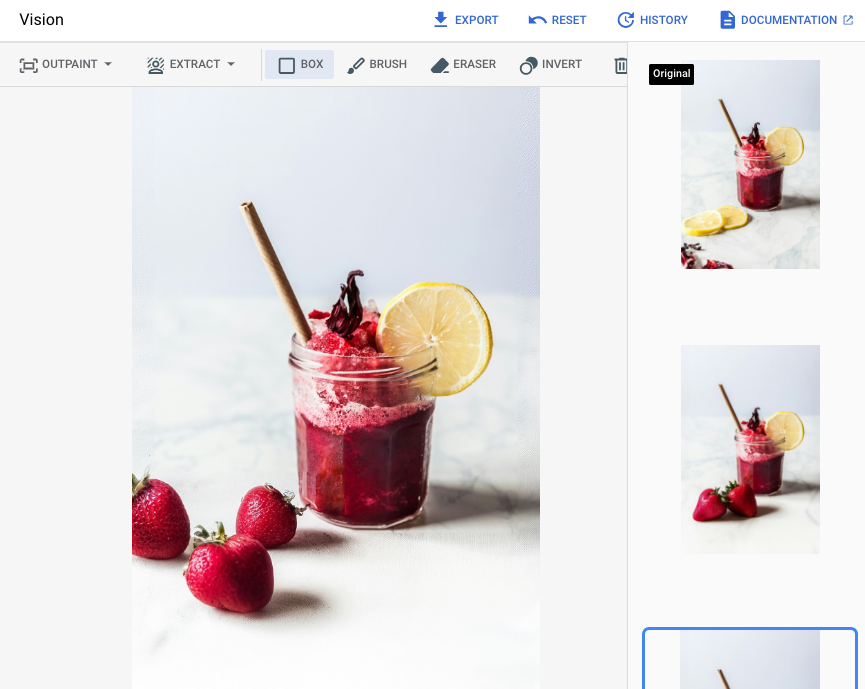
|
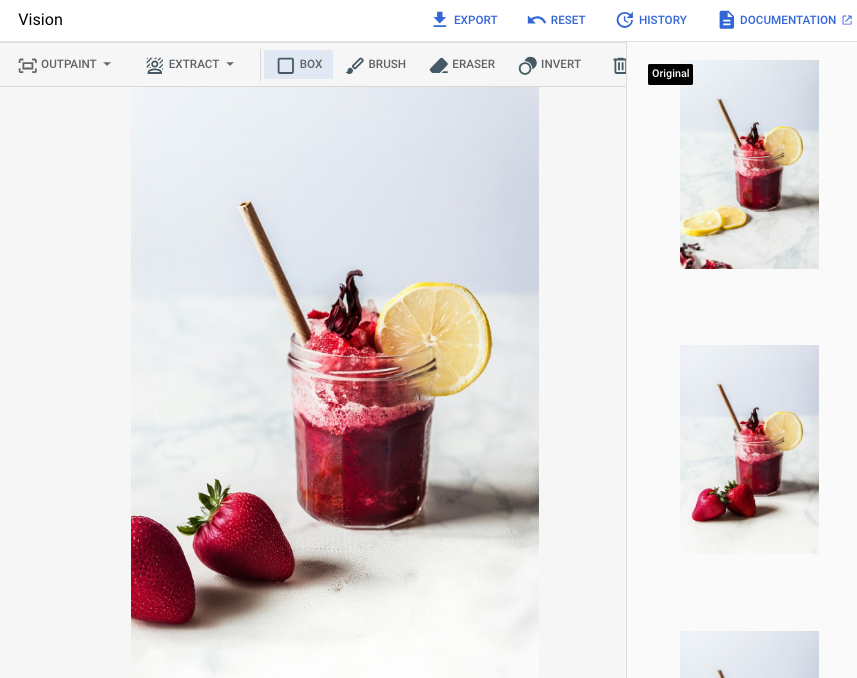
|
시작하기 전에
- Google Cloud 계정에 로그인합니다. Google Cloud를 처음 사용하는 경우 계정을 만들고 Google 제품의 실제 성능을 평가해 보세요. 신규 고객에게는 워크로드를 실행, 테스트, 배포하는 데 사용할 수 있는 $300의 무료 크레딧이 제공됩니다.
-
In the Google Cloud console, on the project selector page, select or create a Google Cloud project.
Roles required to select or create a project
- Select a project: Selecting a project doesn't require a specific IAM role—you can select any project that you've been granted a role on.
-
Create a project: To create a project, you need the Project Creator role
(
roles/resourcemanager.projectCreator), which contains theresourcemanager.projects.createpermission. Learn how to grant roles.
-
Verify that billing is enabled for your Google Cloud project.
Enable the Vertex AI API, if it is not already enabled.
Roles required to enable APIs
To enable APIs, you need the
serviceusage.services.enablepermission. If you created the project, then you likely already have this permission through the Owner role (roles/owner). Otherwise, you can get this permission through the Service Usage Admin role (roles/serviceusage.serviceUsageAdmin). Learn how to grant roles.-
In the Google Cloud console, on the project selector page, select or create a Google Cloud project.
Roles required to select or create a project
- Select a project: Selecting a project doesn't require a specific IAM role—you can select any project that you've been granted a role on.
-
Create a project: To create a project, you need the Project Creator role
(
roles/resourcemanager.projectCreator), which contains theresourcemanager.projects.createpermission. Learn how to grant roles.
-
Verify that billing is enabled for your Google Cloud project.
Enable the Vertex AI API, if it is not already enabled.
Roles required to enable APIs
To enable APIs, you need the
serviceusage.services.enablepermission. If you created the project, then you likely already have this permission through the Owner role (roles/owner). Otherwise, you can get this permission through the Service Usage Admin role (roles/serviceusage.serviceUsageAdmin). Learn how to grant roles.-
환경에 대한 인증을 설정하세요.
이 페이지의 샘플 사용 방법에 대한 탭을 선택하세요.
콘솔
Google Cloud 콘솔을 사용하여 Google Cloud 서비스 및 API에 액세스하는 경우 인증을 설정할 필요가 없습니다.
REST
로컬 개발 환경에서 이 페이지의 REST API 샘플을 사용하려면 gcloud CLI에 제공한 사용자 인증 정보를 사용합니다.
Google Cloud CLI를 설치합니다.
외부 ID 공급업체(IdP)를 사용하는 경우 먼저 제휴 ID로 gcloud CLI에 로그인해야 합니다.
자세한 내용은 Google Cloud 인증 문서의 REST 사용을 위한 인증을 참조하세요.
정의된 마스크 영역으로 삽입
다음 샘플을 사용하여 Imagen 3 모델을 사용한 인페인팅 요청을 전송합니다.
콘솔
Google Cloud 콘솔에서 Vertex AI > Vertex AI Studio 페이지로 이동합니다.
미디어 생성을 클릭합니다.
이미지를 클릭합니다.
작업 목록에서 인페인트-추가를 선택합니다.
모델 목록에서 사용할 Imagen 모델을 선택합니다.
입력 이미지에서 추가를 클릭하고 수정 중인 이미지를 선택하여 업로드합니다.
프롬프트 상자에 이미지를 수정하는 방법을 설명하는 프롬프트를 입력합니다.
다음 중 하나를 수행하여 마스크를 지정합니다.
- 자체 마스크를 업로드합니다.
- 컴퓨터에서 마스크를 만듭니다.
- 업로드 마스크 가져오기를 클릭하고 업로드할 마스크를 선택합니다.
- 마스크 정의: 수정 툴바에서 마스크 도구(상자, 브러시 또는 masked_transitions 반전 도구)를 사용하여 콘텐츠를 추가할 영역을 지정합니다.
- 자체 마스크를 업로드합니다.
실행을 클릭합니다.
REST
Imagen API에 대한 자세한 내용은 다음을 참고하세요.- 메서드:
endpoints.predict VisionGenerativeModelInstanceVisionGenerativeModelParamsVisionGenerativeModelResult
요청 데이터를 사용하기 전에 다음을 바꿉니다.
-
REGION: 프로젝트가 있는 리전입니다. 지원되는 리전에 대한 자세한 내용은 Vertex AI 위치의 생성형 AI를 참조하세요. PROJECT_ID: Google Cloud 프로젝트 ID입니다.-
TEXT_PROMPT: 선택사항. 모델이 생성하는 이미지를 안내하는 텍스트 프롬프트입니다. 최상의 결과를 얻으려면 마스킹된 영역의 설명을 사용하고 한 단어 프롬프트는 피하세요. 예를 들어 '코기' 대신 '귀여운 코기'를 사용하세요. -
B64_BASE_IMAGE: 수정 대상 이미지를 base64로 인코딩한 이미지로, 크기는 10MB 이하여야 합니다. base64 인코딩에 대한 자세한 내용은 Base64 인코딩 및 디코딩 파일을 참조하세요. -
B64_MASK_IMAGE: base64로 인코딩된 흑백 마스크 이미지로, 크기는 10MB 이하여야 합니다. -
MASK_DILATION: 선택사항. 마스크를 확대할 이미지 너비의 비율을 나타내는 0과 1 사이의 부동 소수점 값입니다.dilation을 사용하면 부정확한 마스크를 보정하는 데 도움이 됩니다. 권장 값은0.01입니다. -
EDIT_STEPS: 선택사항. 샘플링 단계 수를 나타내는 정수입니다. 값이 클수록 이미지 품질이 우수하고 값이 작을수록 지연 시간이 짧습니다.처음에는
35단계를 사용하는 것이 좋습니다. 품질이 요구사항에 미치지 못하면 최대75가지 값을 늘리는 것이 좋습니다. -
SAMPLE_COUNT: 선택사항. 생성할 이미지 수를 나타내는 정수입니다. 허용되는 값의 범위는1~4입니다. 기본값은4입니다.
HTTP 메서드 및 URL:
POST https://REGION-aiplatform.googleapis.com/v1/projects/PROJECT_ID/locations/REGION/publishers/google/models/imagen-3.0-capability-001:predict
JSON 요청 본문:
{
  "instances": [
    {
      "prompt": "TEXT_PROMPT",
      "referenceImages": [
        {
          "referenceType": "REFERENCE_TYPE_RAW",
          "referenceId": 1,
          "referenceImage": {
            "bytesBase64Encoded": "B64_BASE_IMAGE"
          }
        },
        {
          "referenceType": "REFERENCE_TYPE_MASK",
          "referenceImage": {
            "bytesBase64Encoded": "B64_MASK_IMAGE"
          },
          "maskImageConfig": {
            "maskMode": "MASK_MODE_USER_PROVIDED",
            "dilation": MASK_DILATION
          }
        }
      ]
    }
  ],
  "parameters": {
    "editConfig": {
      "baseSteps": EDIT_STEPS
    },
    "editMode": "EDIT_MODE_INPAINT_INSERTION",
    "sampleCount": SAMPLE_COUNT
  }
}
요청을 보내려면 다음 옵션 중 하나를 선택합니다.
curl
요청 본문을 request.json 파일에 저장하고 다음 명령어를 실행합니다.
curl -X POST \
     -H "Authorization: Bearer $(gcloud auth print-access-token)" \
     -H "Content-Type: application/json; charset=utf-8" \
     -d @request.json \
     "https://REGION-aiplatform.googleapis.com/v1/projects/PROJECT_ID/locations/REGION/publishers/google/models/imagen-3.0-capability-001:predict"
PowerShell
요청 본문을 request.json 파일에 저장하고 다음 명령어를 실행합니다.
$cred = gcloud auth print-access-token
$headers = @{ "Authorization" = "Bearer $cred" }

Invoke-WebRequest `
    -Method POST `
    -Headers $headers `
    -ContentType: "application/json; charset=utf-8" `
    -InFile request.json `
    -Uri "https://REGION-aiplatform.googleapis.com/v1/projects/PROJECT_ID/locations/REGION/publishers/google/models/imagen-3.0-capability-001:predict" | Select-Object -Expand Content
"sampleCount": 2 요청에 대한 샘플 응답입니다. 응답은 생성된 이미지 바이트를 base64로 인코딩한 두 개의 예측 객체를 반환합니다.
{
  "predictions": [
    {
      "bytesBase64Encoded": "BASE64_IMG_BYTES",
      "mimeType": "image/png"
    },
    {
      "mimeType": "image/png",
      "bytesBase64Encoded": "BASE64_IMG_BYTES"
    }
  ]
}
자동 마스크 감지로 삽입
다음 샘플을 사용하여 콘텐츠를 삽입할 인페인팅을 지정합니다. 다음 샘플에서는 기본 이미지와 텍스트 프롬프트를 지정합니다. Imagen은 기본 이미지를 수정할 마스크 영역을 자동으로 감지하고 만듭니다.
콘솔
Google Cloud 콘솔에서 Vertex AI > Vertex AI Studio 페이지로 이동합니다.
미디어 생성을 클릭합니다.
이미지를 클릭합니다.
작업 목록에서 인페인트-추가를 선택합니다.
모델 목록에서 사용할 Imagen 모델을 선택합니다.
입력 이미지에서 추가를 클릭하고 수정 중인 이미지를 선택하여 업로드합니다.
프롬프트 상자에 이미지를 어떻게 수정할지 설명하는 프롬프트를 입력합니다.
수정 툴바에서 background_replace마스크 추출을 클릭합니다.
마스크 추출 옵션 중 하나를 선택합니다.
백그라운드 요소: 백그라운드 요소를 감지하고 요소 주위에 마스크를 만듭니다.
포그라운드 요소: 포그라운드 객체를 감지하고 객체 주위에 마스크를 만듭니다.
background_replace사람: 사람을 감지하고 사람 주위에 마스크를 만듭니다.
실행을 클릭합니다.
REST
Imagen API에 대한 자세한 내용은 다음을 참조하세요.
- 메서드:
endpoints.predict VisionGenerativeModelInstanceVisionGenerativeModelParamsVisionGenerativeModelResult
요청 데이터를 사용하기 전에 다음을 바꿉니다.
- PROJECT_ID: Google Cloud 프로젝트 ID
- LOCATION: 프로젝트의 리전. 예를 들면
us-central1,europe-west2,asia-northeast3입니다. 사용 가능한 리전 목록은 Vertex AI의 생성형 AI 위치를 참조하세요. 리전 API 엔드포인트를 사용하는 경우 엔드포인트의 URL에 있는 리전이 요청이 처리되는 위치를 결정하며, 충돌하는 경우 리소스 경로의 이LOCATION는 무시됩니다. - TEXT_PROMPT: 모델이 생성하는 이미지를 안내하는 텍스트 프롬프트입니다. 인페인팅 삽입에 프롬프트를 사용할 때는 마스킹된 영역에 대한 설명을 사용하면 최상의 결과를 얻을 수 있습니다. 한 단어 프롬프트는 사용하지 마세요. 예를 들어 "코기" 대신 "귀여운 코기"를 사용하세요.
- B64_BASE_IMAGE: 수정하거나 확대할 기본 이미지. 이미지는 base64 인코딩 바이트 문자열로 지정되어야 합니다. 크기 제한: 10MB.
- MASK_MODE - 모델에 사용되는 자동 마스크 생성 유형을 설정하는 문자열입니다.
사용 가능한 값은 다음과 같습니다.
MASK_MODE_BACKGROUND: 배경 세분화를 사용하여 마스크를 자동으로 생성합니다.MASK_MODE_FOREGROUND: 전경 세분화를 사용하여 마스크를 자동으로 생성합니다.MASK_MODE_SEMANTIC:maskImageConfig.maskClasses배열에 지정한 세분화 클래스를 기반으로 시맨틱 세분화를 사용하여 마스크를 자동으로 생성합니다. 예를 들면 다음과 같습니다."maskImageConfig": { "maskMode": "MASK_MODE_SEMANTIC", "maskClasses": [175, 176], // bicycle, car "dilation": 0.01 }
- MASK_DILATION - 부동 소수점 수. 이 마스크를 확장할 이미지 너비의 비율입니다. 불완전한 입력 마스크를 보완하려면
0.01값을 사용하는 것이 좋습니다. - EDIT_STEPS - 정수. 기본 모델의 샘플링 단계 수입니다. 인페인팅 삽입의 경우
35단계부터 시작합니다. 품질이 요구사항을 충족하지 않으면 단계를 상한선인75로 늘립니다. 단계를 늘리면 요청 지연 시간도 늘어납니다. - EDIT_IMAGE_COUNT: 수정된 이미지의 수. 허용되는 정수 값: 1~4. 기본값: 4.
HTTP 메서드 및 URL:
POST https://LOCATION-aiplatform.googleapis.com/v1/projects/PROJECT_ID/locations/LOCATION/publishers/google/models/imagen-3.0-capability-001:predict
JSON 요청 본문:
{
  "instances": [
    {
      "prompt": "TEXT_PROMPT",
      "referenceImages": [
        {
          "referenceType": "REFERENCE_TYPE_RAW",
          "referenceId": 1,
          "referenceImage": {
            "bytesBase64Encoded": "B64_BASE_IMAGE"
          }
        },
        {
          "referenceType": "REFERENCE_TYPE_MASK",
          "referenceId": 2,
          "maskImageConfig": {
            "maskMode": "MASK_MODE",
            "dilation": MASK_DILATION
          }
        }
      ]
    }
  ],
  "parameters": {
    "editConfig": {
      "baseSteps": EDIT_STEPS
    },
    "editMode": "EDIT_MODE_INPAINT_INSERTION",
    "sampleCount": EDIT_IMAGE_COUNT
  }
}
요청을 보내려면 다음 옵션 중 하나를 선택합니다.
curl
요청 본문을 request.json 파일에 저장하고 다음 명령어를 실행합니다.
curl -X POST \
     -H "Authorization: Bearer $(gcloud auth print-access-token)" \
     -H "Content-Type: application/json; charset=utf-8" \
     -d @request.json \
     "https://LOCATION-aiplatform.googleapis.com/v1/projects/PROJECT_ID/locations/LOCATION/publishers/google/models/imagen-3.0-capability-001:predict"
PowerShell
요청 본문을 request.json 파일에 저장하고 다음 명령어를 실행합니다.
$cred = gcloud auth print-access-token
$headers = @{ "Authorization" = "Bearer $cred" }

Invoke-WebRequest `
    -Method POST `
    -Headers $headers `
    -ContentType: "application/json; charset=utf-8" `
    -InFile request.json `
    -Uri "https://LOCATION-aiplatform.googleapis.com/v1/projects/PROJECT_ID/locations/LOCATION/publishers/google/models/imagen-3.0-capability-001:predict" | Select-Object -Expand Content
"sampleCount": 2 요청에 대한 샘플 응답입니다. 응답은 생성된 이미지 바이트를 base64로 인코딩한 두 개의 예측 객체를 반환합니다.
{
  "predictions": [
    {
      "bytesBase64Encoded": "BASE64_IMG_BYTES",
      "mimeType": "image/png"
    },
    {
      "mimeType": "image/png",
      "bytesBase64Encoded": "BASE64_IMG_BYTES"
    }
  ]
}
제한사항
다음 섹션에서는 Imagen의 객체 삭제 기능 제한사항을 설명합니다.
수정된 픽셀
모델은 자체 해상도(예: 1024x1024)로 픽셀을 생성하며, 이는 입력 이미지의 해상도와 다를 수 있습니다. 즉, 생성된 이미지에 원본 이미지에 없던 약간의 변경사항이 있을 수 있습니다.
이미지를 완벽하게 보존하려면 마스크를 사용하여 생성된 이미지를 입력 이미지와 혼합하는 것이 좋습니다. 일반적으로 입력 이미지 해상도가 2K 이상이면 생성된 이미지와 입력 이미지를 혼합해야 합니다.
제한사항 삽입
삽입된 객체는 일반적으로 기본 이미지의 스타일과 일치하지만 일부 키워드는 실사형 출력 대신 만화 같은 결과를 생성할 수 있습니다.
예를 들어 '노란색 기린'을 요청하면 기린은 원래 갈색과 황갈색이므로 만화 같은 이미지가 생성될 수 있습니다. 부자연스러운 색상의 실사형 이미지를 생성하기는 어려울 수 있습니다.
다음 단계
Imagen 및 Vertex AI의 기타 생성형 AI 제품 관련 문서 읽기:
- Vertex AI에서 Imagen 3 시작을 위한 개발자 가이드
- 크리에이터를 위해 제작된 새로운 생성형 미디어 모델 및 도구
- Gemini의 새로운 기능: Imagen 3의 커스텀 젬 및 향상된 이미지 생성
- Google DeepMind: Imagen 3 - 최고 품질의 텍스트 이미지 변환 모델