


99.9% 可用性的拓撲適用於一般應用程式或可以容忍一些停機時間的應用程式。例如,貴機構可能會進行批次上傳,而其作業的時間點並不重要。如果連線無法使用,則系統會在連線復原時繼續執行作業。
如要瞭解本頁面使用的 Cloud Interconnect 術語,請參閱「重要詞彙」。
如要瞭解如何建立備援 Cloud Interconnect 連線,確保在容錯移轉情境中具備足夠容量,請參閱最佳做法。
需求條件
如要達到 99.9% 的可用性,必須符合下列條件。
您必須設定至少兩個 Dedicated Interconnect 連線,並在單一都會區內,策略性地分配至一對設施和邊緣可用性網域組合:
找出設施和邊緣可用性網域的組合:
如果都會區只有一個機房,則機房和邊緣可用性網域的組合就是該都會區機房中的兩個邊緣可用性網域 (例如
bos-zone1-219和bos-zone2-219)。如果都會區有兩個以上的設施,設施和邊緣可用性網域的有效組合包括一個設施中的區域 1,以及都會區另一個設施中的區域 2 (例如
atl-zone1-3725和atl-zone2-940)。
同時使用設施和邊緣可用性網域組合:在都會區內,至少一個互連網路連線必須位於一個設施和邊緣可用性網域組合中,而至少一個互連網路連線必須位於該配對的其他組合中。
如果您建立的 VLAN 連結依附於 Cloud Interconnect 連線,則下列規定適用於每個虛擬私有雲網路。
內部部署路由器和路徑通告規定
請參閱地端部署路由器的說明文件,瞭解如何設定這些路由器,以符合 99.9% 的服務水準協議。您可能需要將每個互連網路連線連接至不重複的實體路由器。
地端部署路由器必須透過每個 VLAN 連結的 BGP 工作階段,通告相同的前置字元。您可以運用不同的 BGP 指標 (例如 MED) 達成連線能力目標。如要進一步瞭解 Cloud Router BGP 工作、動態路由控制層,以及虛擬私有雲網路控制層如何從收到的前置字元建立動態路由,請參閱 Cloud Router 說明文件中的「已知路由」。
拓撲範例
以下拓撲範例在下列機房和邊緣可用性網域組合中,提供兩個 Cloud Interconnect 連線,達到 99.9% 的可用性:
lga-zone1-16lga-zone2-1422
兩個 VLAN 連結共同使用兩個互連連線,位於單一虛擬私有雲網路的 us-central1 區域。
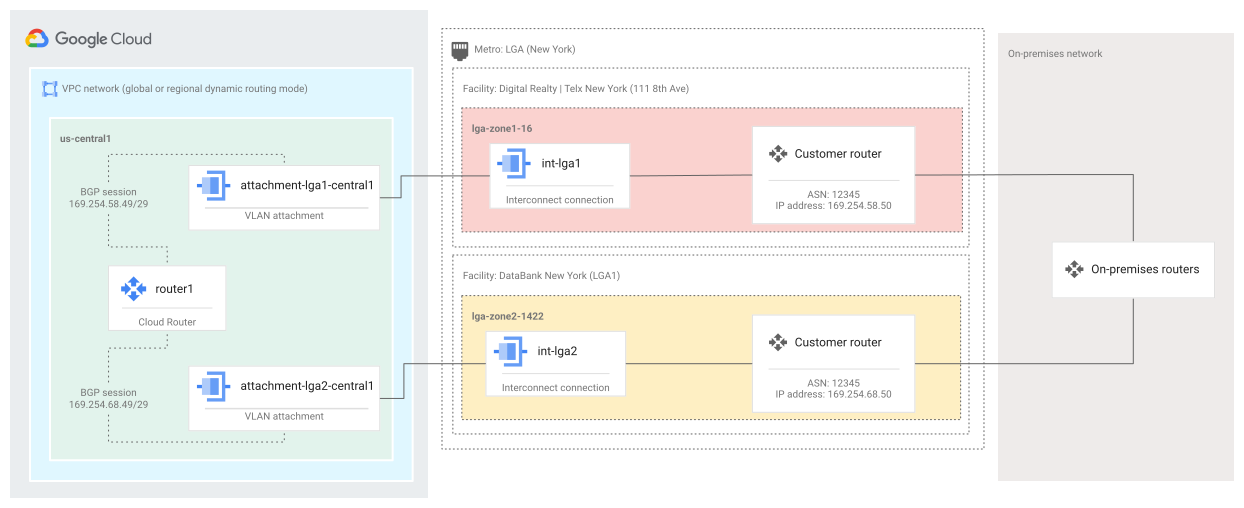
設定偏好路徑
專屬互連網路 VLAN 連結會透過 Cloud Router,從遠端對等互連路由器 (例如地端部署網路中的路由器) 取得前置字元。含有 Cloud Router 的虛擬私有雲網路動態轉送模式和最佳路徑選取模式,會控管要考量哪些下一個躍點,以及如何處理 BGP 屬性來產生動態路徑。虛擬私有雲網路中的動態路由會定義從虛擬私有雲網路到連線網路 (例如地端部署網路) 的路徑。詳情請參閱 Cloud Router 說明文件中的「已學習的路徑」。
如要建立從連線網路到虛擬私有雲網路的路徑,請設定 Cloud Router BGP 通告。您可以個別設定每個 BGP 工作階段的通告,或為 Cloud Router 定義通告預設值。這些通告可以包含子網路範圍、自訂前置字元,或子網路範圍和自訂前置字元的組合。詳情請參閱 Cloud Router 說明文件中的「通告路徑」。
建立 99.9% 拓撲
以下各節將逐步介紹建立這個拓撲的步驟。如要建立個人化的拓撲,請使用您自己的值取代範例輸入值。例如,使用您的虛擬私有雲網路名稱取代 vpc1 網路名稱。
訂購 Cloud Interconnect 連線
使用 Google Cloud 控制台或 Google Cloud CLI 訂購備援連線。
控制台
前往 Google Cloud 控制台的「Interconnect Hybrid Connectivity」頁面。
按一下「開始使用」。
選取「Dedicated Interconnect」,然後按一下「繼續」。
選取「訂購新的 Dedicated Interconnect」,然後按一下「繼續」。
指定 Cloud Interconnect 連線的詳細資料:
- 「Name」(名稱):輸入
int-lga1。 - 說明:輸入
Example Cloud Interconnect connection in LGA ZONE1。 - 「Location」(位置):選擇
Digital Realty | Telx New York (111 8th Ave),這是lga-zone1-16位置的 PeeringDB 名稱。 - 「容量」:使用預設容量 (10 Gb/s)。
- 「Name」(名稱):輸入
點選「下一步」。
指定備援 Cloud Interconnect 連線的詳細資料:
- 「Name」(名稱):輸入
int-lga2。 - 說明:輸入
Example Cloud Interconnect connection in LGA ZONE2。 - 「Location」(位置):選擇
zColo New York - 60 Hudson St,這是lga-zone2-1422位置的 PeeringDB 名稱。 - 「容量」:使用預設容量 (10 Gb/s)。
- 「Name」(名稱):輸入
點選「下一步」。
指定聯絡資訊:
- 公司名稱:輸入
The Customer。這個名稱會用在 LOA-CFA 中,做為獲授權要求 Cloud Interconnect 連線的一方。 - 技術聯絡人:輸入
customer@customer.com。系統會自動將您列入所有通知的聯絡人名單中,因此您不用輸入自己的電子郵件地址。
- 公司名稱:輸入
點選「下一步」。
檢查您的訂單內容。確認 Cloud Interconnect 連線詳細資料和聯絡資訊正確無誤。如果一切都正確,請按一下「下單」。如果沒有,請返回並編輯連結詳細資料。
在訂單確認頁面上,查看後續步驟,然後按一下「完成」。
gcloud
訂購兩個 Cloud Interconnect 連線,名稱分別為
int-lga1和int-lga2:gcloud compute interconnects create int-lga1 \ --customer-name "The Customer" \ --description "Example Cloud Interconnect connection in LGA ZONE1" \ --interconnect-type DEDICATED \ --link-type ETHERNET_10G_LR \ --location lga-zone1-16 \ --requested-link-count 1 \ --noc-contact-email customer@customer.com
gcloud compute interconnects create int-lga2 \
  --customer-name "The Customer" \
  --description "Example Cloud Interconnect connection in LGA ZONE2" \
  --interconnect-type DEDICATED \
  --link-type ETHERNET_10G_LR \
  --location lga-zone2-1422 \
  --requested-link-count 1 \
  --noc-contact-email customer@customer.com
訂購 Cloud Interconnect 連線後,Google 會傳送確認電子郵件給您,並分配通訊埠給您。分配完成後,Google 會為您的連線產生 LOA-CFA,並用電子郵件傳送給您。系統也會將所有自動化電子郵件傳送給 NOC 聯絡人和連線的訂購者。
只有在佈建並測試連線後,您才能使用 Cloud Interconnect 連線。如要進一步瞭解佈建程序,請參閱佈建總覽。
建立 Cloud Router
如要建立 Cloud Router,請按照本節的說明操作。
請確認 Cloud Router 在所有連結上通告相同的前置字元,優先順序可能不同。
控制台
前往 Google Cloud 控制台的「建立 Cloud Router」頁面。
指定 Cloud Router 詳細資料:
- 「Name」(名稱):輸入
router1做為 Cloud Router 的名稱。 - 「Network」(網路):選取
vpc1,這是地端部署網路延伸範圍所及的網路名稱。 - 「Region」(地區):選取
us-central1,這是 Cloud Router 通告所有子網路的地區,如範例拓撲中所示。 - 「Google ASN」:輸入
64513,這是範例 Cloud Router 的 ASN。
- 「Name」(名稱):輸入
在「路徑」下方,選取「公告 Cloud Router 可使用的所有子網路 (預設)」,然後按一下「建立」。
gcloud
在
us-central1區域的vpc1網路中建立 Cloud Router,並使用 ASN64513:gcloud compute routers create router1 \ --asn 64513 \ --network vpc1 \ --region us-central1
您必須確認 Cloud Router 和地端部署路由器都已正確設定,才能在每個連結上,針對各自的方向通告相同的前置字元。設定 Cloud Router 後,請按照「取得 Cloud Router 狀態」一文中的操作說明檢查路由器狀態。
建立 VLAN 連結
可以開始使用 Cloud Interconnect 連線 (處於 ACTIVE 狀態) 後,請建立 VLAN 連結,以將連線與 Cloud Router 連接在一起。建立備援連結,每個連線一個。在範例中,int-lga1 和 int-lga2 會連線至 router1。
控制台
前往 Google Cloud 控制台的「VLAN attachments」(VLAN 連結) 分頁。
按一下 [Add VLAN attachment] (新增 VLAN 連結)。
選取「Dedicated Interconnect」,然後按一下「繼續」。
選取「在這個專案中」。
選取
int-lga1Cloud Interconnect 連線,然後按一下「繼續」。選取「新增 VLAN 連結」:
- 「Name」(名稱):輸入
attachment-lga1-central1。 - 「Router」(路由器):選取
router1Cloud Router。
- 「Name」(名稱):輸入
點按「Create」(建立)。連結的建立作業需要一些時間才能完成。
針對該連結,如要將 BGP 工作階段新增至
router1,請按一下「設定」。VLAN 連結已填入 Google 和對等 BGP IP 位址。記錄每個連結的 IP 位址、ASN 和 VLAN 標記。這些是設定內部部署路由器的必要資訊。
如要新增 BGP 工作階段,請按一下「儲存設定」。在內部部署路由器上設定 BGP 之前,BGP 工作階段會一直保持停用狀態。
為
int-lga2連線建立另一個名為attachment-lga2-central1的連結。使用router1做為這個連結的 Cloud Router。
gcloud
建立兩個連結,一個用於
int-lga1Cloud Interconnect 連線和router1Cloud Router,另一個用於int-lga2連線和router1:gcloud compute interconnects attachments dedicated create attachment-lga1-central1 \ --interconnect int-lga1 \ --router router1
gcloud compute interconnects attachments dedicated create attachment-lga2-central1 \
   --interconnect int-lga2 \
   --router router1
描述
attachment-lga1-central1連結以擷取其分配的資源,例如 VLAN ID 和 BGP 對等互連位址;使用這些值設定 Cloud Router 和地端部署路由器:gcloud compute interconnects attachments describe attachment-lga1-central1 \ --region us-central1
先前的指令會輸出以下資訊:
cloudRouterIpAddress: 169.254.58.49/29
creationTimestamp: '2017-08-15T08:34:11.137-07:00'
customerRouterIpAddress: 169.254.58.50/29
id: '5630382895290821276'
interconnect:
https://www.googleapis.com/compute/v1/projects/customer-project/global/interconnects/int-lga1
kind: compute#interconnectAttachment
name: attachment-lga1-central1
operationalStatus: ACTIVE
privateInterconnectInfo:
  tag8021q: 1000
region: https://www.googleapis.com/compute/v1/projects/customer-project/regions/us-central1
router: https://www.googleapis.com/compute/v1/projects/customer-project/regions/us-central1/routers/router1
selfLink: https://www.googleapis.com/compute/v1/projects/customer-project/regions/us-central1/interconnectAttachments/attachment-lga1-central1
記錄下列值:
- 「tag8021q」:指定 VLAN ID,即
1000。VLAN ID 可用於識別通過這個連結的流量。使用這個值可在內部部署路由器上設定具有標記的 VLAN 子介面。 - 「cloudRouterIpAddress」cloudRouterIpAddress:Cloud Router IP 位址,即
169.254.58.49/29。將這個位址指派給 Cloud Router 介面,並將這個位址指定為內部部署路由器上的相鄰 BGP。 - customerRouterIpAddress:客戶路由器 IP 位址,即
169.254.58.50/29。在 Cloud Router 上,將這個位址指定為獲指派 Cloud Router IP 位址的介面上的 BGP 對等位址,並將這個位址指派給地端部署路由器上的 VLAN 子介面。
- 「tag8021q」:指定 VLAN ID,即
在
router1Cloud Router 上,為attachment-lga1-central1連結新增一個介面:gcloud compute routers add-interface router1 \ --interface-name router1-1 \ --interconnect-attachment attachment-lga1-central1 \ --ip-address 169.254.58.49 \ --mask-length 29 \ --region us-central1
將 BGP 對等點新增至介面;在本範例中,地端部署 ASN 為
12345:gcloud compute routers add-bgp-peer router1 \ --interface router1-1 \ --peer-name central1 \ --peer-ip-address 169.254.58.50 \ --peer-asn 12345 \ --region us-central1
說明
attachment-lga2-central1連結,然後在router1Cloud Router 上設定另一個 BGP 工作階段。
設定地端部署路由器
如要設定地端部署路由器,請使用 VLAN 連結中的資訊。以下範例是 Juniper 路由器設定中的節錄內容。您可以使用此範例做為設定自有路由器的起點。詳情請參閱「設定地端部署路由器」。
interface ae20 {
  flexible-vlan-tagging;
  native-vlan-id 1;
  aggregated-ether-options {
    lacp {
      active;
     }
   }
  unit 1000 {
    vlan-id 1000;
    family inet {
      address 169.254.58.50/29;
    }
  }
}

protocols bgp {
  group google {
    type external;
    multihop {
      ttl 4;
    }
    hold-time 60;
    peer-as 64513;
    local-as 12345;
    local-address 169.254.58.50;
    neighbor 169.254.58.49 {
      ...
    }
  }
}
後續步驟
如要進一步瞭解這些步驟,請參閱Dedicated Interconnect 佈建總覽。
如要解決使用 Cloud Interconnect 時可能遇到的常見問題,請參閱疑難排解。