

In Data Studio, new data sources that you create while editing a report are embedded directly in that report. Embedded data sources move with the report when you share or copy it, allowing editors to manage data connections together without managing separate assets. You can also convert embedded data sources to standalone, reusable data sources.
Embedded versus reusable data sources
Data sources can be either embedded or reusable. Reports can include both embedded and reusable data sources.
Data sources that you create while editing a report are embedded in the report. To edit an embedded data source, you do so within that report. Embedded data sources make collaborating on reports and data sources easier. Anyone who can edit the report can also edit the data source as well as modify its connection. When you share or copy the report, any embedded data sources are shared or copied as well.
Data sources that you create from the home page are reusable. You can reuse these data sources in different reports. Reusable data sources let you create and share a consistent data model across your organization. Only people with whom you share the reusable data source can edit it. Only the owner of the data source's credentials can modify the connection.
Benefits of embedded data sources
When you share or copy a report, all its embedded data sources are shared or copied along with it. You don't need to share the data sources separately. Having your data sources embedded in the report reduces the number of assets you need to manage, since all your data sources can be contained by a single report.
Data governance and embedded data sources
While embedded data sources simplify collaboration, they can also let viewers access potentially sensitive data and metadata. If you are concerned about strictly controlling access to data and metadata, consider either hiding or removing unused fields from the embedded data source or using reusable data sources in your reports.
How to tell if a data source is embedded or reusable
If you can see the data source in the Data Sources list on the home page, then it's reusable.
While editing a report, in the menu, click Resources > Manage added data sources. You'll see the type displayed in the first column.
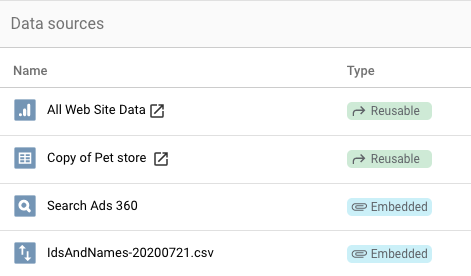
Edit an embedded data source
Anyone who can edit a report can edit its embedded data sources.
Share reports that contain embedded data sources
The type of data source makes no difference when you share a report with view access. Whether they are embedded or reusable, data credentials control who can view the data in the report.
When you share a report with edit access, those people with whom you share can use any embedded data source you've added to modify the report. Report editors can also modify the embedded data source.
Convert an embedded data source to a reusable data source
Making an embedded data source reusable lets you manage the data source as a separate asset. By default, editors of the current report will be able to edit the new reusable data source, but you can turn off that option during the copy process.
- Edit your report.
- In the menu, click Resources > Manage added data sources.
- Locate the embedded data source, and then, on the right, click Make reusable.
Copy a report with an embedded data source
When you copy a report with embedded data sources, the copy includes those data sources. Copying a report doesn't copy reusable data sources that were added to the report.
If an embedded data source uses Owner's credentials but the person who copies the report is not the owner of those credentials, that data source isn't copied. Charts in the copy that are based on that data source will show an error asking you to fix the missing data source.
You can copy an embedded data source within a report:
- Edit your report.
- In the menu, select Resources > Manage added data sources.
- Locate the data source, then click Copy.
Delete an embedded data source
When you remove an embedded data source from a report, Data Studio disconnects the data source from the report. Removing an embedded data source doesn't permanently delete it.
After removal, embedded data sources stay with the report so that earlier versions in version history and undo actions continue to work. Data Studio permanently deletes embedded data sources only when you permanently delete the parent report.
You can't delete an individual embedded data source directly from a report; however, you can permanently delete an embedded data source if you convert it to a reusable data source first.
Permanently delete an embedded data source for data compliance
If your organization has data retention or compliance requirements that require you to permanently delete an embedded data source without deleting the report, follow these steps to convert the data source to a reusable data source and then delete it.
Delete a data source from the current version of the report
If the data source is still added to the report, follow these steps to delete the data source:
- Edit your report.
- In the menu, click Resource > Manage added data sources.
- Find the embedded data source, and then click Make reusable.
- In the confirmation dialog that appears, click Make reusable.
- In the Manage added data sources panel, click Remove.
- In the confirmation dialog that appears, click Remove data source.
- Click Close.
- Open the Data Studio home page.
- On the Data Sources tab, find the data source, click the three-dot menu, and then click Remove.
- Open the Trash, find the data source, click the three-dot menu, and then click Delete forever.
- In the confirmation dialog that appears, click Delete forever again.
Delete a data source that was removed from a previous version of the report
If you've already removed the data source from the current version of the report, follow these steps to delete the data source:
- Edit your report.
- Select File > Version history > See version history.
- Select an earlier version of the report where the data source is still added, and then click Restore this version.
- In the confirmation dialog that appears, click Restore.
- In the menu, click Resource > Manage added data sources.
- Find the embedded data source, and then click Make reusable.
- In the confirmation dialog that appears, click Make reusable.
- In the Manage added data sources panel, click Remove.
- In the confirmation dialog that appears, click Remove data source.
- Click Close.
- Important: To restore the report to its original state, select File > Version history > See version history again.
- Select the latest version of the report, and then click Restore this version.
- Open the Data Studio home page.
- On the Data Sources tab, find the data source, click the three-dot menu and then click Remove.
- Open the Trash, find the data source, click the three-dot menu, and then click Delete forever.
- In the confirmation dialog that appears, click Remove data source.
Version history and embedded data sources
Version history for embedded data source is included in the report's version history. To restore a previous version of your embedded data source:
- Edit your report.
- Select File > See version history.
- Select an earlier version of the report, and then click Restore this version.
Field editing in reports
Report editors can always modify field definitions in charts that connect to embedded data sources. The Field Editing in Reports option, which lets data source owners manage field editing in reports, is available only for reusable data sources.
Learn more about editing fields in your reports.