

By default, passwords in Looker must be a minimum of ten characters long and contain at least one uppercase and one lowercase letter (A, z), one numeric character (0-9), and one special character (such as !, %, @, or #). The Password Policy page in the Authentication section of the Admin menu provides admins with additional control over password requirements for users on the instance.
Customizing password requirements
Looker admins can enforce additional security requirements by specifying a minimum password length or requiring special characters in passwords. To manage password requirements for users on your instance, select Password Policy in the Authentication section of the Looker Admin menu. This action opens the Password Policy page.
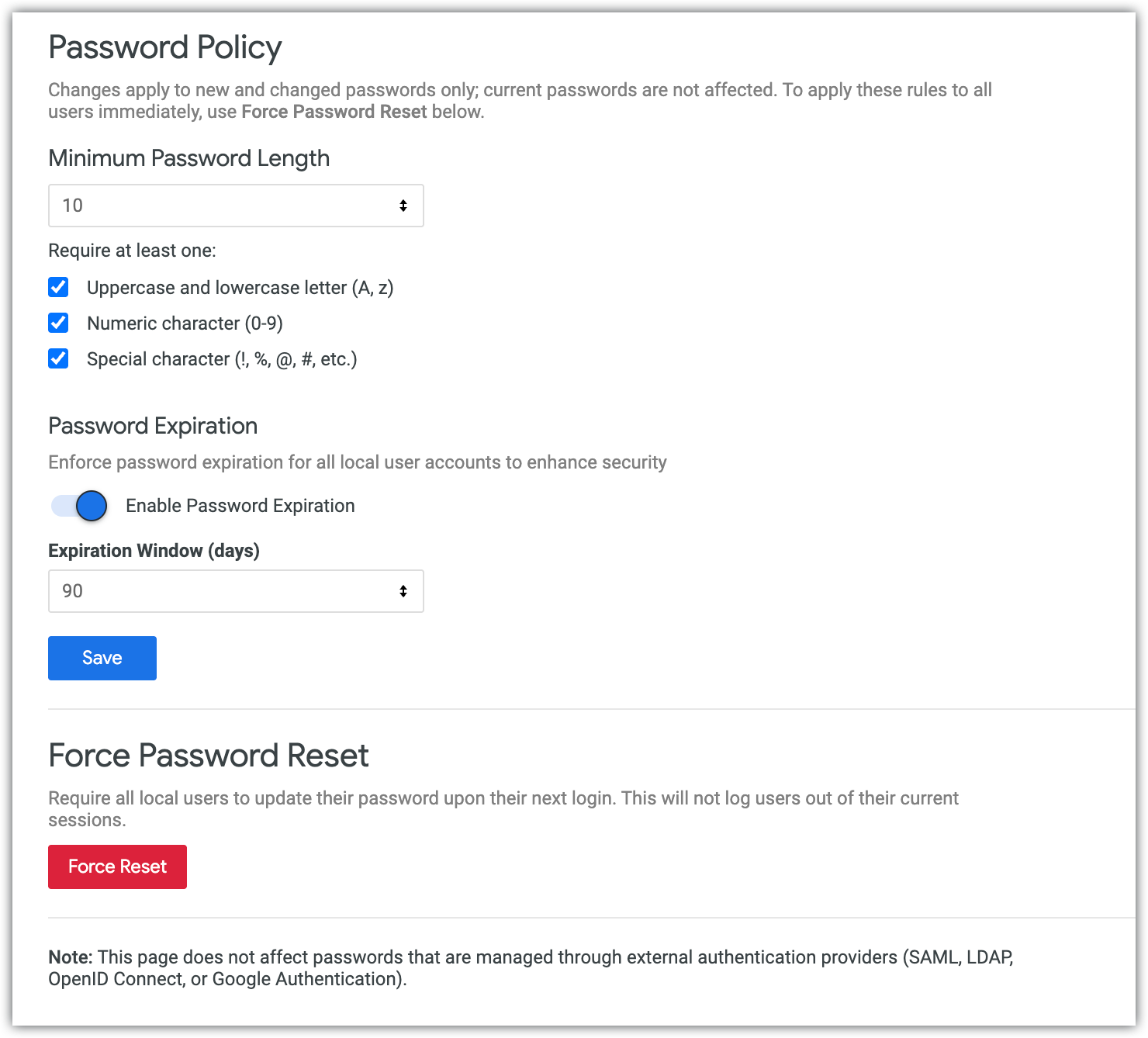
On the Password Policy page, Looker displays current password requirement settings for existing users on your Looker instance. You can change these settings by choosing a minimum number of characters or requiring special characters.
Password complexity requirement settings have no effect on passwords hosted by external authentication systems (SAML, LDAP, Google Auth, OpenID Connect).
Specifying a minimum password length
In Minimum Password Length, you can specify the minimum number of characters that are required for a password. By default, a password in Looker must be at least 10 characters long. To require a different minimum password length, select a number from the drop-down menu.
Requiring special characters
Looker admins can require that passwords contain special characters. In Require at least one, check the corresponding box to require at least one of the following:
- Uppercase and lowercase letter (A, z)
- Numeric character (0-9)
- Special character (any character your environment will accept that is not an uppercase or a lowercase letter or a numeric character — for example, !, %, @, #, and so on)
Setting password expiration
You can enable password expiration for all user accounts that use the email and password authentication method. With password expiration, a user must reset their password after a time window that you determine, up to 365 days.
By default, password expiration is disabled.
To enable password expiration, complete the following steps:
- In the Password Expiration section, select the Enable Password Expiration toggle.
- A drop-down Expiration Window (days) menu lets you select a 90, 180, or 365 day window for password expiration. Alternatively, you can select Custom to set a custom window. By default, the expiration window is 90 days.
- If you select Custom, a Custom (days) field appears, where you can set the expiration window between 30 and 365 days.
Once you enable password expiration, the window for each user starts on the date that expiration was enabled. After that, the window resets for each individual user based on the date that user last reset their password. You can see the last date a user's password was changed if you open the System Activity Event Attribute Explore and add a filter for the password_last_changed event.
Fourteen days before a user's password expires, a banner appears at the top of each Looker page to alert the user that their password is set to expire and to give them the number of days left until it expires. The user can click a link in the banner to navigate to the Change Password settings. The user can dismiss the banner by clicking the Close icon.
If a user is in an active session when their password expires, they won't be logged out of Looker automatically. Instead, a banner appears at the top of each Looker page to alert the user that their password has expired. The banner provides a link to update their password. If the user is logged out of Looker when their password expires, they will be redirected to reset their password the next time they attempt to log in. Once they set a new password, they can log in to Looker again.
To disable password expiration, turn off the Enable Password Expiration toggle.
Saving your settings
Once you have chosen your desired settings, click Save. Any user on your instance who creates a new password will be required to meet the conditions you have specified.
Force password reset
To require locally configured users to reset their passwords upon their next login to Looker, click Force Reset. The next time a user logs in to Looker, they will be required to create a new password that satisfies the current minimum password requirements.