

This page explains how a Gemini Enterprise admin can use the API to manage fine-grained access control for individual Gemini Enterprise apps.
By default, IAM permissions are often managed at the project level. App-level IAM allows for more granular control, enabling admins to:
- Restrict user access to specific apps within the same Google Cloud project.
- Align permissions with organizational needs and data silos for your Gemini Enterprise deployments.
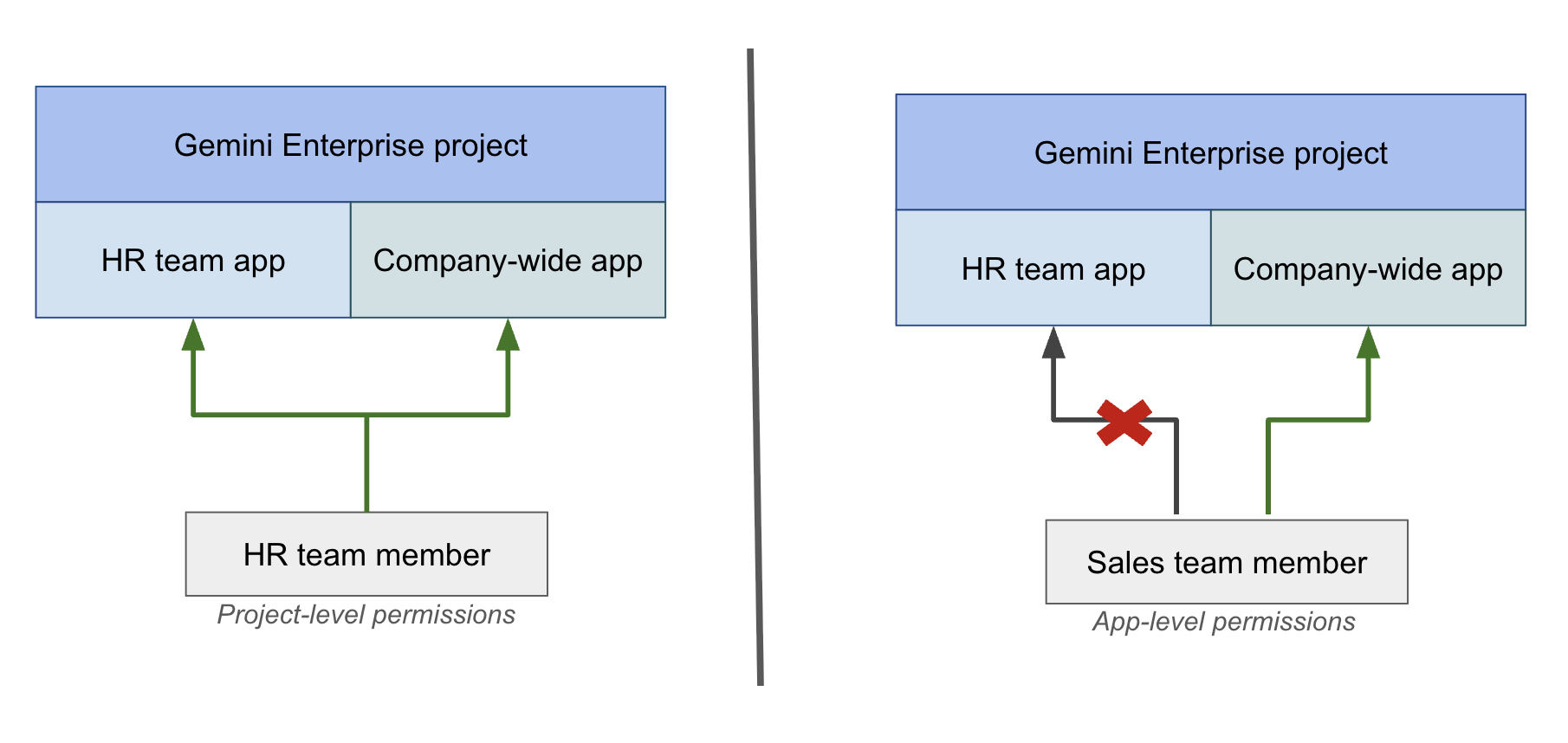
For example, consider an organization with an HR app and a company-wide app. An HR team member with project-level permissions can access both the apps. By contrast, using an app-level IAM policy, you can grant a sales team member access to only the company-wide app, thereby preventing them from accessing the HR app.
Before you begin
Confirm that you have the Gemini Enterprise Admin (
roles/discoveryengine.agentspaceAdmin) role.Confirm that all Gemini Enterprise users have a valid license and are granted the Gemini Enterprise Restricted User (
roles/discoveryengine.agentspaceRestrictedUser) role at the project level. For instructions, see Grant permissions to your users.This role doesn't grant access to any app on its own. It provides the project-level access that users need, and you then grant access to individual apps.
Transition from project-level to app-level access
To restrict users to specific apps, you must replace their project-level Gemini Enterprise User role with the Gemini Enterprise Restricted User role, and then grant the Gemini Enterprise User role at the individual app level.
To transition a user from project-level access to app-level access, follow these steps. You use the Google Cloud console for the project-level changes, and the API for the app-level grant, which the Google Cloud console doesn't support.
- In the Google Cloud console, go to the IAM page.
- Find the user and remove the Gemini Enterprise User
(
roles/discoveryengine.agentspaceUser) role from their project-level permissions. - If you haven't already, grant the user the Gemini Enterprise Restricted User
(
roles/discoveryengine.agentspaceRestrictedUser) role at the project level. - Use the
setIamPolicymethod to grant the user the Gemini Enterprise User (roles/discoveryengine.agentspaceUser) role for each specific app that they need to access. For more information, see Manage IAM policies for apps.
Manage IAM policies for apps
To manage access to your Gemini Enterprise app, you can use the getIamPolicy
and setIamPolicy API methods.
The following steps show you how to retrieve the current policy and then update it to grant or revoke user access.
Get the app IAM policy
Get the current IAM policy of your app using the
getIamPolicy
method. It's recommended to fetch the existing policy first to avoid
overwriting any current permissions.
REST
curl -X GET \
-H "Authorization: Bearer $(gcloud auth print-access-token)" \
-H "Content-Type: application/json" \
"https://ENDPOINT_LOCATION-discoveryengine.googleapis.com/v1/projects/PROJECT_ID/locations/LOCATION/collections/default_collection/engines/APP_ID:getIamPolicy"
Replace the following:
PROJECT_ID: the ID of your project.ENDPOINT_LOCATION: the multi-region for your API request. Specify one of the following values:usfor the US multi-regioneufor the EU multi-regionglobalfor the Global location
LOCATION: the multi-region of your data store:global,us, oreuAPP_ID: the ID of the app that you want to configure.
Update the app IAM policy
To grant or revoke user access to the app, update the app's IAM
policy using the
setIamPolicy
method.
The IAM policy uses the Gemini Enterprise
User
(roles/discoveryengine.agentspaceUser) role to grant users direct access to
the app.
REST
curl -X POST \
-H "Authorization: Bearer $(gcloud auth print-access-token)" \
-H "Content-Type: application/json" \
-d '{
      "policy": {
         "etag": "ETAG",
         "bindings": [
          {
            "role": "roles/discoveryengine.agentspaceUser",
            "members": [
              "user:USER_EMAIL",
              "group:GROUP_EMAIL",
              "principal://iam.googleapis.com/locations/global/workloadIdentityPools/POOL_ID/subject/SUBJECT_ID",
              "principalSet://iam.googleapis.com/locations/global/workloadIdentityPools/POOL_ID/attribute.NAME/VALUE"
            ]
          }
        ]
      }
    }' \
"https://ENDPOINT_LOCATION-discoveryengine.googleapis.com/v1/projects/PROJECT_ID/locations/LOCATION/collections/default_collection/engines/APP_ID:setIamPolicy"
Replace the following:
ETAG: theetagvalue you got as the response when you used thegetIamPolicymethod.USER_EMAIL,GROUP_EMAIL: one or more user or group email addresses. In addition touserandgroup,principalandprincipalSetare valid member types for Workload Identity Federation.To grant access, add principals to the
membersarray. For example,"user:cloudysanfrancisco@gmail.com"or"group:mcymbalgroup@google.com".To revoke access, remove principals from the
membersarray.
POOL_ID: The ID of your workload identity pool.SUBJECT_ID: The subject identifier for a specific identity.NAME: The name of an attribute.VALUE: The value of an attribute.PROJECT_ID: the ID of your project.ENDPOINT_LOCATION: the multi-region for your API request. Specify one of the following values:usfor the US multi-regioneufor the EU multi-regionglobalfor the Global location
LOCATION: the multi-region of your data store:global,us, oreu.APP_ID: the ID of the app that you want to configure.
What's next?
If you want to delete an app with an IAM policy, you can remove the users from the policy before deleting the app. For more information, see Best practices for deleting an app with an IAM policy.