

Custom value formatting lets you specify how dimension, metric, and calculated field values appear in charts.
Custom value formatting can be helpful in these use cases:
- You want to quickly change how dates and number values are displayed in charts and tooltips.
- You need to display values in a specific way that won't be satisfied by changing the data type.
- You want to provide additional context to report viewers about values in charts and tooltips.
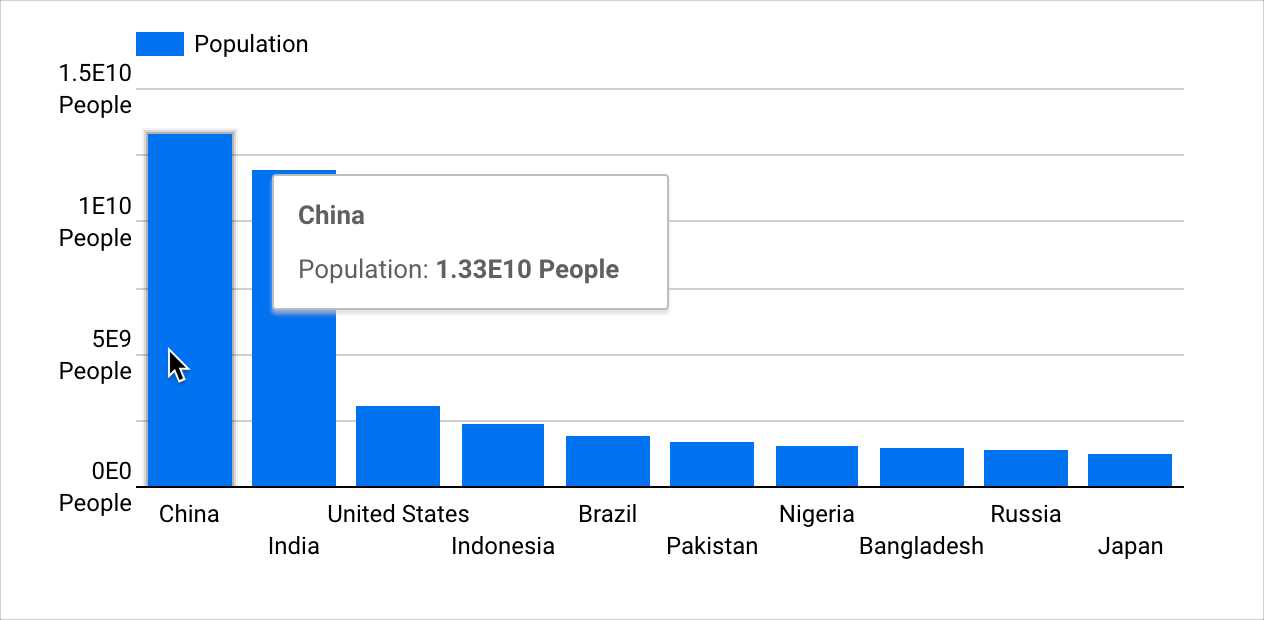
For example, you can choose to display large values as exponents and append text to the values. The following column chart displays Population grouped by Country. You can use custom formatting to display the large values as exponents with the text "People" appended to provide additional context to report viewers.
This page provides an overview of custom value formatting. It includes the following sections:
- Requirements
- Add or edit chart-specific custom value formatting
- Custom date format strings
- Custom number format strings
- Things to know about custom value formatting
- Related resources
Requirements
If you want to use custom value formatting for charts, these requirements must be met:
- The Field Editing in Reports setting must be enabled in the data source.
- You must have edit rights to a report.
- A dimension, metric, or calculated field must be a Numeric or Date & Time data type.
Add or edit chart-specific custom value formatting
You can apply custom value formatting to dimensions, metrics, or calculated fields.
Add or edit chart-specific custom value formatting for dimensions and metrics
To add value formatting to dimension or metric values on a chart, follow these steps:
Create or edit your report.
Add a new chart or select an existing chart.
In the Setup tab of the Properties panel, click a field's data type icon to open the field's edit menu.
Choose a value format option in the Display Format drop-down menu. If you'd like to specify a custom format, choose Custom value format to open the Custom number format menu.
Enter a custom value format. You can select a predefined format option or build your own using the options that are shown in the Custom date format or Custom number format dialog.
A preview of the value format will be displayed under the Custom number format text field.
Once you have selected or entered the custom format, click Apply.
Click outside of the field's edit menu and return to the chart Setup properties.
Repeat steps 3-7 to edit a field's custom value formatting.
Add or edit chart-specific custom value formatting for calculated fields
To add custom value formatting to calculated field values on a chart, follow these steps:
Create or edit your report.
Add a new chart or select an existing chart.
In the Setup tab of the Properties panel, create a calculated field. Alternatively, edit an existing calculated field by hovering over the calculated field name and clicking field's data type icon.
If you create a new dimension type calculated field, click Apply after you enter the expression. The calculated field editor won't detect the field type until you click Apply.
Choose a value format option in the Display Format drop-down menu. If you'd like to specify a custom format, choose Custom value format to open the Custom number format menu.
Enter a custom value format. You can select a predefined format option or build your own using the options that are shown in the Custom date format or Custom number format dialog.
A preview of the value format will display under the Custom number format text field.
Once you have selected or entered the custom format, click Apply.
Click outside of the calculated field's edit menu and return to the chart Setup properties.
Repeat steps 3-7 to edit a calculated field's custom value formatting.
Custom date format strings
The following table lists common syntax characters that you can use to create a custom date or date and time format.
| Format String | Description | Example (for Tuesday, April 8, 2025 15:05:09) |
|---|---|---|
| Day | ||
d |
Day of the month, without a leading zero. | 8 |
dd |
Day of the month, with a leading zero. | 08 |
E |
Day of the week, three-letter abbreviation. | Tue |
EEEE |
Day of the week, full name. | Tuesday |
| Week | ||
w |
Week of the year, without a leading zero. For Date and Date & Time
fields, each viewer's Google Account language determines the first day
of the week and week-numbering rules. You can also override this
language for a session with the To calculate consistent ISO 8601 week numbers, change the field's
data type to
ISO Week or ISO Year Week with the
default display format. You can also use the
|
15 |
ww |
Week of the year, with a leading zero. | 15 |
| Month | ||
M |
Month of the year, without a leading zero. | 4 |
MM |
Month of the year, with a leading zero. | 04 |
MMM |
Three-letter month abbreviation. | Apr |
MMMM |
Full month name. | April |
MMMMM |
First letter of the month. | A |
| Year | ||
y, yyy, or yyyy |
4-digit calendar year. | 2025 |
yy |
2-digit calendar year. | 25 |
Y, YYY, or YYYY |
4-digit week-based year. Use only in patterns that also include
w or ww. |
2025 |
YY |
2-digit week-based year. Use only in patterns that also include
w or ww. |
25 |
| Time Formats | ||
h |
Hour (1-12), without a leading zero. | 3 |
hh |
Hour (1-12), with a leading zero. | 03 |
H |
Hour (0-23). | 15 |
m |
Minute, without a leading zero. | 5 |
mm |
Minute, with a leading zero. | 05 |
s |
Second, without a leading zero. | 9 |
ss |
Second, with a leading zero. | 09 |
a |
AM/PM marker. | PM |
z |
Time zone. Data Studio reports use only the UTC timezone. | UTC |
| Text | ||
'text' |
Escapes literal text so that letters aren't interpreted as format
syntax characters. Enclose literal letters in single quotation marks—for
example, 'Week' w or 'W'ww. To display a single
quotation mark, enter two single quotation marks (''). |
Week 15 |
Example date formats
The following table provides examples of combined custom date formats:
| Format String | Description | Example Output |
|---|---|---|
yyyy-MM-dd |
ISO Date format. | 2025-04-08 |
MM/dd/yyyy |
Common US date format. | 04/08/2025 |
d MMMM yy |
Day, full month name, 2-digit year. | 8 April 25 |
E, MMM dd, yyyy |
Abbreviated day name, month, day number, year. | Tue, Apr 08, 2025 |
EEEE, MMMM d, y, h:mm:ss a |
Full day name, full month name, day number, year, full time with AM/PM marker. | Tuesday, April 8, 2025, 3:05:09 PM |
'Week' w |
Week label and week number, without a leading zero (for example,
Week 1 to Week 53). |
Week 15 |
'Week' ww |
Week label and 2-digit week number, with a leading zero (for example,
Week 01 to Week 53). |
Week 15 |
y 'W'ww |
4-digit calendar year and 2-digit week number. | 2025 W15 |
YYYY-'W'ww |
4-digit week-based year and 2-digit week number. | 2025-W15 |
Custom number format strings
The following table lists common syntax characters that you can use to create a custom number format:
| Character | Description | Example (for input 12345.670) |
|---|---|---|
| 0 | A digit in the number. An insignificant 0 will appear in the results. | |
| # | A digit in the number. An insignificant 0 will not appear in the results. | |
| . |
Period. Formats numbers with a decimal separator. Each viewer's Google Account language determines the decimal
separator character. You can also override this language for a session
with the |
|
| , |
Comma. Formats numbers with a thousands separator. Each viewer's Google Account language determines the thousands
separator character. You can also override this language for a session
with the |
|
| ; | Semicolon. Separates formats for positive and negative numbers. | |
| % | Formats numbers as percentages. | |
| E | Formats numbers as exponents. | |
| 'text' | Adds text before or after the number. Enter the text that you want to appear, with or without quotation marks. |
Example number formats
The following table provides examples of custom number formats:
| Example Input | Format String | Example Output |
|---|---|---|
| 1235 | #,##0 |
1,235 |
| 1234.57 | #,##0.00 |
1,234.57 |
| 123 | #,##0'%' |
123% |
| 123.46 | #,##0.00'%' |
123.46% |
| 1234.57 | 0.##E0 |
1.23E3 |
| -1234 | #,##0;(#,##0) |
(1,234) |
| -1234.57 | #,##0.00;(#,##0.00) |
(1,234.57) |
Things to know about custom value formatting
Custom formatting that is applied to chart values will be disabled when the Compact numbers setting is enabled. The Compact numbers setting is available when the Show data labels option is enabled on the Style tab of a chart's Properties panel.
Similarly, the Compact numbers setting will be disabled if custom formatting is applied to chart values.
Chart-specific value formatting will only exist in the chart in which it is applied. You can't directly reuse chart-specific value formatting.
However, you can copy a chart that uses custom value formatting. The copy will contain any custom value formatting defined in the original.
Data Studio does not support conditional expressions in custom value formatting.
Data Studio doesn't have a separate report-level or chart-level locale setting. Instead, locale-dependent format elements adapt to each viewer's Google Account language, matched to the languages that Data Studio supports. These elements include decimal and thousands separators, month and day names, and week numbers for Date and Date & Time fields.
Changing your Google Account language affects only how those elements appear to you. This language setting doesn't change how charts group data, translate literal text in custom format strings, or change a field's configured currency. For more information, see Change user interface language and Supported languages.
Related resources
- Data types
- Dates and times
- Edit fields
- About calculated fields
- Add, edit, and troubleshoot calculated fields