

The backup vault is a Google-managed regional resource that provides isolated, immutable, and indelible storage for backups. It organizes data into a hierarchy of vaults, data sources, and backups, protecting data against accidental or malicious deletion through enforced retention periods and project-level identity isolation.
This document explains how backup vaults work, including the hierarchical resource model, supported workloads, backup models, location compatibility, availability, and naming requirements.
Resource hierarchy
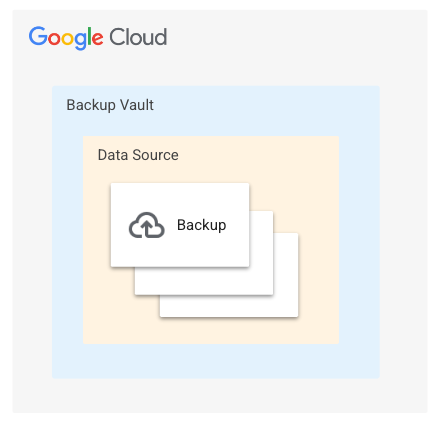
Data within the Backup and DR is organized into a three-tiered hierarchy within the backup vault:
Backup vault: a top-level container that enforces global minimum retention policies.
Data source: a child resource representing a specific protected entity (for example a Compute Engine instance). The system creates this automatically upon the first backup.
Backup: a child resource of a data source representing a discrete backup with a specific point-in-time recovery point.
The following diagram shows the backup vault resource model:
Limitations
This page describes backup vaults for resources managed through the Google Cloud console (such as Compute Engine or Cloud SQL). If you are using the appliance management console for workloads like Oracle or Google Cloud VMware Engine, see Overview of backup vaults managed from the appliance management console.
AlloyDB clusters and Filestore instances in backup vaults aren't supported for multi-regions.
Backup and DR doesn't impose any restriction on the compatible destination locations when restoring a workload from a backup vault backup.
You can incur network transfer fees depending on the locations of your backup vault and source workload. For more information, see Backup and DR pricing.
Supported resources
| Workload type | Management |
|---|---|
| Compute Engine instance | Google Cloud console |
| Compute Engine disk | Google Cloud console |
| Filestore instance | Google Cloud console |
| Cloud SQL instance | Google Cloud console |
| AlloyDB cluster | Google Cloud console |
| Google Cloud VMware Engine, Oracle database, and SQL Server database | Appliance management console |
Backup models for resources
| Centralized model | Decentralized model | |
|---|---|---|
| Google Cloud console | Consolidates backup management by creating backup vaults and backup plans in a central administrator project. Administrators can use these centrally managed plans to protect resources across multiple service projects, or use IAM permissions to delegate backup plan access to application owners. |
Isolates backup management by creating a separate backup vault and backup plan within each project. This approach is ideal for decentralized organizations where individual application teams are responsible for backing up their own resources. |
| Appliance management console | Consolidates backup management by deploying the appliance management console and creating backup vaults in a central administrator project. Administrators configure backup policies within the central management console to protect resources, such as Google Cloud VMware Engine VMs, across multiple service projects. |
Isolates backup management by deploying a separate appliance management console and backup vault for each project or line of business. This approach is ideal for decentralized organizations where backup management responsibilities are split across multiple teams. |
Backup vault supported locations
You can create a backup vault in the same region as the source workload (regional), in a different region from the source workload (cross-regional), or across multiple regions (multi-regional).
Supported regions and cross-regions
You can create backup vaults in the following regions and cross-regions:
| Geographic Area | Region Name | Region Description | |
|---|---|---|---|
| North America | |||
northamerica-northeast1 * |
Montréal |
 Low CO2 Low CO2
|
|
northamerica-northeast2 |
Toronto |
Low CO2
|
|
us-central1 |
Iowa |
Low CO2
|
|
us-east1 |
South Carolina | ||
us-east4 |
Northern Virginia | ||
us-east5 |
Columbus | ||
us-south1 |
Dallas |
Low CO2
|
|
us-west1 |
Oregon |
Low CO2
|
|
us-west2 |
Los Angeles | ||
us-west3 |
Salt Lake City | ||
us-west4 |
Las Vegas | ||
northamerica-south1 * |
Querétaro | ||
| South America | |||
southamerica-east1 |
São Paulo |
Low CO2
|
|
southamerica-west1 |
Santiago |
Low CO2
|
|
| Europe | |||
europe-central2 |
Warsaw |
Low CO2
|
|
europe-north1 |
Finland |
Low CO2
|
|
europe-north2 |
Stockholm |
Low CO2
|
|
europe-southwest1 |
Madrid |
Low CO2
|
|
europe-west1 |
Belgium |
Low CO2
|
|
europe-west2 |
London |
Low CO2
|
|
europe-west3 |
Frankfurt | ||
europe-west4 |
Netherlands |
Low CO2
|
|
europe-west6 |
Zürich |
Low CO2
|
|
europe-west8 |
Milan |
Low CO2
|
|
europe-west9 |
Paris |
Low CO2
|
|
europe-west10 |
Berlin | ||
europe-west12 |
Turin |
Low CO2
|
|
| Middle East | |||
me-central1 |
Doha | ||
me-central2 |
Dammam | ||
me-west1 |
Israel | ||
| Africa | |||
africa-south1 |
Johannesburg | ||
| Asia Pacific | |||
asia-east1 |
Taiwan | ||
asia-east2 |
Hong Kong | ||
asia-northeast1 |
Tokyo | ||
asia-northeast2 * |
Osaka | ||
asia-northeast3 |
Seoul | ||
asia-southeast1 |
Singapore | ||
asia-southeast2 |
Jakarta | ||
australia-southeast1 |
Sydney | ||
australia-southeast2 |
Melbourne | ||
| India | |||
asia-south1 |
Mumbai | ||
asia-south2 |
Delhi |
* Querétaro (northamerica-south1), Montréal (northamerica-northeast1), and Osaka (asia-northeast2) don't support zone separation. This means the multiple zones within each of these regions may not be located in physically separate data center campuses. Consequently, a single, localized physical disaster event could potentially impact multiple zones within the same region, increasing the risk of data loss compared to regions that support zone separation.
Supported multi-regions
You can create backup vaults in the following multi-regions:
| Multi-region name | Description |
|---|---|
ASIA |
Data centers in Asia |
EU |
Data centers in the European Union |
US |
Data centers in the United States |
Workload location compatibility
The following table describes the compatible backup vault locations for each supported workload, when using regional and cross-regional backup vaults. Note that backup plans in the Google Cloud console must be created in the same region as the source workload.
| Workload | The backup vault must be in the same region as the source workload | Regional support | Multi-regional support | Cross-regional support |
|---|---|---|---|---|
| Compute Engine instance | No | |||
| Compute Engine disk | No | |||
| Cloud SQL instance | Yes | |||
| AlloyDB cluster | Yes | |||
| Filestore instance | No | |||
| Google Cloud VMware Engine, Oracle database, and SQL Server database | No |
Multi-region compatibility
The following requirements must be met to use multi-regions:
If a workload supports multi-region backup vaults, the source workload location must be compatible with the multi-region backup vault location.
You can only backup up resources in regions that share the same prefix. For example, resources in regions with the
asiaprefix are only allowed to be backed up to theasiamulti-region.
The following table describes the compatible backup vault locations for each supported workload when using multi-region backup vaults:
| Workload type | Supports use of multi-region backup vaults? | Supported backup vault multi-regions |
|---|---|---|
| Compute Engine instance | asia, eu, us |
|
| Compute Engine disk | asia, eu, us |
|
| Filestore instance | N/A | |
| Cloud SQL instance | asia, eu, us |
|
| AlloyDB cluster | N/A | |
| Google Cloud VMware Engine, Oracle database, and SQL Server database | N/A |
Availability
Backup vaults created in regional and cross-regional locations provide resilience against a single-zone outage. Backup data is stored redundantly in at least two separate zones.
Backup vaults created in multi-region locations provide resilience against a single-region outage. Backup data is stored redundantly in at least two separate regions.
Compare multi-region and cross-region backup vaults
| Criteria | Multi-region backups | Cross-region backups |
|---|---|---|
| Backup creation | Automated by Google across two regions within a continent. | Autonomy to explicitly define a region to create backup. |
| Use case | High availability & operational simplicity | Strict compliance, data residency laws, or targeted disaster recovery sites, within and outside source regional boundaries. |
| Management | Low overhead. Single vault, automated balancing | Medium overhead. Requires setting up specific target pairing. |
| Customer-managed encryption keys (CMEK) | Multi-region backup vault must use CMEK from the same region as the backup vault. | Cross-region backup vault must use CMEK from the same region as backup vault. |
| Cost implications | Multi-regional upload and download charge, where applicable. Backup storage charge for multi-region vault. Management charge. | Inter-region data transfer charges. Backup storage charge. Management charge. |
| Supported workloads |
|
|
Backup vault names
Your backup vault names must meet the following requirements:
Backup vault names can only contain lowercase letters, numeric characters, and hyphens (
-). Spaces aren't allowed.Backup vault names must start and end with a number or letter.
Backup vault names must contain 3-63 characters. Names containing periods can contain up to 222 characters, but each period-separated component can be no longer than 63 characters.
Backup vault names cannot be represented as an IP address in dotted-decimal notation. For example,
192.0.2.255.
Prevent backup deletion
To protect your data from accidental or malicious deletion, you (the administrator) configure an enforced retention period for your backup vault. Once configured, backups are completely immutable—they cannot be manually deleted by you, any other user, or Google until your specified duration has passed.
You control enforced retention using three main vault settings:
- Minimum enforced retention: When creating a vault, you must set a baseline retention period (between 1 day and 99 years). This creates a mandatory vault-wide floor:
No backup can be deleted before this time passes. Any backup plan storing data in this vault must have a backup retention period equal to or longer than this minimum.
Inherit retention from backup rule: Instead of relying solely on the vault's baseline minimum, you can configure the vault to adopt the exact retention period defined in your specific backup plans. You must enable this setting during vault creation.
If your vault's minimum is 3 days, but your backup plan's retention is 7 days, the backup is locked for the full 7 days. Result: Manual deletion is completely prevented. Backups are only deleted automatically once the backup plan's specific duration expires.
Lock the enforced retention period: For strict compliance requirements, you can permanently lock your minimum enforced retention configuration.
When setting a lock, you select an effective date. Before the effective date, you can still adjust the minimum retention period up or down to correct mistakes. After the effective date, no one (not even a Project Owner) can decrease the retention period. You are only permitted to increase it.
Backup vault access restriction
A backup vault's access restrictions setting lets you control the sources from which data can be backed up into or restored from a backup vault. This setting determines the types of resources that you can store in a backup vault.
You can select one of the following access restriction settings for a backup vault. Note that this setting is permanent and can't be changed.
Restrict access to current organization: backup and restore operations are only supported within your current organization. This selection makes the backup vault compatible with resources managed through Google Cloud console, such as Compute Engine instances, but not with resources managed through the appliance management console.
Restrict access to current project: backup and restore operations are only supported within your current project. This selection makes the backup vault compatible with resources managed through Google Cloud console (for example, Compute Engine instances), but not with resources managed through the appliance management console.
Restrict access to current organization & unrestricted access for backup appliances: for resources managed through Google Cloud console, backup and restore operations are only supported within your current organization. Resources managed through the appliance management console (for example, Google Cloud VMware Engine VMs) are also supported, but backup and restore operations for those resources are not restricted to your current organization. This selection makes the backup vault compatible with resources managed through Google Cloud console and with resources managed through the appliance management console.
Allow unrestricted access: allows backup and restore operations to or from any project or organization. This selection makes the backup vault compatible with resources managed through Google Cloud console and with resources managed through the appliance management console.
Encryption
By default, Google Cloud automatically encrypts data when it's at rest using Google-owned and Google-managed encryption keys. If you have specific compliance or regulatory requirements related to the keys that protect your data, you can use customer-managed encryption keys (CMEK) for your backups. See Customer-managed encryption keys (CMEK).
What's next
- Create and manage a backup vault in the Google Cloud console
- Back up Compute Engine instances to a backup vault
- Back up Cloud SQL instances to a backup vault
- Back up AlloyDB clusters to a backup vault
- Back up Filestore instances to a backup vault
- Back up disks to a backup vault