


המרת קידוד של סרטון באמצעות Transcoder API
בדף הזה מוסבר איך ליצור משימת המרת וידאו בסיסית באמצעות הגדרות ברירת המחדל של Transcoder API, curl, Windows PowerShell או ספריות הלקוח.
אפשר גם לבצע את המדריך למתחילים הזה ישירות במסוף Google Cloud באמצעות אחת משפות התכנות הבאות:
לפני שמתחילים
- נכנסים לחשבון Google Cloud . אנחנו ממליצים למשתמשים חדשים ב- Google Cloud ליצור חשבון כדי שיוכלו להעריך את הביצועים של המוצרים שלנו בתרחישים מהעולם האמיתי. לקוחות חדשים מקבלים בחינם גם קרדיט בשווי 300$ להרצה, לבדיקה ולפריסה של עומסי העבודה.
-
התקינו את ה-CLI של Google Cloud.
-
אם אתם משתמשים בספק זהויות חיצוני (IdP), קודם אתם צריכים להיכנס ל-CLI של gcloud באמצעות המאגר המאוחד לניהול זהויות.
-
כדי לאתחל את ה-CLI של gcloud, הריצו את הפקודה הבאה:
gcloud init -
יוצרים או בוחרים Google Cloud פרויקט.
תפקידים שנדרשים כדי לבחור או ליצור פרויקט
- Select a project: כדי לבחור פרויקט לא צריך תפקיד IAM ספציפי – אפשר לבחור כל פרויקט שקיבלתם בו תפקיד.
-
יצירת פרויקט: כדי ליצור פרויקט, צריך את התפקיד Project Creator (
roles/resourcemanager.projectCreator), שכולל את ההרשאהresourcemanager.projects.create. איך מקצים תפקידים
-
יוצרים Google Cloud פרויקט:
gcloud projects create PROJECT_ID
מחליפים את
PROJECT_IDבשם של פרויקט Google Cloud שיוצרים. -
בוחרים את הפרויקט שיצרתם: Google Cloud
gcloud config set project PROJECT_ID
מחליפים את
PROJECT_IDבשם הפרויקט ב- Google Cloud .
מפעילים את Transcoder API, אם הוא עדיין לא מופעל:
תפקידים שנדרשים להפעלת ממשקי API
כדי להפעיל ממשקי API, נדרשת ההרשאה
serviceusage.services.enable. אם יצרתם את הפרויקט, סביר להניח שכבר יש לכם את ההרשאה הזו דרך התפקיד 'בעלים' (roles/owner). אחרת, תוכלו לקבל את ההרשאה הזו דרך התפקיד 'אדמין בממשק Service Usage' (roles/serviceusage.serviceUsageAdmin). איך מקצים תפקידיםgcloud services enable transcoder.googleapis.com
-
יוצרים פרטי כניסה לאימות מקומי עבור חשבון המשתמש:
gcloud auth application-default login
אם מוחזרת שגיאת אימות ואתם משתמשים בספק זהויות חיצוני (IdP), ודאו ש נכנסתם ל-CLI של gcloud באמצעות המאגר המאוחד לניהול זהויות.
-
מעניקים תפקידים לחשבון המשתמש. מריצים את הפקודה הבאה לכל אחד מהתפקידים הבאים ב-IAM:
roles/transcoder.admin, roles/storage.admingcloud projects add-iam-policy-binding PROJECT_ID --member="user:USER_IDENTIFIER" --role=ROLE
מחליפים את מה שכתוב בשדות הבאים:
-
PROJECT_ID: מזהה הפרויקט. -
USER_IDENTIFIER: המזהה של חשבון המשתמש . לדוגמה,myemail@example.com. -
ROLE: תפקיד ה-IAM שאתם מקצים לחשבון המשתמש.
-
-
התקינו את ה-CLI של Google Cloud.
-
אם אתם משתמשים בספק זהויות חיצוני (IdP), קודם אתם צריכים להיכנס ל-CLI של gcloud באמצעות המאגר המאוחד לניהול זהויות.
-
כדי לאתחל את ה-CLI של gcloud, הריצו את הפקודה הבאה:
gcloud init -
יוצרים או בוחרים Google Cloud פרויקט.
תפקידים שנדרשים כדי לבחור או ליצור פרויקט
- Select a project: כדי לבחור פרויקט לא צריך תפקיד IAM ספציפי – אפשר לבחור כל פרויקט שקיבלתם בו תפקיד.
-
יצירת פרויקט: כדי ליצור פרויקט, צריך את התפקיד Project Creator (
roles/resourcemanager.projectCreator), שכולל את ההרשאהresourcemanager.projects.create. איך מקצים תפקידים
-
יוצרים Google Cloud פרויקט:
gcloud projects create PROJECT_ID
מחליפים את
PROJECT_IDבשם של פרויקט Google Cloud שיוצרים. -
בוחרים את הפרויקט שיצרתם: Google Cloud
gcloud config set project PROJECT_ID
מחליפים את
PROJECT_IDבשם הפרויקט ב- Google Cloud .
מפעילים את Transcoder API, אם הוא עדיין לא מופעל:
תפקידים שנדרשים להפעלת ממשקי API
כדי להפעיל ממשקי API, נדרשת ההרשאה
serviceusage.services.enable. אם יצרתם את הפרויקט, סביר להניח שכבר יש לכם את ההרשאה הזו דרך התפקיד 'בעלים' (roles/owner). אחרת, תוכלו לקבל את ההרשאה הזו דרך התפקיד 'אדמין בממשק Service Usage' (roles/serviceusage.serviceUsageAdmin). איך מקצים תפקידיםgcloud services enable transcoder.googleapis.com
-
יוצרים פרטי כניסה לאימות מקומי עבור חשבון המשתמש:
gcloud auth application-default login
אם מוחזרת שגיאת אימות ואתם משתמשים בספק זהויות חיצוני (IdP), ודאו ש נכנסתם ל-CLI של gcloud באמצעות המאגר המאוחד לניהול זהויות.
-
מעניקים תפקידים לחשבון המשתמש. מריצים את הפקודה הבאה לכל אחד מהתפקידים הבאים ב-IAM:
roles/transcoder.admin, roles/storage.admingcloud projects add-iam-policy-binding PROJECT_ID --member="user:USER_IDENTIFIER" --role=ROLE
מחליפים את מה שכתוב בשדות הבאים:
-
PROJECT_ID: מזהה הפרויקט. -
USER_IDENTIFIER: המזהה של חשבון המשתמש . לדוגמה,myemail@example.com. -
ROLE: תפקיד ה-IAM שאתם מקצים לחשבון המשתמש.
-
יצירת קטגוריה של Cloud Storage
- במסוף Google Cloud , נכנסים לדף Buckets של Cloud Storage.
- לוחצים על יצירה.
- ממלאים את פרטי הקטגוריה בדף Create a bucket. כדי לעבור לשלב הבא לוחצים על Continue.
- כותבים שם ייחודי לקטגוריה בשדה Name your bucket. שם הקטגוריה לא יכול להכיל מידע רגיש, כי מרחב השמות של הקטגוריות זמין וגלוי לכולם.
-
בקטע Choose where to store your data, מבצעים את הפעולות הבאות:
- בוחרים סוג מיקום.
- בתפריט הנפתח Location type, בוחרים מיקום שבו יישמרו נתוני הקטגוריה באופן קבוע.
- אם בוחרים את סוג המיקום בשני אזורים, אפשר גם להפעיל רפליקציה בקצב טורבו באמצעות תיבת הסימון הרלוונטית.
- כדי להגדיר שכפול בין מאגרי מידע, בוחרים באפשרות הוספת שכפול בין מאגרי מידע באמצעות Storage Transfer Service ופועלים לפי השלבים הבאים:
הגדרה של רפליקציה בין דליים
- בתפריט Bucket, בוחרים באפשרות הרצויה.
בקטע הגדרות השכפול, לוחצים על הגדרה כדי להגדיר את ההגדרות של משימת השכפול.
מופיעה החלונית Configure cross-bucket replication.
- כדי לסנן אובייקטים לשכפול לפי קידומת של שם האובייקט, מזינים קידומת שרוצים לכלול או להחריג אובייקטים ממנה, ואז לוחצים על הוספת קידומת.
- כדי להגדיר סוג אחסון לאובייקטים המשוכפלים, בוחרים סוג אחסון בתפריט סוג אחסון. אם מדלגים על השלב הזה, האובייקטים המשוכפלים ישתמשו בסוג האחסון של קטגוריית היעד כברירת מחדל.
- לוחצים על סיום.
-
בקטע Choose how to store your data, מבצעים את הפעולות הבאות:
- בקטע Set a default class, בוחרים באפשרות הבאה: Standard.
- כדי להפעיל מרחב שמות היררכי, בקטע Optimize storage for data-intensive workloads, בוחרים באפשרות Enable hierarchical namespace on this bucket.
- בקטע Choose how to control access to objects, בוחרים אם הקטגוריה אוכפת public access prevention או לא, ואז בוחרים שיטת בקרת גישה לאובייקטים של הקטגוריה.
-
בקטע Choose how to protect object data, מבצעים את הפעולות הבאות:
- בוחרים באחת מהאפשרויות בקטע הגנה על נתונים שרוצים להגדיר לקטגוריה.
- כדי להפעיל מחיקה עם אפשרות שחזור, מסמנים את התיבה Soft delete policy (For data recovery) (מדיניות מחיקה עם אפשרות שחזור (לשחזור נתונים)) ומציינים את מספר הימים שבהם רוצים לשמור אובייקטים אחרי המחיקה.
- כדי להגדיר ניהול גרסאות של אובייקטים, מסמנים את התיבה Object versioning (For version control) (ניהול גרסאות של אובייקטים (לניהול גרסאות)), ומציינים את מספר הגרסאות המקסימלי לכל אובייקט ואת מספר הימים שאחריהם הגרסאות הלא עדכניות יפוגו.
- כדי להפעיל את מדיניות שמירת הנתונים על אובייקטים וקטגוריות, לוחצים על תיבת הסימון שמירת נתונים (לצורך תאימות), ואז מבצעים את הפעולות הבאות:
- כדי להפעיל את הנעילה של שמירת אובייקטים, מסמנים את התיבה הפעלת שמירת אובייקטים.
- כדי להפעיל את Bucket Lock, לוחצים על תיבת הסימון הגדרת מדיניות שמירת נתונים בקטגוריה ובוחרים יחידת זמן ואת משך הזמן של תקופת השמירה.
- כדי לבחור איך להצפין את נתוני האובייקט, מרחיבים את הקטע Data encryption () ובוחרים Data encryption method.
- בוחרים באחת מהאפשרויות בקטע הגנה על נתונים שרוצים להגדיר לקטגוריה.
- לוחצים על יצירה.
- לוחצים על Create Folder ומזינים שם כדי ליצור תיקייה לשמירת פלט הווידאו המקודד.
קידוד מחדש של סרטון באמצעות Transcoder API
כדי לבצע את השלבים הבאים, צריך סרטון באורך של 5 שניות לפחות מהמחשב המקומי (סרטון לאימון המודל). רשימת הפורמטים הנתמכים של קלט ופלט
העלאת סרטון לקטגוריה של Cloud Storage
- פותחים את הדף Cloud Storage Browser במסוף Google Cloud .
כניסה לדף Cloud Storage Browser - לוחצים על שם ה-bucket כדי לפתוח אותו.
- לוחצים על Upload files.
- בוחרים קובץ סרטון להעלאה מהמחשב המקומי.
הסרטון נשמר עכשיו בקטגוריה של Cloud Storage.
יצירת משימת המרה
כברירת מחדל, Transcoder API מבצע המרה של סרטונים באמצעות קידוד H.264 ואריזה בפורמטים MP4, HLS ו-MPEG-DASH. לכל סרטון קלט, הוא מספק גרסאות פלט בהפרדה גבוהה (1,280x720 פיקסלים) ובהפרדה רגילה (640x360 פיקסלים).
כדי ליצור משימה, משתמשים בשיטה projects.locations.jobs.create. בדוגמאות הקוד הבאות נוצרת משימת המרת קוד בסיסית באמצעות הגדרה מראש.
REST
לפני שמשתמשים בנתוני הבקשה, צריך להחליף את הנתונים הבאים:
-
PROJECT_ID: מזהה הפרויקט ב- Google Cloud שמופיע בהגדרות IAM. -
LOCATION: המיקום שבו תופעל המשימה. להשתמש באחד מהאזורים הנתמכים.הצגת מיקומיםus-central1us-west1us-west2us-east1us-east4southamerica-east1northamerica-northeast1asia-east1asia-northeast1asia-northeast3asia-south1asia-southeast1australia-southeast1europe-west1europe-west2europe-west4me-west1me-central1me-central2
-
STORAGE_BUCKET_NAME: השם של הקטגוריה של Cloud Storage שיצרתם. -
STORAGE_INPUT_VIDEO: השם של הסרטון בקטגוריית Cloud Storage שאתם מבצעים לו המרה, כמוmy-vid.mp4. בשדה הזה צריך להזין את כל התיקיות שיצרתם בדלי (לדוגמה,input/my-vid.mp4). -
STORAGE_OUTPUT_FOLDER: שם התיקייה ב-Cloud Storage שבה רוצים לשמור את פלט הווידאו המקודד.
כדי לשלוח את הבקשה צריך להרחיב אחת מהאפשרויות הבאות:
בדוגמה הספציפית הזו של REST נעשה שימוש בפרמטר האופציונלי של השאילתה fields כדי להציג בתשובה רק את שם המשאב שנוצר.
{
  "name": "projects/PROJECT_NUMBER/locations/LOCATION/jobs/JOB_ID"
}
gcloud
- מחליפים את הפרטים הבאים בפקודה
gcloud: - STORAGE_BUCKET_NAME: השם של קטגוריה של Cloud Storage שיצרתם.
- STORAGE_INPUT_VIDEO: השם של הסרטון בקטגוריית Cloud Storage שאתם מקודדים, כמו
my-vid.mp4. בשדה הזה צריך להזין את כל התיקיות שיצרתם בדלי (לדוגמה,input/my-vid.mp4). - LOCATION: המיקום שבו המשימה תפעל. להשתמש באחד מהאזורים הנתמכים.
הצגת מיקומים
us-central1us-west1us-west2us-east1us-east4southamerica-east1northamerica-northeast1asia-east1asia-northeast1asia-northeast3asia-south1asia-southeast1australia-southeast1europe-west1europe-west2europe-west4me-west1me-central1me-central2
- STORAGE_OUTPUT_FOLDER: שם התיקייה ב-Cloud Storage שבה רוצים לשמור את פלט הווידאו המקודד.
- מריצים את הפקודה הבאה:
gcloud transcoder jobs create \
  --input-uri="gs://STORAGE_BUCKET_NAME/STORAGE_INPUT_VIDEO" \
  --location=LOCATION \
  --output-uri="gs://STORAGE_BUCKET_NAME/STORAGE_OUTPUT_FOLDER/"
{
  "config": {
   ...
  },
  "createTime": CREATE_TIME,
  "name": "projects/PROJECT_NUMBER/locations/LOCATION/jobs/JOB_ID",
  "state": "PENDING",
  "ttlAfterCompletionDays": 30
}
C#
לפני שמנסים את הדוגמה הזו, צריך לפעול לפי C#הוראות ההגדרה שבמדריך לתחילת העבודה עם Transcoder API באמצעות ספריות לקוח. מידע נוסף מופיע במאמרי העזרה של Transcoder API C# API.
כדי לבצע אימות ב-Transcoder API, צריך להגדיר את Application Default Credentials. מידע נוסף זמין במאמר הגדרת אימות לסביבת פיתוח מקומית.
Go
לפני שמנסים את הדוגמה הזו, צריך לפעול לפי Goהוראות ההגדרה שבמדריך לתחילת העבודה עם Transcoder API באמצעות ספריות לקוח. מידע נוסף מופיע במאמרי העזרה של Transcoder API Go API.
כדי לבצע אימות ב-Transcoder API, צריך להגדיר את Application Default Credentials. מידע נוסף זמין במאמר הגדרת אימות לסביבת פיתוח מקומית.
Java
לפני שמנסים את הדוגמה הזו, צריך לפעול לפי Javaהוראות ההגדרה שבמדריך לתחילת העבודה עם Transcoder API באמצעות ספריות לקוח. מידע נוסף מופיע במאמרי העזרה של Transcoder API Java API.
כדי לבצע אימות ב-Transcoder API, צריך להגדיר את Application Default Credentials. מידע נוסף זמין במאמר הגדרת אימות לסביבת פיתוח מקומית.
Node.js
לפני שמנסים את הדוגמה הזו, צריך לפעול לפי Node.jsהוראות ההגדרה שבמדריך לתחילת העבודה עם Transcoder API באמצעות ספריות לקוח. מידע נוסף מופיע במאמרי העזרה של Transcoder API Node.js API.
כדי לבצע אימות ב-Transcoder API, צריך להגדיר את Application Default Credentials. מידע נוסף זמין במאמר הגדרת אימות לסביבת פיתוח מקומית.
PHP
לפני שמנסים את הדוגמה הזו, צריך לפעול לפי PHPהוראות ההגדרה שבמדריך לתחילת העבודה עם Transcoder API באמצעות ספריות לקוח. מידע נוסף מופיע במאמרי העזרה של Transcoder API PHP API.
כדי לבצע אימות ב-Transcoder API, צריך להגדיר את Application Default Credentials. מידע נוסף זמין במאמר הגדרת אימות לסביבת פיתוח מקומית.
Python
לפני שמנסים את הדוגמה הזו, צריך לפעול לפי Pythonהוראות ההגדרה שבמדריך לתחילת העבודה עם Transcoder API באמצעות ספריות לקוח. מידע נוסף מופיע במאמרי העזרה של Transcoder API Python API.
כדי לבצע אימות ב-Transcoder API, צריך להגדיר את Application Default Credentials. מידע נוסף זמין במאמר הגדרת אימות לסביבת פיתוח מקומית.
Ruby
לפני שמנסים את הדוגמה הזו, צריך לפעול לפי Rubyהוראות ההגדרה שבמדריך לתחילת העבודה עם Transcoder API באמצעות ספריות לקוח. מידע נוסף מופיע במאמרי העזרה של Transcoder API Ruby API.
כדי לבצע אימות ב-Transcoder API, צריך להגדיר את Application Default Credentials. מידע נוסף זמין במאמר הגדרת אימות לסביבת פיתוח מקומית.
מעתיקים את JOB_ID שהוחזר. הוא נחוץ כדי לקבל את סטטוס העבודה.
בדיקת הסטטוס של עבודת הקידוד
כדי לבדוק את הסטטוס של משימה, משתמשים בשיטה projects.locations.jobs.get. בדוגמאות הקוד הבאות אפשר לראות איך מקבלים את פרטי המשרה ואז מציגים את סטטוס המשרה.
REST
לפני שמשתמשים בנתוני הבקשה, צריך להחליף את הנתונים הבאים:
JOB_ID: המזהה של המשימה שיצרתם.PROJECT_ID: מזהה הפרויקט ב- Google Cloud .LOCATION: המיקום של המשימה. אתם עובדים עם אחת מהמדינות הנתמכות.
us-central1us-west1us-west2us-east1us-east4southamerica-east1northamerica-northeast1asia-east1asia-northeast1asia-northeast3asia-south1asia-southeast1australia-southeast1europe-west1europe-west2europe-west4me-west1me-central1me-central2
כדי לשלוח את הבקשה צריך להרחיב אחת מהאפשרויות הבאות:
אתם אמורים לקבל תגובת JSON שדומה לזו:
{
  "name": "projects/PROJECT_NUMBER/locations/LOCATION/jobs/JOB_ID",
  "config": {
    "inputs": [
      {
        "key": "input0",
        "uri": "gs://STORAGE_BUCKET_NAME/STORAGE_INPUT_VIDEO"
      }
    ],
    "editList": [
      {
        "key": "atom0",
        "inputs": [
          "input0"
        ],
        "startTimeOffset": "0s"
      }
    ],
    "elementaryStreams": [
      {
        "videoStream": {
          "h264": {
            "widthPixels": 640,
            "heightPixels": 360,
            "frameRate": 30,
            "bitrateBps": 550000,
            "pixelFormat": "yuv420p",
            "rateControlMode": "vbr",
            "crfLevel": 21,
            "gopDuration": "3s",
            "vbvSizeBits": 550000,
            "vbvFullnessBits": 495000,
            "entropyCoder": "cabac",
            "bFrameCount": 3,
            "aqStrength": 1,
            "profile": "high",
            "preset": "veryfast"
          }
        },
        "key": "video-stream0"
      },
      {
        "videoStream": {
          "h264": {
            "widthPixels": 1280,
            "heightPixels": 720,
            "frameRate": 30,
            "bitrateBps": 2500000,
            "pixelFormat": "yuv420p",
            "rateControlMode": "vbr",
            "crfLevel": 21,
            "gopDuration": "3s",
            "vbvSizeBits": 2500000,
            "vbvFullnessBits": 2250000,
            "entropyCoder": "cabac",
            "bFrameCount": 3,
            "aqStrength": 1,
            "profile": "high",
            "preset": "veryfast"
          }
        },
        "key": "video-stream1"
      },
      {
        "audioStream": {
          "codec": "aac",
          "bitrateBps": 64000,
          "channelCount": 2,
          "channelLayout": [
            "fl",
            "fr"
          ],
          "sampleRateHertz": 48000
        },
        "key": "audio-stream0"
      }
    ],
    "muxStreams": [
      {
        "key": "sd",
        "fileName": "sd.mp4",
        "container": "mp4",
        "elementaryStreams": [
          "video-stream0",
          "audio-stream0"
        ]
      },
      {
        "key": "hd",
        "fileName": "hd.mp4",
        "container": "mp4",
        "elementaryStreams": [
          "video-stream1",
          "audio-stream0"
        ]
      },
      {
        "key": "media-sd",
        "fileName": "media-sd.ts",
        "container": "ts",
        "elementaryStreams": [
          "video-stream0",
          "audio-stream0"
        ]
      },
      {
        "key": "media-hd",
        "fileName": "media-hd.ts",
        "container": "ts",
        "elementaryStreams": [
          "video-stream1",
          "audio-stream0"
        ]
      },
      {
        "key": "video-only-sd",
        "fileName": "video-only-sd.m4s",
        "container": "fmp4",
        "elementaryStreams": [
          "video-stream0"
        ]
      },
      {
        "key": "video-only-hd",
        "fileName": "video-only-hd.m4s",
        "container": "fmp4",
        "elementaryStreams": [
          "video-stream1"
        ]
      },
      {
        "key": "audio-only",
        "fileName": "audio-only.m4s",
        "container": "fmp4",
        "elementaryStreams": [
          "audio-stream0"
        ]
      }
    ],
    "manifests": [
      {
        "fileName": "manifest.m3u8",
        "type": "HLS",
        "muxStreams": [
          "media-sd",
          "media-hd"
        ]
      },
      {
        "fileName": "manifest.mpd",
        "type": "DASH",
        "muxStreams": [
          "video-only-sd",
          "video-only-hd",
          "audio-only"
        ]
      }
    ],
    "output": {
      "uri": "gs://STORAGE_BUCKET_NAME/STORAGE_OUTPUT_FOLDER/"
    }
  },
  "state": "PENDING",
  "createTime": CREATE_TIME,
  "ttlAfterCompletionDays": 30
}
gcloud
- מחליפים את הפרטים הבאים בפקודה
gcloud: - JOB_ID: המזהה של המשימה שיצרתם.
- LOCATION: המיקום של המשימה. אתם עובדים עם אחד מהאזורים הנתמכים.
הצגת מיקומים
us-central1us-west1us-west2us-east1us-east4southamerica-east1northamerica-northeast1asia-east1asia-northeast1asia-northeast3asia-south1asia-southeast1australia-southeast1europe-west1europe-west2europe-west4me-west1me-central1me-central2
- מריצים את הפקודה הבאה:
gcloud transcoder jobs describe JOB_ID --location=LOCATION
{
  "name": "projects/PROJECT_NUMBER/locations/LOCATION/jobs/JOB_ID",
  "config": {
    "inputs": [
      {
        "key": "input0",
        "uri": "gs://STORAGE_BUCKET_NAME/STORAGE_INPUT_VIDEO"
      }
    ],
    "editList": [
      {
        "key": "atom0",
        "inputs": [
          "input0"
        ],
        "startTimeOffset": "0s"
      }
    ],
    "elementaryStreams": [
      {
        "videoStream": {
          "h264": {
            "widthPixels": 640,
            "heightPixels": 360,
            "frameRate": 30,
            "bitrateBps": 550000,
            "pixelFormat": "yuv420p",
            "rateControlMode": "vbr",
            "crfLevel": 21,
            "gopDuration": "3s",
            "vbvSizeBits": 550000,
            "vbvFullnessBits": 495000,
            "entropyCoder": "cabac",
            "bFrameCount": 3,
            "aqStrength": 1,
            "profile": "high",
            "preset": "veryfast"
          }
        },
        "key": "video-stream0"
      },
      {
        "videoStream": {
          "h264": {
            "widthPixels": 1280,
            "heightPixels": 720,
            "frameRate": 30,
            "bitrateBps": 2500000,
            "pixelFormat": "yuv420p",
            "rateControlMode": "vbr",
            "crfLevel": 21,
            "gopDuration": "3s",
            "vbvSizeBits": 2500000,
            "vbvFullnessBits": 2250000,
            "entropyCoder": "cabac",
            "bFrameCount": 3,
            "aqStrength": 1,
            "profile": "high",
            "preset": "veryfast"
          }
        },
        "key": "video-stream1"
      },
      {
        "audioStream": {
          "codec": "aac",
          "bitrateBps": 64000,
          "channelCount": 2,
          "channelLayout": [
            "fl",
            "fr"
          ],
          "sampleRateHertz": 48000
        },
        "key": "audio-stream0"
      }
    ],
    "muxStreams": [
      {
        "key": "sd",
        "fileName": "sd.mp4",
        "container": "mp4",
        "elementaryStreams": [
          "video-stream0",
          "audio-stream0"
        ]
      },
      {
        "key": "hd",
        "fileName": "hd.mp4",
        "container": "mp4",
        "elementaryStreams": [
          "video-stream1",
          "audio-stream0"
        ]
      },
      {
        "key": "media-sd",
        "fileName": "media-sd.ts",
        "container": "ts",
        "elementaryStreams": [
          "video-stream0",
          "audio-stream0"
        ]
      },
      {
        "key": "media-hd",
        "fileName": "media-hd.ts",
        "container": "ts",
        "elementaryStreams": [
          "video-stream1",
          "audio-stream0"
        ]
      },
      {
        "key": "video-only-sd",
        "fileName": "video-only-sd.m4s",
        "container": "fmp4",
        "elementaryStreams": [
          "video-stream0"
        ]
      },
      {
        "key": "video-only-hd",
        "fileName": "video-only-hd.m4s",
        "container": "fmp4",
        "elementaryStreams": [
          "video-stream1"
        ]
      },
      {
        "key": "audio-only",
        "fileName": "audio-only.m4s",
        "container": "fmp4",
        "elementaryStreams": [
          "audio-stream0"
        ]
      }
    ],
    "manifests": [
      {
        "fileName": "manifest.m3u8",
        "type": "HLS",
        "muxStreams": [
          "media-sd",
          "media-hd"
        ]
      },
      {
        "fileName": "manifest.mpd",
        "type": "DASH",
        "muxStreams": [
          "video-only-sd",
          "video-only-hd",
          "audio-only"
        ]
      }
    ],
    "output": {
      "uri": "gs://STORAGE_BUCKET_NAME/STORAGE_OUTPUT_FOLDER/"
    }
  },
  "state": "PENDING",
  "createTime": CREATE_TIME,
  "ttlAfterCompletionDays": 30
}
C#
לפני שמנסים את הדוגמה הזו, צריך לפעול לפי C#הוראות ההגדרה שבמדריך לתחילת העבודה עם Transcoder API באמצעות ספריות לקוח. מידע נוסף מופיע במאמרי העזרה של Transcoder API C# API.
כדי לבצע אימות ב-Transcoder API, צריך להגדיר את Application Default Credentials. מידע נוסף זמין במאמר הגדרת אימות לסביבת פיתוח מקומית.
Go
לפני שמנסים את הדוגמה הזו, צריך לפעול לפי Goהוראות ההגדרה שבמדריך לתחילת העבודה עם Transcoder API באמצעות ספריות לקוח. מידע נוסף מופיע במאמרי העזרה של Transcoder API Go API.
כדי לבצע אימות ב-Transcoder API, צריך להגדיר את Application Default Credentials. מידע נוסף זמין במאמר הגדרת אימות לסביבת פיתוח מקומית.
Java
לפני שמנסים את הדוגמה הזו, צריך לפעול לפי Javaהוראות ההגדרה שבמדריך לתחילת העבודה עם Transcoder API באמצעות ספריות לקוח. מידע נוסף מופיע במאמרי העזרה של Transcoder API Java API.
כדי לבצע אימות ב-Transcoder API, צריך להגדיר את Application Default Credentials. מידע נוסף זמין במאמר הגדרת אימות לסביבת פיתוח מקומית.
Node.js
לפני שמנסים את הדוגמה הזו, צריך לפעול לפי Node.jsהוראות ההגדרה שבמדריך לתחילת העבודה עם Transcoder API באמצעות ספריות לקוח. מידע נוסף מופיע במאמרי העזרה של Transcoder API Node.js API.
כדי לבצע אימות ב-Transcoder API, צריך להגדיר את Application Default Credentials. מידע נוסף זמין במאמר הגדרת אימות לסביבת פיתוח מקומית.
PHP
לפני שמנסים את הדוגמה הזו, צריך לפעול לפי PHPהוראות ההגדרה שבמדריך לתחילת העבודה עם Transcoder API באמצעות ספריות לקוח. מידע נוסף מופיע במאמרי העזרה של Transcoder API PHP API.
כדי לבצע אימות ב-Transcoder API, צריך להגדיר את Application Default Credentials. מידע נוסף זמין במאמר הגדרת אימות לסביבת פיתוח מקומית.
Python
לפני שמנסים את הדוגמה הזו, צריך לפעול לפי Pythonהוראות ההגדרה שבמדריך לתחילת העבודה עם Transcoder API באמצעות ספריות לקוח. מידע נוסף מופיע במאמרי העזרה של Transcoder API Python API.
כדי לבצע אימות ב-Transcoder API, צריך להגדיר את Application Default Credentials. מידע נוסף זמין במאמר הגדרת אימות לסביבת פיתוח מקומית.
Ruby
לפני שמנסים את הדוגמה הזו, צריך לפעול לפי Rubyהוראות ההגדרה שבמדריך לתחילת העבודה עם Transcoder API באמצעות ספריות לקוח. מידע נוסף מופיע במאמרי העזרה של Transcoder API Ruby API.
כדי לבצע אימות ב-Transcoder API, צריך להגדיר את Application Default Credentials. מידע נוסף זמין במאמר הגדרת אימות לסביבת פיתוח מקומית.
אם הערך של state הוא SUCCEEDED, העבודה הושלמה וקבצי הפלט של הסרטון זמינים עכשיו ברשימת הקבצים המקודדים בקטגוריה שלכם ב-Cloud Storage.
הפעלת הסרטון
כדי להפעיל את קובץ המדיה שנוצר ב-Shaka Player, מבצעים את השלבים הבאים:
- הפיכת הקטגוריה של Cloud Storage שיצרתם לקריאה באופן ציבורי.
- כדי להפעיל שיתוף משאבים בין מקורות (CORS) בקטגוריה של Cloud Storage, מבצעים את הפעולות הבאות:
- יוצרים קובץ JSON שמכיל את הפרטים הבאים:
[ { "origin": ["https://shaka-player-demo.appspot.com/"], "responseHeader": ["Content-Type", "Range"], "method": ["GET", "HEAD"], "maxAgeSeconds": 3600 } ] -
מריצים את הפקודה הבאה אחרי שמחליפים את JSON_FILE_NAME בשם של קובץ ה-JSON שיצרתם בשלב הקודם:
gcloud storage buckets update gs://STORAGE_BUCKET_NAME --cors-file=JSON_FILE_NAME.json
- יוצרים קובץ JSON שמכיל את הפרטים הבאים:
- בוחרים אחד מקובצי ה-MP4 או קובצי המניפסט שנוצרו על ידי משימת המרת הקידוד בקטגוריה של Cloud Storage. לוחצים על העתקת כתובת ה-URL בעמודה גישה ציבורית של הקובץ.
- עוברים אל Shaka Player, נגן שידורים חיים באינטרנט.
- בסרגל הניווט העליון, לוחצים על תוכן בהתאמה אישית.
- לוחצים על הלחצן +.
מדביקים את כתובת ה-URL הציבורית של הקובץ בתיבה Manifest URL (כתובת ה-URL של קובץ המניפסט).
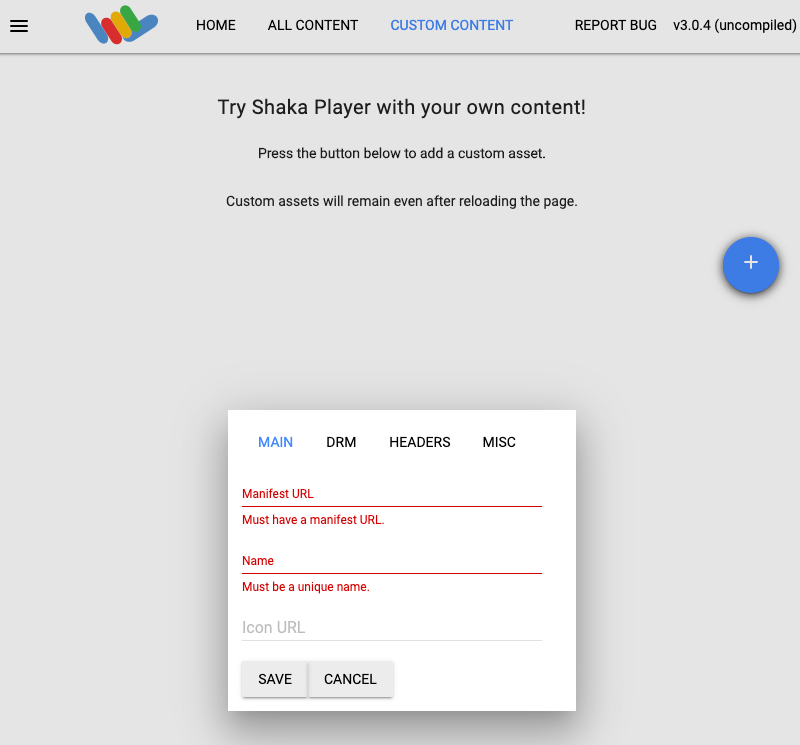
מקלידים שם בתיבה שם.
לוחצים על Save.
לוחצים על הפעלה.
הסרת המשאבים
כדי לא לצבור חיובים לחשבון Google Cloud על המשאבים שבהם השתמשתם בדף הזה, פועלים לפי השלבים הבאים:
מחיקת הקטגוריה
פותחים את הדף Cloud Storage Browser במסוף Google Cloud .
מסמנים את התיבה ליד הקטגוריה שיצרתם.
לוחצים על Delete.
בחלון הקופץ שמופיע, לוחצים על מחיקה כדי למחוק סופית את הקטגוריה ואת התוכן שלה.
מחיקת המשימה
REST
לפני שמשתמשים בנתוני הבקשה, צריך להחליף את הנתונים הבאים:
JOB_ID: המזהה של המשימה שיצרתם.PROJECT_ID: מזהה הפרויקט ב- Google Cloud .LOCATION: המיקום של המשימה. אתם עובדים עם אחת מהמדינות הנתמכות.
us-central1us-west1us-west2us-east1us-east4southamerica-east1northamerica-northeast1asia-east1asia-northeast1asia-northeast3asia-south1asia-southeast1australia-southeast1europe-west1europe-west2europe-west4me-west1me-central1me-central2
כדי לשלוח את הבקשה צריך להרחיב אחת מהאפשרויות הבאות:
אתם אמורים לקבל תגובת JSON שדומה לזו:
{}
gcloud
- מחליפים את הפרטים הבאים בפקודה
gcloud: - JOB_ID: המזהה של המשימה שיצרתם.
- LOCATION: המיקום של המשימה. להשתמש באחד מהאזורים הנתמכים.
הצגת מיקומים
us-central1us-west1us-west2us-east1us-east4southamerica-east1northamerica-northeast1asia-east1asia-northeast1asia-northeast3asia-south1asia-southeast1australia-southeast1europe-west1europe-west2europe-west4me-west1me-central1me-central2
- מריצים את הפקודה הבאה:
gcloud transcoder jobs delete JOB_ID --location=LOCATION
Deleted job [projects/PROJECT_ID/locations/LOCATION/jobs/JOB_ID].
C#
לפני שמנסים את הדוגמה הזו, צריך לפעול לפי C#הוראות ההגדרה שבמדריך לתחילת העבודה עם Transcoder API באמצעות ספריות לקוח. מידע נוסף מופיע במאמרי העזרה של Transcoder API C# API.
כדי לבצע אימות ב-Transcoder API, צריך להגדיר את Application Default Credentials. מידע נוסף זמין במאמר הגדרת אימות לסביבת פיתוח מקומית.
Go
לפני שמנסים את הדוגמה הזו, צריך לפעול לפי Goהוראות ההגדרה שבמדריך לתחילת העבודה עם Transcoder API באמצעות ספריות לקוח. מידע נוסף מופיע במאמרי העזרה של Transcoder API Go API.
כדי לבצע אימות ב-Transcoder API, צריך להגדיר את Application Default Credentials. מידע נוסף זמין במאמר הגדרת אימות לסביבת פיתוח מקומית.
Java
לפני שמנסים את הדוגמה הזו, צריך לפעול לפי Javaהוראות ההגדרה שבמדריך לתחילת העבודה עם Transcoder API באמצעות ספריות לקוח. מידע נוסף מופיע במאמרי העזרה של Transcoder API Java API.
כדי לבצע אימות ב-Transcoder API, צריך להגדיר את Application Default Credentials. מידע נוסף זמין במאמר הגדרת אימות לסביבת פיתוח מקומית.
Node.js
לפני שמנסים את הדוגמה הזו, צריך לפעול לפי Node.jsהוראות ההגדרה שבמדריך לתחילת העבודה עם Transcoder API באמצעות ספריות לקוח. מידע נוסף מופיע במאמרי העזרה של Transcoder API Node.js API.
כדי לבצע אימות ב-Transcoder API, צריך להגדיר את Application Default Credentials. מידע נוסף זמין במאמר הגדרת אימות לסביבת פיתוח מקומית.
PHP
לפני שמנסים את הדוגמה הזו, צריך לפעול לפי PHPהוראות ההגדרה שבמדריך לתחילת העבודה עם Transcoder API באמצעות ספריות לקוח. מידע נוסף מופיע במאמרי העזרה של Transcoder API PHP API.
כדי לבצע אימות ב-Transcoder API, צריך להגדיר את Application Default Credentials. מידע נוסף זמין במאמר הגדרת אימות לסביבת פיתוח מקומית.
Python
לפני שמנסים את הדוגמה הזו, צריך לפעול לפי Pythonהוראות ההגדרה שבמדריך לתחילת העבודה עם Transcoder API באמצעות ספריות לקוח. מידע נוסף מופיע במאמרי העזרה של Transcoder API Python API.
כדי לבצע אימות ב-Transcoder API, צריך להגדיר את Application Default Credentials. מידע נוסף זמין במאמר הגדרת אימות לסביבת פיתוח מקומית.
Ruby
לפני שמנסים את הדוגמה הזו, צריך לפעול לפי Rubyהוראות ההגדרה שבמדריך לתחילת העבודה עם Transcoder API באמצעות ספריות לקוח. מידע נוסף מופיע במאמרי העזרה של Transcoder API Ruby API.
כדי לבצע אימות ב-Transcoder API, צריך להגדיר את Application Default Credentials. מידע נוסף זמין במאמר הגדרת אימות לסביבת פיתוח מקומית.
ביטול פרטי הכניסה
-
אם תרצו, תוכלו לבטל את פרטי הכניסה שיצרתם ולמחוק את הקובץ המקומי של פרטי הכניסה.
gcloud auth application-default revoke
-
אם רוצים, מבטלים את פרטי הכניסה של ה-CLI של gcloud.
gcloud auth revoke
המאמרים הבאים
- מומלץ לקרוא את הסקירה הכללית על Transcoder API.