

Gemini Enterprise provides Cloud Logging for customers to monitor errors and warnings when connecting their data with Gemini Enterprise.
This document describes how to access federated connector error logs and ingestion connector error logs for Gemini Enterprise using Cloud Logging.
Key concepts
This section introduces key concepts related to observability in Gemini Enterprise.
| Concept | Description |
|---|---|
| Gemini Enterprise connector error logs | Gemini Enterprise connector error logs capture errors and failures encountered when integrating Gemini Enterprise with third-party data sources like Jira and Microsoft OneDrive. These logs include connection problems, data transformation issues, and API errors. |
Before you begin
Before accessing the error logs, ensure that you have done the following:
To turn on logging, you must have the Gemini Enterprise Admin IAM role (
roles/discoveryengine.agentspaceAdmin).To access Cloud Logging, you must have the Logs Viewer IAM role (
roles/logging.viewer).Created a Gemini Enterprise app. To create one, see Create an app.
Ensured your data stores are correctly configured and active. For more information on setting up data stores, see Connect a Google data source or Connect a third-party data source.
Turned on the observability settings to see the federated connector error logs. For more information, see Turn on observability settings.
Access federated connector error logs
To view the error logs of your data stores that connect to Gemini Enterprise using data federation, follow these steps:
In the Google Cloud console, go to the Gemini Enterprise page.
In the navigation menu, click Data Stores.
Select a data store of your choice.
Click View Logs. This opens the Logs Explorer page.
To only see Gemini Enterprise connector logs, enter the following query in the query editor field, and click Run Query:
 logName="projects/PROJECT_ID/logs/discoveryengine.googleapis.com%2Fconnector_activity"
 jsonPayload.logMetadata.name="projects/PROJECT_ID/locations/LOCATION/collections/COLLECTION_ID/dataConnector"
Replace the following:
PROJECT_ID: the ID of your project.LOCATION: the location of your connector. For example,global.COLLECTION_ID: the ID of the collection that contains your connector, which is also the ID of the data store in the Google Cloud console.
Refine your query scope by using a filter. For example, click All severities, and select Error and higher. For more information on refining your queries, see Sample queries.
Access ingestion connector error logs
To view the error logs of your data stores that connect to Gemini Enterprise using data ingestion, follow these steps:
In the Google Cloud console, go to the Gemini Enterprise page.
In the navigation menu, click Data stores.
Select a data store of your choice.
Click View Logs. This opens the Logs Explorer page.
By default, the Logs Explorer page searches the resources listed in the default log scope for log entries. To filter to Gemini Enterprise logs, do one of the following:
- Select All Resources > Consumed API > Discovery Engine API, and then click Apply.
Enter the following into the query bar, and click Run Query:
resource.type="consumed_api"
resource.labels.service="discoveryengine.googleapis.com"
Refine your query scope by filtering on JSON metadata. For example, to query
ImportDocumentsmethod logs, do one of the following:Enter the following into the query bar:
jsonPayload.context.reportLocation.functionName=~"ImportDocuments"Expand the JSON metadata, and click to filter:
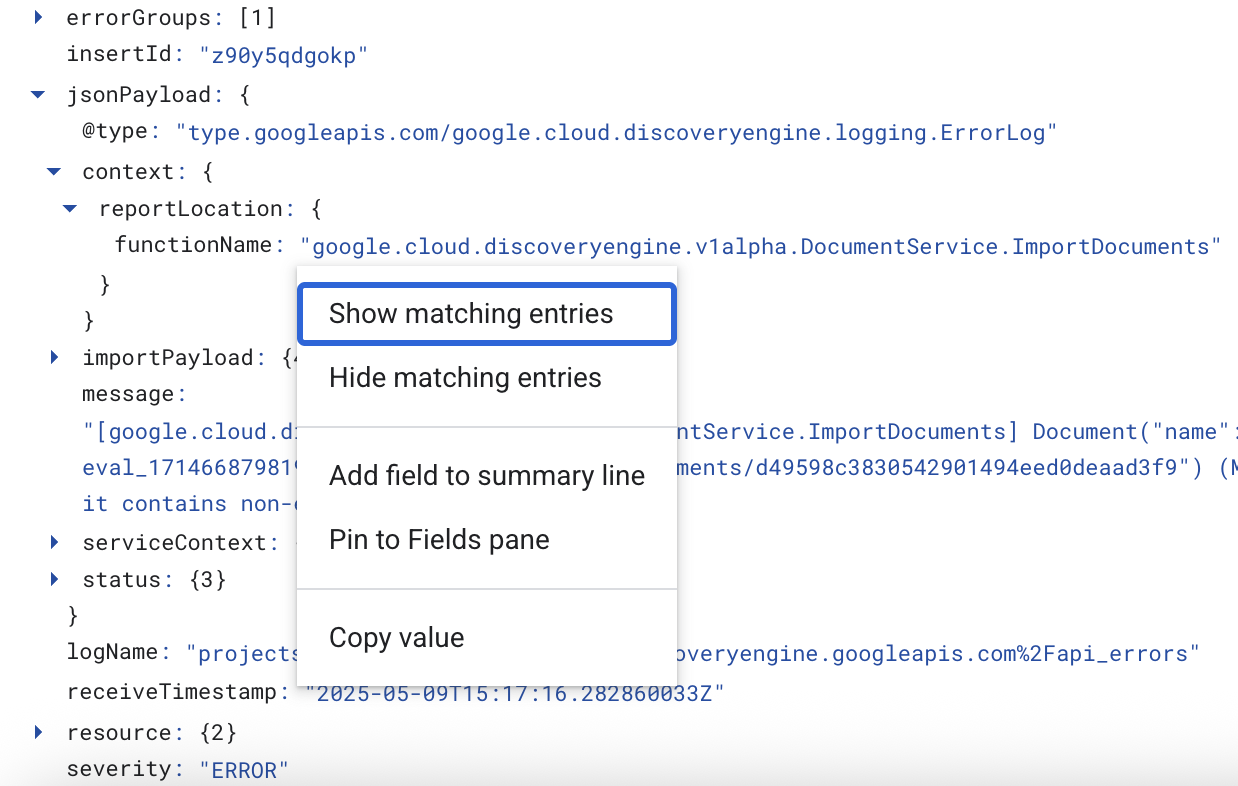
Figure 1. Filter by clicking on JSON metadata
For most warnings and errors, find details in
jsonPayload.messageandjsonPayload.status.For deeper log analysis, dump the logs to a log sink such as BigQuery. For information, see Route logs to supported destinations in the Google Cloud Observability documentation.