

This tutorial shows you how to privately connect Customer Experience Agent Studio (CX Agent Studio), part of Gemini Enterprise for Customer Experience, to a private webhook service hosted on Cloud Run. The architecture routes traffic from the Google-managed tenant project through Service Directory private network access to a regional internal Application Load Balancer over a Shared VPC network, while protecting all resources inside a VPC Service Controls service perimeter.
This tutorial is intended for platform engineers, network architects, and agent developers who want to keep agent-to-backend traffic off the public internet.
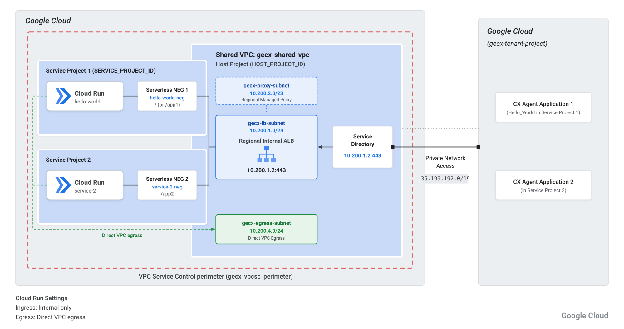
Objectives
- Configure a VPC Service Controls perimeter that protects CX Agent Studio, Cloud Run, and Service Directory across a Shared VPC host project and service project.
- Provision service agents and grant cross-project Identity and Access Management (IAM) roles between the host project and service project.
- Deploy a Cloud Run service configured for internal ingress and Direct Virtual Private Cloud (VPC) egress.
- Provision a regional internal Application Load Balancer with a serverless network endpoint group (NEG) and a self-managed TLS certificate, and register the load balancer in Service Directory.
- Configure an OpenAPI tool in CX Agent Studio to call the private Cloud Run service and verify the connection in the simulator.
Costs
In this tutorial, you use the following billable components of Google Cloud:
To generate a cost estimate based on your projected usage, use the pricing calculator.
Before you begin
This tutorial assumes that your Google Cloud organization, resource hierarchy, and foundational Shared VPC networking are already in place:
- Shared VPC host project: a Google Cloud project hosting the Shared VPC network and Service Directory registry.
- Service project: a Google Cloud project attached to the Shared VPC network, where the CX Agent Studio agent application, Cloud Run service, and regional internal Application Load Balancer reside.
- Shared VPC network: a custom-mode Shared VPC network (for
example,
gecx-shared-vpc) with three dedicated, non-overlapping subnets in your target region (for example,us-east4):- Load balancer subnet (for example,
gecx-lb-subnet): allocates the static internal virtual IP (VIP) for the internal Application Load Balancer frontend. - Regional managed proxy-only subnet (for example,
gecx-proxy-subnet): an active proxy-only subnet (--purpose=REGIONAL_MANAGED_PROXY --role=ACTIVE, recommended/23or larger) required by Envoy-based regional internal Application Load Balancers. - Direct VPC egress subnet (for example,
gecx-egress-subnet): a dedicated subnet (/26or larger recommended) used by Cloud Run for Direct VPC egress.
- Load balancer subnet (for example,
- Command-line tools: Cloud Shell or a local terminal with the
Google Cloud CLI and
opensslinstalled.
If you need to create the Shared VPC network and its three subnets from scratch, run the optional commands in Create the Shared VPC network and subnets after you set your environment variables.
Required roles
To get the permissions that you need to complete this tutorial, ask your administrator to grant you the following IAM roles:
-
Manage networking and Service Directory resources:
- Compute Network Admin (
roles/compute.networkAdmin) on the Shared VPC host project - Service Directory Editor (
roles/servicedirectory.editor) on the Shared VPC host project - Service Directory Network Attacher (
roles/servicedirectory.networkAttacher) on the Shared VPC host project - Project IAM Admin (
roles/resourcemanager.projectIamAdmin) on the Shared VPC host project
- Compute Network Admin (
-
Deploy CX Agent Studio, Cloud Run, and load balancer resources:
- Gemini Enterprise for Customer Experience Admin (
roles/ces.admin) on the service project - Cloud Run Admin (
roles/run.admin) on the service project - Compute Load Balancer Admin (
roles/compute.loadBalancerAdmin) on the service project - Compute Network Admin (
roles/compute.networkAdmin) on the service project - Service Usage Admin (
roles/serviceusage.serviceUsageAdmin) on the service project - Project IAM Admin (
roles/resourcemanager.projectIamAdmin) on the service project
- Gemini Enterprise for Customer Experience Admin (
-
Deploy the Cloud Run service from source without basic roles:
- Service Account User (
roles/iam.serviceAccountUser) on the service project - Cloud Build Editor (
roles/cloudbuild.builds.editor) on the service project - Storage Admin (
roles/storage.admin) on the service project
- Service Account User (
-
Configure the VPC Service Controls service perimeter:
Access Context Manager Admin (
roles/accesscontextmanager.policyAdmin) on your organization
For more information about granting roles, see Manage access to projects, folders, and organizations.
You might also be able to get the required permissions through custom roles or other predefined roles.
Prepare the environment
Initialize your shell environment variables, enable the required APIs, and optionally create the Shared VPC network and subnets.
Set environment variables
In Cloud Shell or your local terminal, set the following environment variables:
# Organization and VPC Service Controls policy identifiers
export ORG_ID="ORGANIZATION_ID"
export PERIMETER_NAME="gecx_vpcsc_perimeter"
export PERIMETER_TITLE="GECX Agent Studio Perimeter"

# Shared VPC host and service project identifiers
export HOST_PROJECT_ID="HOST_PROJECT_ID"
export SERVICE_PROJECT_ID="SERVICE_PROJECT_ID"
export HOST_PROJECT_NUMBER=$(gcloud projects describe "${HOST_PROJECT_ID}" \
    --format="value(projectNumber)")
export SERVICE_PROJECT_NUMBER=$(gcloud projects describe \
    "${SERVICE_PROJECT_ID}" --format="value(projectNumber)")

# Networking and region configuration
export REGION="us-east4"
export VPC_NAME="gecx-shared-vpc"
export LB_SUBNET="gecx-lb-subnet"
export PROXY_SUBNET="gecx-proxy-subnet"
export EGRESS_SUBNET="gecx-egress-subnet"

# Cloud Run and internal load balancer resource names
export CLOUDRUN_SERVICE_NAME="hello-world"
export SERVERLESS_NEG_NAME="hello-world-neg"
export BACKEND_SERVICE_NAME="hello-world-backend-svc"
export URL_MAP_NAME="hello-world-url-map"
export CERTIFICATE_NAME="hello-world-ssl-cert"
export TARGET_PROXY_NAME="hello-world-https-proxy"
export ADDRESS_NAME="hello-world-lb-vip"
export FORWARDING_RULE_NAME="hello-world-fwd-rule"

# Internal FQDN for the TLS certificate and OpenAPI tool specification.
# This FQDN doesn't need to be registered in public DNS because Service
# Directory routes requests directly to the load balancer VIP while preserving
# this Host header and SNI.
export FQDN="hello.internal.example.com"

# Service Directory resource names
export NAMESPACE_NAME="gecx-namespace"
export SERVICE_NAME="hello-world-sd-service"
export ENDPOINT_NAME="hello-world-sd-endpoint"
Replace the following:
ORGANIZATION_ID: your Google Cloud organization IDHOST_PROJECT_ID: the project ID of your Shared VPC host projectSERVICE_PROJECT_ID: the project ID of your service project
Enable required APIs
Enable the required Google Cloud APIs in both the host project and the service project, and set your quota project so organization-level Access Context Manager commands succeed:
# Enable APIs in the Shared VPC host project
gcloud services enable \
    compute.googleapis.com \
    run.googleapis.com \
    servicedirectory.googleapis.com \
    accesscontextmanager.googleapis.com \
    --project="${HOST_PROJECT_ID}"

# Enable APIs in the service project
gcloud services enable \
    compute.googleapis.com \
    run.googleapis.com \
    cloudbuild.googleapis.com \
    artifactregistry.googleapis.com \
    servicedirectory.googleapis.com \
    ces.googleapis.com \
    contactcenterinsights.googleapis.com \
    dialogflow.googleapis.com \
    accesscontextmanager.googleapis.com \
    --project="${SERVICE_PROJECT_ID}"

# Set the quota project for organization-level Access Context Manager commands
gcloud config set billing/quota_project "${HOST_PROJECT_ID}"
Create the Shared VPC network and subnets (optional)
If you already have a Shared VPC network and subnets, skip this section.
Enable Shared VPC on the host project and attach the service project:
gcloud compute shared-vpc enable "${HOST_PROJECT_ID}"

gcloud compute shared-vpc associated-projects add "${SERVICE_PROJECT_ID}" \
    --host-project="${HOST_PROJECT_ID}"
Create the custom-mode Shared VPC network and the three required subnets in your target region:
gcloud compute networks create "${VPC_NAME}" \
    --subnet-mode=custom \
    --bgp-routing-mode=regional \
    --project="${HOST_PROJECT_ID}"

gcloud compute networks subnets create "${LB_SUBNET}" \
    --network="${VPC_NAME}" \
    --region="${REGION}" \
    --range=10.200.1.0/24 \
    --project="${HOST_PROJECT_ID}"

gcloud compute networks subnets create "${PROXY_SUBNET}" \
    --network="${VPC_NAME}" \
    --region="${REGION}" \
    --range=10.200.2.0/23 \
    --purpose=REGIONAL_MANAGED_PROXY \
    --role=ACTIVE \
    --project="${HOST_PROJECT_ID}"

gcloud compute networks subnets create "${EGRESS_SUBNET}" \
    --network="${VPC_NAME}" \
    --region="${REGION}" \
    --range=10.200.4.0/24 \
    --project="${HOST_PROJECT_ID}"
Configure the VPC Service Controls perimeter
Verify that both the Shared VPC host project and the service project belong to the same VPC Service Controls perimeter, and that the perimeter restricts the following services:
- Customer Engagement Suite API (
ces.googleapis.com) - Contact Center AI Insights API (
contactcenterinsights.googleapis.com) - Dialogflow API (
dialogflow.googleapis.com) - Cloud Run Admin API (
run.googleapis.com) - Service Directory API (
servicedirectory.googleapis.com)
A project can belong to only one regular VPC Service Controls service perimeter at a time.
Find the active organization-level access policy ID (excluding scoped policies):
export POLICY_ID=$(gcloud access-context-manager policies list \
    --organization="${ORG_ID}" \
    --filter="NOT scopes:*" \
    --format="value(name.basename())" | head -n 1)
If neither project belongs to a service perimeter, create a perimeter that encloses both projects:
gcloud access-context-manager perimeters create "${PERIMETER_NAME}" \
    --title="${PERIMETER_TITLE}" \
    --policy="${POLICY_ID}" \
    --resources="projects/${HOST_PROJECT_NUMBER},projects/${SERVICE_PROJECT_NUMBER}" \
    --restricted-services="ces.googleapis.com,contactcenterinsights.googleapis.com,dialogflow.googleapis.com,run.googleapis.com,servicedirectory.googleapis.com"
If either project already belongs to a service perimeter, update that existing perimeter instead:
gcloud access-context-manager perimeters update "${PERIMETER_NAME}" \
    --policy="${POLICY_ID}" \
    --add-resources="projects/${HOST_PROJECT_NUMBER},projects/${SERVICE_PROJECT_NUMBER}" \
    --add-restricted-services="ces.googleapis.com,contactcenterinsights.googleapis.com,dialogflow.googleapis.com,run.googleapis.com,servicedirectory.googleapis.com"
Optional: If you run gcloud CLI deployment commands from a local workstation outside the perimeter rather than from Cloud Shell, configure a temporary ingress rule for your administrator identity scoped to a trusted access level, the tutorial projects, and the restricted services.
If you're updating an existing perimeter, export its ingress rules first:
gcloud access-context-manager perimeters describe "${PERIMETER_NAME}" \
    --policy="${POLICY_ID}" \
    --format="yaml(status.ingressPolicies)"
If the output includes entries under
status.ingressPolicies, save those list entries, without the outerstatus:andingressPolicies:keys, to a backup file such asexisting_ingress.yaml.Create
admin_ingress.yamlwith the temporary ingress rule:cat << EOF > admin_ingress.yaml - ingressFrom: identities: - user:ADMIN_EMAIL sources: - accessLevel: "accessPolicies/${POLICY_ID}/accessLevels/ACCESS_LEVEL_NAME" ingressTo: operations: - serviceName: "ces.googleapis.com" methodSelectors: - method: "*" - serviceName: "contactcenterinsights.googleapis.com" methodSelectors: - method: "*" - serviceName: "dialogflow.googleapis.com" methodSelectors: - method: "*" - serviceName: "run.googleapis.com" methodSelectors: - method: "*" - serviceName: "servicedirectory.googleapis.com" methodSelectors: - method: "*" resources: - "projects/${HOST_PROJECT_NUMBER}" - "projects/${SERVICE_PROJECT_NUMBER}" EOFReplace the following:
ADMIN_EMAIL: the email address of your administrator account, such asdana@example.com.ACCESS_LEVEL_NAME: the name of an organization access level that restricts access by corporate IP range or device policy. For temporary testing in a non-production perimeter, you can replace the entireaccessLevelvalue with"*".
If you exported existing ingress rules to
existing_ingress.yaml, append them toadmin_ingress.yaml, and then apply the ingress policy to the perimeter:gcloud access-context-manager perimeters update "${PERIMETER_NAME}" \ --policy="${POLICY_ID}" \ --set-ingress-policies=admin_ingress.yamlRemove this temporary rule when deployment is complete.
Provision service agents and grant IAM roles
Both CX Agent Studio and Cloud Run use Google-managed service agents in your service project that need permissions in both the Shared VPC host project and the service project.
Provision the service agents
If you recently enabled the APIs in your service project, provision the Customer Engagement Suite service agent and the Cloud Run service agent so their identities exist before you grant IAM roles:
# Provision the Customer Engagement Suite service agent:
# service-${SERVICE_PROJECT_NUMBER}@gcp-sa-ces.iam.gserviceaccount.com
gcloud beta services identity create \
    --service=ces.googleapis.com \
    --project="${SERVICE_PROJECT_ID}"

# Provision the Cloud Run service agent:
# service-${SERVICE_PROJECT_NUMBER}@serverless-robot-prod.iam.gserviceaccount.com
gcloud beta services identity create \
    --service=run.googleapis.com \
    --project="${SERVICE_PROJECT_ID}"
Grant roles to the Customer Engagement Suite service agent
The Customer Engagement Suite service agent
(service-${SERVICE_PROJECT_NUMBER}@gcp-sa-ces.iam.gserviceaccount.com)
requires the following IAM roles:
| Target resource | IAM role | Purpose |
|---|---|---|
Host project (HOST_PROJECT_ID) |
Service Directory Viewer (roles/servicedirectory.viewer) |
Lets CX Agent Studio resolve the Service Directory service and endpoint in the host project. |
Host project (HOST_PROJECT_ID) |
Private Service Connect Authorized Service (roles/servicedirectory.pscAuthorizedService) |
Authorizes CX Agent Studio to send private traffic into the Shared VPC network through Service Directory private network access. |
Service project (SERVICE_PROJECT_ID) |
Service Directory Viewer (roles/servicedirectory.viewer) |
Required on the agent project when the Service Directory service resides in a different project. |
Cloud Run service (CLOUDRUN_SERVICE_NAME) |
Cloud Run Invoker (roles/run.invoker) |
Authorizes the CX Agent Studio service agent OIDC ID token to invoke the authenticated Cloud Run service. Granted after you deploy the service. |
You grant roles/run.invoker directly on the Cloud Run service
after you deploy it. First, grant the project-level Service Directory roles to
the Customer Engagement Suite service agent:
# Grant Service Directory roles on the host project
for ROLE in \
    roles/servicedirectory.viewer \
    roles/servicedirectory.pscAuthorizedService; do
  gcloud projects add-iam-policy-binding "${HOST_PROJECT_ID}" \
      --member="serviceAccount:service-${SERVICE_PROJECT_NUMBER}@gcp-sa-ces.iam.gserviceaccount.com" \
      --role="${ROLE}"
done

# Grant Service Directory Viewer on the service project
gcloud projects add-iam-policy-binding "${SERVICE_PROJECT_ID}" \
    --member="serviceAccount:service-${SERVICE_PROJECT_NUMBER}@gcp-sa-ces.iam.gserviceaccount.com" \
    --role="roles/servicedirectory.viewer"
Grant roles for Cloud Run egress and source builds
Before a Cloud Run service in the service project can attach to
a Shared VPC subnet in the host project for Direct VPC
egress, the Cloud Run service agent
(service-${SERVICE_PROJECT_NUMBER}@serverless-robot-prod.iam.gserviceaccount.com)
must have permission to view the Shared VPC network and use the egress
subnet.
Following the principle of least privilege, grant Compute Network Viewer
(roles/compute.networkViewer) on the host project and Compute Network User
(roles/compute.networkUser) on the dedicated Direct VPC egress
subnet (EGRESS_SUBNET) to the Cloud Run service agent. Also
grant Cloud Run Builder (roles/run.builder) on the service project to the
Compute Engine default service account
(${SERVICE_PROJECT_NUMBER}-compute@developer.gserviceaccount.com)
so gcloud run deploy --source=. can build from source when default Editor
grants are disabled.
Grant the required roles to the Cloud Run service agent and Compute Engine default service account:
# Grant Compute Network Viewer on the host project gcloud projects add-iam-policy-binding "${HOST_PROJECT_ID}" \ --member="serviceAccount:service-${SERVICE_PROJECT_NUMBER}@serverless-robot-prod.iam.gserviceaccount.com" \ --role="roles/compute.networkViewer" # Grant Compute Network User on the Direct VPC egress subnet gcloud compute networks subnets add-iam-policy-binding "${EGRESS_SUBNET}" \ --region="${REGION}" \ --member="serviceAccount:service-${SERVICE_PROJECT_NUMBER}@serverless-robot-prod.iam.gserviceaccount.com" \ --role="roles/compute.networkUser" \ --project="${HOST_PROJECT_ID}" # Grant Cloud Run Builder on the service project for source deployments gcloud projects add-iam-policy-binding "${SERVICE_PROJECT_ID}" \ --member="serviceAccount:${SERVICE_PROJECT_NUMBER}-compute@developer.gserviceaccount.com" \ --role="roles/run.builder"Verify that the Cloud Run service agent still holds the default Cloud Run Service Agent (
roles/run.serviceAgent) role on the service project:gcloud projects get-iam-policy "${SERVICE_PROJECT_ID}" \ --flatten="bindings" \ --filter="bindings.role:roles/run.serviceAgent"
Deploy the Cloud Run service
Before you deploy, review the Direct VPC egress limitations.
Because the CX Agent Studio OpenAPI tool expects a JSON payload
({"message": "..."}), create a lightweight Python Flask application that
returns a JSON response and deploy it to Cloud Run with internal
ingress, IAM authentication, and Direct VPC
egress attached to the Shared VPC subnet.
Create the sample JSON webhook application files:
mkdir -p hello-world-service && cd hello-world-service

cat << 'EOF' > main.py
import os
from datetime import datetime, timezone
from flask import Flask, jsonify

app = Flask(__name__)

@app.route("/", methods=["GET"])
def hello_world():
    return jsonify({
        "message": (
            "This is an affirmative response to your Hello World at "
            f"{datetime.now(timezone.utc).isoformat()}"
        )
    }), 200

if __name__ == "__main__":
    app.run(host="0.0.0.0", port=int(os.environ.get("PORT", 8080)))
EOF

cat << 'EOF' > requirements.txt
Flask==3.0.3
gunicorn==22.0.0
EOF

cat << 'EOF' > Procfile
web: gunicorn --bind :$PORT --workers 1 --threads 8 --timeout 0 main:app
EOF
Deploy the Cloud Run service with internal ingress and Direct VPC egress:
gcloud run deploy "${CLOUDRUN_SERVICE_NAME}" \
    --source=. \
    --ingress=internal \
    --no-allow-unauthenticated \
    --network="projects/${HOST_PROJECT_ID}/global/networks/${VPC_NAME}" \
    --subnet="projects/${HOST_PROJECT_ID}/regions/${REGION}/subnetworks/${EGRESS_SUBNET}" \
    --vpc-egress=all-traffic \
    --max-instances=10 \
    --region="${REGION}" \
    --project="${SERVICE_PROJECT_ID}"

cd ..
This deployment uses the following key flags:
--ingress=internal: restricts inbound requests to internal VPC sources and internal Application Load Balancers.--no-allow-unauthenticated: enforces Cloud Run IAM authentication (roles/run.invoker) on all incoming requests.--vpc-egress: controls outbound routing from the Cloud Run container. Useall-trafficto send all outbound traffic through the Shared VPC egress subnet, orprivate-ranges-onlyto send only traffic destined for RFC 1918 and internal IP addresses through the subnet.--max-instances=10: caps the maximum number of concurrent Cloud Run instances. With Direct VPC egress, IP address consumption scales with active instances (up to twicemax-instancesduring revision rollouts). Make sure thatEGRESS_SUBNEThas a sufficiently large CIDR range (/26or larger is recommended).--network-tags(optional): you can add network tags (for example,--network-tags=cloudrun-webhook) at the revision level to apply granular VPC firewall rules to outbound traffic from the Cloud Run service.
Following the principle of least privilege, grant the Cloud Run Invoker (
roles/run.invoker) role directly on thehello-worldCloud Run service to the Customer Engagement Suite service agent:gcloud run services add-iam-policy-binding "${CLOUDRUN_SERVICE_NAME}" \ --region="${REGION}" \ --member="serviceAccount:service-${SERVICE_PROJECT_NUMBER}@gcp-sa-ces.iam.gserviceaccount.com" \ --role="roles/run.invoker" \ --project="${SERVICE_PROJECT_ID}"
Configure the regional internal Application Load Balancer
In a Shared VPC environment, you must create the serverless NEG in the
same project as the Cloud Run service (SERVICE_PROJECT_ID).
For the load balancer itself, Google Cloud supports two deployment
patterns:
- Single service project (used in this tutorial): create all load balancer
components (serverless NEG, backend service, URL map, SSL certificate, target
HTTPS proxy, reserved internal IP address, and forwarding rule) in
SERVICE_PROJECT_ID, referencing the Shared VPC network andLB_SUBNETinHOST_PROJECT_ID. - Cross-project service referencing (multiple service projects): to route
traffic from a single regional internal Application Load Balancer in
HOST_PROJECT_IDto Cloud Run services across multiple service projects, create the serverless NEG and regional backend service inSERVICE_PROJECT_ID, grant Compute Load Balancer Services User (roles/compute.loadBalancerServiceUser) on the backend service to the host project administrator, and then create the URL map, SSL certificate, target HTTPS proxy, reserved IP address, and forwarding rule inHOST_PROJECT_ID. For full instructions, see Configure a load balancer with a cross-project backend service.
Create the serverless NEG and backend service
Create a serverless NEG in
SERVICE_PROJECT_IDpointing to your Cloud Run service:gcloud compute network-endpoint-groups create "${SERVERLESS_NEG_NAME}" \ --region="${REGION}" \ --network-endpoint-type=serverless \ --cloud-run-service="${CLOUDRUN_SERVICE_NAME}" \ --project="${SERVICE_PROJECT_ID}"Create a regional internal managed backend service. Specify
--protocol=HTTPS(this parameter is ignored for serverless NEGs, but required because--protocoldefaults toTCP):gcloud compute backend-services create "${BACKEND_SERVICE_NAME}" \ --load-balancing-scheme=INTERNAL_MANAGED \ --protocol=HTTPS \ --region="${REGION}" \ --project="${SERVICE_PROJECT_ID}"Attach the serverless NEG as a backend to the regional backend service:
gcloud compute backend-services add-backend "${BACKEND_SERVICE_NAME}" \
    --region="${REGION}" \
    --network-endpoint-group="${SERVERLESS_NEG_NAME}" \
    --network-endpoint-group-region="${REGION}" \
    --project="${SERVICE_PROJECT_ID}"
Create the URL map, TLS certificate, and target HTTPS proxy
Create a regional URL map to route incoming requests to the backend service:
gcloud compute url-maps create "${URL_MAP_NAME}" \
    --default-service="${BACKEND_SERVICE_NAME}" \
    --region="${REGION}" \
    --project="${SERVICE_PROJECT_ID}"
Generate a private key and a self-signed TLS certificate for
${FQDN}(hello.internal.example.com), and convert the certificate to DER format so you can upload it to CX Agent Studio as a custom certificate authority (CA). In a production environment, use a certificate issued by your internal PKI or Certificate Authority Service:# Generate an RSA-2048 private key openssl genrsa -out server.key 2048 # Create a certificate signing request (CSR) using server.key openssl req -new -sha256 -key server.key \ -subj "/CN=${FQDN}" \ -out server.csr # Sign the certificate with a Subject Alternative Name (SAN) matching $FQDN openssl x509 -req -days 3650 -sha256 \ -in server.csr \ -signkey server.key \ -out server.crt \ -extfile <(printf "subjectAltName=DNS:%s\n" "${FQDN}") # Convert the PEM certificate to DER format for CX Agent Studio upload openssl x509 -in server.crt -out server.der -outform DERFor more information about self-managed certificates, see Use self-managed SSL certificates.
Create a regional self-managed SSL certificate resource in
SERVICE_PROJECT_ID:gcloud compute ssl-certificates create "${CERTIFICATE_NAME}" \ --certificate=server.crt \ --private-key=server.key \ --region="${REGION}" \ --project="${SERVICE_PROJECT_ID}"Create a regional target HTTPS proxy and attach the SSL certificate and URL map:
gcloud compute target-https-proxies create "${TARGET_PROXY_NAME}" \
    --ssl-certificates="${CERTIFICATE_NAME}" \
    --url-map="${URL_MAP_NAME}" \
    --region="${REGION}" \
    --project="${SERVICE_PROJECT_ID}"
Reserve an internal IP address and create the forwarding rule
Reserve a static internal IPv4 address from the Shared VPC load balancer subnet (
LB_SUBNET) and save the allocated IP address inLB_IP:gcloud compute addresses create "${ADDRESS_NAME}" \ --region="${REGION}" \ --subnet="projects/${HOST_PROJECT_ID}/regions/${REGION}/subnetworks/${LB_SUBNET}" \ --project="${SERVICE_PROJECT_ID}" export LB_IP=$(gcloud compute addresses describe "${ADDRESS_NAME}" \ --region="${REGION}" \ --project="${SERVICE_PROJECT_ID}" \ --format="value(address)") echo "Allocated Internal Load Balancer VIP: ${LB_IP}"Create the regional internal managed forwarding rule on port
443routing traffic from${LB_IP}to the target HTTPS proxy:gcloud compute forwarding-rules create "${FORWARDING_RULE_NAME}" \ --load-balancing-scheme=INTERNAL_MANAGED \ --network="projects/${HOST_PROJECT_ID}/global/networks/${VPC_NAME}" \ --subnet="projects/${HOST_PROJECT_ID}/regions/${REGION}/subnetworks/${LB_SUBNET}" \ --address="${LB_IP}" \ --region="${REGION}" \ --target-https-proxy="${TARGET_PROXY_NAME}" \ --target-https-proxy-region="${REGION}" \ --ports=443 \ --allow-global-access \ --project="${SERVICE_PROJECT_ID}"
For more information, see Set up a regional internal Application Load Balancer with Cloud Run.
Register the endpoint in Service Directory and configure custom audiences
CX Agent Studio requires a registered Service Directory service and
network-attached endpoint to discover and route private traffic to your internal
load balancer VIP (${LB_IP}).
Create the Service Directory namespace, service, and endpoint
Create a Service Directory namespace and service in the host project in the same region (
${REGION}):gcloud service-directory namespaces create "${NAMESPACE_NAME}" \ --location="${REGION}" \ --project="${HOST_PROJECT_ID}" gcloud service-directory services create "${SERVICE_NAME}" \ --namespace="${NAMESPACE_NAME}" \ --location="${REGION}" \ --project="${HOST_PROJECT_ID}"Create the Service Directory endpoint pointing to the internal load balancer IP address (
${LB_IP}) on port443and associated with the Shared VPC network. Service Directory requires the network path to useHOST_PROJECT_NUMBERandlocations/global/networks:gcloud service-directory endpoints create "${ENDPOINT_NAME}" \ --project="${HOST_PROJECT_ID}" \ --location="${REGION}" \ --namespace="${NAMESPACE_NAME}" \ --service="${SERVICE_NAME}" \ --address="${LB_IP}" \ --port=443 \ --network="projects/${HOST_PROJECT_NUMBER}/locations/global/networks/${VPC_NAME}"Print the fully qualified Service Directory service name to use when you configure the OpenAPI tool in CX Agent Studio:
echo "projects/${HOST_PROJECT_ID}/locations/${REGION}/namespaces/${NAMESPACE_NAME}/services/${SERVICE_NAME}"
Configure custom audiences on the Cloud Run service
When CX Agent Studio calls an authenticated OpenAPI tool using Service agent ID
token authentication, it generates a Google-signed OIDC ID token whose
audience (aud) claim is derived from the request URL in your OpenAPI
specification (https://${FQDN}/ for GET /).
By default, Cloud Run accepts only its auto-generated
*.run.app URL as a valid audience. Because Cloud Run custom
audience validation performs an exact string match without wildcard (/*)
support, configure both https://${FQDN} and https://${FQDN}/ as custom
audiences on the Cloud Run service:
gcloud run services update "${CLOUDRUN_SERVICE_NAME}" \
    --region="${REGION}" \
    --project="${SERVICE_PROJECT_ID}" \
    --set-custom-audiences="https://${FQDN},https://${FQDN}/"
Validate the Cloud Run service configuration
Describe the Cloud Run service and inspect the custom-audiences annotation:
gcloud run services describe "${CLOUDRUN_SERVICE_NAME}" \
    --region="${REGION}" \
    --project="${SERVICE_PROJECT_ID}"

gcloud run services describe "${CLOUDRUN_SERVICE_NAME}" \
    --region="${REGION}" \
    --project="${SERVICE_PROJECT_ID}" \
    --format="value(metadata.annotations['run.googleapis.com/custom-audiences'])"
The output is similar to the following:
Service hello-world in region us-east4
URL:     https://hello-world-SERVICE_PROJECT_NUMBER.us-east4.run.app
Ingress: internal
Traffic:
  100% LATEST (currently hello-world-00002-abc)
Scaling: Auto (Min: 0, Max: 10)
  Revision hello-world-00002-abc
  Container hello-world-1
    Port:            8080
    Memory:          512Mi
    CPU:             1000m
  Service account:   SERVICE_PROJECT_NUMBER-compute@developer.gserviceaccount.com
  Concurrency:       80
  Max instances:     10
  Timeout:           300s
  VPC access:
    Egress:          all-traffic
    Network:         projects/HOST_PROJECT_ID/global/networks/gecx-shared-vpc
    Subnet:          projects/HOST_PROJECT_ID/regions/us-east4/subnetworks/gecx-egress-subnet
The custom-audiences annotation output is similar to the following:
["https://hello.internal.example.com", "https://hello.internal.example.com/"]This output includes the following values:
SERVICE_PROJECT_NUMBER: the project number of your service projectHOST_PROJECT_ID: the project ID of your Shared VPC host project
Confirm that the output shows
Ingress: internal, both custom audiences, and Direct VPC egress attached to${VPC_NAME}and${EGRESS_SUBNET}.
Configure CX Agent Studio
Create an agent application, configure the OpenAPI tool with Service Directory and custom TLS settings, and attach the tool to the root agent.
Create the agent application
- Open the CX Agent Studio console.
- Select your service project (
SERVICE_PROJECT_ID) and a multi-region location (usoreu). CX Agent Studio applications are hosted in multi-regional locations rather than single Google Cloud regions such asus-east4. - Click Create agent, enter
Hello_Worldas the agent application name, and then click Create.
Create the OpenAPI tool
- In the agent builder navigation bar, click Tools.
- Click + Create to add a tool to the agent application.
- Select OpenAPI as the tool type.
- For the tool name, enter
hello_world_GET. In the OpenAPI schema (YAML) editor, enter the following specification:
openapi: 3.0.0
info:
  title: Hello World Cloud Run Service
  description: Hello World service deployed on Cloud Run.
  version: 1.0.0
servers:
  - url: https://FQDN
paths:
  /:
    get:
      summary: Get Hello World message
      description: Returns an affirmative response with a timestamp.
      operationId: getHelloWorld
      responses:
        '200':
          description: Successful response
          content:
            application/json:
              schema:
                type: object
                properties:
                  message:
                    type: string
                    example: >-
                      This is an affirmative response to your Hello World
Replace
FQDNwith the domain name you configured for your TLS certificate, such ashello.internal.example.com.Under Authentication, select Service agent ID token so CX Agent Studio attaches a Google-signed OIDC ID token from
service-${SERVICE_PROJECT_NUMBER}@gcp-sa-ces.iam.gserviceaccount.comin theAuthorization: Bearerheader.Open the Advanced tab and configure the following fields:
- Custom TLS certificate authorities: upload the
server.derfile that you generated earlier. Service Directory: enter the fully qualified Service Directory service name:
projects/HOST_PROJECT_ID/locations/REGION/namespaces/NAMESPACE_NAME/services/SERVICE_NAMEReplace the following:
HOST_PROJECT_ID: the project ID of your Shared VPC host projectREGION: the region where you created the Service Directory namespace, such asus-east4NAMESPACE_NAME: the name of your Service Directory namespace, such asgecx-namespaceSERVICE_NAME: the name of your Service Directory service, such ashello-world-sd-service
- Custom TLS certificate authorities: upload the
Click Create.
Attach the tool and configure instructions
- On the agent builder canvas, locate the Root agent card, click Add
tool, and select
hello_world_GET. On the Root agent card, open the Instructions panel to configure agent instructions.
When you reference an OpenAPI tool operation in CX Agent Studio instructions, use the syntax
{@TOOL: TOOLNAMEOPERATION_ID}(or type@in the editor and select the tool from the autocomplete menu so it renders as a chip). For toolhello_world_GET(TOOL_NAME) and OpenAPIoperationIdgetHelloWorld(OPERATION_ID), the resolved tool reference is{@TOOL: hello_world_GET_getHelloWorld}.Enter the following XML instructions:
<role>A direct and precise agent focused on completing a specific task.</role>
<persona>
    <primary_goal>Prompt the user to type "Hello World", trigger the appropriate tool, and return the exact output from the tool with no additional commentary.</primary_goal>
</persona>
<constraints>
    <constraint>When returning the tool's output, you must output ONLY the exact message string returned by the tool. Do not include conversational filler, formatting, or additional text before or after the tool's output.</constraint>
</constraints>
<taskflow>
    These define the conversational subtasks that you can take. Each subtask has a sequence of steps that should be taken in order.
    <subtask name="Initial Engagement">
        <step name="Greet and Prompt">
            <trigger>User initiates conversation</trigger>
            <action>Greet the user and ask them to type exactly: "Hello World".</action>
        </step>
    </subtask>
    <subtask name="Process Hello World">
        <step name="Run Tool">
            <trigger>User responds with "Hello World"</trigger>
            <action>
                Immediately call {@TOOL: hello_world_GET_getHelloWorld}.
                Once the tool returns a response, provide the `message` from the JSON payload to the user.
            </action>
        </step>
    </subtask>
</taskflow>
<examples>
</examples>
Verify that
{@TOOL: hello_world_GET_getHelloWorld}is highlighted as a valid chip with no red underline, and then click Save.
Test the agent
Verify the end-to-end private connection using the simulator:
- In the CX Agent Studio console, click Preview agent to open the simulator panel.
- Enter
helloand pressEnter. The agent greets you and prompts you to enter"Hello World". - Enter
Hello Worldand pressEnter. The agent callshello_world_GET_getHelloWorldover Service Directory private network access, routes through the regional internal Application Load Balancer to your private Cloud Run service, and returns the exact JSONmessagetimestamp payload.
Architectural considerations
Keep the following design behaviors in mind when you adapt this architecture for production workloads:
- Cloud Run custom audiences and OpenAPI paths:
Cloud Run custom audience validation requires an exact string
match against the OIDC ID token
audclaim and doesn't support wildcards such ashttps://${FQDN}/*. By default, CX Agent Studio strips query parameters from the request URL when generating the ID token audience, but retains the URL path. Add every static path defined in your OpenAPI specification (for example,https://${FQDN}/orhttps://${FQDN}/v1/orders) to--set-custom-audienceson the Cloud Run service. Avoid dynamic path parameters (such as/items/{item_id}) when using custom domains with Cloud Run OIDC ID token authentication; pass dynamic values as query parameters (/items?item_id=100) or in aPOSTrequest body so the audience URI stays static. - Scaling to multiple Cloud Run services behind one load balancer: you can connect multiple tools or agents to the same regional internal Application Load Balancer and Service Directory endpoint by attaching multiple regional backend services (each backed by its own serverless NEG) to the load balancer URL map and routing requests using host rules, path matchers, or serverless NEG URL masks.
- Multi-region deployments: Service Directory operates as a regional service, and Service Directory private network access supports regional internal Application Load Balancers in the same region. For multi-region resiliency, deploy regional Cloud Run backends and regional internal load balancers in each target region with corresponding regional Service Directory endpoints.
- Service Directory propagation delay: Service Directory endpoint resolution and IAM role grants are cached for up to 90 seconds. If you update an endpoint IP address or IAM policy, wait 1 to 2 minutes before re-testing in the simulator.
Clean up
To avoid incurring ongoing charges to your Google Cloud account for the resources used in this tutorial, either delete the projects that contain the resources, or keep the projects and delete the individual resources in reverse dependency order.
Delete the
Hello_Worldagent application in the CX Agent Studio console.Delete the Service Directory namespace (which automatically deletes its services and endpoints):
gcloud service-directory namespaces delete "${NAMESPACE_NAME}" \
    --location="${REGION}" \
    --project="${HOST_PROJECT_ID}" \
    --quiet
Delete the regional internal Application Load Balancer components and serverless NEG:
gcloud compute forwarding-rules delete "${FORWARDING_RULE_NAME}" \
    --region="${REGION}" \
    --project="${SERVICE_PROJECT_ID}" \
    --quiet

gcloud compute addresses delete "${ADDRESS_NAME}" \
    --region="${REGION}" \
    --project="${SERVICE_PROJECT_ID}" \
    --quiet

gcloud compute target-https-proxies delete "${TARGET_PROXY_NAME}" \
    --region="${REGION}" \
    --project="${SERVICE_PROJECT_ID}" \
    --quiet

gcloud compute ssl-certificates delete "${CERTIFICATE_NAME}" \
    --region="${REGION}" \
    --project="${SERVICE_PROJECT_ID}" \
    --quiet

gcloud compute url-maps delete "${URL_MAP_NAME}" \
    --region="${REGION}" \
    --project="${SERVICE_PROJECT_ID}" \
    --quiet

gcloud compute backend-services delete "${BACKEND_SERVICE_NAME}" \
    --region="${REGION}" \
    --project="${SERVICE_PROJECT_ID}" \
    --quiet

gcloud compute network-endpoint-groups delete "${SERVERLESS_NEG_NAME}" \
    --region="${REGION}" \
    --project="${SERVICE_PROJECT_ID}" \
    --quiet
Delete the Cloud Run service:
gcloud run services delete "${CLOUDRUN_SERVICE_NAME}" \
    --region="${REGION}" \
    --project="${SERVICE_PROJECT_ID}" \
    --quiet
Optional: If you added a temporary administrator ingress rule to an existing VPC Service Controls perimeter that you plan to keep, remove the temporary rule.
If the perimeter already had other ingress rules, restore your backup ingress policy file:
gcloud access-context-manager perimeters update "${PERIMETER_NAME}" \
    --policy="${POLICY_ID}" \
    --set-ingress-policies=EXISTING_INGRESS_FILE
Replace
EXISTING_INGRESS_FILEwith the path to the YAML file containing the perimeter's previous ingress rules, such asexisting_ingress.yaml.If the perimeter had no other ingress rules, clear the ingress policies:
gcloud access-context-manager perimeters update "${PERIMETER_NAME}" \
    --policy="${POLICY_ID}" \
    --clear-ingress-policies
Optional: If you created the VPC Service Controls perimeter and Shared VPC subnets solely for this tutorial, delete them:
gcloud access-context-manager perimeters delete "${PERIMETER_NAME}" \
    --policy="${POLICY_ID}" \
    --quiet

gcloud compute networks subnets delete "${EGRESS_SUBNET}" \
    --region="${REGION}" \
    --project="${HOST_PROJECT_ID}" \
    --quiet

gcloud compute networks subnets delete "${PROXY_SUBNET}" \
    --region="${REGION}" \
    --project="${HOST_PROJECT_ID}" \
    --quiet

gcloud compute networks subnets delete "${LB_SUBNET}" \
    --region="${REGION}" \
    --project="${HOST_PROJECT_ID}" \
    --quiet
Remove the local application, ingress policy, and TLS certificate files from your workstation or Cloud Shell environment:
rm -rf hello-world-service server.key server.csr server.crt server.der \
    admin_ingress.yaml
What's next
- Connect CX Agent Studio to private data center APIs in Connect to on-premises API servers.
- Review service perimeter requirements in Configure VPC Service Controls for CX Agent Studio.
- Learn about OpenAPI authentication options in OpenAPI tools.
- Explore outbound egress patterns in Outbound networking.