


クライアント ライブラリを使用してクラスタを作成する
下に記載のサンプルコードは、Cloud クライアント ライブラリを使用して Managed Service for Apache Spark クラスタを作成し、そのクラスタでジョブを実行した後、その クラスタを削除する方法を示しています。
以下を使用してこうしたタスクを実行することもできます。
- API Explorer を使用した クイックスタートの API REST リクエスト
- コンソールを使用してクラスタを作成するの コンソール Google Cloud Google Cloud
- Google Cloud CLI を使用してクラスタを作成する の Google Cloud CLI
始める前に
- アカウントにログインします。 Google Cloud を初めて使用する場合は、 アカウントを作成して、実際のシナリオで Google プロダクトのパフォーマンスを評価してください。 Google Cloud新規のお客様には、ワークロードの実行、テスト、デプロイができる無料クレジット $300 分を差し上げます。
-
In the Google Cloud console, on the project selector page, select or create a Google Cloud project.
Roles required to select or create a project
- Select a project: Selecting a project doesn't require a specific IAM role—you can select any project that you've been granted a role on.
-
Create a project: To create a project, you need the Project Creator role
(
roles/resourcemanager.projectCreator), which contains theresourcemanager.projects.createpermission. Learn how to grant roles.
-
Verify that billing is enabled for your Google Cloud project.
Enable the Dataproc API, if it is not already enabled.
Roles required to enable APIs
To enable APIs, you need the
serviceusage.services.enablepermission. If you created the project, then you likely already have this permission through the Owner role (roles/owner). Otherwise, you can get this permission through the Service Usage Admin role (roles/serviceusage.serviceUsageAdmin). Learn how to grant roles.-
In the Google Cloud console, on the project selector page, select or create a Google Cloud project.
Roles required to select or create a project
- Select a project: Selecting a project doesn't require a specific IAM role—you can select any project that you've been granted a role on.
-
Create a project: To create a project, you need the Project Creator role
(
roles/resourcemanager.projectCreator), which contains theresourcemanager.projects.createpermission. Learn how to grant roles.
-
Verify that billing is enabled for your Google Cloud project.
Enable the Dataproc API, if it is not already enabled.
Roles required to enable APIs
To enable APIs, you need the
serviceusage.services.enablepermission. If you created the project, then you likely already have this permission through the Owner role (roles/owner). Otherwise, you can get this permission through the Service Usage Admin role (roles/serviceusage.serviceUsageAdmin). Learn how to grant roles.
コードの実行
チュートリアルを試す: [Cloud Shell で開く] をクリックして、Python Cloud クライアント ライブラリのチュートリアルを実行します。このチュートリアルでは、クラスタを作成し、PySpark ジョブを実行した後、クラスタを削除します。
Go
- クライアント ライブラリをインストールします。詳しくは、開発環境の設定をご覧ください。
- 認証の設定
- サンプル GitHub コードのクローンを作成して実行します。
Java
- クライアント ライブラリをインストールします 詳細については、Java 開発環境の設定をご覧ください。
- 認証の設定
- サンプル GitHub コードのクローンを作成して実行します。
Node.js
- クライアント ライブラリをインストールします 詳細については、Node.js 開発環境の設定をご覧ください。
- 認証の設定
- サンプル GitHub コードのクローンを作成して実行します。
Python
- クライアント ライブラリをインストールします 詳細については、Python 開発環境の設定をご覧ください。
- 認証の設定
- サンプル GitHub コードのクローンを作成して実行します。
出力を表示する
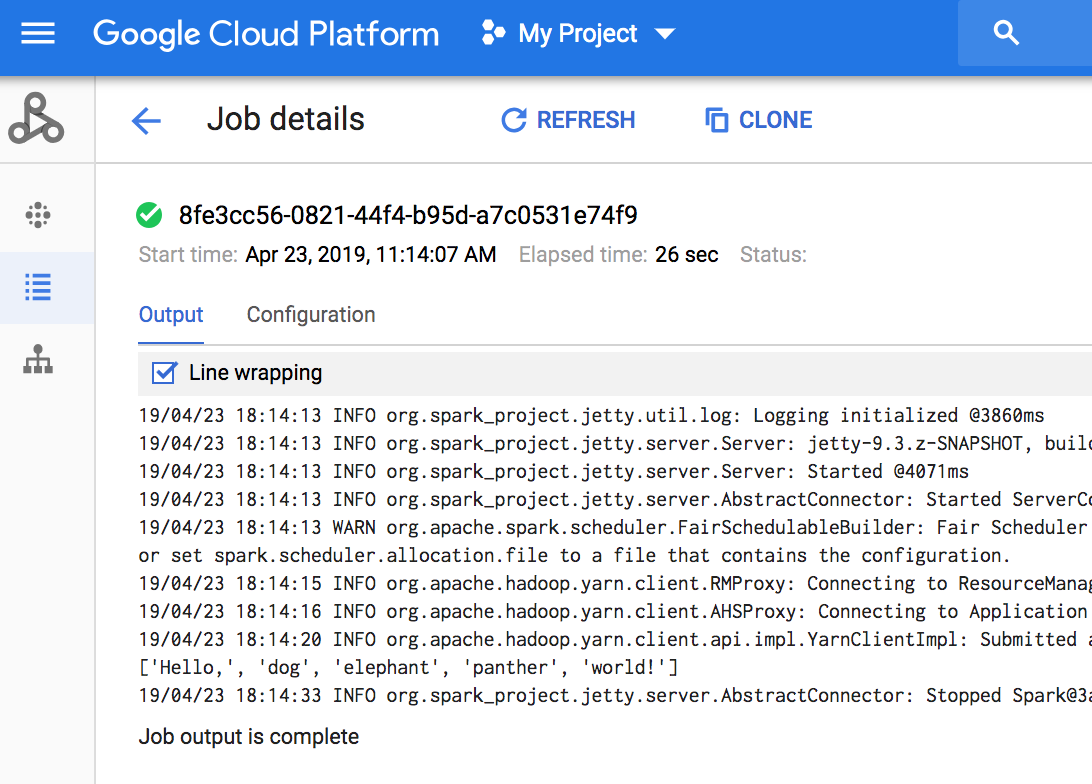
このコードでは、Cloud Storage のデフォルトの Managed Service for Apache Spark ステージング バケット にジョブドライバのログが出力されます。プロジェクトの Managed Service for Apache Spark の [Jobs] ページで、 Google Cloud コンソールからジョブドライバ出力を表示できます。 Google Cloud [ジョブ ID] をクリックして、[ジョブの詳細] ページでジョブの出力を表示します。
次のステップ
- Managed Service for Apache Spark Cloud クライアント ライブラリ 追加リソースをご覧ください。