

When you store your data across different storage systems, managing fragmented security can become a major challenge.
You want to make sure sensitive information, such as financial records, stays protected, even if you store it in open formats like Apache Iceberg on Google Cloud storage. You need these protections to apply across different query engines, like BigQuery SQL and Apache Spark.
In this tutorial, you build a secure data lakehouse to solve these challenges. Using scripts, you define security policies and see Knowledge Catalog (formerly Dataplex Universal Catalog) and Lakehouse for Apache Iceberg work together to enforce the policies across different query engines.
Architecture overview
To set up fine-grained access control on an open table format like Apache Iceberg, you must create a strict, unified security architecture.
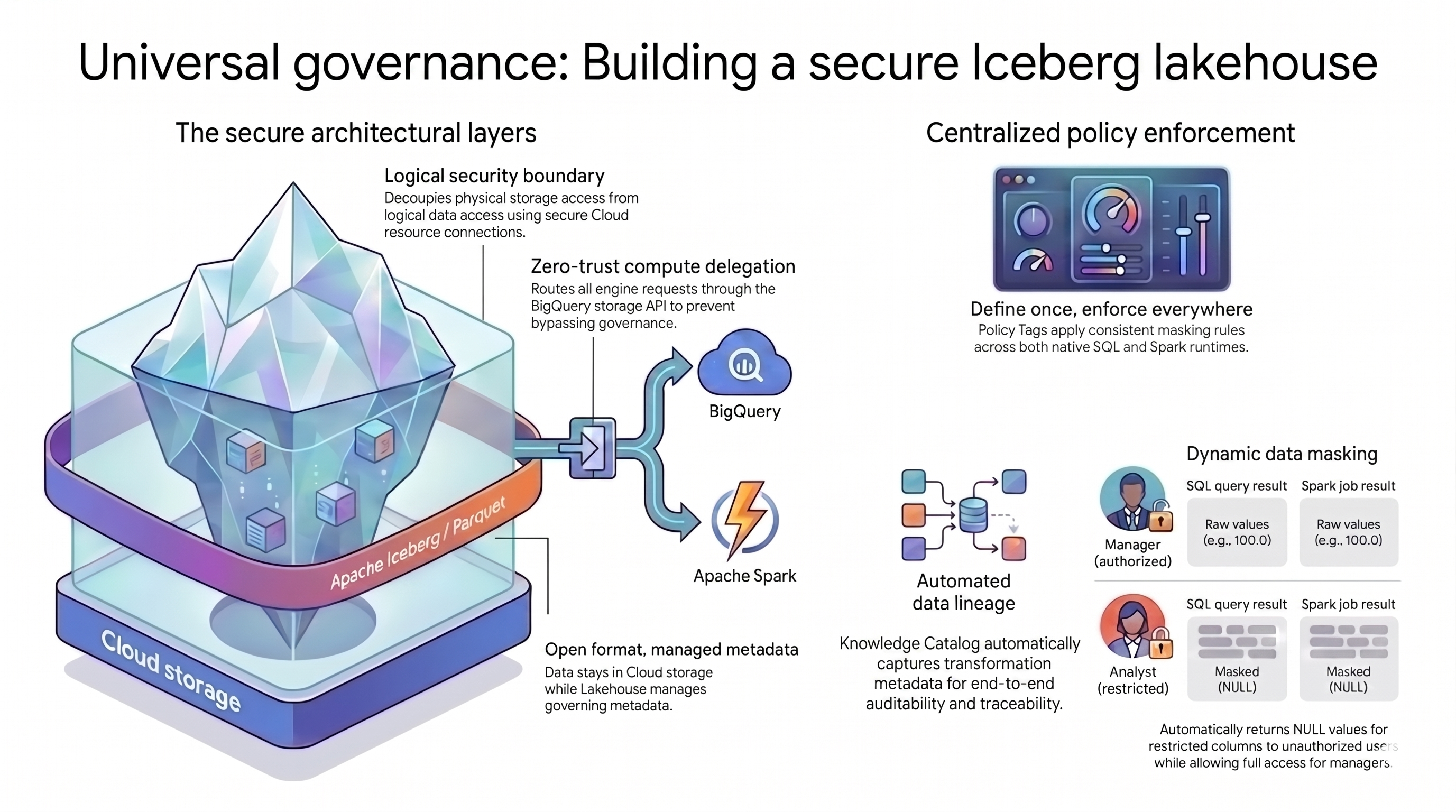
The lakehouse pattern you use in this tutorial relies on two main concepts to solve this challenge:
- Secure architectural layers: Instead of letting users or query engines directly access your Cloud Storage buckets, you build a secure, layered foundation based on the following attributes:
- Open format with managed metadata: Your data stays in its open Apache Iceberg (Parquet) format inside Cloud Storage, while Lakehouse for Apache Iceberg manages the table metadata.
- Logical security boundary: You decouple storage permissions from data queries using a secure Cloud resource connection. You never grant end users direct access to the files.
- Compute delegation: To prevent query engines from bypassing your rules, you route all data requests through the BigQuery Storage API.
- Centralized policy enforcement: With a secure foundation in place, Knowledge Catalog acts as the single control plane for the architecture, universally applying rules:
- Define once, enforce everywhere: You define policy tags in Knowledge Catalog just once, and the platform applies consistent masking rules across all your supported query engines.
- Dynamic data masking: The system evaluates user identity during queries. Authorized users see raw values, while restricted users receive
NULLoutputs across all query engines. - Automated data lineage: Knowledge Catalog tracks data transformations automatically, creating an audit trail without custom logging code.
Objectives
- Create Apache Iceberg tables managed by BigQuery. Lakehouse manages the Iceberg metadata.
- Set up central security rules using policy tags to mask and protect sensitive columns.
- Separate physical storage permissions from logical data queries using a Cloud resource connection.
- Route queries securely through Managed Service for Apache Spark so that external engines can't bypass your security rules.
- Explore an interactive map of your data using data lineage.
Before you begin
Before you begin, do the following:
- Select a Google Cloud project for this tutorial.
- Confirm that billing is enabled for your project.
Prepare your environment
This tutorial uses Cloud Shell, a command-line environment that runs in the cloud.
From the Google Cloud Console, click the Cloud Shell icon on the top right toolbar.
Set your project variables:
export PROJECT_ID=$(gcloud config get-value project)
export REGION="us-central1"
export ICEBERG_BUCKET="iceberg-retail-demo-${PROJECT_ID}"
export DATASET_ID="lakehouse_retail_demo"
export CONN_NAME="iceberg-bq-conn-demo"
Define variables for two user personas, a retail analyst and a retail manager:
export USER_ANALYST="retail-analyst-demo"
export EMAIL_ANALYST="${USER_ANALYST}@${PROJECT_ID}.iam.gserviceaccount.com"

export USER_MANAGER="retail-manager-demo"
export EMAIL_MANAGER="${USER_MANAGER}@${PROJECT_ID}.iam.gserviceaccount.com"
export CURRENT_USER=$(gcloud config get-value account)
Enable the required Google Cloud APIs.
gcloud services enable \
  bigquery.googleapis.com \
  bigqueryconnection.googleapis.com \
  datacatalog.googleapis.com \
  bigquerydatapolicy.googleapis.com \
  datalineage.googleapis.com \
  dataplex.googleapis.com \
  dataproc.googleapis.com \
  storage-component.googleapis.com
Download the tutorial source code
Download the Python scripts for this tutorial from the Google Cloud DevRel repository:
# Shallow clone without full history
git clone --depth 1 --filter=blob:none --sparse https://github.com/GoogleCloudPlatform/devrel-demos.git
cd devrel-demos

# Download only the specific folder
git sparse-checkout set data-analytics/governed-lakehouse
cd data-analytics/governed-lakehouse
Create a storage bucket
Create a new bucket to hold Iceberg table files:
gcloud storage buckets create gs://${ICEBERG_BUCKET} --location=${REGION}
Prepare identities and security
In this step, you set up compute delegation by creating a Cloud resource connection. This connection acts as a secure, delegated identity that BigQuery uses to manage and read your Iceberg files. This helps ensure that individual users never have direct access to your Cloud Storage bucket.
Run the following commands to create the connection, retrieve its auto-generated service account, and grant that account the permissions needed to manage your Iceberg data:
# Create the Cloud resource connection
bq mk --connection \
    --connection_type=CLOUD_RESOURCE \
    --location=${REGION} \
    ${CONN_NAME}

# Retrieve the connection's automatically generated Service Account
export BQ_CONN_SVC_ACCT=$(bq show --format=json --connection ${REGION}.${CONN_NAME} \
    | jq -r '.cloudResource.serviceAccountId')

# Grant Storage Object Admin to the connection for the Iceberg bucket
gcloud storage buckets add-iam-policy-binding gs://${ICEBERG_BUCKET} \
    --member="serviceAccount:${BQ_CONN_SVC_ACCT}" \
    --role="roles/storage.objectAdmin" \
    --quiet
Create service accounts for two personas: Analyst and Manager. The following commands set up these service accounts, permit your current user to impersonate them for testing, and grant them specific roles to run queries and view data.
echo "Creating Service Accounts..."
for USER in "${USER_ANALYST}" "${USER_MANAGER}"; do
    gcloud iam service-accounts create ${USER} --display-name="Lakehouse ${USER}"
done

echo "⏳ Waiting 15 seconds for rules to apply..."
sleep 15

echo "Granting roles to service accounts..."
for USER in "${USER_ANALYST}" "${USER_MANAGER}"; do
    EMAIL="${USER}@${PROJECT_ID}.iam.gserviceaccount.com"

    # Allow Cloud Shell to impersonate them for testing
    gcloud iam service-accounts add-iam-policy-binding ${EMAIL} \
        --member="user:${CURRENT_USER}" \
        --role="roles/iam.serviceAccountTokenCreator" \
        --quiet

    # Allow logical viewing of the catalog, querying, and running Dataproc jobs
    for ROLE in "roles/datacatalog.viewer" "roles/bigquery.dataViewer" "roles/bigquery.user" "roles/bigquery.connectionUser" "roles/serviceusage.serviceUsageConsumer" "roles/dataproc.worker"; do
        gcloud projects add-iam-policy-binding ${PROJECT_ID} \
            --member="serviceAccount:${EMAIL}" \
            --role="${ROLE}" \
            --quiet
    done
done

# Grant the Manager data creation rights
gcloud projects add-iam-policy-binding ${PROJECT_ID} \
    --member="serviceAccount:${EMAIL_MANAGER}" \
    --role="roles/bigquery.dataEditor" \
    --quiet

echo "✅ Identity and Security setup completed!"
Create Apache Iceberg tables
Use the BigQuery SQL engine to create Apache Iceberg tables. Though you run the create commands with BigQuery, Lakehouse acts as the management layer that stores the table metadata and secures the underlying Parquet files in Cloud Storage.
After you create the tables, you run a quick transformation to see how Knowledge Catalog handles security and automatically tracks your data's journey.
Create a BigQuery dataset
First, create a BigQuery dataset to group your tables together:
echo "Creating BigQuery Dataset..."
bq mk --location=${REGION} --dataset ${PROJECT_ID}:${DATASET_ID}
Create the Iceberg tables
Run the following commands to create inventory and transaction tables:
echo "Creating Iceberg tables..."

# Inventory table
bq query --use_legacy_sql=false \
"CREATE OR REPLACE TABLE \`${PROJECT_ID}.${DATASET_ID}.inventory\` (
    product_id INT64,
    product_name STRING,
    stock_count INT64
)
WITH CONNECTION \`${REGION}.${CONN_NAME}\`
OPTIONS (
    file_format = 'PARQUET',
    table_format = 'ICEBERG',
    storage_uri = 'gs://${ICEBERG_BUCKET}/inventory/'
);"

# Transactions table
bq query --use_legacy_sql=false \
"CREATE OR REPLACE TABLE \`${PROJECT_ID}.${DATASET_ID}.transactions\` (
    id INT64,
    item STRING,
    amount FLOAT64,
    transaction_date DATE
)
WITH CONNECTION \`${REGION}.${CONN_NAME}\`
OPTIONS (
    file_format = 'PARQUET',
    table_format = 'ICEBERG',
    storage_uri = 'gs://${ICEBERG_BUCKET}/transactions/'
);"
Insert sample data
Insert sample data into the tables:
echo "Inserting data into Iceberg tables..."

# Insert into Inventory table
bq query --use_legacy_sql=false \
"INSERT INTO \`${PROJECT_ID}.${DATASET_ID}.inventory\` (product_id, product_name, stock_count)
VALUES (101, 'Widget A', 500), (102, 'Widget B', 250), (103, 'Widget C', 800);"

# Insert into Transactions table
bq query --use_legacy_sql=false \
"INSERT INTO \`${PROJECT_ID}.${DATASET_ID}.transactions\` (id, item, amount, transaction_date)
VALUES
    (1, 'Widget A', 100.0, DATE '2024-01-01'),
    (2, 'Widget B', 150.0, DATE '2024-01-02'),
    (3, 'Widget C', 50.0, DATE '2024-01-03');"
You now have two Iceberg tables with raw sample data. Lakehouse manages the metadata, but the actual Parquet files are in your Cloud Storage bucket.
Transform data for automated lineage
Aggregate your raw transactions into a daily sales summary. This transformation creates a new table and generates the metadata that Knowledge Catalog uses to automatically map your data's journey.
echo "Creating transactions summary table..."
bq query --use_legacy_sql=false \
"CREATE TABLE \`${PROJECT_ID}.${DATASET_ID}.transactions_summary\` AS
 SELECT transaction_date, SUM(amount) as total_sales, COUNT(id) as transaction_count
 FROM \`${PROJECT_ID}.${DATASET_ID}.transactions\`
 GROUP BY transaction_date;"
Define policies using Python
In a production environment, writing your security rules as code (infrastructure as code) makes your policies repeatable, version-controlled, and easier to maintain. In this section, you use the Google Cloud Python SDK to define and enforce your governance rules automatically.
Prepare the Python virtual environment
Set up an isolated Python virtual environment to manage your dependencies and ensure your governance scripts run reliably:
# Create and activate a virtual environment
python3 -m venv lakehouse_env
source lakehouse_env/bin/activate

# Install required Knowledge Catalog and BigQuery governance libraries
pip install google-cloud-datacatalog google-cloud-bigquery-datapolicies google-cloud-bigquery --quiet

echo "✅ Python environment is ready!"
Define security taxonomies and tags
Start by building the foundation for your security rules. In this step, you create a taxonomy to act as a container and a policy tag to serve as a specific security label for sensitive data.
Run the script to create the resources:
python 1_create_taxonomy.py
Review 1_create_taxonomy.py to see the core logic:
# Create Taxonomy with Fine-Grained Access Control enabled
taxonomy = datacatalog_v1.Taxonomy(
    display_name="BusinessCritical",
    activated_policy_types=[datacatalog_v1.Taxonomy.PolicyType.FINE_GRAINED_ACCESS_CONTROL]
)
created_taxonomy = client.create_taxonomy(parent=parent, taxonomy=taxonomy)

# Create Policy Tag inside the Taxonomy
policy_tag = datacatalog_v1.PolicyTag(display_name="RestrictedFinancial")
created_policy_tag = client.create_policy_tag(parent=created_taxonomy.name, policy_tag=policy_tag)
By explicitly setting the FINE_GRAINED_ACCESS_CONTROL policy type, you transform a standard metadata tag into a strict deny-by-default security boundary. Any column with this tag denies access to all users by default.
Create a dynamic data masking policy
Now, define what happens when someone without privileges queries a tagged column. Create a data masking policy that automatically replaces sensitive values with NULL for the Analyst persona.
Run the script to configure the masking rule:
python 2_create_masking.py
Inside 2_create_masking.py, the script looks up the ID for the policy tag you created and applies the data policy to the Analyst service account:
# Define a Masking Policy that always returns NULL
data_policy = bigquery_datapolicies_v1.DataPolicy(
    data_policy_id="mask_financial_null",
    policy_tag=policy_tag_id,
    data_policy_type=bigquery_datapolicies_v1.DataPolicy.DataPolicyType.DATA_MASKING_POLICY,
    data_masking_policy=bigquery_datapolicies_v1.DataMaskingPolicy(
        predefined_expression=bigquery_datapolicies_v1.DataMaskingPolicy.PredefinedExpression.ALWAYS_NULL
    )
)

# ... (Policy creation code) ...

# Bind the Masked Reader role to the Analyst
iam_policy.bindings.add(
    role="roles/bigquerydatapolicy.maskedReader",
    members=[f"serviceAccount:{analyst_email}"]
)
Grant privileged access to your data
Because of your deny-by-default setup, no one can read the tagged column. You need to explicitly grant access to authorized users. Give the Manager persona and your own account the Fine-Grained Reader role. This lets these specific users bypass the masking rules and read the unmasked data.
Run the script to grant access:
python 3_grant_access.py
Inside 3_grant_access.py, the script modifies the policy tag's IAM policy:
# Grant original data read access
iam_policy.bindings.add(
    role="roles/datacatalog.categoryFineGrainedReader",
    members=[f"serviceAccount:{manager_email}", f"user:{current_user}"]
)
client.set_iam_policy(request=iam_policy_pb2.SetIamPolicyRequest(resource=policy_tag_id, policy=iam_policy))
Attach security tags to the table schema
Finally, you can connect your logical rules to the actual data. Update your Iceberg table schema to attach your policy tag directly to the amount column. After you do this, Lakehouse instantly enforces your protections across the Iceberg table files in your bucket.
Run the script to attach the policy tag:
python 4_attach_tag.py
Review 4_attach_tag.py. The script fetches the BigQuery table schema, iterates through the fields, and attaches the tag specifically to the amount column:
new_schema =[]
for field in table.schema:
    if field.name == 'amount':
        # Wrap the Policy Tag ID and attach it to the column
        policy_tags_list = bigquery.PolicyTagList(names=[policy_tag_id])
        new_field = bigquery.SchemaField(
            name=field.name, field_type=field.field_type, mode=field.mode,
            description=field.description, policy_tags=policy_tags_list
        )
        new_schema.append(new_field)
    else:
        new_schema.append(field)

# Update the table schema in BigQuery
table.schema = new_schema
client.update_table(table, ["schema"])
Verify your security policies
Run a few test queries to make sure your permissions work as expected. To prove that Lakehouse enforces the same security policies when you switch query engines, you run these tests using both BigQuery and Apache Spark.
Test with BigQuery SQL
Start by checking your policies directly in BigQuery. This is the fastest way to confirm that your masking rules and permissions are active.
Check as the Manager
The Manager persona has privileged, fine-grained reader access. They should see every detail in the table, including the values in the amount column.
# Impersonate the Manager
gcloud config set auth/impersonate_service_account ${EMAIL_MANAGER}

# Query the transactions table
bq query --use_legacy_sql=false "SELECT * FROM \`${PROJECT_ID}.${DATASET_ID}.transactions\`"
Since the manager has the Fine-Grained Reader role, the query displays the raw amount values:
+----+----------+--------+------------------+
| id |   item   | amount | transaction_date |
+----+----------+--------+------------------+
|  1 | Widget A |  100.0 |       2024-01-01 |
|  3 | Widget C |   50.0 |       2024-01-03 |
|  2 | Widget B |  150.0 |       2024-01-02 |
+----+----------+--------+------------------+
Check as the Analyst
Switch to the Analyst persona and run the same query.
gcloud config set auth/impersonate_service_account ${EMAIL_ANALYST}

bq query --use_legacy_sql=false "SELECT * FROM \`${PROJECT_ID}.${DATASET_ID}.transactions\`"
Even though you run the same query, Knowledge Catalog masks the sensitive values in the amount column:
+----+----------+--------+------------------+
| id |   item   | amount | transaction_date |
+----+----------+--------+------------------+
|  1 | Widget A |   NULL |       2024-01-01 |
|  3 | Widget C |   NULL |       2024-01-03 |
|  2 | Widget B |   NULL |       2024-01-02 |
+----+----------+--------+------------------+
Return to your account
Clean up your Cloud Shell authentication state to return to your administrator user.
gcloud config unset auth/impersonate_service_account
Test with Apache Spark
Security often breaks when users go straight to data files in Cloud Storage. If a data scientist uses Apache Spark to read the Iceberg table files directly, they'd normally bypass your rules because Cloud Storage only understands bucket-level permissions.
To prevent this, use compute delegation. By using the Spark-BigQuery Connector, you create a secure bridge that routes all Spark requests through the BigQuery Storage API. This ensures Knowledge Catalog checks permissions and applies masking rules before any data reaches the Spark cluster.
Upload the read_transactions.py script to your Cloud Storage bucket so Managed Service for Apache Spark can access it:
# Upload script to Cloud Storage
gsutil cp read_transactions.py gs://${ICEBERG_BUCKET}/scripts/read_transactions.py
Review the core logic in the script you uploaded:
# Reading data via Compute Delegation (Knowledge Catalog policies are applied dynamically here)
df = spark.read \
    .format("bigquery") \
    .option("table", f"{project_id}.{dataset_id}.{table_name}") \
    .load()

print("\n=== 📊 Data Preview ===")
df.show(truncate=False)
The script does not point Spark to the gs:// path of the Iceberg files. By specifying .format("bigquery"), the BigQuery Storage API intercepts the read request, checks the identity of the user running the Spark job, applies the Knowledge Catalog masking rules, and returns only the authorized data to the Spark DataFrame.
Run Spark as the Manager
Submit a Spark job as the Manager persona. Use Managed Service for Apache Spark, a managed service that lets you run Spark workloads without the hassle of managing your own clusters:
echo "🚀 Submitting Dataproc Serverless Job as [MANAGER]..."
gcloud dataproc batches submit pyspark gs://${ICEBERG_BUCKET}/scripts/read_transactions.py \
    --project=${PROJECT_ID} \
    --region=${REGION} \
    --service-account=${EMAIL_MANAGER} \
    --version=2.3 \
    -- ${PROJECT_ID} ${DATASET_ID} \
    --format="value(name)"
Review the job output logs in the terminal. Because the manager has the Fine-Grained Reader role, Spark successfully retrieves the unmasked amounts:
=== 📊 Data Preview ===
+---+--------+------+-------------------+
|id |item    |amount|transaction_date   |
+---+--------+------+-------------------+
|1  |Widget A|100.0 |2024-01-01         |
|2  |Widget B|150.0 |2024-01-02         |
|3  |Widget C|50.0  |2024-01-03         |
+---+--------+------+-------------------+
Run Spark as the Analyst
Finally, run the same Spark code as the Analyst persona:
echo "🚀 Submitting Dataproc Serverless Job as [ANALYST]..."
gcloud dataproc batches submit pyspark gs://${ICEBERG_BUCKET}/scripts/read_transactions.py \
    --project=${PROJECT_ID} \
    --region=${REGION} \
    --service-account=${EMAIL_ANALYST} \
    --version=2.3 \
    -- ${PROJECT_ID} ${DATASET_ID} \
    --format="value(name)"
Review the logs again. Even though the Analyst ran the same Spark code, the BigQuery Storage API intercepted the request and enforced the Knowledge Catalog policy. The Analyst's Spark DataFrame shows null for the amounts.
=== 📊 Data Preview ===
+---+--------+------+-------------------+
|id |item    |amount|transaction_date   |
+---+--------+------+-------------------+
|1  |Widget A|null  |2024-01-01         |
|2  |Widget B|null  |2024-01-02         |
|3  |Widget C|null  |2024-01-03         |
+---+--------+------+-------------------+
Pick the right engine: BigQuery SQL versus Apache Spark
You just proved that Knowledge Catalog enforces your policy regardless of the query engine you use. But when you move to production, how do you choose the right tool?
- BigQuery SQL: Use this for fast analytics and business intelligence. This is the best choice when SQL is your main language because it runs computations directly where the data lives.
- Apache Spark: Choose Spark for more complex tasks that require Python. Spark works best for machine learning pipelines or when you need to bring legacy Hadoop code into your lakehouse.
See your data's journey with automated lineage
Data lineage helps you understand where your data comes from and how it transforms. Answering essential questions like, "Which raw tables were used to produce this sales report?" helps you maintain compliance, debug data pipelines quickly, and build a reliable data foundation.
Instead of writing complex logging code manually, Lakehouse automatically tracks this lifecycle. For example, when you created your summary table earlier in this tutorial, BigQuery captured the transformation details instantly and sent them to Knowledge Catalog.
Explore the interactive lineage graph
Check out the interactive map that the Knowledge Catalog generated. It shows how raw data flows from the transactions table into the transactions_summary table. This provides the end-to-end traceability you need for a data audit.
- In the Google Cloud Console, navigate to Knowledge Catalog > Search.
- Type
lakehouse_retail_demo.transactions_summaryin the search bar and click the table. - Click the Lineage tab.
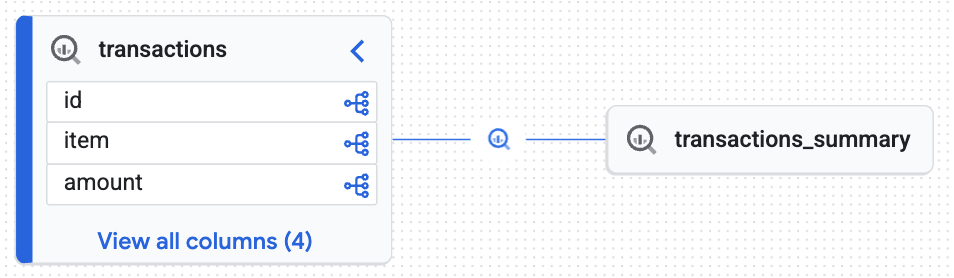
The interactive graph confirms that the target table (transactions_summary) derives from the raw governed Iceberg table (transactions). This visualization demonstrates the end-to-end traceability of your data.
Clean up
To prevent ongoing charges, remove the resources you created for this tutorial.
Delete governance resources
Before you can delete the BigQuery dataset or Cloud Storage bucket, you must delete the governance rules.
Run the Python cleanup script:
python cleanup_governance.py
Review the cleanup_governance.py script from the repository to find the following teardown logic. The deletion order is critical. First, you delete the data masking policy. Then, you delete the parent taxonomy, which automatically removes all underlying policy tags and avoids resource dependency errors.
# 1. Delete Data Policy
data_policy_name = f"{parent_loc}/dataPolicies/mask_financial_null"
dp_client.delete_data_policy(name=data_policy_name)

# 2. Find and Delete Taxonomy (This auto-deletes child Policy Tags)
taxonomies = catalog_client.list_taxonomies(parent=parent_loc)
taxonomy_id = next((t.name for t in taxonomies if t.display_name == "BusinessCritical"), None)
catalog_client.delete_taxonomy(name=taxonomy_id)
Remove identities, storage, and compute assets
Delete the BigQuery tables, Cloud Storage buckets, service accounts, and the local Python virtual environment.
Copy and run the following cleanup script in your Cloud Shell:
echo "Deleting Service Accounts and Impersonation Bindings..."
export CURRENT_USER=$(gcloud config get-value account)

for USER in "${USER_ANALYST}" "${USER_MANAGER}"; do
    EMAIL="${USER}@${PROJECT_ID}.iam.gserviceaccount.com"

    # Remove impersonation binding
    gcloud iam service-accounts remove-iam-policy-binding ${EMAIL} \
        --member="user:${CURRENT_USER}" \
        --role="roles/iam.serviceAccountTokenCreator" \
        --quiet > /dev/null 2>&1

    # Delete the Service Account
    gcloud iam service-accounts delete ${EMAIL} --quiet
done

echo "Removing BigQuery Dataset and Tables..."
bq rm -f ${DATASET_ID}.transactions_summary
bq rm -f ${DATASET_ID}.transactions
bq rm -f ${DATASET_ID}.inventory
bq rm -f -d ${DATASET_ID}

echo "Removing BigQuery Cloud Resource Connection..."
bq rm --connection --location=${REGION} ${CONN_NAME}

echo "Removing Iceberg Cloud Storage Bucket..."
gcloud storage rm --recursive gs://${ICEBERG_BUCKET} --quiet

echo "Removing Auto-generated Dataproc Staging & Temp Buckets..."
for BUCKET in $(gcloud storage ls | grep -E "gs://dataproc-(staging|temp)-${REGION}"); do
    gcloud storage rm --recursive $BUCKET --quiet
done

echo "✅ Clean up completed successfully!"
Clean up the project files:
echo "Deactivating and removing the local Python environment..."
deactivate
cd ../..
rm -rf devrel-demos
Conclusion
You successfully built a secure data lakehouse! Using Lakehouse for Apache Iceberg to manage Iceberg tables, you kept the underlying table files secure in Cloud Storage. You defined policy tags in one central location and applied them universally across different query engines. Finally, you automatically tracked your data's entire journey with real-time data lineage.
What's next
- Managed Service for Apache Spark: Discover how to scale your data pipelines without provisioning clusters on the Serverless Spark documentation page.
- Explore advanced access control: To implement more complex security scenarios, review the official documentation on customizing Lakehouse with additional features.
- Govern unstructured data for GenAI: Discover Object Tables. Extend this secure bridge pattern to unstructured files (PDFs, images) in Cloud Storage, establishing a secure, governed data foundation for Vertex AI and RAG pipelines.
- Try other use cases: Try out other Knowledge Catalog use cases.