


Customer Experience Insights에서 대화 데이터 처리를 위해 다음 API를 사용 설정해야 합니다.
- CX 통계를 사용하기 위한 CX 통계 API
- CX Insights로 대화를 수집하는 Cloud Storage API
- Speech-to-Text API를 사용하여 오디오 파일을 업로드합니다.
- Cloud Data Loss Prevention API를 사용하여 오디오 또는 스크립트 파일에서 수정 작업을 실행합니다.
- Dialogflow 런타임 통합 및 주제 모델링 V1에 필요한 Dialogflow API
이 빠른 시작에서는 다음 작업을 안내합니다.
- Cloud Storage API, Cloud Data Loss Prevention API, Speech-to-Text, Dialogflow API를 사용 설정합니다.
- CX Insights API를 사용 설정합니다.
- CX Insights API에 요청을 전송하고 응답을 수신합니다.
Cloud Storage API, Cloud Data Loss Prevention API, Speech-to-Text, Dialogflow API를 사용 설정합니다.
Cloud Storage를 사용하려면 먼저 Cloud Storage API를 사용 설정해야 합니다. API를 사용 설정하려면 다음 단계를 따르세요.
- Google Cloud 콘솔로 이동합니다.
API 개요로 이동을 클릭합니다.
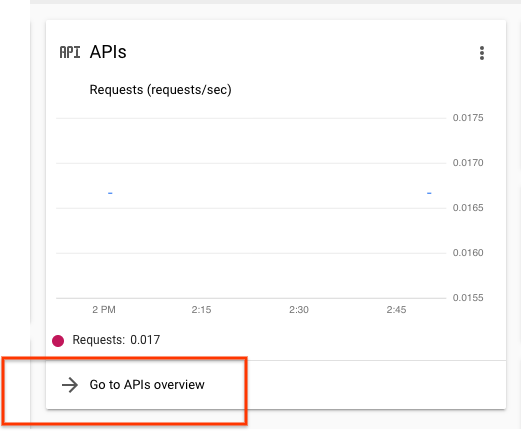
표시되는 API 및 서비스 페이지에서 Cloud Storage를 클릭합니다.
이 API를 아직 사용 설정하지 않았다면 사용 설정을 클릭합니다.
Speech-to-Text API, Cloud Data Loss Prevention API, Dialogflow API에 대해 위의 단계를 반복합니다.
Insights API 액세스 설정
- Google Cloud 콘솔로 이동합니다.
- 프로젝트 선택기 메뉴를 클릭합니다.

- 기존 프로젝트를 선택하거나 새 프로젝트를 만듭니다.
- Google Cloud 콘솔 검색창에 Customer Experience Insights API를 입력합니다.
- 팝업되는 옵션을 클릭하고 사용 설정을 선택합니다.
Google Cloud SDK를 설치하고 설정합니다.
-
사용자 계정에 대한 로컬 인증 사용자 인증 정보를 만듭니다.
gcloud auth application-default login
인증 오류가 반환되고 외부 ID 공급업체(IdP)를 사용하는 경우 제휴 ID로 gcloud CLI에 로그인했는지 확인합니다.
모든 Insights 대화를 나열하는 다음 CURL 명령어를 입력하여 설정을 확인합니다. 빈 사전을 반환해야 합니다.
curl -H "Authorization: Bearer $(gcloud auth application-default print-access-token)" "https://contactcenterinsights.googleapis.com/v1/projects/<var>project-id</var>/locations/us-central1/conversations"
선택사항: VPCSC와 함께 CX Insights 사용
VPC 서비스 제어와 함께 CX 인사이트를 사용하려면 보안 경계에 CX 인사이트를 추가하세요. 자세한 내용은 VPCSC 문서를 참고하세요.