

To pay for the usage costs of some Google Cloud transactions, Google might configure your self-serve (online) Cloud Billing account to use two different charging cycles. A charging cycle represents when you are charged for usage and can be either Postpay or Prepay. When split charging cycles apply, the Cloud Billing account is linked to two different Google payments accounts to separately manage payments for each charging cycle.
How split charging cycles work
As you use Google Cloud and other billing-eligible services, such as Google Maps Platform, Firebase, and Gemini API in AI Studio, your Cloud Billing account tracks all of the costs (charges and savings) incurred in all of the projects that are linked to the Cloud Billing account, then routes those costs to the appropriate Google payments account (Postpay or Prepay) to be paid.
| About Postpay Google payments accounts | About Prepay Google payments accounts |
|---|---|
|
Primary payments account: All self-serve (online) Cloud Billing accounts are linked to a Postpay payments account. With a Postpay payments account, you pay later for the resources you consume during the billing cycle. The usage costs of eligible Google Cloud products and other services are routed to your Postpay Google payments account, and are automatically charged based on your Postpay billing cycle (for example, threshold billing or monthly billing). If there is an issue with your Postpay payments account, such as a delinquent account balance, a declined payment, or an invalid payment method, your Cloud Billing account might be suspended until you resolve the issue. If your Cloud Billing account is suspended, ALL services in all of the projects that are linked to the Cloud Billing account are stopped. This stoppage of service also affects services covered by prepaid credits. Learn how to resolve service disruptions due to the state of your Cloud Billing account. |
Secondary payments account: For certain users and Google products, a self-serve (online) Cloud Billing account might also require a Prepay payments account. With a Prepay payments account, you purchase credits to pay now before you can use any eligible resources. Your purchased credits are loaded into a separate Prepay Google payments account. Your credits are used in near real time to pay for the usage costs of eligible services as they run. When your available credits are depleted, your services are stopped until you purchase more credits. This service stoppage only impacts your services that are paid for by the Prepay payments account. The overall billable status of your Cloud Billing account isn't affected. With a Prepay payments account, you can enable auto-reload to automatically purchase more credits whenever your balance falls below a value that you specify. If your Cloud Billing account is suspended for any reason, such as an issue on its linked Postpay payments account, ALL services are stopped in ALL of the projects that are linked to the Cloud Billing account, including any services that are paid for using Prepay credits. |
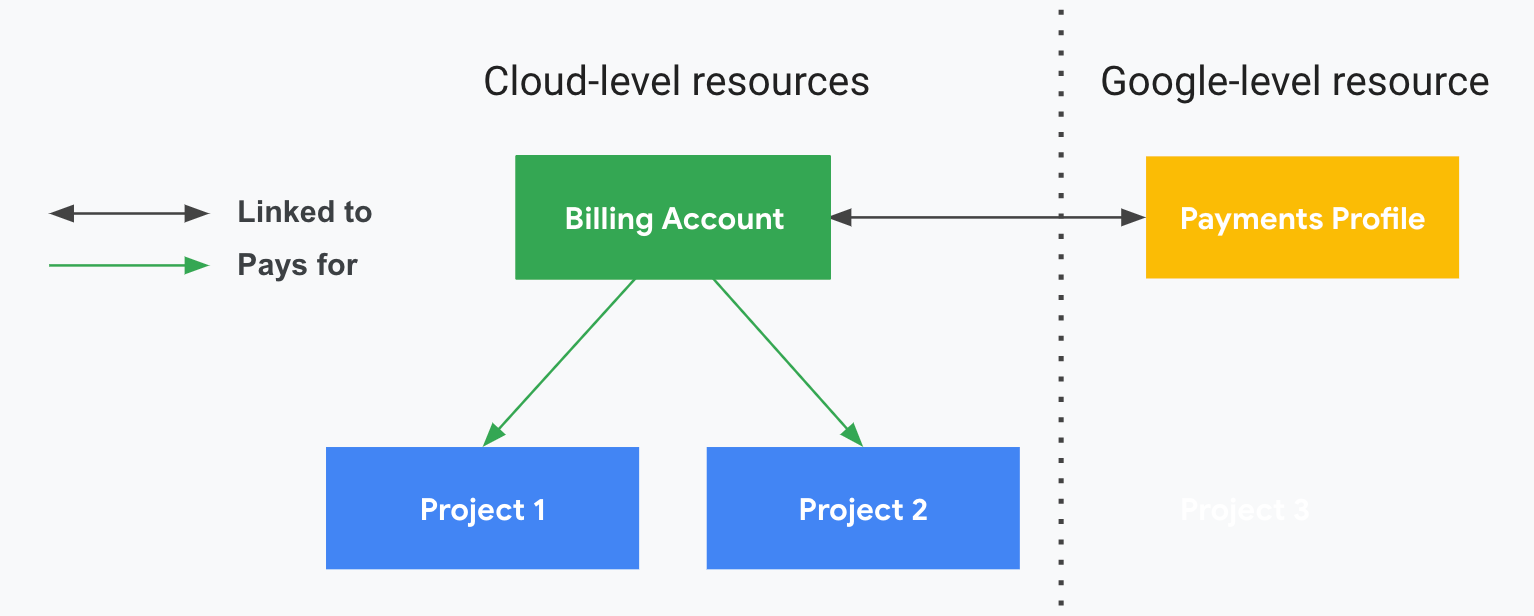
Know when split charging cycles apply
During the billing account creation process, self-serve (online) Cloud Billing accounts are automatically configured with a Postpay Google payments account.
In Google AI Studio, when you set up billing for a project and you select the Cloud Billing account to use to enable billing, you might be prompted to configure a Prepay payments account and purchase credits. In these instances, split charging cycles apply.
For the selected self-serve (online) Cloud Billing account:
- The Prepay payments account is used to pay for your usage costs of Gemini API in AI Studio.
- The Postpay payments account is used to pay for the usage costs of all other Google Cloud products and other services you consume during the billing cycle.
Manage your Postpay and Prepay payments accounts
When split charging cycles apply, the Cloud Billing account is linked to two different Google payments accounts. Where you manage each payments account depends on the type, Postpay or Prepay:
| Postpay: managed in Google Cloud console Billing pages | Prepay: managed in Google AI Studio Billing page |
|---|---|
|
Postpay Google payments accounts that are linked to a self-serve, online Cloud Billing account are managed in the Google Cloud console Billing pages. Here are a few of the payments account features that you can manage for a Postpay account:
|
Prepay Google payments accounts that are linked to a self-serve, online Cloud Billing account are managed in the Google AI Studio Billing page. Here are a few of the payments account features that you can manage for a Prepay account:
|
Alternatively, both types of Google payments accounts can be managed directly in the Google payments center, on the Subscriptions and Services page:
Sign in to the Google payments center.
Tip: If you have more than one Google payments profile, the payments profile that you most recently viewed opens. To manage a different payments profile, select the payments profile from the drop-down menu at the top of the page.
Select the Subscriptions & services tab.
The Subscriptions and Services page opens, where you can access the Active and Canceled Google Cloud accounts and other Google subscriptions that are associated with the Google payments profile that you are viewing.
Locate the Google Cloud subscription card for the Google payments account that you want to access, and click Manage.
Each Google Cloud subscription card represents a Google payments account that is linked to a Cloud Billing account. You might have more than one Cloud Billing account that is associated with the Google payments profile you are viewing, and each Cloud Billing account might be linked to a Postpay and a Prepay payments account. Each Google Cloud subscription card includes the billing account ID of the linked Cloud Billing account to differentiate between multiple Google Cloud subscription cards.
From the Subscriptions and services page for the Google payments account you are viewing, you can complete several tasks, such as:
- View your Postpay account balance or Prepay credit balance.
- Make a payment to a Postpay account or Buy credits for a Prepay account.
- View transactions for the Postpay or Prepay account.
- Manage payment methods for the Postpay or Prepay account.
- Manage settings for the Postpay or Prepay Google payments account.
Make a payment to a Cloud Billing account
A Cloud Billing account is linked to one or more Google payments accounts to pay for your costs. Where and how you make a payment to a Cloud Billing account depends on which type of Google payments account you are paying.
| Postpay: make payments in the Cloud Billing console | Prepay: buy credits in the Google AI Studio Billing page |
|---|---|
|
Postpay Google payments accounts that are linked to a self-serve, online Cloud Billing account are viewed and managed in the Google Cloud console Billing pages. To make a manual payment to your Postpay payments account, in the Google Cloud Billing console, access the Payment overview page, then click Make a payment or Pay early. For more details about this process, see Make a manual payment or pay early |
Prepay Google payments accounts that are linked to a self-serve, online Cloud Billing account are viewed and managed in the Google AI Studio Billing page. To purchase credits for your Prepay payments account, access the AI Studio Billing page to buy credits. You can also configure auto-reload to automatically purchase more credits whenever your credit balance falls below a value that you specify. |
View your charges and costs for split charging cycles
Where you view Cloud Billing account charges and costs data can differ based on which type of Google payments account you are viewing.
Charges
| Postpay: view charges in the Cloud Billing console | Prepay: view charges in the Google AI Studio Billing page |
|---|---|
|
Postpay Google payments accounts that are linked to a self-serve, online Cloud Billing account are viewed and managed in the Google Cloud console Billing pages. To view the cost and payment history for a Postpay Google payments account, view the Transactions page for the Postpay account. If your usage costs are subject to the Postpay with threshold billing charging cycle, you can be charged multiple times in the same month if your account balance reaches your assigned Cloud Billing payment threshold amount repeatedly over that time. In addition, you're charged on the first day of the next month for the balance of any additional costs that you accrue. |
Prepay Google payments accounts that are linked to a self-serve, online Cloud Billing account are viewed and managed in the Google AI Studio Billing page. To view the cost and payment history for a Prepay Google payments account, view the Transactions page for the Prepay account. If your usage costs for Gemini API services are subject to a Prepay charging cycle, the credits you purchase are deducted in near real time based on your usage of the Gemini API in AI Studio. When your credit balance is depleted, your Gemini API services are stopped. If you've enabled the auto-reload feature on your Prepay payments account, you are automatically charged for the amount of credits that you want added to your account when your balance falls below a value you specify. |
Delayed billing
Due to the complexity of our billing and processing systems for both Prepay and Postpay charging cycles, there might be delays in our ability to deduct from your prepaid credit balance or charge you as soon as your costs reach your billing thresholds.
- For Postpay with threshold billing, this delay might cause the amount charged to exceed the payment threshold amount if the account accrues costs very quickly.
- For Prepay accounts with a positive credit balance, this delay might cause excess usage charges that result in a negative credit balance in your AI Studio billing dashboard. If this happens, your service is paused, and your negative balance is deducted from your next credit purchase. To avoid a pause in your Gemini API service, we recommend setting up auto-reload to automatically purchase more credits when your balance falls below a threshold you specify. Learn more about Prepay billing and auto-reload.
Also note that charges typically occur sooner than the usage and cost details are available to view in the various cost reports and dashboards. Typically, your cost details are available to view within a day, but can sometimes take more than 24 hours. Because of this difference in timing, you might notice charges on your Postpay or Prepay payments accounts occur before you can view the details of those charges in a cost report or billing dashboard. These system delays also impact budget alerts, anomaly detection, and billing data exported to BigQuery.
Cost reports and dashboards
For all of the projects that are linked to a Cloud Billing account, all of the cost data that accrues in the Cloud Billing account is available to view and analyze in the various reports and dashboards in the Google Cloud console billing pages. This includes costs for Google Cloud, Google Maps Platform, Firebase, and Gemini API in AI Studio usage.
| Report or Dashboard | Description |
|---|---|
| Cost Reports | Open the Cost Reports page in the Google Cloud console to access a consolidated view of all costs accrued and paid for by the same Cloud Billing account for all billing-eligible services, including Google Cloud, Google Maps Platform, Firebase, and Gemini API in AI Studio. The report defaults to returning costs for all services and SKUs, grouped by Service for the Current month time range. You can customize your report views using many configurable settings and filters to focus your cost analysis. To configure your cost report to show the granular details of your Gemini API in AI Studio costs, do the following:
Using this configuration, your Cloud Billing cost report will return a cost line item for each Gemini API SKU you used that generated usage costs during the time range you selected. |
| Cost breakdown | Use the Cost breakdown report for an at-a-glance waterfall chart of your costs and savings. For the selected date range and filters, the Cost breakdown report shows your base usage cost (calculated from on-demand prices) and how discounts, credits, adjustments, and taxes affect the base cost to arrive at your cost total. |
| Cost table | Use the Cost table report to analyze and understand the costs that reconcile to your invoice or statement. The report gives you a detailed tabular view of your costs for the selected invoice (by Invoice month). A separate invoice is produced for each type of Google payments account. If your self-serve (online) Cloud Billing account has both a Postpay and a Prepay payments account, in the Cost table report, you will see two different invoices per month, one for the Postpay account, and one for the Prepay account. |
| Billing export | If your Cloud Billing account is enabled to export billing data to BigQuery, all of your cost data that is accrued in the Cloud Billing account will be exported to the assigned BigQuery dataset, including Gemini API in AI Studio usage costs. |
| FinOps hub Cost anomalies Budgets & alerts |
All of your cost data that is accrued in a Cloud Billing account, including your Gemini API in AI Studio usage costs, is available in the following cost monitoring and optimization pages in the Google Cloud console:
|
Delayed cost data
Google Cloud and billing-eligible products such as Google Maps Platform, Google AI Studio, and Firebase report usage data to Cloud Billing at varying intervals. Due to the complexity of our billing and processing systems, you might see a delay between your use of services, and the usage and costs being available to view in Cloud Billing and other cost reports and billing dashboards. Typically, your cost details are available within a day, but can sometimes take more than 24 hours to appear.
What's next
- For more information about Prepay Google payments accounts and when they apply to Gemini API in AI Studio transactions, see Learn more about Prepay.
- For information about Cloud Billing accounts and charging cycles, see Find out your Cloud Billing account type and charging cycle.