

This document explains how to track and analyze your Gemini Enterprise subscription and consumption costs using Cloud Billing Reports. Using these methods, you can get SKU-level visibility into your base subscription fees and overages, or view your Gemini Enterprise costs summarized by the Gemini product.
Overview of Gemini Enterprise billing
Gemini Enterprise is billed on a subscription-seat basis, including potential consumption-based charges for usage that exceeds your subscription limits (quotas). Understanding how these costs flow into your billing reports is essential for accurate budgeting and chargeback mapping.
Reporting capabilities for Gemini Enterprise
Costs for Gemini Enterprise subscriptions are categorized under the
Vertex AI Search
Service,
(service ID: 74B1-77CF-C302) which can lead Gemini Enterprise costs
to be grouped with other related service costs. To help you better distinguish
the specific Gemini Enterprise costs, use the following billing Report
settings and filters to view your Gemini Enterprise subscription
and overage costs:
Originating products filter for logical product suites and families
What it does: The Originating products filter groups related SKUs and services into product suites and logical product families, independent of the underlying technical Google Cloud Service.
How to use it: Filter the report for the Gemini Enterprise Originating products to cleanly isolate your AI subscription costs and AI overage spend, regardless of the underlying Google Cloud Service.
SKU-level granularity for overages
If you incur additional Gemini Enterprise charges (such as
consumption-based overages or add-ons), set the report
Group by setting
to
SKU
to view a detailed breakdown of the costs.
What it does: Grouping by SKU breaks down costs into the most granular components. For Gemini Enterprise charges, you can separate the base Gemini Enterprise Subscription SKUs from any Gemini Enterprise Overage SKUs.
Benefit: Grouping by SKU gives you transparency into the exact drivers of your Gemini Enterprise spend.
Configure your cost report for Gemini Enterprise spend
Cost reports are accessible in the Billing section of the Google Cloud console.
Use preset report for quick configuration
Take the following steps to access Billing Reports and select a preset cost report to focus on your granular Gemini Enterprise costs:
Make sure that you have the permissions required to access and view billing reports. You'll need Full billing account permissions.
Access the Cloud Billing Reports page
Follow these steps to access the Reports page for your Cloud Billing account:
In the Google Cloud console, go to the Reports page for your Cloud Billing account.
At the prompt, select the Cloud Billing account that is linked to your Gemini Enterprise subscriptions.
The Reports page opens for the selected Cloud Billing account.
Select the preset report Gemini Enterprise costs by SKU.
Preset reports are accessible in the saved reports carousel, and in the All reports page.

When you select the Gemini Enterprise costs by SKU preset report, your Billing Report is configured as follows:
- Time range: By charge period for the current month.
- Group by: SKU - shows granular costs for each SKU.
- Filter by: All Gemini Enterprise Originating products.
Manually configure your cost report for detailed Gemini Enterprise spend
Take the following steps to access Billing Reports and configure a cost report to focus on your Gemini Enterprise costs:
Make sure that you have the permissions required to access and view billing reports. You'll need Full billing account permissions.
Access the Cloud Billing Reports page
Follow these steps to access the Reports page for your Cloud Billing account:
In the Google Cloud console, go to the Reports page for your Cloud Billing account.
At the prompt, select the Cloud Billing account that is linked to your Gemini Enterprise subscriptions.
The Reports page opens for the selected Cloud Billing account.
Configure the report to focus on Gemini Enterprise costs
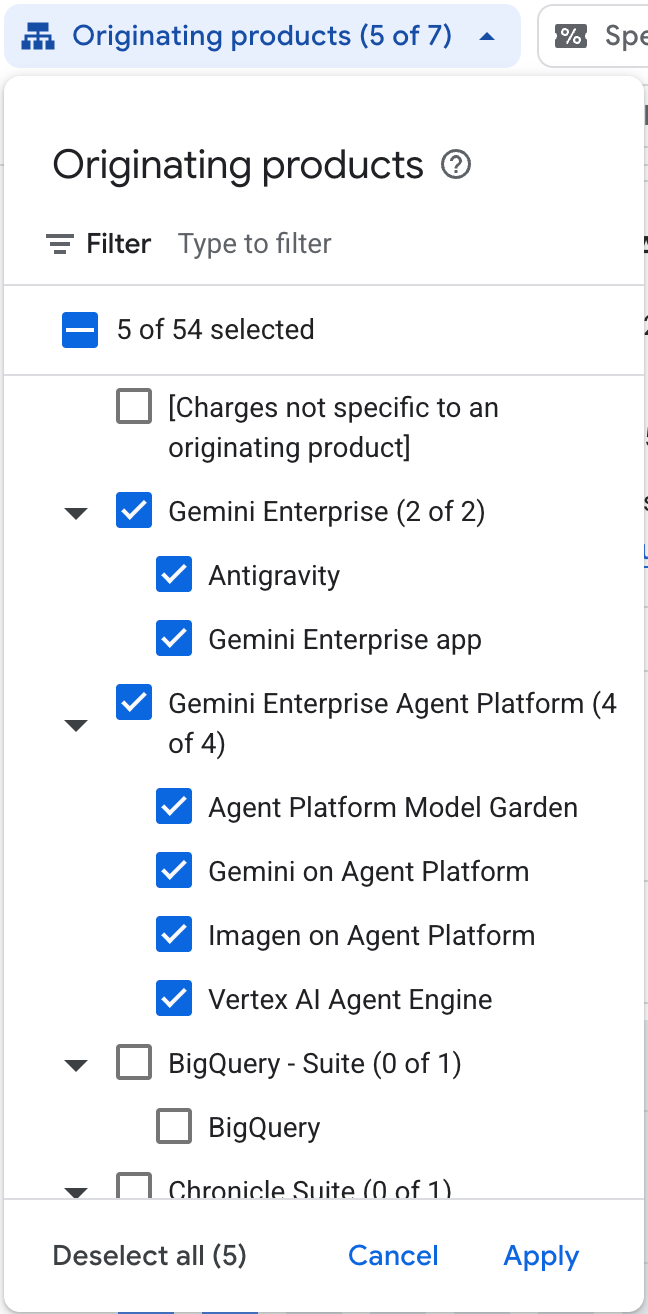
In the Report filters, open the Originating products filter, search for and select all Gemini Enterprise originating products, such as Gemini Enterprise and Gemini Enterprise Agent Platform, then click Apply.
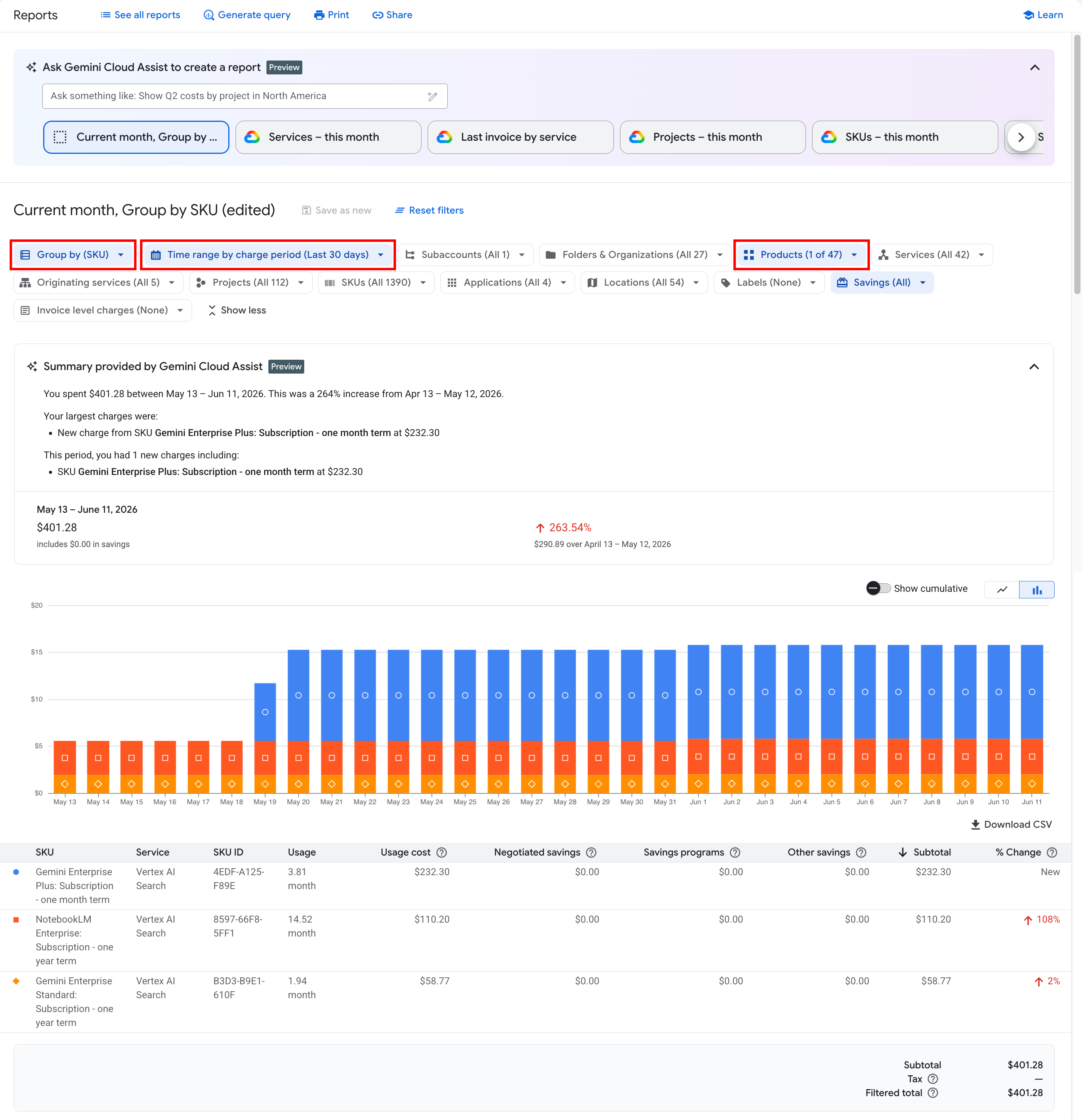
In the Report filters, set the Group by setting to group by SKU, then click Apply.
Tip: For daily or monthly cost granularity, you can group by Date > SKU or Month > SKU.
When you group by SKU, the report table and chart displays costs by individual SKUs. Your report shows:
- Subscription SKU(s): Shows the daily prorated subscription costs.
- Overage SKU(s): Shows any usage-based charges incurred beyond your subscription seat limit.
Adjust the Time range options and chart settings:
- By default, when you first access the Reports page, the Time range setting is set as Charge period (formerly Usage date), for the current calendar month. Use the Time range filter to adjust the time period for the report data, to view trends of your daily or monthly costs.
- Adjust chart settings to change the display of data in the report chart and table.
Configure your cost report for summarized Gemini Enterprise spend
Take the following steps to access Billing Reports and configure a cost report to focus on your Gemini Enterprise costs, grouped by Originating product. Using this configuration, your report can show costs similar to the cost view available in the Billing tab on the Usage & Spending page accessible in the Gemini Enterprise console.
In the Gemini Enterprise console, the Billing tab on the Usage & Spending page displays a summary of your overage and Pay-as-you-go usage costs over the last 30 days across your enabled features and tools, broken out by Gemini Enterprise app, Gemini Enterprise Agent Platform, and AI developer tools (such as Antigravity).
Make sure that you have the permissions required to access and view billing reports. You'll need Full billing account permissions.
Access the Cloud Billing Reports page
Follow these steps to access the Reports page for your Cloud Billing account:
In the Google Cloud console, go to the Reports page for your Cloud Billing account.
At the prompt, select the Cloud Billing account that is linked to your Gemini Enterprise subscriptions.
The Reports page opens for the selected Cloud Billing account.
Configure the report to focus on your summarized Gemini Enterprise costs
In the Report filters, open the Originating products filter, search for and select all Gemini Enterprise originating products, such as Gemini Enterprise and Gemini Enterprise Agent Platform, then click Apply.
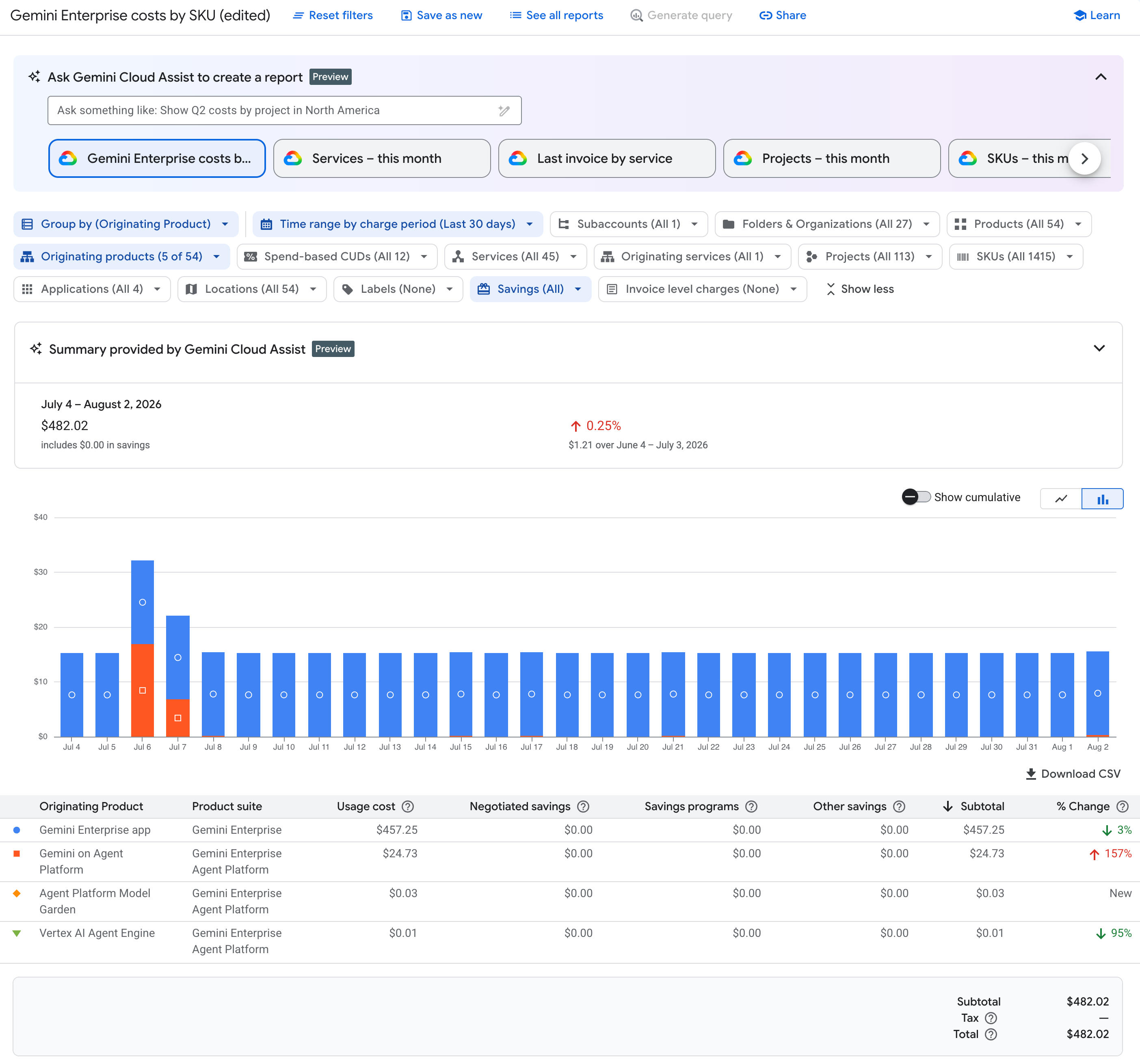
In the Report filters, set the Group by setting to group by Originating Product, then click Apply.
When you group by Originating Product, the resulting report shows your costs in the report chart summarized by date (or month) and each Originating Product + Product suite combination, and each row in the report table shows your actual costs and savings summarized by each Originating Product + Product suite combination.
- Gemini Enterprise app: Look for the row with the Originating product Gemini Enterprise app.
- Gemini Enterprise Agent Platform: Look for all of the rows for the Product suite Gemini Enterprise Agent Platform, then sum up all of the costs for each of the different Originating products under the Gemini Enterprise Agent Platform Product suite.
- AI developer tools: Look for the rows for the Product suite Gemini Enterprise + an Originating product that is an AI developer tool, such as Antigravity.
Adjust the Time range options:
- By default, when you first access the Reports page, the Time range setting is set as Charge period (formerly Usage date), for the current calendar month. To match the settings in the Gemini Enterprise console billing page, set the Time range filter to Charge period, Last 30 days.
Limitations
When using the Originating products filter or the Originating Product Group-by setting, the existing cost report features work as expected, with the following exceptions:
- The cost forecast feature is disabled when using the Originating products dimensions.
- The Originating products field hasn't been added to the BigQuery export schemas, so the Generate query button is disabled when using the Originating products dimensions.
- You can't use Gemini Cloud Assist to create a report using the Originating products filter or Group-by setting. Instead, use the preset report Gemini Enterprise costs by SKU to quickly configure a report using the Originating products filter, then manually adjust the other report filters and settings as needed.
- The Originating products filter is NOT available in the Cost table report or the Cost breakdown report.
Frequently Asked Questions (FAQ)
Gemini Enterprise is billed on a subscription-seat basis, including potential consumption-based charges for usage that exceeds your subscription limits.
Why do I see small charges every day instead of a single monthly fee?
Cloud Billing uses daily proration for subscriptions. A monthly seat fee of $30 is billed at approximately $1 per day.
How do I identify Gemini Enterprise overage charges?
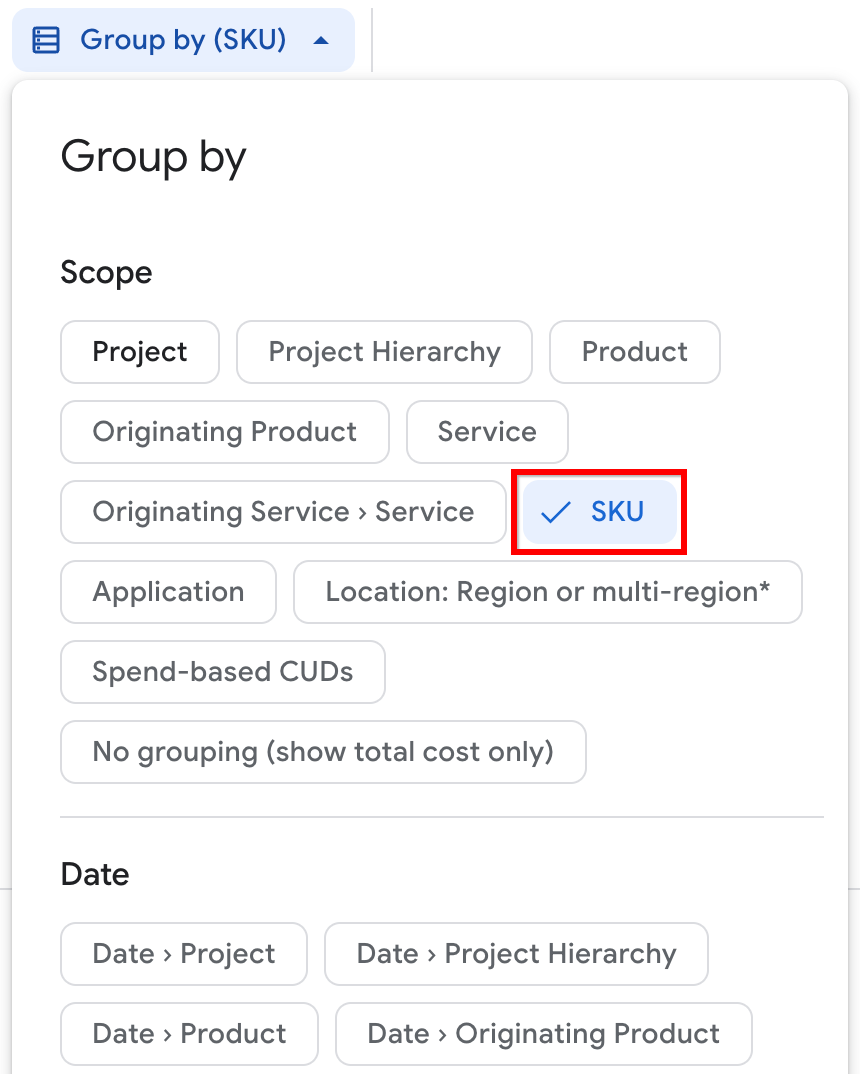
- Group by SKU and
- Filter by Originating products for all Gemini Enterprise product suites and logical products.
Any overage charges appear as separate SKU line items in the report table, letting you differentiate overage costs from your fixed subscription seat costs.
What's next
- Learn more about how to analyze billing data with Reports
- Learn more about how to manage Gemini Enterprise costs
- Learn how to view Gemini Enterprise costs in the Gemini Enterprise console