

Gemini Cloud Assist in Cloud Billing provides generative AI-powered assistance to help you analyze your billing data.
FinOps-focused AI assistance in Cloud Billing
To provide an integrated assistance experience, Gemini Cloud Assist in Cloud Billing is available on the following Billing pages in the Google Cloud console:
- Reports
- Gemini Cloud Assist in Cost Reports provides insights into your cloud spend to help you create custom reports, identify key trends, and uncover cost drivers.
- FinOps hub
- Gemini Cloud Assist in Google Cloud FinOps provides insights to help you understand your costs, identify waste, and prioritize cost optimization opportunities.
AI assistance in Cloud Billing Reports
Gemini Cloud Assist in Cloud Billing Reports provides FinOps-focused AI assistance to create the cost reports you need to analyze your cost trends and to summarize key insights from the cost reports, making it easier to understand your costs.
Gemini Cloud Assist in Cloud Billing Cost Reports provides AI assistance to help you in the following ways:
- Using saved reports. You can select various Google-configured and user-configured cost reports to analyze your cost trends. The saved reports feature updates the previous Saved views feature and also replaces the report Presets with an expanded number of Google-preconfigured reports that are ready to use with a single click.
- Creating reports using Gemini assistance. You can create custom cost reports using natural language prompts.
- Summarizing reports. Gemini Cloud Assist provides summaries of key insights and anomalies from each cost report. The insights might include links that open a new, scoped report, or links that open other pages in the Billing section of the Google Cloud console, such as Anomalies or FinOps hub.
Saved reports
To analyze your cost trends, you can select from various Google-configured and user-configured cost reports:

Google Cloud offers a range of preconfigured cost reports (formerly known as Presets) that are ready to use with a single click. These reports address common FinOps cost reporting needs, helping you implement best practices faster. You can scroll through the carousel of preconfigured reports, or click See all reports for a comprehensive list.
If you create and save custom cost reports (previously known as Saved views), your saved reports are also available for you and your team in the See all reports tab.
When you select a preconfigured or saved report, your report filters are set based on the saved report settings, and your selected report is shown, along with a report summary. You can further customize the report by manually updating the report settings and filters, or by asking Gemini Cloud Assist to find or create a report. You can save edited and custom-created reports to your list of saved reports.
Configure reports with Gemini Cloud Assist
You can create custom cost reports using natural language prompts:

If the saved reports don't meet your needs, you can describe the report that you want using natural language. Gemini Cloud Assist interprets your request and configures the report settings and filters to create the report for you.
Write better prompts for reports
When you ask Gemini Cloud Assist in Cloud Billing to find or create a report, include as much context and specific detail as possible when you describe the report you want to view. At a minimum, specify a time range and a group by when writing a prompt for a report.
- If you don't explicitly specify the Time range in the prompt, your report settings default to Current month.
- If you don't explicitly specify the Group by option in the prompt, your report settings default to grouping costs by Service.
Here are a few example prompts to get you started:
Daily costs and savings by service for the last 5 daysInvoice costs per SKU for July 2024Monthly costs by project for the last 6 monthsCompute Engine spend by SKU in project-name since the beginning of 2024Help me understand and optimize my costs by service for the last 30 days
We recommend starting with a preconfigured report and then prompting for additional filters to focus your cost analysis. When using this method, write the name of the report, followed by the additional filters, as shown in this example:
SKUs - daily costs this month for Compute Engine in US regions
SKUs - daily costs this month— name of the preconfigured report, which sets the Time range and Group by options.Compute Engine— sets the Services filter.US regions— sets the Locations filter.
Save custom reports to use again
In billing reports, Gemini Cloud Assist helps you create the cost reports that you need to analyze your Google Cloud costs. To reuse a custom report that you created with Gemini Cloud Assist, you can save the report. Your saved reports are added to the list of reports available in the See all reports tab.
Report summaries provided by Gemini Cloud Assist
Gemini Cloud Assist summarizes key insights and anomalies from each cost report:
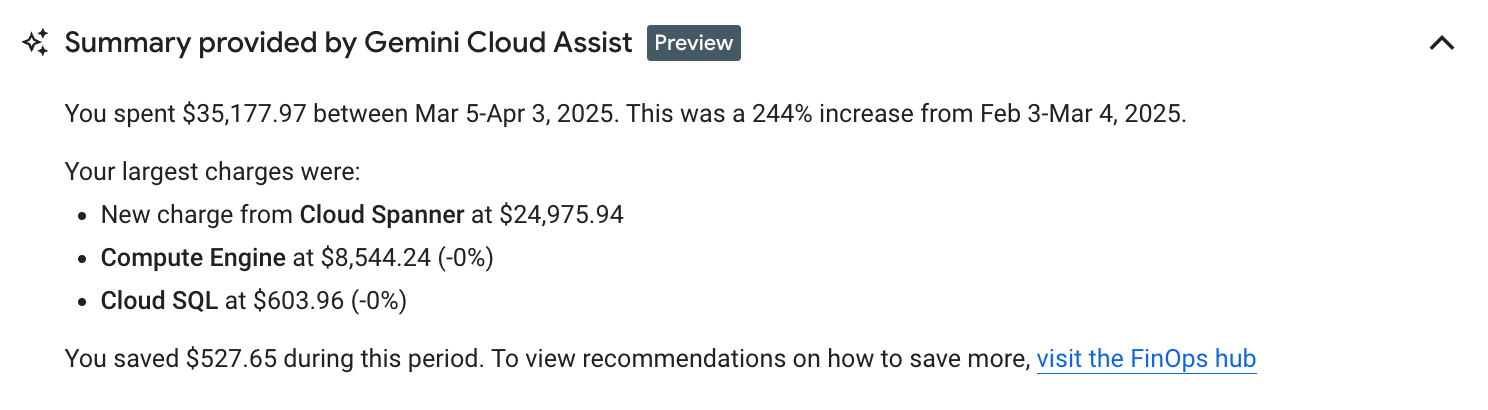
The Gemini-assisted report summaries are designed to provide accurate insights. We developed the report insights in partnership with Google's research teams.
Using FinOps-trained models, Gemini Cloud Assist analyzes your cost reports and delivers actionable insights. Depending on your report settings, insights can include a summary of the following:
- Overall costs: total costs for the specified time period, with cost trends (increasing or decreasing).
- Cost drivers: for example, the projects or services responsible for the biggest cost changes, both in terms of absolute amount and percentage, with a direct link to the Anomalies page if unusual spending patterns are detected.
- Savings: how much you've saved through cost optimization, with a direct link to the FinOps hub for further recommendations.
- Budgeting: suggestions to create budgets to track and control spending.
Gemini Cloud Assist provides up to three key insights per report, helping you pinpoint areas for deeper analysis or cost optimization.
AI assistance in Cloud Billing FinOps hub
Gemini Cloud Assist in the FinOps hub helps you understand costs, identify waste, and prioritize cost optimization opportunities. Further, on the Utilization insights dashboard, you can use Gemini Cloud Assist to summarize and send top wasted usage insights to your engineering teams to take action and remediate.
FinOps hub insights provided by Gemini Cloud Assist
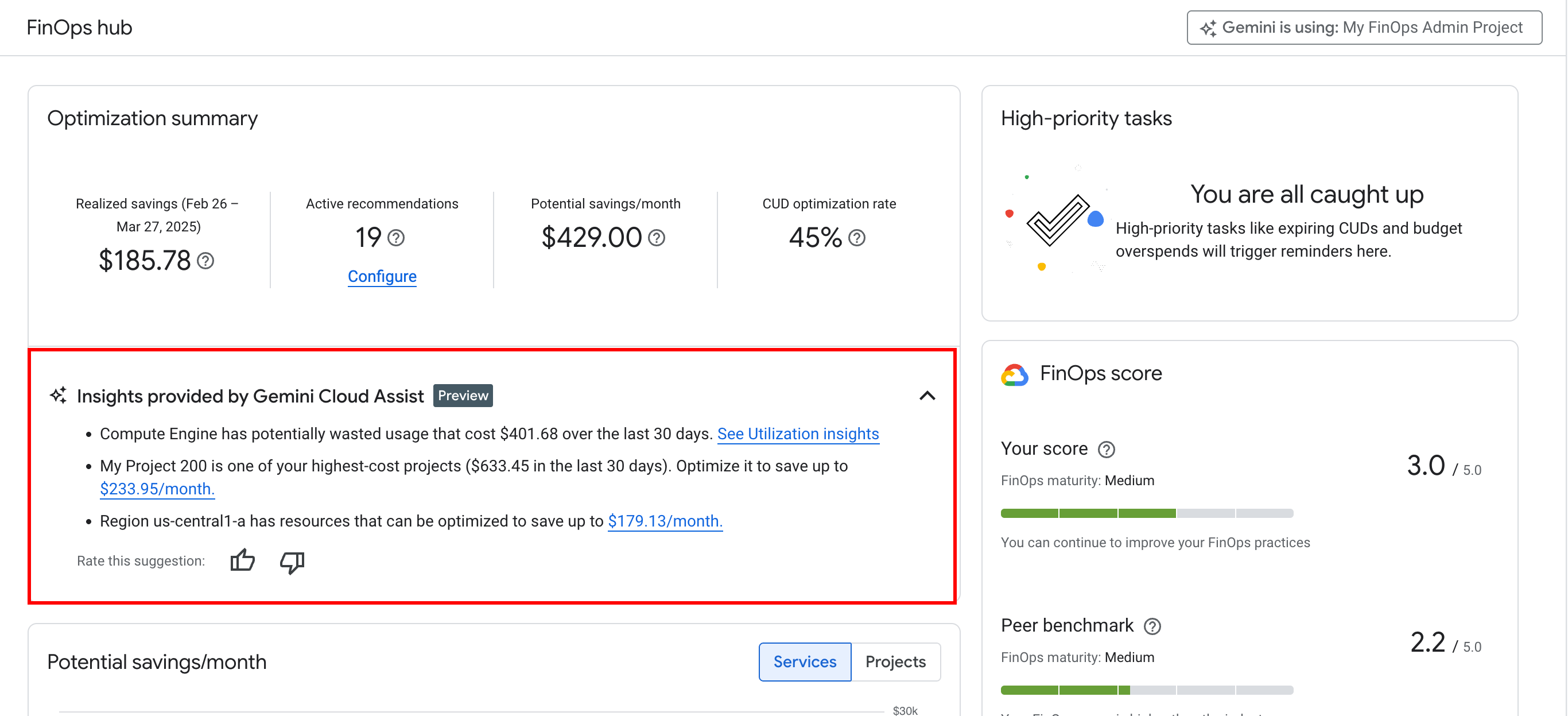
Gemini Cloud Assist provides key optimization and utilization insights from the FinOps hub analysis:

Gemini Cloud Assist provides up to three key insights for each FinOps hub page load, helping you pinpoint areas for deeper analysis or cost optimization.
Draft an email with Gemini-generated insights
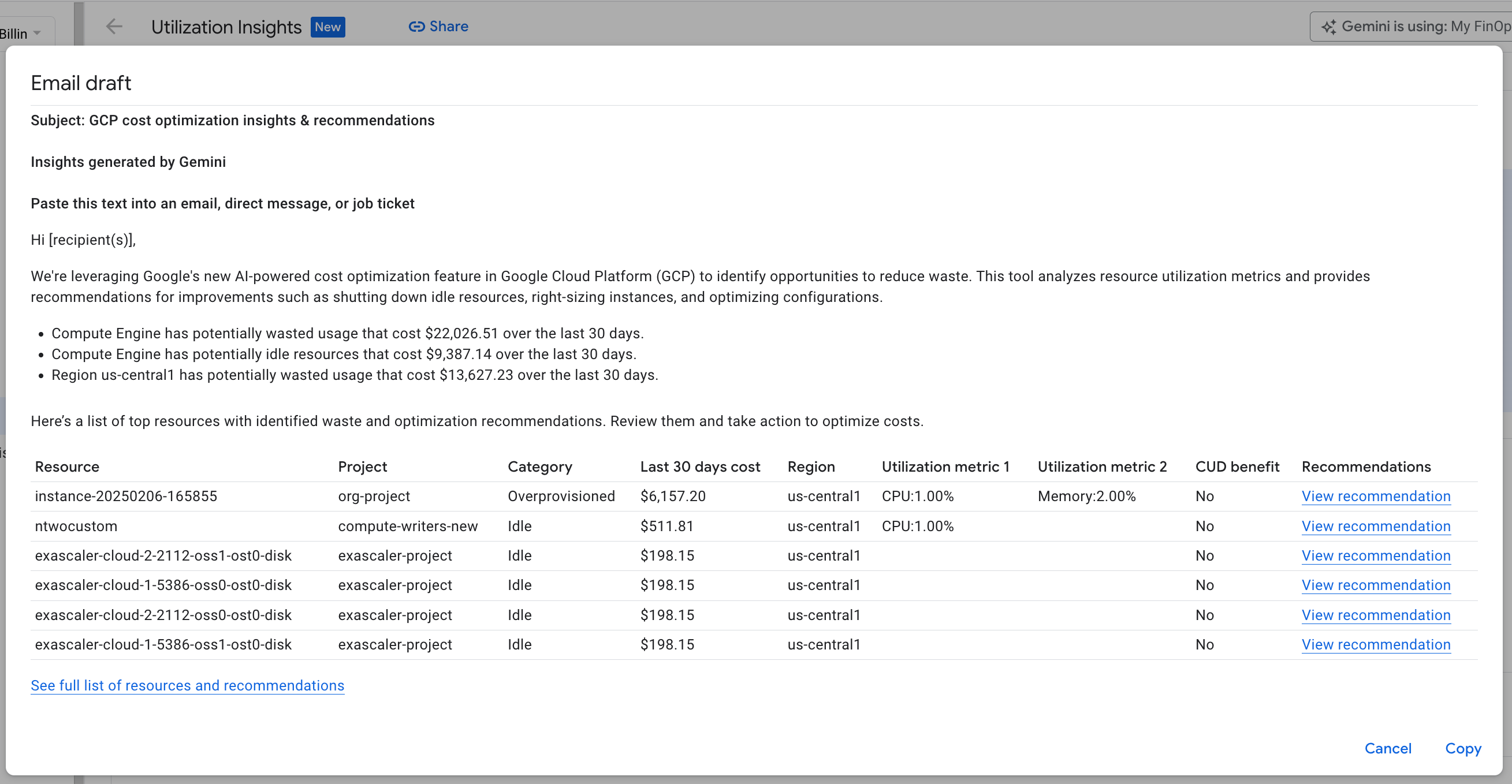
On the FinOps Utilization insights dashboard, you can discover if resources are used efficiently and view high-impact utilization insights based on the potential costs of wasted resources.
Gemini Cloud Assist provides the top three utilization insights.

To help with financial accountability collaboration and data-driven decision making requirements, Gemini Cloud Assist can draft an email report based on the results of the utilization insights and optimization recommendations. You can copy the content of the report to send it in an email, chat, a ticketing system, or any other tool you use.
Focus on top projects

If you have more than 10 projects in your billing account with utilization insights, you can select Focus on the top projects to filter the utilization insights by the projects with the highest amount of potential cost savings.
How to interact with Gemini Cloud Assist in Cloud Billing
In Cloud Billing, you can find Gemini-provided assistance in the following places:
Cloud Billing:
- On the Reports page, to help you create cost reports and summarize the top insights of the report results.
- On the FinOps hub and Utilization insights pages, to provide a summary of the top optimization insights and help you draft email reports to stakeholders.
- In the AI Cost Summary Agent on the Billing Overview page, to gain critical insights into your AI-related spend.
- On the Anomalies page using an AI-powered algorithm to detect cost anomalies in your projects, including early anomaly signals for AI workloads.
Google Cloud console, including Cloud Billing pages, using the Gemini Cloud Assist chat panel.
Cloud Billing: Reports page
To access the AI features in your Cloud Billing reports, open your Cloud Billing account and view the Reports page.
In the Google Cloud console, go to the Billing Reports page.
If prompted, select the Cloud Billing account you want to view.
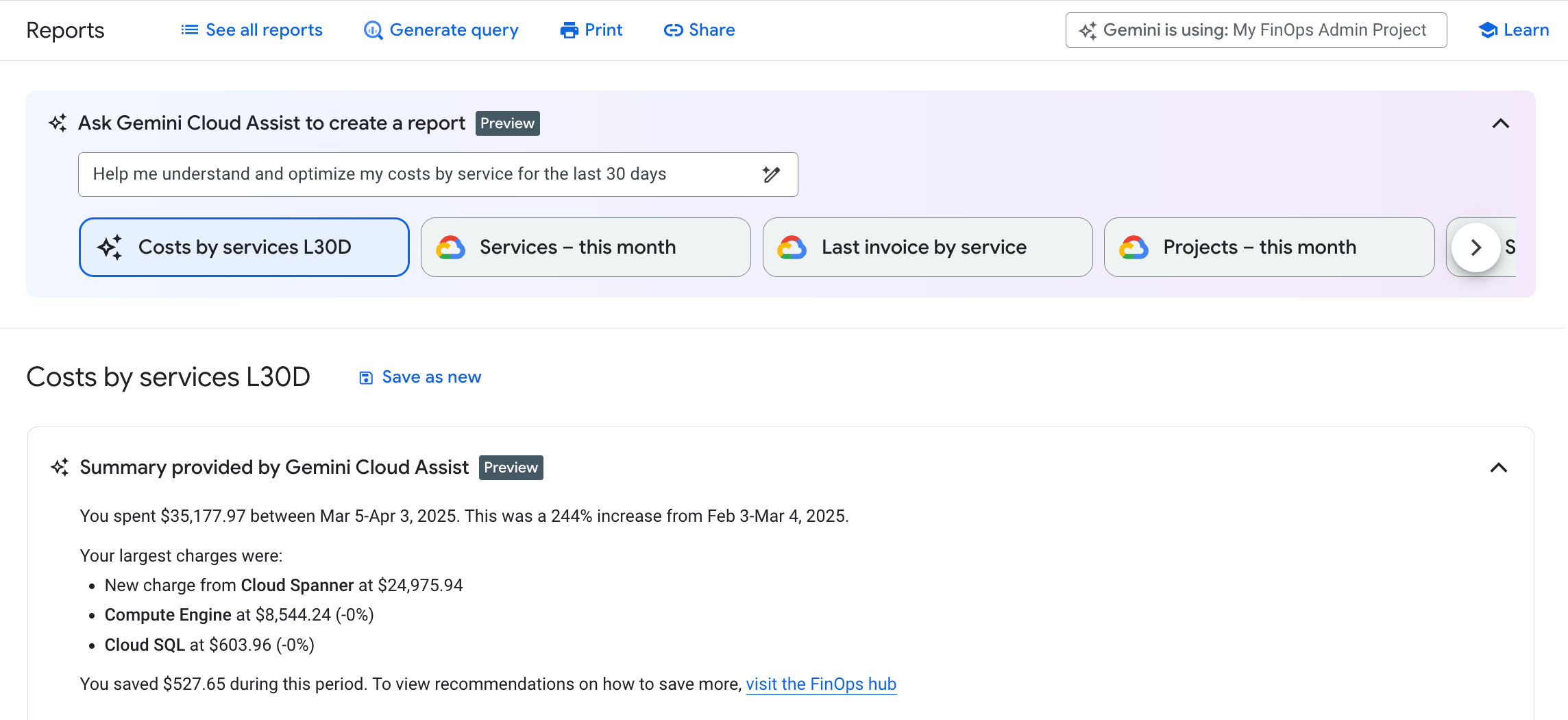
Use the Gemini Cloud Assist features to interact with the Cloud Billing report.
On the Reports page, you see the Gemini Cloud Assist in Cloud Billing features.
Cloud Billing: FinOps hub
To access the AI features in your Cloud Billing FinOps hub, open your Cloud Billing account and view the FinOps hub page.
In the Google Cloud console, go to the Billing FinOps hub page.
If prompted, select the Cloud Billing account you want to view.
Use the Gemini Cloud Assist features to interact with the FinOps hub.
When you're viewing the FinOps hub page, you see the Gemini Cloud Assist insights in the Optimization summary widget:
Chat in the Gemini Cloud Assist panel in Google Cloud console
You can access AI-powered assistance in the Cloud Assist panel available from any page in the Google Cloud console.
The Cloud Assist panel is a conversational assistant that lets you write natural language statements or questions (called prompts) to get explanations, suggested actions, or guided workflows that help you complete tasks quickly and efficiently. Beyond general Google Cloud knowledge, the conversational assistant understands context, like your current project and console page.
To use the Cloud Assist panel, do the following:
- In the Google Cloud console toolbar, click Open or close Gemini Cloud Assist chat.
- In the Cloud Assist panel, enter your prompt—for example,
How can I optimize my costs?. - Click Send prompt.
Billing data limitations in the Cloud Assist panel
In Cloud Billing, the Gemini conversational assistant provides general answers to your billing questions, but it doesn't return product pricing or specific Google Cloud cost information. DevOps and FinOps practitioners who want to use Gemini Cloud Assist to understand cloud costs, identify opportunities for cost savings, and get AI insights to maximize cloud resource utilization and performance can use the Gemini-assisted Cloud Billing tools available in the following Billing pages:
- Cost Reports: For assistance in finding or creating a billing report to gain insights into your Google Cloud spending, identify key trends, and uncover what's driving your Cloud Billing costs, use the Gemini Cloud Assist prompt available on the Cloud Billing Reports page.
- FinOps hub: For cost optimization insights and recommendations, see the Gemini-generated insights on the FinOps hub.
Learn how and when Gemini for Google Cloud uses your data.
What's next
- Learn more about the different types of generative AI assistance available in Google Cloud.
- Learn how Gemini Cloud Assist uses your data.
- Learn more about Google Cloud compliance.