

The Committed use discounts (CUDs) page in the Google Cloud console shows a summary of your commitments.
The page provides an aggregated view for high-level metrics and lets you drill-down into the details of various types of CUDs. Use this page to view information about your commitments, and take actions such as changing the auto-renewal settings for resource-based CUDs, or viewing recommendations for additional commitments.
Permissions required to view commitments
To view the Committed use discounts (CUDs) page for your Cloud Billing account, you must be a Billing Account Administrator or Billing Account Viewer on the Cloud Billing account.
Access the commitments inventory page
To view the Committed use discounts (CUDs) page for your Cloud Billing account:
In the Billing section of the Google Cloud console, click Committed use discounts.
At the prompt, choose the Cloud Billing account that you want to view.
The CUDs page opens and shows a list of the active commitments for the selected billing account.
Information in the commitments table
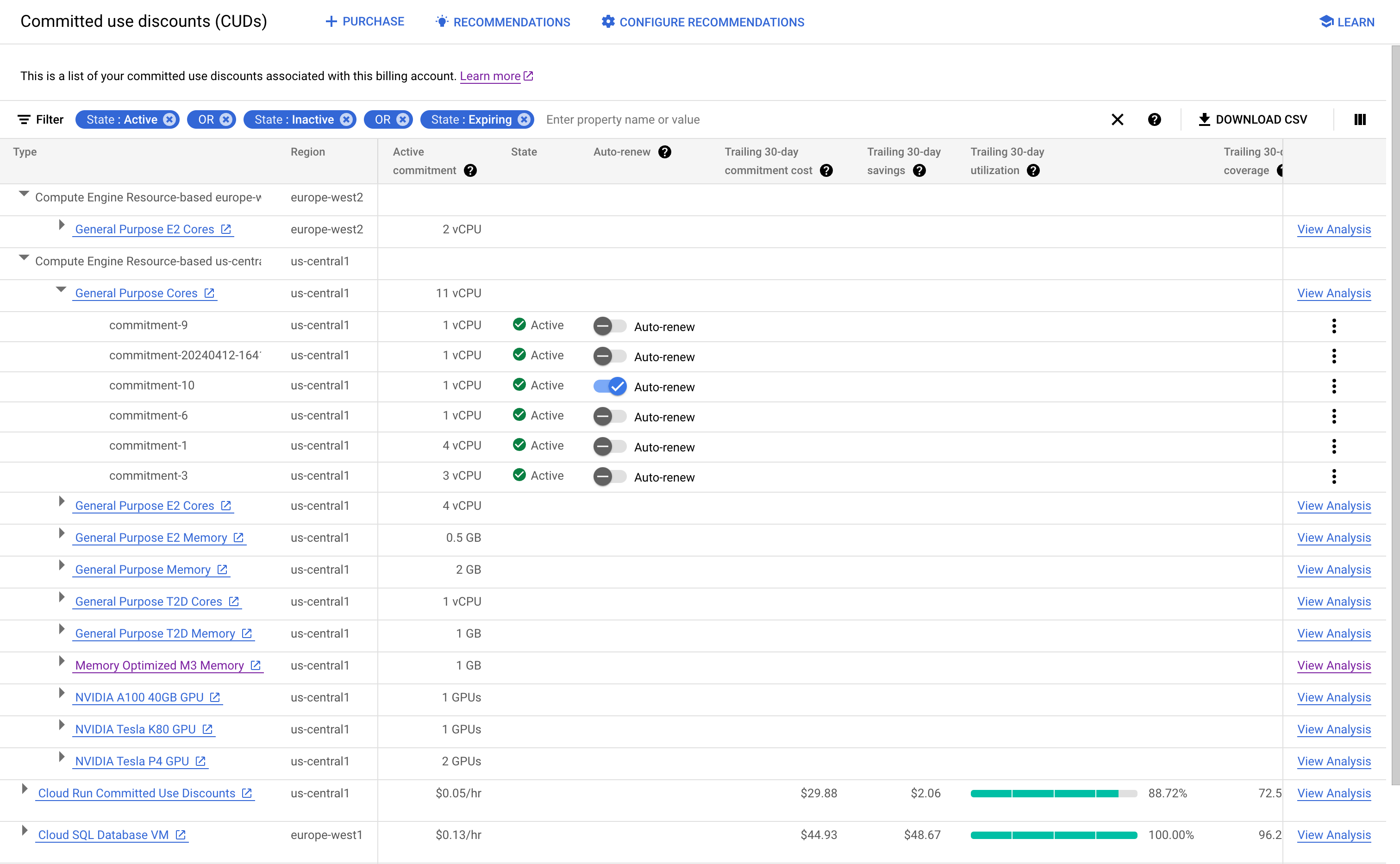
To filter your commitments by their properties, select Filter. Your filter, column visibility, and sorting settings persist for your next visit.
You can use the columns in the table to get the following information:
Use the Active CUDs column to see the total quantity of commitments you've purchased for the filters that you select. For example, if you have multiple spend-based Cloud SQL commitments in
europe-west2, the column shows the total amount for those commitments.If you have eligible usage that could be covered by an additional commitment, use the Recommendation column to view details about recommended commitments. To view your commitment recommendations, click Recommendations in the action bar.
To view additional columns, click the Column display options , and select one or more of these columns:
View commitment details

To view detailed information about a specific commitment, click the row for that commitment in the table. This opens a side panel with additional details, including the historical utilization rate for each closed entitlement window. For resource-based commitments, you can also use the Auto-renew setting in the details panel to set up or cancel auto-renewal for the commitment. Learn more about what you need to consider when you turn on auto-renewal.
From the detailed view, you can also access the following actions:
- Analysis: Opens the CUD analysis report for the specific commitment.
- Recommendations: View a summary and list of services with potential savings.
- Download CSV: Download the information about your commitments as a comma-separated value (CSV) file. This option is also available from the summary view.
- Commitment fee SKU: The SKU associated with the commitment fee. Use the Commitment fee SKU to get your current price in your Pricing export.
Download your commitment data
You can download the information about your commitments as a comma-separated value (CSV) file for offline analysis. The CSV file contains the information you see on the Committed use discounts (CUDs) page.
You can use the subscription ID to join your CUDs data to your usage data in the BigQuery export. For example, you can import your BigQuery dataset and CSV file to Data Studio for analysis, and then use data blends to combine the data sources.
To download your commitment data, click Download CSV in the action bar.
Go to legacy commitments report
Related topics
To learn how to purchase resource-based commitments for Compute Engine, see the following pages of the Compute Engine documentation:
- Purchase hardware commitments without attached reservations
- Purchase hardware commitments with attached reservations
- Purchase software commitments for OS licenses