


瞭解如何傳送幾個簡單的要求至 Cloud Billing Budget API。
如需完整的方法清單,請參閱 REST API 參考文件。
事前準備
閱讀本指南之前,請先完成下列工作:
- 請參閱 Cloud Billing Budget API 總覽。
- 請參閱 Cloud Billing Budget API 先決條件。
- 執行設定步驟。
找出 Cloud Billing 帳戶 ID
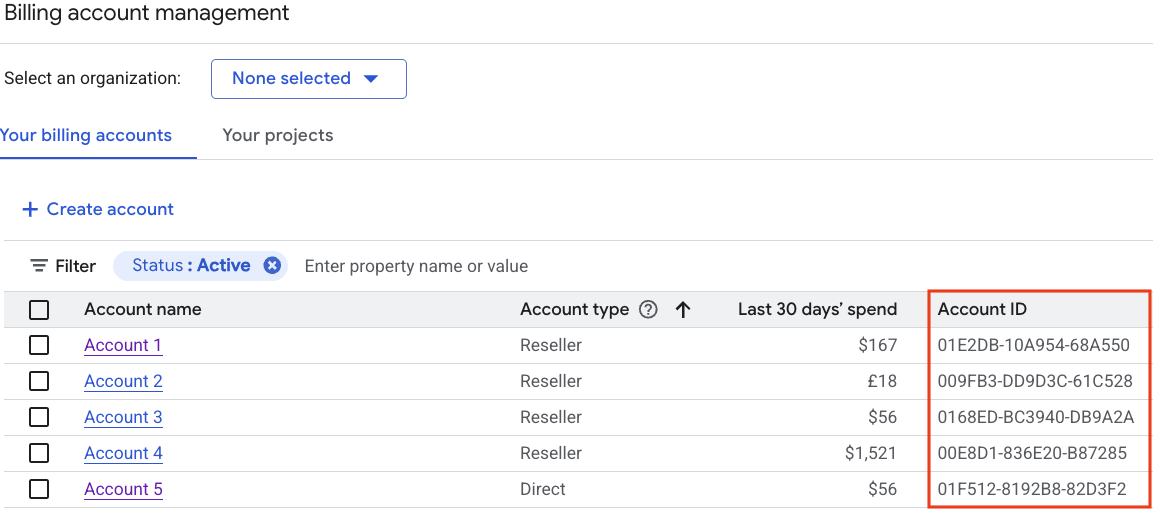
每次呼叫 Cloud Billing Budget API 時,您都需要帳單帳戶 ID。
- 前往 Google Cloud 控制台的「管理帳單帳戶」頁面。
- 在「您的帳單帳戶」分頁中,您會看到 Cloud Billing 帳戶的名稱和 ID 清單。找出您管理預算的帳戶的「帳戶 ID」值。
預算重要概念
- 您可以將僅限快訊的預算套用至整個帳單帳戶,或使用精細的預算篩選條件設定範圍 (篩選),監控特定費用切片。
- 套用至整個 Cloud Billing 帳戶的僅限快訊預算,會納入Google Cloud 該帳單帳戶支付的所有專案費用。
- 如果您對 Cloud Billing 帳戶的存取權有限或沒有存取權,可以為自有專案建立單一專案預算。如果您是 Cloud Billing 帳戶層級使用者,可以建立僅限警示的單一專案預算,專案層級使用者無法使用預算中的
OwnershipScope欄位修改預算。 - 您可以使用篩選器縮小僅限快訊預算的範圍,例如機構、資料夾、專案、服務的子集,以及適用於 Cloud Billing 帳戶的其他預算篩選器。
- 您可以指定僅限快訊預算的時段。根據預設,預算會監控一個月內產生的費用。使用 Cloud Billing Budget API 提供的
usage_period篩選器,您可以將僅限快訊的預算時間範圍設定為CalendarPeriod或CustomPeriod,建立僅限快訊的預算,監控預設日曆月以外的時間範圍,例如季、年或您指定的自訂日期範圍。 - 如果是僅限快訊的預算,您可以將預算金額設為您指定的總金額,也可以根據上一個日曆週期的支出設定預算金額。
- 您可以設定預算門檻規則,觸發電子郵件快訊通知。當實際或預估費用超過一定百分比的預算 (以您設定的規則為準),系統會傳送快訊電子郵件給您指定的收件者。
- 如果是僅限快訊的預算,您可以設定預算的通知規則,指定預算快訊的電子郵件收件者,並使用 Pub/Sub 啟用程式輔助通知。
- 如果是僅限快訊的預算,您可以使用 Pub/Sub 主題來接收程式輔助通知 (例如將預算訊息轉寄至其他媒介,如 Slack,或自動執行成本管理工作)。
配額限制:每個 Cloud Billing 帳戶一次最多可連結數千個預算。如要瞭解目前的限制和其他資訊,請參閱「配額與限制」。
呼叫 API
下列範例說明如何將幾項簡單要求傳送至 Cloud Billing Budget API。
列出預算
這個 API 方法會列出指定 Cloud Billing 帳戶的所有可用預算。
REST
使用任何要求資料之前,請先修改下列項目的值:
- billing-account-id:預算適用的 Cloud Billing 帳戶 ID。
- project-id:啟用 Cloud Billing Budget API 的 Google Cloud 專案。
HTTP 方法和網址:
GET https://billingbudgets.googleapis.com/v1/billingAccounts/billing-account-id/budgets
請展開以下其中一個選項,以傳送要求:
您應該會收到如下的 JSON 回覆:
{
  "budgets": [
   {
      "name": "billingAccounts/000000-111111-222222/budgets/33333333-4444-5555-6666-777777777777",
      "displayName": "Forecasted spend budget with Service Filter",
      "budgetFilter": {
        "projects": [
          "projects/123456789"
        ],
        "services": [
          "services/A1E8-BE35-7EBC"
        ],
        "creditTypesTreatment": "EXCLUDE_ALL_CREDITS",
        "calendarPeriod": "MONTH"
      },
      "amount": {
        "lastPeriodAmount": {}
      },
      "thresholdRules": [
        {
          "thresholdPercent": 0.9,
          "spendBasis": "FORECASTED_SPEND"
        }
      ],
      "allUpdatesRule": {},
      "etag": "c9d6c011f6fa6b5c"
    }
  ]
}
取得預算
這個 API 方法會取得特定預算的詳細資料。
REST
如要呼叫這個方法,您需要更新預算的 budget-id。建立預算時,您可以從 createBudget 輸出內容取得預算 ID,也可以從列出所有預算的 listBudgets 輸出內容取得預算 ID。
使用任何要求資料之前,請先修改下列項目的值:
- billing-account-id:預算適用的 Cloud Billing 帳戶 ID。
- budget-id:要取得的預算 ID。
- project-id:啟用 Cloud Billing Budget API 的 Google Cloud 專案。
HTTP 方法和網址:
GET https://billingbudgets.googleapis.com/v1/billingAccounts/billing-account-id/budgets/budget-id
請展開以下其中一個選項,以傳送要求:
您應該會收到如下的 JSON 回覆:
{
  "name": "billingAccounts/000000-111111-222222/budgets/33333333-4444-5555-6666-777777777777",
  "displayName": "Forecasted spend budget with Service Filter",
  "budgetFilter": {
    "projects": [
      "projects/123456789"
    ],
    "services": [
      "services/A1E8-BE35-7EBC"
    ],
    "creditTypesTreatment": "EXCLUDE_ALL_CREDITS",
    "calendarPeriod": "MONTH"
  },
  "amount": {
    "lastPeriodAmount": {}
  },
  "thresholdRules": [
    {
      "thresholdPercent": 0.9,
      "spendBasis": "FORECASTED_SPEND"
    }
  ],
  "allUpdatesRule": {},
  "etag": "c9d6c011f6fa6b5c"
}
設定預算
這個 API 方法會建立僅限快訊的Cloud Billing 預算,並套用至指定的 Cloud Billing 帳戶。
REST
這個範例說明如何為指定的 Cloud Billing 帳戶建立預算,並依您指定的 Google Cloud 專案進行範圍設定 (篩選),以及設定季度日曆時間範圍。
使用任何要求資料之前,請先修改下列項目的值:
projects/budget-scope-project-id:您要設為預算範圍 (budgetFilter) 的 Google Cloud 專案 ID。- billing-account-id:預算適用的 Cloud Billing 帳戶 ID。
- api-user-project-id:啟用 Cloud Billing Budget API 的專案。 Google Cloud
HTTP 方法和網址:
POST https://billingbudgets.googleapis.com/v1/billingAccounts/billing-account-id/budgets
JSON 要求主體:
{
  "displayName": "Keep my spending down",
  "budgetFilter": {
    "projects": [
      "projects/budget-scope-project-id"
    ],
    "calendar_period": "QUARTER"
  },
  "amount": {
    "lastPeriodAmount": {}
  },
  "thresholdRules": {
    "thresholdPercent": 0.8,
    "spendBasis": "CURRENT_SPEND"
  }
}
請展開以下其中一個選項,以傳送要求:
您應該會收到如下的 JSON 回覆:
{
  "name": "billingAccounts/000000-111111-222222/budgets/33333333-4444-5555-6666-777777777777",
  "displayName": "Keep my spending down",
  "budgetFilter": {
    "projects": [
      "projects/123456789"
    ],
    "creditTypesTreatment": "INCLUDE_ALL_CREDITS",
    "calendar_period": "QUARTER"
  },
  "amount": {
    "lastPeriodAmount": {}
  },
  "thresholdRules": {
    "thresholdPercent": 0.8,
    "spendBasis": "CURRENT_SPEND"
  },
  "allUpdatesRule": {},
  "etag": "f7928d8010160668"
}
更新預算
使用這個 API 方法修改現有的 Cloud Billing 預算,變更預算金額、預算篩選條件 (預算範圍)、預算時間範圍或門檻規則。
REST
這個範例說明如何更新現有的僅限快訊預算,並依您指定的 Google Cloud 專案設定 範圍 (篩選器),以及將預算的時間範圍從每月預算更新為每季預算。
如要呼叫這個方法,您需要更新預算的 budget-id。建立預算時,您可以從 createBudget 輸出內容取得預算 ID,也可以從列出所有預算的 listBudgets 輸出內容取得預算 ID。
使用任何要求資料之前,請先修改下列項目的值:
projects/budget-scope-project-id:要設為 預算範圍 的 Google Cloud 專案 (budgetFilter)。- billing-account-id:預算適用的 Cloud Billing 帳戶 ID。
- budget-id:要更新的預算 ID。
- api-user-project-id:啟用 Cloud Billing Budget API 的 Google Cloud 專案。
HTTP 方法和網址:
PATCH https://billingbudgets.googleapis.com/v1/billingAccounts/billing-account-id/budgets/budget-id
JSON 要求主體:
{
  "budget": {
    "displayName": "My fancy budget",
    "budgetFilter": {
      "projects": [
        "projects/budget-scope-project-id"
      ],
      "calendar_period": "QUARTER"
    },
   "amount": {
      "specifiedAmount": {
        "units": 500
      }
    },
    "thresholdRules": {
      "thresholdPercent": 0.8,
      "spendBasis": "CURRENT_SPEND"
    }
  }
}
請展開以下其中一個選項,以傳送要求:
您應該會收到如下的 JSON 回覆:
{
  "name": "billingAccounts/000000-111111-222222/budgets/33333333-4444-5555-6666-777777777777",
  "displayName": "My fancy budget",
  "budgetFilter": {
    "projects": [
      "projects/123456789"
    ],
    "creditTypesTreatment": "INCLUDE_ALL_CREDITS",
    "calendar_period": "QUARTER"
  },
  "amount": {
    "specifiedAmount": {
      "units": 500
    }
  },
  "thresholdRules": {
    "thresholdPercent": 0.8,
    "spendBasis": "CURRENT_SPEND"
  },
  "allUpdatesRule": {},
  "etag": "f7928d8010160668"
}
刪除預算
使用這個 API 方法刪除現有的 Cloud Billing 預算。
REST
如要呼叫這個方法,您需要更新預算的 budget-id。建立預算時,您可以從 createBudget 輸出內容取得預算 ID,也可以從列出所有預算的 listBudgets 輸出內容取得預算 ID。
使用任何要求資料之前,請先修改下列項目的值:
- billing-account-id:預算適用的 Cloud Billing 帳戶 ID。
- budget-id:要刪除的預算 ID。
- project-id:啟用 Cloud Billing Budget API 的 Google Cloud 專案。
HTTP 方法和網址:
DELETE https://billingbudgets.googleapis.com/v1/billingAccounts/billing-account-id/budgets/budget-id
請展開以下其中一個選項,以傳送要求:
您應該會收到如下的 JSON 回覆:
{}