

Known issues
This page lists known issues and workarounds for deploying and operating VMware Cloud Foundation (VCF) in VMware solution on Google Cloud.
Host vMotion and vSAN IP address mismatch during VCF deployment
When you deploy a VCF management domain, the VCF Installer sorts the vMotion and
vSAN IP address pool in ascending numerical order and assigns IP addresses
sequentially to the ESXi hosts in the exact order they appear in the hostSpecs
array. When you create a VI workload domain or expand a cluster, SDDC Manager
allocates vMotion and vSAN VMkernel IP addresses from the configured IP address
pool without preserving the hostSpecs host order.
Because Google Cloud VPC networks enforce strict source and destination IP
checks on each bare-metal node's Dynamic NICs, the IP
address that VCF assigns to a host's vmk1 (vMotion) or vmk2 (vSAN) adapter
must match the IP address configured on the corresponding Compute Engine
Dynamic NIC (nic0.VLAN_ID). If a host's Dynamic NIC IP address
doesn't match the runtime IP address assigned by VCF, the hypervisor receives or
transmits traffic with a mismatched IP address and network validation or cluster
deployment fails.
For example, consider a management domain deployment of four hosts with the following Compute Engine Dynamic NIC allocations:
| Host FQDN | vMotion IP (vmk1) |
vSAN IP (vmk2) |
NSX-TEP IP (vmk10) |
|---|---|---|---|
esxi-h0.40-vmware.gve |
10.40.2.2 |
10.40.3.2 |
10.40.4.2 |
esxi-h1.40-vmware.gve |
10.40.2.5 |
10.40.3.5 |
10.40.4.5 |
esxi-h2.40-vmware.gve |
10.40.2.3 |
10.40.3.3 |
10.40.4.3 |
esxi-h3.40-vmware.gve |
10.40.2.4 |
10.40.3.4 |
10.40.4.4 |
If the hosts are ordered in the input configuration as esxi-h0, esxi-h2,
esxi-h1, esxi-h3, the VCF Installer sorts the pool (10.40.2.2,
10.40.2.3, 10.40.2.4, 10.40.2.5) and maps the addresses sequentially to
esxi-h0, esxi-h2, esxi-h1, and esxi-h3. Host esxi-h1 receives
10.40.2.4 from the installer even though its underlying
Compute Engine Dynamic NIC expects 10.40.2.5.
Workaround: Use either of the following options depending on whether you are deploying a new management domain or expanding an existing workload domain or cluster.
Option 1: Pre-sort host specifications for management domain deployment
When you use the VMware solution toolkit (self-managed-vmware-solution-toolkit),
the toolkit automatically queries your bare-metal nodes' Dynamic NIC IP
addresses and sorts the hostSpecs and includeIpAddressRanges arrays in your
VCF deployment JSON file.
If you author or modify the VCF deployment JSON file manually, align the order
of entries in the hostSpecs array to match the ascending numerical sort order
of the allocated Dynamic NIC IP addresses (for the preceding
example: 10.40.2.2 for esxi-h0.40-vmware.gve, 10.40.2.3 for
esxi-h2.40-vmware.gve, 10.40.2.4 for esxi-h3.40-vmware.gve, and
10.40.2.5 for esxi-h1.40-vmware.gve):
Configure the IP address pool: Depending on whether your IP allocations are contiguous, specify the pool by using continuous ranges or explicit IP addresses:
Continuous IP ranges:
"includeIpAddressRanges": [
  {
    "startIpAddress": "10.40.2.2",
    "endIpAddress": "10.40.2.5"
  }
]
Non-continuous IP addresses:
"includeIpAddress": [
  "10.40.2.2",
  "10.40.2.3",
  "10.40.2.4",
  "10.40.2.5"
]
Pre-sort the
hostSpecsarray so that the hosts appear in ascending order of their allocated IP addresses:"hostSpecs": [ { "hostname": "esxi-h0.40-vmware.gve" }, { "hostname": "esxi-h2.40-vmware.gve" }, { "hostname": "esxi-h3.40-vmware.gve" }, { "hostname": "esxi-h1.40-vmware.gve" } ]
Option 2: Reconfigure Dynamic NICs during workload domain or cluster expansion
When you deploy a VI workload domain or expand a cluster by using SDDC Manager, reconcile the vMotion and vSAN Dynamic NICs with the runtime IP addresses assigned by VCF:
- Commission the bare-metal ESXi hosts in SDDC Manager and vCenter Server, and start the workload domain or cluster creation workflow. Allow the workflow to pause or fail at the vSAN and vMotion connectivity verification stage.
Retrieve the runtime IP addresses allocated by VCF by using either the SDDC Manager database or the SDDC Manager REST API (or inspect the VMkernel adapters in the vSphere Client):
VCF database query (run on the SDDC Manager appliance):
psql -h localhost -U postgres -d platform -c "select * from host;"
SDDC Manager REST API:
curl -u ADMIN_USER:ADMIN_PASSWORD \
   -X GET https://SDDC_MANAGER_FQDN/v1/hosts
Before you run the
curlcommand, replace the following:ADMIN_USER: your SDDC Manager administrator username.ADMIN_PASSWORD: your SDDC Manager administrator password.SDDC_MANAGER_FQDN: the fully qualified domain name or IP address of your SDDC Manager appliance.
Delete the mismatched Dynamic NIC (
nic0.VLAN_ID) on all affected ESXi hosts first. You must complete all Dynamic NIC deletions across all hosts before re-adding any interfaces; otherwise, Compute Engine rejects the interface addition with an IP address conflict if another host still holds the target IP address:gcloud compute instances network-interfaces delete HOST_INSTANCE_NAME \ --zone=ZONE \ --network-interface=nic0.VLAN_ID \ --project=PROJECT_ID
After all mismatched Dynamic NICs are deleted across all hosts, re-add the Dynamic NIC (
nic0.VLAN_ID) on each host with the exact IPv4 address assigned by VCF.gcloud compute instances network-interfaces add HOST_INSTANCE_NAME \ --zone=ZONE \ --parent-nic-name=nic0 \ --vlan=VLAN_ID \ --subnetwork=SUBNET_NAME \ --no-address \ --private-network-ip=VMWARE_ASSIGNED_IP \ --project=PROJECT_ID
Before you run the preceding commands, replace the following:
HOST_INSTANCE_NAME: the name of the bare-metal ESXi instance in Compute Engine.ZONE: the zone where the bare-metal instance resides.VLAN_ID: the VLAN ID mapped to the Dynamic NIC (for example,2for vSAN or3for vMotion), which forms the interface namenic0.VLAN_ID.SUBNET_NAME: the name of thevSANorvMotionsubnet.VMWARE_ASSIGNED_IP: the IPv4 address or existing reserved internal IP address resource name that matches the IP address assigned to the host's VMkernel adapter by VCF.PROJECT_ID: the ID of your Google Cloud project.
Resume and complete the cluster deployment task in SDDC Manager.
NSX-TEP IP address mismatch on hosts
During NSX transport node preparation, NSX Manager allocates Transport Endpoint
(TEP) IP addresses (vmk10 or vmk3) from the configured NSX IP pool (DHCP
isn't supported on Google Cloud VPC subnets for Dynamic NICs). Because NSX
Manager assigns IP addresses from the pool randomly, the TEP IP address
configured on an ESXi host's vmk10 adapter might not match the IP address
initially pre-allocated on the host's NSX-TEP Dynamic NIC (nic0.TEP_VLAN_ID).
Workaround: After NSX transport node configuration completes, update the
NSX-TEP Dynamic NICs on your hosts to match the NSX-assigned
TEP IP addresses:
- Inspect the TEP IP address assigned to each ESXi host in the NSX Manager UI (go to System > Fabric > Hosts in VCF 9.1) or in the vSphere Client.
Remove all bare-metal host instances from the NSX network endpoint group (NEG) before modifying the
NSX-TEPnetwork interfaces:gcloud compute network-endpoint-groups update NSX_NEG_NAME \ --zone=ZONE \ --project=PROJECT_ID \ --remove-endpoint="instance=HOST_INSTANCE_NAME"Delete the
NSX-TEPDynamic NIC (nic0.TEP_VLAN_ID) on all affected hosts first. Complete allNSX-TEPDynamic NIC deletions across all hosts before re-adding any interfaces to avoid IP address conflicts between hosts:gcloud compute instances network-interfaces delete HOST_INSTANCE_NAME \ --zone=ZONE \ --network-interface=nic0.TEP_VLAN_ID \ --project=PROJECT_IDAfter all
NSX-TEPDynamic NICs are deleted across all hosts, recreate thenic0.TEP_VLAN_IDinterface on each host with the TEP IPv4 address assigned by NSX Manager.gcloud compute instances network-interfaces add HOST_INSTANCE_NAME \ --zone=ZONE \ --parent-nic-name=nic0 \ --vlan=TEP_VLAN_ID \ --subnetwork=TEP_SUBNET_NAME \ --no-address \ --private-network-ip=TEP_IP_ADDRESS \ --project=PROJECT_IDRe-attach all bare-metal host instances to the NSX NEG:
gcloud compute network-endpoint-groups update NSX_NEG_NAME \
    --zone=ZONE \
    --project=PROJECT_ID \
    --add-endpoint="instance=HOST_INSTANCE_NAME"
Before you run the preceding commands, replace the following:
NSX_NEG_NAME: the name of your NSX zonal NEG.HOST_INSTANCE_NAME: the name of the bare-metal ESXi instance.ZONE: the zone where the bare-metal instance resides.TEP_VLAN_ID: the VLAN ID assigned to theNSX-TEPDynamic NIC (for example,4), which forms the interface namenic0.TEP_VLAN_ID.TEP_SUBNET_NAME: the name of yourNSX-TEPsubnet.TEP_IP_ADDRESS: the TEP IPv4 address or existing reserved internal IP address resource name that matches the IP address assigned to the ESXi host (vmk10) by NSX Manager.PROJECT_ID: the ID of your Google Cloud project.
VDS MTU mismatch with Google Cloud VPC jumbo frames
Google Cloud VPC networks support a maximum transmission unit (MTU) of up
to 8896 bytes for jumbo frames. By default, VCF configures vSphere Distributed
Switches (VDS), VMkernel adapters (vSAN, vMotion, and NSX-TEP), and NSX
Transport Node Profiles with an MTU of 9000 bytes. If a host sends packets
larger than 8896 bytes over the VPC underlay, the VPC network drops the
oversized frames, causing vSAN replication errors, vMotion timeouts, or NSX
overlay fragmentation issues.
Workaround: Configure the MTU to 8896 bytes in your VCF deployment
specification before bring-up, or update the MTU settings in vCenter Server and
NSX Manager after deployment:
Update the VDS MTU in the vSphere Client
- In the vSphere Client, go to Networking and select the vSphere Distributed Switch for your cluster.
- Right-click the distributed switch and select Settings > Edit Settings.
- Click the Advanced tab, set MTU (Bytes) to
8896, and click OK.
Update VMkernel adapters and NSX profiles
- For each ESXi host in the cluster, go to Configure > Networking >
VMkernel adapters, edit the
vMotion(vmk1) andvSAN(vmk2) adapters, and set MTU to8896. - In the NSX Manager UI, go to System > Fabric > Profiles >
Uplink Profiles, edit the active host and edge uplink profiles, and set
MTU to
8896(and set the global physical fabric MTU in System > Fabric > Settings > Global Fabric Settings to8896).
NSX virtual switch mode
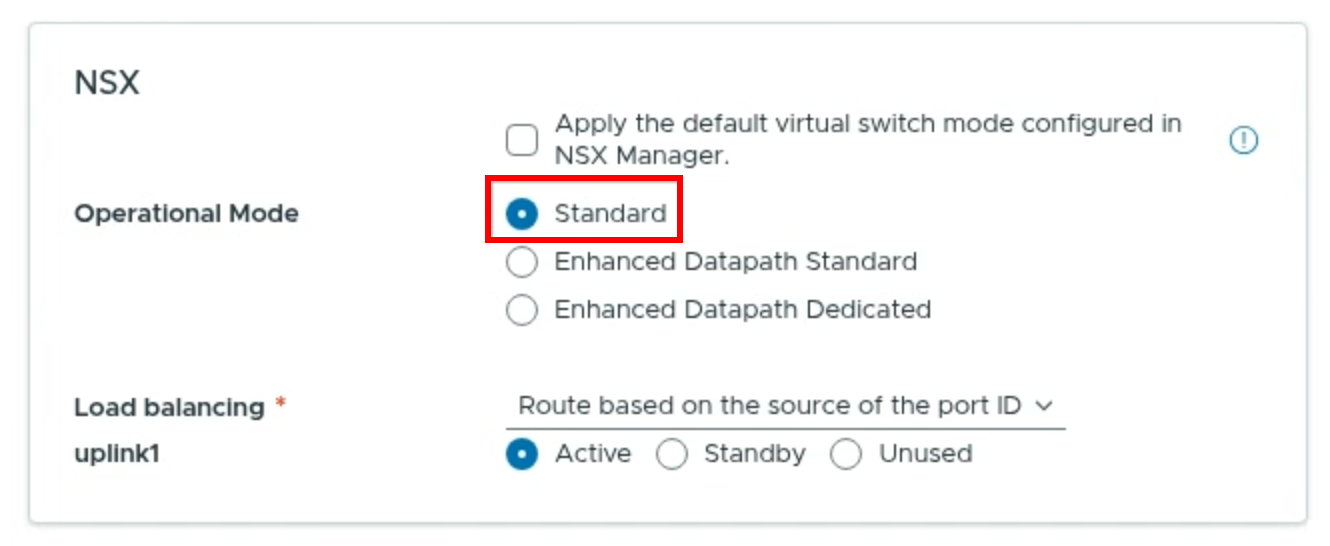
In VCF 9.x, the default virtual switch mode configured in NSX Manager is set to Enhanced Datapath Standard, which isn't supported on VMware solution hosts.
Workaround: In the NSX section of the VCF Installer, clear the Apply the default virtual switch mode configured in NSX Manager checkbox, and for Operational Mode, select Standard, as shown in the following screenshot (click to enlarge):
DNS resolution failure with Cloud DNS inbound forwarding on Layer 2 broadcast subnets
When you enable a Cloud DNS inbound server policy on the VPC network
that hosts your VMware solution nodes, Cloud DNS automatically
reserves an internal DNS_RESOLVER IP address in each regional subnet in the
VPC network. This includes the untagged ESXi management (MGMT) subnet and the
VLAN-tagged Dynamic NIC subnets (vSAN, vMotion, and
NSX-TEP) that use Layer 2 Address Resolution Protocol (ARP) broadcasting and
custom MAC learning (ARP_BROADCAST_PRIMARY_RANGE_WITH_LEARNING).
If you configure ESXi hosts or VCF management appliances to query a
DNS_RESOLVER IP address from the same subnet—or from any node subnet enabled
for ARP broadcasting and MAC learning—the host treats the forwarder IP address
as a local Layer 2 neighbor and sends ARP broadcast requests to resolve its MAC
address. Because the Cloud DNS inbound forwarder is a
Google Cloud proxy service rather than a Layer 2 endpoint on the subnet,
it doesn't respond to ARP requests or participate in custom MAC learning. As a
result, the neighbor entry remains incomplete (esxcli network ip neighbor
list) and DNS queries (nslookup) time out.
The same behavior applies to Private Service Connect (PSC) endpoints
(GCE_ENDPOINT), such as the endpoint used to connect to the
regional offline depot.
If you deploy a Private Service Connect endpoint in a Layer 2 ARP
broadcast or VLAN-tagged node subnet, ARP resolution for the endpoint IP address
fails and connections to the offline depot time out.
Workaround: Use an existing standard (non-VLAN, non-Layer 2 broadcast)
subnet in the same region and VPC network, or create a dedicated standard
subnet if one doesn't already exist, for your Cloud DNS inbound
DNS_RESOLVER IP address (and for your
Private Service Connect offline depot endpoint). If a standard
subnet already exists in the region, Cloud DNS has already allocated a
DNS_RESOLVER IP address in that subnet that you can use:
If a standard subnet doesn't already exist in the same region and VPC network, create a dedicated standard subnet without specifying the
--resolve-subnet-maskflag. Don't attach this subnet to node primary interfaces or VLAN-tagged Dynamic NICs:gcloud compute networks subnets create DNS_SUBNET_NAME \ --network=VPC_NAME \ --region=REGION \ --range=DNS_SUBNET_RANGE \ --project=PROJECT_IDRetrieve the
DNS_RESOLVERIP address reserved by Cloud DNS in the standard subnet:gcloud compute addresses list \ --filter="purpose=DNS_RESOLVER AND subnetwork:DNS_SUBNET_NAME" \ --project=PROJECT_IDBefore you run the preceding commands, replace the following:
DNS_SUBNET_NAME: the name of the existing or dedicated standard subnet for Cloud DNS inbound forwarding.VPC_NAME: the name of your VPC network.REGION: the Google Cloud region where your bare-metal nodes reside.DNS_SUBNET_RANGE: a non-overlapping primary IPv4 CIDR range for the dedicated standard subnet (for example,10.0.100.0/28).PROJECT_ID: the ID of your Google Cloud project.
Configure your ESXi hosts, VCF management appliances, and the VMware solution toolkit (
dns_serverinconfig.json) to use theDNS_RESOLVERIP address fromDNS_SUBNET_NAMEinstead of theDNS_RESOLVERIP addresses associated with the ESXi management (MGMT),vSAN,vMotion, orNSX-TEPsubnets.