

בדף הזה מוסבר איך לכתוב, לפרוס ולהפעיל צינור עיבוד נתונים באמצעות פונקציית Cloud Functions מבוססת-אירועים עם טריגר Cloud Pub/Sub. איך לעשות את זה?
מגדירים צינור ML באמצעות Kubeflow Pipelines (KFP) SDK ומקמפלים אותו לקובץ YAML.
מעלים את הגדרת הצינור המהודרת לקטגוריה של Cloud Storage.
אתם יכולים להשתמש בפונקציות Cloud Run כדי ליצור, להגדיר ולפרוס פונקציה שמופעלת על ידי נושא Pub/Sub חדש או קיים.
הגדרה וקומפילציה של צינור עיבוד נתונים
באמצעות Kubeflow Pipelines SDK, יוצרים צינור עיבוד נתונים מתוזמן ומקמפלים אותו לקובץ YAML.
דוגמה hello-world-scheduled-pipeline:
from kfp import compiler
from kfp import dsl

# A simple component that prints and returns a greeting string
@dsl.component
def hello_world(message: str) -> str:
    greeting_str = f'Hello, {message}'
    print(greeting_str)
    return greeting_str

# A simple pipeline that contains a single hello_world task
@dsl.pipeline(
    name='hello-world-scheduled-pipeline')
def hello_world_scheduled_pipeline(greet_name: str):
    hello_world_task = hello_world(greet_name)

# Compile the pipeline and generate a YAML file
compiler.Compiler().compile(pipeline_func=hello_world_scheduled_pipeline,
                            package_path='hello_world_scheduled_pipeline.yaml')
העלאת קובץ YAML של צינור עיבוד מעובד לקטגוריה של Cloud Storage
פותחים את הדף Cloud Storage browser במסוף Google Cloud .
לוחצים על קטגוריית Cloud Storage שיצרתם כשהגדרתם את הפרויקט.
מעלים את קובץ ה-YAML של צינור העיבוד (בדוגמה הזו
hello_world_scheduled_pipeline.yaml) לתיקייה שנבחרה, בין אם היא קיימת או חדשה.כדי לגשת לפרטים, לוחצים על קובץ ה-YAML שהועלה. מעתיקים את gsutil URI לשימוש במועד מאוחר יותר.
יצירת פונקציות Cloud Run עם טריגר Pub/Sub
נכנסים לדף פונקציות Cloud Run במסוף.
לוחצים על הלחצן יצירת פונקציה.
בקטע Basics (עקרונות בסיסיים), נותנים שם לפונקציה (לדוגמה,
my-scheduled-pipeline-function).בקטע Trigger, בוחרים באפשרות Cloud Pub/Sub בתור סוג הטריגר.
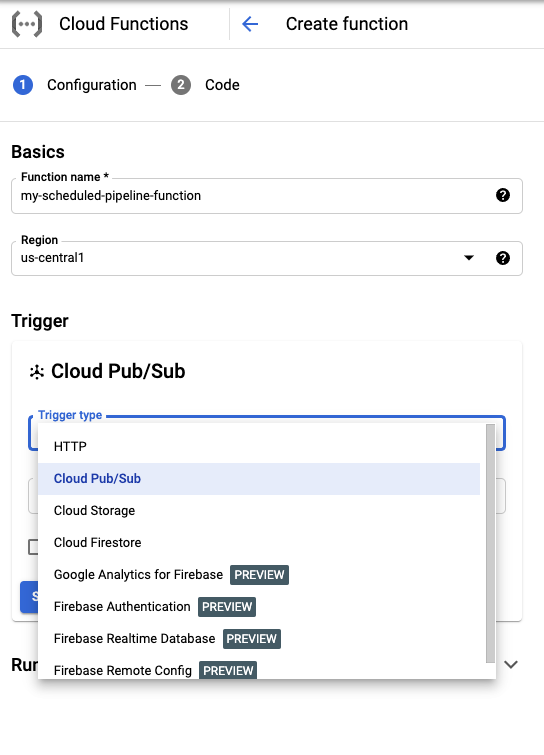
ברשימה Select a Cloud Pub/Sub topic, לוחצים על Create a topic.
בתיבה יצירת נושא, נותנים שם לנושא החדש (למשל
my-scheduled-pipeline-topic) ולוחצים על יצירת נושא.משאירים את כל שאר השדות כברירת מחדל ולוחצים על Save (שמירה) כדי לשמור את ההגדרות של הקטע Trigger (טריגר).
משאירים את כל שאר השדות בערכי ברירת המחדל ולוחצים על הבא כדי להמשיך לקטע Code (קוד).
בקטע Runtime, בוחרים באפשרות Python 3.7.
בקטע נקודת כניסה, מזינים subscribe (שם הפונקציה של נקודת הכניסה של קוד הדוגמה).
בקטע קוד מקור, בוחרים באפשרות עורך מוטבע אם היא לא מסומנת.
מוסיפים את הקוד הבא לקובץ
main.py:import base64 import json from google.cloud import aiplatform PROJECT_ID = 'your-project-id' # <---CHANGE THIS REGION = 'your-region' # <---CHANGE THIS PIPELINE_ROOT = 'your-cloud-storage-pipeline-root' # <---CHANGE THIS def subscribe(event, context): """Triggered from a message on a Cloud Pub/Sub topic. Args: event (dict): Event payload. context (google.cloud.functions.Context): Metadata for the event. """ # decode the event payload string payload_message = base64.b64decode(event['data']).decode('utf-8') # parse payload string into JSON object payload_json = json.loads(payload_message) # trigger pipeline run with payload trigger_pipeline_run(payload_json) def trigger_pipeline_run(payload_json): """Triggers a pipeline run Args: payload_json: expected in the following format: { "pipeline_spec_uri": "<path-to-your-compiled-pipeline>", "parameter_values": { "greet_name": "<any-greet-string>" } } """ pipeline_spec_uri = payload_json['pipeline_spec_uri'] parameter_values = payload_json['parameter_values'] # Create a PipelineJob using the compiled pipeline from pipeline_spec_uri aiplatform.init( project=PROJECT_ID, location=REGION, ) job = aiplatform.PipelineJob( display_name='hello-world-pipeline-cloud-function-invocation', template_path=pipeline_spec_uri, pipeline_root=PIPELINE_ROOT, enable_caching=False, parameter_values=parameter_values ) # Submit the PipelineJob job.submit()מחליפים את מה שכתוב בשדות הבאים:
- PROJECT_ID: Google Cloud הפרויקט שבו צינור הנתונים הזה פועל.
- REGION: האזור שבו צינור העברת הנתונים הזה פועל.
- PIPELINE_ROOT: מציינים URI של Cloud Storage שחשבון השירות של צינורות העיבוד יכול לגשת אליו. פריטי המידע של הפעלות צינור עיבוד הנתונים מאוחסנים בתיקיית הבסיס של צינור עיבוד הנתונים.
בקובץ
requirements.txt, מחליפים את התוכן בדרישות החבילה הבאות:google-api-python-client>=1.7.8,<2 google-cloud-aiplatformלוחצים על deploy כדי לפרוס את הפונקציה.
המאמרים הבאים
- מידע נוסף עלGoogle Cloud Pub/Sub
- הצגה חזותית של תוצאות המשפך וניתוח שלהן.
- איך יוצרים טריגרים ב-Cloud Run מאירועים ב-Pub/Sub
- כדי לראות דוגמאות קוד לשימוש ב-Pub/Sub, אפשר לעיין בGoogle Cloud דפדפן הדוגמאות.