

This page describes how to execute Cloud Run jobs on a schedule using Cloud Scheduler.
Required roles
To get the permissions that you need for the operations described on this page, ask your administrator to grant you the IAM roles on your Cloud Run job:
- Cloud Scheduler Admin
(
roles/cloudscheduler.admin), or a custom role with thecloudscheduler.jobs.createpermission. - Cloud Run Invoker (
roles/run.invoker) to execute jobs using the Google Cloud CLI, or Cloud Run Developer (roles/run.developer) to execute jobs using the Google Cloud console.
For a list of IAM roles and permissions that are associated with Cloud Run, see Cloud Run IAM roles and Cloud Run IAM permissions. If your Cloud Run job interfaces with Google Cloud APIs, such as Cloud Client Libraries, see the service identity configuration guide. For more information about granting roles, see deployment permissions and manage access.
Before you begin
Create a Cloud Run job if you have not created one yet.
Configure a Cloud Run job to execute on a schedule
To execute a Cloud Run job on a schedule:
Console
Click the job you want to execute on a schedule.
Click the Triggers tab.
Click Add Scheduler Trigger.
If you haven't yet enabled the Cloud Scheduler API for your project, you are prompted to do so in the far right panel: click Enable API.
Fill out the Cloud Scheduler job form
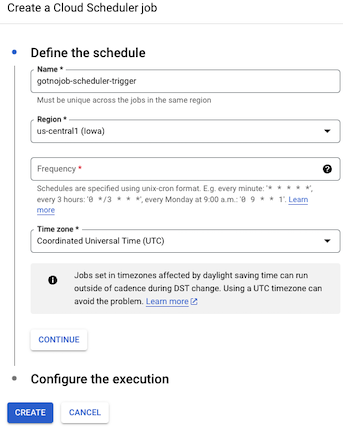
Under Define a schedule:
Give your Cloud Scheduler job a name.
Select a region for your Cloud Scheduler job. It does not need to match the region used for the Cloud Run job.
Specify the frequency for your job execution, using the unix-cron format, for example,
0 12 * * *Select your timezone.
Click Continue.
In the Service Account menu, select a service account that has the permission to invoke the current Cloud Run service.
Click Create to create the Cloud Scheduler job that will execute the Cloud Run job at the specified frequency.
Command line
Make sure you create a Cloud Run job first.
Run the command:
gcloud scheduler jobs create http SCHEDULER_JOB_NAME \
  --location SCHEDULER_REGION \
  --schedule="SCHEDULE" \
  --uri="https://run.googleapis.com/v2/projects/PROJECT-ID/locations/CLOUD_RUN_REGION/jobs/JOB-NAME:run" \
  --http-method POST \
  --oauth-service-account-email PROJECT-NUMBER-compute@developer.gserviceaccount.com
Replace
- SCHEDULER_JOB_NAME with the name you want to give your scheduler job.
- SCHEDULER_REGION with a region supported by
Cloud Scheduler, for example,
europe-west2. - CLOUD_RUN_REGION with the region for your Cloud Run
job. For example,
europe-west1. - SCHEDULE with the necessary frequency, for example
0 12 * * *. - PROJECT-ID with your project ID.
- PROJECT-NUMBER with your project number.
- JOB-NAME with your Cloud Run job.
Terraform
To learn how to apply or remove a Terraform configuration, see Basic Terraform commands.
Add the following to agoogle_cloud_run_v2_job
resource in your Terraform configuration:Cloud Scheduler will execute the Cloud Run job at the specified frequency.
Schedule your job inside a VPC Service Controls perimeter
If your Google Cloud project is inside a VPC Service Controls perimeter in a Virtual Private Cloud network, the Cloud Scheduler integration with VPC Service Controls supports Cloud Run jobs as a target using the following URI format:
https://run.googleapis.com/v2/projects/PROJECT_ID/locations/REGION/jobs/JOB_NAME:run
Replace the following:
PROJECT_ID: the Google Cloud project ID.REGION: the Google Cloud region of the job.JOB_NAME: the name of the Cloud Run job.
For more information on configuring VPC Service Controls for Cloud Run, see Using VPC Service Controls (VPC SC). For more information on using Cloud Scheduler with VPC Service Controls, see Secure cron jobs with VPC Service Controls.
What's next
After you use this feature, you can do the following: