

This document guides you through a blue-green deployment of a sample store
application across two GKE clusters. Blue-green deployments are
an effective strategy to migrate your applications to new GKE clusters with minimal
risk. By gradually shifting traffic from the current cluster (blue) to the new
cluster (green), you can validate the new environment in production
before committing to a full cutover.
In this tutorial, you use a sample store application to simulate a real-world
scenario where an online shopping service is owned and operated by separate
teams and deployed across a fleet of
shared GKE clusters.
Before you begin
Multi-cluster Gateways require some environmental preparation before they can be deployed. Before you proceed, follow the steps in Prepare your environment for multi-cluster Gateways:
Deploy GKE clusters.
Register your clusters to a fleet (if they aren't already).
Enable the multi-cluster Service and multi-cluster Gateway controllers.
Finally, review the GKE Gateway controller limitations and known issues before you use the controller in your environment.
Blue-green, multi-cluster routing with Gateway
The gke-l7-global-external-managed-*, gke-l7-regional-external-managed-*, and
gke-l7-rilb-* GatewayClasses have many advanced traffic routing capabilities
including traffic splitting, header matching, header manipulation, traffic
mirroring, and more. In this example, you'll demonstrate how to use weight-based
traffic splitting to explicitly control the traffic proportion across two
GKE clusters.
This example goes through some realistic steps that a service owner would take in moving or expanding their application to a new GKE cluster. The goal of blue-green deployments is to reduce risk through multiple validation steps which confirm that the new cluster is operating correctly. This example walks through four stages of deployment:
- 100%-Header-based canary: Use HTTP header routing to send only test or synthetic traffic to the new cluster.
- 100%-Mirror traffic: Mirror user traffic to the canary cluster. This tests the capacity of the canary cluster by copying 100% of the user traffic to this cluster.
- 90%-10%: Canary a traffic split of 10% to slowly expose the new cluster to live traffic.
- 0%-100%: Cutover fully to the new cluster with the option of switching back if any errors are observed.
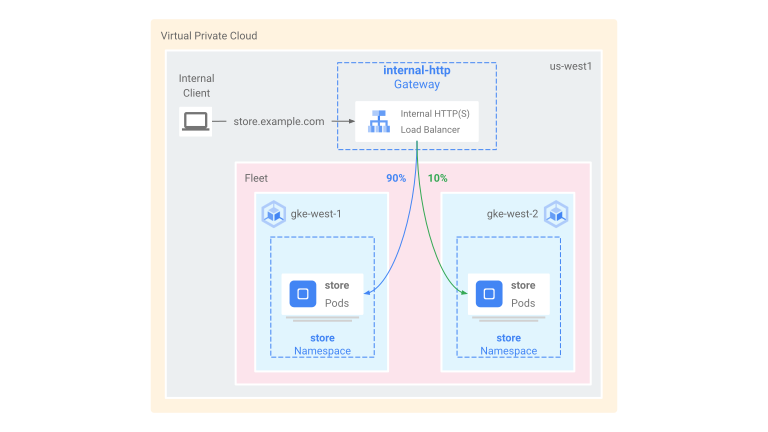
This example is similar to the previous one, except it deploys an internal multi-cluster Gateway instead. This deploys an internal Application Load Balancer which is only privately accessible from within the VPC. You will use the clusters and same application that you deployed in the previous steps, except deploy them through a different Gateway.
Prerequisites
The following example builds on some of the steps in Deploying an external multi-cluster Gateway. Ensure that you have done the following steps before proceeding with this example:
-
This example uses the
gke-west-1andgke-west-2clusters that you already set up. These clusters are in the same region because thegke-l7-rilb-mcGatewayClass is regional and only supports cluster backends in the same region. Deploy the Service and ServiceExports needed on each cluster. If you deployed Services and ServiceExports from the previous example then you already deployed some of these.
kubectl apply --context gke-west-1 -f https://raw.githubusercontent.com/GoogleCloudPlatform/gke-networking-recipes/main/gateway/gke-gateway-controller/multi-cluster-gateway/store-west-1-service.yaml
kubectl apply --context gke-west-2 -f https://raw.githubusercontent.com/GoogleCloudPlatform/gke-networking-recipes/main/gateway/gke-gateway-controller/multi-cluster-gateway/store-west-2-service.yaml
It deploys a similar set of resources to each cluster:
service/store created
serviceexport.net.gke.io/store created
service/store-west-2 created
serviceexport.net.gke.io/store-west-2 created
Configuring a proxy-only subnet
If you have not already done so, configure a proxy-only
subnet for
each region in which you are deploying internal Gateways. This subnet is used
to provide internal IP addresses to the load balancer proxies and must be
configured with a --purpose set to REGIONAL_MANAGED_PROXY only.
You must create a proxy-only subnet before you create Gateways that manage internal Application Load Balancers. Each region of a Virtual Private Cloud (VPC) network in which you use internal Application Load Balancers must have a proxy-only subnet.
The gcloud compute networks subnets create
command creates a proxy-only a subnet.
gcloud compute networks subnets create SUBNET_NAME \
    --purpose=REGIONAL_MANAGED_PROXY \
    --role=ACTIVE \
    --region=REGION \
    --network=VPC_NETWORK_NAME \
    --range=CIDR_RANGE
Replace the following:
SUBNET_NAME: the name of the proxy-only subnet.REGION: the region of the proxy-only subnet.VPC_NETWORK_NAME: the name of the VPC network that contains the subnet.CIDR_RANGE: the primary IP address range of the subnet. You must use a subnet mask no larger than/26so that at least 64 IP addresses are available for proxies in the region. The recommended subnet mask is/23.
Deploying the Gateway
The following Gateway is created from the gke-l7-rilb-mc GatewayClass, which is
a regional internal Gateway that can target only GKE clusters in
the same region.
Apply the following
Gatewaymanifest to the config cluster,gke-west-1in this example:cat << EOF | kubectl apply --context gke-west-1 -f - kind: Gateway apiVersion: gateway.networking.k8s.io/v1 metadata: name: internal-http namespace: store spec: gatewayClassName: gke-l7-rilb-mc listeners: - name: http protocol: HTTP port: 80 allowedRoutes: kinds: - kind: HTTPRoute EOFValidate that the Gateway has come up successfully. You can filter for just the events from this Gateway with the following command:
kubectl get events --field-selector involvedObject.kind=Gateway,involvedObject.name=internal-http --context=gke-west-1 --namespace storeThe Gateway deployment was successful if the output resembles the following:
LAST SEEN   TYPE     REASON   OBJECT                  MESSAGE
5m18s       Normal   ADD      gateway/internal-http   store/internal-http
3m44s       Normal   UPDATE   gateway/internal-http   store/internal-http
3m9s        Normal   SYNC     gateway/internal-http   SYNC on store/internal-http was a success
Header-based canary
Header-based canarying lets the service owner match synthetic test traffic that does not come from real users. This is an easy way of validating that the basic networking of the application is functioning without exposing users directly.
Apply the following
HTTPRoutemanifest to the config cluster,gke-west-1in this example:cat << EOF | kubectl apply --context gke-west-1 -f - kind: HTTPRoute apiVersion: gateway.networking.k8s.io/v1 metadata: name: internal-store-route namespace: store labels: gateway: internal-http spec: parentRefs: - kind: Gateway namespace: store name: internal-http hostnames: - "store.example.internal" rules: # Matches for env=canary and sends it to store-west-2 ServiceImport - matches: - headers: - name: env value: canary backendRefs: - group: net.gke.io kind: ServiceImport name: store-west-2 port: 8080 # All other traffic goes to store-west-1 ServiceImport - backendRefs: - group: net.gke.io kind: ServiceImport name: store-west-1 port: 8080 EOFOnce deployed, this HTTPRoute configures the following routing behavior:
- Internal requests to
store.example.internalwithout theenv: canaryHTTP header are routed tostorePods on thegke-west-1cluster - Internal requests to
store.example.internalwith theenv: canaryHTTP header are routed tostorePods on thegke-west-2cluster
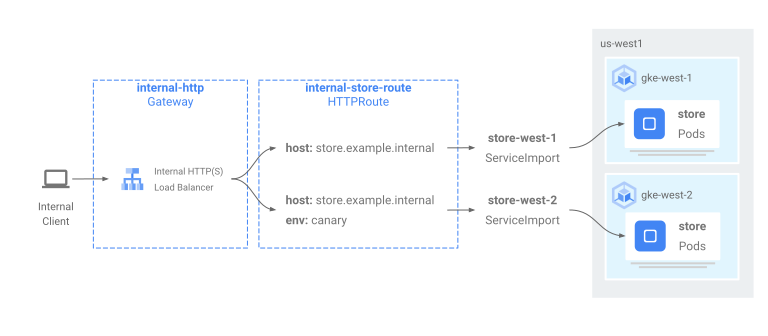
Validate that the HTTPRoute is functioning correctly by sending traffic to the Gateway IP address.
- Internal requests to
Retrieve the internal IP address from
internal-http.kubectl get gateways.gateway.networking.k8s.io internal-http -o=jsonpath="{.status.addresses[0].value}" --context gke-west-1 --namespace storeReplace VIP in the following steps with the IP address you receive as output.
Send a request to the Gateway using the
env: canaryHTTP header. This will confirm that traffic is being routed togke-west-2. Use a private client in the same VPC as the GKE clusters to confirm that requests are being routed correctly. The following command must be run on a machine that has private access to the Gateway IP address or else it will not function.curl -H "host: store.example.internal" -H "env: canary" http://VIPThe output confirms that the request was served by a Pod from the
gke-west-2cluster:{ "cluster_name": "gke-west-2", "host_header": "store.example.internal", "node_name": "gke-gke-west-2-default-pool-4cde1f72-m82p.c.agmsb-k8s.internal", "pod_name": "store-5f5b954888-9kdb5", "pod_name_emoji": "😂", "project_id": "agmsb-k8s", "timestamp": "2021-05-31T01:21:55", "zone": "us-west1-a" }
Traffic mirror
This stage sends traffic to the intended cluster but also mirrors that traffic to the canary cluster.
Using mirroring is helpful to determine how traffic load will impact application performance without impacting responses to your clients in any way. It may not be necessary for all kinds of rollouts, but can be useful when rolling out large changes that could impact performance or load.
Apply the following
HTTPRoutemanifest to the config cluster,gke-west-1in this example:cat << EOF | kubectl apply --context gke-west-1 -f - kind: HTTPRoute apiVersion: gateway.networking.k8s.io/v1 metadata: name: internal-store-route namespace: store labels: gateway: internal-http spec: parentRefs: - kind: Gateway namespace: store name: internal-http hostnames: - "store.example.internal" rules: # Sends all traffic to store-west-1 ServiceImport - backendRefs: - name: store-west-1 group: net.gke.io kind: ServiceImport port: 8080 # Also mirrors all traffic to store-west-2 ServiceImport filters: - type: RequestMirror requestMirror: backendRef: group: net.gke.io kind: ServiceImport name: store-west-2 port: 8080 EOFUsing your private client, send a request to the
internal-httpGateway. Use the/mirrorpath so you can uniquely identify this request in the application logs in a later step.curl -H "host: store.example.internal" http://VIP/mirrorThe output confirms that the client received a response from a Pod in the
gke-west-1cluster:{ "cluster_name": "gke-west-1", "host_header": "store.example.internal", "node_name": "gke-gke-west-1-default-pool-65059399-ssfq.c.agmsb-k8s.internal", "pod_name": "store-5f5b954888-brg5w", "pod_name_emoji": "🎖", "project_id": "agmsb-k8s", "timestamp": "2021-05-31T01:24:51", "zone": "us-west1-a" }This confirms that the primary cluster is responding to traffic. You still need to confirm that the cluster you are migrating to is receiving mirrored traffic.
Check the application logs of a
storePod on thegke-west-2cluster. The logs should confirm that the Pod received mirrored traffic from the load balancer.kubectl logs deployment/store --context gke-west-2 -n store | grep /mirrorThis output confirms that Pods on the
gke-west-2cluster are also receiving the same requests, however their responses to these requests are not sent back to the client. The IP addresses seen in the logs are that of the load balancer's internal IP addresses which are communicating with your Pods.Found 2 pods, using pod/store-5c65bdf74f-vpqbs [2023-10-12 21:05:20,805] INFO in _internal: 192.168.21.3 - - [12/Oct/2023 21:05:20] "GET /mirror HTTP/1.1" 200 - [2023-10-12 21:05:27,158] INFO in _internal: 192.168.21.3 - - [12/Oct/2023 21:05:27] "GET /mirror HTTP/1.1" 200 - [2023-10-12 21:05:27,805] INFO in _internal: 192.168.21.3 - - [12/Oct/2023 21:05:27] "GET /mirror HTTP/1.1" 200 -
Traffic split
Traffic splitting is one of the most common methods of rolling out new code or deploying to new environments safely. The service owner sets an explicit percentage of traffic that is sent to the canary backends that is typically a very small amount of the overall traffic so that the success of the rollout can be determined with an acceptable amount of risk to real user requests.
Doing a traffic split with a minority of the traffic enables the service owner to inspect the health of the application and the responses. If all the signals look healthy, then they may proceed to the full cutover.
Apply the following
HTTPRoutemanifest to the config cluster,gke-west-1in this example:cat << EOF | kubectl apply --context gke-west-1 -f - kind: HTTPRoute apiVersion: gateway.networking.k8s.io/v1 metadata: name: internal-store-route namespace: store labels: gateway: internal-http spec: parentRefs: - kind: Gateway namespace: store name: internal-http hostnames: - "store.example.internal" rules: - backendRefs: # 90% of traffic to store-west-1 ServiceImport - name: store-west-1 group: net.gke.io kind: ServiceImport port: 8080 weight: 90 # 10% of traffic to store-west-2 ServiceImport - name: store-west-2 group: net.gke.io kind: ServiceImport port: 8080 weight: 10 EOFUsing your private client, send a continuous curl request to the
internal- httpGateway.while true; do curl -H "host: store.example.internal" -s VIP | grep "cluster_name"; sleep 1; doneThe output will be similar to this, indicating that a 90/10 traffic split is occurring.
"cluster_name": "gke-west-1",
"cluster_name": "gke-west-1",
"cluster_name": "gke-west-1",
"cluster_name": "gke-west-1",
"cluster_name": "gke-west-1",
"cluster_name": "gke-west-1",
"cluster_name": "gke-west-1",
"cluster_name": "gke-west-1",
"cluster_name": "gke-west-2",
"cluster_name": "gke-west-1",
"cluster_name": "gke-west-1",
...
Traffic cut over
The last stage of the blue-green migration is to fully cut over to the new
cluster and remove the old cluster. If the service owner was actually onboarding
a second cluster to an existing cluster then this last step would be different
as the final step would have traffic going to both clusters. In that scenario a
single store ServiceImport is recommended that has Pods from both gke-west-1
and gke-west-2 clusters. This allows the load balancer to make the decision of
where traffic should go for an active-active application, based on proximity,
health, and capacity.
Apply the following
HTTPRoutemanifest to the config cluster,gke-west-1in this example:cat << EOF | kubectl apply --context gke-west-1 -f - kind: HTTPRoute apiVersion: gateway.networking.k8s.io/v1 metadata: name: internal-store-route namespace: store labels: gateway: internal-http spec: parentRefs: - kind: Gateway namespace: store name: internal-http hostnames: - "store.example.internal" rules: - backendRefs: # No traffic to the store-west-1 ServiceImport - name: store-west-1 group: net.gke.io kind: ServiceImport port: 8080 weight: 0 # All traffic to the store-west-2 ServiceImport - name: store-west-2 group: net.gke.io kind: ServiceImport port: 8080 weight: 100 EOFUsing your private client, send a continuous curl request to the
internal- httpGateway.while true; do curl -H "host: store.example.internal" -s VIP | grep "cluster_name"; sleep 1; doneThe output will be similar to this, indicating that all traffic is now going to
gke-west-2."cluster_name": "gke-west-2", "cluster_name": "gke-west-2", "cluster_name": "gke-west-2", "cluster_name": "gke-west-2", ...
This final step completes a full blue-green application migration from one GKE cluster to another GKE cluster.
Clean up
After completing the exercises on this document, follow these steps to remove resources and prevent unwanted charges incurring on your account:
Unregister the clusters from the fleet if they don't need to be registered for another purpose.
Disable the
multiclusterservicediscoveryfeature:gcloud container fleet multi-cluster-services disableDisable Multi Cluster Ingress:
gcloud container fleet ingress disableDisable the APIs:
gcloud services disable \
    multiclusterservicediscovery.googleapis.com \
    multiclusteringress.googleapis.com \
    trafficdirector.googleapis.com \
    --project=PROJECT_ID
Troubleshooting
No healthy upstream
Symptom:
The following issue might occur when you create a Gateway but cannot access the backend services (503 response code):
no healthy upstream
Reason:
This error message indicates that the health check prober cannot find healthy backend services. It is possible that your backend services are healthy but you might need to customize the health checks.
Workaround:
To resolve this issue, customize your health check based on your application's
requirements (for example, /health) using a HealthCheckPolicy.
What's next
- Learn more about the Gateway controller.