


使用 Terraform 佈建 Compute Engine 虛擬機器 (VM),即可在高可用性 (HA) 模式下評估 Google Distributed Cloud,不需實體硬體。在本教學課程中,您將使用提供的 Terraform 指令碼設定模擬 VM 網路、部署混合式叢集範例,並驗證安裝作業。
這項部署作業僅供評估之用。請勿在正式環境中的 Compute Engine VM 上執行 Google Distributed Cloud。如要在正式環境中部署 Google Distributed Cloud,請按照「建立基本叢集」中的步驟操作。
如果您想使用 Google Cloud CLI (而非 Terraform) 評估 Google Distributed Cloud,請參閱「在 Compute Engine VM 上試用 Google Distributed Cloud」。
事前準備
部署作業需要下列資源:
- 一部可連上網際網路的工作站,並安裝下列工具:Git、Google Cloud CLI 和 Terraform (>= v0.15.5、< 1.2)。
Google Cloud 專案。
專案中的服務帳戶符合下列其中一項條件,且其金鑰檔案已下載至工作站:
- 服務帳戶具備擁有者權限
- 服務帳戶同時具備編輯者和專案 IAM 管理員權限
在 Compute Engine 上設定 VM 網路
在本節中,您將使用 anthos-samples 存放區中的 Terraform 指令碼。指令碼會使用下列資源設定 Compute Engine:
- 部署混合式叢集的六個 VM:
- 一個管理員 VM,用於將混合式叢集部署至其他機器。
- 三個 VM,用於執行混合式叢集控制層所需的三個控制層節點。
- 兩個 VM,用於在混合式叢集上執行工作負載所需的兩個 worker 節點。
- 所有節點之間的
VxLAN疊加網路,用於模擬 L2 連線能力。 - 從管理員 VM 透過 SSH 存取控制層和worker 節點。
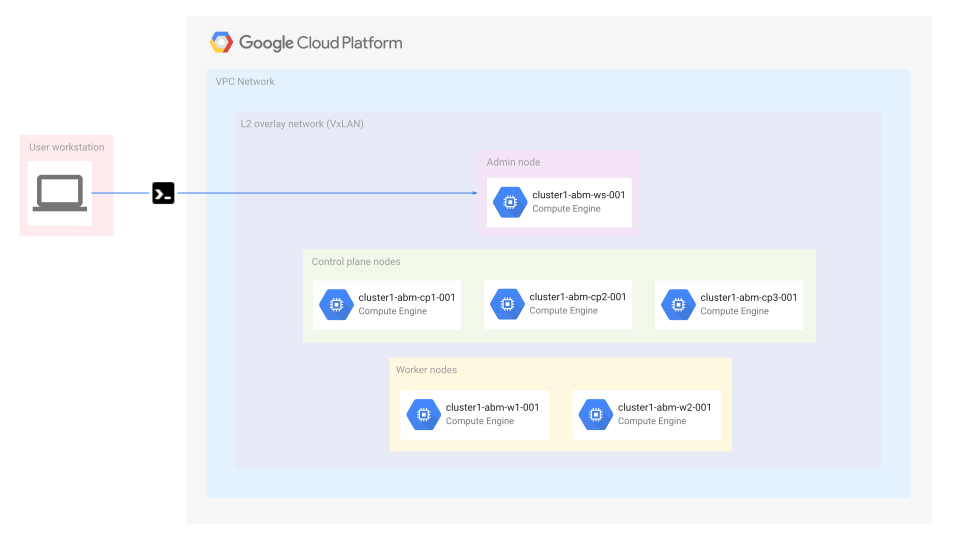
如要變更叢集中的節點數量,請在 instance_count Terraform 變數中新增節點名稱:
下載
anthos-bm-gcp-terraform範例的 Terraform 指令碼:git clone https://github.com/GoogleCloudPlatform/anthos-samples cd anthos-samples/anthos-bm-gcp-terraform更新
terraform.tfvars.sample檔案,加入環境專屬的變數:project_id = "PROJECT_ID" region = "GOOGLE_CLOUD_REGION" zone = "GOOGLE_CLOUD_ZONE" credentials_file = "PATH_TO_GOOGLE_CLOUD_SERVICE_ACCOUNT_KEY_FILE"將
terraform.tfvars.sample檔案重新命名為 Terraform 預設使用的變數檔案名稱:mv terraform.tfvars.sample terraform.tfvars將範例目錄初始化為 Terraform 目前使用的目錄。這會設定必要的 Terraform 狀態管理設定,類似於
git init:terraform init建立 Terraform 執行計畫。這個步驟會比較資源狀態、驗證指令碼,並建立執行計畫:
terraform plan套用 Terraform 指令碼中描述的變更。這個步驟會在指定的供應商 (在本例中為 Google Cloud) 上執行計畫,以達到資源的目標狀態:
terraform apply # when prompted to confirm the Terraform plan, type 'Yes' and enter
部署混合式叢集
Terraform 執行完畢後,即可部署混合式叢集。
使用 SSH 連線至管理員主機:
gcloud compute ssh tfadmin@cluster1-abm-ws0-001 --project=PROJECT_ID --zone=GOOGLE_CLOUD_ZONE您可以忽略任何有關更新 VM 的訊息,並完成本教學課程。如果您打算將 VM 保留為測試環境,建議您按照 Ubuntu 說明文件中的說明更新 OS 或升級至下一個版本。
執行下列程式碼區塊,在設定好的 Compute Engine VM 上建立
cluster1混合式叢集:sudo ./run_initialization_checks.sh && \ sudo bmctl create config -c cluster1 && \ sudo cp ~/cluster1.yaml bmctl-workspace/cluster1 && \ sudo bmctl create cluster -c cluster1
執行 bmctl 指令後,系統會開始設定新的混合式叢集。包括對節點執行預檢、建立管理員和使用者叢集,以及使用連線代理程式向 Google Cloud 註冊叢集。整個設定程序最多可能需要 15 分鐘。叢集建立時,您會看到下列輸出內容:
    Created config: bmctl-workspace/cluster1/cluster1.yaml
    Creating bootstrap cluster... OK
    Installing dependency components... OK
    Waiting for preflight check job to finish... OK
    - Validation Category: machines and network
            - [PASSED] 10.200.0.3
            - [PASSED] 10.200.0.4
            - [PASSED] 10.200.0.5
            - [PASSED] 10.200.0.6
            - [PASSED] 10.200.0.7
            - [PASSED] gcp
            - [PASSED] node-network
    Flushing logs... OK
    Applying resources for new cluster
    Waiting for cluster to become ready OK
    Writing kubeconfig file
    kubeconfig of created cluster is at bmctl-workspace/cluster1/cluster1-kubeconfig, please run
    kubectl --kubeconfig bmctl-workspace/cluster1/cluster1-kubeconfig get nodes
    to get cluster node status.
    Please restrict access to this file as it contains authentication credentials of your cluster.
    Waiting for node pools to become ready OK
    Moving admin cluster resources to the created admin cluster
    Flushing logs... OK
    Deleting bootstrap cluster... OK
驗證叢集並與其互動
您可以在管理員機器的 bmctl-workspace 目錄中找到叢集的 kubeconfig 檔案。如要驗證部署作業,請完成下列步驟。
如果您已中斷與管理員主機的連線,請使用 SSH 連線至主機:
# You can copy the command from the output of the Terraform execution above
gcloud compute ssh tfadmin@cluster1-abm-ws0-001 --project=PROJECT_ID --zone=GOOGLE_CLOUD_ZONE
使用叢集設定檔的路徑設定
KUBECONFIG環境變數,以便在叢集上執行kubectl指令:export CLUSTER_ID=cluster1 export KUBECONFIG=$HOME/bmctl-workspace/$CLUSTER_ID/$CLUSTER_ID-kubeconfig kubectl get nodes您應該會看到叢集的節點,類似下列輸出內容:
NAME          STATUS   ROLES    AGE   VERSION
cluster1-abm-cp1-001   Ready    master   17m   v1.18.6-gke.6600
cluster1-abm-cp2-001   Ready    master   16m   v1.18.6-gke.6600
cluster1-abm-cp3-001   Ready    master   16m   v1.18.6-gke.6600
cluster1-abm-w1-001    Ready    <none>   14m   v1.18.6-gke.6600
cluster1-abm-w2-001    Ready    <none>   14m   v1.18.6-gke.6600
從 Google Cloud 控制台登入叢集
如要在 Google Cloud 控制台中觀察工作負載,您必須登入叢集。
如需操作說明和登入叢集的詳細資訊,請參閱 透過 Google Cloud 控制台使用叢集。
清除所用資源
您可以透過兩種方式清除叢集設定。
控制台
Terraform
- 請先取消註冊叢集,再刪除 Terraform 建立的所有資源。
# Use SSH to connect to the admin host
gcloud compute ssh tfadmin@cluster1-abm-ws0-001 --project=PROJECT_ID --zone=GOOGLE_CLOUD_ZONE

# Reset the cluster
export CLUSTER_ID=cluster1
export KUBECONFIG=$HOME/bmctl-workspace/$CLUSTER_ID/$CLUSTER_ID-kubeconfig
sudo bmctl reset --cluster $CLUSTER_ID

# log out of the admin host
exit
- 使用 Terraform 刪除所有資源。
terraform destroy --auto-approve