

This page describes how to create a Linux-based virtual machine (VM) instance with NVIDIA graphics processing units (GPUs).
A Virtual Machine with GPUs lets you run various GPU-accelerated workloads, for example, artificial intelligence and machine learning.
Virtual machines with GPUs are part of the "accelerator-optimized" A-series machine family, for example, A2 and A3. For more information, see View VM machine type.
This page is for developers in platform administrator or application operator groups that create VMs in a Google Distributed Cloud (GDC) air-gapped environment.
Before you begin
To use gdcloud command-line interface (CLI) commands, ensure that you have downloaded, installed, and configured the gdcloud CLI. All commands for Distributed Cloud use the gdcloud or kubectl CLI, and require a Linux environment.
Request permissions and access
To perform the tasks listed on this page, you must have the Project
VirtualMachine Admin role. Follow the steps to
verify
that you have the Project VirtualMachine Admin (project-vm-admin) role in the
namespace of the project where the VM resides.
For VM operations using the GDC console or the gdcloud CLI,
ask your Project IAM Admin to grant you both the Project VirtualMachine Admin
and Project Viewer (project-viewer) roles.
Create a VM
Create a VM by following the steps outlined in Create a VM from an image and select an A-series machine type.
Install NVIDIA drivers
This section provides steps to install NVIDIA drivers on your GDC VM instance.
Install the package
Starting with version v20250809 and later, GDC-provided
Ubuntu and Rocky Linux images have NVIDIA drivers preinstalled.
For image versions earlier than v20250809 and user-provided custom images,
install the driver from the GDC package repository.
Connect to the VM using SSH and run the command that corresponds to your VM
operating system (OS):
Ubuntu:
sudo apt install nvidia-dkms-570-server-open
Rocky Linux and RHEL:
sudo dnf install nvidia-driver-cuda
Run DKMS
Enable the NVIDIA driver on your VM with the dkms command. You only need to
perform this task once per VM:
sudo dkms autoinstall
Install the CUDA toolkit
The NVIDIA CUDA toolkit is available in the GDC package repositories. Connect to the VM using SSH, then run the command that corresponds to your VM OS:
Ubuntu
sudo apt install cuda-toolkit-12-8
Rocky Linux and RHEL
sudo dnf install cuda-toolkit-12-8
Enable Secure boot and sign drivers
If you need to enable secure boot on your VM with GPUs, you must sign the GPU drivers. Refer to the instructions for your corresponding OS.
Ubuntu
- Connect to the VM using SSH.
Switch to superuser:
sudo suGenerate a MOK key if one doesn't already exist:
[ -f /var/lib/shim-signed/mok/MOK.der ] || openssl req -new -x509 -newkey rsa:2048 -keyout /var/lib/shim-signed/mok/MOK.priv \
    -outform DER -out /var/lib/shim-signed/mok/MOK.der \
    -nodes -days 36500 -subj "/CN=DKMS Signing Key/"
Enroll the key using
mokutil:mokutil --import /var/lib/shim-signed/mok/MOK.derWhen prompted, create and enter a new password of your choice.
Sign the NVIDIA kernel modules using the MOK:
for module in nvidia nvidia_drm nvidia_modeset nvidia_uvm nvidia_peermem; do
    /usr/src/linux-headers-$(uname -r)/scripts/sign-file sha256 /var/lib/shim-signed/mok/MOK.priv /var/lib/shim-signed/mok/MOK.der $(modinfo -n $module)
done
Rocky Linux and RHEL
- Connect to the VM using SSH.
Switch to superuser:
sudo suSign the driver with the key using
dkms autoinstall:sudo dkms autoinstallEnroll the DKMS key in MOK:
mokutil --import /var/lib/dkms/mok.pub
Finalize MOK enrollment and verification
To access the MOK management screen, make sure to reboot the VM instance and immediately connect to the serial port. The screen is time sensitive and appears only briefly during the boot process. Specifically, follow these steps:
Reboot the VM instance:
rebootConnect to the VM's serial console. For more information, see Connect to a serial port.
Enroll the MOK from the console:
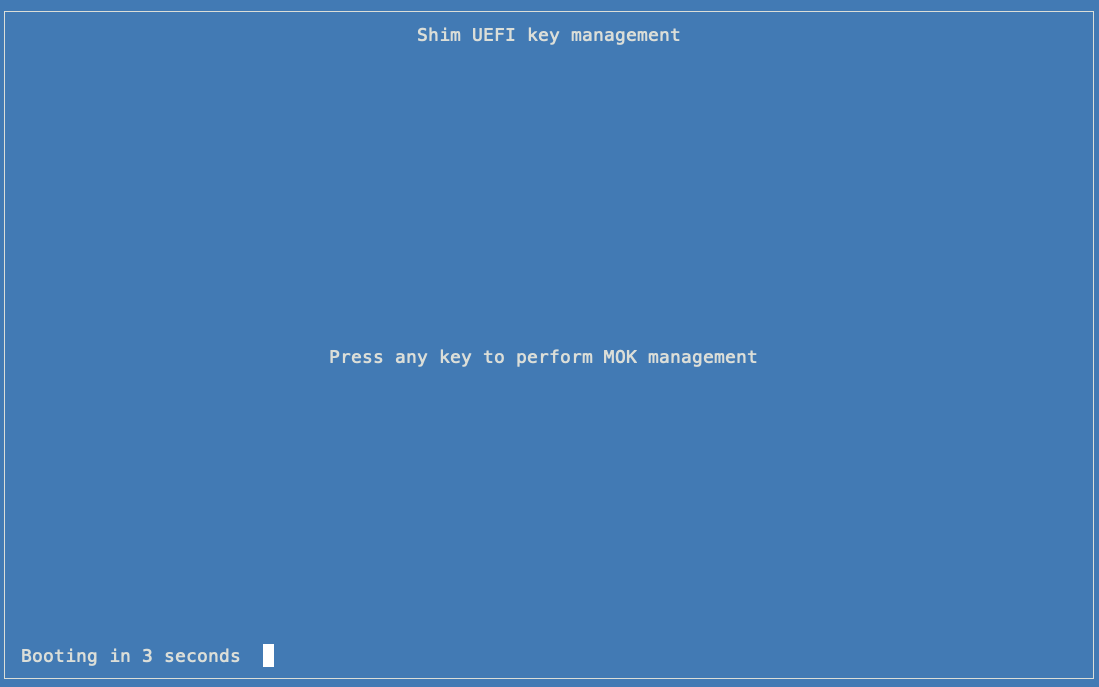
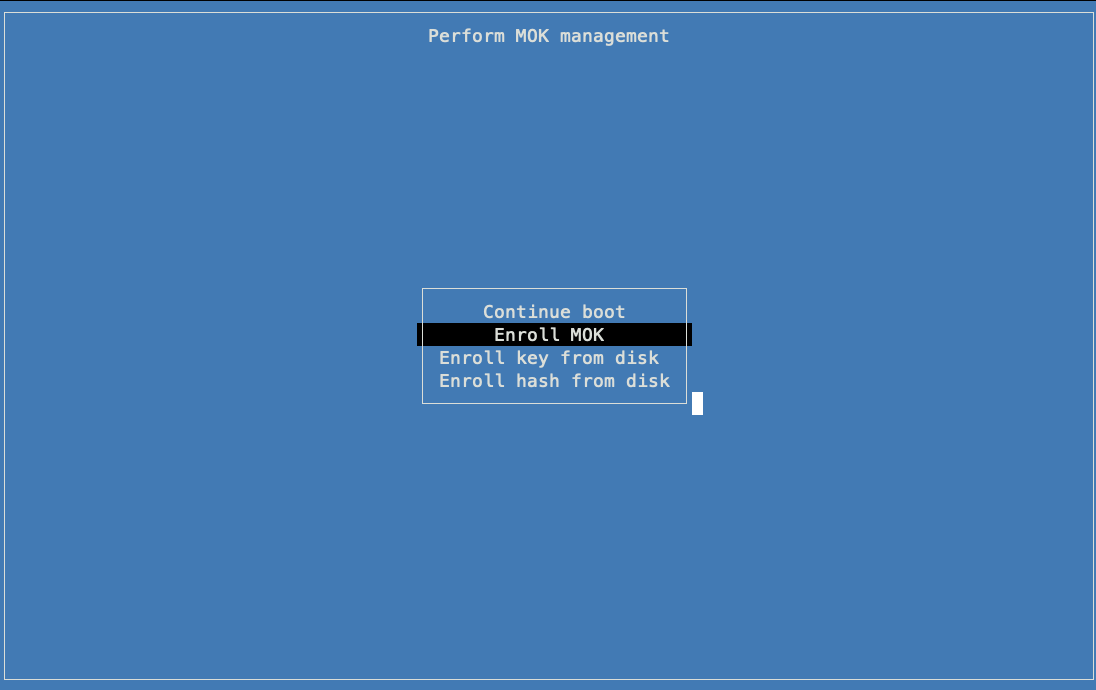
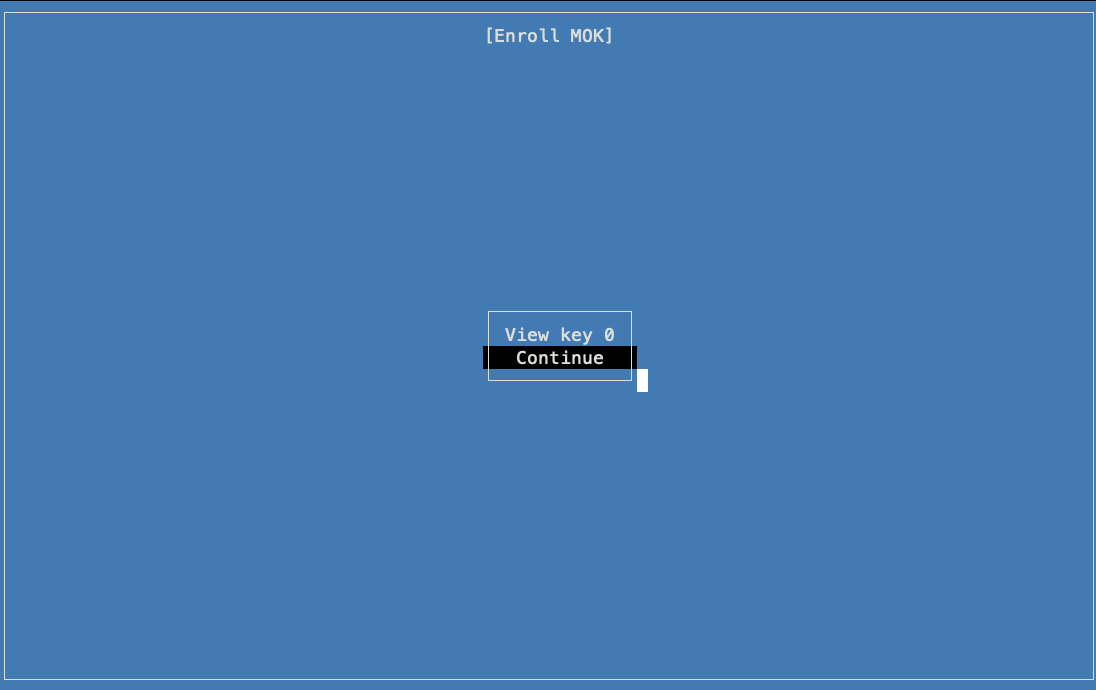
You can view the key to make sure it matches the one generated in an earlier step:
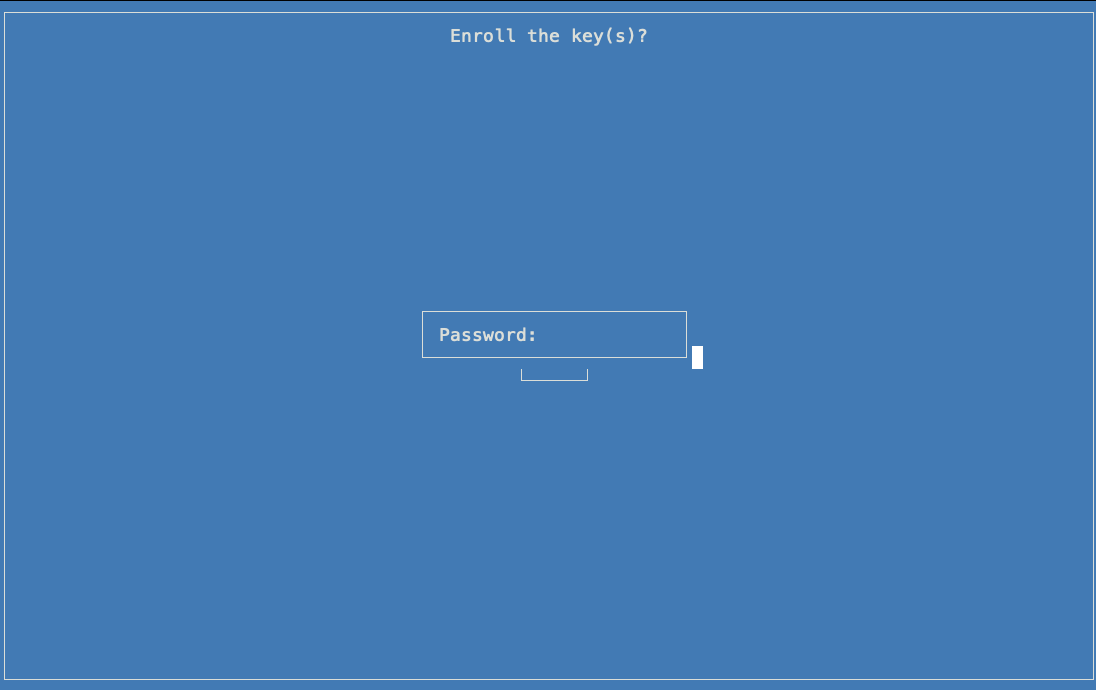
Enter the password that you selected earlier:
Select Reboot from the MOK management menu:
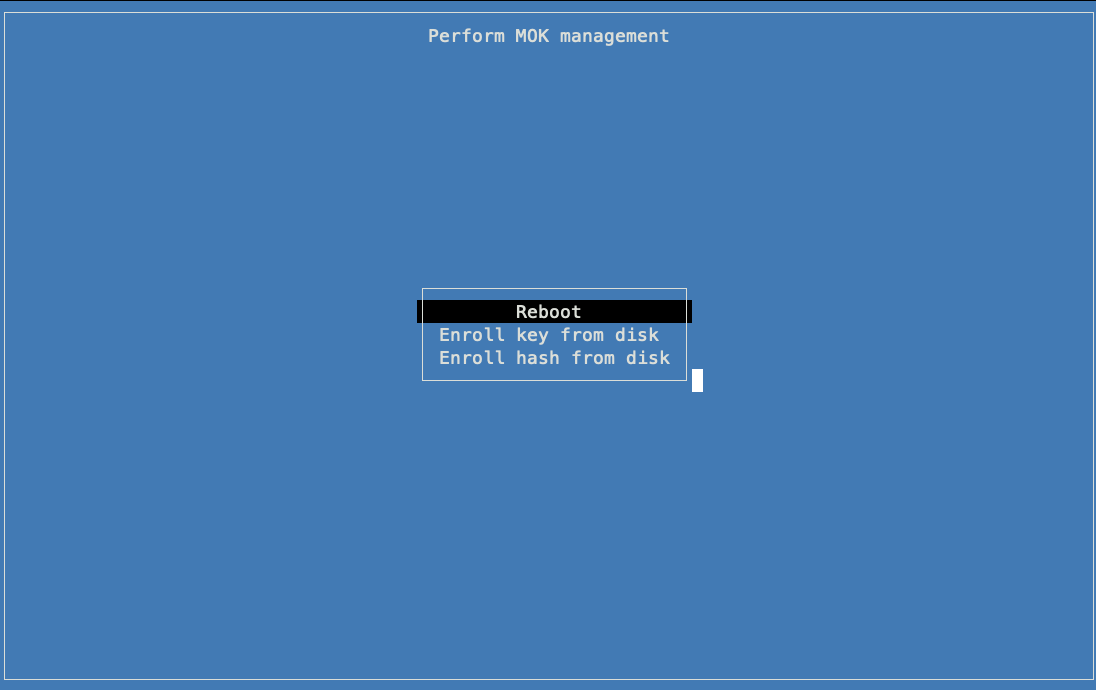
Verify that the NVIDIA driver works by running
nvidia-smi.The output displays the GPU status and driver information:
$ nvidia-smi
Wed Aug 13 00:09:17 2025
+-----------------------------------------------------------------------------------------+
| NVIDIA-SMI 570.158.01             Driver Version: 570.158.01     CUDA Version: 12.8     |
|-----------------------------------------+------------------------+----------------------+
| GPU  Name                 Persistence-M | Bus-Id          Disp.A | Volatile Uncorr. ECC |
| Fan  Temp   Perf          Pwr:Usage/Cap |           Memory-Usage | GPU-Util  Compute M. |
|                                         |                        |               MIG M. |
|=========================================+========================+======================|
|   0  NVIDIA H200                    Off |   00000000:08:00.0 Off |                    0 |
| N/A   42C    P0            128W /  700W |       0MiB / 143771MiB |      0%      Default |
|                                         |                        |             Disabled |
+-----------------------------------------+------------------------+----------------------+
|   1  NVIDIA H200                    Off |   00000000:09:00.0 Off |                    0 |
| N/A   36C    P0            127W /  700W |       0MiB / 143771MiB |      0%      Default |
|                                         |                        |             Disabled |
+-----------------------------------------+------------------------+----------------------+
|   2  NVIDIA H200                    Off |   00000000:0A:00.0 Off |                    0 |
| N/A   34C    P0            122W /  700W |       0MiB / 143771MiB |      0%      Default |
|                                         |                        |             Disabled |
+-----------------------------------------+------------------------+----------------------+
|   3  NVIDIA H200                    Off |   00000000:0B:00.0 Off |                    0 |
| N/A   40C    P0            128W /  700W |       0MiB / 143771MiB |      0%      Default |
|                                         |                        |             Disabled |
+-----------------------------------------+------------------------+----------------------+
|   4  NVIDIA H200                    Off |   00000000:0C:00.0 Off |                    0 |
| N/A   39C    P0            125W /  700W |       0MiB / 143771MiB |      0%      Default |
|                                         |                        |             Disabled |
+-----------------------------------------+------------------------+----------------------+
|   5  NVIDIA H200                    Off |   00000000:0D:00.0 Off |                    0 |
| N/A   35C    P0            122W /  700W |       0MiB / 143771MiB |      0%      Default |
|                                         |                        |             Disabled |
+-----------------------------------------+------------------------+----------------------+
|   6  NVIDIA H200                    Off |   00000000:0E:00.0 Off |                    0 |
| N/A   39C    P0            128W /  700W |       0MiB / 143771MiB |      0%      Default |
|                                         |                        |             Disabled |
+-----------------------------------------+------------------------+----------------------+
|   7  NVIDIA H200                    Off |   00000000:0F:00.0 Off |                    0 |
| N/A   35C    P0            121W /  700W |       0MiB / 143771MiB |      0%      Default |
|                                         |                        |             Disabled |
+-----------------------------------------+------------------------+----------------------+

+-----------------------------------------------------------------------------------------+
| Processes:                                                                              |
|  GPU   GI   CI              PID   Type   Process name                        GPU Memory |
|        ID   ID                                                               Usage      |
|=========================================================================================|
|  No running processes found                                                             |
+-----------------------------------------------------------------------------------------+