

Complex dialogs often involve multiple conversation topics. For example, a pizza delivery agent may have food order, customer information, and confirmation as distinct topics. Each topic requires multiple conversational turns for an agent to acquire the relevant information from the end-user.
Flows are used to define these topics and the associated conversational paths. Every agent has one flow called the Default Start Flow. This single flow may be all you need for a simple agent. More complicated agents may require additional flows, and different development team members can be responsible for building and maintaining these flows. For example, the flows of a pizza delivery agent may look like the following: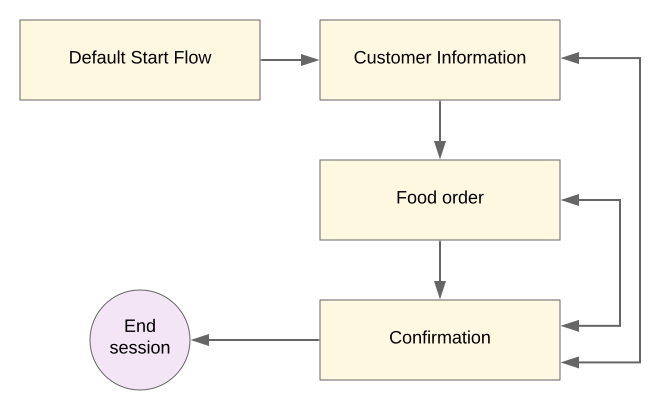
Default start flow
The Default Start Flow is automatically created when you initialize an agent. It can serve as the sole flow for simple agents or as the initial entry point for more complex agents that incorporate multiple flows.
When using the API, you can reference the default start flow with the following flow ID:
00000000-0000-0000-0000-000000000000
Flow's start page
Every flow includes a Start page, represented as a node in the console graph when the flow is selected. This page becomes the active page upon flow activation.
Unlike standard pages, a start page lacks parameters and response messages. You can still send a message using one of the following methods:
- Intent propagation
- Use a simple
truecondition in a route that has a fulfillment response or a transition target to a normal page with entry fulfillment - Custom events
Reference a start page in API requests
To reference a flow's start page in runtime API requests, use START_PAGE as a
page ID.
To make design-time changes to a start page through the API, use the get and
patch/update API methods for the Flow type.
Select a protocol and version for the Flow reference:
| Protocol | V3 | V3beta1 |
|---|---|---|
| REST | Flow resource | Flow resource |
| RPC | Flow interface | Flow interface |
| C++ | FlowsClient | Not available |
| C# | FlowsClient | Not available |
| Go | FlowsClient | Not available |
| Java | FlowsClient | FlowsClient |
| Node.js | FlowsClient | FlowsClient |
| PHP | Not available | Not available |
| Python | FlowsClient | FlowsClient |
| Ruby | Not available | Not available |
Create a flow
To create a flow:
Console
- Open the Dialogflow CX console.
- Select your project.
- Find the agent in the list.
- Click the add add button in the Flows section.
- Select Create flow.
- Enter a display name for your flow.
- Click the flow you just created.
API
See the create method for the Flow type.
Select a protocol and version for the Flow reference:
| Protocol | V3 | V3beta1 |
|---|---|---|
| REST | Flow resource | Flow resource |
| RPC | Flow interface | Flow interface |
| C++ | FlowsClient | Not available |
| C# | FlowsClient | Not available |
| Go | FlowsClient | Not available |
| Java | FlowsClient | FlowsClient |
| Node.js | FlowsClient | FlowsClient |
| PHP | Not available | Not available |
| Python | FlowsClient | FlowsClient |
| Ruby | Not available | Not available |
Flow data
To access flow's data:
Console
- Open the Dialogflow CX console.
- Select your project.
- Find the agent in the list.
- Click the agent display name.
- Click the flow in the Flows section.
- The flow's pages are populated in the Pages section. To learn how to edit a page, see the Pages guide.
- Click the flow in the graph.
- A flow edit panel appears. Use this panel to browse and edit additional flow data.
- Click Save to save any changes.
API
For flows, see the get and patch/update for the Flow type.
Select a protocol and version for the Flow reference:
| Protocol | V3 | V3beta1 |
|---|---|---|
| REST | Flow resource | Flow resource |
| RPC | Flow interface | Flow interface |
| C++ | FlowsClient | Not available |
| C# | FlowsClient | Not available |
| Go | FlowsClient | Not available |
| Java | FlowsClient | FlowsClient |
| Node.js | FlowsClient | FlowsClient |
| PHP | Not available | Not available |
| Python | FlowsClient | FlowsClient |
| Ruby | Not available | Not available |
get and patch/update methods for the Page type.
Select a protocol and version for the Page reference:
| Protocol | V3 | V3beta1 |
|---|---|---|
| REST | Page resource | Page resource |
| RPC | Page interface | Page interface |
| C++ | PagesClient | Not available |
| C# | PagesClient | Not available |
| Go | PagesClient | Not available |
| Java | PagesClient | PagesClient |
| Node.js | PagesClient | PagesClient |
| PHP | Not available | Not available |
| Python | PagesClient | PagesClient |
| Ruby | Not available | Not available |
The following data is associated with flows:
- Pages: Pages that make up the flow.
- Routes: Routes available when the flow's start page is active. Intent-based routes can also be triggered while other flow pages are active. For details, see State handler scope and Flow-level routes.
- Event handlers: Handlers that may be called when the flow is active. For details, see Flow-level event handlers.
To learn more about how data is applied at varying levels, see the Data application levels.
Flow settings
The following settings are available for flows:
- Display name: A human-readable name of the flow.
- Description: A description of the flow.
- ML settings: Flow ML settings are also accessed and described in Agent ML settings.
- Language auto detection: Language auto detection lets you specify the end-user languages in which Dialogflow CX should automatically recognize and respond. For details, see Multilingual agents.
Flow lock: A locked flow cannot be edited, including the following changes to its child resources:
- Pages cannot be created, edited, or deleted.
- Versions cannot be created, edited, or deleted.
- Flow-level route groups cannot be created, edited, or deleted.
- Agent-level route groups referenced by a locked flow or any page under a locked flow cannot be deleted, but they can still be edited.
Advanced speech settings: These advanced speech settings can optionally override the same agent speech settings.
Speech adaptation settings: Flow level speech adaptation settings. To learn more, see the Manual speech adaptation.
Input parameters: Parameters from the task playbook that are made available to the flow.
Return parameters: Parameters that the flow returns to a task playbook.
For more information about how data is applied at varying levels, see the Data application levels.
To access flow settings:
Console
- Open the Dialogflow CX console.
- Select your project.
- Find the agent in the list.
- Hold the pointer over the flow in the Flows section.
- Click the options more_vert button.
- Select Flow settings.
- Browse or edit settings.
- Click Save to save any changes.
API
See the get and patch/update methods for the Flow type.
Select a protocol and version for the Flow reference:
| Protocol | V3 | V3beta1 |
|---|---|---|
| REST | Flow resource | Flow resource |
| RPC | Flow interface | Flow interface |
| C++ | FlowsClient | Not available |
| C# | FlowsClient | Not available |
| Go | FlowsClient | Not available |
| Java | FlowsClient | FlowsClient |
| Node.js | FlowsClient | FlowsClient |
| PHP | Not available | Not available |
| Python | FlowsClient | FlowsClient |
| Ruby | Not available | Not available |
Delete a flow
To delete a flow:
Console
- Open the Dialogflow CX console.
- Select your project.
- Find the agent in the list.
- Hold the pointer over the flow in the Flows section.
- Click the settings more_vert button.
- Select Delete.
API
See the delete method for the Flow type.
Select a protocol and version for the Flow reference:
| Protocol | V3 | V3beta1 |
|---|---|---|
| REST | Flow resource | Flow resource |
| RPC | Flow interface | Flow interface |
| C++ | FlowsClient | Not available |
| C# | FlowsClient | Not available |
| Go | FlowsClient | Not available |
| Java | FlowsClient | FlowsClient |
| Node.js | FlowsClient | FlowsClient |
| PHP | Not available | Not available |
| Python | FlowsClient | FlowsClient |
| Ruby | Not available | Not available |
Train a flow
To train a flow:
Console
- Open the Dialogflow CX console.
- Select your project.
- Find the agent in the list.
- Click Agent Settings.
- Open the ML tab.
- To train a single flow, click Train in the corresponding row.
- To train multiple flows, select them with checkboxs, then click Train selected flow NLU model.
API
See the train method for the Flow type.
Select a protocol and version for the Flow reference:
| Protocol | V3 | V3beta1 |
|---|---|---|
| REST | Flow resource | Flow resource |
| RPC | Flow interface | Flow interface |
| C++ | FlowsClient | Not available |
| C# | FlowsClient | Not available |
| Go | FlowsClient | Not available |
| Java | FlowsClient | FlowsClient |
| Node.js | FlowsClient | FlowsClient |
| PHP | Not available | Not available |
| Python | FlowsClient | FlowsClient |
| Ruby | Not available | Not available |
Export a flow
You can export a flow in two ways:
- Data export: This exports your flow as raw data for import into any agent. Resources referenced by the flow (intents, entities, and webhooks) are included in the export. Select the raw data format when following the steps below.
Diagram export (Preview): This exports your flow as a visual diagram in draw.io XML format, which can be imported into tools like Lucidchart or diagrams.net. Select the XML data format when following the steps below.
You can export a flow with the following options:
- Include referenced flows: Exports the target flow and all recursively referenced flows with no maximum depth. All exported flows and their transitions are preserved during import.
To export a flow:
Console
- Open the Dialogflow CX console.
- Select your project.
- Find the agent in the list.
- Hold the pointer over the flow in the Flows section.
- Click the options more_vert button.
- Select Export flow.
- Follow instructions to complete.
API
See the export method for the Flow type.
Select a protocol and version for the Flow reference:
| Protocol | V3 | V3beta1 |
|---|---|---|
| REST | Flow resource | Flow resource |
| RPC | Flow interface | Flow interface |
| C++ | FlowsClient | Not available |
| C# | FlowsClient | Not available |
| Go | FlowsClient | Not available |
| Java | FlowsClient | FlowsClient |
| Node.js | FlowsClient | FlowsClient |
| PHP | Not available | Not available |
| Python | FlowsClient | FlowsClient |
| Ruby | Not available | Not available |
Import a flow
Importing a flow from a source agent into a target agent also imports its referenced global resources, such as intents, entities, and webhooks. If the target agent has resources with the same display names, Dialogflow CX displays a summary and offers three options for resolving the conflicts:
- Replace existing resources: Source agent resources will overwrite target agent resources.
- Import as new resources: Source agent resources will be added with a distinctive suffix in the name.
- Keep original resources: Target agent resources will be unchanged.
To import a flow:
Console
- Open the Dialogflow CX console.
- Select your project.
- Find the agent in the list.
- Click the add add button in the Flows section.
- Select Import flow.
- Follow instructions to complete.
API
See the import method for the Flow type.
Select a protocol and version for the Flow reference:
| Protocol | V3 | V3beta1 |
|---|---|---|
| REST | Flow resource | Flow resource |
| RPC | Flow interface | Flow interface |
| C++ | FlowsClient | Not available |
| C# | FlowsClient | Not available |
| Go | FlowsClient | Not available |
| Java | FlowsClient | FlowsClient |
| Node.js | FlowsClient | FlowsClient |
| PHP | Not available | Not available |
| Python | FlowsClient | FlowsClient |
| Ruby | Not available | Not available |