


使用 Google Cloud 控制台核發憑證
本快速入門指南說明如何使用 Google Cloud 控制台,透過憑證授權單位服務產生或核發憑證。
瞭解如何安全地管理私人憑證授權單位 (CA),不必佈建或維護基礎架構。
事前準備
- Sign in to your Google Cloud account. If you're new to Google Cloud, create an account to evaluate how our products perform in real-world scenarios. New customers also get $300 in free credits to run, test, and deploy workloads.
-
In the Google Cloud console, on the project selector page, select or create a Google Cloud project.
Roles required to select or create a project
- Select a project: Selecting a project doesn't require a specific IAM role—you can select any project that you've been granted a role on.
-
Create a project: To create a project, you need the Project Creator role
(
roles/resourcemanager.projectCreator), which contains theresourcemanager.projects.createpermission. Learn how to grant roles.
-
如要使用現有專案進行本指南中的操作,請確認您具有所需的權限。如果您建立新專案,則已具備必要權限。
-
Verify that billing is enabled for your Google Cloud project.
-
Enable the Certificate Authority Service API.
Roles required to enable APIs
To enable APIs, you need the Service Usage Admin IAM role (
roles/serviceusage.serviceUsageAdmin), which contains theserviceusage.services.enablepermission. Learn how to grant roles. -
In the Google Cloud console, on the project selector page, select or create a Google Cloud project.
Roles required to select or create a project
- Select a project: Selecting a project doesn't require a specific IAM role—you can select any project that you've been granted a role on.
-
Create a project: To create a project, you need the Project Creator role
(
roles/resourcemanager.projectCreator), which contains theresourcemanager.projects.createpermission. Learn how to grant roles.
-
如要使用現有專案進行本指南中的操作,請確認您具有所需的權限。如果您建立新專案,則已具備必要權限。
-
Verify that billing is enabled for your Google Cloud project.
-
Enable the Certificate Authority Service API.
Roles required to enable APIs
To enable APIs, you need the Service Usage Admin IAM role (
roles/serviceusage.serviceUsageAdmin), which contains theserviceusage.services.enablepermission. Learn how to grant roles. -
CA 服務作業管理員 (
roles/privateca.caManager) -
CA 服務憑證管理員 (
roles/privateca.certificateManager) 前往 Google Cloud 控制台的「Certificate Authority Service」(憑證授權單位服務) 頁面。
在「CA pool manager」(CA 集區管理員) 分頁中,按一下「Create pool」(建立集區)。
在「Create CA pool」(建立 CA 集區) 頁面中,新增 CA 集區名稱。
按一下「Region」(地區),然後選取「us-east1 (South Carolina)」(us-east1 (南卡羅來納州)) 做為 CA 集區的地區。
點選每個步驟的「下一步」。
按一下 [完成]。
- 在「Certificate Authority Service」(憑證授權單位服務) 頁面上,按一下「CA manager」(CA 管理工具)。
- 按一下「Create CA」(建立 CA) 展開箭頭,然後選取「Create CA in an existing CA pool」(在現有的 CA 集區中建立 CA)。
- 選取您建立的 CA 集區。
- 按一下「繼續」。
- 在「Select CA type」(選取 CA 類型) 部分,按一下「繼續」。
- 在「Organization (O)」(機構 (O)) 欄位中,輸入貴機構名稱。
- 在「CA common name (CN)」(CA 一般名稱 (CN)) 欄位中,輸入 CA 的名稱。請記下 CA 名稱,因為您需要這個名稱才能要求憑證。
- 按一下每個步驟的「繼續」。
- 查看 CA 的詳細資料,然後按一下「完成」。
- 在「Certificate Authority Service」(憑證授權單位服務) 頁面上,按一下「CA pool manager」(CA 集區管理工具)。
- 按一下「建立集區」。
在「Create CA pool」(建立 CA 集區) 頁面中,為從屬 CA 集區新增名稱。
按一下「區域」,然後選取「us-east1 (南卡羅來納州)」做為下層 CA 集區的區域。
點選每個步驟的「下一步」。
按一下 [完成]。
- 在「Certificate Authority Service」(憑證授權單位服務) 頁面上,按一下「CA manager」(CA 管理工具)。
- 按一下「Create CA」(建立 CA) 展開箭頭,然後選取「Create CA in an existing CA pool」(在現有的 CA 集區中建立 CA)。
- 選取您建立的下層 CA 集區。
- 按一下「繼續」。
- 按一下「從屬 CA」。
- 按一下「Root CA is in」(根 CA 位於) Google Cloud。
- 在「簽署憑證授權單位」欄位中,按一下「瀏覽」。
- 在「Select a CA」(選取 CA) 對話方塊中,選取「建立根 CA」一節中建立的根 CA。
- 按一下「確認」。
- 在「Valid for」(效期) 欄位中,輸入您希望從屬 CA 憑證有效的時間長度。
- 按一下「繼續」。
- 在「Organization (O)」(機構 (O)) 欄位中,輸入貴機構名稱。
- 在「CA common name (CN)」(CA 一般名稱 (CN)) 欄位中,輸入下層 CA 的名稱。 請記下從屬 CA 名稱,因為您需要這個名稱才能要求憑證。
- 按一下每個步驟的「繼續」。
- 查看下層 CA 的詳細資料,然後按一下「完成」。
- 在「憑證授權單位」頁面上,按一下「要求憑證」。
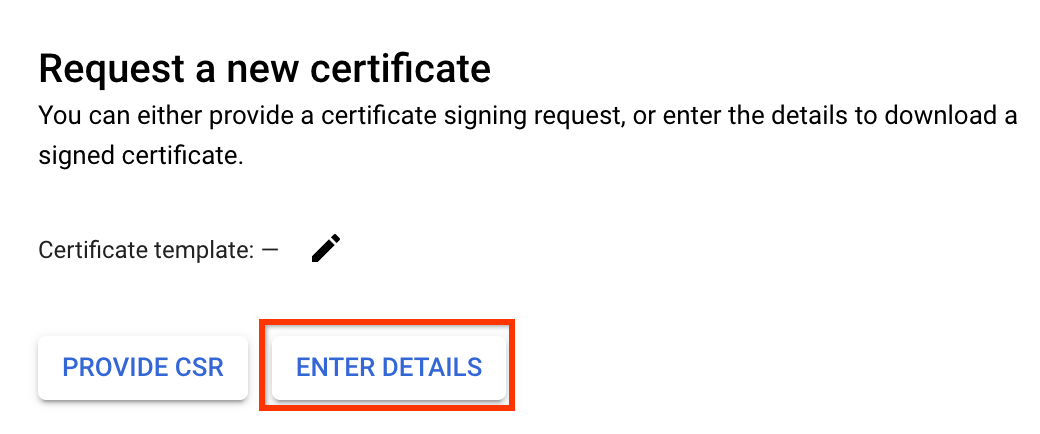
按一下「Enter details」(輸入詳細資料)。
在「新增網域名稱」下方,輸入要使用這個憑證保護的網站完整網域名稱。
點選「下一步」。
在「設定金鑰大小和演算法」下方,按一下「繼續」。
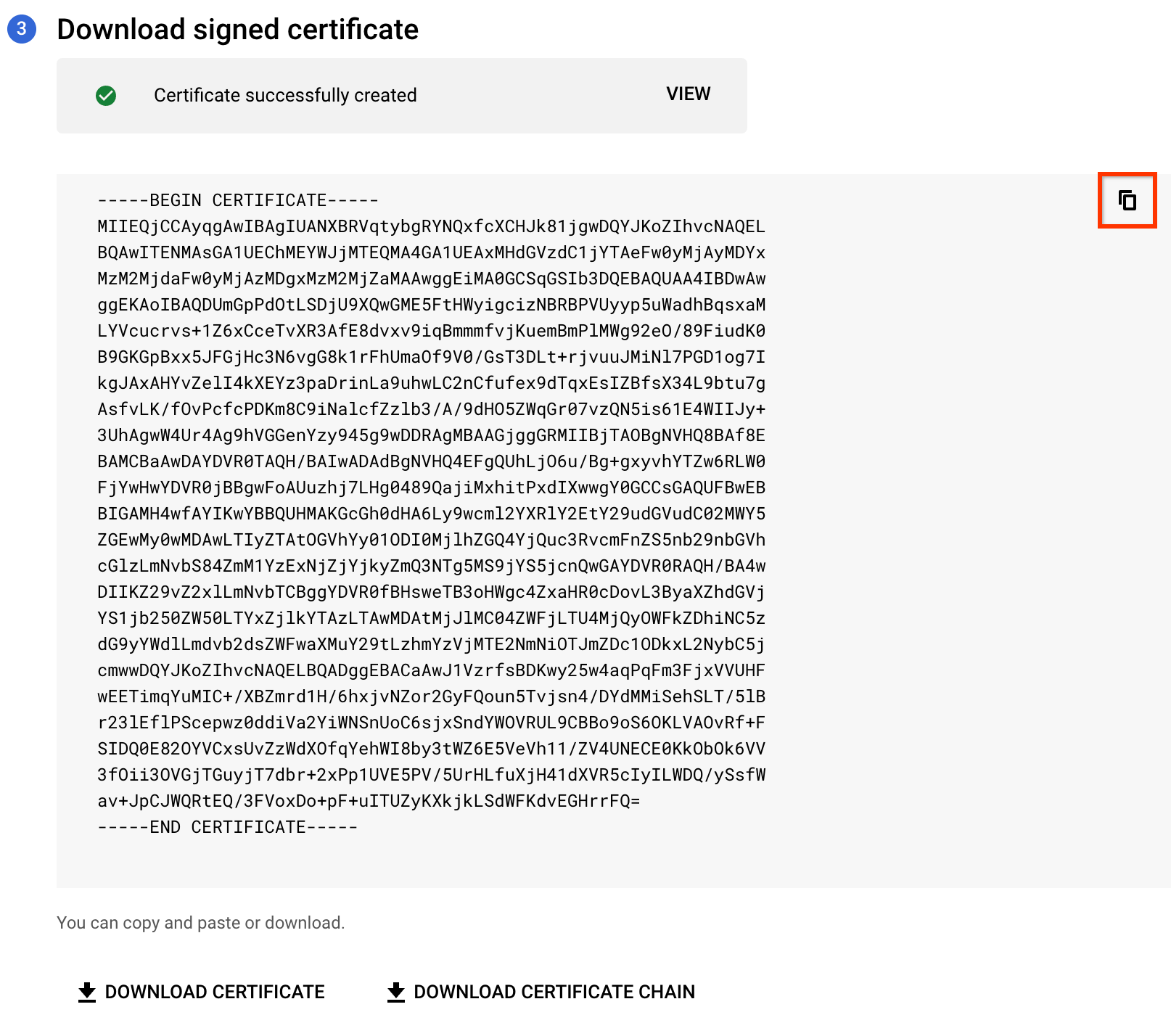
系統會顯示產生的憑證,您可以複製或下載。如要複製憑證,請按一下 。
按一下 [完成]。
撤銷憑證。
- 按一下「私人憑證管理員」分頁標籤。
- 在憑證清單中,按一下要刪除憑證所在列的「查看更多」。
- 按一下「撤銷」。
- 在開啟的對話方塊中,按一下「確認」。
刪除 CA。
您必須先撤銷 CA 核發的所有憑證,才能刪除該 CA。
撤銷憑證後,請執行下列操作:
- 在 CA 清單中,選取要刪除的 CA。
- 按一下 「Delete」(刪除)。系統會隨即顯示「Delete Certificate Authority」(刪除憑證授權單位) 對話方塊。
-
選用:如果符合下列條件,請選取一或兩個核取方塊:
-
刪除這個 CA (即使憑證有效)
這個選項可讓您刪除含有有效憑證的 CA。刪除含有有效憑證的 CA 可能會導致網站、應用程式或系統無法使用這些憑證。建議您先撤銷 CA 核發的所有有效憑證,再刪除 CA。
-
略過 30 天的寬限期,立即刪除這個 CA
在 30 天的寬限期內,您可以撤銷這個 CA 核發的所有憑證,並確認沒有任何系統依賴這個 CA。建議您僅在非實際工作或測試環境中使用這個選項,以免發生潛在的服務中斷和資料遺失問題。
-
- 按一下「確認」。
CA 狀態會變更為
Deleted。憑證授權單位會在您啟動刪除程序後 30 天永久刪除。刪除 CA 集區。
只有在 CA 服務永久刪除 CA 後,您才能刪除 CA 集區。
刪除 CA 集區中的 CA 後,請執行下列操作:
- 按一下「CA pool manager」(CA 集區管理員) 分頁標籤。
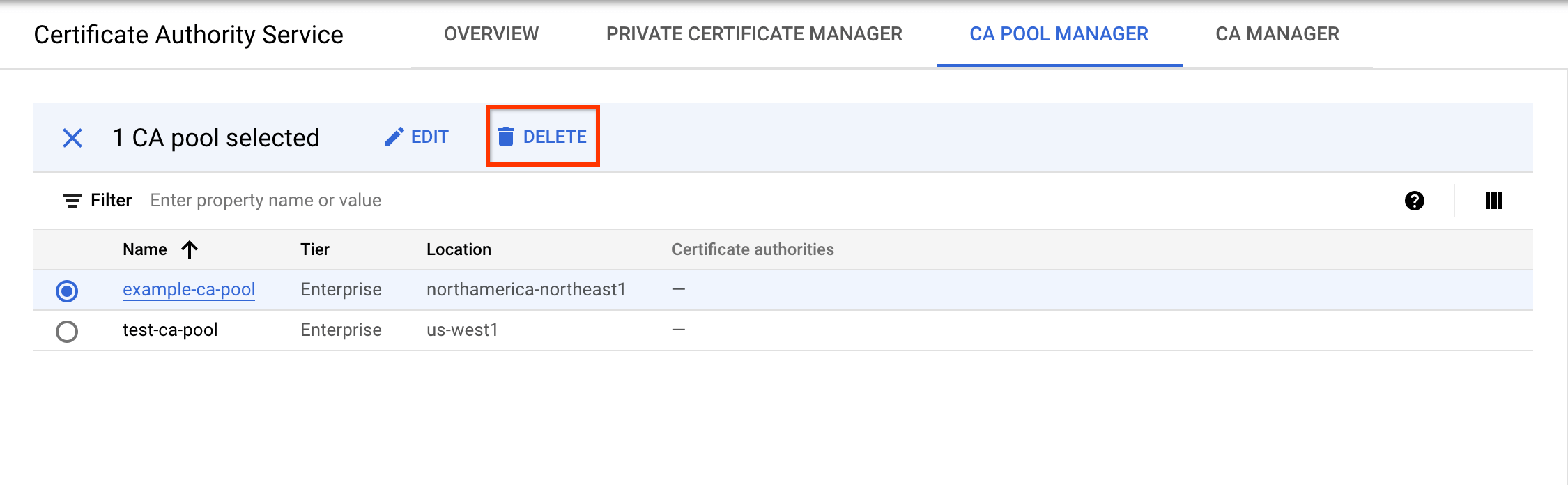
- 在 CA 集區清單中,選取要刪除的 CA 集區。
- 按一下 「Delete」(刪除)。
- 在隨即開啟的對話方塊中,按一下「確認」。
如要刪除專案,請按照下列步驟操作:
- In the Google Cloud console, go to the Manage resources page.
- In the project list, select the project that you want to delete, and then click Delete.
- In the dialog, type the project ID, and then click Shut down to delete the project.
- 進一步瞭解 CA 集區。
- 進一步瞭解如何建立 CA 集區。
- 進一步瞭解如何建立 CA。
- 進一步瞭解如何申請認證。
- 瞭解如何控管 CA 集區可核發的憑證類型。
必要的角色
如要取得完成本快速入門導覽課程所需的權限,請要求管理員在專案中授予您下列 IAM 角色:
如要進一步瞭解如何授予角色,請參閱「管理專案、資料夾和組織的存取權」。
建立憑證授權單位集區
CA 集區內含多個 CA。您可以使用 CA 集區來輪替信任鏈結,工作負載不會服務中斷或停機。CA 集區位於單一Google Cloud 位置,建立後即無法變更。
如要使用預設設定建立 CA 集區,請按照下列步驟操作:
您可以在「CA pool manager」(CA 集區管理員) 分頁的 CA 集區清單中,看到這個 CA 集區。
建立根 CA
建立 CA 集區時,集區中不會有任何內容。您必須將 CA 新增至 CA 集區,才能要求憑證。
根 CA 具有自行簽署的憑證,位於用戶端的信任存放區。本節說明如何將根 CA 新增至您建立的 CA 集區。
如要將根 CA 新增至 CA 集區,請按照下列步驟操作:
選用步驟:建立從屬 CA 集區
您可以透過下層 CA 集區,整理及管理多個下層 CA。根 CA 會驗證並簽署從屬 CA 集區中的所有 CA。
如要使用預設設定建立從屬 CA 集區,請執行下列操作:
確認從屬 CA 集區位於「CA pool manager」(CA 集區管理員) 分頁的 CA 集區清單中。
選用:建立由根 CA 簽署的從屬 CA
下層 CA 負責將憑證發布給需要憑證的終端實體,例如網路伺服器、使用者和裝置。從屬 CA 會在高度機密的根 CA 與日常憑證核發作業之間,建立一層分隔。
如要產生由您先前建立的根 CA 簽署的從屬 CA,請按照下列步驟操作:
要求取得憑證
如要使用 CA 要求憑證,請按照下列步驟操作:
清除所用資源
如要清除所用資源,請撤銷憑證,並刪除您在本快速入門導覽課程中建立的 CA 集區、CA 和專案。