

In Cloud Billing cost reports, you can use the live costs report to see how your gross, estimated costs are trending. When spend caps or anomaly alerts are triggered, live costs can help you identify which specific SKUs, services, or projects are driving your costs.
Live costs and actual costs
Live costs are gross, estimated costs that are available in near-real-time for limited SKUs from eligible services. Live costs haven't been finalized, and don't include credits or savings. Live costs are calculated based on the pricing for each SKU that is applicable to your Cloud Billing account.
Actual costs are finalized costs that are generated when your usage undergoes a complex monetization process that includes pricing, currency conversion, and discount computations. Actual costs might take up to 24 hours after usage to finalize.
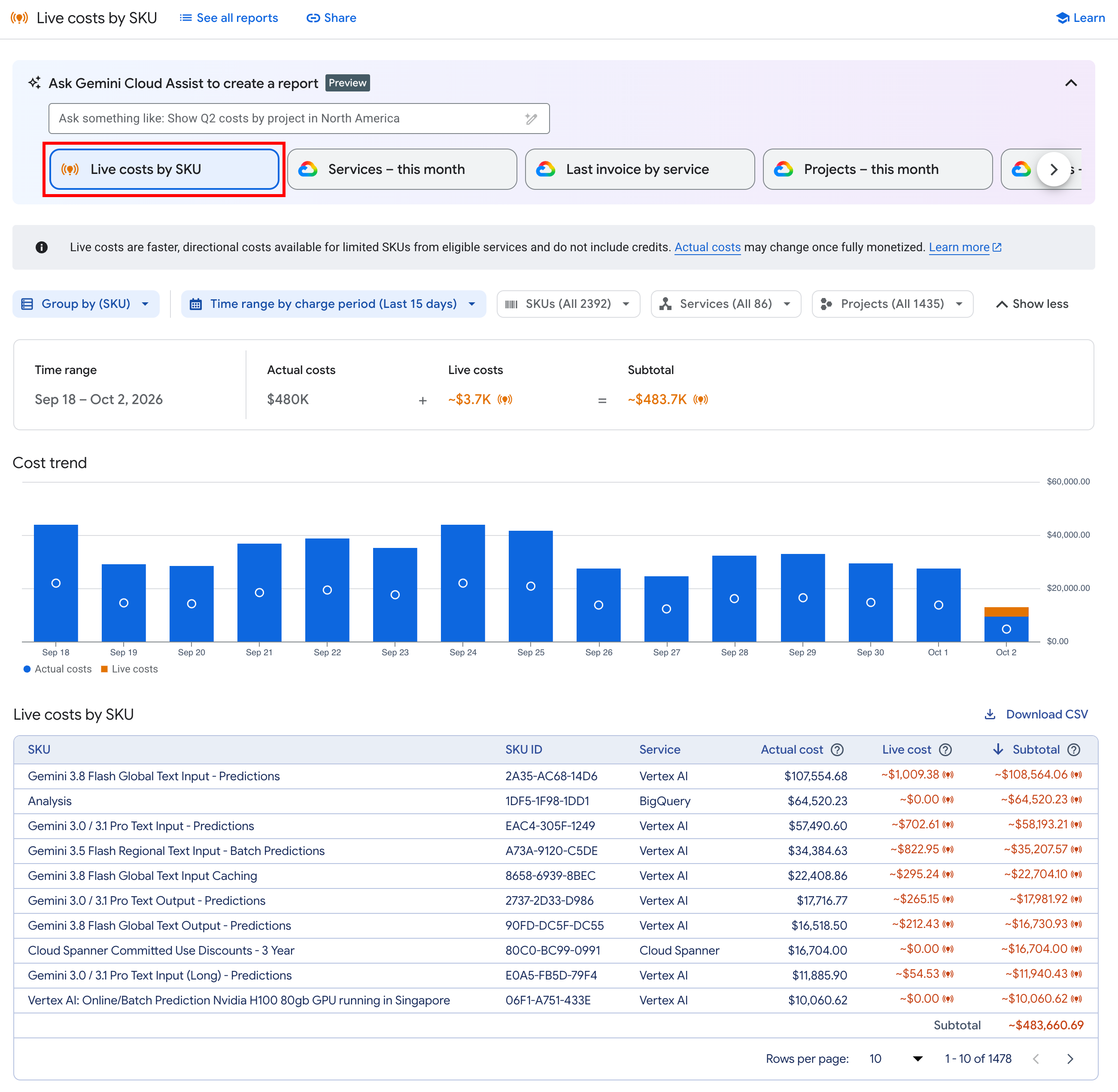
How to view your live costs
You access the live costs report using a preset report.
To open Billing Reports and select the preset cost report to view your live costs, complete the following steps:
Make sure that you have the permissions required to access and view billing reports.
Open the Cloud Billing Reports page
Follow these steps to open the Reports page for your Cloud Billing account:
In the Google Cloud console, go to the Reports page for your Cloud Billing account.
At the prompt, select the Cloud Billing account that you want to analyze.
The Reports page opens for the selected Cloud Billing account.
Select the preset report Live costs by SKU.
Preset reports are accessible in the saved reports carousel, and in the All reports page.

Preset and saved reports carousel where you can open the live costs report. When you select the Live costs by SKU preset report, your Billing report is configured as follows:
- Time range: By charge period for the last 15 days.
- Group by: SKU - shows granular costs for each SKU.
- Filter by: All SKUs, Services, and Projects.
Customize the live costs report
You can customize the live costs report using the following options:
| Report setting | Description |
|---|---|
| Time range | You can set the starting ("From") date for a
Charge period Time range, up to the
last 90 days.
Because live costs are estimated costs that have value for about 24 hours, you can't set the ending ("To") date. The time range ending date is configured for you and locked to include now (today's date) in the "To" date. |
| Group by | In live costs reports, you can select any of the following
Group by options:
|
| Filters | In live costs reports, the following
Filters are available:
|
View live costs for a spend cap budget
You can configure the live costs report to analyze the costs for a spend cap budget. Each spend cap budget is scoped to a single Google Cloud project and a single eligible service.
You can view the detailed live costs for a spend cap budget by grouping by SKU, and filtering by the spend cap budget's service and project.
When your spend cap budget is enforced, the live costs report can help you identify the SKUs that are contributing the most to your spend cap limit.
To open Billing Reports and select the preset cost report to view your live costs, complete the following steps:
Make sure that you have the permissions required to access and view billing reports.
Open the Cloud Billing Reports page
Follow these steps to open the Reports page for your Cloud Billing account:
In the Google Cloud console, go to the Reports page for your Cloud Billing account.
At the prompt, select the Cloud Billing account that you want to analyze.
The Reports page opens for the selected Cloud Billing account.
Select the preset report Live costs by SKU.
Preset reports are accessible in the saved reports carousel, and in the All reports page.
Preset and saved reports carousel where you can open the live costs report. In the Live costs by SKU report, configure the following settings:
- Time range: Select the Current month charge period.
- Group by: Select SKU.
- Filters:
- Select Services and choose the service that your spend cap budget is scoped to.
- Select Projects and choose the project that your spend cap budget is scoped to.
The resulting report helps you identify the specific SKUs that are contributing the most to your spend cap budget amount.
Limitations
The following limitations apply when using the live costs report:
Live cost totals are gross, estimated costs and don't include any savings or credits. If you've purchased a Flexible Savings Plan (FSP) committed use discount (CUD), the estimated live costs won't reflect your CUD savings. For any of your eligible SKUs that are covered by an FSP, your live costs amounts might appear higher than your actual costs.
The live costs report doesn't show usage associated with child billing accounts. The live costs report isn't available for Account group and Management account billing account types.
For reseller accounts, the live costs report only shows costs incurred by direct usage in the parent reseller billing account, and excludes usage from subaccounts.
Live costs are only available for the Charge period time range, and the live costs report offers fewer group by and filter options than the standard billing reports.
What's next
- Learn more about how to analyze billing data with Reports.
- Learn more about how to manage Gemini Enterprise costs.
- Learn how to view Gemini Enterprise costs in the Gemini Enterprise console.