


本教學課程說明如何使用 Bigtable 變更串流至 Pub/Sub 範本,包括如何設定主題及設定範本。您也可以選擇以所選程式設計語言建立 Cloud Run 函式,由事件串流觸發。
本教學課程適合熟悉 Bigtable、程式碼編寫和事件串流服務的技術人員。
目標
本教學課程說明如何執行下列操作:
- 建立啟用變更串流的 Bigtable 資料表。
- 使用 Bigtable 變更串流結構定義建立 Pub/Sub 主題。
- 使用範本,在 Dataflow 上將 Bigtable 變更串流部署至 Pub/Sub 管道。
- 直接在 Pub/Sub 中或 Cloud Run 函式的記錄中查看事件串流。
費用
在本文件中,您將使用下列 Google Cloud計費元件:
如要根據預測用量估算費用,請使用 Pricing Calculator。
完成本文所述工作後,您可以刪除建立的資源,避免繼續計費,詳情請參閱「清除所用資源」。
事前準備
- Select a project: Selecting a project doesn't require a specific IAM role—you can select any project that you've been granted a role on.
-
Create a project: To create a project, you need the Project Creator role
(
roles/resourcemanager.projectCreator), which contains theresourcemanager.projects.createpermission. Learn how to grant roles. - Select a project: Selecting a project doesn't require a specific IAM role—you can select any project that you've been granted a role on.
-
Create a project: To create a project, you need the Project Creator role
(
roles/resourcemanager.projectCreator), which contains theresourcemanager.projects.createpermission. Learn how to grant roles. - 更新並安裝
cbtCLI 。gcloud components update gcloud components install cbt
In the Google Cloud console, on the project selector page, select or create a Google Cloud project.
Roles required to select or create a project
Verify that billing is enabled for your Google Cloud project.
Enable the Dataflow, Cloud Bigtable API, Cloud Bigtable Admin API, Pub/Sub, Cloud Run functions, and Cloud Storage APIs, if any are not already enabled.
Roles required to enable APIs
To enable APIs, you need the serviceusage.services.enable permission. If you
created the project, then you likely already have this permission through the
Owner role (roles/owner). Otherwise, you can get this permission through the
Service Usage Admin role (roles/serviceusage.serviceUsageAdmin).
Learn how to grant roles.
In the Google Cloud console, on the project selector page, select or create a Google Cloud project.
Roles required to select or create a project
Verify that billing is enabled for your Google Cloud project.
Enable the Dataflow, Cloud Bigtable API, Cloud Bigtable Admin API, Pub/Sub, Cloud Run functions, and Cloud Storage APIs, if any are not already enabled.
Roles required to enable APIs
To enable APIs, you need the serviceusage.services.enable permission. If you
created the project, then you likely already have this permission through the
Owner role (roles/owner). Otherwise, you can get this permission through the
Service Usage Admin role (roles/serviceusage.serviceUsageAdmin).
Learn how to grant roles.
在 Google Cloud 控制台中啟用 Cloud Shell。
Google Cloud 控制台底部會開啟 Cloud Shell 工作階段,並顯示指令列提示。Cloud Shell 是已安裝 Google Cloud CLI 的殼層環境,並已設定適用於您目前專案的值。工作階段可能要幾秒鐘的時間才能初始化。
建立 Pub/Sub 主題
前往 Google Cloud 控制台的 Pub/Sub「主題」頁面。
按一下「建立主題」。
將 ID 設定為
bigtable-change-stream-topic。選取「使用結構定義」。
在「選取 Pub/Sub 結構定義」下拉式選單中,按一下「建立新結構定義」。系統會開啟新分頁,供您定義結構定義。
- 將結構定義 ID 設為
bigtable-change-stream-schema。 - 將結構定義類型設為「Avro」Avro。
- 貼上下列結構定義。如要進一步瞭解架構,請參閱範本說明文件頁面。
{ "name" : "ChangelogEntryMessage", "type" : "record", "namespace" : "com.google.cloud.teleport.bigtable", "fields" : [ { "name" : "rowKey", "type" : "bytes"}, { "name" : "modType", "type" : { "name": "ModType", "type": "enum", "symbols": ["SET_CELL", "DELETE_FAMILY", "DELETE_CELLS", "UNKNOWN"]} }, { "name": "isGC", "type": "boolean" }, { "name": "tieBreaker", "type": "int"}, { "name": "columnFamily", "type": "string"}, { "name": "commitTimestamp", "type" : "long"}, { "name" : "sourceInstance", "type" : "string"}, { "name" : "sourceCluster", "type" : "string"}, { "name" : "sourceTable", "type" : "string"}, { "name": "column", "type" : ["null", "bytes"]}, { "name": "timestamp", "type" : ["null", "long"]}, { "name": "timestampFrom", "type" : ["null", "long"]}, { "name": "timestampTo", "type" : ["null", "long"]}, { "name" : "value", "type" : ["null", "bytes"]} ] }- 按一下「建立」,建立結構定義。
- 將結構定義 ID 設為
關閉「建立結構定義」分頁,重新整理結構定義清單,然後選取新定義的結構定義。
按一下「建立」,建立主題。
選用:建立 Cloud Run 函式
您可能想使用 Cloud Run 函式處理 Pub/Sub 串流。
- 在
bigtable-change-stream-topic主題的「詳細資料」頁面中,按一下「觸發 Cloud Function」。 - 在「Function name」(函式名稱) 欄位中輸入名稱
bt-ps-tutorial-function。 - 在「Source Code」(原始碼) 部分中,按一下「Runtime」(執行階段) 下拉式選單,然後選取您偏好的執行階段和程式設計語言。系統會產生
hello world,在變更串流傳入時列印出來。詳情請參閱說明文件,進一步瞭解如何編寫 Cloud Run 函式。 - 其他欄位皆使用預設值。
- 按一下「Deploy function」(部署函式)。
建立已啟用變更串流的資料表
前往 Google Cloud 控制台的 Bigtable「Instances」(執行個體) 頁面。
按一下您在本教學課程中使用的執行個體 ID。
如果沒有可用的執行個體,請在您附近的區域建立執行個體,並使用預設設定。
按一下左側導覽窗格中的「表格」。
按一下「建立資料表」。
將資料表命名為
change-streams-pubsub-tutorial。新增名為
cf的資料欄系列。選取「啟用變更串流」。
點選「建立」。
初始化資料管道,擷取變更串流
- 在 Bigtable 的「資料表」頁面中,找出所需資料表
change-streams-pubsub-tutorial。 - 在「變更資料流」欄中,按一下「連線」。
- 在對話方塊中選取「Pub/Sub」。
- 按一下「建立 Dataflow 工作」。
- 在 Dataflow 的「Create job」(建立工作) 頁面中,將輸出 Pub/Sub 主題名稱設為:
bigtable-change-stream-topic。 - 將 Bigtable 應用程式設定檔 ID 設為
default。 - 按一下「Run Job」(執行工作)。
- 請等待工作狀態為「Starting」(啟動中)或「Running」(執行中),再繼續操作。 工作排入佇列後,大約需要 5 分鐘。
將一些資料寫入 Bigtable
在 Cloud Shell 中,將幾列資料寫入 Bigtable,這樣變更記錄就能將一些資料寫入 Pub/Sub 串流。只要在工作建立後寫入資料,就會顯示變更。您不必等待工作狀態變為
running。cbt -instance=BIGTABLE_INSTANCE_ID -project=YOUR_PROJECT_ID \ set change-streams-pubsub-tutorial user123 cf:col1=abc cbt -instance=BIGTABLE_INSTANCE_ID -project=YOUR_PROJECT_ID \ set change-streams-pubsub-tutorial user546 cf:col1=def cbt -instance=BIGTABLE_INSTANCE_ID -project=YOUR_PROJECT_ID \ set change-streams-pubsub-tutorial user789 cf:col1=ghi
在 Pub/Sub 中查看變更記錄
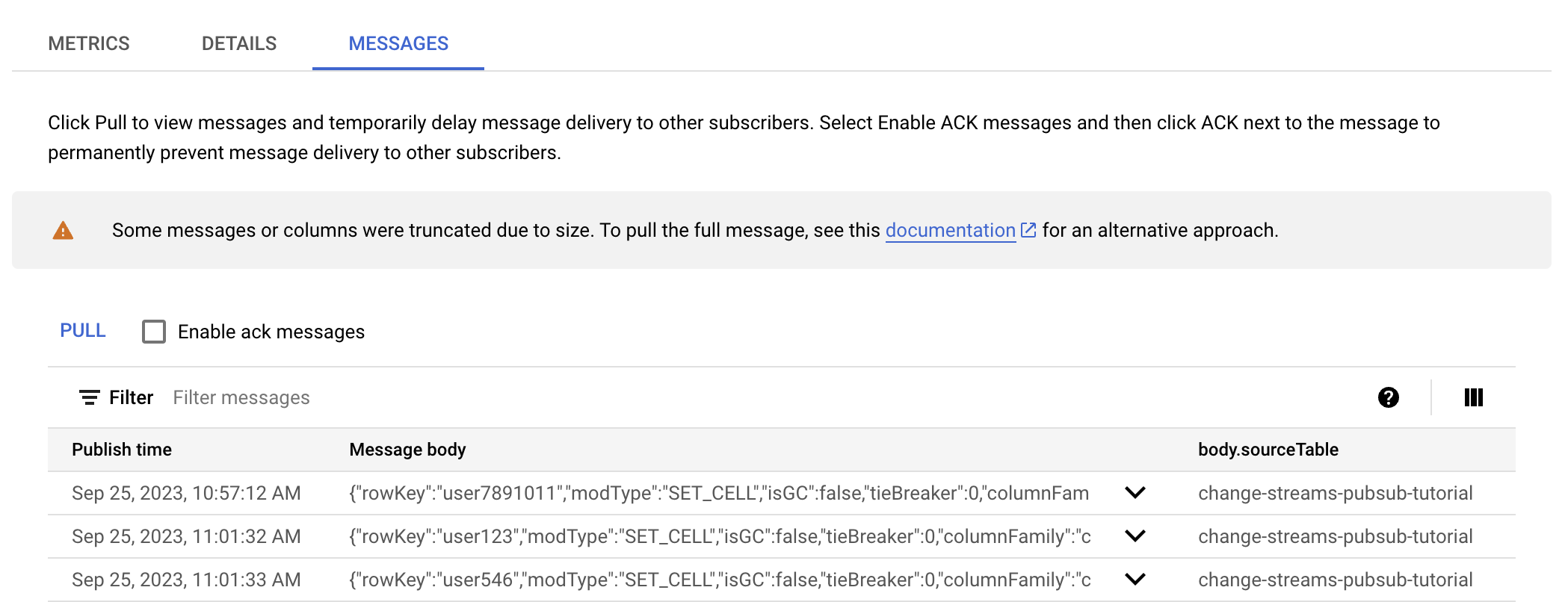
前往 Google Cloud 控制台的 Pub/Sub「Subscriptions」(訂閱項目) 頁面。
按一下系統為主題自動建立的訂閱項目
bigtable-change-stream-topic。應命名為「bigtable-change-stream-topic-sub」。前往「訊息」分頁。
按一下「提取」。
瀏覽訊息清單,並查看您寫入的資料。
選用:查看 Cloud Run functions 記錄中的變更
如果您建立的是 Cloud Run functions 函式,可以在記錄檔中查看變更。
前往 Google Cloud 控制台的「Cloud Run functions」。
按一下函式
bt-ps-tutorial-function。前往「記錄」分頁。
請確保「嚴重程度」至少設為「資訊」,這樣才能查看記錄。
探索記錄並查看您寫入的資料。
輸出看起來類似以下內容:
Pub/Sub message: {"rowKey":"user789","modType":"SET_CELL","isGC":false,"tieBreaker":0,"columnFamily":"cf","commitTimestamp":1695653833064548,"sourceInstance":"YOUR-INSTANCE","sourceCluster":"YOUR-INSTANCE-c1","sourceTable":"change-streams-pubsub-tutorial","column":{"bytes":"col1"},"timestamp":{"long":1695653832278000},"timestampFrom":null,"timestampTo":null,"value":{"bytes":"ghi"}}
清除所用資源
為避免因為本教學課程所用資源,導致系統向 Google Cloud 帳戶收取費用,請刪除含有相關資源的專案,或者保留專案但刪除個別資源。
刪除 Bigtable 資料表
前往 Google Cloud 控制台的 Bigtable「Instances」(執行個體) 頁面。
按一下您在本教學課程中使用的執行個體 ID。
按一下左側導覽窗格中的「表格」。
找到
change-streams-pubsub-tutorial資料表。按一下 [編輯]。
取消勾選「啟用變更串流」。
按一下 [儲存]。
開啟表格的溢位選單。
按一下「刪除」,然後輸入資料表名稱來確認。
停止變更串流管道
前往 Google Cloud 控制台的 Dataflow「Jobs」(工作) 頁面。
從工作清單中選取串流工作。
在導覽列中,按一下「停止」。
在「停止工作」對話方塊中取消管道,然後點按「停止工作」。
刪除 Pub/Sub 主題和訂閱項目
前往 Google Cloud 控制台的 Pub/Sub「主題」頁面。
選取
bigtable-change-stream-topic主題。按一下「Delete」(刪除) 加以確認。
按一下側欄的「訂閱項目」。
選取
bigtable-change-stream-topic-sub訂閱方案。按一下「Delete」(刪除) 加以確認。
刪除 Cloud Run 函式
前往 Google Cloud 控制台的「Cloud Run functions」。
選取
bt-ps-tutorial-function函式。按一下「Delete」(刪除) 加以確認。