

To access your workstations, you can specify a trusted, custom domain rather
than using the cloudworkstations.dev domain.
Architecture
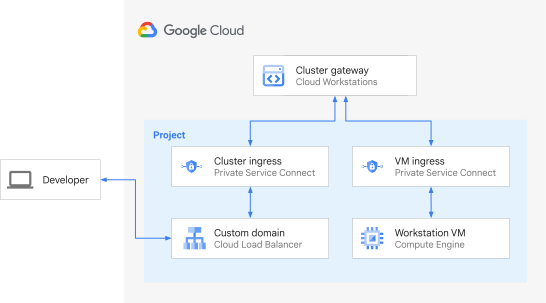
To use Cloud Workstations with a custom hostname, set up a private cluster and set up the Private Service Connect (PSC) endpoint for HTTP ingress for your private cluster. You must also create an Application Load Balancer with PSC backend that targets the PSC endpoint created for your private cluster. This Application Load Balancer can be either external or internal, and manages the SSL certificate for your custom domain.
The following diagram illustrates a cluster with a custom domain:
Before you begin
To set up a Cloud Workstations custom domain, follow these steps:
Create a private cluster and specify a trusted, custom domain using the
gcloudCLI or REST API commands.Create an Application Load Balancer with a Private Service Connect (PSC) backend in the same project you used for the workstation cluster project. Note the following:
If you want your workstations to be private (inaccessible through the public internet), make sure that you create an internal load balancer. To do so, create a private DNS zone and add a record that maps the domain to the internal IP address used by the load balancer. For more information about how to create an internal load balancer, see Internal Application Load Balancers.
The service attachment that you need to reference in the load balancer can be obtained on the workstation cluster resource after you create the cluster.
Make sure that you obtain a certificate and specify it on the load balancer as a wildcard certificate for your domain—for example,
*.us-west1-cluster1.example.com. See Certificates and Google Cloud load balancers for the types of certificates that are supported for the load balancer that you selected.You can also create the load balancer in a different project as long as you add it to the
PrivateClusterConfig.allowedProjectslist.If you have multiple workstation clusters in your organization, you can use a single load balancer with separate backend services, certificates, and routing rules.
Set up a Domain Name System (DNS). Because this is a domain you manage, set up a DNS for this domain by mapping all subdomains of the provided domain to the load balancer. For example, create a DNS zone for
us-west1-cluster1.example.comand add an entry mapping*.us-west1-cluster1.example.comto the external IP address used by your load balancer.To access workstations using the custom domain, use the cluster you created to create a workstation configuration, and then create a workstation using that workstation configuration.
Start your workstation and check the URL. When you specify a custom domain, the workstation URL uses the following format:
https://PORT-WORKSTATION_NAME.DOMAINThe following parts of the URL depend on your configuration:
PORT: the port number, which is port80by default.WORKSTATION_NAME: your workstation name.DOMAIN: your cluster-specific domain name
Create a private cluster
Create a private workstation cluster with a private endpoint:
gcloud
Before you begin, be sure that you initialized the
gcloudCLI by runninggcloud initand that you specified a default project. The examples that follow assume that you've set your default project.To create a private workstation cluster, run the following command:
gcloud workstations clusters create WORKSTATION_CLUSTER \
  --region=REGION \
  --domain=DOMAIN \
  --network=NETWORK \
  --subnetwork=SUBNETWORK \
  --enable-private-endpoint
Replace the following:
WORKSTATION_CLUSTER: the name of the workstation cluster to create.REGION: the name of the region of the cluster.DOMAIN: the domain name used by Cloud Workstations for HTTP ingress. Use a subdomain unique to this cluster, for example,us-west1-cluster1.example.com.NETWORK: the name of the VPC network. If omitted, the default VPC network is used.SUBNETWORK: the name of the subnetwork in the VPC network. If both network and subnetwork are omitted, the default VPC network is used, and the default subnetwork in the specifiedREGIONis used.
For more information about this gcloud CLI command, see the
gcloud workstations clusters create
reference documentation.
curl
curl -H "Authorization: Bearer $(gcloud auth print-access-token)" -H "Content-Type: application/json" -d '{"domain_config": {"domain": "DOMAIN"}, "private_cluster_config": {"enable_private_endpoint":true}, "network": "NETWORK", "subnetwork": "SUBNETWORK"}' https://workstations.googleapis.com/v1/projects/PROJECT_NAME/locations/REGION/workstationClusters?workstation_cluster_id=WORKSTATION_CLUSTER
Replace the following:
DOMAIN: the domain name used by Cloud Workstations for HTTP ingress. This must be a subdomain unique to this cluster, for example,us-west1-cluster1.example.com.NETWORK: the name of the VPC network. If omitted, the default VPC network is used.SUBNETWORK: the name of the subnetwork in the VPC network. If both network and subnetwork are omitted, the default VPC network is used, and the default subnetwork in the specifiedREGIONis used.PROJECT_NAME: the name of the project.REGION: the name of the region of the cluster.WORKSTATION_CLUSTER: the name of the workstation cluster to create.
For more information about this API method, see the
workstationClusters.create
reference documentation.
REST
POST https://workstations.googleapis.com/v1/projects/PROJECT_NAME/locations/REGION/workstationClusters?workstationClusterId=WORKSTATION_CLUSTER
{
  "domainConfig": {
    "domain": "DOMAIN"
  },
  "privateClusterConfig": {
    "enablePrivateEndpoint": true
  },
  "network": "NETWORK",
  "subnetwork": "SUBNETWORK"
}
Replace the following:
PROJECT_NAME: the name of the project.REGION: the name of the region of the cluster.WORKSTATION_CLUSTER: the name of the workstation cluster to create.DOMAIN: the domain name used by Cloud Workstations for HTTP ingress. This should be a subdomain unique to this cluster, for example,us-west1-cluster1.example.com.NETWORK: the name of the VPC network. If omitted, the default VPC network is used.SUBNETWORK: the name of the subnetwork in the VPC network. If both network and subnetwork are omitted, the default VPC network is used, and the default subnetwork in the specifiedREGIONis used.
For more information about this API method, see the
workstationClusters.create
reference documentation.
Create an Application Load Balancer with PSC backend
Follow these gcloud CLI and REST API steps to create an
Application Load Balancer with a PSC backend:
- Create a NEG to connect to a published service
- Add a backend to a global external Application Load Balancer
- Create a URL map to route incoming requests to the backend service
- Create a target HTTPS proxy
- Create a global address
- Create a forwarding rule
- Optional: Configure a regional or internal Application Load Balancer
Create a NEG to connect to a published service
When you create a NEG that points to a published service, you need the service
attachment URI for the service. The service attachment has this format:
projects/SERVICE_PROJECT/regions/REGION/serviceAttachments/SERVICE_NAME.
You can find the URI on the workstation cluster resource.
gcloud
gcloud compute network-endpoint-groups create NEG_NAME \
  --network-endpoint-type=private-service-connect \
  --psc-target-service=TARGET_SERVICE \
  --region=REGION \
  --network=NETWORK \
  --subnet=SUBNET
Replace the following:
NEG_NAME: a name for the network endpoint group.TARGET_SERVICE: the URI of the service attachment.REGION: the region to create the network endpoint group in. The region must be the same region as the target service.NETWORK: the VPC network to create the network endpoint group in. If omitted, the default network is used.SUBNET: the subnet to create the network endpoint group in. The subnet must be in the same region as the target service. A subnet must be provided if you provide the network. If both network and subnet are omitted, the default network is used, and the default subnet in the specifiedREGIONis used.
For more information about this gcloud CLI command, see the
gcloud compute network-endpoint-groups create
reference documentation.
REST
POST https://compute.googleapis.com/compute/v1/projects/PROJECT_NAME/regions/REGION/networkEndpointGroups
{
  "pscTargetService": "TARGET_SERVICE",
  "networkEndpointType": "PRIVATE_SERVICE_CONNECT",
  "name": "NEG_NAME",
  "network": "https://www.googleapis.com/compute/v1/projects/PROJECT_NAME/global/networks/NETWORK",
  "subnetwork": "https://www.googleapis.com/compute/v1/projects/PROJECT_NAME/regions/REGION/subnetworks/SUBNET"
}
Replace the following:
PROJECT_NAME: the name of the project.REGION: the region to create the network endpoint group in. The region must be the same region as the target service.TARGET_SERVICE: the URI of the service attachment.NEG_NAME: a name for the network endpoint group.NETWORK: the VPC network to create the network endpoint group in. If omitted, the default network is used.SUBNET: the subnet to create the network endpoint group in. The subnet must be in the same region as the target service. A subnet must be provided if you provide the network. If both network and subnet are omitted, the default network is used, and the default subnet in the specifiedREGIONis used.
Add a backend to a global external Application Load Balancer
gcloud
Create a backend service for the target service:
gcloud compute backend-services create BACKEND_SERVICE_NAME \
--load-balancing-scheme=EXTERNAL_MANAGED \
--protocol=HTTPS \
--global
Replace
BACKEND_SERVICE_NAMEwith the name of the backend service.Add the Private Service Connect NEG that points to the target service.
gcloud compute backend-services add-backend BACKEND_SERVICE_NAME \
--network-endpoint-group=NEG_NAME \
--network-endpoint-group-region=NEG_REGION \
--global
Replace the following:
BACKEND_SERVICE_NAME: the name of the backend service.NEG_NAME: the name of the network endpoint group.NEG_REGION: the region of the network endpoint group.
For more information about this gcloud CLI command, see the
gcloud compute backend-services create
and
gcloud compute backend-services add-backend
reference documentation.
REST
Create a backend service for the target service:
POST https://compute.googleapis.com/compute/v1/projects/PROJECT_NAME/global/backendServices
{
  "protocol": "HTTPS",
  "loadBalancingScheme": "EXTERNAL_MANAGED",
  "name": "BACKEND_SERVICE_NAME"
}
Replace
BACKEND_SERVICE_NAMEwith the name of the backend service.Add the Private Service Connect NEG that points to the target service.
PATCH https://compute.googleapis.com/compute/v1/projects/PROJECT_NAME/global/backendServices/BACKEND_SERVICE_NAME
{
  "backends": [
    {
      "group": "https://www.googleapis.com/compute/v1/projects/PROJECT_NAME/regions/NEG_REGION/networkEndpointGroups/NEG_NAME "
    }
  ]
}
Replace the following:
PROJECT_NAME: the name of the project.BACKEND_SERVICE_NAME: the name of the backend service.NEG_REGION: the region of the network endpoint group.NEG_NAME: the name of the network endpoint group.
Create a URL map to route incoming requests to the backend service
gcloud
gcloud compute url-maps create URL_MAP_NAME \
  --default-service=BACKEND_SERVICE_NAME \
  --global
Replace the following:
URL_MAP_NAME: the name of the URL map to create.BACKEND_SERVICE_NAME: the name of the backend service to use for requests when this URL map has no mappings.
For more information about this gcloud CLI command, see the
gcloud compute url-maps create
reference documentation.
REST
POST https://compute.googleapis.com/compute/v1/projects/PROJECT_NAME/global/urlMaps
{
  "name": "URL_MAP_NAME",
  "defaultService": "https://www.googleapis.com/compute/v1/projects/PROJECT_NAME/global/backendServices/BACKEND_SERVICE_NAME "
}
Replace the following:
PROJECT_NAME: the name of the project.URL_MAP_NAME: the name of the URL map to create.BACKEND_SERVICE_NAME: the name of the backend service to use for requests when this URL map has no mappings.
Create a target HTTPS proxy
Create a target HTTPS proxy to route requests to your URL map. The proxy is the portion of the load balancer that holds the SSL certificate for HTTPS Load Balancing, so you also load your certificate in this step:
gcloud
gcloud compute target-https-proxies create TARGET_HTTPS_PROXY_NAME \
  --ssl-certificates=SSL_CERTIFICATE_NAME \
  --url-map=URL_MAP_NAME \
  --global
Replace the following:
TARGET_HTTPS_PROXY_NAME: the name of the target HTTPS proxy to create.SSL_CERTIFICATE_NAME: the SSL certificate associated with the load balancer.URL_MAP_NAME: the URL map resource.
For more information about this gcloud CLI command, see the
gcloud compute target-https-proxies create
reference documentation.
REST
POST https://compute.googleapis.com/compute/v1/projects/PROJECT_NAME/global/targetHttpsProxies
{
  "sslCertificates": [
    "https://www.googleapis.com/compute/v1/projects/PROJECT_NAME/global/sslCertificates/SSL_CERTIFICATE_NAME"
  ],
  "urlMap": "https://www.googleapis.com/compute/v1/projects/PROJECT_NAME/global/urlMaps/URL_MAP_NAME",
  "name": "TARGET_HTTPS_PROXY_NAME"
}
Replace the following:
PROJECT_NAME: the name of the project.SSL_CERTIFICATE_NAME: the SSL certificate associated with the load balancer.URL_MAP_NAME: the URL map resource.TARGET_HTTPS_PROXY_NAME: the name of the target HTTPS proxy to create.
Create a global address
Reserve a static IP address to be used by your load balancer:
gcloud
gcloud compute addresses create LB_IP_ADDRESS_NAME \
  --global
Replace the following:
LB_IP_ADDRESS_NAME: the name for the reserved static external or internal IP address of the load balancer.
For more information about this gcloud CLI command, see the
gcloud compute addresses create
reference documentation.
REST
POST https://compute.googleapis.com/compute/v1/projects/PROJECT_NAME/global/addresses
{
  "name": "LB_IP_ADDRESS_NAME"
}
Replace the following:
PROJECT_NAME: the name of the project.LB_IP_ADDRESS_NAME: the name for the reserved static external or internal IP address of the load balancer.
Create a forwarding rule
Create a forwarding rule to route incoming requests to the proxy:
gcloud
gcloud compute forwarding-rules create HTTPS_FORWARDING_RULE_NAME \
  --load-balancing-scheme=EXTERNAL_MANAGED \
  --network-tier=PREMIUM \
  --address=LB_IP_ADDRESS_NAME  \
  --target-https-proxy=TARGET_HTTPS_PROXY_NAME  \
  --global \
  --ports=443
Replace the following:
HTTPS_FORWARDING_RULE_NAME: the name of the forwarding rule to create.LB_IP_ADDRESS_NAME: the name for the reserved static external or internal IP address of the load balancer.TARGET_HTTPS_PROXY_NAME: the target HTTPS proxy that receives the traffic.
For more information about this gcloud CLI command, see the
gcloud compute forwarding-rules create
reference documentation.
REST
POST https://compute.googleapis.com/compute/v1/projects/PROJECT_NAME/global/forwardingRules
{
  "loadBalancingScheme": "EXTERNAL_MANAGED",
  "networkTier": "PREMIUM",
  "IPAddress": "https://www.googleapis.com/compute/v1/projects/PROJECT_NAME/global/addresses/LB_IP_ADDRESS_NAME",
  "target": "https://www.googleapis.com/compute/v1/projects/PROJECT_NAME/global/targetHttpsProxies/TARGET_HTTPS_PROXY_NAME",
  "name": "HTTPS_FORWARDING_RULE_NAME",
  "portRange": "443-443"
}
Replace the following:
PROJECT_NAME: the name of the project.LB_IP_ADDRESS_NAME: the name for the reserved static external or internal IP address of the load balancer.TARGET_HTTPS_PROXY_NAME: the target HTTPS proxy that receives the traffic.HTTPS_FORWARDING_RULE_NAME: the name of the forwarding rule to create.
Configure a regional or internal Application Load Balancer
If you are configuring a regional external Application Load Balancer (for example, for data residency requirements) or an internal Application Load Balancer, note the following requirements. Before configuring regional load balancer resources, make sure you have created the Private Service Connect NEG pointing to your workstation cluster as described in Create a NEG to connect to a published service.
Configure a proxy-only subnet: Regional Envoy-based load balancers require a proxy-only subnet in the region and VPC network where the load balancer is located. You must create the proxy-only subnet before creating the forwarding rule:
gcloud
gcloud compute networks subnets create PROXY_ONLY_SUBNET \
  --purpose=REGIONAL_MANAGED_PROXY \
  --role=ACTIVE \
  --region=REGION \
  --network=NETWORK \
  --range=PROXY_ONLY_RANGE
Replace the following:
PROXY_ONLY_SUBNET: a name for the proxy-only subnet.REGION: the region where the workstation cluster and load balancer are located.NETWORK: the VPC network where the workstation cluster and load balancer are located.PROXY_ONLY_RANGE: an unused CIDR block within your VPC network, such as10.0.0.0/24, with a minimum size of/26(64 addresses).
For more information, see Proxy-only subnets for Envoy-based load balancers and the
gcloud compute networks subnets createreference documentation.REST
POST https://compute.googleapis.com/compute/v1/projects/PROJECT_NAME/regions/REGION/subnetworks
{
  "name": "PROXY_ONLY_SUBNET",
  "network": "https://www.googleapis.com/compute/v1/projects/PROJECT_NAME/global/networks/NETWORK",
  "ipCidrRange": "PROXY_ONLY_RANGE",
  "purpose": "REGIONAL_MANAGED_PROXY",
  "role": "ACTIVE"
}
Replace the following:
PROJECT_NAME: the name of the project.REGION: the region where the workstation cluster and load balancer are located.PROXY_ONLY_SUBNET: a name for the proxy-only subnet.NETWORK: the VPC network where the workstation cluster and load balancer are located.PROXY_ONLY_RANGE: an unused CIDR block within your VPC network, such as10.0.0.0/24, with a minimum size of/26(64 addresses).
Create regional load balancer resources: Create the backend service, add the Private Service Connect NEG backend, create the URL map, create the target HTTPS proxy, and reserve a static IP address in the same region as your workstation cluster:
gcloud
Create a regional backend service. Set
--load-balancing-schemetoEXTERNAL_MANAGEDfor a regional external Application Load Balancer orINTERNAL_MANAGEDfor an internal Application Load Balancer:gcloud compute backend-services create BACKEND_SERVICE_NAME \ --load-balancing-scheme=SCHEME \ --protocol=HTTPS \ --region=REGION
Replace the following:
BACKEND_SERVICE_NAME: a name for the backend service.SCHEME: the load balancing scheme (EXTERNAL_MANAGEDfor a regional external Application Load Balancer orINTERNAL_MANAGEDfor an internal Application Load Balancer).REGION: the region where the workstation cluster and load balancer are located.
Add the Private Service Connect NEG that points to your workstation cluster to the backend service:
gcloud compute backend-services add-backend BACKEND_SERVICE_NAME \
  --network-endpoint-group=NEG_NAME \
  --network-endpoint-group-region=REGION \
  --region=REGION
Replace the following:
BACKEND_SERVICE_NAME: the name of the backend service.NEG_NAME: the name of the network endpoint group.REGION: the region of the network endpoint group and backend service.
Create a regional URL map to route incoming requests to the backend service:
gcloud compute url-maps create URL_MAP_NAME \
  --default-service=BACKEND_SERVICE_NAME \
  --region=REGION
Replace the following:
URL_MAP_NAME: a name for the URL map.BACKEND_SERVICE_NAME: the name of the backend service.REGION: the region of the URL map.
Create a regional target HTTPS proxy:
gcloud compute target-https-proxies create TARGET_HTTPS_PROXY_NAME \
  --ssl-certificates=SSL_CERTIFICATE_NAME \
  --url-map=URL_MAP_NAME \
  --url-map-region=REGION \
  --region=REGION
Replace the following:
TARGET_HTTPS_PROXY_NAME: a name for the target HTTPS proxy.SSL_CERTIFICATE_NAME: the regional SSL certificate associated with the load balancer.URL_MAP_NAME: the name of the URL map.REGION: the region of the target HTTPS proxy and URL map.
Reserve a static IP address for the load balancer:
For a regional external load balancer:
gcloud compute addresses create LB_IP_ADDRESS_NAME \
  --region=REGION
For an internal load balancer:
gcloud compute addresses create LB_IP_ADDRESS_NAME \
  --region=REGION \
  --subnet=SUBNET
Replace the following:
LB_IP_ADDRESS_NAME: a name for the reserved static IP address.REGION: the region of the IP address.SUBNET: for internal load balancers, the VPC subnet in which to reserve the internal IP address.
REST
Create a regional backend service:
POST https://compute.googleapis.com/compute/v1/projects/PROJECT_NAME/regions/REGION/backendServices
{
  "name": "BACKEND_SERVICE_NAME",
  "loadBalancingScheme": "SCHEME",
  "protocol": "HTTPS"
}
Replace the following:
PROJECT_NAME: the name of the project.REGION: the region of the backend service.BACKEND_SERVICE_NAME: a name for the backend service.SCHEME: the load balancing scheme (EXTERNAL_MANAGEDfor a regional external Application Load Balancer orINTERNAL_MANAGEDfor an internal Application Load Balancer).
Add the Private Service Connect NEG that points to your workstation cluster to the backend service:
PATCH https://compute.googleapis.com/compute/v1/projects/PROJECT_NAME/regions/REGION/backendServices/BACKEND_SERVICE_NAME
{
  "backends": [
    {
      "group": "https://www.googleapis.com/compute/v1/projects/PROJECT_NAME/regions/REGION/networkEndpointGroups/NEG_NAME"
    }
  ]
}
Replace the following:
PROJECT_NAME: the name of the project.REGION: the region of the backend service and NEG.BACKEND_SERVICE_NAME: the name of the backend service.NEG_NAME: the name of the network endpoint group.
Create a regional URL map to route incoming requests to the backend service:
POST https://compute.googleapis.com/compute/v1/projects/PROJECT_NAME/regions/REGION/urlMaps
{
  "name": "URL_MAP_NAME",
  "defaultService": "https://www.googleapis.com/compute/v1/projects/PROJECT_NAME/regions/REGION/backendServices/BACKEND_SERVICE_NAME"
}
Replace the following:
PROJECT_NAME: the name of the project.REGION: the region of the URL map.URL_MAP_NAME: a name for the URL map.BACKEND_SERVICE_NAME: the name of the backend service.
Create a regional target HTTPS proxy:
POST https://compute.googleapis.com/compute/v1/projects/PROJECT_NAME/regions/REGION/targetHttpsProxies
{
  "name": "TARGET_HTTPS_PROXY_NAME",
  "sslCertificates": [
    "https://www.googleapis.com/compute/v1/projects/PROJECT_NAME/regions/REGION/sslCertificates/SSL_CERTIFICATE_NAME"
  ],
  "urlMap": "https://www.googleapis.com/compute/v1/projects/PROJECT_NAME/regions/REGION/urlMaps/URL_MAP_NAME"
}
Replace the following:
PROJECT_NAME: the name of the project.REGION: the region of the target HTTPS proxy.TARGET_HTTPS_PROXY_NAME: a name for the target HTTPS proxy.SSL_CERTIFICATE_NAME: the regional SSL certificate.URL_MAP_NAME: the URL map resource.
Reserve a static IP address for the load balancer:
For a regional external load balancer:
POST https://compute.googleapis.com/compute/v1/projects/PROJECT_NAME/regions/REGION/addresses
{
  "name": "LB_IP_ADDRESS_NAME"
}
For an internal load balancer:
POST https://compute.googleapis.com/compute/v1/projects/PROJECT_NAME/regions/REGION/addresses
{
  "name": "LB_IP_ADDRESS_NAME",
  "subnetwork": "https://www.googleapis.com/compute/v1/projects/PROJECT_NAME/regions/REGION/subnetworks/SUBNET",
  "addressType": "INTERNAL"
}
Replace the following:
PROJECT_NAME: the name of the project.REGION: the region of the IP address.LB_IP_ADDRESS_NAME: a name for the reserved static IP address.SUBNET: for internal load balancers, the VPC subnet in which to reserve the internal IP address.
Specify the network on the forwarding rule: When creating the forwarding rule, specify the
--networkflag (and the--subnetflag for internal load balancers):gcloud
For a regional external load balancer:
gcloud compute forwarding-rules create HTTPS_FORWARDING_RULE_NAME \
  --load-balancing-scheme=EXTERNAL_MANAGED \
  --network-tier=PREMIUM \
  --network=NETWORK \
  --address=LB_IP_ADDRESS_NAME \
  --ports=443 \
  --region=REGION \
  --target-https-proxy=TARGET_HTTPS_PROXY_NAME \
  --target-https-proxy-region=REGION
For an internal load balancer:
gcloud compute forwarding-rules create HTTPS_FORWARDING_RULE_NAME \
  --load-balancing-scheme=INTERNAL_MANAGED \
  --network=NETWORK \
  --subnet=SUBNET \
  --address=LB_IP_ADDRESS_NAME \
  --ports=443 \
  --region=REGION \
  --target-https-proxy=TARGET_HTTPS_PROXY_NAME \
  --target-https-proxy-region=REGION
Replace the following:
HTTPS_FORWARDING_RULE_NAME: the name of the forwarding rule to create.NETWORK: the VPC network where the load balancer and workstation cluster are located.SUBNET: for internal load balancers, the VPC subnet where the reserved internal IP address is located.LB_IP_ADDRESS_NAME: the name for the reserved static external or internal IP address of the load balancer.REGION: the region of the forwarding rule and target HTTPS proxy.TARGET_HTTPS_PROXY_NAME: the target HTTPS proxy that receives the traffic.
REST
For a regional external load balancer:
POST https://compute.googleapis.com/compute/v1/projects/PROJECT_NAME/regions/REGION/forwardingRules
{
  "loadBalancingScheme": "EXTERNAL_MANAGED",
  "networkTier": "PREMIUM",
  "network": "https://www.googleapis.com/compute/v1/projects/PROJECT_NAME/global/networks/NETWORK",
  "IPAddress": "https://www.googleapis.com/compute/v1/projects/PROJECT_NAME/regions/REGION/addresses/LB_IP_ADDRESS_NAME",
  "target": "https://www.googleapis.com/compute/v1/projects/PROJECT_NAME/regions/REGION/targetHttpsProxies/TARGET_HTTPS_PROXY_NAME",
  "name": "HTTPS_FORWARDING_RULE_NAME",
  "portRange": "443-443"
}
For an internal load balancer:
POST https://compute.googleapis.com/compute/v1/projects/PROJECT_NAME/regions/REGION/forwardingRules
{
  "loadBalancingScheme": "INTERNAL_MANAGED",
  "network": "https://www.googleapis.com/compute/v1/projects/PROJECT_NAME/global/networks/NETWORK",
  "subnetwork": "https://www.googleapis.com/compute/v1/projects/PROJECT_NAME/regions/REGION/subnetworks/SUBNET",
  "IPAddress": "https://www.googleapis.com/compute/v1/projects/PROJECT_NAME/regions/REGION/addresses/LB_IP_ADDRESS_NAME",
  "target": "https://www.googleapis.com/compute/v1/projects/PROJECT_NAME/regions/REGION/targetHttpsProxies/TARGET_HTTPS_PROXY_NAME",
  "name": "HTTPS_FORWARDING_RULE_NAME",
  "portRange": "443-443"
}
Replace the following:
PROJECT_NAME: the name of the project.REGION: the region of the forwarding rule and target HTTPS proxy.NETWORK: the VPC network where the load balancer and workstation cluster are located.LB_IP_ADDRESS_NAME: the name for the reserved static external or internal IP address of the load balancer.TARGET_HTTPS_PROXY_NAME: the target HTTPS proxy that receives the traffic.HTTPS_FORWARDING_RULE_NAME: the name of the forwarding rule to create.SUBNET: for internal load balancers, the VPC subnet where the reserved internal IP address is located.
Configure DNS
Configure DNS and add a record that maps *.DOMAIN—for example,
*.example.com—to the IP address reserved in the previous step:
External Application Load Balancer: Add a DNS record mapping
*.DOMAINto the reserved static external IP address in your public DNS zone. If you are using Cloud DNS to manage DNS for your domain, see Add a DNS record.Internal Application Load Balancer: Add a DNS record mapping
*.DOMAINto the reserved static internal IP address in a private DNS zone authorized for your VPC network. If you are using Cloud DNS, see Create a private zone and Add a DNS record.
Create your workstation configuration and workstation
To access workstations using the custom domain, do the following:
Use the cluster with the custom domain to create a workstation configuration.
Create a workstation using the workstation configuration with the custom domain.
What's next
For more information about setting up custom domains and private clusters, see the following: