


设置工作站
了解如何设置和使用工作站集群、工作站配置和工作站。在开始之前,请查看本快速入门的前提条件,然后按照以下步骤操作:
如果您不再需要本快速入门中创建的资源,请务必进行清理,以免产生额外费用。
如需在 Google Cloud 控制台中直接遵循有关此任务的分步指导,请点击操作演示:
准备工作
本指南介绍了管理员设置 Cloud Workstations 的步骤,以及开发者使用工作站的步骤。
如需设置 Cloud Workstations,请完成以下步骤:
- 登录您的 Google Cloud 账号。如果您是 Google Cloud新手,请 创建一个账号来评估我们的产品在实际场景中的表现。新客户还可获享 $300 赠金,用于运行、测试和部署工作负载。
-
In the Google Cloud console, on the project selector page, select or create a Google Cloud project.
Roles required to select or create a project
- Select a project: Selecting a project doesn't require a specific IAM role—you can select any project that you've been granted a role on.
-
Create a project: To create a project, you need the Project Creator role
(
roles/resourcemanager.projectCreator), which contains theresourcemanager.projects.createpermission. Learn how to grant roles.
-
If you're using an existing project for this guide, verify that you have the permissions required to complete this guide. If you created a new project, then you already have the required permissions.
-
Verify that billing is enabled for your Google Cloud project.
-
In the Google Cloud console, on the project selector page, select or create a Google Cloud project.
Roles required to select or create a project
- Select a project: Selecting a project doesn't require a specific IAM role—you can select any project that you've been granted a role on.
-
Create a project: To create a project, you need the Project Creator role
(
roles/resourcemanager.projectCreator), which contains theresourcemanager.projects.createpermission. Learn how to grant roles.
-
If you're using an existing project for this guide, verify that you have the permissions required to complete this guide. If you created a new project, then you already have the required permissions.
-
Verify that billing is enabled for your Google Cloud project.
-
启用 Cloud Workstations API。
启用 API 所需的角色
如需启用 API,您需要拥有
serviceusage.services.enable权限。如果您创建了项目,则可能已经通过 Owner 角色 (roles/owner) 获得了此权限。否则,您可以通过 Service Usage Admin 角色 (roles/serviceusage.serviceUsageAdmin) 获得此权限。了解如何授予角色。
所需的角色
如需获得管理和使用工作站所需的权限,请让您的管理员为您授予以下 IAM 角色:
-
创建和管理工作站集群和配置:项目的 Cloud Workstations Admin (
roles/workstations.admin) 角色 -
使用配置创建工作站:
项目或工作站配置的 Cloud Workstations Creator (
roles/workstations.workstationCreator) -
使用工作站:
工作站上的 Cloud Workstations User (
roles/workstations.user)。系统会自动在您创建的工作站上授予此权限。
如需详细了解如何授予角色,请参阅管理对项目、文件夹和组织的访问权限。
如需详细了解所有 Cloud Workstations 角色,请参阅使用 IAM 进行访问权限控制。
创建工作站集群
第一步是创建工作站集群。工作站集群定义了特定区域中的一组工作站,在其生命周期内管理工作站,并提供可配置的网络连接。工作站集群与 Google Kubernetes Engine (GKE) 集群无关。 如需创建工作站集群,请按照以下步骤操作:
在控制台中,进入 Cloud Workstations > 集群管理页面。
在工作站的集群管理页面中,点击 add_box创建。
在名称字段中,输入
test-cluster作为工作站集群的名称。选择距离您最近的区域。
可选:输入其他工作站授权网址以使用自定义身份验证流程。
跳过网络设置。
可选:工作站启动器网址会填充默认的Google Cloud 控制台启动器,该启动器会自动启动已停止的工作站。如果您想使用自定义启动器,请将此网址替换为您的自定义网页。
如需将自定义网址重置为默认网址,请点击使用 Cloud 控制台启动器。
点击创建,以开始创建集群过程。
工作站集群创建过程通常只需执行一次。
创建工作站配置
本快速入门将引导您完成最基本的工作站配置。如需快速开始,请接受用于定义机器设置、自定义环境和添加用户的默认设置。 如需配置工作站配置的基本信息,请按以下步骤操作:在控制台中,进入 Cloud Workstations > 工作站配置。
在工作站配置页面中,点击 add_box创建。
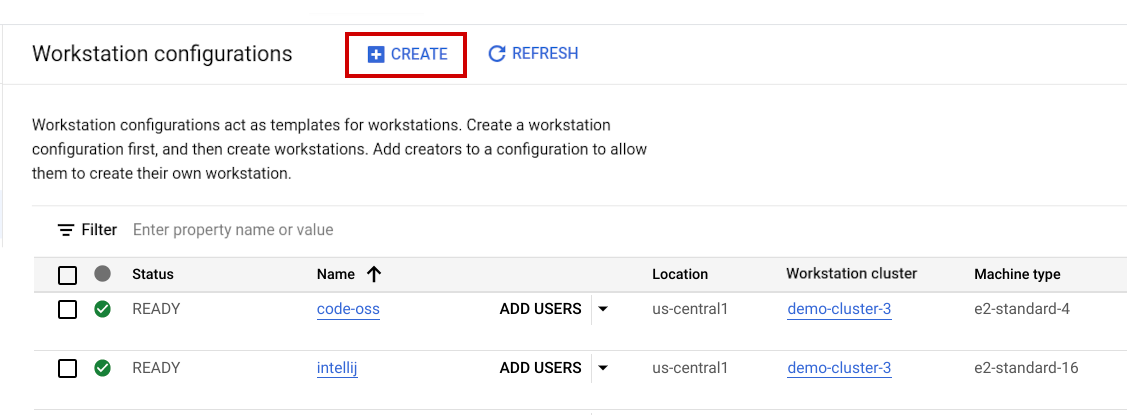
在名称字段中,输入
test-configuration作为工作站配置的名称。在区域字段中,选择您创建工作站集群
test-cluster的区域。从可用的工作站集群列表中,选择
test-cluster,然后点击继续。对于机器预设,选择中等。
在 Quick start workstations(快速启动工作站)部分,选择已停用,以降低费用。
如果您要为团队自定义工作站配置,可以定义机器设置、自定义环境设置,并在用户和权限页面上向用户授予访问权限。对于本练习,您可以跳过这些步骤。
如需创建工作站配置,请点击创建。
如需详细了解如何使用本快速入门中跳过的选项创建工作站配置,请参阅有关工作站配置的详细部分。
创建和启动工作站
工作站是管理员或平台团队在工作站配置中预先定义的开发环境。 如需创建工作站,请按照以下步骤操作:在 Google Cloud 控制台中,前往 Cloud Workstations > 工作站页面。
点击 add_box创建。
如果项目中没有任何工作站配置,或者您无权查看配置,则创建链接可能被停用。请让贵组织的 Cloud Workstations Admin 为您创建工作站配置。
接受默认的工作站名称。
点击配置字段中的 arrow_drop_down 展开箭头,然后选择工作站配置来定义工作站。例如,如果您在上一步中将工作站配置命名为
test-configuration,请从列表中选择该配置。点击
创建 以创建工作站。
- 点击工作站。
- 在工作站列表中,找到您的工作站名称,然后点击启动。
工作站默认连接到端口
80。 如果工作站已停止,点击启动也会启动它。以下示例展示了 Cloud Workstations 基本编辑器的欢迎页面。 您的网页可能会有所不同,具体取决于您如何定义工作站配置:
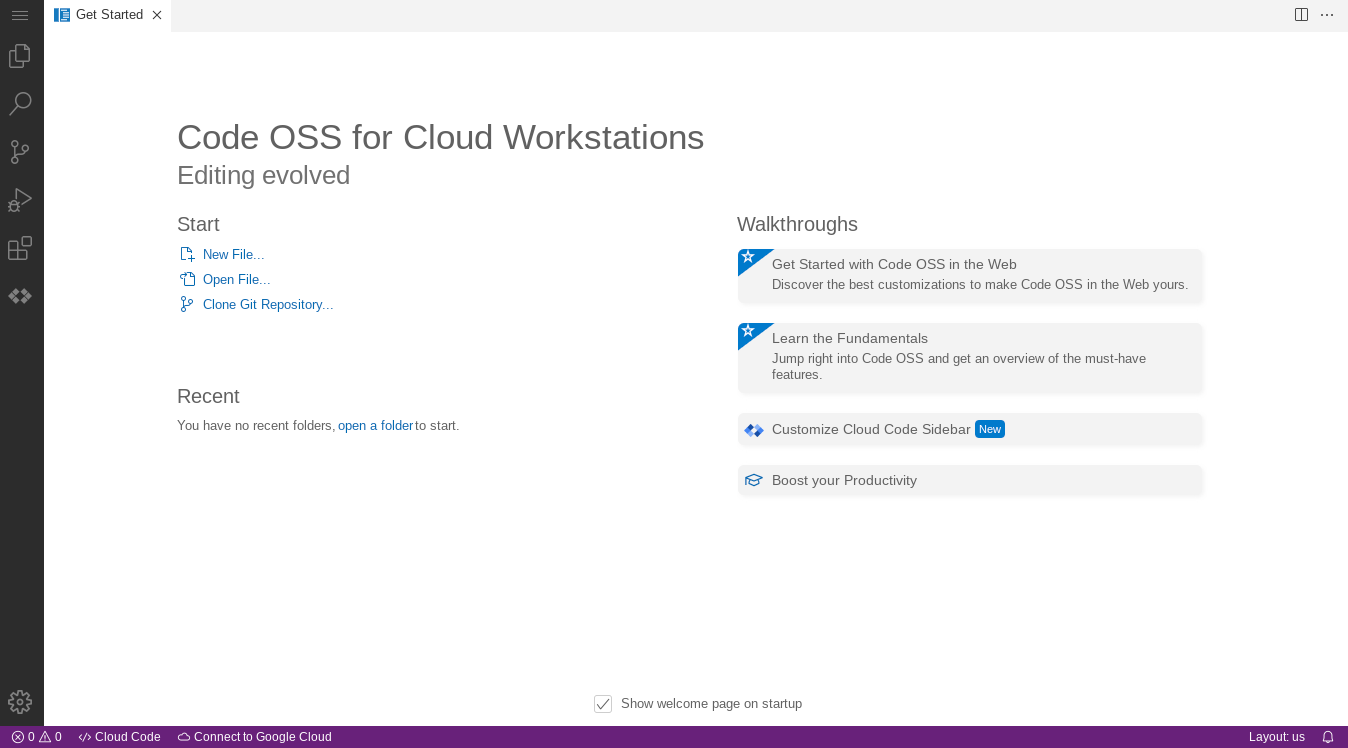
如需详细了解如何通过 SSH 进行连接,请参阅 SSH 支持。
如需详细了解如何连接到工作站上运行的 Web 应用,请参阅访问工作站上运行的 HTTP 服务器。
清理
为避免因本页中使用的资源导致您的 Google Cloud 账号产生费用,请务必删除不再需要的资源。
如需从 Google Cloud 控制台或 gcloud CLI 中删除 Google Cloud 项目,请执行以下操作:
控制台
- 在 Google Cloud 控制台中,前往管理资源页面。
- 在项目列表中,选择要删除的项目,然后点击删除。
- 在对话框中输入项目 ID,然后点击关闭以删除项目。
gcloud
删除 Google Cloud 项目:
gcloud projects delete PROJECT_ID
后续步骤
详细了解如何在工作站配置中配置其他选项。
将 Cloud Workstations 与 JetBrains IDE(例如 IntelliJ IDEA Ultimate 和 PyCharm Professional)搭配使用。