

Learn how to get started creating a workstation with Cloud Workstations.
A workstation is a preconfigured development environment that administrators or platform teams define in a workstation configuration. The workstation configuration includes the container image used by the workstation. Your administrators choose whether to use one of the Cloud Workstations preconfigured base images or whether to provide a reference to a customized container image.
To follow step-by-step guidance for this task directly in the Google Cloud console, click Guide me:
Before you begin
Before you begin using Cloud Workstations, be sure that you have the required permissions and that you complete these required setup steps. You can skip this section if you've already completed this setup.
- Sign in to your Google Cloud account. If you're new to Google Cloud, create an account to evaluate how our products perform in real-world scenarios. New customers also get $300 in free credits to run, test, and deploy workloads.
-
In the Google Cloud console, on the project selector page, select or create a Google Cloud project.
Roles required to select or create a project
- Select a project: Selecting a project doesn't require a specific IAM role—you can select any project that you've been granted a role on.
-
Create a project: To create a project, you need the Project Creator role
(
roles/resourcemanager.projectCreator), which contains theresourcemanager.projects.createpermission. Learn how to grant roles.
-
Verify that billing is enabled for your Google Cloud project.
-
In the Google Cloud console, on the project selector page, select or create a Google Cloud project.
Roles required to select or create a project
- Select a project: Selecting a project doesn't require a specific IAM role—you can select any project that you've been granted a role on.
-
Create a project: To create a project, you need the Project Creator role
(
roles/resourcemanager.projectCreator), which contains theresourcemanager.projects.createpermission. Learn how to grant roles.
-
Verify that billing is enabled for your Google Cloud project.
-
Enable the Cloud Workstations API, if it is not already enabled.
Roles required to enable APIs
To enable APIs, you need the
serviceusage.services.enablepermission. If you created the project, then you likely already have this permission through the Owner role (roles/owner). Otherwise, you can get this permission through the Service Usage Admin role (roles/serviceusage.serviceUsageAdmin). Learn how to grant roles. -
Optional: If you don't have workstation configurations available in the Google Cloud console, ask your administrator to create a workstation configuration for you, or make sure that you have a Cloud Workstations Admin IAM role on the project so that you can create these resources yourself. To check your IAM roles, go to the IAM page in the Google Cloud console:
Create a workstation
To create a workstation, follow these steps:In the Google Cloud console, navigate to the Cloud Workstations > Workstations page.
Click add_boxCreate.
The Create link might be disabled if there aren't any workstation configurations in the project or if you don't have permissions to view them. Ask your organization's Cloud Workstations Admin to create a workstation configuration for you.
Accept the default workstation Name.
If you prefer, you can enter your own resource name for your workstation—for example,
test-workstation. Follow the Compute Engine resource naming conventions and choose a name that is unique within the workstation cluster.Click the arrow_drop_downexpander arrow in the Configuration field and select the workstation configuration to define your workstation.
Click
Create to create your workstation.
Launch a workstation
Now that you have created a workstation, launch it to begin development:- Click Workstations.
- In the list of workstations, find your workstation name and click Launch.
The workstation connects to port
80by default. If the workstation is stopped, clicking Launch also starts it.Optional: You can also click the arrow_drop_downexpander arrow next to Launch and select from the list of launch options:
- Start
- Connect to port 80 (default)
- Connect to web app on port
- Port forwarding
- Connect using SSH
- Launch with JetBrains Gateway (if you are using a JetBrains IDE)
The Start option starts the workstation without launching it.
The following example shows the welcome page for the Cloud Workstations base editor. Your page might look different, depending on how you define your workstation configuration:
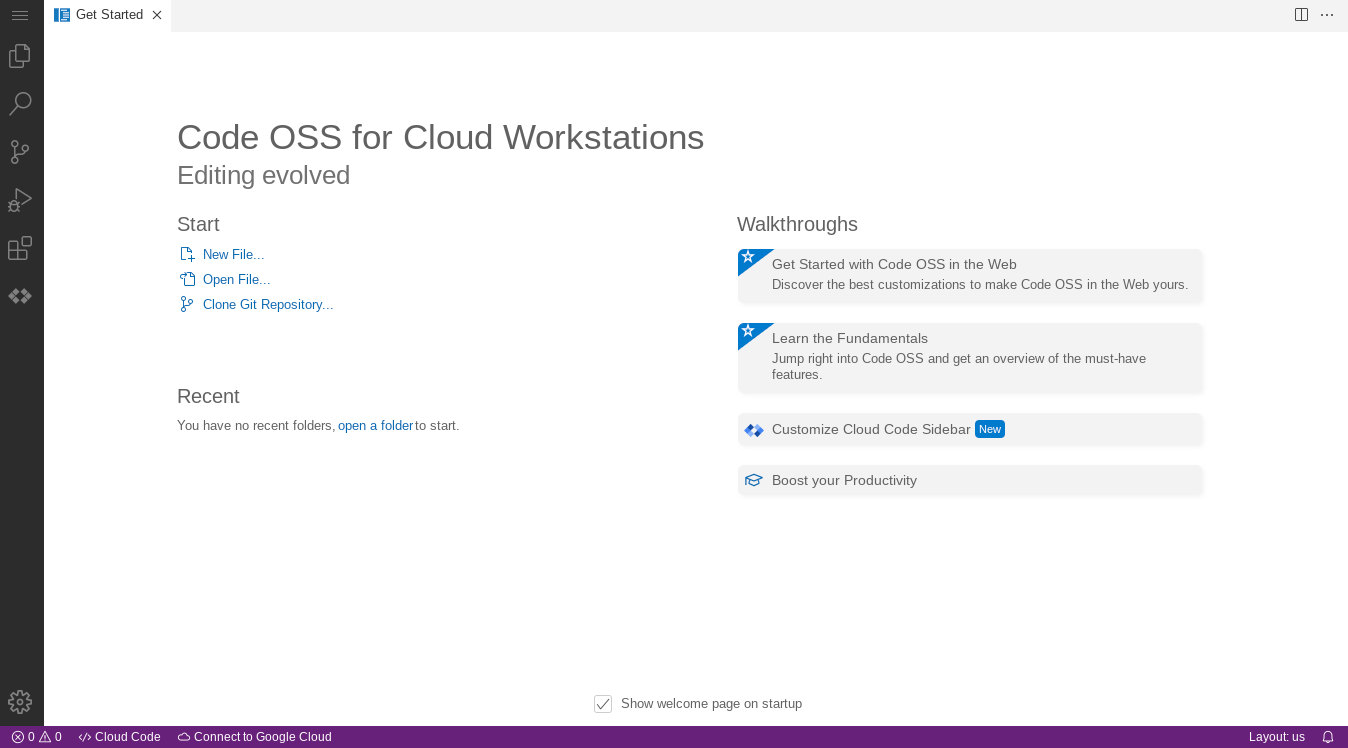
For more information about connecting through SSH, see SSH support.
For more information about connecting to web apps running on your workstation, see Access HTTP servers running on a workstation.
Clean up
To delete a workstation from the Google Cloud console:
- In the Google Cloud console, go to Cloud Workstations > Workstations.
- Select the checkbox beside the workstation that you want to delete.
- Click themore_vertMore options menu and select Delete to delete the selected workstation.
If your workstation configuration uses persistent disks and the reclaim policy is set to retain persistent disks after you delete the workstation, be sure to remind your Cloud Workstations Admin to manually delete the persistent disk for you. For more about deleting workstation configurations, workstation clusters, and Google Cloud projects, see Delete resources.
What's next
Use the Cloud Workstations base editor.
Learn more about configuring additional options in your workstation configuration.
Customize your workstation configuration through the API.
Create customized container images that extend the preconfigured base images provided by Cloud Workstations.