

This page explains how to manage schemaless data in Spanner Graph. It also provides best practices and troubleshooting tips. We recommend that you are familiar with the Spanner Graph schema and queries.
Schemaless data management lets you create a flexible graph definition. You can add, update, or delete node and edge type definitions without schema changes. This approach supports iterative development and reduces schema management overhead, while preserving the familiar graph query experience.
Schemaless data management is useful for the following scenarios:
Managing graphs with frequent changes, such as updates and additions of element labels and properties.
Graphs with many node and edge types, which makes the creation and management of input tables cumbersome.
For more information about when to use schemaless data management, see Considerations for schemaless data management.
Model schemaless data
Spanner Graph lets you create a graph from tables that maps rows to
nodes and edges.
Instead of using separate tables for each element type, schemaless data modeling
typically employs a single node table and a single edge table with a STRING
column for the label and a JSON column for properties.
Create input tables
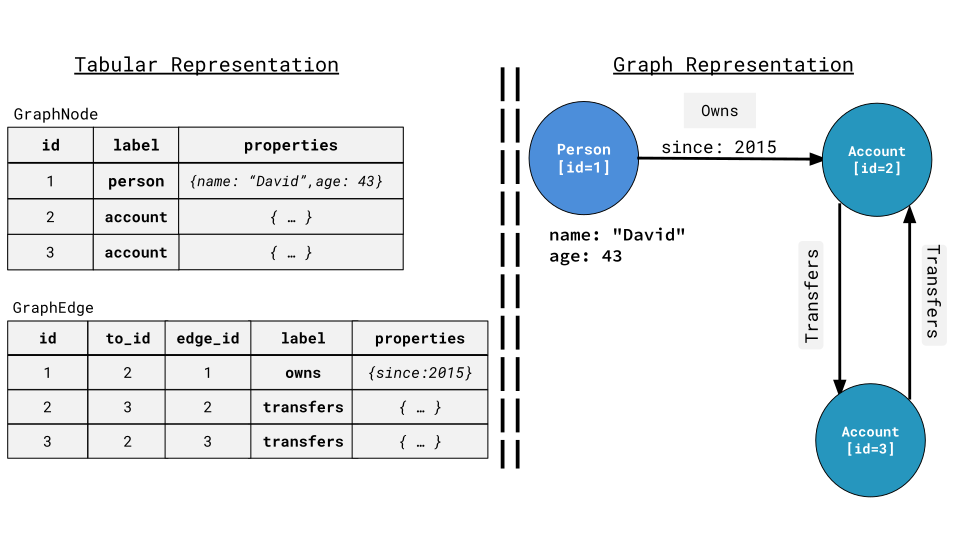
You can create a single GraphNode table and a single GraphEdge table to
store schemaless data, as shown in the following example. Table names are for
illustrative purposes—you can choose your own.
CREATE TABLE GraphNode (
  id INT64 NOT NULL,
  label STRING(MAX) NOT NULL,
  properties JSON,
) PRIMARY KEY (id);

CREATE TABLE GraphEdge (
  id INT64 NOT NULL,
  dest_id INT64 NOT NULL,
  edge_id INT64 NOT NULL,
  label STRING(MAX) NOT NULL,
  properties JSON,
) PRIMARY KEY (id, dest_id, edge_id),
  INTERLEAVE IN PARENT GraphNode;
This example performs the following actions:
Stores all nodes in a single table,
GraphNode, identified by a uniqueid.Stores all edges in a single table,
GraphEdge, identified by a unique combination of source (id), destination (dest_id), and its own identifier (edge_id). Anedge_idis included as part of the primary key to permit more than one edge from anidto adest_idpair.
Both the node and edge tables have their own label and properties columns.
These columns are of type STRING and JSON, respectively.
For more information about key choices for schemaless data management, see Primary key definitions for nodes and edges.
Create a property graph
The CREATE PROPERTY GRAPH statement maps the input tables in the previous section as nodes and edges. Use the following clauses to define labels and properties for schemaless data:
DYNAMIC LABEL: creates the label of a node or an edge from aSTRINGcolumn that's from the input table.DYNAMIC PROPERTIES: creates properties of a node or an edge from aJSONcolumn that's from the input table.
The following example shows how to create a graph using these clauses:
CREATE PROPERTY GRAPH FinGraph
  NODE TABLES (
    GraphNode
      DYNAMIC LABEL (label)
      DYNAMIC PROPERTIES (properties)
  )
  EDGE TABLES (
    GraphEdge
      SOURCE KEY (id) REFERENCES GraphNode(id)
      DESTINATION KEY (dest_id) REFERENCES GraphNode(id)
      DYNAMIC LABEL (label)
      DYNAMIC PROPERTIES (properties)
  );
Define dynamic labels
The DYNAMIC LABEL clause designates a STRING data type column to store the
label values.
For example, in a GraphNode row, if the label column has a person value,
it maps to a Person node within the graph. Likewise, in a GraphEdge row, if
the label column has a value of owns, it maps to an Owns edge within the
graph.
For more information about limitations when using dynamic labels, see Limitations.
Define dynamic properties
The DYNAMIC PROPERTIES clause designates a JSON data type column to store
properties. JSON keys represent property names, and JSON values represent
property values.
For example, when a GraphNode row's properties column has the JSON value
'{"name": "David", "age": 43}', Spanner maps it to a node that
has age and name properties with 43 and "David" as their respective
values.
Considerations for schemaless data management
You might not want to use schemaless data management in the following scenarios:
- The node and edge types for your graph data are well defined, or their labels and properties don't require frequent updates.
- Your data is already stored in Spanner, and you prefer to build graphs from existing tables instead of introducing new, dedicated node and edge tables.
- The limitations of schemaless data prevent adoption.
In addition, if your workload is highly sensitive to write performance,
especially when properties are frequently updated, using schema defined
properties with
primitive data types such as STRING or INT64 is more effective than using
dynamic properties with the JSON type.
For more information about how to define the graph schema without using dynamic data labels and properties, see the Spanner Graph schema overview.
Query schemaless graph data
You can query schemaless graph data using Graph Query Language (GQL). You can use the sample queries in the Spanner Graph Query overview and GQL reference with limited modifications.
Match nodes and edges using labels
You can match nodes and edges by using the label expression in GQL.
The following query matches connected nodes and edges that have the values
account and transfers in their label column.
GRAPH FinGraph
MATCH (a:Account {id: 1})-[t:Transfers]->(d:Account)
RETURN COUNT(*) AS result_count;
Access properties
Spanner models top-level keys and values of the JSON data type
as properties, such as age and name in the following example.
JSON document |
Properties |
|
|
|
The following example shows how to access the property name from the Person
node.
GRAPH FinGraph
MATCH (person:Person {id: 1})
RETURN person.name;
The query returns results similar to the following:
"Tom"
Filter, compare, and sort by dynamic properties
You can use dynamic properties directly in Spanner Graph
property filters
and in WHERE, GROUP BY, ORDER BY, and RETURN DISTINCT clauses. This is
because Spanner treats dynamic properties as values of the JSON
data type, which supports
JSON comparison and sorting.
For example, the following query filters on the boolean property is_blocked
and the string property order_number_str in the WHERE clause:
GRAPH FinGraph
MATCH (a:Account)-[t:Transfers]->()
WHERE a.is_blocked = false AND t.order_number_str = "302290001255747"
RETURN a.id AS account_id;
This returns results similar to the following:
+------------+
| account_id |
+------------+
| 7          |
+------------+
You can express the same equality conditions using element pattern property filters:
GRAPH FinGraph
MATCH (a:Account {is_blocked: false})-[t:Transfers {order_number_str: "302290001255747"}]->()
RETURN a.id AS account_id;
You can also use dynamic properties directly in GROUP BY, ORDER BY, and
RETURN DISTINCT clauses:
GROUP BYexample:GRAPH FinGraph MATCH (person:Person {country: "South Korea"}) RETURN person.city AS person_city, COUNT(*) AS cnt LIMIT 10;ORDER BYexample:GRAPH FinGraph MATCH (a:Account)-[t:Transfers]->(b:Account) RETURN a.id AS from_account, b.id AS to_account, t.amount ORDER BY t.amount DESC LIMIT 1;RETURN DISTINCTexample:GRAPH FinGraph MATCH -[t:Transfers]-> RETURN DISTINCT t.order_number_str AS order_number_str;
When filtering, comparing, or sorting dynamic properties, the following rules apply:
The compared value must match both the JSON type and value of the property. For example, because
order_number_stris stored as a JSONstring, comparing it with an integer literal finds no match:GRAPH FinGraph MATCH (a:Account {is_blocked: false})-[t:Transfers {order_number_str: 302290001255747}]->() RETURN t.order_number_str;Evaluating a
JSONboolean property directly as a standaloneWHEREcondition, such asWHERE a.is_blocked, returns an error. Instead, compare the property with a boolean literal, such asWHERE a.is_blocked = true, or explicitly convert it withWHERE BOOL(a.is_blocked).For detailed rules and restrictions on comparing, grouping, and sorting
JSONvalues, see JSON comparison and sorting and JSON comparison coercion.
Convert dynamic property data types
Convert dynamic properties to SQL data types in the following scenarios:
- Converting a property value to a different data type for comparison or
output, such as converting the JSON string
"302290001255747"to anINT64integer, or returning a SQL data type instead ofJSON. - Using a property value in a SQL function, operator, or expression that
doesn't support
JSONoperands, such as arithmetic operators (+,-), string functions (LOWER,LIKE), aggregate functions (SUM,AVG), orIN UNNEST. - Defining a generated column on a property for a
secondary index or
unique index, because
JSONexpressions can't be indexed directly.
In the following example, order_number_str is stored as a JSON string, and
the query uses the
LAX_INT64
function to convert it to an INT64 integer for comparison and return:
GRAPH FinGraph
MATCH (a:Account)-[t:Transfers]->()
WHERE a.is_blocked = true AND LAX_INT64(t.order_number_str) = 302290001255747
RETURN LAX_INT64(t.order_number_str) AS order_number_as_int64;
This returns results similar to the following:
+-----------------------+
| order_number_as_int64 |
+-----------------------+
| 302290001255747       |
+-----------------------+
Access nested JSON properties
Spanner doesn't model nested JSON keys and values as properties.
In the following example, Spanner doesn't model the JSON keys
city, state, and country as properties because they are nested under
location. However, you can access them with a JSON
field access operator
or a JSON
subscript operator.
JSON document |
Properties |
|
|
|
|
|
The following example shows how to access nested properties with the JSON field access operator.
GRAPH FinGraph
MATCH (person:Person {id: 1})
RETURN person.location.city;
This returns results similar to the following:
"New York"
Modify schemaless data
Spanner Graph maps data from tables to graph nodes and edges. When you change input table data, this change directly causes mutations to the corresponding graph data. For more information about graph data mutation, see Insert, update, or delete Spanner Graph data.
Example queries
This section provides examples that show how to create, update, and delete graph data.
Insert graph data
The following example inserts a person node. Label and property names must
use lowercase.
INSERT INTO GraphNode (id, label, properties)
VALUES (4, "person", JSON'{"name": "David", "age": 43}');
Update graph data
The following example updates an Account node and uses the
JSON_SET
function to set its is_blocked property.
UPDATE GraphNode
SET properties = JSON_SET(
  properties,
  '$.is_blocked', false
)
WHERE label = "account" AND id = 16;
The following example updates a person node with a new set of properties.
UPDATE GraphNode
SET properties = JSON'{"name": "David", "age": 43}'
WHERE label = "person" AND id = 4;
The following example uses the
JSON_REMOVE
function to remove the is_blocked property from an Account node. After
execution, all other existing properties remain unchanged.
UPDATE GraphNode
SET properties = JSON_REMOVE(
  properties,
  '$.is_blocked'
)
WHERE label = "account" AND id = 16;
Delete graph data
The following example deletes the Transfers edge on Account nodes that
transferred to blocked accounts.
DELETE FROM GraphEdge
WHERE label = "transfers" AND id IN {
  GRAPH FinGraph
  MATCH (a:Account)-[:Transfers]->{1,2}(:Account {is_blocked: TRUE})
  RETURN a.id
}
Known limitations
This section lists the limitations of using schemaless data management.
Single table requirement for dynamic labels
You can only have one node table if a dynamic label is used in its definition. This restriction also applies to the edge table. Spanner doesn't permit the following:
- Defining a node table with a dynamic label alongside any other node tables.
- Defining an edge table with a dynamic label alongside any other edge tables.
- Defining multiple node tables or multiple edge tables that each use a dynamic label.
For example, the following code fails when it tries to create multiple graph node with dynamic labels.
CREATE OR REPLACE PROPERTY GRAPH FinGraph
  NODE TABLES (
    GraphNodeOne
      DYNAMIC LABEL (label)
      DYNAMIC PROPERTIES (properties),
    GraphNodeTwo
      DYNAMIC LABEL (label)
      DYNAMIC PROPERTIES (properties),
    Account
      LABEL Account PROPERTIES(create_time)
  )
  EDGE TABLES (
    ...
  );
Label names must be lowercase
You must store label string values as lowercase for matching. We recommend that you enforce this rule either in the application code or using schema constraints.
While label string values must be stored as lowercase, they aren't case sensitive when you reference them in a query.
The following example shows how to insert labels in lowercase values:
INSERT INTO GraphNode (id, label) VALUES (1, "account");
INSERT INTO GraphNode (id, label) VALUES (2, "account");
You can use case-insensitive labels to match the GraphNode or GraphEdge.
GRAPH FinGraph
MATCH (accnt:Account {id: 1})-[:Transfers]->(dest_accnt:Account)
RETURN dest_accnt.id;
Property names must be lowercase
You must store property names in lowercase. We recommend that you enforce this rule either in the application code or using schema constraints.
While property names must be stored as lowercase, they aren't case sensitive when you reference them in your query.
The following example inserts the name and age properties using lowercase.
INSERT INTO GraphNode (id, label, properties)
VALUES (25, "person", JSON '{"name": "Kim", "age": 27}');
In query text, property names are case insensitive. For example, you can use
either Age or age to access the property.
GRAPH FinGraph
MATCH (n:Person {Age: 27})
RETURN n.id;
Additional limitations
- Spanner models only top-level keys of
the
JSONdata type as properties. - Property data types must conform to the Spanner JSON type specifications.
Best practices for schemaless data
This section describes best practices that help you model schemaless data.
Define primary keys for nodes and edges
A node's key should be unique across all graph nodes. For example, as an INT64
or string
UUID
column.
If multiple edges exist between two nodes, introduce a unique identifier for the
edge. The schema example uses an application logic INT64
edge_id column.
When you create the schema for node and edge tables, optionally include the
label column as a primary key
column if the value
is immutable. If you do this, the composite key formed by all key columns should
be unique across all nodes or edges. This technique improves performance for
queries that are only filtered by label.
For more information about primary key choice, see Choose a primary key.
Create a secondary index for a frequently accessed property
To boost query performance for a property frequently used in filters, create a secondary index against a generated property column. Then, use it in a graph schema and queries.
The following example shows how to add a generated age column to the
GraphNode table for a person node. The value is NULL for nodes without the
person label.
ALTER TABLE GraphNode
ADD COLUMN person_age INT64 AS
(IF (label = "person", LAX_INT64(properties.age), NULL));
The following DDL statement then creates a NULL FILTERED INDEX for
person_age and interleaves it into the GraphNode table for local access.
CREATE NULL_FILTERED INDEX IdxPersonAge
ON GraphNode(id, label, person_age), INTERLEAVE IN GraphNode;
The GraphNode table includes new columns that are available as graph node
properties. To reflect this in the property graph definition, use the CREATE OR
REPLACE PROPERTY GRAPH statement. This recompiles the definition and includes
the new person_age column as a property.
For more information, see updating existing node or edge definitions.
The following statement recompiles the definition and includes the new
person_age column as a property.
CREATE OR REPLACE PROPERTY GRAPH FinGraph
NODE TABLES (
GraphNode
DYNAMIC LABEL (label)
DYNAMIC PROPERTIES (properties)
)
EDGE TABLES (
GraphEdge
SOURCE KEY (id) REFERENCES GraphNode (id)
DESTINATION KEY (dest_id) REFERENCES GraphNode (id)
DYNAMIC LABEL (label)
DYNAMIC PROPERTIES (properties)
);
The following example runs a query with the indexed property.
GRAPH FinGraph
MATCH (person:Person {person_age: 43})
RETURN person.id, person.name;
Optionally, run the ANALYZE
command
after index creation so that the query optimizer is updated with the latest
database statistics.
Use check constraints for data integrity
Spanner supports schema objects such as check constraints to enforce label and property data integrity. This section lists recommendations for check constraints that you can use with schemaless data.
Enforce label values
We recommend that you use NOT NULL in the label column definition to avoid
undefined label values.
CREATE TABLE GraphNode (
  id INT64 NOT NULL,
  label STRING(MAX) NOT NULL,
  properties JSON,
) PRIMARY KEY (id);
Enforce lowercase label values and property names
Because label and property names must be stored as lowercase values, do either of the following:
- Enforce the check in application logic.
- Create check constraints in the schema.
At query time, the label and property name are case insensitive.
The following example shows how to add a node label constraint to the
GraphNode table to ensure the label is in lowercase.
ALTER TABLE GraphNode ADD CONSTRAINT NodeLabelLowerCaseCheck
CHECK(LOWER(label) = label);
The following example shows how to add a check constraint to the edge property
name. The check uses
JSON_KEYS to
access the top-level keys.
COALESCE
converts the output to an empty array if JSON_KEYS returns NULL and then
checks that each key is lowercase.
ALTER TABLE GraphEdge ADD CONSTRAINT EdgePropertiesLowerCaseCheck
CHECK(NOT array_includes(COALESCE(JSON_KEYS(properties, 1), []), key->key<>LOWER(key)));
Enforce that properties exist
Create a constraint that checks if a property exists for a label.
In the following example, the constraint checks if a person node has a name
property.
ALTER TABLE GraphNode
ADD CONSTRAINT NameMustExistForPersonConstraint
CHECK (IF(label = 'person', properties.name IS NOT NULL, TRUE));
Enforce unique properties
Create property-based constraints that check if the property of a node or edge is unique across nodes or edges with the same label. To do this, use a UNIQUE INDEX against the generated columns of properties.
In the following example, the unique index checks that the name and country
properties combined are unique for any person node.
Add a generated column for
PersonName.ALTER TABLE GraphNode ADD COLUMN person_name STRING(MAX) AS (IF(label = 'person', STRING(properties.name), NULL)) Hidden;Add a generated column for
PersonCountry.ALTER TABLE GraphNode ADD COLUMN person_country STRING(MAX) AS (IF(label = 'person', STRING(properties.country), NULL)) Hidden;Create a
NULL_FILTEREDunique index against thePersonNameandPersonCountryproperties.CREATE UNIQUE NULL_FILTERED INDEX NameAndCountryMustBeUniqueForPerson ON GraphNode (person_name, person_country);
Enforce property data type
Enforce a property data type using a data type constraint on a property value
for a label, as shown in the following example. This example uses the
JSON_TYPE
function to check that the name property of the person label uses the
STRING type.
ALTER TABLE GraphNode
ADD CONSTRAINT PersonNameMustBeStringTypeConstraint
CHECK (IF(label = 'person', JSON_TYPE(properties.name) = 'string', TRUE));
Combine defined and dynamic labels
Spanner allows nodes in the property graph to have both defined labels (defined in the schema) and dynamic labels (derived from data). Customize labels to use this flexibility.
Consider the following schema that shows the creation of the GraphNode table:
CREATE OR REPLACE PROPERTY GRAPH FinGraph
  NODE TABLES (
    GraphNode
      LABEL Entity -- Defined label
      DYNAMIC LABEL (label) -- Dynamic label from data column 'label'
      DYNAMIC PROPERTIES (properties)
  );
Here, every node created from GraphNode has the defined label Entity. In
addition, each node has a dynamic label determined by the value in its label
column.
Then, write queries that match nodes based on either label type. For example,
the following query finds nodes using the defined Entity label:
GRAPH FinGraph
MATCH (node:Entity {id: 1}) -- Querying by the defined label
RETURN node.name;
Even though this query uses the defined label Entity, remember that the
matched node also carries a dynamic label based on its data.
Schema examples
Use the schema examples in this section as templates to create your own schemas. Key schema components include the following:
- Graph input tables creation
- Property graph creation
- Optional: reverse edge traversal index to boost reverse traversal performance
- Optional: label index to boost performance of queries by labels
- Optional: schema constraints to enforce lowercase labels and property names
The following example shows how to create input tables and a property graph:
CREATE TABLE GraphNode (
  id INT64 NOT NULL,
  label STRING(MAX) NOT NULL,
  properties JSON
) PRIMARY KEY (id);

CREATE TABLE GraphEdge (
  id INT64 NOT NULL,
  dest_id INT64 NOT NULL,
  edge_id INT64 NOT NULL,
  label STRING(MAX) NOT NULL,
  properties JSON
) PRIMARY KEY (id, dest_id, edge_id),
  INTERLEAVE IN PARENT GraphNode;

CREATE PROPERTY GRAPH FinGraph
  NODE TABLES (
    GraphNode
      DYNAMIC LABEL (label)
      DYNAMIC PROPERTIES (properties)
  )
  EDGE TABLES (
    GraphEdge
      SOURCE KEY (id) REFERENCES GraphNode(id)
      DESTINATION KEY (dest_id) REFERENCES GraphNode(id)
      DYNAMIC LABEL (label)
      DYNAMIC PROPERTIES (properties)
  );
The following example uses an index to improve reverse edge traversal. The
STORING (properties) clause includes a copy of edge properties, which speeds
up queries that filter on these properties. You can omit the
STORING (properties) clause if your queries don't benefit from it.
CREATE INDEX R_EDGE ON GraphEdge (dest_id, id, edge_id) STORING (properties),
INTERLEAVE IN GraphNode;
The following example uses a label index to speed up matching nodes by labels.
CREATE INDEX IDX_NODE_LABEL ON GraphNode (label);
The following example adds constraints that enforce lowercase labels and
properties. The last two examples use the
JSON_KEYS
function. Optionally, you can enforce the lowercase check in application logic.
ALTER TABLE GraphNode ADD CONSTRAINT node_label_lower_case
CHECK(LOWER(label) = label);

ALTER TABLE GraphEdge ADD CONSTRAINT edge_label_lower_case
CHECK(LOWER(label) = label);

ALTER TABLE GraphNode ADD CONSTRAINT node_property_keys_lower_case
CHECK(
  NOT array_includes(COALESCE(JSON_KEYS(properties, 1), []), key->key<>LOWER(key)));

ALTER TABLE GraphEdge ADD CONSTRAINT edge_property_keys_lower_case
CHECK(
  NOT array_includes(COALESCE(JSON_KEYS(properties, 1), []), key->key<>LOWER(key)));
Optimize batch updates of dynamic properties with DML
Modifying dynamic properties using functions like
JSON_SET and
JSON_REMOVE
involves read-modify-write operations. This can lead to higher cost compared to
updating properties of STRING or INT64 type.
If workloads involve batch updates to dynamic properties using DML, use the following recommendations to achieve better performance:
Update multiple rows in a single DML statement rather than processing rows individually.
When updating a wide key range, group and sort the affected rows by primary keys. Updating non-overlapping ranges with each DML reduces lock contention.
Use query parameters in DML statements instead of hard coding them to improve performance.
Based on these suggestions, the following example shows how to update the
is_blocked property for 100 nodes in a single DML statement. The query
parameters include the following:
@node_ids: Keys ofGraphNoderows, stored in anARRAYparameter. If applicable, grouping and sorting them across DMLs achieves better performance.@is_blocked_values: The corresponding values to be updated, stored in anARRAYparameter.
UPDATE GraphNode
SET properties = JSON_SET(
  properties,
  '$.is_blocked',
  CASE id
    WHEN @node_ids[OFFSET(0)] THEN @is_blocked_values[OFFSET(0)]
    WHEN @node_ids[OFFSET(1)] THEN @is_blocked_values[OFFSET(1)]
    ...
    WHEN @node_ids[OFFSET(99)] THEN @is_blocked_values[OFFSET(99)]
  END,
  create_if_missing => TRUE)
WHERE id IN UNNEST(@node_ids)
Troubleshoot
This section describes how to troubleshoot issues with schemaless data.
Property appears multiple times in the TO_JSON result
Issue
The following node models the birthday and name properties as dynamic
properties in its JSON column. Duplicate birthday and name properties
appear in the graph element JSON result.
GRAPH FinGraph
MATCH (n: Person {id: 14})
RETURN SAFE_TO_JSON(n) AS n;
This returns results similar to the following:
{
  …,
  "properties": {
    "birthday": "1991-12-21 00:00:00",
    "name": "Alex",
    "id": 14,
    "label": "person",
    "properties": {
      "birthday": "1991-12-21 00:00:00",
      "name": "Alex"
    }
  }
  …
}
Possible cause
By default, all columns of the base table are defined as properties. Using
TO_JSON or
SAFE_TO_JSON
to return graph elements results in duplicate properties. This occurs because
the JSON column (properties) is a schema-defined property, while the
first-level keys of the JSON are modeled as dynamic properties.
Recommended solution
To avoid this behavior, use the PROPERTIES ALL COLUMNS EXCEPT
clause to exclude the properties column when you define properties in the
schema, as shown in the following example:
CREATE OR REPLACE PROPERTY GRAPH FinGraph
  NODE TABLES (
    GraphNode
      PROPERTIES ALL COLUMNS EXCEPT (properties)
      DYNAMIC LABEL (label)
      DYNAMIC PROPERTIES (properties)
  );
After the schema change, the returned graph elements of the JSON data type
don't have duplicates.
GRAPH FinGraph
MATCH (n: Person {id: 1})
RETURN TO_JSON(n) AS n;
This query returns the following:
{
  …
  "properties": {
    "birthday": "1991-12-21 00:00:00",
    "name": "Alex",
    "id": 1,
    "label": "person",
  }
}
What's next
- To learn more about JSON, see Modify JSON data, Compare and sort JSON data, and JSON functions list.
- Compare Spanner Graph and openCypher.
- Migrate to Spanner Graph.