


本快速入門導覽課程說明如何使用 Google Cloud 控制台在 Spanner 中建立資料庫、插入資料,以及執行 SQL 查詢。
在快速入門導覽課程中,您將可以:
- 建立 Spanner 執行個體。
- 建立資料庫。
- 建立結構定義。
- 插入及修改資料
- 執行查詢。
如要瞭解 Spanner 的使用費用,請參閱定價。
事前準備
- 登入 Google Cloud 帳戶。如果您是 Google Cloud新手,歡迎 建立帳戶,親自評估產品在實際工作環境中的成效。新客戶還能獲得價值 $300 美元的免費抵免額,可用於執行、測試及部署工作負載。
-
In the Google Cloud console, on the project selector page, select or create a Google Cloud project.
Roles required to select or create a project
- Select a project: Selecting a project doesn't require a specific IAM role—you can select any project that you've been granted a role on.
-
Create a project: To create a project, you need the Project Creator role
(
roles/resourcemanager.projectCreator), which contains theresourcemanager.projects.createpermission. Learn how to grant roles.
-
Verify that billing is enabled for your Google Cloud project.
-
In the Google Cloud console, on the project selector page, select or create a Google Cloud project.
Roles required to select or create a project
- Select a project: Selecting a project doesn't require a specific IAM role—you can select any project that you've been granted a role on.
-
Create a project: To create a project, you need the Project Creator role
(
roles/resourcemanager.projectCreator), which contains theresourcemanager.projects.createpermission. Learn how to grant roles.
-
Verify that billing is enabled for your Google Cloud project.
- 選用:系統應會自動啟用 Spanner API。如未啟用,請手動啟用: 啟用 Spanner API
-
如要取得建立執行個體和資料庫所需的權限,請要求管理員授予您專案的 Cloud Spanner 管理員 (roles/spanner.admin) IAM 角色。
使用 Google Cloud 控制台建立執行個體
首次使用 Spanner 時,您必須建立做為資源分配單位的執行個體,其中的 Spanner 資料庫會使用個體內的資源。
前往 Google Cloud 控制台的「Spanner」頁面。
選取或建立 Google Cloud 專案 (如果尚未建立)。
在「Spanner」頁面中,按一下「建立已佈建的執行個體」。
如果您之前使用過 Spanner,系統會顯示 Spanner 執行個體頁面,而不是產品頁面。按一下「建立執行個體」。
在「為執行個體命名」頁面中,輸入執行個體名稱,例如「Test Instance」。
系統會根據執行個體名稱自動輸入執行個體 ID,例如 test-instance。視需要變更。按一下「繼續」。
在「設定執行個體」頁面中,保留預設選項「區域」,然後從下拉式選單中選取設定。
執行個體設定會決定系統要將執行個體儲存及複製到哪個地理位置。
按一下「繼續」。
在「Allocate compute capacity」(配置運算資源) 頁面中,選取「Processing units (PUs)」(處理單元),並保留預設值 1000 個處理單元。
點選「建立」。
Google Cloud 控制台會顯示您所建立執行個體的「Overview」(總覽) 頁面。
建立資料庫
前往 Google Cloud 控制台的「Spanner Instances」(Spanner 執行個體) 頁面。
按一下您建立的執行個體,例如「Test Instance」。
在開啟的執行個體「總覽」頁面中,按一下「建立資料庫」。
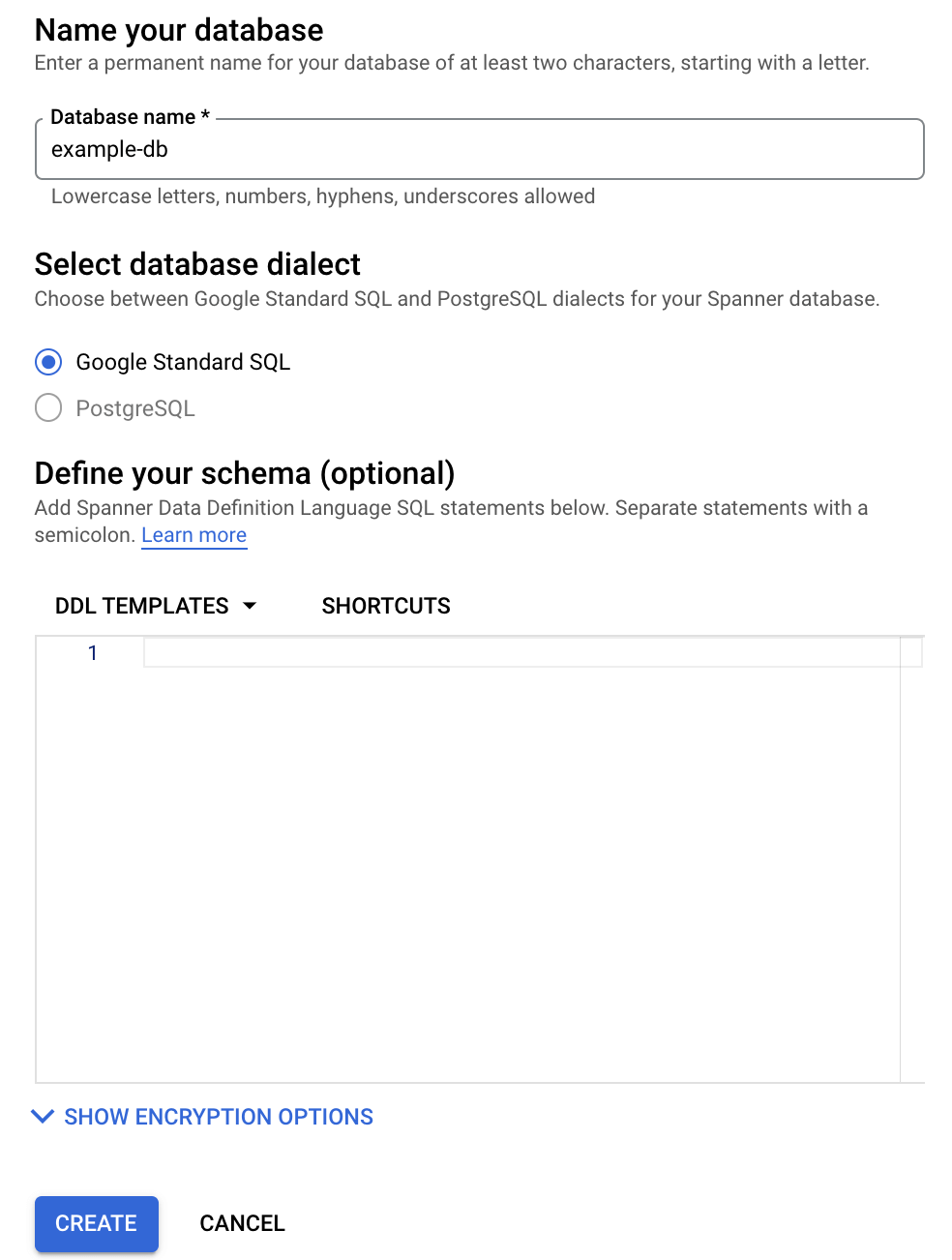
在資料庫名稱一欄輸入名稱,例如 example-db。
選取資料庫方言。
如要瞭解 PostgreSQL 的支援情形,以及選擇方言的指南,請參閱 PostgreSQL 介面。如果您選取 GoogleSQL,請在本快速入門導覽課程的下一節,在「Define your schema」(定義結構定義) 文字欄位中定義結構定義。
您目前的資料庫建立頁面如下所示:
點選「建立」。
Google Cloud 控制台會顯示您建立的資料庫「總覽」頁面。
建立資料庫的結構定義
在導覽選單中,按一下「Spanner Studio」。
在「Spanner Studio」頁面中,按一下「新增分頁」,或使用空白的編輯器分頁。
輸入:
GoogleSQL
CREATE TABLE Singers (
  SingerId   INT64 NOT NULL,
  FirstName  STRING(1024),
  LastName   STRING(1024),
  SingerInfo BYTES(MAX),
  BirthDate  DATE
) PRIMARY KEY(SingerId);
PostgreSQL
CREATE TABLE Singers ( BirthDate TIMESTAMPTZ, SingerId BIGINT PRIMARY KEY, FirstName VARCHAR(1024), LastName VARCHAR(1024), SingerInfo BYTEA );按一下「執行」。
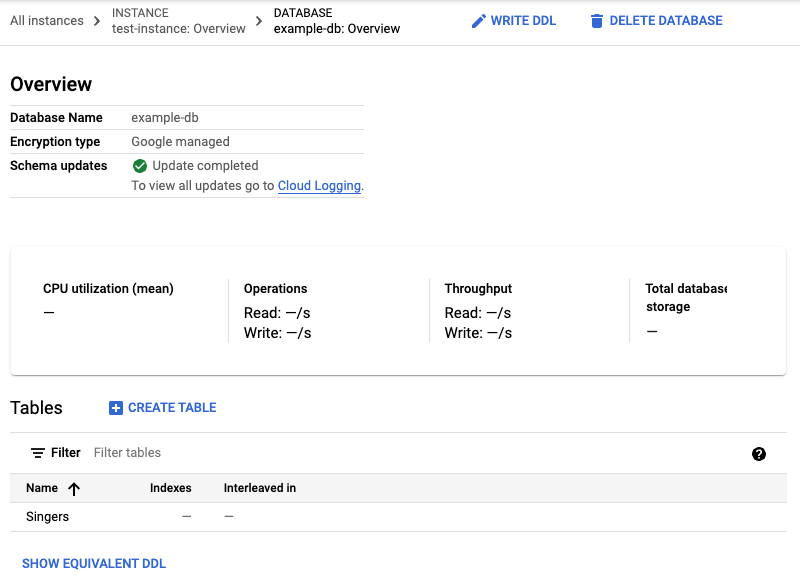
Google Cloud 控制台會返回資料庫的「總覽」頁面,並顯示「結構定義更新」正在進行中。更新完成後,頁面會顯示如下內容:
GoogleSQL
PostgreSQL
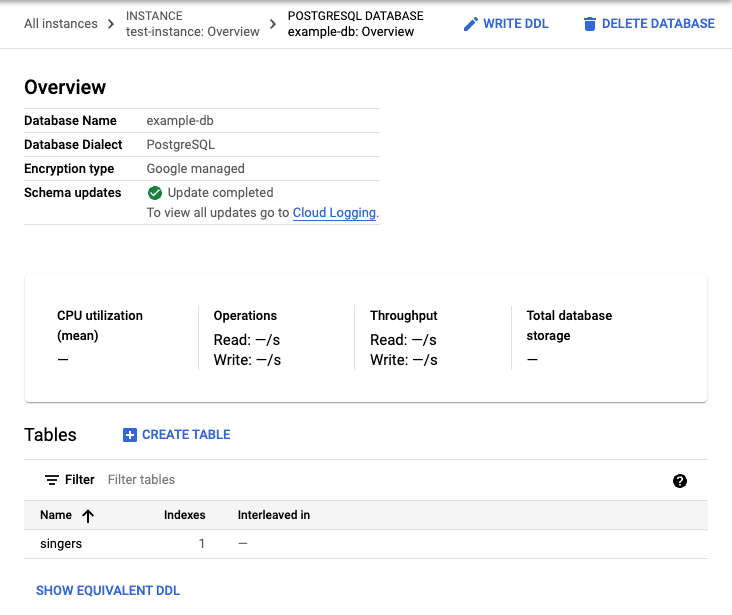
請注意,PostgreSQL 會將資料表名稱轉換為小寫。
插入及修改資料
Google Cloud 控制台提供的介面可用於插入、編輯及刪除資料。
插入資料
在資料庫「總覽」頁面的資料表清單中,按一下 Singers 資料表。
Google Cloud 控制台會顯示 Singers 資料表的「結構定義」頁面。
在導覽選單中,按一下「資料」,顯示 Singers 資料表的「資料」頁面。
按一下 [插入]。
Google Cloud 控制台會顯示 Singers 資料表的 Spanner Studio 頁面,以及包含
INSERT陳述式的新查詢分頁,您可編輯該陳述式,在 Singers 資料表中插入資料列,並查看插入結果:GoogleSQL
 -- Add new values in the VALUES clause in order of the column list.
 -- Each value must be type compatible with its associated column.
INSERT INTO
 Singers (SingerId,
   FirstName,
   LastName,
   SingerInfo,
   BirthDate)
VALUES
 (<SingerId>, -- type: INT64
   <FirstName>, -- type: STRING(1024)
   <LastName>, -- type: STRING(1024)
   <SingerInfo>, -- type: BYTES(MAX)
   <BirthDate> -- type: DATE
   )
THEN RETURN
 SingerId,
 FirstName,
 LastName,
 SingerInfo,
 BirthDate;
PostgreSQL
  -- Add new values in the VALUES clause in order of the column list.
  -- Each value must be type compatible with its associated column.
INSERT INTO
  singers (singerid,
    firstname,
    lastname,
    singerinfo,
    birthdate)
VALUES
  (<singerid>, -- type: bigint
    <firstname>, -- type: character varying
    <lastname>, -- type: character varying
    <singerinfo>, -- type: bytea
    <birthdate> -- type: timestamp with time zone
    );
THEN RETURN
   singerid,
   firstname,
   lastname,
   singerinfo,
   birthdate;
請注意,PostgreSQL 會將資料欄名稱全數轉換為小寫。
編輯
INSERT陳述的VALUES子句。GoogleSQL
  -- Add new values in the VALUES clause in order of the column list.
  -- Each value must be type compatible with its associated column.
INSERT INTO
  Singers (SingerId,
    BirthDate,
    FirstName,
    LastName,
    SingerInfo)
VALUES
  (1, -- type: INT64
    NULL, -- type: DATE
    'Marc', -- type: STRING(1024)
    'Richards', -- type: STRING(1024)
    NULL -- type: BYTES(MAX)
    )
THEN RETURN
  SingerId,
  FirstName,
  LastName,
  SingerInfo,
  BirthDate;
PostgreSQL
  -- Add new values in the VALUES clause in order of the column list.
  -- Each value must be type compatible with its associated column.
INSERT INTO
  singers (singerid,
    birthdate,
    firstname,
    lastname,
    singerinfo)
VALUES
  (1, -- type: bigint
    NULL, -- type: timestamp with time zone
    'Marc', -- type: character varying
    'Richards', -- type: character varying
    NULL -- type: bytea
    );
THEN RETURN
   singerid,
   firstname,
   lastname,
   singerinfo,
   birthdate;
按一下 「Run」(執行)。
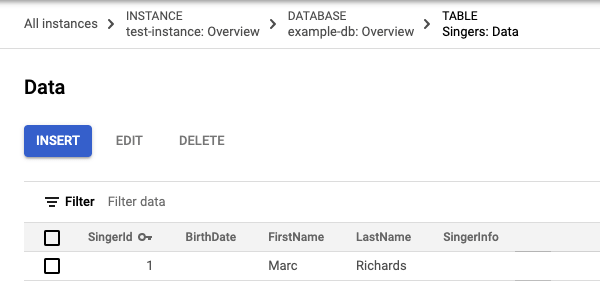
Spanner 會執行陳述式。完成後,「結果」分頁會顯示陳述式插入了一列:
GoogleSQL
PostgreSQL
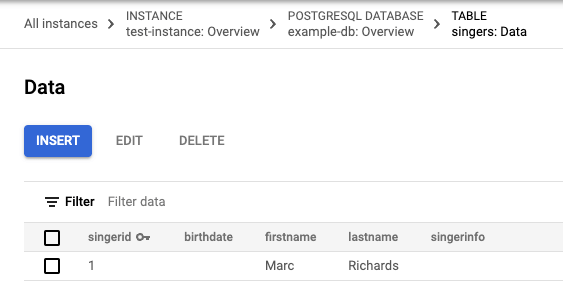
在「Explorer」中,按一下「Singers」資料表旁的「查看動作」,然後按一下「插入資料」。
編輯
INSERT陳述式的VALUES子句和SELECT陳述式的WHERE子句:GoogleSQL
  -- Add new values in the VALUES clause in order of the column list.
  -- Each value must be type compatible with its associated column.
INSERT INTO
  Singers (SingerId,
    BirthDate,
    FirstName,
    LastName,
    SingerInfo)
VALUES
  (2, -- type: INT64
    NULL, -- type: DATE
    'Catalina', -- type: STRING(1024)
    'Smith', -- type: STRING(1024)
    NULL -- type: BYTES(MAX)
    )
  -- Change values in the WHERE condition to match the inserted row.
SELECT
  *
FROM
  Singers
WHERE
  SingerId=2;
PostgreSQL
-- Add new values in the VALUES clause in order of the column list. -- Each value must be type compatible with its associated column. INSERT INTO singers (singerid, birthdate, firstname, lastname, singerinfo) VALUES (2, -- type: bigint NULL, -- type: timestamp with time zone 'Catalina', -- type: character varying 'Smith', -- type: character varying NULL -- type: bytea ); -- Change values in the WHERE condition to match the inserted row. SELECT * FROM singers WHERE singerid=2;按一下「執行」。
Spanner 執行陳述式後,「結果」分頁會顯示陳述式插入了一列。
在「Explorer」中,按一下「Singers」資料表旁的「查看動作」,然後按一下「預覽資料」。
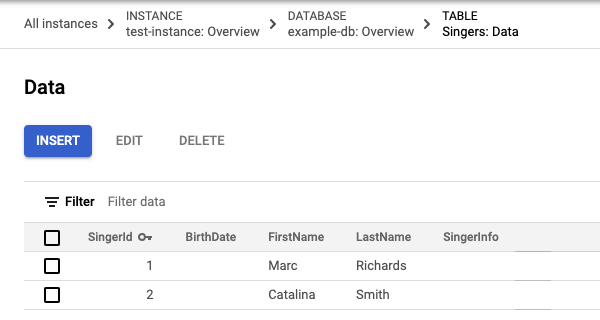
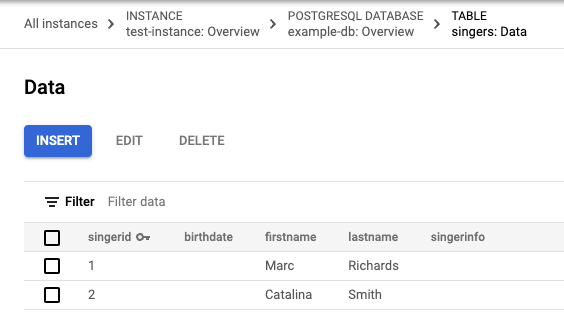
按一下「Run」(執行)。「Singers」資料表現在會有兩列:
GoogleSQL
PostgreSQL
輸入資料時,您也可以插入空字串值。
按一下「插入」新增一列。
Spanner 會再次顯示 Singers 資料表的「Spanner Studio」頁面,並在新的查詢分頁中包含相同的
INSERT和SELECT陳述式。編輯範本
INSERT陳述式的VALUES子句和SELECT陳述式的WHERE子句:GoogleSQL
  -- Add new values in the VALUES clause in order of the column list.
  -- Each value must be type compatible with its associated column.
INSERT INTO
  Singers (SingerId,
    BirthDate,
    FirstName,
    LastName,
    SingerInfo)
VALUES
  (3, -- type: INT64
    NULL, -- type: DATE
    'Kena', -- type: STRING(1024)
    '', -- type: STRING(1024)
    NULL -- type: BYTES(MAX)
    );
  -- Change values in the WHERE condition to match the inserted row.
SELECT
  *
FROM
  Singers
WHERE
  SingerId=3;
PostgreSQL
  -- Add new values in the VALUES clause in order of the column list.
  -- Each value must be type compatible with its associated column.
INSERT INTO
  singers (singerid,
    birthdate,
    firstname,
    lastname,
    singerinfo)
VALUES
  (3, -- type: bigint
    NULL, -- type: timestamp with time zone
    'Kena', -- type: character varying
    '', -- type: character varying
    NULL -- type: bytea
    );
  -- Change values in the WHERE condition to match the inserted row.
SELECT
  *
FROM
  singers
WHERE
  singerid=3;
請注意,提供給姓氏欄的值是空字串
'',而非NULL值。按一下「執行」。
Spanner 執行陳述式後,「結果」分頁會顯示陳述式插入了一列。
在「Explorer」中,按一下「Singers」資料表旁的「查看動作」,然後按一下「預覽資料」。
按一下「Run」(執行)。
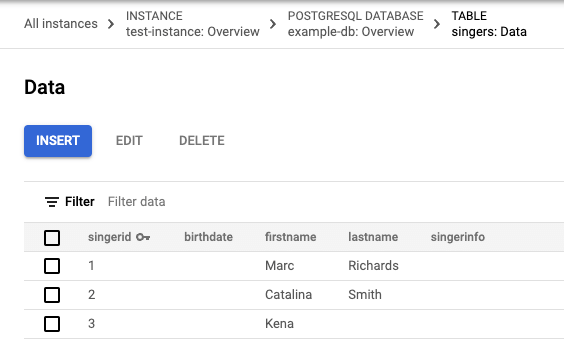
Singers資料表現在會有三列,且主鍵值為3的資料列在LastName資料欄中會顯示空字串:GoogleSQL
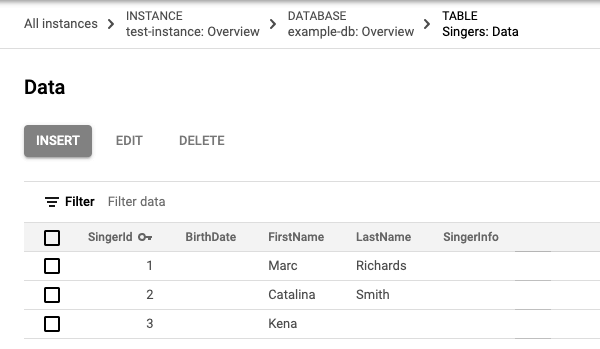
PostgreSQL
編輯資料
在「歌手」資料表的「資料」頁面中,選取主鍵值為
3的資料列核取方塊,然後按一下「編輯」。Spanner 會顯示「Spanner Studio」頁面,並在新分頁中顯示範本
UPDATE和SET陳述式,供您編輯。請注意,兩項陳述式的WHERE子句都指出要更新的資料列,是主鍵值為3的資料列。GoogleSQL
  -- Change values in the SET clause to update the row where the WHERE condition is true.
UPDATE
  Singers
SET
  BirthDate='',
  FirstName='Kena',
  LastName='',
  SingerInfo=''
WHERE
  SingerId=3;
SELECT
  *
FROM
  Singers
WHERE
  SingerId=3;
PostgreSQL
  -- Change values in the SET clause to update the row where the WHERE condition is true.
UPDATE
  singers
SET
  birthdate=NULL,
  firstname='Kena',
  lastname='',
  singerinfo=NULL
WHERE
  singerid='3';
SELECT
  *
FROM
  singers
WHERE
  singerid='3';
編輯
UPDATE陳述式的SET子句,只更新出生日期:GoogleSQL
  -- Change values in the SET clause to update the row where the WHERE condition is true.
UPDATE
  Singers
SET
  BirthDate='1961-04-01'
WHERE
  SingerId=3;
SELECT
  *
FROM
  Singers
WHERE
  SingerId=3;
PostgreSQL
-- Change values in the SET clause to update the row where the WHERE condition is true. UPDATE singers SET birthdate='1961-04-01 00:00:00 -8:00' WHERE singerid='3'; SELECT * FROM singers WHERE singerid='3';按一下「執行」。
Spanner 會執行陳述式。完成後,「結果」分頁會顯示第一個陳述式更新了一列。
在「Explorer」中,按一下「Singers」資料表旁的「查看動作」,然後按一下「預覽資料」。
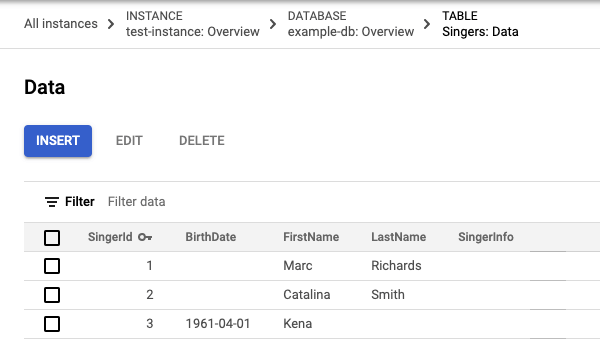
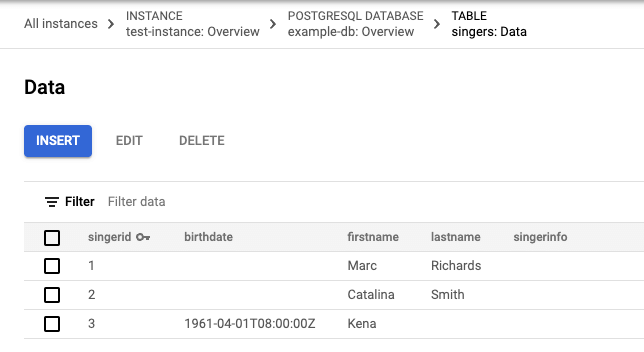
按一下「Run」(執行)。更新後的資料列現在有出生日期值。
GoogleSQL
PostgreSQL
刪除資料
- 在「Singers」資料表的「Data」頁面中,選取第一欄含有
2的資料列核取方塊,然後按一下「Delete」。 在隨即顯示的對話方塊中,按一下「Confirm」(確認)。
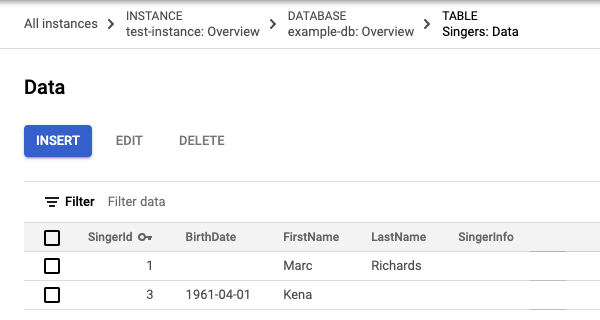
「Singers」資料表現在會有兩列:
GoogleSQL
PostgreSQL
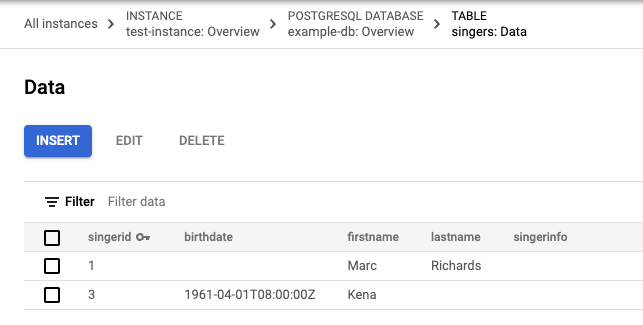
在 Google Cloud 控制台中執行查詢
在資料庫「總覽」頁面,點選導覽選單中的「Spanner Studio」。
按一下「新增分頁」,建立新的查詢分頁。然後在查詢編輯器中輸入下列查詢:
GoogleSQL
SELECT * FROM Singers;PostgreSQL
SELECT * FROM singers;按一下「執行」。
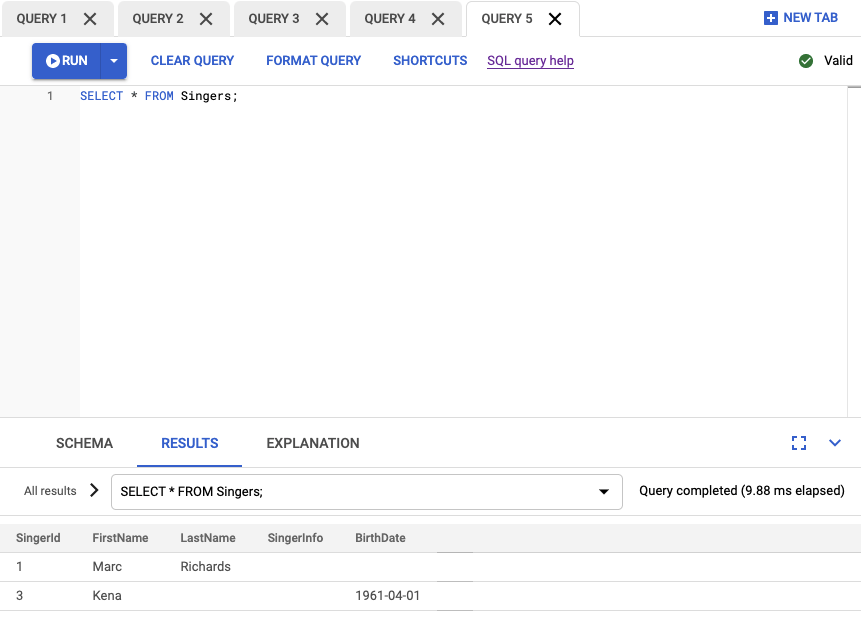
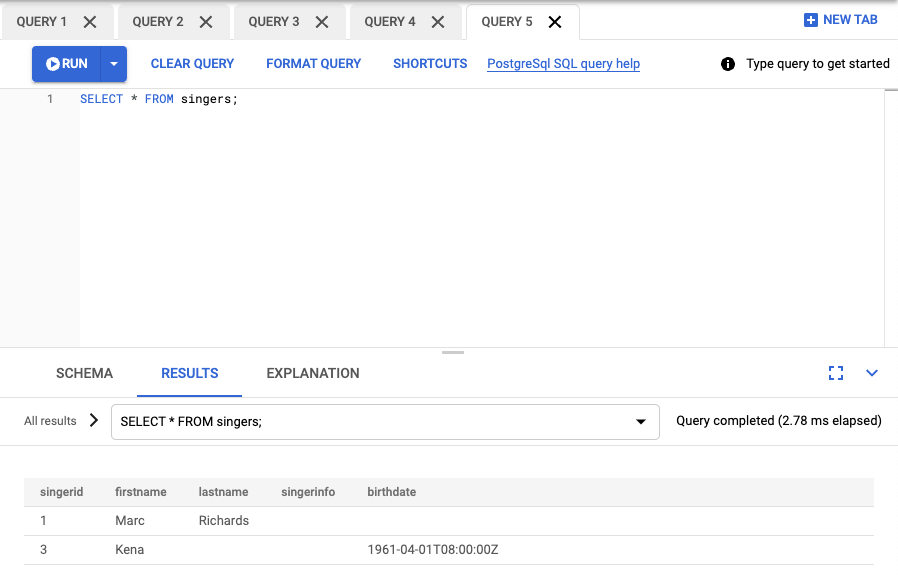
Spanner 會執行查詢。完成後,「結果」分頁會顯示查詢結果:
GoogleSQL
PostgreSQL
恭喜!您已成功建立 Spanner 資料庫,並使用查詢編輯器執行 SQL 陳述式。
清除所用資源
如要避免系統向您的 Google Cloud 帳戶收取額外費用,請刪除資料庫和執行個體。停用 Cloud Billing API 不會停止收費。刪除執行個體時,也會刪除其中的所有資料庫。
刪除資料庫
前往 Google Cloud 控制台的「Spanner Instances」(Spanner 執行個體) 頁面。
按一下要刪除資料庫的執行個體名稱,例如「Test Instance」。
按一下要刪除的資料庫名稱,例如 example-db。
在「Database details」(資料庫詳細資料) 頁面,按一下 delete「Delete database」(刪除資料庫)。
輸入資料庫名稱,然後按一下「刪除」,確認要刪除資料庫。
刪除執行個體
前往 Google Cloud 控制台的「Spanner Instances」(Spanner 執行個體) 頁面。
按一下要刪除的執行個體名稱,例如「Test Instance」。
按一下 delete「Delete instance」(刪除執行個體)。
輸入執行個體名稱,然後按一下「刪除」,確認要刪除執行個體。
後續步驟
- 瞭解執行個體。
- 瞭解 Spanner 結構定義與資料模型。
- 進一步瞭解 GoogleSQL 資料定義語言 (DDL)。
- 進一步瞭解查詢執行計畫。
- 瞭解如何搭配 C++、C#、Go、Java、Node.js、PHP、Python、Ruby、REST 或 gcloud 使用 Spanner。