This document describes how to let Sensitive Data Protection discover and profile data in your VPC Service Controls perimeters. If your organization uses VPC Service Controls to restrict services in projects that Sensitive Data Protection scans, then perform the tasks in this document.
For more information, see Overview of sensitive data discovery.
For information about VPC Service Controls support for Sensitive Data Protection, see the Supported products table in the VPC Service Controls documentation.
Before you begin
Make sure that you have the following role or roles on the organization:
Access Context Manager Editor
(roles/accesscontextmanager.policyEditor).
Check for the roles
-
In the Google Cloud console, go to the IAM page.
Go to IAM - Select the organization.
-
In the Principal column, find all rows that identify you or a group that you're included in. To learn which groups you're included in, contact your administrator.
- For all rows that specify or include you, check the Role column to see whether the list of roles includes the required roles.
Grant the roles
-
In the Google Cloud console, go to the IAM page.
Go to IAM - Select the organization.
- Click Grant access.
-
In the New principals field, enter your user identifier. This is typically the email address for a Google Account.
- Click Select a role, then search for the role.
- To grant additional roles, click Add another role and add each additional role.
- Click Save.
Configure sensitive data discovery within VPC Service Controls
You can configure Sensitive Data Protection discovery within a VPC Service Controls perimeter using one of these architectural approaches.
Option 1: All required resources in the same perimeter as the data to scan
Ensure that all components involved in the discovery operation are located within the same perimeter. That is, these components must all be in the same perimeter:
- The projects to scan.
- The discovery scan configuration.
- The service agent specified in the discovery scan configuration.
- The service agent container (also known as the driver project), which hosts the service agent.
- Any inspection templates specified in the discovery scan configuration.
If you have multiple VPC Service Controls perimeters in your organization, then create dedicated components inside each of those perimeters.
For example, if a perimeter includes multiple projects that belong to the same folder, create a discovery scan configuration that is scoped to that folder. Make sure that the service agent container that you use is one of the projects in that same perimeter.
If you choose this option, you don't need to create ingress and egress rules for sensitive data discovery.
Option 2: Centralized discovery configuration with ingress and egress rules
Create a centralized discovery scan configuration for your entire organization or for multiple projects across multiple perimeters.
If this centralized discovery scan configuration doesn't reside within the same perimeter as the data to scan, then create ingress and egress rules.
Create the ingress and egress rules
Create these ingress and egress rules if you choose Option 2 and the data to scan is in a different perimeter from the centralized discovery scan configuration.
For more information, see Updating ingress and egress policies for a service perimeter in the VPC Service Controls documentation.
To define your ingress and egress rules, you can use one or both of the following:
- Service agent ID specified in the centralized discovery scan configuration
- Project that contains the centralized discovery scan configuration
Ingress rules
For each perimeter that contains data to scan, update the ingress policy to add an ingress rule for sensitive data discovery operations.
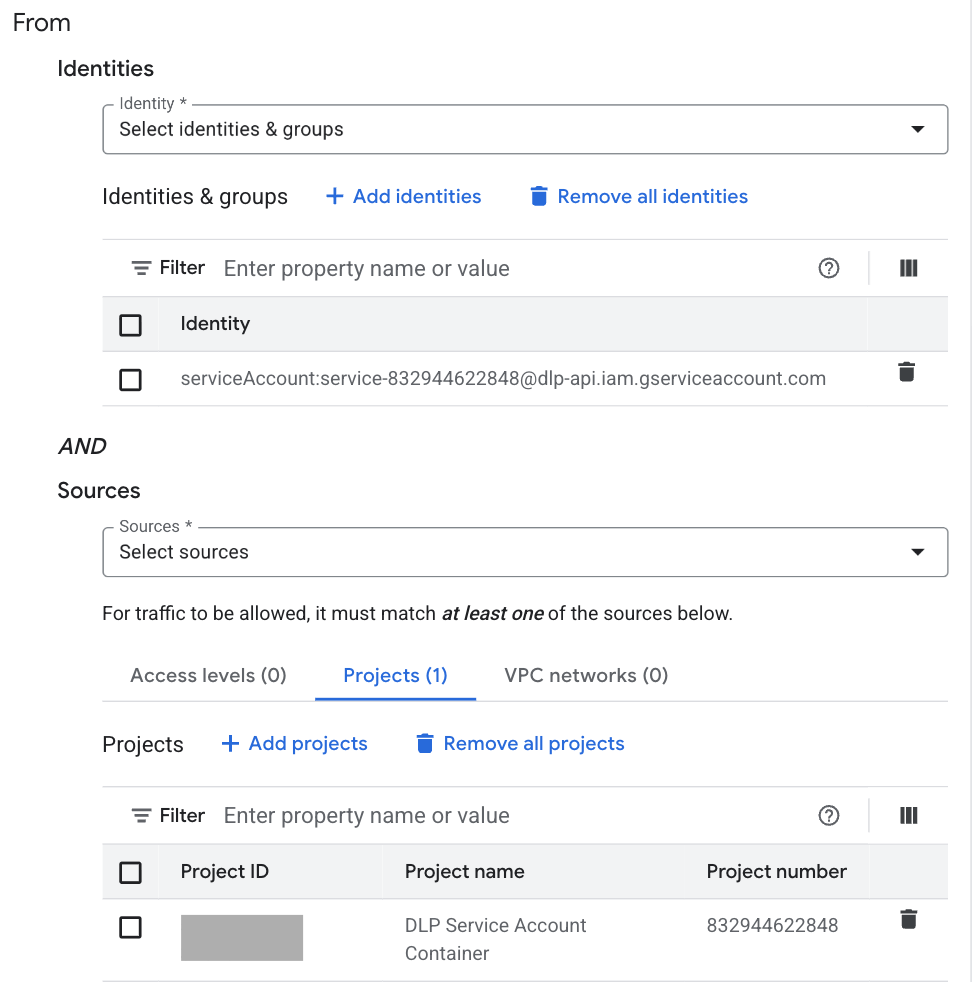
To use the service agent ID, in the From section, set Identities to Select identities & groups. Add and select the service agent ID specified in the centralized discovery scan configuration. The service agent's ID has the following format:
service-PROJECT_NUMBER@dlp-api.iam.iam.gserviceaccount.comReplace
PROJECT_NUMBERwith the numerical identifier of the service agent container.To use the project, in the From section, set Sources to the project that contains the centralized discovery scan configuration.
The following example uses both the service agent ID and the project to define the ingress rule.
Egress rules
For each perimeter that contains data to scan, update the egress policy to add an egress rule for sensitive data discovery operations.
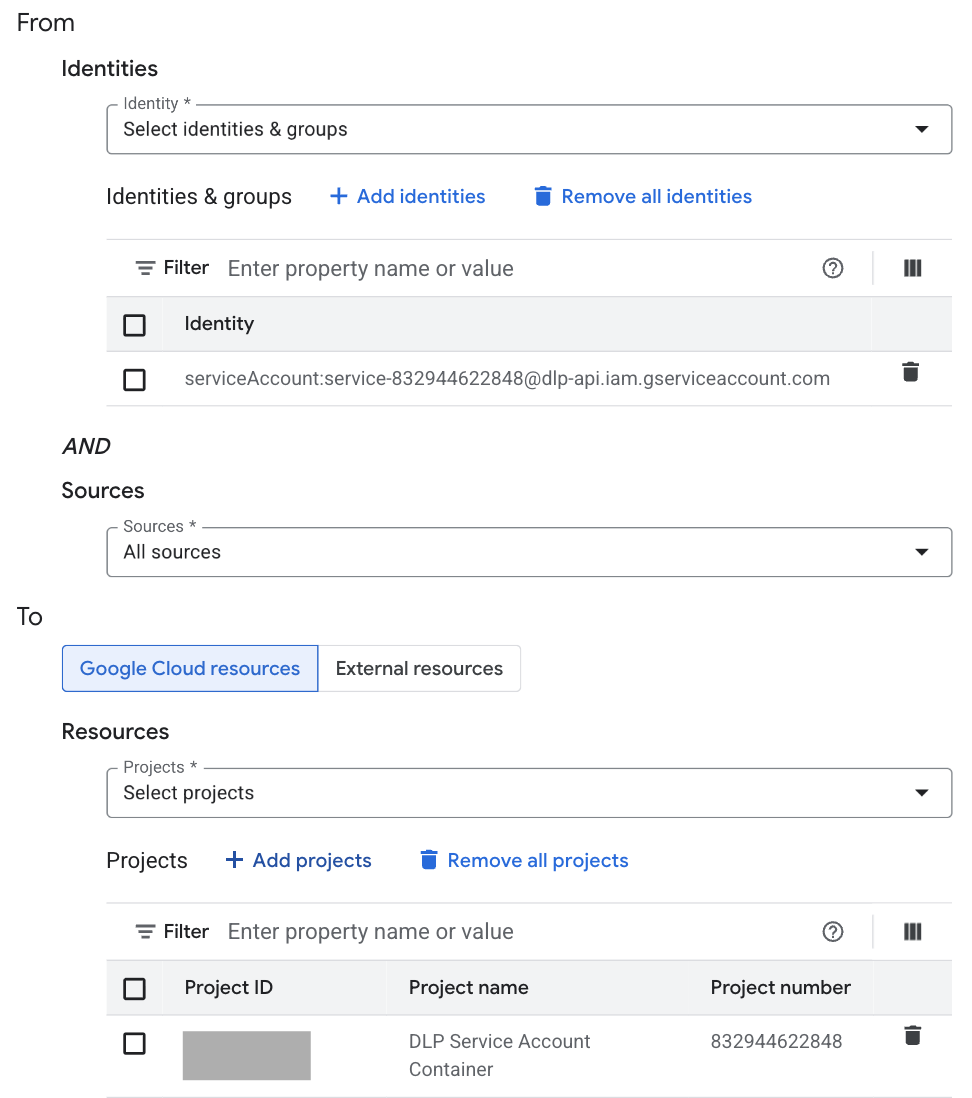
To use the service agent ID, in the From section, set Identities to Select identities & groups. Add and select the service agent ID specified in the centralized discovery scan configuration. The service agent's ID has the following format:
service-PROJECT_NUMBER@dlp-api.iam.iam.gserviceaccount.comReplace
PROJECT_NUMBERwith the numerical identifier of the service agent container.To use the project, in the To section, set Resources to Select projects. Add and select the project that contains the centralized discovery scan configuration.
The following example uses both the service agent ID and the project to define the egress rule.