

This document describes how to configure and deploy a highly available, multi-region Cloud Run service with automated failover and failback capabilities.
Cloud Run service health exposes the aggregate health of your service in each region using Serverless Network Endpoint Groups (NEGs).
To route public (external) traffic, you configure service health with a global external Application Load Balancer.
To route private (internal) traffic, you configure service health with a cross-region internal Application Load Balancer.
How it works
Automated failover routes incoming requests from a global external Application Load Balancer or cross-region internal Application Load Balancer through regional serverless NEGs to your Cloud Run services. Individual container instances run readiness probes, which Cloud Run aggregates to determine the overall health status of each regional service.
A Cloud Run service in a region is healthy and receives traffic if 60% or more of its instances pass their readiness probes. If a region becomes unhealthy, the load balancer automatically reroutes traffic to a healthy region. Once the unhealthy region recovers, the load balancer gradually restores traffic to it.
Limitations
The following limitations apply to Cloud Run service health:
- You must configure at least one service-level or revision-level minimum instance per region to calculate health. You can also use the Container instance count metric in Cloud Monitoring to estimate the required minimum instances for your regions.
- Failovers require at least two services from different regions. Otherwise, if
one service fails, the error message
no healthy upstreamis displayed. - You can't configure a URL mask or tags in serverless NEGs.
- If a Cloud Run service is deleted, Cloud Run doesn't report an unhealthy status to the load balancer.
- Starting a new instance won't count the first readiness probe, so a request might briefly route to a newly started service before becoming unhealthy.
- Cloud Run service health is computed across all instances.
Revisions without probes and newly started instances that haven't completed
their first readiness probe are treated as unknown. During a transition of all
traffic between revisions, service health can briefly report
UNKNOWNwhile new instances start and complete their first readiness probe. The load balancer treats unknown instances as healthy. - Service health computation might yield inaccurate results if instances are rapidly crashing.
Best practices
You can use a combination of readiness probes, traffic splitting, and minimum instances to perform safe, gradual rollouts. This lets you verify the health of a new revision in a single "canary" region before promoting it, ensuring that the load balancer only sends traffic to healthy regional backends.
When configuring probes on your own application, add an HTTP/1 endpoint
(the Cloud Run default, not HTTP/2) in your service code to
respond to the probe. The endpoint name (for example, /startup, /health, or
/are_you_ready) must match the path in the probe configuration. HTTP health
check endpoints are externally accessible and follow the same principles as any
other externally exposed HTTP service endpoints.
Recommended rollout process
You can roll out a service revision on an existing Cloud Run service that's not using a readiness probe or Cloud Run service health. Follow this process one region at a time to safely deploy a new revision:
Deploy the new revision in a single "canary" region with a readiness probe configured.
Send a small amount of traffic (for example, 1%) to the new revision.
Use non-zero minimum instances at the service level, rather than at the revision level.
Check the readiness probe metric (
run.googleapis.com/container/instance_count_with_readiness) to ensure that new instances are healthy.In incremental steps, increase the traffic percentage to the new revision. As you ramp up, monitor the regional Cloud Run service health metric (
run.googleapis.com/service_health_count), which is used by the load balancer. Cloud Run service health reportsUNKNOWNuntil enough traffic is routed to the new revision.Once the revision receives 100% of traffic and the regional Cloud Run service health is stable and healthy, repeat this process for all other regions.
For services that already use Cloud Run service health, you can
run a two-step rollout in parallel across regions to avoid reporting UNKNOWN:
Route a portion of traffic to the new revision. Wait for new instances to start and pass readiness probes.
Route 100% of traffic to the new revision.
Tutorial: Configure automated failover
This tutorial guides you through deploying a sample Go application to two regions, setting up a global external Application Load Balancer with serverless NEGs, and testing automated failover.
In this tutorial, you will:
- Prepare the sample application
- Deploy Cloud Run services in two regions with readiness probes
- Set up a global external Application Load Balancer
- Add your services through the serverless NEG
- Test failover
In this document, you use the following billable components of Google Cloud:
To generate a cost estimate based on your projected usage,
use the pricing calculator.
- Sign in to your Google Cloud account. If you're new to Google Cloud, create an account to evaluate how our products perform in real-world scenarios. New customers also get $300 in free credits to run, test, and deploy workloads.
-
In the Google Cloud console, on the project selector page, select or create a Google Cloud project.
Roles required to select or create a project
- Select a project: Selecting a project doesn't require a specific IAM role—you can select any project that you've been granted a role on.
-
Create a project: To create a project, you need the Project Creator role
(
roles/resourcemanager.projectCreator), which contains theresourcemanager.projects.createpermission. Learn how to grant roles.
-
Verify that billing is enabled for your Google Cloud project.
-
In the Google Cloud console, on the project selector page, select or create a Google Cloud project.
Roles required to select or create a project
- Select a project: Selecting a project doesn't require a specific IAM role—you can select any project that you've been granted a role on.
-
Create a project: To create a project, you need the Project Creator role
(
roles/resourcemanager.projectCreator), which contains theresourcemanager.projects.createpermission. Learn how to grant roles.
-
Verify that billing is enabled for your Google Cloud project.
Enable the Artifact Registry, Cloud Build, Cloud Run Admin API, Network Services API, and Compute Engine APIs, if any are not already enabled.
Roles required to enable APIs
To enable APIs, you need the
serviceusage.services.enablepermission. If you created the project, then you likely already have this permission through the Owner role (roles/owner). Otherwise, you can get this permission through the Service Usage Admin role (roles/serviceusage.serviceUsageAdmin). Learn how to grant roles.- Install and initialize the gcloud CLI.
- Update components:
gcloud components update
- Set the configuration variables used in this tutorial:
PROJECT_ID= gcloud config set core/project PROJECT_ID
PROJECT_NUMBER=$(gcloud projects describe PROJECT_ID --format="value(projectNumber)")
SERVICE=health-example
REGION_A=us-west1
REGION_B=europe-west1
Set required roles
To deploy from source with build, you or your administrator must grant the Cloud Build service account the following IAM roles.
Click to view required roles for the Cloud Build service account
Cloud Build automatically uses the
Compute Engine default service
account as the default Cloud Build service account to build your source code and
Cloud Run resource, unless you override this behavior. For
Cloud Build to build your sources, ask your administrator to grant
Cloud Run Builder
(roles/run.builder) to the Compute Engine default
service account on your project:
  gcloud projects add-iam-policy-binding PROJECT_ID \
      --member=serviceAccount:PROJECT_NUMBER-compute@developer.gserviceaccount.com \
      --role=roles/run.builder
Replace PROJECT_NUMBER with your Google Cloud
project number, and PROJECT_ID with your Google Cloud
project ID. For detailed instructions on how to find your project ID, and project number,
see Creating
and managing projects.
Granting the Cloud Run builder role to the Compute Engine default service account takes a couple of minutes to propagate.
To get the permissions that your service identity needs to access the file and Cloud Storage bucket, ask your
administrator to grant the service identity the Storage Admin (roles/storage.admin) role.
For more details on Cloud Storage roles and permissions, see
IAM for Cloud Storage.
For a list of IAM roles and permissions that are associated with Cloud Run, see Cloud Run IAM roles and Cloud Run IAM permissions. If your Cloud Run service interfaces with Google Cloud APIs, such as Cloud Client Libraries, see the service identity configuration guide. For more information about granting roles, see deployment permissions and manage access.
Prepare the sample application
To retrieve the code sample for use:
Clone the sample repository to your local machine:
git clone https://github.com/GoogleCloudPlatform/golang-samplesChange to the directory that contains the Cloud Run sample code:
cd golang-samples/run/service-health
Deploy the Cloud Run service in two regions with readiness probes
Failovers require at least two services from different regions. To deploy your services from source in two different regions with readiness probes, run the following commands. If you prefer to use Terraform, see Deploy a multi-region service and ensure you add the readiness probe configuration.
Deploy your service
health-exampleinus-west1andeurope-west1from the source directory. You need at least one minimum instance to configure service health with readiness probes:gcloud run deploy $SERVICE \ --source=. \ --regions=$REGION_A,$REGION_B \ --min=10 \ --readiness-probe httpGet.path="/are_you_ready"Respond to any prompts to install required APIs by responding
ywhen prompted. You only need to do this once for a project. Respond to other prompts by supplying the platform and region, if you haven't set defaults for these as described in the Before you begin section.
Set up a global external Application Load Balancer
To set up a global external Application Load Balancer to route traffic between
us-west1 and europe-west1, follow
these steps. If you prefer to provision your load balancer using Terraform,
see Create a global external Application Load Balancer.
Create a backend service:
gcloud compute backend-services create $SERVICE-bs \
  --load-balancing-scheme=EXTERNAL_MANAGED \
  --global
Set up a global static external IP address to reach your load balancer:
gcloud compute addresses create $SERVICE-ip \
  --network-tier=PREMIUM \
  --ip-version=IPV4 \
  --global
Create a URL map to route incoming requests to the backend service:
gcloud compute url-maps create $SERVICE-lb \
  --default-service $SERVICE-bs
Create a target HTTP proxy to route requests to your URL map:
gcloud compute target-http-proxies create $SERVICE-hp \
--url-map=$SERVICE-lb
Create a forwarding rule to route incoming requests to the proxy:
gcloud compute forwarding-rules create $SERVICE-fr \
  --load-balancing-scheme=EXTERNAL_MANAGED \
  --network-tier=PREMIUM \
  --address=$SERVICE-ip \
  --target-http-proxy=$SERVICE-hp \
  --global \
  --ports=80
Add your services through a serverless NEG
To add the services you deployed in us-west1 and
europe-west1 using the Serverless NEG, follow these
steps. If you prefer to provision your serverless NEGs using Terraform,
see Configure regional network endpoint groups.
Create a serverless network endpoint group (NEG) for your Cloud Run service in
us-west1andeurope-west1:gcloud compute network-endpoint-groups create $SERVICE-neg-$REGION_A \ --region $REGION_A \ --network-endpoint-type=serverless \ --cloud-run-service=$SERVICEgcloud compute network-endpoint-groups create $SERVICE-neg-$REGION_B \ --region $REGION_B \ --network-endpoint-type=serverless \ --cloud-run-service=$SERVICEAdd the serverless NEG as a backend to the backend services in
us-west1andeurope-west1:gcloud compute backend-services add-backend $SERVICE-bs \ --global \ --network-endpoint-group=$SERVICE-neg-$REGION_A \ --network-endpoint-group-region=$REGION_Agcloud compute backend-services add-backend $SERVICE-bs \ --global \ --network-endpoint-group=$SERVICE-neg-$REGION_B \ --network-endpoint-group-region=$REGION_B
For additional configuration options, see Set up a global external Application Load Balancer with Cloud Run.
Report regional health status
To aggregate regional Cloud Run service health and report a healthy or unhealthy status to the load balancer, perform the following steps:
Deploy a Cloud Run service revision in multiple regions with one or more minimum instances. Run the following command to use the readiness probe that you configured in the previous step:
gcloud run deploy
SERVICE_NAME\ --regions=REGION_A,REGION_B\ --min=MIN_INSTANCESReplace the following:
- SERVICE_NAME: the name of the service.
- REGION_A, REGION_B: different regions for
your service revision. For example, set REGION_A to
us-central1and REGION_B toeurope-west1. - MIN_INSTANCES: the number of container instances to be kept warm, ready to receive requests. You must set the minimum value to 1 or more.
Configure a gRPC or HTTP readiness probe set up on each container instance.
Configure a global external Application Load Balancer or cross-region internal Application Load Balancer to shift traffic away from unhealthy regions.
Set up Serverless NEGs for each Cloud Run service in each region.
Configure a backend service to connect with serverless NEGs.
Learn how to deploy a sample Cloud Run application to two regions with readiness probes.
Test and verify failover
To test failover for ensuring the reliability and resilience of your Cloud Run services, follow these steps:
Run the following command to get your load balancer's IP address:
LBIP=$(gcloud compute addresses describe $SERVICE-ip --global --format='value(address)')Optional: Send a request to your load balancer if your services require authentication:
curl -H "Authorization: Bearer $(gcloud auth print-identity-token)" $LBIPObtain the value of the LBIP variable by running the
echo $LBIPcommand. This outputs the load balancer's IP address. For example,11.22.33.44To test a failover, navigate to the
http://LOAD_BALANCER_IPURL where LOAD_BALANCER_IP is the value you obtained in the previous step. Click the toggle button for your region in the Serving Regions section. This designates the healthy region and the instance serving traffic: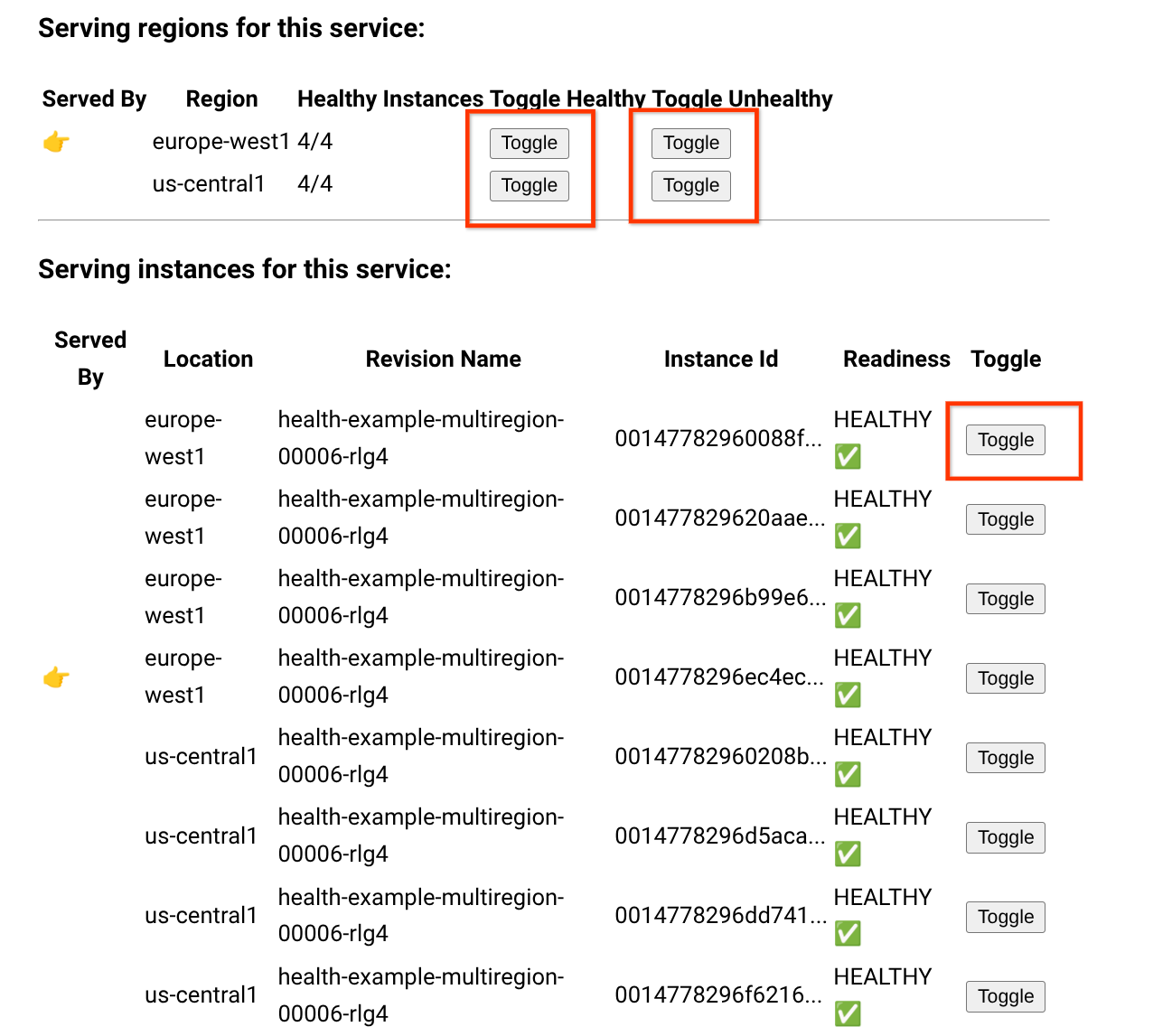
Monitor health checks
After you set up Cloud Run service health, serverless NEGs collect the Cloud Monitoring service health metric. You can view the health status for the existing regional services.
If a service in a region is unhealthy, the load balancer diverts traffic from the unhealthy region to a healthy region. Traffic recovers after the region becomes healthy again.
Use authenticated Pub/Sub push subscriptions with multi-region deployment
A Pub/Sub service by default delivers messages to push endpoints in the same Google Cloud region where the Pub/Sub service stores the messages. For a workaround to this behavior, refer to Using an authenticated Pub/Sub push subscription with a multi-region Cloud Run deployment.
Alternative: Configure manual failover
If you need to manually configure traffic to fail over to a healthy region without relying on probes, modify the global external Application Load Balancer URL map.
To update the global external Application Load Balancer URL map, remove the NEG from the backend service, using the
--globalflag:gcloud compute backend-services remove-backend
BACKEND_NAME\ --network-endpoint-group=NEG_NAME\ --network-endpoint-group-region=REGION\ --globalReplace the following:
BACKEND_NAME: The name of the backend service.NEG_NAME: The name of the network endpoint group resource, for example,myservice-neg-uscentral1.REGION: The region where the NEG was created and where you want to remove your service from. For example,us-central1,asia-east1.
To confirm that a healthy region is now serving traffic, navigate to https://
<domain-name>.
To avoid additional charges to your Google Cloud account, delete all the resources you deployed with this tutorial.
Delete the project
If you created a new project for this tutorial, delete the project. If you used an existing project and need to keep it without the changes you added in this tutorial, delete resources that you created for the tutorial.
The easiest way to eliminate billing is to delete the project that you created for the tutorial.
To delete the project:
- In the Google Cloud console, go to the Manage resources page.
- In the project list, select the project that you want to delete, and then click Delete.
- In the dialog, type the project ID, and then click Shut down to delete the project.
Delete tutorial resources
Delete the Cloud Run service you deployed in this tutorial. Cloud Run services don't incur costs until they receive requests.
To delete your Cloud Run service, run the following command:
gcloud run services delete SERVICE-NAME
Replace SERVICE-NAME with the name of your service.
You can also delete Cloud Run services from the Google Cloud console.
Remove the
gclouddefault region configuration you added during tutorial setup:gcloud config unset run/regionRemove the project configuration:
gcloud config unset project
What's next
- Learn more about Configuring health checks for Cloud Run services.
- Deep dive into global external Application Load Balancer setup with Cloud Run.
- Explore multi-region configurations in other products like Spanner Multi-region and Cloud Storage Locations.