

Agent Gateway lets you govern outbound traffic from AI agents that you build and host on Cloud Run. By routing egress traffic from your Cloud Run service through a self-managed Agent Gateway that runs on Secure Web Proxy, you can enforce centralized access policies, inspect payloads for content safety, and collect observability telemetry across your agentic workloads.
This document describes how to configure a centralized architecture for Agent Gateway on Cloud Run and covers how to do the following:
- Establish required Identity and Access Management (IAM) roles and prerequisites
- Create a self-managed Agent Gateway
- Configure Cloud Run ambient networking to access the Traffic Director API
- Deploy or update a Cloud Run service with ambient networking and Direct VPC egress
- Configure your Cloud Run agent to trust Agent Gateway
- Route egress traffic to Agent Gateway
- Configure access and content security policies on Agent Gateway
- Configure a centralized cross-project deployment with Shared VPC
Architecture
In a centralized self-managed deployment, Secure Web Proxy acts as the policy enforcement point and runs inside your Virtual Private Cloud (VPC) network. The ambient networking sidecar container intercepts outbound traffic from your Cloud Run agent and routes it through Direct VPC egress to your Secure Web Proxy instance. Secure Web Proxy enforces access and content rules from policy decision points such as Identity-Aware Proxy (IAP) and Model Armor.
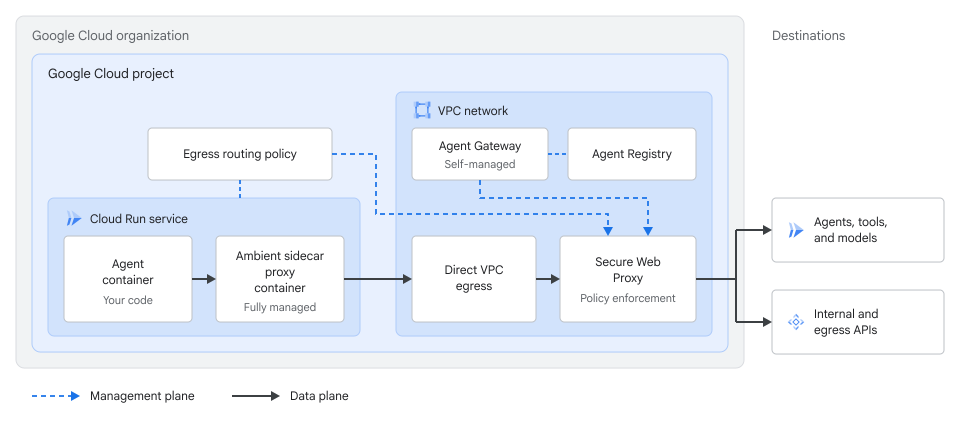
To route and govern traffic in this architecture, you configure the following components:
- Direct VPC egress and ambient networking: Your Cloud Run
service connects to your VPC network with
--vpc-egress=alland--ambient-networking, which uses the regional scope by default and routes all outbound traffic into your VPC network. - Self-managed Agent Gateway: A logical Agent Gateway resource in self-managed mode points to the Secure Web Proxy instance in your VPC network.
- Egress routing policy: A Network Services API
EgressRoutingpolicy directs outbound traffic from your Cloud Run service to your Secure Web Proxy instance.
Before you begin
- Sign in to your Google Cloud account. If you're new to Google Cloud, create an account to evaluate how our products perform in real-world scenarios. New customers also get $300 in free credits to run, test, and deploy workloads.
-
In the Google Cloud console, on the project selector page, select or create a Google Cloud project.
Roles required to select or create a project
- Select a project: Selecting a project doesn't require a specific IAM role—you can select any project that you've been granted a role on.
-
Create a project: To create a project, you need the Project Creator role
(
roles/resourcemanager.projectCreator), which contains theresourcemanager.projects.createpermission. Learn how to grant roles.
-
Verify that billing is enabled for your Google Cloud project.
-
Install the Google Cloud CLI.
-
If you're using an external identity provider (IdP), you must first sign in to the gcloud CLI with your federated identity.
-
To initialize the gcloud CLI, run the following command:
gcloud init -
In the Google Cloud console, on the project selector page, select or create a Google Cloud project.
Roles required to select or create a project
- Select a project: Selecting a project doesn't require a specific IAM role—you can select any project that you've been granted a role on.
-
Create a project: To create a project, you need the Project Creator role
(
roles/resourcemanager.projectCreator), which contains theresourcemanager.projects.createpermission. Learn how to grant roles.
-
Verify that billing is enabled for your Google Cloud project.
-
Install the Google Cloud CLI.
-
If you're using an external identity provider (IdP), you must first sign in to the gcloud CLI with your federated identity.
-
To initialize the gcloud CLI, run the following command:
gcloud init Enable the Cloud Run Admin API, Network Services API, Network Security API, Service Extensions API, Model Armor API, Certificate Authority Service API, Certificate Manager API, Cloud Resource Manager API, App Hub API, Identity and Access Management API, Identity-Aware Proxy API, Compute Engine API, Traffic Director API, Cloud DNS API, Network Connectivity API, and Agent Registry API APIs, if any are not already enabled.
Roles required to enable APIs
To enable APIs, you need the
serviceusage.services.enablepermission. If you created the project, then you likely already have this permission through the Owner role (roles/owner). Otherwise, you can get this permission through the Service Usage Admin role (roles/serviceusage.serviceUsageAdmin). Learn how to grant roles.- Create a VPC network and subnet with Private Google Access enabled on the subnet.
- Set up Agent Registry in your project or organization.
- Install and initialize the Google Cloud CLI.
-
Update gcloud CLI components:
gcloud components update
Required roles
To get the permissions that you need to configure Agent Gateway for Cloud Run, ask your administrator to grant you the following IAM roles on your project:
-
Deploy and manage Cloud Run resources:
Cloud Run Admin (
roles/run.admin) -
Manage Agent Registry resources:
Agent Registry API Admin (
roles/agentregistry.admin) -
Deploy with a specific identity:
IAM Service Account User (
roles/iam.serviceAccountUser) -
Manage VPC networks and subnets:
Compute Network Admin (
roles/compute.networkAdmin) -
Manage Agent Gateway and egress routing resources:
Network Services Admin (
roles/networkservices.admin) -
Configure authorization policies on Agent Gateway:
Network Security Admin (
roles/networksecurity.admin) -
Create extension bindings:
Service Extensions Admin (
roles/serviceextensions.admin) -
Manage Cloud DNS zones and record sets:
DNS Administrator (
roles/dns.admin) -
Export CA certificates from CA Service:
- CA Service Admin (
roles/privateca.admin) - CA Service Auditor (
roles/privateca.auditor)
- CA Service Admin (
-
Configure IAP and IAM access policies:
IAP Policy Admin (
roles/iap.admin) and Access Policy Admin (roles/iam.accessPolicyAdmin) -
Create Model Armor templates:
Model Armor Admin (
roles/modelarmor.admin) -
Grant project-level IAM roles to service agents:
Project IAM Admin (
roles/resourcemanager.projectIamAdmin)
For more information about granting roles, see Manage access to projects, folders, and organizations.
You might also be able to get the required permissions through custom roles or other predefined roles.
If you configure a cross-project deployment with Shared VPC, ask your
administrator to grant you
roles/compute.xpnAdmin
at the organization or folder level.
Create a self-managed Agent Gateway
Before creating the Agent Gateway resource, deploy and configure a Secure Web Proxy instance in your VPC network as described in Deploy Secure Web Proxy as an Agent Gateway:
- Set up TLS inspection
and
create a gateway security policy
that attaches your
TlsInspectionPolicy. You don't need Secure Web Proxy security policy rules or URL lists. - Create a
ServerTlsPolicyresource withallowOpen: falseandmtlsPolicy.clientValidationMode: ALLOW_INVALID_OR_MISSING_CLIENT_CERT. Don't setclientValidationTrustConfig. - Deploy a Secure Web Proxy instance
in explicit proxy routing mode with
addresses,ports,certificateUrls,gatewaySecurityPolicy, andserverTlsPolicyconfigured when you create the gateway so that Cloud Run passes your agent's workload identity to Secure Web Proxy and IAP over mTLS.
After your Secure Web Proxy instance is ready, create a self-managed Agent Gateway resource that points to your Secure Web Proxy instance:
Create a YAML configuration file named
my-agent-gateway.yaml:name: AGENT_GATEWAY_NAME registries: - "//agentregistry.googleapis.com/projects/PROJECT_ID/locations/REGION" selfManaged: resourceUris: - "projects/PROJECT_ID/locations/REGION/gateways/SWP_NAME"
Replace the following:
AGENT_GATEWAY_NAME: the name that you want to assign to your Agent Gateway resource.PROJECT_ID: the project ID that hosts your Secure Web Proxy instance.REGION: the region of your Secure Web Proxy instance, such asus-central1.SWP_NAME: the name of your Secure Web Proxy instance.
Import the Agent Gateway configuration:
gcloud beta network-services agent-gateways import AGENT_GATEWAY_NAME \
   --source="my-agent-gateway.yaml" \
   --location=REGION \
   --project=PROJECT_ID
Verify your Agent Gateway resource:
gcloud beta network-services agent-gateways describe AGENT_GATEWAY_NAME \
   --location=REGION \
   --project=PROJECT_ID
Confirm that the output displays your
selfManagedconfiguration and the resource URI of your Secure Web Proxy instance before proceeding to the next section.
Configure Cloud Run ambient networking to access the Traffic Director API
When you configure a Cloud Run service with Direct VPC egress
and --vpc-egress=all, all outbound connections from the container instance
route through your VPC network. This includes the Envoy sidecar
connection to
trafficdirector.REGION.rep.googleapis.com.
To let the sidecar resolve and reach the Traffic Director API, configure a private Cloud DNS zone in your VPC network based on whether your environment uses VPC Service Controls:
Without VPC Service Controls
If your project doesn't use VPC Service Controls, create a private
Cloud DNS zone that routes requests for
trafficdirector.REGION.rep.googleapis.com to your
Secure Web Proxy gateway IP address so Secure Web Proxy lets the traffic
through:
Retrieve the internal IP address of your Secure Web Proxy gateway:
SWP_IP=$(gcloud network-services gateways describe SWP_NAME \
 --project="PROJECT_ID" \
 --location="REGION" \
 --format="value(addresses[0])")
Replace the following:
SWP_NAME: the name of your Secure Web Proxy instance.PROJECT_ID: your Google Cloud project ID.REGION: the region of your deployment.
Create a private Cloud DNS managed zone for the Traffic Director API:
gcloud dns managed-zones create td-swp-zone \
 --project="PROJECT_ID" \
 --dns-name="trafficdirector.REGION.rep.googleapis.com." \
 --description="Private DNS zone routing control plane traffic to SWP" \
 --visibility="private" \
 --networks="VPC_NETWORK_NAME"
Replace
VPC_NETWORK_NAMEwith the name of your VPC network.Add an
Arecord that points the Traffic Director API regional domain to your Secure Web Proxy IP address:gcloud dns record-sets create "trafficdirector.REGION.rep.googleapis.com." \ --project="PROJECT_ID" \ --zone="td-swp-zone" \ --type="A" \ --ttl=300 \ --rrdatas="${SWP_IP}"
Verify that the DNS record set is active in the private zone:
gcloud dns record-sets list \
 --project="PROJECT_ID" \
 --zone="td-swp-zone"
Confirm that the
Arecord fortrafficdirector.REGION.rep.googleapis.com.resolves to your Secure Web Proxy IP address.
With VPC Service Controls
For VPC Service Controls environments, provision a Private Service Connect regional endpoint targeting the regional Traffic Director API inside your VPC subnet and map the domain using a private Cloud DNS zone:
Create a Private Service Connect regional endpoint targeting the regional Traffic Director API:
gcloud network-connectivity regional-endpoints create td-rep-endpoint \
 --project="PROJECT_ID" \
 --region="REGION" \
 --network="projects/PROJECT_ID/global/networks/VPC_NETWORK_NAME" \
 --subnetwork="projects/PROJECT_ID/regions/REGION/subnetworks/VPC_SUBNET_NAME" \
 --target-google-api="trafficdirector.REGION.rep.googleapis.com"
Replace the following:
PROJECT_ID: your Google Cloud project ID.REGION: the region of your deployment.VPC_NETWORK_NAME: the name of your VPC network.VPC_SUBNET_NAME: the name of your VPC subnet.
Retrieve the internal IP address of the regional endpoint:
TD_ENDPOINT_IP=$(gcloud network-connectivity regional-endpoints describe td-rep-endpoint \
 --project="PROJECT_ID" \
 --region="REGION" \
 --format="value(address)")
Create a private Cloud DNS managed zone for the Traffic Director API:
gcloud dns managed-zones create td-psc-zone \
 --project="PROJECT_ID" \
 --dns-name="trafficdirector.REGION.rep.googleapis.com." \
 --description="Private DNS zone for regional endpoint" \
 --visibility="private" \
 --networks="VPC_NETWORK_NAME"
Add an
Arecord resolving the Traffic Director API regional domain to the regional endpoint IP address:gcloud dns record-sets create "trafficdirector.REGION.rep.googleapis.com." \ --project="PROJECT_ID" \ --zone="td-psc-zone" \ --type="A" \ --ttl=300 \ --rrdatas="${TD_ENDPOINT_IP}"
Verify your regional endpoint and DNS record set:
gcloud dns record-sets list \
 --project="PROJECT_ID" \
 --zone="td-psc-zone"
Confirm that the
Arecord fortrafficdirector.REGION.rep.googleapis.com.points to the regional endpoint IP address.
Deploy or update a Cloud Run service with ambient networking and Direct VPC egress
To connect your Cloud Run agent to the Secure Web Proxy
instance in your VPC network, enable both
Direct VPC egress and regional
ambient networking, and configure
the service with an
Agent Identity.
When you deploy with --functional-type=agent and
--identity-type=agent-identity, Cloud Run grants
roles/run.agentDefaultAccess, which includes roles/trafficdirector.client
and roles/cloudtrace.agent permissions:
Deploy a new Cloud Run agent service or update an existing service to enable regional ambient networking, Direct VPC egress for all outbound traffic, and Agent Identity:
New service
gcloud beta run deploy SERVICE_NAME \
 --image=IMAGE_URL \
 --network=VPC_NETWORK_NAME \
 --subnet=VPC_SUBNET_NAME \
 --vpc-egress=all \
 --functional-type=agent \
 --identity-type=agent-identity \
 --ambient-networking \
 --set-env-vars="GOOGLE_API_USE_CLIENT_CERTIFICATE=false,GOOGLE_API_USE_MTLS_ENDPOINT=never" \
 --region=REGION \
 --project=PROJECT_ID
Existing service
gcloud beta run services update SERVICE_NAME \
 --network=VPC_NETWORK_NAME \
 --subnet=VPC_SUBNET_NAME \
 --vpc-egress=all \
 --functional-type=agent \
 --identity-type=agent-identity \
 --ambient-networking \
 --update-env-vars="GOOGLE_API_USE_CLIENT_CERTIFICATE=false,GOOGLE_API_USE_MTLS_ENDPOINT=never" \
 --region=REGION \
 --project=PROJECT_ID
Replace the following:
SERVICE_NAME: the name of your Cloud Run agent service.IMAGE_URL: a reference to the container image, for example,us-docker.pkg.dev/cloudrun/container/hello:latest. If you use Artifact Registry, the repository REPO_NAME must already be created. The URL follows the format ofLOCATION-docker.pkg.dev/PROJECT_ID/REPO_NAME/PATH:TAG.VPC_NETWORK_NAME: the name of the VPC network that hosts your Secure Web Proxy instance. For information about creating a VPC network and subnet, see Create and manage VPC networks.VPC_SUBNET_NAME: the name of the VPC subnet where your Secure Web Proxy instance is reachable.REGION: the region of your service.PROJECT_ID: your Google Cloud project ID.
Verify that your Cloud Run service uses ambient networking, Direct VPC egress, and Agent Identity:
gcloud beta run services describe SERVICE_NAME \
   --region=REGION \
   --project=PROJECT_ID
Confirm that the output shows the Direct VPC egress subnet,
all-trafficegress, regional ambient networking, and the assigned agent identity principal.
Configure your Cloud Run agent to trust Agent Gateway
For Secure Web Proxy to inspect HTTPS payloads and enforce policies, it must terminate outbound TLS sessions from your agent. Your Cloud Run agent container must trust the root or subordinate certificate authority (CA) certificate associated with your Secure Web Proxy TLS inspection policy in CA Service or your private enterprise PKI:
Export the PEM-encoded CA certificate from the CA Service pool for your Secure Web Proxy instance:
gcloud privateca pools get-ca-certs CA_POOL_NAME \
   --location=REGION \
   --project=PROJECT_ID \
   --output-file=agent-gateway-root.crt
Replace the following:
CA_POOL_NAME: the name of the CA pool associated with your Secure Web Proxy TLS inspection policy.REGION: the region of your CA pool.PROJECT_ID: your Google Cloud project ID.
Update your Cloud Run service to pass the certificate content in an environment variable:
gcloud beta run services update SERVICE_NAME \
   --region=REGION \
   --project=PROJECT_ID \
   --update-env-vars="AGENT_GATEWAY_ROOT_CERT=$(cat agent-gateway-root.crt)"
Replace the following:
SERVICE_NAME: the name of your Cloud Run agent service.REGION: the region of your service.PROJECT_ID: your Google Cloud project ID.
For example, the following Debian or Ubuntu container entrypoint script,
entrypoint.sh, installsAGENT_GATEWAY_ROOT_CERTinto the system trust store and exports the CA bundle paths for Python and gRPC clients before starting your application:#!/usr/bin/env bash set -e if [ -n "${AGENT_GATEWAY_ROOT_CERT}" ]; then printf '%s\n' "${AGENT_GATEWAY_ROOT_CERT}" > /usr/local/share/ca-certificates/agent-gateway.crt update-ca-certificates export SSL_CERT_FILE=/etc/ssl/certs/ca-certificates.crt export REQUESTS_CA_BUNDLE=/etc/ssl/certs/ca-certificates.crt export GRPC_DEFAULT_SSL_ROOTS_FILE_PATH=/etc/ssl/certs/ca-certificates.crt fi exec "$@"
Verify that your service sets the
AGENT_GATEWAY_ROOT_CERTenvironment variable:gcloud beta run services describe SERVICE_NAME \ --region=REGION \ --project=PROJECT_ID \ --format="yaml(spec.template.spec.containers[0].env)"
Route egress traffic to Agent Gateway
After you configure your Cloud Run service and
Agent Gateway, create a Network Services API EgressRouting policy to
direct outbound traffic from your Cloud Run service to your
Secure Web Proxy gateway:
Create the
EgressRoutingresource:gcloud alpha network-services egress-routings create my-run-egress-routing \ --location=REGION \ --project=PROJECT_ID \ --gateway="//networkservices.googleapis.com/projects/PROJECT_ID/locations/REGION/gateways/SWP_NAME" \ --sources="workloadUri=//run.googleapis.com/projects/PROJECT_ID/locations/REGION/services/SERVICE_NAME"
Replace the following:
REGION: the region of your Cloud Run service and gateway.PROJECT_ID: your Google Cloud project ID.SWP_NAME: the name of your underlying Secure Web ProxyGatewayresource, not theAgentGatewayresource.SERVICE_NAME: the name of your Cloud Run agent service. To route all Cloud Run services in the project through the gateway with a single policy, setworkloadUrito//run.googleapis.com/projects/PROJECT_IDor//run.googleapis.com/projects/PROJECT_NUMBER.
After
EgressRoutingtakes effect, all outbound traffic from your Cloud Run service routes through Secure Web Proxy. Configure policies in the next section to allow and govern outbound requests.Verify that the
EgressRoutingresource is active:gcloud alpha network-services egress-routings describe my-run-egress-routing \ --location=REGION \ --project=PROJECT_ID
Confirm that
sourceslists your Cloud Run workload URI andgatewayreferences your Secure Web Proxy gateway resource.
Configure policies on Agent Gateway
After you route egress traffic through Agent Gateway, govern your agent's outbound requests by attaching authorization policies and Service Extensions extension bindings to your Agent Gateway resource:
- Baseline traffic and MCP tool filtering: Allow model endpoints and
approved Model Context Protocol (MCP) methods and tools using
ALLOWauthorization policies. - Identity-based access control: Bind
IAP
with an
ExtensionBindingresource and configure an IAM Unified Access Policy to control which agents can call specific MCP servers, tools, or endpoints. - Content security: Bind
Model Armor with an
ExtensionBindingresource to inspect and sanitize prompts and responses for prompt injection, sensitive data leakage, or policy violations.
Any authorization policies or gateway security policy rules attached to the
underlying Secure Web Proxy Gateway resource are ignored. After you create
or update an ExtensionBinding resource, changes can take up to five minutes
to propagate to the gateway. For the rule evaluation sequence across network
rules, TLS inspection, extension bindings, and HTTP rules, see
Order of evaluation for authorization rules.
Allow baseline egress and MCP traffic
Secure Web Proxy denies all outbound traffic with 403 Forbidden errors by
default until an ALLOW AuthzPolicy on your Agent Gateway
resource allows it.
Because your Cloud Run service uses --vpc-egress=all, all
outbound container traffic, including MCP tool calls and LLM requests, routes
through the gateway. Attach ALLOW authorization policies to your
Agent Gateway resource for both traffic types:
- MCP servers and tools: Permit authorized MCP methods and tools by following the instructions in Restrict MCP tools by using authorization policies.
- Model and non-MCP endpoints: Allow requests to model endpoints such as
Vertex AI at
REGION-aiplatform.googleapis.comusing either a Layer 4 SNI rule or a Layer 7httpRuleshost rule. A Layer 4 SNI rule skips TLS inspection, as shown in Bypass TLS interception by using SNI matching. A Layer 7httpRuleshost rule keeps TLS inspection active if you inspect model payloads with Model Armor, as shown in Configure authorization policies for agentic destinations.
Configure IAP egress policies
Agent Gateway uses IAP as its policy decision engine to evaluate IAM Unified Access Policies. To enforce agent identity policies, define your access rules in an IAM Unified Access Policy and bind IAP to your gateway:
- Create an IAM Unified Access Policy using your
Cloud Run service's
Agent Identity
principal,
principal://agents.global.org-ORGANIZATION_ID.system.id.goog/resources/run/projects/PROJECT_NUMBER/locations/REGION/services/SERVICE_NAME, and bind the policy to your project or gateway by following Create IAM access policies and Bind a Unified Access Policy to a project. - Bind IAP,
iap.googleapis.com, to your Agent Gateway with anExtensionBindingby following the instructions in Bind IAP to your Agent Gateway.
Because --vpc-egress=all sends model calls such as
REGION-aiplatform.googleapis.com through the gateway,
scope matchConditions in your IAP ExtensionBinding to
prefix: "urn:mcp" so model calls bypass IAP evaluation. To
also govern agent-to-agent traffic, add prefix: "urn:agent". If your
extension binding matches other hosts, add an allow rule for each host in your
IAM Unified Access Policy, such as
destination.unregistered.host == 'REGION-aiplatform.googleapis.com'.
For an example, see
Create an agent-to-unregistered endpoint policy.
Configure Model Armor policies
To inspect and sanitize prompts and responses passing through your Agent Gateway, create Model Armor templates and bind them to your gateway:
- Create regional Model Armor request and response templates and grant the required roles to the Service Extensions service agent by following the instructions in Configure Model Armor on a gateway.
- Attach your templates to your Agent Gateway with an
ExtensionBindingby following the instructions in Bind Model Armor for prompt and response sanitization.
Configure a centralized cross-project deployment with Shared VPC
In a multi-project organization, you can deploy your Cloud Run agents in one or more service projects while hosting an Agent Gateway, Secure Web Proxy instance, and Agent Registry in a dedicated networking host project using Shared VPC:
- Project A, agent service project: Hosts the Cloud Run
agent service and the local
EgressRoutingpolicy. - Project B, gateway and networking host project: Acts as the
Shared VPC host project and must host the
Agent Gateway, Secure Web Proxy instance,
Agent Registry,
ExtensionBindingresources, and IAM policy bindings.
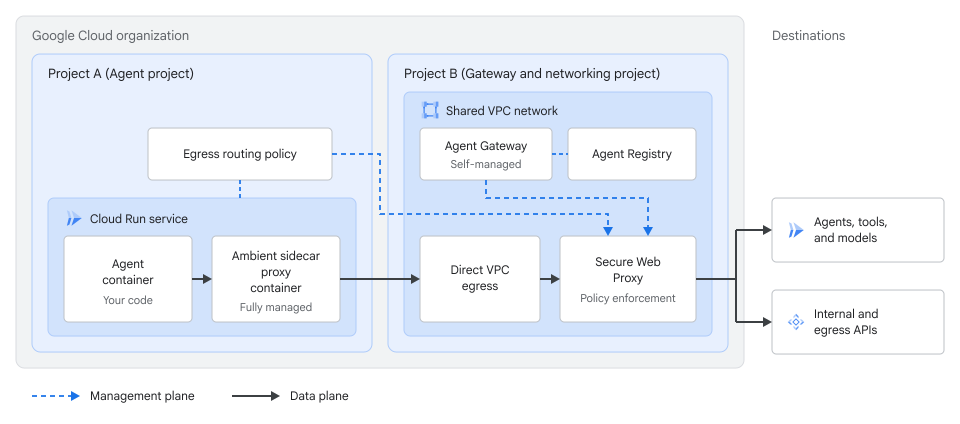
Before starting these steps, enable run.googleapis.com,
compute.googleapis.com, networkservices.googleapis.com, and
trafficdirector.googleapis.com in Project A, along with
aiplatform.googleapis.com if your agent calls Vertex AI. In
Project B, deploy the Secure Web Proxy instance and
Agent Gateway resource on the Shared VPC network as
described in
Create a self-managed Agent Gateway,
and configure DNS or Private Service Connect routing as described in
Configure Cloud Run ambient networking to access the Traffic Director API
so ambient sidecars in Project A can reach the Traffic Director API.
To configure a cross-project deployment, complete the following steps:
Configure Project B as a Shared VPC host project, attach Project A as a service project, and share the subnet that hosts your Secure Web Proxy instance. Enabling Shared VPC and attaching service projects requires
roles/compute.xpnAdminat the organization or folder level. For instructions, see Send traffic to a Shared VPC network with Direct VPC egress and Provision Shared VPC.In Project B, grant
roles/compute.networkUseron the shared subnet to the Cloud Run service agent from Project A:gcloud compute networks subnets add-iam-policy-binding SHARED_SUBNET_NAME \ --project=PROJECT_B_ID \ --region=REGION \ --member="serviceAccount:service-PROJECT_A_NUMBER@serverless-robot-prod.iam.gserviceaccount.com" \ --role="roles/compute.networkUser"
Replace the following:
SHARED_SUBNET_NAME: the name of the shared subnet in Project B.PROJECT_B_ID: the project ID of Project B, the gateway and Shared VPC host project.REGION: the region of the shared subnet.PROJECT_A_NUMBER: the project number of Project A, the agent service project.
Deploy the Cloud Run agent service in Project A pointing to the shared subnet in Project B:
gcloud beta run deploy SERVICE_NAME \
   --project=PROJECT_A_ID \
   --image=IMAGE_URL \
   --subnet=projects/PROJECT_B_ID/regions/REGION/subnetworks/SHARED_SUBNET_NAME \
   --vpc-egress=all \
   --functional-type=agent \
   --identity-type=agent-identity \
   --ambient-networking \
   --set-env-vars="GOOGLE_API_USE_CLIENT_CERTIFICATE=false,GOOGLE_API_USE_MTLS_ENDPOINT=never" \
   --region=REGION
Replace the following:
SERVICE_NAME: the name of your Cloud Run agent service in Project A.PROJECT_A_ID: the project ID of Project A, the agent service project.IMAGE_URL: a reference to the container image, for example,us-docker.pkg.dev/cloudrun/container/hello:latest. If you use Artifact Registry, the repository REPO_NAME must already be created. The URL follows the format ofLOCATION-docker.pkg.dev/PROJECT_ID/REPO_NAME/PATH:TAG.
After deploying the service, configure your agent in Project A to trust the root CA certificate of the Secure Web Proxy instance in Project B by following the steps in Configure your Cloud Run agent to trust Agent Gateway.
Create an
EgressRoutingpolicy in Project A that references the Secure Web Proxy gateway in Project B. You must haveroles/networkservices.adminin Project A:gcloud alpha network-services egress-routings create my-central-egress-routing \ --location=REGION \ --project=PROJECT_A_ID \ --gateway="//networkservices.googleapis.com/projects/PROJECT_B_ID/locations/REGION/gateways/CENTRAL_SWP_NAME" \ --sources="workloadUri=//run.googleapis.com/projects/PROJECT_A_ID/locations/REGION/services/SERVICE_NAME"
Replace
CENTRAL_SWP_NAMEwith the name of the Secure Web Proxy gateway in Project B. To route all Cloud Run services in Project A through Project B's gateway, setworkloadUrito//run.googleapis.com/projects/PROJECT_A_IDor//run.googleapis.com/projects/PROJECT_A_NUMBER.Confirm that the cross-project
EgressRoutingresource is active in Project A:gcloud alpha network-services egress-routings describe my-central-egress-routing \ --location=REGION \ --project=PROJECT_A_ID
Configure centralized baseline, IAP, and Model Armor policies on the Agent Gateway resource in Project B as described in Configure policies on Agent Gateway:
- Allow baseline MCP and model traffic on the Agent Gateway resource in Project B by following Allow baseline egress and MCP traffic.
- To authorize the agent in Project A to call MCP servers registered in
Project B, create an IAM Unified Access Policy in Project B
whose
principalslist references Project A's project number,principal://agents.global.org-ORGANIZATION_ID.system.id.goog/resources/run/projects/PROJECT_A_NUMBER/locations/REGION/services/SERVICE_NAME, bind the policy to Project B or its Agent Gateway resource, and attach the IAPExtensionBindingin Project B. - To apply centralized Model Armor guardrails in Project B,
create your regional Model Armor templates, grant the
required roles to Project B's Service Extensions service
agent, and attach the Model Armor
ExtensionBindingto the Agent Gateway resource in Project B.
View logs and traces
Outbound agent interactions routed through Agent Gateway generate logs and distributed traces so that you can monitor policy decisions and debug agent behavior:
- View request logs for your Cloud Run service and Secure Web Proxy gateway in Cloud Logging. For more information, see View and write container logs and Agent Gateway transaction log entries.
- Analyze end-to-end request latency and traces across your agent and gateway in Cloud Trace. For more information, see Trace requests with Trace.
If outbound requests fail or bypass the gateway, see Troubleshoot Agent Gateway.
Supported regions
You can use Agent Gateway on Cloud Run in the following regions:
europe-west1us-central1
Limitations
In addition to the ambient networking limitations and the Secure Web Proxy considerations in Deploy Secure Web Proxy as an Agent Gateway, the following limitations apply when you use Agent Gateway with Cloud Run:
- Outbound agent requests routed through a TLS-inspecting Secure Web Proxy
instance to
*.mtls.googleapis.comand*.mtls.run.appendpoints fail with503errors because Secure Web Proxy terminates and re-originates TLS sessions without forwarding the client certificate. - Each regional self-managed Agent Gateway supports at most one
regional Agent Registry in its
registrieslist. - By default, each project supports up to 10 regional
AgentGatewayresources and 10 regionalEgressRoutingresources per region. New projects might start with a limit of 2 per region. To request a quota increase, contact your account team. - You must export the root or subordinate certificate from your CA Service pool or private enterprise PKI and configure your agent container to trust it.
- You can't use Agent Gateway on the same source Cloud Run service as express links. Agent Gateway requires the regional ambient networking scope, while express links require the global scope.
What's next
- Troubleshoot Agent Gateway
- Configure Gemini Enterprise Agent Platform features for Cloud Run
- Configure ambient networking for Cloud Run
- Configure express links for Cloud Run
- Send traffic to a VPC network with Direct VPC egress
- Agent Gateway overview
- Token management overview