


本教學課程假設您已熟悉虛擬私有雲 (VPC) 網路、邊界閘道通訊協定 (BGP)、虛擬私有網路 (VPN) 和 IPsec 通道的基礎概念。
Google Cloud 提供高可用性的高可用性 VPN 服務,可透過 IPsec VPN 連線,將虛擬私有雲網路連線至在Google Cloud外部執行的環境,例如地端部署或 AWS。如果按照 Google 最佳做法設定,高可用性 VPN 的服務水準協議可提供 99.99% 的服務可用性。詳情請參閱 Cloud VPN 服務水準協議 (SLA)。
架構總覽
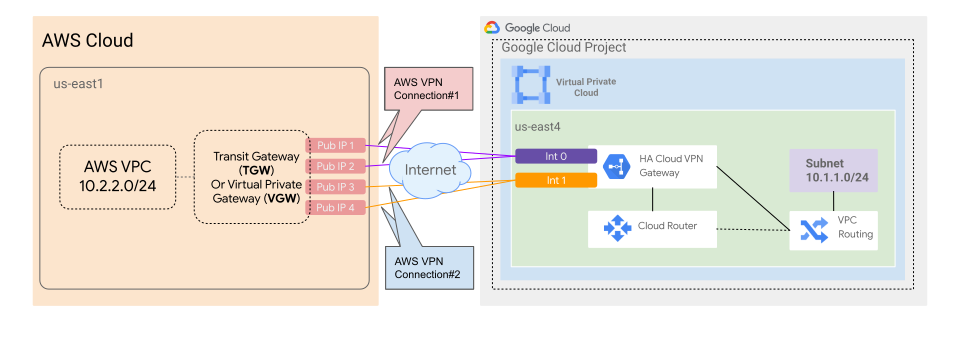
本頁面說明的架構包含下列元件:
- Cloud Router:這項全分散式管理 Google Cloud服務可為虛擬私有雲網路提供使用 BGP 的動態路由。
- 高可用性 VPN 閘道:由 Google 管理的 VPN 閘道,在 Google Cloud上執行。每個高可用性 VPN 閘道都是區域資源,有兩個介面,每個介面都有專屬的外部 IP 位址:介面 0 和 1。
- VPN 通道:從高可用性 VPN 閘道連至 AWS 對等互連 VPN 閘道的連線,加密流量會透過這些連線傳輸。
- 對等 VPN 閘道:兩個 AWS 站對站 VPN 端點,可來自 AWS 虛擬私有閘道或 AWS 傳輸閘道。詳情請參閱「什麼是 AWS Site-to-Site VPN?」。
每個對等互連 VPN 閘道連線都附有兩個通道,這些通道已預先設定為指向單一客戶閘道,在本例中為Google Cloud 高可用性 VPN 介面。採用這項設定時,至少需要四個通道,才能符合 99.99% 服務可用性的服務水準協議。
轉送選項和 VPN 通道合併頻寬會因 AWS 端使用的站對站 VPN 選項而異:
Transit Gateway:如果您建立 AWS Transit Gateway 時未設定 BGP 偏好設定,ECMP 會在有效通道中平均分配流量。
如要在多個 Google 虛擬私有雲網路中使用 VPN 連線,請使用連線 VPC 網路,透過多個 VPC 網路擴充中樞和輪輻架構。
如要進一步瞭解 AWS 傳輸閘道,請參閱「什麼是 Amazon VPC 傳輸閘道?」。
虛擬私有閘道:如果使用 AWS 虛擬私有閘道,系統只會選取閘道上所有連線中的一條通道。如要使用多個通道,請改用 AWS 傳輸閘道,這樣就能使用等價多路徑 (ECMP)。
如要進一步瞭解 AWS 的 VPN 路徑優先順序,請參閱「Site-to-Site VPN routing options」(站對站 VPN 轉送選項)。
如要進一步瞭解 AWS 虛擬私有閘道,請參閱「站對站 VPN 連線的通道選項」。
架構如下圖所示。
目標
- 在 Google Cloud上建立虛擬私有雲網路。
- 在Google Cloud建立高可用性 VPN 閘道和 Cloud Router。
- 在 AWS 上建立客戶閘道。
- 在 AWS 上建立使用動態轉送的 VPN 連線。
- 在 Google Cloud建立外部 VPN 閘道和 VPN 通道。
- 驗證並測試Google Cloud 和 AWS 上虛擬私有雲網路之間的 VPN 連線。
- 使用 Cloud Location Finder 找出最近的 Google Cloud區域。
Terraform 模組範例
您可以使用 gcp-to-aws-ha-vpn-terraform-module 模組,在 Google Cloud 和 AWS 之間佈建高可用性 VPN。
費用
本教學課程使用 Google Cloud的計費元件,包括:
如要估算 Google Cloud 元件的費用,請使用Google Cloud Pricing Calculator。
本教學課程會使用 Amazon Web Services 的計費元件,包括:
- AWS Transit Gateway
- AWS Site-to-Site VPN
如要估算 AWS 元件的費用,請使用 AWS Pricing Calculator。
事前準備
-
在 Google Cloud 控制台的專案選擇器頁面中,選取或建立 Google Cloud 專案。
選取或建立專案所需的角色
- 選取專案:選取專案時,不需具備特定 IAM 角色,只要您在專案中獲派角色,即可選取該專案。
-
建立專案:如要建立專案,您必須具備專案建立者角色 (
roles/resourcemanager.projectCreator),其中包含resourcemanager.projects.create權限。瞭解如何授予角色。
如果尚未啟用,請啟用 Compute Engine API。
啟用 API 時所需的角色
如要啟用 API,您必須具備
serviceusage.services.enable權限。如果您建立了專案,可能已透過「擁有者」角色 (roles/owner) 取得這項權限。否則,您可以透過「服務使用管理員」角色 (roles/serviceusage.serviceUsageAdmin) 取得這項權限。瞭解如何授予角色。-
在 Google Cloud 控制台中啟用 Cloud Shell。
-
請確認您具備必要管理員角色,可設定網路元件:
- 網路管理員:
compute.networkAdmin - 安全管理員:
compute.securityAdmin - Compute 管理員:
compute.admin
如要進一步瞭解這些角色的用途,請參閱「網路相關工作職務的 IAM 角色」。
- 網路管理員:
在 Google Cloud上建立高可用性 VPN 閘道和 Cloud Router
在本節中,您會在 Google Cloud建立虛擬私有雲網路、高可用性 VPN 閘道和 Cloud Router。
在 Cloud Shell 中,請確認您正在建立或選取的Google Cloud 專案中作業。
gcloud config set project YOUR_PROJECT_ID

export PROJECT_ID=`gcloud config list --format="value(core.project)"`
將
YOUR_PROJECT_ID替換為Google Cloud 專案 ID。如要建立含單一子網路的自訂虛擬私有雲網路,請使用
gcloud compute networks create指令:gcloud compute networks create NETWORK \ --subnet-mode SUBNET_MODE \ --bgp-routing-mode BGP_ROUTING_MODE
更改下列內容:
舉例來說,下列指令會建立名為
gc-vpc的自訂虛擬私有雲網路,其中包含單一子網路:gcloud compute networks create gc-vpc \ --subnet-mode custom \ --bgp-routing-mode global如要建立一個子網路來託管測試 VM,請使用
gcloud compute networks subnets create指令:gcloud compute networks subnets create SUBNET_NAME \ --network NETWORK \ --region SUBNET_REGION \ --range IP_ADDRESS_RANGE
更改下列內容:
SUBNET_NAME:子網路名稱SUBNET_REGION:要建立子網路的區域IP_ADDRESS_RANGE:子網路的 IP 位址範圍舉例來說,下列指令會在虛擬私有雲網路
gc-vpc中建立名為subnet-east4的子網路。
gcloud compute networks subnets create subnet-east4  \
    --network gc-vpc \
    --region us-east4 \
    --range 10.1.1.0/24
如要建立高可用性 VPN 閘道,請使用
gcloud compute vpn-gateways create指令:gcloud compute vpn-gateways create HA_VPN_GATEWAY_NAME \ --network NETWORK \ --region REGION
將
HA_VPN_GATEWAY_NAME替換為高可用性 VPN 閘道的名稱。如要建立 Cloud Router,請使用
gcloud compute routers create指令:gcloud compute routers create ROUTER_NAME \ --region REGION \ --network NETWORK \ --asn GOOGLE_ASN \ --advertisement-mode custom \ --set-advertisement-groups all_subnets
更改下列內容:
ROUTER_NAME:Cloud Router 的名稱GOOGLE_ASN:您要建立的 Cloud Router 私人 ASN (自治系統編號)。可以是64512-65534或4200000000-4294967294範圍內的任何私有 ASN,但您不得在同一個區域和網路中,將該 ASN 用做對等 ASN。
例如,下列指令會建立名為
cloud-router的 Cloud Router。gcloud compute routers create cloud-router \ --region us-east4 \ --network gc-vpc \ --asn 65534 \ --advertisement-mode custom \ --set-advertisement-groups all_subnets
如要建立具有兩個介面的 VPN 閘道,請記下外部 IP 位址。在 AWS 端設定環境時,會需要這些位址。
在 AWS 上建立閘道和 VPN 連線
在本節中,您將建立客戶閘道、目標閘道,以及採用動態轉送的 VPN 連線。
您可以使用 AWS Command Line Interface 執行 AWS 指令。
如要使用下列 AWS 指令建立兩個客戶閘道,請使用
create-customer-gatewayAWS CLI 指令:aws ec2 create-customer-gateway --type ipsec.1 --public-ip INTERFACE_0_IP_ADDRESS --bgp-asn GOOGLE_ASN aws ec2 create-customer-gateway --type ipsec.1 --public-ip INTERFACE_1_IP_ADDRESS --bgp-asn GOOGLE_ASN
將
INTERFACE_0_IP_ADDRESS和INTERFACE_1_IP_ADDRESS換成上節最後一個步驟中的外部 IP 位址。如要建立目標閘道並附加至 Amazon VPC,請執行下列操作:
目標閘道可以是虛擬私人閘道或傳輸閘道。詳情請參閱「建立目標閘道」。
虛擬私有閘道
使用
create-vpn-gatewayAWS CLI 指令,建立具有特定 AWS 端 ASN 的虛擬私有閘道:aws ec2 create-vpn-gateway --type ipsec.1 --amazon-side-asn AWS_SIDE_ASN
將
AWS_SIDE_ASN替換為 AWS 端的 ASN。這個指令應如下列範例所示:
aws ec2 create-vpn-gateway --type ipsec.1 --amazon-side-asn 65001
使用
attach-vpn-gatewayAWS CLI 指令,將虛擬私有閘道附加至虛擬私有雲網路:aws ec2 attach-vpn-gateway --vpn-gateway-id VPN_GATEWAY_ID --vpc-id VPC_ID
Transit Gateway
使用
create-transit-gatewayAWS CLI 指令建立 Transit Gateway:aws ec2 create-transit-gateway --description TRANSIT_GATEWAY_DESCRIPTION \ --options=AmazonSideAsn=65001,AutoAcceptSharedAttachments=enable,DefaultRouteTableAssociation=enable,DefaultRouteTablePropagation=enable,VpnEcmpSupport=enable,DnsSupport=enable
將
TRANSIT_GATEWAY_DESCRIPTION替換成傳輸閘道的說明。使用
create-transit-gateway-vpc-attachmentAWS CLI 指令,將虛擬私有雲網路附加至中轉閘道:aws ec2 create-transit-gateway-vpc-attachment \ --transit-gateway-id TRANSIT_GATEWAY_ID \ --vpc-id VPC_ID \ --subnet-ids "SUBNET_ID"
更改下列內容:
TRANSIT_GATEWAY_ID:傳輸閘道 IDVPC_ID:虛擬私有雲的 IDSUBNET_ID:一或多個子網路的 ID
如要建立使用動態轉送的 VPN 連線,請按照下列步驟操作:
建立採用動態轉送的 VPN 連線時,方法會因目標閘道是虛擬私人閘道或傳輸閘道而異。詳情請參閱「建立 VPN 連線」。
虛擬私有閘道
在虛擬私有閘道和客戶閘道之間建立 VPN 連線,並採用動態轉送,然後為 VPN 連線套用標記:
    aws ec2 create-vpn-connection \
        --type ipsec.1 \
        --customer-gateway-id CUSTOMER_GATEWAY_1 \
        --vpn-gateway-id VPN_GATEWAY_ID \
        --options TunnelOptions='[{TunnelInsideCidr=AWS_T1_IP,PreSharedKey=SHARED_SECRET_1},{TunnelInsideCidr=AWS_T2_IP,PreSharedKey=SHARED_SECRET_2}]'

    aws ec2 create-vpn-connection \
        --type ipsec.1 \
        --customer-gateway-id CUSTOMER_GATEWAY_2 \
        --vpn-gateway-id VPN_GATEWAY_ID \
        --options TunnelOptions='[{TunnelInsideCidr=AWS_T3_IP,PreSharedKey=SHARED_SECRET_3},{TunnelInsideCidr=AWS_T4_IP,PreSharedKey=SHARED_SECRET_4}]'
更改下列內容:
CUSTOMER_GATEWAY_1:Google Cloud VPN 閘道,介面 0CUSTOMER_GATEWAY_2:Google Cloud VPN 閘道,介面 1AWS_T1_IP:連線 1、通道 1 的虛擬私人閘道內部 IP 位址AWS_T2_IP:連線 1、通道 2 的虛擬私人閘道內部 IP 位址AWS_T3_IP:連線 2 的虛擬私人閘道內部 IP 位址,通道 1AWS_T4_IP:連線 2 的虛擬私人閘道內部 IP 位址,通道 2SHARED_SECRET_1:連線 1、通道 1 的預先共用金鑰SHARED_SECRET_2:連線 1、通道 2 的預先共用金鑰SHARED_SECRET_3:連線 2 的預先共用金鑰,通道 1SHARED_SECRET_4:連線 2 的預先共用金鑰,通道 2
Transit Gateway
在轉送閘道和客戶閘道之間,建立採用動態轉送的 VPN 連線:
aws ec2 create-vpn-connection \
    --type ipsec.1 \
    --customer-gateway-id CUSTOMER_GATEWAY_1 \
    --transit-gateway-id TRANSIT_GATEWAY_ID \
    --options TunnelOptions='[{TunnelInsideCidr=AWS_T1_IP,PreSharedKey=SHARED_SECRET_1},{TunnelInsideCidr=AWS_T2_IP,PreSharedKey=SHARED_SECRET_2}]'

aws ec2 create-vpn-connection \
    --type ipsec.1 \
    --customer-gateway-id CUSTOMER_GATEWAY_2 \
    --transit-gateway-id TRANSIT_GATEWAY_ID \
    --options TunnelOptions='[{TunnelInsideCidr=AWS_T3_IP,PreSharedKey=SHARED_SECRET_3},{TunnelInsideCidr=AWS_T4_IP,PreSharedKey=SHARED_SECRET_4}]'
更改下列內容:
CUSTOMER_GATEWAY_1:Google Cloud VPN 閘道,介面 0CUSTOMER_GATEWAY_2:Google Cloud VPN 閘道,介面 1TRANSIT_GATEWAY_ID:與 VPN 連線相關聯的傳輸閘道 IDAWS_T1_IP:連線 1 通道 1 的虛擬私人閘道內部 IP 位址AWS_T2_IP:連線 1、通道 2 的虛擬私人閘道內部 IP 位址AWS_T3_IP:連線 2 的虛擬私人閘道內部 IP 位址,通道 1AWS_T4_IP:連線 2 的虛擬私人閘道內部 IP 位址,通道 2SHARED_SECRET_1:連線 1、通道 1 的預先共用金鑰SHARED_SECRET_2:連線 1、通道 2 的預先共用金鑰SHARED_SECRET_3:連線 2 的預先共用金鑰,通道 1SHARED_SECRET_4:連線 2、通道 2 的預先共用金鑰CUSTOMER_GATEWAY_1:Google Cloud VPN 閘道,介面 0CUSTOMER_GATEWAY_2:Google Cloud VPN 閘道,介面 1TRANSIT_GATEWAY_ID:與 VPN 連線相關聯的傳輸閘道 IDAWS_T1_IP:連線 1 通道 1 的虛擬私人閘道內部 IP 位址AWS_T2_IP:連線 1、通道 2 的虛擬私人閘道內部 IP 位址AWS_T3_IP:連線 2 的虛擬私人閘道內部 IP 位址,通道 1AWS_T4_IP:連線 2 的虛擬私人閘道內部 IP 位址,通道 2SHARED_SECRET_1:連線 1、通道 1 的預先共用金鑰SHARED_SECRET_2:連線 1、通道 2 的預先共用金鑰SHARED_SECRET_3:連線 2 的預先共用金鑰,通道 1SHARED_SECRET_4:連線 2、通道 2 的預先共用金鑰
AWS 會保留部分 CIDR 範圍,因此您無法使用這些範圍中的值做為內部 IP 位址 (
AWS_T1_IP、AWS_T2_IP、AWS_T3_IP、AWS_T4_IP)。如要瞭解 AWS 保留的 CIDR 區塊,請參閱「站對站 VPN 連線的通道選項」。使用下列指令,建立四個連往 Google Cloud 的通道。
-
在後續步驟中,您將使用下載的設定檔中的值,在 Google Cloud端建立及設定資源。
在 Google Cloud上建立 VPN 通道和 Cloud Router 介面
在本節中,您將使用先前建立的 AWS VPN 連線資訊,在 Google Cloud中建立外部 VPN 閘道、VPN 通道和 Cloud Router 介面。
設定 AWS 的 Cloud VPN 通道時,必須使用 IKEv2 通訊協定,並只選取一個 IKE 加密套件,確保通道建立成功。舉例來說,請選取一個階段 1 和一個階段 2 加密演算法、完整性演算法和 Diffie-Hellman (DH) 群組。預設的 AWS 轉換集會建立大型安全關聯 (SA) 酬載,這可能會導致 IKE 封包的 IP 碎片化。Cloud VPN 不支援 IKE 封包片段。
在 Cloud Shell 中,為 AWS 外部 IP 位址建立具有四個介面的外部 VPN 閘道。
建立外部 VPN 閘道前,請確認 AWS 外部 IP 位址與您下載的設定檔中的值相符。建立外部 VPN 閘道後,就無法修改這些 IP 位址。如果位址不相符,就無法建立高可用性 VPN 通道連線。
gcloud compute external-vpn-gateways create PEER_GATEWAY_NAME --interfaces \
  0=AWS_GW_IP_1,1=AWS_GW_IP_2,2=AWS_GW_IP_3,3=AWS_GW_IP_4
更改下列內容:
AWS_GW_IP_1:連線 1、通道 1 的虛擬私人閘道外部 IP 位址AWS_GW_IP_2:虛擬私人閘道的外部 IP 位址,適用於連線 1 的通道 2AWS_GW_IP_3:虛擬私人閘道的外部 IP 位址,適用於連線 2 和通道 1AWS_GW_IP_4:連線 2 和通道 2 的虛擬私人閘道外部 IP 位址
建立四個 VPN 通道。
通道 1:
gcloud compute vpn-tunnels create tunnel-1 \
    --peer-external-gateway PEER_GATEWAY_NAME \
    --peer-external-gateway-interface 0 \
    --region REGION \
    --ike-version 2 \
    --shared-secret SHARED_SECRET_1 \
    --router ROUTER_NAME \
    --vpn-gateway HA_VPN_GATEWAY_NAME \
    --interface 0
通道 2:
gcloud compute vpn-tunnels create tunnel-2 \
    --peer-external-gateway PEER_GATEWAY_NAME \
    --peer-external-gateway-interface 1 \
    --region REGION \
    --ike-version 2 \
    --shared-secret SHARED_SECRET_2 \
    --router ROUTER_NAME \
    --vpn-gateway HA_VPN_GATEWAY_NAME \
    --interface 0
隧道 3:
gcloud compute vpn-tunnels create tunnel-3 \
    --peer-external-gateway PEER_GATEWAY_NAME \
    --peer-external-gateway-interface 2 \
    --region REGION \
    --ike-version 2 \
    --shared-secret SHARED_SECRET_3 \
    --router ROUTER_NAME \
    --vpn-gateway HA_VPN_GATEWAY_NAME \
    --interface 1
隧道 4:
gcloud compute vpn-tunnels create tunnel-4 \
    --peer-external-gateway PEER_GATEWAY_NAME \
    --peer-external-gateway-interface 3 \
    --region REGION \
    --ike-version 2 \
    --shared-secret SHARED_SECRET_4 \
    --router ROUTER_NAME \
    --vpn-gateway HA_VPN_GATEWAY_NAME \
    --interface 1
更改下列內容:
PEER_GATEWAY_NAME:您在步驟 1 中建立的外部對等互連閘道名稱REGION:建立通道的Google Cloud 區域SHARED_SECRET:預先共用金鑰 (PSK),必須與您在對等閘道上建立的合作夥伴通道預先共用金鑰相符;如要產生強效預先共用金鑰,請參閱「產生強效預先共用金鑰」一文ROUTER_NAME:您在「在 Google Cloud上建立高可用性 VPN 閘道和 Cloud Router」一節中建立的 Cloud Router 閘道名稱。HA_VPN_GATEWAY_NAME:您在「建立高可用性 VPN 閘道和 Cloud Router Google Cloud」一節中建立的高可用性 VPN 閘道名稱。
建立四個 Cloud Router 介面。
在下列指令中,將每個
GOOGLE_BGP_IP_TUNNEL預留位置替換為 Google Cloud 端的通道內部 IP 位址。您可以在 AWS VPN 設定檔中,找到各個通道的客戶閘道位址值。這些位址都必須位於169.254.0.0/16網路範圍內的/30CIDR 範圍。Cloud Router 介面 1:
gcloud compute routers add-interface ROUTER_NAME \
    --interface-name int-1 \
    --vpn-tunnel tunnel-1 \
    --ip-address GOOGLE_BGP_IP_TUNNEL_1 \
    --mask-length 30 \
    --region REGION
Cloud Router 介面 2:
gcloud compute routers add-interface ROUTER_NAME \
    --interface-name int-2 \
    --vpn-tunnel tunnel-2 \
    --ip-address GOOGLE_BGP_IP_TUNNEL_2 \
    --mask-length 30 \
    --region REGION
Cloud Router 介面 3:
gcloud compute routers add-interface ROUTER_NAME \
    --interface-name int-3 \
    --vpn-tunnel tunnel-3 \
    --ip-address GOOGLE_BGP_IP_TUNNEL_3 \
    --mask-length 30 \
    --region REGION
Cloud Router 介面 4:
gcloud compute routers add-interface ROUTER_NAME \
    --interface-name int-4 \
    --vpn-tunnel tunnel-4 \
    --ip-address GOOGLE_BGP_IP_TUNNEL_4 \
    --mask-length 30 \
    --region REGION
新增 BGP 對等互連。
在下列指令中,將
PEER_ASN替換為 BGP 工作階段 AWS 端的 ASN。AWS 連線 1,通道 1:
gcloud compute routers add-bgp-peer ROUTER_NAME \
    --peer-name aws-conn1-tunn1 \
    --peer-asn PEER_ASN \
    --interface int-1 \
    --peer-ip-address AWS_T1_IP \
    --region REGION
AWS 連線 1,通道 2:
gcloud compute routers add-bgp-peer ROUTER_NAME \
    --peer-name aws-conn1-tunn2 \
    --peer-asn PEER_ASN \
    --interface int-2 \
    --peer-ip-address AWS_T2_IP \
    --region REGION
AWS 連線 2,通道 1:
gcloud compute routers add-bgp-peer ROUTER_NAME \
    --peer-name aws-conn2-tunn1 \
    --peer-asn PEER_ASN \
    --interface int-3 \
    --peer-ip-address AWS_T3_IP \
    --region REGION
AWS 連線 2,通道 2:
gcloud compute routers add-bgp-peer ROUTER_NAME \
    --peer-name aws-conn2-tunn2 \
    --peer-asn PEER_ASN \
    --interface int-4 \
    --peer-ip-address AWS_T4_IP \
    --region REGION
驗證設定
在 Cloud Shell 中,確認 Cloud Router 狀態:
gcloud compute routers get-status ROUTER_NAME \
    --region REGION \
    --format='flattened(result.bgpPeerStatus[].name, result.bgpPeerStatus[].ipAddress, result.bgpPeerStatus[].peerIpAddress)'
輸出結果會與下列內容相似:
result.bgpPeerStatus[].peerIpAddress)'
result.bgpPeerStatus[0].ipAddress:     169.254.171.18
result.bgpPeerStatus[0].name:          aws-conn1-tunn1
result.bgpPeerStatus[0].peerIpAddress: 169.254.171.17
result.bgpPeerStatus[1].ipAddress:     169.254.156.154
result.bgpPeerStatus[1].name:          aws-conn1-tunn2
result.bgpPeerStatus[1].peerIpAddress: 169.254.156.153
result.bgpPeerStatus[2].ipAddress:     169.254.123.38
result.bgpPeerStatus[2].name:          aws-conn2-tunn1
result.bgpPeerStatus[2].peerIpAddress: 169.254.123.37
result.bgpPeerStatus[3].ipAddress:     169.254.48.186
result.bgpPeerStatus[3].name:          aws-conn2-tunn2
result.bgpPeerStatus[3].peerIpAddress: 169.254.48.185
列出所有通道:
gcloud compute vpn-tunnels list
輸出結果會與下列內容相似:
NAME      REGION    GATEWAY    PEER_ADDRESS
tunnel-1  us-east4  ha-vpn-gw  34.205.x.x
tunnel-2  us-east4  ha-vpn-gw  52.203.x.x
tunnel-3  us-east4  ha-vpn-gw  3.208.x.x
tunnel-4  us-east4  ha-vpn-gw  52.204.x.x
檢查通道狀態:
gcloud compute vpn-tunnels describe tunnel-1 \
     --region REGION \
     --format='flattened(status,detailedStatus)'
輸出結果會與下列內容相似:
detailed_status: Tunnel is up and running.
status:          ESTABLISHED
列出 Cloud Router 得知的動態路徑:
gcloud compute routers get-status ROUTER_NAME \
    --region REGION \
    --format="flattened(result.bestRoutes)"
輸出結果會與下列內容相似:
result.bestRoutes[0].creationTimestamp: 2021-01-19T20:42:07.366-08:00
result.bestRoutes[0].destRange:         10.2.2.0/24
result.bestRoutes[0].kind:              compute#route
result.bestRoutes[0].nextHopIp:         169.254.171.17
result.bestRoutes[0].priority:          100
result.bestRoutes[1].creationTimestamp: 2021-01-19T20:42:07.366-08:00
result.bestRoutes[1].destRange:         10.2.2.0/24
result.bestRoutes[1].kind:              compute#route
result.bestRoutes[1].nextHopIp:         169.254.156.153
result.bestRoutes[1].priority:          100
result.bestRoutes[2].creationTimestamp: 2021-01-19T20:56:26.588-08:00
result.bestRoutes[2].destRange:         10.2.2.0/24
result.bestRoutes[2].kind:              compute#route
result.bestRoutes[2].nextHopIp:         169.254.123.37
result.bestRoutes[2].priority:          100
result.bestRoutes[3].creationTimestamp: 2021-01-19T20:56:26.588-08:00
result.bestRoutes[3].destRange:         10.2.2.0/24
result.bestRoutes[3].kind:              compute#route
result.bestRoutes[3].nextHopIp:         169.254.48.185
result.bestRoutes[3].priority:          100
測試 VPN 連線
在通道兩端各建立測試 VM,測試 Ping 要求。
請確認您已設定 VPC 防火牆規則,允許 ICMP 流量。
如需建立 Compute Engine VM 的操作說明,請參閱「建立及啟動 Compute Engine 執行個體」。
如要瞭解如何在 AWS 上建立 EC2 執行個體,請參閱「啟動 Amazon EC2 執行個體」。
使用
ping指令測試連線。- 如果
ping測試失敗,請查看 Google Cloud 和 AWS 站對站 VPN 記錄。記錄中的錯誤訊息有助於找出問題。如要瞭解如何排解 VPN 連線問題,請參閱下列資源:- 疑難排解 Cloud VPN
- 排解使用邊界閘道通訊協定時的 AWS 站對站 VPN 連線問題
- 如果
使用 iperf 測量測試機之間的頻寬。
伺服器端:
iperf3 -s用戶端:
iperf3 -c SERVER_IP_ADDRESS -P NUMBER_OF_PARALLEL_SESSIONS
清除所用資源
刪除您在本教學課程中建立的 Google Cloud 和 AWS 資源。
刪除 Google Cloud 專案
如要避免系統向您的 Google Cloud 帳戶收取本教學課程所用資源的費用,請刪除專案:
- 前往 Google Cloud 控制台的「Manage resources」(管理資源) 頁面。
- 在專案清單中選取要刪除的專案,然後點選「Delete」(刪除)。
- 在對話方塊中輸入專案 ID,然後按一下 [Shut down] (關閉) 以刪除專案。
刪除 AWS 資源
後續步驟
- 進一步瞭解 Google Cloud VPN。
- 進一步瞭解 VPC 設計的最佳做法和參考架構。