

This document shows you two sample configurations for setting up a regional internal Application Load Balancer in a Shared VPC environment with Cloud Storage buckets:
- The first example creates all of the load balancer components and backends in one service project.
- The second example creates the load balancer's frontend components and URL map in one service project, while the load balancer's backend bucket and Cloud Storage buckets are created in a different service project.
Both examples require the same initial configuration to grant required roles and set up a Shared VPC before you can start creating load balancers.
For more information on other valid Shared VPC architectures, see Shared VPC architectures.
If you don't want to use a Shared VPC network, see Set up a regional internal Application Load Balancer with Cloud Storage buckets.
Before you begin
Make sure that your setup meets the following prerequisites.
Create Google Cloud projects
Create Google Cloud projects for one host and two service projects.
Required roles
To get the permissions that you need to set up a regional internal Application Load Balancer in a Shared VPC environment with Cloud Storage buckets, ask your administrator to grant you the following IAM roles:
-
Set up Shared VPC, enable host project, and grant access to service project administrators:
Compute Shared VPC Admin (
roles/compute.xpnAdmin) on the host project -
Add and remove firewall rules:
Compute Security Admin (
roles/compute.securityAdmin) on the host project -
Access to a service project administrator to use the Shared VPC network:
Compute Network User (
roles/compute.networkUser) on the host project -
Create the load balancing resources:
Compute Network Admin (
roles/compute.networkAdmin) on the service project -
Create Compute Engine instances:
Compute Instance Admin (
roles/compute.instanceAdmin.v1) on the service project -
Create and modify Compute Engine SSL certificates:
Compute Security Admin (
roles/compute.securityAdmin) on the service project -
Create and modify Certificate Manager SSL certificates:
Certificate Manager Owner (
roles/certificatemanager.owner) on the service project -
Enable the load balancer reference backend buckets from other service projects:
Compute Load Balancer Services User (
roles/compute.loadBalancerServiceUser) on the service project
For more information about granting roles, see Manage access to projects, folders, and organizations.
You might also be able to get the required permissions through custom roles or other predefined roles.
Set up a Shared VPC environment
To set up a Shared VPC environment, complete the following steps in the host project:
- Configure the VPC network in the host project.
- Configure the proxy-only subnet in the host project.
- Configure a firewall rule in the host project.
- Set up Shared VPC in the host project.
You don't need to perform the steps in this section every time you want to create a new load balancer. However, you must ensure that you have access to the resources described here before you proceed to create the load balancer.
This example uses the following VPC network, region, and proxy-only subnet:
Network. The network is a custom mode VPC network named
lb-network.Subnet for the load balancer. A subnet named
subnet-usin theus-east1region uses10.1.2.0/24for its primary IP range.Subnet for Envoy proxies. A subnet named
proxy-only-subnet-usin theus-east1region uses10.129.0.0/23for its primary IP range.
Configure a VPC for the host project
Configure a custom mode VPC for the host project and create a subnet in the same region where you need to configure the forwarding rule of your load balancers.
You don't have to perform this step every time you want to create a new load balancer. You only need to ensure that the service project has access to a subnet in the Shared VPC network (in addition to the proxy-only subnet).
Console
In the Google Cloud console, go to the VPC networks page.
Click Create VPC network.
In the Name field, enter
lb-network.For Subnet creation mode, select Custom.
In the New subnet section, provide the following information:
- In the Name field, enter
subnet-us. - In the Region list, select
us-east1. - In the IPv4 range field, enter
10.1.2.0/24 - Click Done.
- In the Name field, enter
Click Create.
gcloud
Create a custom VPC network, named
lb-network, with thegcloud compute networks createcommand.gcloud compute networks create lb-network \ --subnet-mode=custom \ --project=HOST_PROJECT_IDReplace
HOST_PROJECT_IDwith the Google Cloud project ID assigned to the project that is enabled as a host project in a Shared VPC environment.Create a subnet in the
lb-networkVPC network in theus-east1region with thegcloud compute networks subnets createcommand.gcloud compute networks subnets create subnet-us \ --network=lb-network \ --range=10.1.2.0/24 \ --region=us-east1 \ --project=HOST_PROJECT_ID
Configure the proxy-only subnet in the host project
A proxy-only subnet provides a set of IP addresses that Google Cloud uses to run Envoy proxies on your behalf. The proxies terminate connections from the client and create new connections to the backends.
This proxy-only subnet is used by all Envoy-based regional load balancers in the
same region as the VPC network. There can only be one active
proxy-only subnet for a given purpose, per region, per network.
In this example, we create a proxy-only subnet in the us-east1 region.
Console
In the Google Cloud console, go to the VPC networks page.
Click the name of the VPC network that you created.
On the Subnets tab, click Add subnet and provide the following information:
- In the Name field, enter
proxy-only-subnet-us. - In the Region list, select
us-east1. - For Purpose, select Regional Managed Proxy.
- In the IPv4 range field, enter
10.129.0.0/23.
- In the Name field, enter
Click Add.
gcloud
Create a proxy-only subnet in the
us-east1region with thegcloud compute networks subnets createcommand.gcloud compute networks subnets create proxy-only-subnet-us \ --purpose=REGIONAL_MANAGED_PROXY \ --role=ACTIVE \ --region=us-east1 \ --network=lb-network \ --range=10.129.0.0/23 \ --project=HOST_PROJECT_ID
Configure a firewall rule in the host project
This example uses the fw-allow-ssh ingress firewall rule that allows incoming
SSH connectivity on TCP port 22 from any address. You can choose a more
restrictive source IP range for this rule. For example, you can specify just the
IP ranges of the system from which you initiate SSH sessions. This example uses
the target tag allow-ssh to identify the virtual machines (VMs) to which the
firewall rule applies. Without these firewall rules, the default deny
ingress rule blocks incoming
traffic to the backend instances.
Console
In the Google Cloud console, go to the Firewall policies page.
Click Create firewall rule to create the rule to allow Google Cloud health checks.
Provide the following information:
- In the Name field, enter
fw-allow-ssh. - In the Network list, select lb-network.
- For Direction of traffic, select Ingress.
- For Action on match, select Allow.
- In theTargets list, select Specified target tags.
- In the Target tags field, enter
allow-ssh. - In the Source filter list, select IPv4 ranges.
- In the Source IPv4 ranges field, enter
0.0.0.0/0. - For Protocols and ports, select Specified protocols and ports.
- Select the TCP checkbox and enter
22for the port number.
- In the Name field, enter
Click Create.
gcloud
Create the
fw-allow-sshfirewall rule to allow SSH connectivity to VMs with the network tagallow-ssh. When you omitsource-ranges, Google Cloud interprets the rule to mean any source.gcloud compute firewall-rules create fw-allow-ssh \ --network=lb-network \ --action=allow \ --direction=ingress \ --target-tags=allow-ssh \ --rules=tcp:22 \ --project=HOST_PROJECT_ID
Set up Shared VPC in the host project
Enable a Shared VPC host project and attach service projects to the host project so that the service projects can use the Shared VPC network. To set up Shared VPC in the host project, see the following pages:
After completing the preceding steps, complete either of the following setups:
- Configure a load balancer in the service project
- Configure a load balancer with a cross-project configuration
Configure a load balancer in the service project
This example creates a regional internal Application Load Balancer where all the load balancing components (forwarding rule, target proxy, URL map, and backend bucket) and Cloud Storage buckets are created in the service project.
The regional internal Application Load Balancer's networking resources such as the proxy-only subnet is created in the host project.
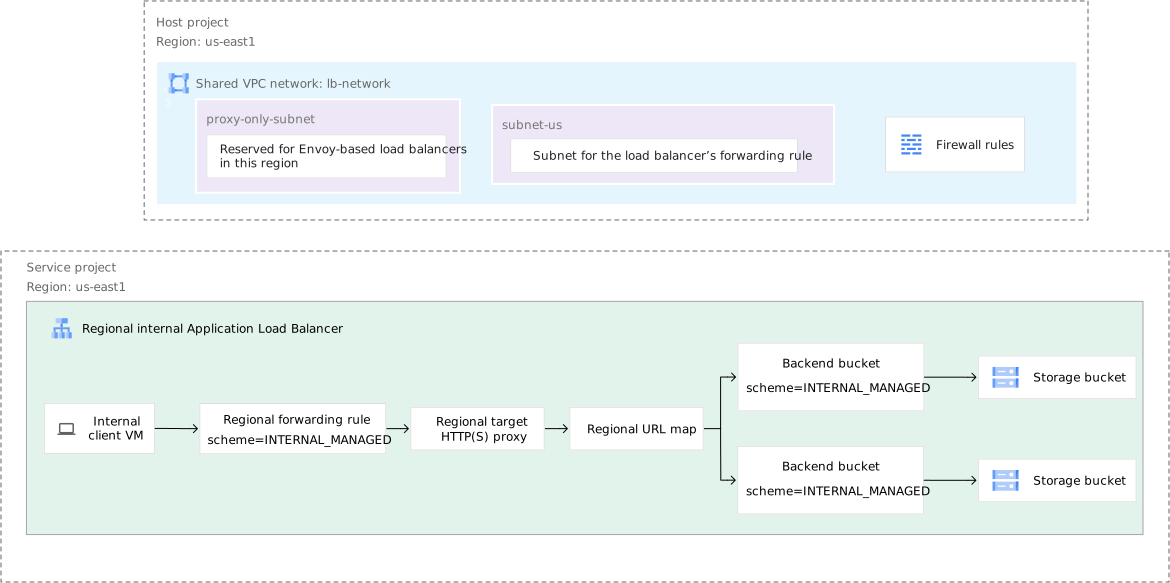
This section shows you how to set up the load balancer and backends.
The examples on this page explicitly sets a reserved IP address for the regional internal Application Load Balancer's forwarding rule, rather than allowing an ephemeral IP address to be allocated. As a best practice, we recommend reserving IP addresses for forwarding rules.
Configure your Cloud Storage buckets
The process for configuring your Cloud Storage buckets is as follows:
- Create the Cloud Storage buckets.
- Copy content to the buckets.
- Make the buckets publicly readable.
Create Cloud Storage buckets
In this example, you create two Cloud Storage buckets in the
us-east1 region.
Console
- In the Google Cloud console, go to the Cloud Storage Buckets page.
Click Create.
In the Get started section, enter a globally unique name that follows the naming guidelines.
Click Choose where to store your data.
Set Location type to Region.
From the list of regions, select us-east1.
Click Create.
Click Buckets to return to the Cloud Storage Buckets page. Use the preceding instructions to create a second bucket in the us-east1 region.
gcloud
Create the buckets in the
us-east1region with thegcloud storage buckets createcommand.gcloud storage buckets create gs://BUCKET1_NAME \ --default-storage-class=standard \ --location=us-east1 \ --uniform-bucket-level-access \ --project=SERVICE_PROJECT_ID
gcloud storage buckets create gs://BUCKET2_NAME \
    --default-storage-class=standard \
    --location=us-east1 \
    --uniform-bucket-level-access \
    --project=SERVICE_PROJECT_ID
Replace the following:
BUCKET1_NAME: the name of your first Cloud Storage bucketBUCKET2_NAME: the name of your second Cloud Storage bucketSERVICE_PROJECT_ID: the Google Cloud project ID assigned to the service project
Copy content to your Cloud Storage buckets
To populate the Cloud Storage buckets, copy a graphic file from a public Cloud Storage bucket to your own Cloud Storage buckets.
gcloud storage cp gs://gcp-external-http-lb-with-bucket/three-cats.jpg gs://BUCKET1_NAME/love-to-purr/
gcloud storage cp gs://gcp-external-http-lb-with-bucket/two-dogs.jpg gs://BUCKET2_NAME/love-to-fetch/
Make your Cloud Storage buckets publicly readable
To make all objects in a bucket readable to everyone on the public internet,
grant the principal allUsers the Storage Object Viewer role
(roles/storage.objectViewer).
Console
To grant all users access to view objects in your buckets, repeat the following procedure for each bucket:
- In the Google Cloud console, go to the Cloud Storage Buckets page.
In the list of buckets, select the checkbox for each bucket that you want to make public.
Click the Permissions button. The Permissions dialog appears.
In the Permissions dialog, click the Add principal button. The Grant access dialog appears.
In the New principals field, enter
allUsers.In the Select a role field, enter
Storage Object Viewerin the filter box and select the Storage Object Viewer from the filtered results.Click Save.
Click Allow public access.
gcloud
To grant all users access to view objects in your buckets, run the buckets add-iam-policy-binding command.
gcloud storage buckets add-iam-policy-binding gs://BUCKET1_NAME \
    --member=allUsers \
    --role=roles/storage.objectViewer
gcloud storage buckets add-iam-policy-binding gs://BUCKET2_NAME \
    --member=allUsers \
    --role=roles/storage.objectViewer
Reserve a static internal IP address
Reserve a static internal IP address for the forwarding rule of the load balancer. For more information, see Reserve a static internal IP address.
Console
In the Google Cloud console, go to the Reserve internal static IP address page.
In the Name field, enter a name for the new address.
In the IP version list, select IPv4.
In the Network list, select lb-network.
In the Subnetwork list, select subnet-us.
For Region, select us-east1.
In the Static IP address list, select Assign automatically. After you create the load balancer, this IP address is attached to the load balancer's forwarding rule.
Click Reserve to reserve the IP address.
gcloud
To reserve a static internal IP address using
gcloud compute, use thecompute addresses createcommand.gcloud compute addresses create ADDRESS_NAME \ --region=REGION \ --subnet=subnet-us \ --project=SERVICE_PROJECT_IDReplace the following:
ADDRESS_NAME: the name that you want to call this address.REGION: the region where you want to reserve this address. This region should be the same region as the load balancer. For example,us-east1.SERVICE_PROJECT_ID: the Google Cloud project ID assigned to the service project.
Use the
compute addresses describecommand to view the result:gcloud compute addresses describe ADDRESS_NAME
Copy the returned IP address to use as
RESERVED_IP_ADDRESSin the subsequent sections.
Set up an SSL certificate resource
For a regional internal Application Load Balancer that uses HTTPS as the request-and-response protocol, you can create an SSL certificate resource using either a Compute Engine SSL certificate or Certificate Manager certificate.
For this example, create an SSL certificate resource using Certificate Manager as described in one of the following documents:
- Deploy a regional Google-managed certificate with CA Service
- Deploy a regional Google-managed certificate with DNS authorization
- Deploy a regional self-managed certificate
After you create the certificate, you can attach the certificate to the HTTPS target proxy.
We recommend using a Google-managed certificate to reduce operational overhead such as security risks associated with manual certificate management.
Configure the load balancer with backend buckets
This section shows you how to create the following resources for a regional internal Application Load Balancer:
- Two backend buckets. The backend buckets serve as a wrapper to the Cloud Storage buckets that you created earlier.
- URL map
- Target proxy
- A forwarding rule with regional IP addresses. The forwarding rule is assigned an IP address from the subnet created for the load balancer's forwarding rules. If you try to assign an IP address to the forwarding rule from the proxy-only subnet, the forwarding rule creation fails.
In this example, you can use HTTP or HTTPS as the request-and-response protocol between the client and the load balancer. To create an HTTPS load balancer, you must add an SSL certificate resource to the load balancer's frontend.
To create the previously mentioned load balancing components using the gcloud CLI, follow these steps:
Create two backend buckets in the
us-east1region with thegcloud compute backend-buckets createcommand. The backend buckets have a load balancing scheme ofINTERNAL_MANAGED.gcloud compute backend-buckets create backend-bucket-cats \ --gcs-bucket-name=BUCKET1_NAME \ --load-balancing-scheme=INTERNAL_MANAGED \ --region=us-east1 \ --project=SERVICE_PROJECT_IDgcloud compute backend-buckets create backend-bucket-dogs \ --gcs-bucket-name=BUCKET2_NAME \ --load-balancing-scheme=INTERNAL_MANAGED \ --region=us-east1 --project=SERVICE_PROJECT_IDCreate a URL map to route incoming requests to the backend bucket with the
gcloud compute url-maps createcommand.gcloud compute url-maps create URL_MAP_NAME \ --default-backend-bucket=backend-bucket-cats \ --region=us-east1 \ --project=SERVICE_PROJECT_IDReplace
URL_MAP_NAMEwith the name of the URL map.Configure the host and path rules of the URL map with the
gcloud compute url-maps add-path-matchercommand.In this example, the default backend bucket is
backend-bucket-cats, which handles all the paths that exist within it. However, any request targetinghttp://FORWARDING_RULE_IP_ADDRESS/love-to-fetch/two-dogs.jpguses thebackend-bucket-dogsbackend. For example, if the/love-to-fetch/folder also exists within your default backend (backend-bucket-cats), the load balancer prioritizes thebackend-bucket-dogsbackend because there is a specific path rule for/love-to-fetch/*.gcloud compute url-maps add-path-matcher URL_MAP_NAME \ --path-matcher-name=path-matcher-pets \ --new-hosts=* \ --backend-bucket-path-rules="/love-to-fetch/*=backend-bucket-dogs" \ --default-backend-bucket=backend-bucket-cats \ --region=us-east1 \ --project=SERVICE_PROJECT_IDCreate a target proxy with the
gcloud compute target-http-proxies createcommand.HTTP
For HTTP traffic, create a target HTTP proxy to route requests to the URL map:
  gcloud compute target-http-proxies create TARGET_HTTP_PROXY_NAME \
      --url-map=URL_MAP_NAME \
      --region=us-east1 \
      --project=SERVICE_PROJECT_ID
Replace
TARGET_HTTP_PROXY_NAMEwith the name of the target HTTP proxy.HTTPS
For HTTPS traffic, create a target HTTPS proxy to route requests to the URL map. The proxy is the part of the load balancer that holds the SSL certificate for an HTTPS load balancer. After you create the certificate, you can attach the certificate to the HTTPS target proxy.
To attach a Certificate Manager certificate, run the following command:
  gcloud compute target-https-proxies create TARGET_HTTPS_PROXY_NAME \
      --url-map=URL_MAP_NAME \
      --certificate-manager-certificates=CERTIFICATE_NAME \
      --region=us-east1 \
      --project=SERVICE_PROJECT_ID
Replace the following:
TARGET_HTTPS_PROXY_NAME: the name of the target HTTPS proxyCERTIFICATE_NAME: the name of the SSL certificate you created using Certificate Manager
Create a forwarding rule with an IP address in the
us-east1region with thegcloud compute forwarding-rules createcommand.Reserving an IP address is optional for an HTTP forwarding rule; however, you need to reserve an IP address for an HTTPS forwarding rule.
In this example, an ephemeral IP address is associated with your load balancer's HTTP forwarding rule. An ephemeral IP address remains constant while the forwarding rule exists. If you need to delete the forwarding rule and recreate it, the forwarding rule might receive a new IP address.
HTTP
For HTTP traffic, create a regional forwarding rule to route incoming requests to the HTTP target proxy:
  gcloud compute forwarding-rules create FORWARDING_RULE_NAME \
      --load-balancing-scheme=INTERNAL_MANAGED \
      --network=projects/HOST_PROJECT_ID/global/networks/lb-network \
      --subnet=subnet-us \
      --subnet-region=us-east1 \
      --address=RESERVED_IP_ADDRESS
      --ports=80 \
      --region=us-east1 \
      --target-http-proxy=TARGET_HTTP_PROXY_NAME \
      --target-http-proxy-region=us-east1 \
      --project=SERVICE_PROJECT_ID
Replace the following:
FORWARDING_RULE_NAME: the name of the forwarding ruleRESERVED_IP_ADDRESS: the reserved IP address you copied in the Reserve a static internal IP address section
HTTPS
For HTTPS traffic, create a regional forwarding rule to route incoming requests to the HTTPS target proxy:
  gcloud compute forwarding-rules create FORWARDING_RULE_NAME \
      --load-balancing-scheme=INTERNAL_MANAGED \
      --network=projects/HOST_PROJECT_ID/global/networks/lb-network \
      --subnet=subnet-us \
      --subnet-region=us-east1 \
      --address=RESERVED_IP_ADDRESS \
      --ports=443 \
      --region=us-east1 \
      --target-https-proxy=TARGET_HTTPS_PROXY_NAME \
      --target-https-proxy-region=us-east1 \
      --project=SERVICE_PROJECT_ID
Replace the following:
FORWARDING_RULE_NAME: the name of the forwarding ruleRESERVED_IP_ADDRESS: the reserved IP address you copied in the Reserve a static internal IP address section
Send an HTTP request to the load balancer
Now that the load balancing service is running, send a request from an internal client VM to the forwarding rule of the load balancer.
Get the IP address of the load balancer's forwarding rule, which is in the
us-east1region.gcloud compute forwarding-rules describe FORWARDING_RULE_NAME \ --region=us-east1 \ --project=SERVICE_PROJECT_IDCopy the returned IP address to use as the
FORWARDING_RULE_IP_ADDRESS.Create a client VM in the
us-east1region.gcloud compute instances create client-a \ --image-family=debian-12 \ --image-project=debian-cloud \ --network=lb-network \ --subnet=subnet-us \ --zone=us-east1-c \ --tags=allow-sshEstablish an SSH connection to the client VM.
gcloud compute ssh client-a --zone=us-east1-c
In this example, the regional internal Application Load Balancer has a frontend virtual IP address (VIP) in the
us-east1region in the VPC network. Make an HTTP request to the VIP in that region by using curl.curl http://FORWARDING_RULE_IP_ADDRESS/love-to-purr/three-cats.jpg --output three-cats.jpg
curl http://FORWARDING_RULE_IP_ADDRESS/love-to-fetch/two-dogs.jpg --output two-dogs.jpg
Replace
FORWARDING_RULE_IP_ADDRESSwith the IP address you copied in the first step.
Configure a load balancer with a cross-project configuration
The previous example on this page shows you how to set up a Shared VPC deployment where all the load balancer components and its backends are created in the service project.
Regional internal Application Load Balancers also let you configure Shared VPC deployments where a URL map in one host or service project can reference backend buckets located across multiple service projects in Shared VPC environments.
You can use the steps in this section as a reference to configure any of the supported combinations listed here:
- Forwarding rule, target proxy, and URL map in the host project, and the backend buckets in one service project
- Forwarding rule, target proxy, and URL map in a service project, and the backend buckets in another service project
In this section, the latter configuration is outlined as an example.
Setup overview
This example configures a load balancer with its frontend and backend in two different service projects.
If you haven't already done so, you must complete all of the prerequisite steps to set up Shared VPC and configure the network, subnets, and firewall rules required for this example. For instructions, in this page, see the following sections:
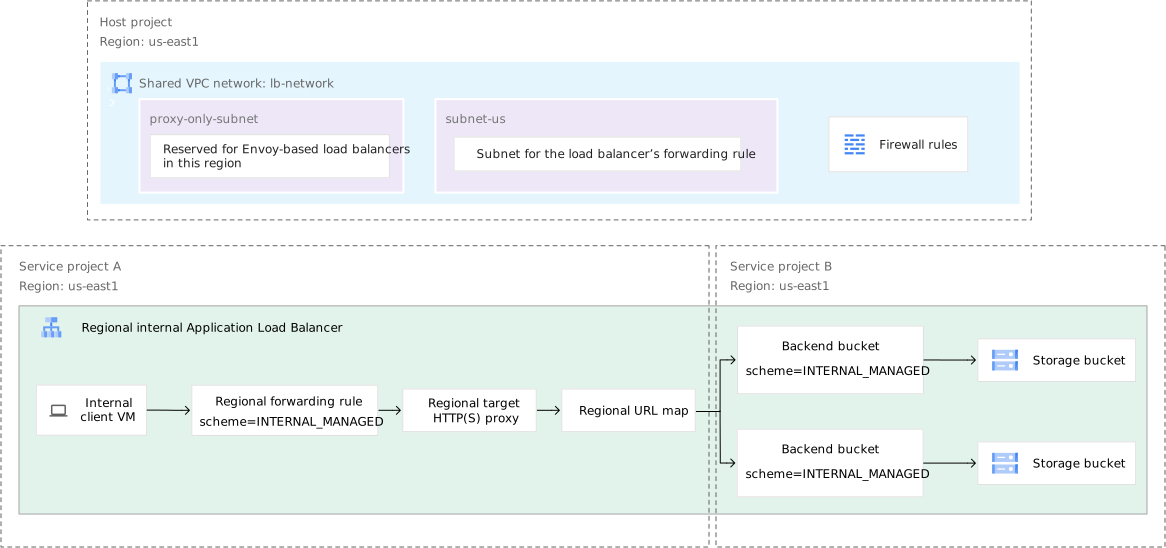
Configure the Cloud Storage buckets and backend buckets in service project B
All the steps in this section must be performed in service project B.
To create a backend bucket, you need to do the following:
- Create the Cloud Storage buckets.
- Copy content to the bucket.
- Make the buckets publicly readable.
- Create a backend bucket and point it to the Cloud Storage bucket.
Create Cloud Storage buckets
In this example, create the Cloud Storage bucket in the
us-east1 region.
Console
- In the Google Cloud console, go to the Cloud Storage Buckets page.
Click Create.
In the Get started section, enter a globally unique name that follows the naming guidelines.
Click Choose where to store your data.
Set Location type to Region.
From the list of regions, select us-east1.
Click Create.
Click Buckets to return to the Cloud Storage Buckets page. Use the preceding instructions to create a second bucket in the us-east1 region.
gcloud
Create the buckets in the us-east1 region with the
gcloud storage buckets create command.
 gcloud storage buckets create gs://BUCKET1_NAME \
     --default-storage-class=standard \
     --location=us-east1 \
     --uniform-bucket-level-access \
     --project=SERVICE_PROJECT_B_ID
  gcloud storage buckets create gs://BUCKET2_NAME \
      --default-storage-class=standard \
      --location=us-east1 \
      --uniform-bucket-level-access \
      --project=SERVICE_PROJECT_B_ID
Replace the following:
BUCKET1_NAME: the name of your first Cloud Storage bucketBUCKET2_NAME: the name of your second Cloud Storage bucketSERVICE_PROJECT_B_ID: the Google Cloud project ID assigned to the service project B
Copy graphic files to your Cloud Storage buckets
To enable you to test the setup, copy a graphic file from a public Cloud Storage bucket to your own Cloud Storage buckets.
gcloud storage cp gs://gcp-external-http-lb-with-bucket/three-cats.jpg gs://BUCKET1_NAME/love-to-purr/
gcloud storage cp gs://gcp-external-http-lb-with-bucket/two-dogs.jpg gs://BUCKET2_NAME/love-to-fetch/
Make your Cloud Storage buckets publicly readable
To make all objects in a bucket readable to everyone on the public internet,
grant the principal allUsers the Storage Object Viewer role
(roles/storage.objectViewer).
Console
To grant all users access to view objects in your buckets, repeat the following procedure for each bucket:
- In the Google Cloud console, go to the Cloud Storage Buckets page.
In the list of buckets, select the checkbox for each bucket that you want to make public.
Click the Permissions button. The Permissions dialog appears.
In the Permissions dialog, click the Add principal button. The Grant access dialog appears.
In the New principals field, enter
allUsers.In the Select a role field, enter
Storage Object Viewerin the filter box and select the Storage Object Viewer from the filtered results.Click Save.
Click Allow public access.
gcloud
To grant all users access to view objects in your buckets, run the buckets add-iam-policy-binding command.
gcloud storage buckets add-iam-policy-binding gs://BUCKET1_NAME \
    --member=allUsers \
    --role=roles/storage.objectViewer
gcloud storage buckets add-iam-policy-binding gs://BUCKET2_NAME \
    --member=allUsers \
    --role=roles/storage.objectViewer
Configure the load balancer with backend buckets
To create the backend buckets, follow these steps:
Create two backend buckets in the
us-east1region with thegcloud compute backend-buckets createcommand. The backend buckets have a load balancing scheme ofINTERNAL_MANAGED.gcloud compute backend-buckets create backend-bucket-cats \ --gcs-bucket-name=BUCKET1_NAME \ --load-balancing-scheme=INTERNAL_MANAGED \ --region=us-east1 \ --project=SERVICE_PROJECT_B_IDgcloud compute backend-buckets create backend-bucket-dogs \ --gcs-bucket-name=BUCKET2_NAME \ --load-balancing-scheme=INTERNAL_MANAGED \ --region=us-east1 \ --project=SERVICE_PROJECT_B_ID
Configure the load balancer frontend components in service project A
All the steps in this section must be performed in service project A.
In service project A, create the following frontend load balancing components:
- Set up an SSL certificate resource that is attached to the target proxy. For more information, in this document, see Set up an SSL certificate resource.
- Create and reserve a static internal IP address for the forwarding rule of the load balancer. For more information, in this document, see Reserve a static internal IP address .
Create a URL map to route incoming requests to the backend bucket in service project B with the
gcloud compute url-maps createcommand.gcloud compute url-maps create URL_MAP_NAME \ --default-backend-bucket=backend-bucket-cats \ --region=us-east1 \ --project=SERVICE_PROJECT_A_IDReplace the following:
URL_MAP_NAME: the name of the URL mapSERVICE_PROJECT_A_ID: the Google Cloud project ID assigned to the service project A
Configure the host and path rules of the URL map with the
gcloud compute url-maps add-path-matchercommand.In this example, the default backend bucket is
backend-bucket-cats, which handles all the paths that exist within it. However, any request targetinghttp://FORWARDING_RULE_IP_ADDRESS/love-to-fetch/two-dogs.jpguses thebackend-bucket-dogsbackend. For example, if the/love-to-fetch/folder also exists within your default backend (backend-bucket-cats), the load balancer prioritizes thebackend-bucket-dogsbackend because there is a specific path rule for/love-to-fetch/*.gcloud compute url-maps add-path-matcher URL_MAP_NAME \ --path-matcher-name=path-matcher-pets \ --new-hosts=* \ --backend-bucket-path-rules="/love-to-fetch/*=projects/SERVICE_PROJECT_B_ID/regional/backendBuckets/backend-bucket-dogs" \ --default-backend-bucket=projects/SERVICE_PROJECT_B_ID/regional/backendBuckets/backend-bucket-cats \ --region=us-east1 \ --project=SERVICE_PROJECT_A_IDCreate a target proxy with the
gcloud compute target-http-proxies createcommand.HTTP
For HTTP traffic, create a target HTTP proxy to route requests to the URL map:
  gcloud compute target-http-proxies create TARGET_HTTP_PROXY_NAME \
      --url-map=URL_MAP_NAME \
      --region=us-east1 \
      --project=SERVICE_PROJECT_A_ID
Replace
TARGET_HTTP_PROXY_NAMEwith the name of the target HTTP proxy.HTTPS
For HTTPS traffic, create a target HTTPS proxy to route requests to the URL map. The proxy is the part of the load balancer that holds the SSL certificate for an HTTPS load balancer. After you create the certificate, you can attach the certificate to the HTTPS target proxy.
To attach a Certificate Manager certificate, run the following command:
  gcloud compute target-https-proxies create TARGET_HTTPS_PROXY_NAME \
      --url-map=lb-map \
      --certificate-manager-certificates=CERTIFICATE_NAME \
      --region=us-east1 \
      --project=SERVICE_PROJECT_A_ID
Replace the following:
TARGET_HTTPS_PROXY_NAME: the name of the target HTTPS proxyCERTIFICATE_NAME: the name of the SSL certificate you created using Certificate Manager.
Create a forwarding rule with an IP address in the
us-east1region with thegcloud compute forwarding-rules createcommand.Reserving an IP address is optional for an HTTP forwarding rule; however, you need to reserve an IP address for an HTTPS forwarding rule.
In this example, an ephemeral IP address is associated with your load balancer's HTTP forwarding rule. An ephemeral IP address remains constant while the forwarding rule exists. If you need to delete the forwarding rule and recreate it, the forwarding rule might receive a new IP address.
HTTP
For HTTP traffic, create a regional forwarding rule to route incoming requests to the HTTP target proxy:
  gcloud compute forwarding-rules create FORWARDING_RULE_NAME \
      --load-balancing-scheme=INTERNAL_MANAGED \
      --network=projects/HOST_PROJECT_ID/global/networks/lb-network \
      --subnet=subnet-us \
      --address=RESERVED_IP_ADDRESS
      --ports=80 \
      --region=us-east1 \
      --target-http-proxy=TARGET_HTTP_PROXY_NAME \
      --target-http-proxy-region=us-east1 \
      --project=SERVICE_PROJECT_A_ID
Replace the following:
FORWARDING_RULE_NAME: the name of the forwarding ruleRESERVED_IP_ADDRESS: the reserved IP address
HTTPS
For HTTPS traffic, create a regional forwarding rule to route incoming requests to the HTTPS target proxy:
  gcloud compute forwarding-rules create FORWARDING_RULE_NAME \
      --load-balancing-scheme=INTERNAL_MANAGED \
      --network=projects/HOST_PROJECT_ID/global/networks/lb-network \
      --subnet=subnet-us \
      --address=RESERVED_IP_ADDRESS \
      --ports=443 \
      --region=us-east1 \
      --target-https-proxy=TARGET_HTTPS_PROXY_NAME \
      --target-https-proxy-region=us-east1 \
      --project=SERVICE_PROJECT_A_ID
Replace the following:
FORWARDING_RULE_NAME: the name of the forwarding ruleRESERVED_IP_ADDRESS: the reserved IP address
Grant permission to the Compute Load Balancer Admin to use the backend bucket
If you want load balancers to reference backend buckets in other service
projects, the load balancer administrator must have the compute.backendBuckets.use
permission. To grant this permission, you can use the predefined
IAM role called
Compute Load Balancer Services User (roles/compute.loadBalancerServiceUser).
This role must be granted by the Service Project Admin and can be applied at
the service project level or at the individual backend bucket level.
In this example, a Service Project Admin from service project B must run one
of the following commands to grant the compute.backendBuckets.use permission
to a Load Balancer Admin from service project A. This can be done either at the
project level (for all backend buckets in the project) or per backend bucket.
Console
Project-level permissions
Use the following steps to grant permissions to all backend buckets in your project.
You require the compute.regionBackendBuckets.setIamPolicy and the
resourcemanager.projects.setIamPolicy permissions to complete this step.
In the Google Cloud console, go to the IAM page.
Select your project.
Click Grant access.
In the New principals field, enter the principal's email address or other identifier.
In the Assign roles section, click Add roles.
In the Select roles dialog, in the Search for roles field, enter
Compute Load Balancer Services User.Select the Compute Load Balancer Services User checkbox.
Click Apply.
Optional: Add a condition to the role.
Click Save.
Resource-level permissions for individual backend buckets
Use the following steps to grant permissions to individual backend buckets in your project.
You require the compute.regionBackendBuckets.setIamPolicy permission to
complete this step.
In the Google Cloud console, go to the Backends page.
From the backends list, select the backend bucket that you want to grant access to and click Permissions.
Click Add principal.
In the New principals field, enter the principal's email address or other identifier.
In the Select a role list, select Compute Load Balancer Services User.
Click Save.
gcloud
Project-level permissions
Use the following steps to grant permissions to all backend buckets in your project.
You require the compute.regionBackendBuckets.setIamPolicy and the
resourcemanager.projects.setIamPolicy permissions to complete this step.
  gcloud projects add-iam-policy-binding SERVICE_PROJECT_B_ID \
      --member="user:LOAD_BALANCER_ADMIN" \
      --role="roles/compute.loadBalancerServiceUser"
Replace the following:
SERVICE_PROJECT_B_ID: the Google Cloud project ID assigned to the service project BLOAD_BALANCER_ADMIN: the principal to add the binding for
Resource-level permissions for individual backend buckets
At the backend bucket level, Service Project Admins can use either of the
following commands to grant the Compute Load Balancer Services User role
(roles/compute.loadBalancerServiceUser):
gcloud projects add-iam-policy-bindingcommandgcloud compute backend-buckets add-iam-policy-bindingcommand
Use the gcloud projects add-iam-policy-binding command to grant the
Compute Load Balancer Services User role.
You require the compute.regionBackendBuckets.setIamPolicy
permission to complete this step.
  gcloud projects add-iam-policy-binding SERVICE_PROJECT_B_ID \
      --member="user:LOAD_BALANCER_ADMIN" \
      --role="roles/compute.loadBalancerServiceUser" \
      --condition='expression=resource.name=="projects/SERVICE_PROJECT_B_ID/regions/REGION/backendBuckets/BACKEND_BUCKET_NAME",title=Shared VPC condition'
SERVICE_PROJECT_B_ID: the Google Cloud project ID assigned to the service project BLOAD_BALANCER_ADMIN: the principal to add the binding forREGION: the Google Cloud region where the backend bucket is locatedBACKEND_BUCKET_NAME: the name of the backend bucket
gcloud compute backend-buckets add-iam-policy-binding command
to grant the Compute Load Balancer Services User role.
  gcloud compute backend-buckets add-iam-policy-binding BACKEND_BUCKET_NAME \
      --member="user:LOAD_BALANCER_ADMIN" \
      --role="roles/compute.loadBalancerServiceUser" \
      --project=SERVICE_PROJECT_B_ID \
      --region=REGION
Send an HTTP request to the load balancer
Now that the load balancing service is running, send a request from an internal client VM to the forwarding rule of the load balancer.
Get the IP address of the load balancer's forwarding rule, which is in the
us-east1region.gcloud compute forwarding-rules describe FORWARDING_RULE_NAME \ --region=us-east1 \ --project=SERVICE_PROJECT_A_IDCopy the returned IP address to use as the
FORWARDING_RULE_IP_ADDRESS.Create a client VM in the
us-east1region.gcloud compute instances create client-a \ --image-family=debian-12 \ --image-project=debian-cloud \ --network=lb-network \ --subnet=subnet-us \ --zone=us-east1-c \ --tags=allow-sshEstablish an SSH connection to the client VM.
gcloud compute ssh client-a --zone=us-east1-c
In this example, the regional internal Application Load Balancer has a frontend VIP in the
us-east1region in the VPC network. Make an HTTP request to the VIP in that region by using curl.curl http://FORWARDING_RULE_IP_ADDRESS/love-to-purr/three-cats.jpg --output three-cats.jpg
curl http://FORWARDING_RULE_IP_ADDRESS/love-to-fetch/two-dogs.jpg --output two-dogs.jpg
Replace
FORWARDING_RULE_IP_ADDRESSwith the IP address you copied in the first step.
What's next
- Shared VPC overview
- Internal Application Load Balancer overview
- Proxy-only subnets for Envoy-based load balancers
- Manage certificates
- Clean up a load balancing setup