

A backend service defines how Cloud Load Balancing distributes traffic. The backend service configuration contains a set of values, such as the protocol used to connect to backends, various distribution and session settings, health checks, and timeouts. These settings provide fine-grained control over how your load balancer behaves. To get you started, most of the settings have default values that allow for fast configuration. A backend service is either global or regional in scope.
Load balancers, Envoy proxies, and proxyless gRPC clients use the configuration information in the backend service resource to do the following:
- Direct traffic to the correct backends, which are instance groups or network endpoint groups (NEGs).
- Distribute traffic according to a balancing mode, which is a setting for each backend.
- Determine which health check is monitoring the health of the backends.
- Specify session affinity.
- Determine whether other services are enabled, including the following
services that are only available for certain load
balancers:
- Cloud CDN
- Google Cloud Armor security policies
- Identity-Aware Proxy
- Designate global and regional backend services as a service in App Hub applications.
You set these values when you create a backend service or add a backend to the backend service.
The following table summarizes which load balancers use backend services. The product that you are using also determines the maximum number of backend services, the scope of a backend service, the type of backends supported, and the backend service's load balancing scheme. The load balancing scheme is an identifier that Google uses to classify forwarding rules and backend services. Each load balancing product uses one load balancing scheme for its forwarding rules and backend services. Some schemes are shared among products.
| Product | Maximum number of backend services | Scope of backend service | Supported backend types | Load balancing scheme |
|---|---|---|---|---|
| Global external Application Load Balancer | Multiple | Global | Each backend service supports one of the following backend combinations:
|
EXTERNAL_MANAGED |
| Classic Application Load Balancer | Multiple | Global3 | Each backend service supports one of the following backend combinations:
|
EXTERNAL4 |
| Regional external Application Load Balancer | Multiple | Regional | Each backend service supports one of the following backend combinations:
|
EXTERNAL_MANAGED |
| Cross-region internal Application Load Balancer | Multiple | Global | Each backend service supports one of the following backend combinations:
|
INTERNAL_MANAGED |
| Regional internal Application Load Balancer | Multiple | Regional | Each backend service supports one of the following backend combinations:
|
INTERNAL_MANAGED |
| Global external proxy Network Load Balancer | 1 | Global3 | The backend service supports one of the following backend combinations:
|
EXTERNAL_MANAGED |
| Classic proxy Network Load Balancer | 1 | Global3 | The backend service supports one of the following backend combinations:
|
EXTERNAL |
| Regional external proxy Network Load Balancer | Without TLS routes: 1 With TLS routes (Preview): Multiple |
Regional | The backend service supports one of the following backend combinations:
|
EXTERNAL_MANAGED |
| Regional internal proxy Network Load Balancer | Without TLS routes: 1 With TLS routes (Preview): Multiple |
Regional | The backend service supports one of the following backend combinations:
|
INTERNAL_MANAGED |
| Cross-region internal proxy Network Load Balancer | Without TLS routes: 1 With TLS routes (Preview): Multiple |
Global | The backend service supports one of the following backend combinations:
|
INTERNAL_MANAGED |
| Global external passthrough Network Load Balancer | 1 | Global | The backend service supports one of the following backend combinations:
|
EXTERNAL_PASSTHROUGH |
| Regional external passthrough Network Load Balancer | 1 | Regional | The backend service supports one of the following backend combinations:
|
EXTERNAL |
| Internal passthrough Network Load Balancer | 1 | Regional, but configurable to be globally accessible | The backend service supports one of the following backend combinations:
|
INTERNAL |
| Cloud Service Mesh | Multiple | Global | Each backend service supports one of the following backend combinations:
|
INTERNAL_SELF_MANAGED |
- The forwarding rule and its external IP address are regional.
- All backends connected to the backend service must be located in the same region as the forwarding rule.
EXTERNAL_MANAGED backend services to
EXTERNAL forwarding rules. However, EXTERNAL backend
services cannot be attached to EXTERNAL_MANAGED forwarding rules.
To take advantage of new features available
only with the global external Application Load Balancer, we
recommend that you migrate your existing EXTERNAL resources to
EXTERNAL_MANAGED by using the migration process described at
Migrate
resources from classic to global external Application Load Balancer.
Load balancer naming
For Proxy Network Load Balancers and Passthrough Network Load Balancers, the name of the load balancer is always the same as the name of the backend service. The behavior for each Google Cloud interface is as follows:
- Google Cloud console. If you create either a proxy Network Load Balancer or a passthrough Network Load Balancer by using the Google Cloud console, the backend service is automatically assigned the same name that you entered for the load balancer name.
- Google Cloud CLI or API. If you create either a proxy Network Load Balancer or a passthrough Network Load Balancer by using the gcloud CLI or the API, you enter a name of your choice while creating the backend service. This backend service name is then reflected in the Google Cloud console as the name of the load balancer.
To learn about how naming works for Application Load Balancers, see URL maps overview: Load balancer naming.
Backends
A backend is one or more endpoints that receive traffic from a Google Cloud load balancer, a Cloud Service Mesh-configured Envoy proxy, or a proxyless gRPC client. There are several types of backends:
- Instance group containing virtual machine (VM) instances. An instance group can be a managed instance group (MIG), with or without autoscaling, or it can be an unmanaged instance group. More than one backend service can reference an instance group, but all backend services that reference the instance group must use compatible balancing modes. For more information, in this document, see Restrictions and guidance for instance groups.
- Zonal NEG
- Serverless NEG
- Private Service Connect NEG
- Internet NEG
- Hybrid connectivity NEG
- Port mapping NEG
- Service Directory service bindings (Preview)
- Published service backends (Preview)
You cannot delete a backend instance group or NEG that is associated with a backend service. Before you delete an instance group or NEG, you must first remove it as a backend from all backend services that reference it.
Instance groups
This section discusses how instance groups work with the backend service.
Backend VMs and external IP addresses
Backend VMs in backend services don't need external IP addresses:
For global external Application Load Balancers and external proxy Network Load Balancers: Clients communicate with a first-layer Google Front End (GFE) which hosts your load balancer's external IP address. The first-layer GFE communicates with a second-layer GFE, located in the same region as the backend VM or endpoint. Each second-layer GFE communicates with backend VMs or endpoints according to the following rules:
Load-balanced network interface: The network interface that the second-layer GFE sends request traffic to depends on the type of backend group:
For instance group backends, the load balancer always delivers packets to the
nic0interface of each backend VM. This rule is true even if the VM has multiple network interfaces in the same or in different VPC networks.For
GCE_VM_IP_PORTzonal NEG backends, the load balancer delivers packets to the network interface that the endpoint IP address is associated with. For backend VMs with multiple network interfaces, the network interface can be in any VPC network, subject to the following exception: If a backend VM has itsnic0interface and one or more non-nic0interfaces in the same VPC network, then from the set of network interfaces in the same VPC network, the load balancer delivers packets to only thenic0network interface.
Destination IP address on the load-balanced interface: The second-layer GFE sends request traffic whose packets have the following destination IP addresses:
For instance group backends, the packet destination is either the primary internal IPv4 address of the
nic0network interface or the first/128IPv6 address from the/96IPv6 range assigned to thenic0interface, depending on the IP address selection policy of the backend service and network interface stack type.For
GCE_VM_IP_PORTzonal NEG backends, the packet destination matches an endpoint IP address specified in the NEG, depending on the IP address selection policy of the backend service and network interface stack type. For valid endpoint IP addresses, see NEGs withGCE_VM_IP_PORTendpoints. If a backend VM has itsnic0interface and one or more non-nic0interfaces in the same VPC network, then from the set of network interfaces in the same VPC network, you can only specify an endpoint IP address associated with thenic0network interface.
Communication between second-layer GFEs and backends is facilitated through special routes.
For regional external Application Load Balancers and regional external proxy Network Load Balancers: Clients communicate with a managed Envoy proxy that hosts your load balancer's external IP address. The Envoy proxy is located in a proxy-only subnet. Each Envoy proxy communicates with backend VMs or endpoints according to the following rules:
Load-balanced network interface: The network interface to which the Envoy proxy sends request traffic depends on the type of backend group:
For instance group backends, the load balancer always delivers packets to the
nic0interface of each backend VM. This rule is true even if the VM has multiple network interfaces in the same or in different VPC networks.For
GCE_VM_IP_PORTzonal NEG backends, the load balancer delivers packets to the network interface with which the endpoint IP address is associated. For backend VMs with multiple network interfaces, the network interface can be in any VPC network, subject to the following exception: If a backend VM has itsnic0interface and one or more non-nic0interfaces in the same VPC network, then from the set of network interfaces in the same VPC network, the load balancer delivers packets to only thenic0network interface.
Destination IP address on the load-balanced interface: The Envoy proxy sends request traffic whose packets have the following destination IP addresses:
For instance group backends, the packet destination is either the primary internal IPv4 address of the
nic0network interface or the first/128IPv6 address from the/96IPv6 range assigned to thenic0interface, depending on the IP address selection policy of the backend service and network interface stack type.For
GCE_VM_IP_PORTzonal NEG backends, the packet destination matches an endpoint IP address specified in the NEG, depending on the IP address selection policy of the backend service and network interface stack type. For valid endpoint IP addresses, see NEGs withGCE_VM_IP_PORTendpoints. If a backend VM has itsnic0interface and one or more non-nic0interfaces in the same VPC network, then from the set of network interfaces in the same VPC network, you can only specify an endpoint IP address associated with thenic0network interface.
For global external passthrough Network Load Balancers and regional external passthrough Network Load Balancers: Clients communicate directly with backends by using Google Maglev infrastructure. Packets are routed and delivered to backends with the original source and destination IP addresses preserved. The load balancer delivers packets to one of the following network interfaces:
For global external passthrough Network Load Balancers with instance group backends, the load balancer always delivers packets to the
nic0interface. For more information, see Instance group backends and network interfaces.For global external passthrough Network Load Balancers with
GCE_VM_IPNEG backends, the load balancer delivers packets to the network interface that is in the subnetwork associated with NEG. For more information, see Zonal NEG backends and network interfaces.For backend service-based regional external passthrough Network Load Balancers with instance group backends, the load balancer always delivers packets to the
nic0interface. For more information, see Instance group backends and network interfaces.For backend service-based regional external passthrough Network Load Balancers with
GCE_VM_IPNEG backends, the load balancer delivers packets to the network interface that is in the subnetwork associated with NEG. For more information, see Zonal NEG backends and network interfaces.For target pool-based regional external passthrough Network Load Balancers, the load balancer always delivers packets to the
nic0interface.If a backend VM has its
nic0interface and one or more non-nic0interfaces in the same VPC network, then from the set of network interfaces in the same VPC network, the load balancer delivers packets only to thenic0network interface.
For internal passthrough Network Load Balancers: Clients communicate directly with backends by using the Andromeda network virtualization stack. Packets are routed and delivered to backends with the original source and destination IP addresses preserved. For instance group backends and
GCE_VM_IPNEG backends, the load balancer delivers packets to a network interface in the backend service's VPC network:The backend service's VPC network can be specified explicitly, or it can be inherited from the first backend instance group or NEG added to the backend service or the first forwarding rule that references the backend service. For more information, see Backend service network specification.
If a backend VM has its
nic0interface and one or more non-nic0interfaces in the same VPC network, then from the set of network interfaces in the same VPC network, the load balancer delivers packets to only thenic0network interface.
Named ports
The backend service's named port attribute is only applicable to proxy-based load balancers (Application Load Balancers and Proxy Network Load Balancers) using instance group backends. The named port defines the destination port used for the TCP connection between the proxy (GFE or Envoy) and the backend instance.
Named ports are configured as follows:
On each instance group backend, you must configure one or more named ports using key-value pairs. The key represents a meaningful port name that you choose, and the value represents the port number you assign to the name. The mapping of names to numbers is done individually for each instance group backend.
On the backend service, you specify a single named port using just the port name (
--port-name).
On a per-instance group backend basis, the backend service translates the port
name to a port number. When an instance group's named port matches the backend
service's --port-name, the backend service uses this port number for
communication with the instance group's VMs.
For example, you might set the named port on an instance group with the name
my-service-name and the port 8888:
gcloud compute instance-groups unmanaged set-named-ports my-unmanaged-ig \
    --named-ports=my-service-name:8888
Then you refer to the named port in the backend service configuration with the
--port-name on the backend service set to my-service-name:
gcloud compute backend-services update my-backend-service \
    --port-name=my-service-name
A backend service can use a different port number when communicating with VMs in different instance groups if each instance group specifies a different port number for the same port name.
The resolved port number used by the proxy load balancer's backend service doesn't need to match the port number used by the load balancer's forwarding rules. A proxy load balancer listens for TCP connections sent to the IP address and destination port of its forwarding rules. Because the proxy opens a second TCP connection to its backends, the second TCP connection's destination port can be different.
Named ports are only applicable to instance group backends. Zonal NEGs with
GCE_VM_IP_PORT endpoints, hybrid NEGs with NON_GCP_PRIVATE_IP_PORT
endpoints, and internet NEGs define ports using a different mechanism, namely,
on the endpoints themselves. Serverless NEGs reference Google services and PSC
NEGs reference service attachments using abstractions that don't involve
specifying a destination port.
Internal passthrough Network Load Balancers and regional external passthrough Network Load Balancers don't use named ports. This is because they are pass-through load balancers that route connections directly to backends instead of creating new connections. Packets are delivered to the backends preserving the destination IP address and port of the load balancer's forwarding rule.
To learn how to create named ports, see the following instructions:
- Unmanaged instance groups: Working with named ports
- Managed instance groups: Assigning named ports to managed instance groups
Restrictions and guidance for instance groups
Keep the following in mind when you use instance group backends:
A VM instance can only belong to a single load-balanced instance group. For example, a VM can be a member of two unmanaged instance groups, or a VM can be a member of one managed instance group and one unmanaged instance group. When a VM is a member of two or more instance groups, only one of the instance groups can be referenced by one or more load balancer backend services.
The same instance group can be used by two or more backend services. Each mapping between an instance group and a backend service can use a different balancing mode except for the incompatible balancing mode combinations.
The incompatible balancing mode combinations are as follows:
The
UTILIZATIONbalancing mode is incompatible with all other balancing modes. If an instance group is a backend of multiple backend services, the instance group must use theUTILIZATIONbalancing mode on every backend service.The
CUSTOM_METRICSbalancing mode is incompatible with all other balancing modes. If an instance group is a backend of multiple backend services, the instance group must use theCUSTOM_METRICSbalancing mode on every backend service.
As a consequence of the incompatible balancing mode combinations, if an instance group uses either the
UTILIZATIONorCUSTOM_METRICSbalancing mode as a backend for at least one backend service, the same instance group can't be used as a backend for internal passthrough Network Load Balancer and regional external passthrough Network Load Balancer. This is because instance group backends of regional passthrough Network Load Balancers (internal passthrough Network Load Balancer and regional external passthrough Network Load Balancer) useCONNECTIONas their balancing mode.
There's no single command that can change the balancing mode of the same instance group on multiple backend services. If an instance group is a backend for two or more backends services, and their balancing modes need to be updated to a new mode that is incompatible with their current mode, you can use the following technique:
- Remove the instance group as a backend from all backend services except for one backend service.
- Change the instance group's balancing mode for the one remaining backend service.
- Re-add the instance group as a backend to the other backend services.
Consider the following best practices, which provide more flexible options:
Avoid using the same instance group as a backend for two or more backend services. Instead, use multiple NEGs.
Unlike instance groups, a VM can have an endpoint in two or more load-balanced NEGs.
For example, if a VM needs to simultaneously be a backend of both a passthrough Network Load Balancer and either a proxy Network Load Balancer or an Application Load Balancer, use multiple load-balanced NEGs. Place a VM endpoint in a unique NEG compatible with each load balancer type. Then associate each NEG with the corresponding load balancer backend service.
Don't add an autoscaled managed instance group to more than one backend service when using the HTTP Load Balancing Utilization autoscaling metric. Two or more backend services referencing the same autoscaled managed instance group can contradict with one another unless the autoscaling metric is unrelated to load balancer activity.
Zonal network endpoint groups
Network endpoints represent services by their IP address or an IP address and port combination, rather than referring to a VM in an instance group. A network endpoint group (NEG) is a logical grouping of network endpoints.
Zonal NEGs are zonal resources that represent collections of either IP addresses or IP address and port combinations for Google Cloud resources within a single subnet.
A backend service that uses zonal NEGs as its backends distributes traffic among applications or containers running within VMs.
There are two types of network endpoints available for zonal NEGs:
GCE_VM_IPendpoints that are supported by all passthrough load balancers, except target pool-based regional external passthrough Network Load Balancers.GCE_VM_IP_PORTendpoints that are supported by all proxy-based load balancers (Application Load Balancers and Proxy Network Load Balancers) and Cloud Service Mesh.
To see which products support zonal NEG backends, see Table: Backend services and supported backend types.
For details, see Zonal NEGs overview.
Internet network endpoint groups
Internet NEGs are resources that define external backends. An external backend is a backend that is hosted within on-premises infrastructure or on infrastructure provided by third parties.
An internet NEG is a combination of a hostname or an IP address, plus an
optional port. There are two types of network endpoints available for internet
NEGs: INTERNET_FQDN_PORTand INTERNET_IP_PORT.
For details, see Internet network endpoint group overview.
Serverless network endpoint groups
A network endpoint group (NEG) specifies a group of backend endpoints for a load balancer. A serverless NEG is a backend that points to a Cloud Run, App Engine, Cloud Run functions, or API Gateway resource.
A serverless NEG can represent one of the following:
- A Cloud Run resource or a group of resources.
- A Cloud Run function or group of functions (formerly Cloud Run functions 2nd gen).
- A Cloud Run function (1st gen) or group of functions
- An App Engine standard environment or App Engine flexible environment app, a specific service within an app, a specific version of an app, or a group of services.
- An API Gateway that provides access to your services through a REST API consistent across all services, regardless of service implementation. This capability is in Preview.
To set up a serverless NEG for serverless applications that share a URL
pattern, you use a URL
mask. A URL mask
is a template of your URL schema (for example, example.com/<service>). The
serverless NEG will use this template to extract the <service> name from the
incoming request's URL and route the request to the matching
Cloud Run, Cloud Run functions, or App Engine
service with the same name.
To see which load balancers support serverless NEG backends, see Table: Backend services and supported backend types.
For more information about serverless NEGs, see the Serverless network endpoint groups overview.
Service Directory service bindings
A Service Directory service binding is a backend resource that establishes a connection between a backend service in Cloud Service Mesh and a service registered in Service Directory. A backend service can reference several Service Directory service bindings. However, a backend service with a Service Directory service binding can't reference any other type of backend resource. For more information, see Cloud Service Mesh integration with Service Directory.
Published service backends
If both the producer and consumer VPC networks belong to the same organization, you can access a published service by using published service backends. Published service backends let you configure supported load balancers or Cloud Service Mesh to route traffic to published services through Private Service Connect endpoints. To route traffic to the published service, you associate a regional backend service with a service attachment. This configuration is known as a published service backend.
These backends provide unified connectivity by allowing supported load balancers and Cloud Service Mesh to share Private Service Connect endpoints. You establish this connection by providing a reference to the producer's service attachment. Published service backends also enable advanced traffic management and observability, such as enforcing centralized security policies and collecting centralized metrics.
For more information on how to configure published service backends for load balancers, see Access published services through published service backends and endpoints.
Mixed backends
The following usage considerations apply when you add different types of backends to a single backend service:
- A single backend service cannot simultaneously use both instance groups and zonal NEGs.
- You can use a combination of different types of instance groups on the same backend service. For example, a single backend service can reference a combination of both managed and unmanaged instance groups. For complete information about which backends are compatible with which backend services, see the table in the previous section.
- With certain proxy load balancers, you can use a combination of zonal NEGs
(with
GCE_VM_IP_PORTendpoints) and hybrid connectivity NEGs (withNON_GCP_PRIVATE_IP_PORTendpoints) to configure hybrid load balancing. To see which load balancers have this capability, refer Table: Backend services and supported backend types.
Protocol to the backends
When you create a backend service, you must specify the protocol used to communicate with the backends. You can specify only one protocol per backend service — you cannot specify a secondary protocol to use as a fallback.
Which protocols are valid depends on the type of load balancer or whether you are using Cloud Service Mesh.
| Product family | Backend service protocol options |
|---|---|
| Application Load Balancer | HTTP, HTTPS, HTTP/2 |
| Proxy Network Load Balancer | TCP or SSL The regional proxy Network Load Balancers support only TCP. |
| Global external passthrough Network Load Balancer | UNSPECIFIED |
| Regional passthrough Network Load Balancer | TCP, UDP, or UNSPECIFIED |
| Cloud Service Mesh | HTTP, HTTPS, HTTP/2, gRPC, TCP |
Changing a backend service's protocol makes the backends inaccessible through load balancers for a few minutes.
IP address selection policy
This field is applicable to proxy load balancers. You must use the IP address selection policy to specify the traffic type that is sent from the backend service to your backends.
When you select the IP address selection policy, ensure that your backends support the selected traffic type. For more information, see Table: Backend services and supported backend types.
IP address selection policy is used when you want to convert your load balancer backend service to support a different traffic type. For more information, see Convert from single-stack to dual-stack.
You can specify the following values for the IP address selection policy:
| IP address selection policy | Description |
|---|---|
| Only IPv4 | Only send IPv4 traffic to the backends of the backend service, regardless of traffic from the client to the GFE. Only IPv4 health checks are used to check the health of the backends. |
| Prefer IPv6 | Prioritize the backend's IPv6 connection over the IPv4 connection (provided there is a healthy backend with IPv6 addresses). The health checks periodically monitor the backends' IPv6 and IPv4 connections. The GFE first attempts the IPv6 connection; if the IPv6 connection is broken or slow, the GFE uses happy eyeballs to fall back and connect to IPv4. Even if one of the IPv6 or IPv4 connections is unhealthy, the backend is still treated as healthy, and both connections can be tried by the GFE, with happy eyeballs ultimately selecting which one to use. |
| Only IPv6 | Only send IPv6 traffic to the backends of the backend service, regardless of traffic from the client to the proxy. Only IPv6 health checks are used to check the health of the backends. There is no validation to check if the backend traffic type matches the
IP address selection policy. For example, if you have IPv4-only backends
and select |
Encryption between the load balancer and backends
For information about encryption between the load balancer and backends, see Encryption to the backends.
Balancing mode, target capacity, and capacity scaler
For Application Load Balancers, Cloud Service Mesh, proxy Network Load Balancers, and global external passthrough Network Load Balancers the balancing mode, target capacity, and capacity scaler are parameters you provide when you add a supported backend to a backend service. The load balancers use these parameters to manage the distribution of new requests (for HTTP load balancing), or new connections (for TCP proxy load balancing and global passthrough load balancing) to zones that contain supported backends:
The balancing mode defines how the load balancer measures capacity. In other words, the balancing mode is the unit by which capacity is defined.
Google Cloud has the following balancing modes:
CONNECTION: defines capacity based on the number of new TCP connections.RATE: defines capacity based on the rate of new HTTP requests per second (for Application Load Balancers) or packets per second (for global external passthrough Network Load Balancers).IN-FLIGHT: defines capacity based on the number of in-flight HTTP requests instead of the rate of HTTP requests. Use this balancing mode instead ofRATEif requests take more than a second to complete.UTILIZATION: defines capacity based on the approximated CPU utilization of VMs in a zone of an instance group.CUSTOM_METRICS: defines capacity based on user-defined custom metrics.
The target capacity defines the target capacity number.
- The target capacity isn't a circuit breaker.
- When capacity usage reaches the target capacity, the load balancer directs new requests or new connections to a different zone if backends are configured in two or more zones.
- Global and cross-region load balancers also use capacity to direct requests or new connections to zones in different regions, if you've configured backends in more than one region.
- When all zones have reached target capacity, new requests or new connections are distributed by overfilling proportionally.
The capacity scaler provides a way to scale the target capacity manually. The values for the capacity scaler are as follows:
0: indicates that the backend is completely drained. You can't use a value of0if a backend service has only one backend.0.1(10%) -1.0(100%): indicates the percentage of backend capacity that is in use.
Supported backends
For proxy-based load balancers (Application Load Balancers and proxy Network Load Balancers) and Cloud Service Mesh, the following types of backends support the balancing mode, target capacity, and capacity scaler parameters:
For global external passthrough Network Load Balancers, the following types of backends support the balancing mode, target capacity, and capacity scaler parameters:
Internet NEGs, serverless NEGs, and Private Service Connect NEGs don't support the balancing mode, target capacity, and capacity scaler parameters.
Balancing modes for Application Load Balancers and Cloud Service Mesh
Available balancing modes for Application Load Balancer and Cloud Service Mesh backends depend on the type of supported backend and a traffic duration setting.
Traffic duration setting
For Application Load Balancer and Cloud Service Mesh backends, you can optionally specify a traffic duration setting. This setting is unique to the mapping between a supported backend and a backend service. The traffic duration setting has two valid values:
SHORT: recommended for HTTP requests answered with responses from backends in less than one second. If you don't explicitly specify a traffic duration, the load balancer operates as if you'd specifiedSHORT.LONG: recommended for HTTP requests for which the backend needs more than one second to generate responses.
To explicitly set the traffic duration when you add a backend to a backend service, do one of the following:
- Run the
gcloud compute backend-services add-backendcommand with the--traffic-durationflag. - Create a backend service or update a backend service with the
trafficDurationattribute.
Balancing modes for short traffic duration
When the traffic duration setting isn't specified or is set to
SHORT, the available balancing modes for Application Load Balancer and
Cloud Service Mesh backends depend on the type of supported backend.
| Supported backend | Balancing mode | ||||
|---|---|---|---|---|---|
CONNECTION |
RATE |
IN_FLIGHT |
UTILIZATION |
CUSTOM_METRICS |
|
| Instance groups | |||||
Zonal NEGs with GCE_VM_IP_PORT endpoints |
|||||
| Zonal hybrid connectivity NEGs | |||||
Balancing modes for long traffic duration
When the traffic duration setting is LONG, the available balancing modes for
Application Load Balancer and Cloud Service Mesh backends depend on the type of
supported backend.
| Supported backend | Balancing mode | ||||
|---|---|---|---|---|---|
CONNECTION |
RATE |
IN_FLIGHT |
UTILIZATION |
CUSTOM_METRICS |
|
| Instance groups | |||||
Zonal NEGs with GCE_VM_IP_PORT endpoints |
|||||
| Zonal hybrid connectivity NEGs | |||||
Balancing modes for Proxy Network Load Balancers
Available balancing modes for proxy Network Load Balancer backends depend on the type of supported backend.
| Supported backend | Balancing mode | ||||
|---|---|---|---|---|---|
CONNECTION |
RATE |
IN_FLIGHT |
UTILIZATION |
CUSTOM_METRICS |
|
| Instance groups | |||||
Zonal NEGs with GCE_VM_IP_PORT endpoints |
|||||
| Zonal hybrid connectivity NEGs | |||||
Balancing modes for passthrough Network Load Balancers
The following tables outline the balancing modes for global and regional passthrough Network Load Balancers.
Balancing modes for global external passthrough Network Load Balancers
Available balancing modes for global external passthrough Network Load Balancer backends depend on the type of supported backend.
| Supported backend | Balancing mode | |
|---|---|---|
RATE |
UTILIZATION |
|
| Instance groups | ||
Zonal NEGs with GCE_VM_IP endpoints |
||
Balancing modes for regional passthrough Network Load Balancers
The following table shows the balancing modes for regional passthrough Network Load Balancers—regional external passthrough Network Load Balancer and internal passthrough Network Load Balancer.
| Supported backend | Balancing mode |
|---|---|
CONNECTION |
|
| Instance groups | |
Zonal NEGs with GCE_VM_IP endpoints |
Target capacity specifications for proxy-based load balancers
This section covers target capacity specifications for Application Load Balancer, Cloud Service Mesh, and proxy Network Load Balancer backends that support balancing mode, target capacity, and capacity scaler settings.
To learn more about target capacity specifications for global external passthrough Network Load Balancers, see Target capacity specifications for global external passthrough Network Load Balancers.
Connection balancing mode
Proxy Network Load Balancer backends can use the CONNECTION balancing mode with one
of the following required target capacity parameters:
| Target capacity parameter | Supported backend | |||
|---|---|---|---|---|
| Zonal (managed or unmanaged) instance groups | Regional managed instance groups | Zonal NEGs with GCE_VM_IP_PORT endpoints |
Zonal hybrid connectivity NEGs | |
max-connectionsTarget TCP connections per backend zone |
||||
max-connections-per-instanceTarget TCP connections per VM instance. Cloud Load Balancing uses this parameter to calculate target TCP connections per backend zone. |
||||
max-connections-per-endpointTarget TCP connections per NEG endpoint. Cloud Load Balancing uses this parameter to calculate target TCP connections per backend zone. |
||||
Using the max-connections parameter
When you specify the max-connections parameter, the value you provide defines
the capacity for an entire zone.
For a zonal instance group with
Ntotal instances andhhealthy instances (whereh≤N), the calculations are as follows:- If you set
max-connectionstoX, the zonal target capacity isX. - The average connections per instance is
X / h.
- If you set
Regional managed instance groups don't support the
max-connectionsparameter because they consist of multiple zones. Instead, use themax-connections-per-instanceparameter.For a zonal NEG with
Ntotal endpoints andhhealthy endpoints (whereh≤N), the calculations are as follows:- If you set
max-connectionstoX, the zonal target capacity isX. - The average connections per endpoint is
X / h.
- If you set
Using the max-connections-per-instance or max-connections-per-endpoint parameter
When you specify either the max-connections-per-instance or
max-connections-per-endpoint parameter, the load balancer uses the value you
provide to calculate a per-zone capacity:
For a zonal instance group with
Ntotal instances andhhealthy instances (whereh≤N), the calculations are as follows:- If you set
max-connections-per-instancetoX, the zonal target capacity isN * X. This is equivalent to settingmax-connectionstoN * X. - The average connections per instance is
(N * X) / h.
- If you set
For a regional managed instance group, if you set
max-connections-per-instancetoX, Google Cloud calculates a per-zone target capacity for each zone of the instance group. In each zone, if there areKtotal instances andhhealthy instances (whereh≤K), the calculations are as follows:- The zone's target capacity is
K * X. - The average connections per instance in the zone is
(K * X) / h.
- The zone's target capacity is
For a zonal NEG with
Ntotal endpoints andhhealthy endpoints (whereh≤N), the calculations are as follows:- If you set
max-connections-per-endpointtoX, the zonal target capacity isN * X. This is equivalent to settingmax-connectionstoN * X. - The average connections per endpoint is
(N * X) / h.
- If you set
Rate balancing mode
Application Load Balancer and Cloud Service Mesh backends with an unspecified or
short traffic duration setting
can use the RATE balancing mode with one of the following required target
capacity parameters:
| Target capacity parameter | Supported backend | |||
|---|---|---|---|---|
| Zonal (managed or unmanaged) instance groups | Regional managed instance groups | Zonal NEGs with GCE_VM_IP_PORT endpoints |
Zonal hybrid connectivity NEGs | |
max-rateTarget HTTP request rate per backend zone |
||||
max-rate-per-instanceTarget HTTP request rate per VM instance. Cloud Load Balancing uses this parameter to calculate target HTTP request rate per backend zone. |
||||
max-rate-per-endpointTarget HTTP request rate per NEG endpoint. Cloud Load Balancing uses this parameter to calculate target HTTP request rate per backend zone. |
||||
Using the max-rate parameter
When you specify the max-rate parameter, the value you provide defines the
capacity for an entire zone.
For a zonal instance group with
Ntotal instances andhhealthy instances (whereh≤N), the calculations are as follows:- If you set
max-ratetoX, the zonal target capacity isXrequests per second. - The average requests per second per instance is
X / h.
- If you set
Regional managed instance groups don't support the
max-rateparameter because they consist of multiple zones. Instead, use themax-rate-per-instanceparameter.For a zonal NEG with
Ntotal endpoints andhhealthy endpoints (whereh≤N), the calculations are as follows:- If you set
max-ratetoX, the zonal target capacity isXrequests per second. - The average requests per second per endpoint is
X / h.
- If you set
Using the max-rate-per-instance or max-rate-per-endpoint parameter
When you specify either the max-rate-per-instance or max-rate-per-endpoint
parameter, the load balancer uses the value you provide to calculate a per-zone
capacity:
For a zonal instance group with
Ntotal instances andhhealthy instances (whereh≤N), the calculations are as follows:- If you set
max-rate-per-instancetoX, the zonal target capacity isN * Xrequests per second. This is equivalent to settingmax-ratetoN * X. - The average requests per second per instance is
(N * X) / h.
- If you set
For a regional managed instance group, if you set
max-rate-per-instancetoX, Google Cloud calculates a per-zone target capacity for each zone of the instance group. In each zone, if there areKtotal instances andhhealthy instances (whereh≤K), the calculations are as follows:- The zone's target capacity is
K * Xrequests per second. - The average requests per second per instance in the zone is
(K * X) / h.
- The zone's target capacity is
For a zonal NEG with
Ntotal endpoints andhhealthy endpoints (whereh≤N), the calculations are as follows:- If you set
max-rate-per-endpointtoX, the zonal target capacity isN * Xrequests per second. This is equivalent to settingmax-ratetoN * X. - The average requests per second per endpoint is
(N * X) / h.
- If you set
In-flight balancing mode
Application Load Balancers (except classic Application Load Balancers) and Cloud Service Mesh
backends with a long traffic duration setting can
use the IN_FLIGHT balancing mode with one of the following required target
capacity parameters:
| Target capacity parameter | Supported backend | |||
|---|---|---|---|---|
| Zonal (managed or unmanaged) instance groups | Regional managed instance groups | Zonal NEGs with GCE_VM_IP_PORT endpoints |
Zonal hybrid connectivity NEGs | |
max-in-flight-requestsTarget number of in-progress HTTP requests per backend zone |
||||
max-in-flight-requests-per-instanceTarget number of in-progress HTTP requests per VM instance. Cloud Load Balancing uses this parameter to calculate target number of in-progress HTTP requests per backend zone. |
||||
max-in-flight-requests-per-endpointTarget number of in-progress HTTP requests per NEG endpoint. Load balancing uses this parameter, to calculate target number of in-progress HTTP requests per backend zone. |
||||
Using the max-in-flight-requests parameter
When you specify the max-in-flight-requests parameter, the value you provide
defines the capacity for an entire zone.
For a zonal instance group with
Ntotal instances andhhealthy instances (whereh≤N), the calculations are as follows:- If you set
max-in-flight-requeststoX, the zonal target capacity isXin-progress HTTP requests. - The average number of in-progress HTTP requests per instance is
X / h.
- If you set
Regional managed instance groups don't support the
max-in-flight-requestsparameter because they consist of multiple zones. Instead, use themax-in-flight-requests-per-instanceparameter.For a zonal NEG with
Ntotal endpoints andhhealthy endpoints (whereh≤N), the calculations are as follows:- If you set
max-in-flight-requeststoX, the zonal target capacity isXin-progress HTTP requests. - The average number of in-progress HTTP requests per endpoint is
X / h.
- If you set
Using the max-in-flight-requests-per-instance or max-in-flight-requests-per-endpoint parameters
When you specify either the max-in-flight-requests-per-instance or
max-in-flight-requests-per-endpoint parameter, the load balancer uses the
value you provide to calculate a per-zone capacity:
For a zonal instance group with
Ntotal instances andhhealthy instances (whereh≤N), the calculations are as follows:- If you set
max-in-flight-requests-per-instancetoX, the zonal target capacity isN * Xin-progress HTTP requests. This is equivalent to settingmax-in-flight-requeststoN * X. - The average in-progress HTTP requests per instance is
(N * X) / h.
- If you set
For a regional managed instance group, if you set
max-in-flight-requests-per-instancetoX, Google Cloud calculates a per-zone target capacity for each zone of the instance group. In each zone, if there areKtotal instances andhhealthy instances (whereh≤K), the calculations are as follows:- The zone's target capacity is
K * Xin-progress HTTP requests. - The average in-progress HTTP requests per instance in the zone is
(K * X) / h.
- The zone's target capacity is
For a zonal NEG with
Ntotal endpoints andhhealthy endpoints (whereh≤N), the calculations are as follows:- If you set
max-in-flight-requests-per-endpointtoX, the zonal target capacity isN * Xin-progress HTTP requests. This is equivalent to settingmax-in-flight-requeststoN * X. - The average in-progress HTTP requests per endpoint is
(N * X) / h.
- If you set
Utilization balancing mode
Application Load Balancer, Cloud Service Mesh, and proxy Network Load Balancer instance group
backends can use the UTILIZATION balancing mode. NEG backends don't support
this balancing mode.
The UTILIZATION balancing mode depends on VM CPU utilization along with other
factors. When these factors fluctuate, the load balancer might calculate
utilization in a way that leads to some VMs receiving more requests or
connections than others. Therefore, keep the following in mind:
Only use the
UTILIZATIONbalancing mode with session affinity set toNONE. If your backend service uses a session affinity that's different fromNONE, then use theRATE,IN-FLIGHT, orCONNECTIONbalancing modes instead.If the average utilization of all VMs that are associated with a backend service is less than 10%, the load balancer becomes highly sensitive to minor traffic variations. Consequently, some traffic imbalance is expected, and small shifts in load can cause traffic distribution to shift between different backends.
The UTILIZATION balancing mode has no mandatory target capacity setting, but
you can optionally define a target capacity by using one of the target capacity
parameters or combinations of target capacity parameters described in the
following sections.
Utilization target capacity parameters for Application Load Balancer and Cloud Service Mesh backends with an unspecified or short traffic duration setting
Application Load Balancer and Cloud Service Mesh backends with an unspecified or
short traffic duration setting can use the
UTILIZATION balancing mode with one of the following target capacity
parameters or combinations of parameters:
| Target capacity parameter or parameter combination | Supported backend | |||
|---|---|---|---|---|
| Zonal (managed or unmanaged) instance groups | Regional managed instance groups | Zonal NEGs with GCE_VM_IP_PORT endpoints |
Zonal hybrid connectivity NEGs | |
max-utilizationTarget utilization per backend zone |
||||
max-rateTarget HTTP request rate per backend zone |
||||
max-rate and max-utilizationBackend zone capacity is determined by whichever metric reaches its target first:
|
||||
max-rate-per-instanceTarget HTTP request rate per VM instance. Cloud Load Balancing uses this parameter to calculate target HTTP request rate per backend zone. |
||||
max-rate-per-instance and
max-utilizationBackend zone capacity is determined by whichever metric reaches its target first:
|
||||
For more information about the max-rate and max-rate-per-instance target
capacity parameters, in this document, see Rate balancing mode.
Utilization target capacity parameters for Application Load Balancer and Cloud Service Mesh backends with a long traffic duration setting
Application Load Balancer and Cloud Service Mesh backends with a long traffic
duration setting can use the UTILIZATION
balancing mode with one of the following target capacity parameters or
combinations of parameters:
| Target capacity parameter or parameter combination | Supported backend | |||
|---|---|---|---|---|
| Zonal (managed or unmanaged) instance groups | Regional managed instance groups | Zonal NEGs with GCE_VM_IP_PORT endpoints |
Zonal hybrid connectivity NEGs | |
max-utilizationTarget utilization per backend zone |
||||
max-in-flight-requestsTarget number of in-progress HTTP requests per backend zone |
||||
max-in-flight-requests and max-utilizationBackend zone capacity is determined by whichever metric reaches its target first:
|
||||
max-in-flight-requests-per-instanceTarget number of in-progress HTTP requests per VM instance. Cloud Load Balancing uses this parameter to calculate target number of in-progress HTTP requests per backend zone. |
||||
max-in-flight-requests-per-instance and
max-utilizationBackend zone capacity is determined by whichever metric reaches its target first:
|
||||
max-in-flight-requests and
max-in-flight-requests-per-instance target capacity parameters, in this
document, see In-flight balancing mode.
Utilization target capacity parameters for proxy Network Load Balancers
Instance group backends of proxy Network Load Balancers can use the UTILIZATION balancing
mode with one of the following target capacity parameters or combinations of
parameters.
| Target capacity parameter or parameter combination | Supported backend | |||
|---|---|---|---|---|
| Zonal (managed or unmanaged) instance groups | Regional managed instance groups | Zonal NEGs with GCE_VM_IP_PORT endpoints |
Zonal hybrid connectivity NEGs | |
max-utilizationTarget utilization per backend zone |
||||
max-connectionsTarget TCP connections per backend zone |
||||
max-connections and max-utilizationBackend zone capacity is determined by whichever metric reaches its target first:
|
||||
max-connections-per-instanceTarget TCP connections per VM instance. Cloud Load Balancing uses this parameter to calculate target TCP connections per backend zone. |
||||
max-connections-per-instance and
max-utilizationBackend zone capacity is determined by whichever metric reaches its target first:
|
||||
For more information about the max-connections and
max-connections-per-instance target capacity parameters, in this document, see
Connection balancing mode.
Custom metrics balancing mode
Application Load Balancer and proxy Network Load Balancer backends can
use the CUSTOM_METRICS balancing mode. Custom metrics let you define target
capacity based on application or infrastructure data that's most important to
you. For more information, see Custom metrics for
Application Load Balancers.
The CUSTOM_METRICS balancing mode has no mandatory target capacity setting,
but you can optionally define a target capacity by using one of the target
capacity parameters or combinations of target capacity parameters described in
the following sections.
Custom metrics target capacity parameters for Application Load Balancer backends with an unspecified or short traffic duration setting
Application Load Balancer backends with an unspecified or
short traffic duration setting
can use the CUSTOM_METRICS balancing mode with one of the following target
capacity parameters or combinations of parameters:
| Target capacity parameter or parameter combination | Supported backend | |||
|---|---|---|---|---|
| Zonal (managed or unmanaged) instance groups | Regional managed instance groups | Zonal NEGs with GCE_VM_IP_PORT endpoints |
Zonal hybrid connectivity NEGs | |
backends[].customMetrics[].maxUtilizationTarget custom metric utilization per backend zone |
||||
max-rateTarget HTTP request rate per backend zone |
||||
max-rate and
backends[].customMetrics[].maxUtilizationBackend zone capacity is determined by whichever metric reaches its target first:
|
||||
max-rate-per-instanceTarget HTTP request rate per VM instance. Cloud Load Balancing uses this parameter to calculate target HTTP request rate per backend zone. |
||||
max-rate-per-instance and
backends[].customMetrics[].maxUtilizationBackend zone capacity is determined by whichever metric reaches its target first:
|
||||
max-rate-per-endpointTarget HTTP request rate per NEG endpoint. Cloud Load Balancing uses this parameter to calculate target HTTP request rate per backend zone. |
||||
max-rate-per-endpoint and
backends[].customMetrics[].maxUtilizationBackend zone capacity is determined by whichever metric reaches its target first:
|
||||
For more information about the max-rate, max-rate-per-instance, and
max-rate-per-endpoint target capacity parameters, in this document, see
Rate balancing mode.
Custom metrics target capacity parameters for Application Load Balancer backends with a long traffic duration setting
Application Load Balancer backends with a long traffic
duration setting can use the CUSTOM_METRICS
balancing mode with one of the following target capacity parameters or
combinations of parameters:
| Target capacity parameter or parameter combination | Supported backend | |||
|---|---|---|---|---|
| Zonal (managed or unmanaged) instance groups | Regional managed instance groups | Zonal NEGs with GCE_VM_IP_PORT endpoints |
Zonal hybrid connectivity NEGs | |
backends[].customMetrics[].maxUtilizationTarget custom metric utilization per backend zone |
||||
max-in-flight-requestsTarget number of in-progress HTTP requests per backend zone |
||||
max-in-flight-requests and
backends[].customMetrics[].maxUtilizationBackend zone capacity is determined by whichever metric reaches its target first:
|
||||
max-in-flight-requests-per-instanceTarget number of in-progress HTTP requests per VM instance. Cloud Load Balancing uses this parameter to calculate target number of in-progress HTTP requests per backend zone. |
||||
max-in-flight-requests-per-instance and
backends[].customMetrics[].maxUtilizationBackend zone capacity is determined by whichever metric reaches its target first:
|
||||
max-in-flight-requests-per-endpointTarget number of in-progress HTTP requests per NEG endpoint. Load balancing uses this parameter to calculate target number of in-progress HTTP requests per backend zone. |
||||
max-in-flight-requests-per-endpoint and
backends[].customMetrics[].maxUtilizationBackend zone capacity is determined by whichever metric reaches its target first:
|
||||
max-in-flight-requests,
max-in-flight-requests-per-instance, and
max-flight-requests-per-endpoint target capacity parameters, see the
In-flight balancing mode.
Target capacity specifications for global external passthrough Network Load Balancers
Target capacity specifications are only relevant to backends for global external passthrough Network Load Balancers. They aren't relevant to backends for regional passthrough Network Load Balancers.
Rate balancing mode
Backends for a global external passthrough Network Load Balancer can use the RATE balancing mode
with one of the following required target capacity parameters:
| Target capacity parameter | Supported backend | |
|---|---|---|
| Zonal (managed or unmanaged) instance groups | Zonal NEGs with GCE_VM_IP endpoints |
|
max-rate |
||
max-rate-per-instanceSpecifies the target packet rate per VM instance. Cloud Load Balancing uses this parameter to calculate target packet rate per backend zone. |
||
max-rate-per-endpointSpecifies the target packet rate per NEG endpoint. Cloud Load Balancing uses this parameter to calculate target packet rate per backend zone. |
||
Utilization balancing mode
Global external passthrough Network Load Balancers with instance group backends can use the
UTILIZATION balancing mode. NEG backends don't support this balancing mode.
The UTILIZATION balancing mode has no mandatory target capacity setting,
but you can optionally define a target capacity by using one of the
target capacity parameters or combinations of target capacity parameters,
as described in this section.
If you omit both max-utilization and
max-rate-per-instance, the backend zone capacity is determined
only by the zone's target utilization (max-utilization)
using the default value of 0.8 (80%), with no target packet rate.
| Target capacity parameter or parameter combination | Supported backend | |
|---|---|---|
| Zonal (managed or unmanaged) instance groups | Zonal NEGs with GCE_VM_IP endpoints |
|
max-utilizationBackend zone capacity is determined only by the zone's target utilization ( max-utilization), with no target packet rate.
|
||
max-rate-per-instanceBackend zone capacity is determined by whichever metric reaches its target first:
|
||
max-rate-per-instance and max-utilizationBackend zone capacity is determined by whichever metric reaches its target first:
|
||
Preferred backends
You can designate specific backends as preferred backends. These backends must be used to capacity (that is, the target capacity specified by the backend's balancing mode) before requests are sent to the remaining backends.
The backend service of a global external passthrough Network Load Balancer can have at most one preferred backend group, and does not allow preferred and non-preferred backends in the same Google Cloud region.
To learn more about which load balancers support preferred backends, see Advanced load balancing optimizations.
Service load balancing policy
A service load balancing policy (serviceLbPolicy) is a resource associated
with the backend service of an Application Load Balancer, proxy Network Load Balancer, or
Cloud Service Mesh. For more information, see:
Advanced load balancing optimizations for Application Load Balancers and proxy Network Load Balancers
Advanced load balancing overview for Cloud Service Mesh.
Load balancing locality policy
For all load balancers except regional passthrough Network Load Balancers, traffic distribution is
based on a load balancing mode and a load balancing locality policy. The
load balancing mode determines the fraction of traffic that should be sent to
each backend (instance group or NEG). The load balancing locality policy
(LocalityLbPolicy) then determines how traffic is distributed across instances
or endpoints within each zone. For regional managed instance groups, the
locality policy applies to each constituent zone.
For regional external passthrough Network Load Balancers, traffic distribution is based only on load balancing locality policy. It determines how traffic is distributed across all backend instances or endpoints (of all backend instance groups or NEGs of the backend service).
The load balancing locality policy is configured per-backend service. The following settings are available:
ROUND_ROBIN(default): This is the default load balancing locality policy setting in which the load balancer selects a healthy backend in round robin order.LEAST_REQUEST: AnO(1)algorithm in which the load balancer selects two random healthy hosts and picks the host which has fewer active requests.RING_HASH: This algorithm implements consistent hashing to backends. The algorithm has the property that the addition or removal of a host from a set of N hosts only affects 1/N of the requests.RANDOM: The load balancer selects a random healthy host.ORIGINAL_DESTINATION: The load balancer selects a backend based on the client connection metadata. Connections are opened to the original destination IP address specified in the incoming client request, before the request was redirected to the load balancer.MAGLEV: Implements consistent hashing to backends and can be used as a replacement for theRING_HASHpolicy. Maglev is not as stable asRING_HASHbut has faster table lookup build times and backend selection times. For more information about Maglev, see the Maglev whitepaper.WEIGHTED_MAGLEV: Implements per-instance weighted load balancing for regional external passthrough Network Load Balancers by using weights reported by health checks. If this policy is used, the backend service must configure a non legacy HTTP-based health check, and health check replies are expected to contain the non-standard HTTP response header field,X-Load-Balancing-Endpoint-Weight, to specify the per-instance weights. Load balancing decisions are made based on the per-instance weights reported in the last processed health check replies, as long as every instance reports a valid weight or reportsUNAVAILABLE_WEIGHT. Otherwise, load balancing will remain equal-weight.For an example, see Set up weighted load balancing for regional external passthrough Network Load Balancers.
WEIGHTED_ROUND_ROBIN: The load balancer uses user-defined custom metrics to select the optimal instance or endpoint within the backend to serve the request.
| Load balancer | Load balancing locality policy options |
|---|---|
Global external Application Load Balancer Regional external Application Load Balancer Cross-region internal Application Load Balancer Regional internal Application Load Balancer |
Supported options:
|
Global external proxy Network Load Balancer Regional external proxy Network Load Balancer Cross-region internal proxy Network Load Balancer Regional internal proxy Network Load Balancer |
Supported options:
|
| Global external passthrough Network Load Balancer | Supported options:
|
| Regional external passthrough Network Load Balancer | Supported options:
|
Internal passthrough Network Load Balancer Classic Application Load Balancer Classic proxy Network Load Balancer |
Not supported |
For proxy-based load balancers (Application Load Balancers and
Proxy Network Load Balancers), the effective default value of
the load balancing locality policy
(localityLbPolicy) changes according to your session affinity
settings. If session affinity is not configured—that is, if session
affinity remains at the default value of NONE—then the
default value for localityLbPolicy is ROUND_ROBIN. If
session affinity is set to a value other than NONE, then the
default value for localityLbPolicy is MAGLEV.
For passthrough Network Load Balancers, MAGLEV is the default value of the
load balancing locality policy (localityLbPolicy).
To configure a load balancing locality policy, you can use the
Google Cloud console, gcloud
(--locality-lb-policy)
or the API
(localityLbPolicy).
Backend subsetting
Backend subsetting is an optional feature that improves performance and scalability by assigning a subset of backends to each of the load balancer instances.
Backend subsetting is supported for the following:
- Regional internal Application Load Balancer
- Internal passthrough Network Load Balancer
Backend subsetting for regional internal Application Load Balancers
The cross-region internal Application Load Balancer doesn't support backend subsetting.For regional internal Application Load Balancers, backend subsetting automatically assigns only a subset of the backends within the regional backend service to each proxy instance. By default, each proxy instance opens connections to all the backends within a backend service. When the number of proxy instances and the backends are both large, opening connections to all the backends can lead to performance issues.
By enabling subsetting, each proxy only opens connections to a subset of the backends, reducing the number of connections which are kept open to each backend. Reducing the number of simultaneously open connections to each backend can improve performance for both the backends and the proxies.
The following diagram shows a load balancer with two proxies. Without backend subsetting, traffic from both proxies is distributed to all the backends in the backend service 1. With backend subsetting enabled, traffic from each proxy is distributed to a subset of the backends. Traffic from proxy 1 is distributed to backends 1 and 2, and traffic from proxy 2 is distributed to backends 3 and 4.

You can additionally refine the load balancing traffic to the backends by setting the
localityLbPolicy policy.
For more information, see Traffic policies.
To read about setting up backend subsetting for internal Application Load Balancers, see Configure backend subsetting.
Caveats related to backend subsetting for internal Application Load Balancer
- Although backend subsetting is designed to ensure that all backend instances
remain well utilized, it can introduce some bias in the amount of traffic that
each backend receives. Setting the
localityLbPolicytoLEAST_REQUESTis recommended for backend services that are sensitive to the balance of backend load. - Enabling or disabling subsetting breaks existing connections.
- Backend subsetting requires that the session affinity is
NONE(a 5-tuple hash). Other session affinity options can only be used if backend subsetting is disabled. The default values of the--subsetting-policyand--session-affinityflags are bothNONE, and only one of them at a time can be set to a different value.
Backend subsetting for internal passthrough Network Load Balancer
Backend subsetting for internal passthrough Network Load Balancers lets you scale your internal passthrough Network Load Balancer to support a larger number of backend VM instances per internal backend service.
For information about how subsetting affects this limit, see the Quotas and limits column in Backend services.
By default, subsetting is disabled, which limits the backend service to distributing to up to 250 backend instances or endpoints. If your backend service needs to support more than 250 backends, you can enable subsetting. When subsetting is enabled, a subset of backend instances is selected for each client connection.
The following diagram shows a scaled-down model of the difference between these two modes of operation.
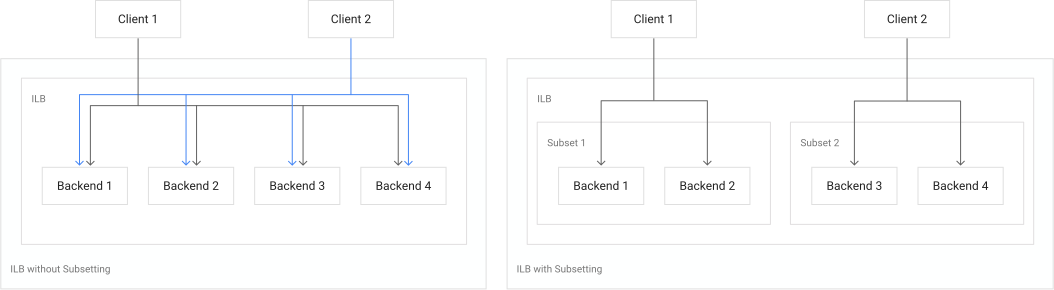
Without subsetting, the complete set of healthy backends is better utilized, and new client connections are distributed among all healthy backends according to traffic distribution. Subsetting imposes load balancing restrictions but allows the load balancer to support more than 250 backends.
For configuration instructions, see Subsetting.
Caveats related to backend subsetting for internal passthrough Network Load Balancer
- When subsetting is enabled, not all backends will receive traffic from a given sender even when the number of backends is small.
- For the maximum number of backend instances when subsetting is enabled, see the quotas page .
- Only 5-tuple session affinity is supported with subsetting.
- Packet Mirroring is not supported with subsetting.
- Enabling or disabling subsetting breaks existing connections.
- If on-premises clients need for to access an internal passthrough Network Load Balancer, subsetting can substantially reduce the number of backends that receive connections from your on-premises clients. This is because the region of the Cloud VPN tunnel or Cloud Interconnect VLAN attachment determines the subset of the load balancer's backends. All Cloud VPN and Cloud Interconnect endpoints in a specific region use the same subset. Different subsets are used in different regions.
Backend subsetting pricing
There is no charge for using backend subsetting. For more information, see All networking pricing.
Session affinity
Session affinity lets you control how the load balancer selects backends for new connections in a predictable way as long as the number of healthy backends remains constant. This is useful for applications that need multiple requests from a given user to be directed to the same backend or endpoint. Such applications usually include stateful servers used by ads serving, games, or services with heavy internal caching.
Google Cloud load balancers provide session affinity on a best-effort basis. Factors such as changing backend health check states, adding or removing backends, changes in backend weights (including enabling or disabling weighted balancing), or changes to backend fullness, as measured by the balancing mode, can break session affinity.
Load balancing with session affinity works well when there is a reasonably large distribution of unique connections. Reasonably large means at least several times the number of backends. Testing a load balancer with a small number of connections won't result in an accurate representation of the distribution of client connections among backends.
By default, all Google Cloud load balancers select backends by using a
five-tuple hash (--session-affinity=NONE), as follows:
- Packet's source IP address
- Packet's source port (if present in the packet's header)
- Packet's destination IP address
- Packet's destination port (if present in the packet's header)
- Packet's protocol
To learn more about session affinity for passthrough Network Load Balancers, see the following documents:
Traffic distribution for regional external passthrough Network Load Balancers
Traffic distribution for internal passthrough Network Load Balancers
To learn more about session affinity for Application Load Balancers, see the following documents:
- Session affinity for external Application Load Balancers
- Session affinity for internal Application Load Balancers
To learn more about session affinity for proxy Network Load Balancers, see the following documents:
- Session affinity for external proxy Network Load Balancers
- Session affinity for internal proxy Network Load Balancers
Backend service timeout
Most Google Cloud load balancers have a backend service timeout. The default value is 30 seconds. The full range of timeout values allowed is 1 - 2,147,483,647 seconds.
For external Application Load Balancers and internal Application Load Balancers using the HTTP, HTTPS, or HTTP/2 protocol, the backend service timeout is a request and response timeout for HTTP(S) traffic.
For more details about the backend service timeout for each load balancer, see the following:
- For global external Application Load Balancers and regional external Application Load Balancers, see Timeouts and retries.
- For internal Application Load Balancers, see Timeouts and retries.
For external proxy Network Load Balancers and internal proxy Network Load Balancers, the configured backend service timeout is the length of time the load balancer keeps the TCP connection open in the absence of any data transmitted from either the client or the backend. After this time has passed without any data transmitted, the proxy closes the connection.
- Default value: 30 seconds
- Configurable range: 1 to 2,147,483,647 seconds
For passthrough Network Load Balancers, you can set the value of the backend service timeout using
gcloudor the API, but the value is ignored. Backend service timeout has no meaning for these passthrough load balancers.
- For Cloud Service Mesh, the backend service timeout field (specified using
timeoutSec) is not supported with proxyless gRPC services. For such services, configure the backend service timeout using themaxStreamDurationfield. This is because gRPC does not support the semantics oftimeoutSecthat specifies the amount of time to wait for a backend to return a full response after the request is sent. gRPC's timeout specifies the amount of time to wait from the beginning of the stream until the response has been completely processed, including all retries.
Health checks
Each backend service whose backends are instance groups or zonal NEGs must have an associated health check. Backend services using a serverless NEG or a global internet NEG as a backend must not reference a health check.
When you create a load balancer using the Google Cloud console, you can create the health check, if it is required, when you create the load balancer, or you can reference an existing health check.
When you create a backend service using either instance group or zonal NEG backends using the Google Cloud CLI or the API, you must reference an existing health check. Refer to the load balancer guide in the Health Checks Overview for details about the type and scope of health check required.
For more information, read the following documents:
Additional features enabled on the backend service resource
The following optional features are supported by some backend services.
Cloud CDN
Cloud CDN uses Google's global edge network to serve content closer to users, which accelerates your websites and applications. Cloud CDN is enabled on backend services used by global external Application Load Balancers. The load balancer provides the frontend IP addresses and ports that receive requests, and the backends that respond to the requests.
For more details, see the Cloud CDN documentation.
Cloud CDN is incompatible with IAP. They can't be enabled on the same backend service.
Cloud Armor
If you use one of the following load balancers, you can add additional protection to your applications by enabling Cloud Armor on the backend service during load balancer creation:
- Global external Application Load Balancer
- Classic Application Load Balancer
- Global external proxy Network Load Balancer
- Classic proxy Network Load Balancer
- Regional external passthrough Network Load Balancer
If you use the Google Cloud console, you can do one of the following:
- Select an existing Cloud Armor security policy.
- Accept the configuration of a default Cloud Armor rate-limiting
security policy with a customizable name, request count, interval, key, and
rate limiting parameters. If you use Cloud Armor with an upstream
proxy service, such as a CDN provider,
Enforce_on_keyshould be set as an XFF IP address. - Choose to opt out of Cloud Armor protection by selecting None.
IAP
IAP lets you establish a central authorization layer for applications accessed by HTTPS, so you can use an application-level access control model instead of relying on network-level firewalls. IAP is supported by certain Application Load Balancers.
IAP is incompatible with Cloud CDN. They can't be enabled on the same backend service.
Advanced traffic management features for Application Load Balancers
To learn about advanced traffic management features that are configured on the backend services and URL maps associated with Application Load Balancers, see the following:
- Traffic management overview for internal Application Load Balancers
- Traffic management overview for global external Application Load Balancers
- Traffic management overview for regional external Application Load Balancers
API and gcloud reference
For more information about the properties of the backend service resource, see the following references:
- Global backend service API resource
Regional backend service API resource
gcloud compute backend-servicespage, for both global and regional backend services
What's next
For related documentation and information about how backend services are used in load balancing, review the following:
- Create custom headers
- Create an external Application Load Balancer
- External Application Load Balancer overview
- Enable connection draining
- Encryption in transit in Google Cloud
- Backend services in external proxy Network Load Balancers
- Backend services in global external passthrough Network Load Balancers
For related videos: