

If you're running applications in Standard clusters, kube-dns is the
default DNS provider that helps you enable service discovery and
communication. This document describes how to manage DNS with kube-dns,
including its architecture, configuration, and best practices for optimizing DNS
resolution within your GKE environment.
This document is for Developers and Admins and architects who are responsible for managing DNS in GKE. For context on common roles and tasks in Google Cloud, see Common GKE user roles and tasks.
Before you begin, ensure that you're familiar with Kubernetes Services and general DNS concepts.
Understand kube-dns architecture
kube-dns operates inside your GKE cluster to enable DNS resolution between
Pods and Services.
The following diagram shows how your Pods interact with the kube-dns Service:
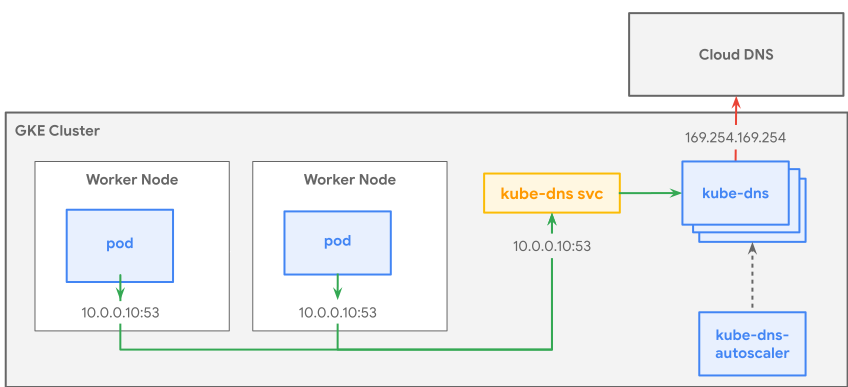
Key components
kube-dns includes the following key components:
kube-dnsPods: these Pods run thekube-dnsserver software. Multiple replicas of these Pods run in thekube-systemnamespace, and they provide high availability and redundancy.kube-dnsService: The following table compares the scalability and configuration limits of the legacy and CoreDNS-based versions ofkube-dns:Feature Legacy (kube-dns 1.35 and earlier) kube-dns on CoreDNS (1.36 and later) Endpoint awareness Aware of up to 1,000 endpoints per service. If a service has more than 1,000 Pods, kube-dns is unaware of the additional endpoints. Aware of all endpoints. This version uses EndpointSlices to ensure correctness and improve efficiency for large services. Upstream name servers Limited to 3 Supports up to 15 Concurrent outbound TCP connections Limited to 200 Supports up to 1,500 kube-dns-autoscaler: this Pod adjusts the number ofkube-dnsreplicas based on the cluster's size, which includes the number of nodes and CPU cores. This approach helps ensure thatkube-dnscan handle varying DNS query loads.
Internal DNS resolution
When a Pod needs to resolve a DNS name within the cluster's domain, such as
myservice.my-namespace.svc.cluster.local, the following process occurs:
- Pod DNS configuration: the
kubeleton each node configures the Pod's/etc/resolv.conffile. This file uses thekube-dnsService'sClusterIPas the name server. - DNS query: the Pod sends a DNS query to the
kube-dnsService. Name resolution:
- GKE version 1.36 or later: the CoreDNS-based
implementation uses EndpointSlices so that
kube-dnsis aware of all Pods in a Service. This improves correctness and efficiency for large-scale Services. - GKE version 1.35 or earlier:
kube-dnsresolves names based on the older Cloud Endpoints API, which is limited to 1,000 endpoints. If a Service has more than 1,000 backing Pods,kube-dnsis unaware of the additional endpoints.
- GKE version 1.36 or later: the CoreDNS-based
implementation uses EndpointSlices so that
Communication: the Pod then uses the resolved IP address to communicate with the target Service.
External DNS resolution
When a Pod needs to resolve an external DNS name, or a name that's outside the
cluster's domain, kube-dns acts as a recursive resolver. It forwards the query
to upstream DNS servers that are configured in its
ConfigMap
file. You can also configure custom resolvers for specific domains, which are
also known as stub domains. This configuration directs kube-dns to forward
requests for those domains to specific upstream DNS servers.
Configure Pod DNS
In GKE, the kubelet agent on each node configures DNS settings
for the Pods that run on that node.
Configure the /etc/resolv.conf file
When GKE creates a Pod, the kubelet agent modifies the Pod's
/etc/resolv.conf file. This file configures the DNS server for name resolution
and specifies search domains. By default, the kubelet configures the Pod to
use the cluster's internal DNS service, kube-dns, as its name server. It also
populates search domains in the file. These search domains let you use
unqualified names in DNS queries. For example, if a Pod queries myservice,
Kubernetes first tries to resolve myservice.default.svc.cluster.local, then
myservice.svc.cluster.local, and then other domains from the search list.
The following example shows a default /etc/resolv.conf configuration:
nameserver 10.0.0.10
search default.svc.cluster.local svc.cluster.local cluster.local c.my-project-id.internal google.internal
options ndots:5
This file has the following entries:
nameserver: defines theClusterIPof thekube-dnsservice.search: defines the search domains that are appended to unqualified names during DNS lookups.options ndots:5: sets the threshold for when GKE considers a name to be fully qualified. A name is considered fully qualified if it has five or more dots.
Pods configured with hostNetwork: true inherit their DNS configuration from
the host and don't query kube-dns directly, unless they use the
ClusterFirstWithHostNet dnsPolicy.
Customize kube-dns
kube-dns provides robust default DNS resolution. You can tailor its behavior
for specific needs, such as improving resolution efficiency or using preferred
DNS resolvers. Both stub domains and upstream name servers are configured by
modifying the kube-dns ConfigMap in the kube-system namespace.
Modify the kube-dns ConfigMap
To modify the kube-dns ConfigMap, do the following:
Open the ConfigMap for editing:
kubectl edit configmap kube-dns -n kube-systemIn the
datasection, add thestubDomainsandupstreamNameserversfields as follows:apiVersion: v1 kind: ConfigMap metadata: labels: addonmanager.kubernetes.io/mode: EnsureExists name: kube-dns namespace: kube-system data: stubDomains: | { "example.com": [ "8.8.8.8", "8.8.4.4" ], "internal": [ # Required if your upstream nameservers can't resolve GKE internal domains "169.254.169.254" # IP of the metadata server ] } upstreamNameservers: | [ "8.8.8.8", # Google Public DNS "8.8.4.4" # Google Public DNS Backup ]Save the ConfigMap.
kube-dnsautomatically reloads the configuration.
Stub domains
Stub domains let you define custom DNS resolvers for specific domains. When a
Pod queries for a name within that stub domain, kube-dns forwards the query to
the specified resolver instead of using its default resolution mechanism.
You include a stubDomains section in the kube-dns ConfigMap.
This section specifies the domain and corresponding upstream name servers.
kube-dns then forwards queries for names within that domain to the designated
servers. For example, you can route all DNS queries for internal.mycompany.com
to 192.168.0.10, add "internal.mycompany.com": ["192.168.0.10"] to
stubDomains.
When you set a custom resolver for a stub domain, such as example.com,
kube-dns forwards all name resolution requests for that domain, including
subdomains like *.example.com, to the specified servers.
Upstream name servers
You can configure kube-dns to use custom upstream name servers to resolve
external domain names. This configuration instructs kube-dns to forward all
DNS requests, except the requests for the cluster's internal domain
(*.cluster.local), to the designated upstream servers. Internal domains like
metadata.internal and *.google.internal might not be resolvable by your
custom upstream servers. If you enable
Workload Identity Federation for GKE or
have workloads that depend on these domains, add a stub domain for internal in
the ConfigMap. Use 169.254.169.254, the metadata server's IP address, as the
resolver for this stub domain.
Manage a custom kube-dns Deployment
In a Standard cluster, kube-dns runs as a Deployment. A custom
kube-dns deployment means that you, as the cluster administrator, can control
the Deployment and customize it to your needs, rather than using the default
GKE-provided deployment.
Reasons for a custom deployment
Consider a custom kube-dns deployment for the following reasons:
- Resource allocation: fine-tune CPU and memory resources for
kube-dnsPods to optimize performance in clusters with high DNS traffic. - Image version: use a specific version of the
kube-dnsimage or switch to an alternative DNS provider like CoreDNS. - Advanced configuration: customize logging levels, security policies, and DNS caching behavior.
Autoscaling for custom Deployments
The built-in kube-dns-autoscaler works with the default kube-dns Deployment.
If you create a custom kube-dns Deployment, the built-in autoscaler does not
manage it. Therefore, you must set up a separate autoscaler that's specifically
configured to monitor and adjust the replica count of your custom Deployment.
This approach involves creating and deploying your own autoscaler configuration
in your cluster.
When you manage a custom Deployment, you are responsible for all its components, such as keeping the autoscaler image up-to-date. Using outdated components can lead to performance degradation or DNS failures.
For detailed instructions on how to configure and manage your own kube-dns
deployment, see Setting up a custom kube-dns
Deployment.
Troubleshoot
For information about troubleshooting kube-dns, see the following pages:
- For advice about
kube-dnsin GKE, see Troubleshootkube-dnsin GKE. - For general advice about diagnosing Kubernetes DNS issues, see Debugging DNS Resolution.
Optimize DNS resolution
This section describes common issues and best practices for managing DNS in GKE.
Limit of a Pod's dnsConfig search domains
Kubernetes limits the number of DNS search domains to 32. If you attempt to
define more than 32 search domains in a Pod's dnsConfig, the kube-apiserver
won't create the Pod, with an error similar to the following:
The Pod "dns-example" is invalid: spec.dnsConfig.searches: Invalid value: []string{"ns1.svc.cluster-domain.example", "my.dns.search.suffix1", "ns2.svc.cluster-domain.example", "my.dns.search.suffix2", "ns3.svc.cluster-domain.example", "my.dns.search.suffix3", "ns4.svc.cluster-domain.example", "my.dns.search.suffix4", "ns5.svc.cluster-domain.example", "my.dns.search.suffix5", "ns6.svc.cluster-domain.example", "my.dns.search.suffix6", "ns7.svc.cluster-domain.example", "my.dns.search.suffix7", "ns8.svc.cluster-domain.example", "my.dns.search.suffix8", "ns9.svc.cluster-domain.example", "my.dns.search.suffix9", "ns10.svc.cluster-domain.example", "my.dns.search.suffix10", "ns11.svc.cluster-domain.example", "my.dns.search.suffix11", "ns12.svc.cluster-domain.example", "my.dns.search.suffix12", "ns13.svc.cluster-domain.example", "my.dns.search.suffix13", "ns14.svc.cluster-domain.example", "my.dns.search.suffix14", "ns15.svc.cluster-domain.example", "my.dns.search.suffix15", "ns16.svc.cluster-domain.example", "my.dns.search.suffix16", "my.dns.search.suffix17"}: must not have more than 32 search paths.
The kube-apiserver returns this error message in response to a Pod creation
attempt. To resolve this issue, remove extra search paths from the
configuration.
Upstream nameservers limit for kube-dns
Legacy versions of kube-dns (version 1.35 and earlier) limit the number of
upstreamNameservers to three. If you define more than three,
Cloud Logging displays an error similar to the following:
Invalid configuration: upstreamNameserver cannot have more than three entries (value was &TypeMeta{Kind:,APIVersion:,}), ignoring update
In this scenario, kube-dns ignores the upstreamNameservers configuration and
continues to use the previous valid configuration. To resolve this issue, remove
the extra upstreamNameservers from the kube-dns ConfigMap.
Scale up kube-dns
In Standard clusters, you can use a lower value for nodesPerReplica
so that more kube-dns Pods are created when cluster nodes scale up. We highly
recommend setting an explicit value for the max field to help ensure that the
GKE control plane virtual machine (VM) is not overwhelmed due to
the large number of kube-dns Pods that are watching the Kubernetes API.
You can set the value of the max field to the number of nodes in the cluster.
If the cluster has more than 500 nodes, set the value of the max field to
500.
You can modify the number of kube-dns replicas by editing the
kube-dns-autoscaler ConfigMap.
kubectl edit configmap kube-dns-autoscaler --namespace=kube-system
The output is similar to the following:
linear: '{"coresPerReplica":256, "nodesPerReplica":16,"preventSinglePointFailure":true}'
The number of kube-dns replicas is calculated by using the following formula:
replicas = max( ceil( cores * 1/coresPerReplica ) , ceil( nodes * 1/nodesPerReplica ) )
To scale up, change the value of the nodesPerReplica field to a smaller value,
and include a value for the max field.
linear: '{"coresPerReplica":256, "nodesPerReplica":8,"max": 15,"preventSinglePointFailure":true}'
This configuration creates one kube-dns Pod for every eight nodes in the
cluster. A 24-node cluster has three replicas and a 40-node cluster has five
replicas. If the cluster grows beyond 120 nodes, the number of kube-dns
replicas does not grow beyond 15, which is the value of the max field.
To help ensure a baseline level of DNS availability in your cluster, set a
minimum replica count for the kube-dns field.
The output for the kube-dns-autoscaler ConfigMap with the min field
configured is similar to the following:
linear: '{"coresPerReplica":256, "nodesPerReplica":8,"max": 15,"min": 5,"preventSinglePointFailure":true}'
Improve DNS lookup times
Several factors can cause high latency with DNS lookups or DNS resolution
failures with the default kube-dns provider. Applications might experience
these issues as getaddrinfo EAI_AGAIN errors, which indicate a temporary
failure in name resolution. Causes include the following:
- Frequent DNS lookups within your workload.
- High Pod density per node.
- Running
kube-dnson Spot VMs or preemptible VMs, which can lead to unexpected node deletions. - Connection limits: legacy versions of
kube-dns(GKE version 1.35 and earlier) are limited to 200 concurrent TCP connections.kube-dnson CoreDNS (GKE version 1.36 and later) removes these fixed limits for inbound connections and provides significantly higher capacity for outbound connections.
To improve DNS lookup times, do the following:
- Avoid running critical system components like
kube-dnson Spot VMs or preemptible VMs. Create at least one node pool that has standard VMs and doesn't have Spot VMs or Preemptible VMs. Use taints and tolerations to help ensure critical workloads are scheduled on these reliable nodes. - Enable NodeLocal
DNSCache. NodeLocal
DNSCache caches DNS responses directly on each node, which reduces latency
and the load on the
kube-dnsservice. If you enable NodeLocal DNSCache and use network policies with default-deny rules, add a policy to permit workloads to send DNS queries to thenode-local-dnsPods. - Scale up
kube-dns. - Ensure that your application uses
dns.resolve*based functions rather thandns.lookupbased functions becausedns.lookupis synchronous. - Use fully qualified domain names (FQDNs), for example,
https://google.com./instead ofhttps://google.com/.
DNS resolution failures might occur during GKE cluster upgrades
due to concurrent upgrades of control plane components, including kube-dns.
These failures typically affect a small percentage of nodes. Thoroughly test
cluster upgrades in a non-production environment before you apply them to
production clusters.
Ensure Service discoverability
kube-dns only creates DNS records for Services that have Endpoints. If a
Service doesn't have any Endpoints, kube-dns doesn't create DNS records for
that Service.
Manage DNS TTL discrepancies
If kube-dns receives a DNS response from an upstream DNS resolver with a large
or infinite TTL, it keeps this TTL value. This behavior can create a discrepancy
between the cached entry and the actual IP address.
GKE resolves this issue in specific control plane versions, such as 1.21.14-gke.9100 and later or 1.22.15-gke.2100 and later. These versions set a maximum TTL value to 30 seconds for any DNS response that has a higher TTL. This behavior is similar to NodeLocal DNSCache.
View kube-dns metrics
You can retrieve metrics about DNS queries directly from the kube-dns Pods.
How you retrieve these metrics depends on your GKE version.
GKE version 1.36 and later
If your cluster runs GKE version 1.36 or later (kube-dns on
CoreDNS), you can monitor DNS performance using predefined dashboards in
Cloud Monitoring or retrieve metrics manually from the Pods.
View metrics in the Google Cloud console
- In the Google Cloud console, go to the Dashboards page.
- Select the GKE DNS Observability - Cluster View dashboard.
Alternatively, you can query these metrics directly in the Google Cloud console by going to Monitoring > Metrics explorer and searching for the specific metric names.
Retrieve metrics manually
To retrieve metrics from the Pod manually, do the following:
Find the
kube-dnsPods.kubectl get pods -n kube-system --selector=k8s-app=kube-dnsPort-forward port 9153 to one of the Pods.
kubectl port-forward pod/POD_NAME -n kube-system 9153:9153Replace
POD_NAMEwith the name of one of thekube-dnsPods from the previous output.Access the metrics.
curl http://127.0.0.1:9153/metrics
GKE version 1.35 and earlier
This version of kube-dns uses multi-container Pods. To retrieve metrics, do
the following:
Find the
kube-dnsPods in thekube-systemnamespace.kubectl get pods -n kube-system --selector=k8s-app=kube-dnsPort-forward to ports 10055 (for the
kube-dnscontainer) and 10054 (for thednsmasqcontainer):#For the kube-dns container kubectl port-forward pod/POD_NAME -n kube-system 10055:10055 #For the dnsmasq container kubectl port-forward pod/POD_NAME -n kube-system 10054:10054Replace
POD_NAMEwith the name of one of thekube-dnsPods from the previous output. Run these port-forward commands in separate terminal sessions.Access the metrics.
#Metrics from the kube-dns container
curl http://127.0.0.1:10055/metrics

#Metrics from the dnsmasq container
curl http://127.0.0.1:10054/metrics
What's next
- Read an overview of cluster DNS in GKE.
- Read DNS for Services and Pods for a general overview of how DNS is used in Kubernetes clusters.
- Learn how to set up NodeLocal DNSCache.
- Learn how to set up a custom kube-dns Deployment.