

This page covers the necessary steps to initialize your environment, provision the API, and configure your user settings to begin working with AlphaEvolve.
Prerequisites
Setting up AlphaEvolve
Prerequisites
Before configuring your environment, verify that your Google Cloud organization completes the foundational procurement and infrastructure steps.
Google Cloud project and licensing
Google Cloud project: Create a dedicated Google Cloud (GCP) project with active billing links. For project provisioning or allowlist inquiries, coordinate with your assigned Google Cloud account team.
Gemini Enterprise licenses: Purchase Gemini Enterprise licenses through your Google Cloud sales representative or the Google Cloud Marketplace. You can add licenses to Google Workspace or provision them as standalone offers. Any Gemini Enterprise tier, including a trial license grants access to AlphaEvolve.
License allocation note: The system requires one Gemini Enterprise license per system user who interacts with the API through service account impersonation. Google Cloud service accounts don't consume Workspace or Cloud Identity licenses.
User profiles and IAM requirements
The AlphaEvolve lifecycle utilizes the three distinct identities.
Ensure your project complies with the following mandatory access control roles:
| Profile | Description | Required roles and permissions |
|---|---|---|
| Cloud Administrator | Manages one-time initial environment configuration, API enabling, and IAM assignment. |
|
| System User (Researcher / Scientist) |
Configures and executes optimization experiments. Interacts with the API strictly through service account impersonation. |
|
| Service Account | Automated identity that interfaces directly with the AlphaEvolve on Cloud Private Preview API service. |
|
Administrative host environment
An administrative Linux host (such as Google Cloud Shell or a secure bastion host) runs the configuration scripts and test payloads. Verify that your host contains the following foundational utilities:
Google Cloud SDK: Required to execute project management commands. Install the
gcloudCLI if it is not present on the host.curl: Validates HTTP transport access to the backend API endpoint. For Debian or Ubuntu distributions, install the utility through the package manager:
sudo apt update && sudo apt install -y curl
Setting up AlphaEvolve
Setting up AlphaEvolve requires coordination between the cloud administrator and the system user. You must complete the following installation tasks:
Create a service account
Use the following steps to provision a service account for your optimization experiments. The cloud administrator must execute the following commands from an administrative host:
Set your Google Cloud project ID:
This step declares an environment variable for your target Google Cloud project, ensuring subsequent commands operate in the correct context.
PROJECT_ID="my-gcp-project-id"Alternatively, you can dynamically retrieve your active CLI project ID:
PROJECT_ID=$(gcloud config get project)Choose a service account name:
This step declares an environment variable for the human-readable identifier of the service account, which will be used in the creation command.
SA_NAME="alpha-evolve-client"Create the service account:
This command registers a new service account within the Google Cloud project, defining its unique name, display name, and a brief description of its intended purpose.
gcloud iam service-accounts create "${SA_NAME}" \
  --description="Service Account to call AlphaEvolve on Cloud Private \
Preview API service" \
  --display-name="AlphaEvolve Client SA" \
  --project=$PROJECT_ID
Extract the service account email string:
This command queries the list of service accounts based on the display name and extracts the official email address as an environment variable (
SERVICE_ACCOUNT_EMAIL) to uniquely identify the resource.SERVICE_ACCOUNT_EMAIL=$(gcloud iam service-accounts list \ --filter="displayName:AlphaEvolve Client SA" \ --format='value(email)' \ --project=$PROJECT_ID) echo "Newly created Service Account Email: ${SERVICE_ACCOUNT_EMAIL}"
Grant the Discovery Engine role to the service account:
Run the following
gcloudcommand to grant theroles/discoveryengine.adminrole to the service account at the project level:gcloud projects add-iam-policy-binding "${PROJECT_ID}" \ --member="serviceAccount:${SERVICE_ACCOUNT_EMAIL}" \ --role="roles/discoveryengine.admin" \ --project="${PROJECT_ID}"This configuration applies the following technical logic parameters:
--member="serviceAccount:${SERVICE_ACCOUNT_EMAIL}": Specifies the principal receiving the administrative role capabilities.--role="roles/discoveryengine.admin": Grants the necessary permissions to create underlying Discovery Engine instances, conversational sessions, andAlphaEvolveExperimentschild resources.${SERVICE_ACCOUNT_EMAIL}: Identifies the resource (the new service account) that the principal is allowed to impersonate.
Impersonate the service account
After completing the creation steps, use the gcloud command-line tool to
grant a researcher (SYSTEM_USER) the explicit ability to impersonate the
newly created service account.
Define the impersonating principal: Declare the variable target string. Replace
SYSTEM_USER_EMAILwith the corporate identity or email address of the researcher performing the optimization runs.SYSTEM_USER="user:SYSTEM_USER_EMAIL"Grant the token creation role to the principal: Run the following command to map the short-lived credential token minting capability to the specified system user:
gcloud iam service-accounts add-iam-policy-binding \
  "${SERVICE_ACCOUNT_EMAIL}" \
  --member="${SYSTEM_USER}" \
  --role="roles/iam.serviceAccountTokenCreator" \
  --project="${PROJECT_ID}"
This authorization binding ensures that:
--member="${SYSTEM_USER}": Specifies the human user receiving the credential minting authorization.--role="roles/iam.serviceAccountTokenCreator": Grants permission to mint short-lived OAuth 2.0 access tokens, which drives secure service account impersonation."${SERVICE_ACCOUNT_EMAIL}": Identifies the target service account resource being bound to the incoming policy.
Enable Discovery Engine API
The cloud administrator must enable the discoveryengine.googleapis.com API
to be able to interface with the AlphaEvolve on cloud private preview API
endpoints. The cloud administrator can do this from the Google Cloud console
or using the Google Cloud SDK on the Linux Host: gcloud services enable discoveryengine.googleapis.com
Create Discovery Engine resources and sessions
The configuration process transitions from administrative identity setups to provisioning your core application data layer. In this stage, you build out the nested logical components required by the underlying API to manage, route, and track your code mutation experiments.
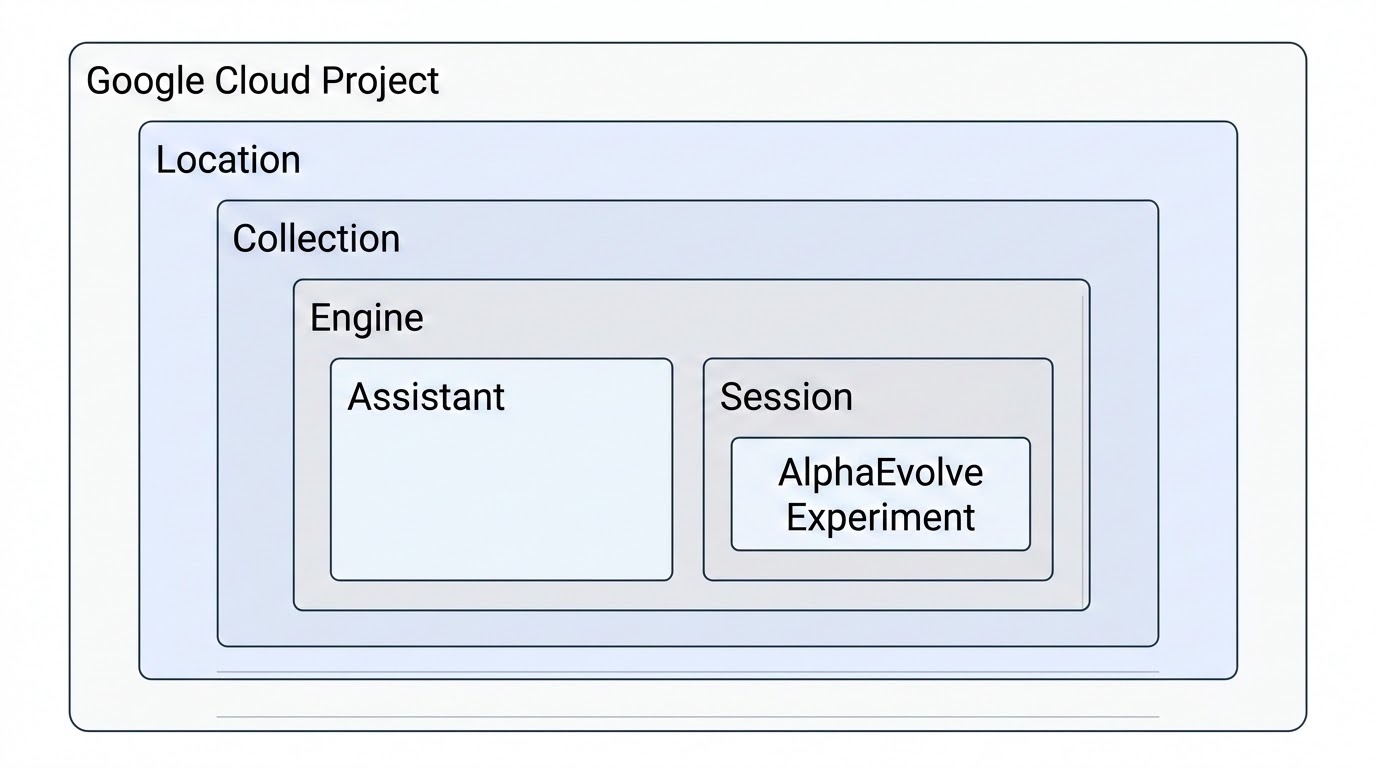
Discovery Engine resource hierarchy
The hierarchy of Discovery Engine resources begins with a Google Cloud project, and its resources are hosted within a specific location (region). Within this foundational structure, a collection acts as a top-level organizational container for related resources. The engine is provisioned inside a collection to host the core AI application, which is also where an assistant resource is configured to manage the generative AI properties and tools for the application. The engine manages individual user interactions captured as session objects.
The AlphaEvolveExperiment is nested under a session, representing a single
run of the evolutionary coding agent used for algorithm discovery and
optimization within the context of that specific user interaction.
Provision the resources
Set your Google Cloud project ID:
This step declares an environment variable for your target Google Cloud project, ensuring subsequent commands operate in the correct context:
PROJECT_ID="my-gcp-project-id"or
PROJECT_ID=$(gcloud config get project)Define your engine ID:
This step declares an environment variable for the URL-friendly unique identifier of the engine ID.
ENGINE_ID="alpha-evolve-experiment-engine"Create the engine:
This command registers a new Engine within the Google Cloud project, defining its unique name, display name, and SolutionType (
SOLUTION_TYPE_GENERATIVE_CHAT)URL="https://discoveryengine.googleapis.com/v1alpha" URL="${URL}/projects/${PROJECT_ID}/locations/global" URL="${URL}/collections/default_collection/engines" URL="${URL}?engineId=${ENGINE_ID}" curl -X POST "${URL}" \ -H "Content-Type: application/json" \ -H "x-goog-user-project: ${PROJECT_ID}" \ -H "Authorization: Bearer $(gcloud auth print-access-token)" \ -d '{ "display_name": "'"${ENGINE_ID}"'", "data_store_ids": [], "solution_type": "SOLUTION_TYPE_GENERATIVE_CHAT" }'Define your assistant ID:
This step declares an environment variable for the URL-friendly unique identifier of the assistant ID.
ASSISTANT_ID="default_assistant"Create the assistant:
This command registers a new Assistant within the Google Cloud project, defining its unique name, display name, and a brief description of its intended purpose.
URL="https://discoveryengine.googleapis.com/v1alpha"
URL="${URL}/projects/${PROJECT_ID}/locations/global"
URL="${URL}/collections/default_collection/engines"
URL="${URL}/${ENGINE_ID}/assistants?assistantId=${ASSISTANT_ID}"
curl -X POST "${URL}" \
  -H "Content-Type: application/json" \
  -H "x-goog-user-project: ${PROJECT_ID}" \
  -H "Authorization: Bearer $(gcloud auth print-access-token)" \
  -d '{
    "display_name": "'"${ASSISTANT_ID}"'",
    "description": null,
    "generation_config": null,
    "web_grounding_type": "WEB_GROUNDING_TYPE_UNSPECIFIED",
    "enabled_actions": null,
    "customer_policy": null
  }'
Testing API access
After the cloud administrator has provisioned the required identities, configured service account impersonation, and verified the engine layout, the researching system user must execute the following validation steps. This sequence serves as a pre-flight smoke-test to confirm end-to-end transport and authorization before initiating active optimization workloads.
Generate an access token using impersonation
Run the following command to validate that the policy binds the service account impersonation correctly. This check ensures your local researcher identity securely assumes the automated execution identity.
  gcloud auth print-access-token \
    --impersonate-service-account="${SERVICE_ACCOUNT_EMAIL}"
Use the access token
The command outputs a raw, temporary OAuth 2.0 credential string. For multi-step verification workflows, cache this token in a short-lived shell variable or inline it directly within your transport calls to query your foundational project metadata:
  TOKEN=$(gcloud auth print-access-token \
    --impersonate-service-account="${SERVICE_ACCOUNT_EMAIL}")
  curl -X GET \
    -H "Authorization: Bearer ${TOKEN}" \
    "https://discoveryengine.googleapis.com/v1alpha/projects/${PROJECT_ID}"
View and delete engines
Use your current access token or the impersonated service account to verify, list, or delete your engines:
  URL="https://discoveryengine.googleapis.com/v1alpha"
  URL="${URL}/projects/${PROJECT_ID}/locations/global"
  URL="${URL}/collections/default_collection/engines"
  curl -X GET "${URL}" \
    -H "Content-Type: application/json" \
    -H "x-goog-user-project: ${PROJECT_ID}" \
    -H "Authorization: Bearer $(gcloud auth print-access-token)"
  URL="https://discoveryengine.googleapis.com/v1alpha"
  URL="${URL}/projects/${PROJECT_ID}/locations/global"
  URL="${URL}/collections/default_collection/engines/${ENGINE_ID}"
  curl -X DELETE "${URL}" \
    -H "Content-Type: application/json" \
    -H "x-goog-user-project: ${PROJECT_ID}" \
    -H "Authorization: Bearer $(gcloud auth print-access-token)"
Congratulations, you have completed the setup steps! Now you can execute the AlphaEvolve V1 API!