


מדריך למתחילים בנושא כלי לניתוח פריסות
אפשר להשתמש בכלי לניתוח פריסה כדי לחלץ רכיבים ממסמך, כמו טקסט, טבלאות ורשימות.
לחצו על תראו לי איך כדי לקרוא הסבר מפורט על המשימה ישירות במסוף Google Cloud :
לפני שמתחילים
- נכנסים לחשבון Google Cloud . אם אתם משתמשים חדשים ב- Google Cloud, צרו חשבון כדי שתוכלו להעריך את הביצועים של המוצרים שלנו בתרחישים מהעולם האמיתי. לקוחות חדשים מקבלים בחינם גם קרדיט בשווי 300$ להרצה, לבדיקה ולפריסה של עומסי העבודה.
-
In the Google Cloud console, on the project selector page, select or create a Google Cloud project.
Roles required to select or create a project
- Select a project: Selecting a project doesn't require a specific IAM role—you can select any project that you've been granted a role on.
-
Create a project: To create a project, you need the Project Creator role
(
roles/resourcemanager.projectCreator), which contains theresourcemanager.projects.createpermission. Learn how to grant roles.
-
Verify that billing is enabled for your Google Cloud project.
Enable the Document AI, Cloud Storage APIs.
Roles required to enable APIs
To enable APIs, you need the
serviceusage.services.enablepermission. If you created the project, then you likely already have this permission through the Owner role (roles/owner). Otherwise, you can get this permission through the Service Usage Admin role (roles/serviceusage.serviceUsageAdmin). Learn how to grant roles.-
In the Google Cloud console, on the project selector page, select or create a Google Cloud project.
Roles required to select or create a project
- Select a project: Selecting a project doesn't require a specific IAM role—you can select any project that you've been granted a role on.
-
Create a project: To create a project, you need the Project Creator role
(
roles/resourcemanager.projectCreator), which contains theresourcemanager.projects.createpermission. Learn how to grant roles.
-
Verify that billing is enabled for your Google Cloud project.
Enable the Document AI, Cloud Storage APIs.
Roles required to enable APIs
To enable APIs, you need the
serviceusage.services.enablepermission. If you created the project, then you likely already have this permission through the Owner role (roles/owner). Otherwise, you can get this permission through the Service Usage Admin role (roles/serviceusage.serviceUsageAdmin). Learn how to grant roles.
יצירת מעבד
במסוף Google Cloud , בקטע Document AI, בוחרים באפשרות Processor Gallery.
בגלריית המעבדים,
מחפשים את Layout parser ובוחרים באפשרות Create (יצירה).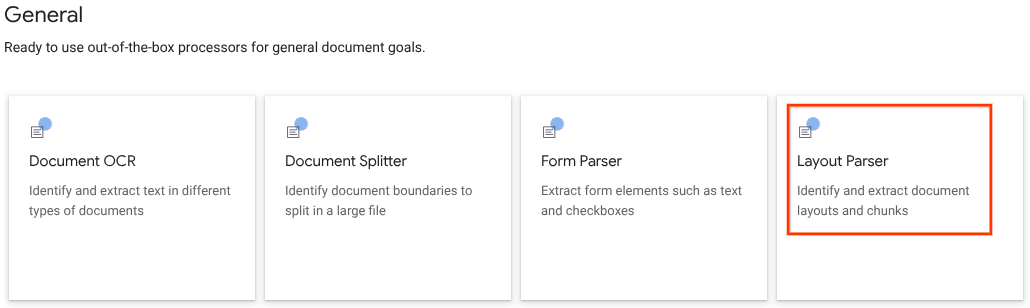
בחלון הצדדי, מזינים שם מעבד, כמו
quickstart-layout-processor.בוחרים את האזור שהכי קרוב אליכם.
לוחצים על יצירה.
תועברו לדף פרטי המעבד של מעבד חדש לניתוח טפסים.
אופציונלי: כדי לבחור מעבד ברירת מחדל, לוחצים על
ניהול גרסאות ובוחרים מעבד מהטבלה גרסאות. אחר כך לוחצים עלסימון כברירת מחדל ומאשרים על ידי הזנת שם המעבד.
מעבד בדיקה
אחרי שיוצרים את המעבד, אפשר לשלוח אליו בקשות להוספת הערות.
לוחצים על הלחצן
Upload Test Document (העלאת מסמך בדיקה) ובוחרים את המסמך שהורדתם.עכשיו אתם אמורים להיות בדף layout parser analysis. אפשר לראות את הבלוקים או את החלקים שנותחו מהמסמך, מאורגנים לפי הסוגים שזוהו.
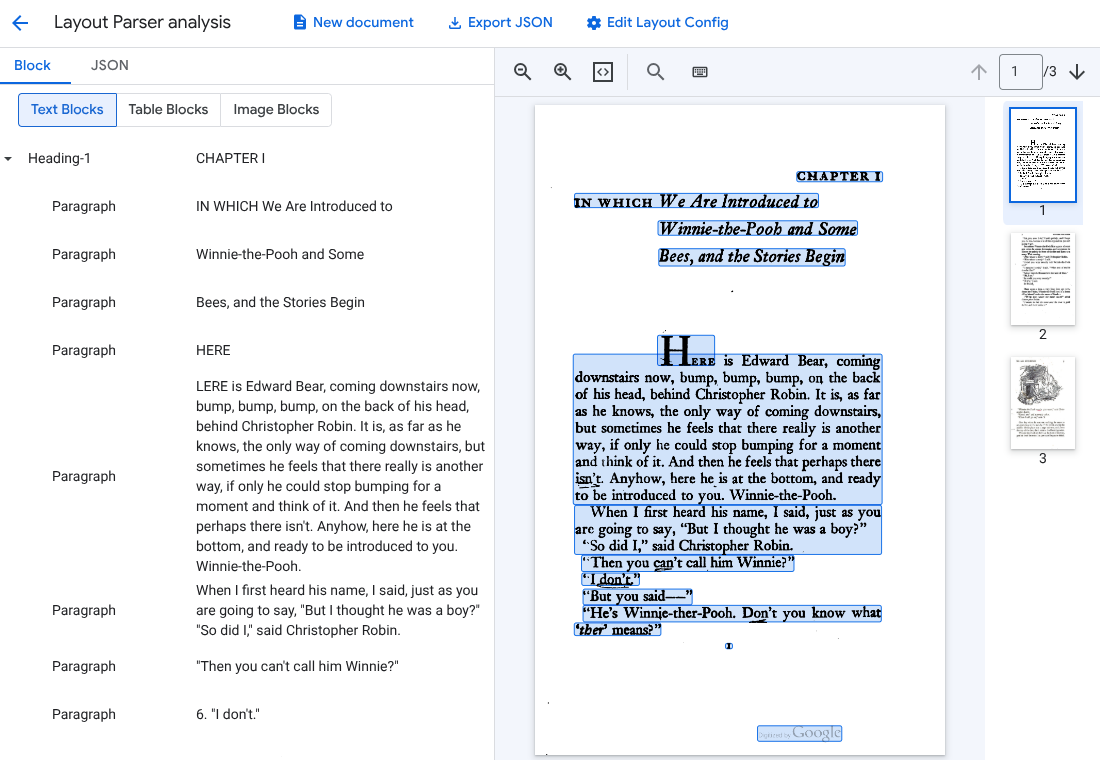
אופציונלי: בוחרים באפשרות
Edit Layout Config (עריכת הגדרות הפריסה) כדי להפעיל נתוני הערות לתמונות או לטבלאות.
עיבוד מסמך
REST
בדוגמה הזו מוסבר איך לשלוח מסמך שמאוחסן ב-Cloud Storage למנתח הפריסה לצורך עיבוד. התהליך הזה מאפשר הוספת הערות לתמונות ולטבלאות כברירת מחדל.
REST
לפני שמשתמשים בנתוני הבקשה, צריך להחליף את הנתונים הבאים:
- PROJECT_ID: מזהה הפרויקט ב- Google Cloud .
- LOCATION: המיקום של המעבד, לדוגמה:
us– ארצות הבריתeu- האיחוד האירופי
- PROCESSOR_ID: המזהה של המעבד בהתאמה אישית.
- MIME_TYPE: מנתח הפריסה תומך ב-
application/pdfוב-text/html. - GCS_FILE_PATH: נתיב הקובץ של קטגוריה של Cloud Storage עם המסמך.
- CHUNK_SIZE: אופציונלי. גודל המקטע, בטוקנים, שמשמש לפיצול מסמכים.
- INCLUDE_ANCESTOR_HEADINGS: אופציונלי. בוליאני. האם לכלול כותרות של רכיבי הורה כשמפצלים מסמכים.
ה-method של ה-HTTP וכתובת ה-URL:
POST https://LOCATION-documentai.googleapis.com/v1beta3/projects/PROJECT_ID/locations/LOCATION/processors/PROCESSOR_ID/processorVersions/pretrained-layout-parser-v1.5-2025-08-25:process
גוף בקשת JSON:
{
  "gcsDocument": {
    "gcsUri": "GCS_FILE_PATH",
    "mimeType": "MIME_TYPE"
  },
  "processOptions": {
    "layoutConfig": {
      "enableTableAnnotation": "true",
      "enableImageAnnotation": "true",
      "chunkingConfig": {
        "chunkSize": "CHUNK_SIZE",
        "includeAncestorHeadings": "INCLUDE_ANCESTOR_HEADINGS",
      }
    }
  }
}
כדי לשלוח את הבקשה עליכם לבחור אחת מהאפשרויות הבאות:
curl
שומרים את גוף הבקשה בקובץ בשם request.json ומריצים את הפקודה הבאה:
curl -X POST \
     -H "Authorization: Bearer $(gcloud auth print-access-token)" \
     -H "Content-Type: application/json; charset=utf-8" \
     -d @request.json \
     "https://LOCATION-documentai.googleapis.com/v1beta3/projects/PROJECT_ID/locations/LOCATION/processors/PROCESSOR_ID/processorVersions/pretrained-layout-parser-v1.5-2025-08-25:process"
PowerShell
שומרים את גוף הבקשה בקובץ בשם request.json ומריצים את הפקודה הבאה:
$cred = gcloud auth print-access-token
$headers = @{ "Authorization" = "Bearer $cred" }

Invoke-WebRequest `
    -Method POST `
    -Headers $headers `
    -ContentType: "application/json; charset=utf-8" `
    -InFile request.json `
    -Uri "https://LOCATION-documentai.googleapis.com/v1beta3/projects/PROJECT_ID/locations/LOCATION/processors/PROCESSOR_ID/processorVersions/pretrained-layout-parser-v1.5-2025-08-25:process" | Select-Object -Expand Content
אמורים לקבל קוד סטטוס של הצלחה (2xx) ותגובה ריקה.
בדיקת הפלט
בקשה מוצלחת מחזירה אובייקט מסמך ב-JSON. השדות הכי חשובים ל-Retrieval Augmented Generation (יצירה משולבת-אחזור, RAG) הם document.chunked_document.chunks.
הפלט הבא הוא תוצאה של ניתוח הדף השלישי של הספר "פו הדוב" מאת א.א. מילן.
{
  "document": {
  document_layout {
    blocks {
      block_id: "1"
      text_block {
        text: "WE ARE INTRODUCED 3"
        type_: "header"
      }
      page_span {
        page_start: 1
        page_end: 1
      }
    }
    blocks {
      block_id: "2"
      page_span {
        page_start: 1
        page_end: 1
      }
      image_block {
        mime_type: "image/png"
        annotations {
          description: "This is an ink drawing depicting Winnie-the-Pooh sitting outside his house.\n\nHere are the facts and conclusions that can be derived from the image:\n\n*   **Character:** The central figure is a bear, identifiable as Winnie-the-Pooh, sitting on a log.\n*   **Location:** He is positioned outside what appears to be a small, rustic shelter or house.\n*   **Signage:** Above the doorway of the shelter, there is a sign that reads \"MR SANDERZ\". Below this sign, there is another partial sign visible, where the letters \"RNIG\" and \"ALSO\" can be seen.\n*   **Doorbell:** To the left of the doorway, a bell is hanging, indicating a doorbell mechanism.\n*   **Setting:** The dwelling is surrounded by what looks like brush, trees, and general wilderness, suggested by the lines representing foliage and twigs.\n*   **Log:** Pooh is seated on a cut log or tree trunk. To the left of this log, there are other smaller logs or branches piled up.\n*   **Style:** The image is a black and white line drawing, characteristic of classic book illustrations."
        }
        blob_asset_id: "blob_1"
      }
    }
    blocks {
      block_id: "3"
      text_block {
        text: ""Winnie-the-Pooh wasn't quite sure," said Christopher Robin. "Now I am," said a growly voice. "Then I will go on,"said I.) One day when he was out walking, he came to an open place in the middle of the forest, and in the middle of this place was a large oak-tree, and, from the top of the tree, there came a loud buzzing-noise. Winnie-the-Pooh sat down at the foot of the tree,put his head between his paws and began to think."
        type_: "paragraph"
      }
      page_span {
        page_start: 1
        page_end: 1
      }
    }
    blocks {
      block_id: "4"
      text_block {
        text: "Digitized by Google"
        type_: "footer"
      }
      page_span {
        page_start: 1
        page_end: 1
      }
    }
  }
  chunked_document {
    chunks {
      chunk_id: "c1"
      source_block_ids: "2"
      source_block_ids: "3"
      content: "__START_OF_ANNOTATION__This is an ink drawing depicting Winnie-the-Pooh sitting outside his house.\n\nHere are the facts and conclusions that can be derived from the image:\n\n*   **Character:** The central figure is a bear, identifiable as Winnie-the-Pooh, sitting on a log.\n*   **Location:** He is positioned outside what appears to be a small, rustic shelter or house.\n*   **Signage:** Above the doorway of the shelter, there is a sign that reads \"MR SANDERZ\". Below this sign, there is another partial sign visible, where the letters \"RNIG\" and \"ALSO\" can be seen.\n*   **Doorbell:** To the left of the doorway, a bell is hanging, indicating a doorbell mechanism.\n*   **Setting:** The dwelling is surrounded by what looks like brush, trees, and general wilderness, suggested by the lines representing foliage and twigs.\n*   **Log:** Pooh is seated on a cut log or tree trunk. To the left of this log, there are other smaller logs or branches piled up.\n*   **Style:** The image is a black and white line drawing, characteristic of classic book illustrations.__END_OF_ANNOTATION__"Winnie-the-Pooh wasn't quite sure," said Christopher Robin. "Now I am," said a growly voice. "Then I will go on," said I.) One day when he was out walking, he came to an open place in the middle of the forest, and in the middle of this place was a large oak-tree, and, from the top of the tree, there came a loud buzzing-noise. Winnie-the-Pooh sat down at the foot of the tree,put his head between his paws and began to think."
      page_span {
        page_start: 1
        page_end: 1
      }
      page_headers {
        text: "WE ARE INTRODUCED 3"
        page_span {
          page_start: 1
          page_end: 1
        }
      }
      page_footers {
        text: "Digitized by Google"
        page_span {
          page_start: 1
          page_end: 1
        }
      }
      chunk_fields {
        image_chunk_field {
          blob_asset_id: "blob_1"
          annotations {
            description: "This is an ink drawing depicting Winnie-the-Pooh sitting outside his house.\n\nHere are the facts and conclusions that can be derived from the image:\n\n*   **Character:** The central figure is a bear, identifiable as Winnie-the-Pooh, sitting on a log.\n*   **Location:** He is positioned outside what appears to be a small, rustic shelter or house.\n*   **Signage:** Above the doorway of the shelter, there is a sign that reads \"MR SANDERZ\". Below this sign, there is another partial sign visible, where the letters \"RNIG\" and \"ALSO\" can be seen.\n*   **Doorbell:** To the left of the doorway, a bell is hanging, indicating a doorbell mechanism.\n*   **Setting:** The dwelling is surrounded by what looks like brush, trees, and general wilderness, suggested by the lines representing foliage and twigs.\n*   **Log:** Pooh is seated on a cut log or tree trunk. To the left of this log, there are other smaller logs or branches piled up.\n*   **Style:** The image is a black and white line drawing, characteristic of classic book illustrations."
          }
        }
      }
    }
  }
  blob_assets {
    asset_id: "blob_1"
    content: "image_bytes"
    mime_type: "image/png"
  }
}
Python
במדריך הזה מוסבר איך להשתמש בספריית הלקוח של Python כדי לעבד מסמך. השימוש בקוד הזה מאפשר כברירת מחדל להוסיף הערות לתמונות ולטבלאות.
מתקינים את ספריית הלקוח.
! pip install --upgrade --quiet google-cloud-documentaiמריצים את המעבד.
def process_layout_parser(
    project_id: str, location: str, processor_id: str, gcs_uri: str, mime_type: str
):
    """
    Processes a document with the layout parser and prints chunk text.
    """
    client = documentai.DocumentProcessorServiceClient()

    # The full resource name of the processor
    processor_version_id = 'pretrained-layout-parser-v1.5-2025-08-25'
    name = client.processor_path(project_id, location, processor_id, processor_version_id)

    # Configure the Cloud Storage document
    gcs_document = documentai.GcsDocument(gcs_uri=gcs_uri, mime_type=mime_type)

    # Configure processing options for RAG
    # This enables annotation and context-aware chunking.
    process_options = documentai.ProcessOptions(
      # Process only specific pages
      layout_config=documentai.ProcessOptions.LayoutConfig(
          enable_table_annotation=True,
          enable_image_annotation=True,
          chunking_config=documentai.ProcessOptions.LayoutConfig.ChunkingConfig(
        chunk_size=1024,
        include_ancestor_headings=True,
          ),
      ),
  )

    # Build the request
    request = documentai.ProcessRequest(
        name=name,
        gcs_document=gcs_document,
        process_options=process_options,
    )

    # Process the document
    result = client.process_document(request=request)
    document = result.document

    print(f"Document processing complete.\n")

    print("--- RAG-Ready Chunks (with context) ---")
    for i, chunk in enumerate(document.chunked_document.chunks):
        print(f"\n--- Chunk {i} ---")

        # Print the chunk's content
        print(f"Text: {chunk.content}")
    return result
עיבוד מסמכים באצווה באמצעות כלי לניתוח פריסה
כדי לנתח ולחלק למקטעים כמה מסמכים בבקשה אחת, פועלים לפי השלבים הבאים.
הזנת מסמכים לניתוח פריסה כדי לנתח ולחלק אותם.
פועלים לפי ההוראות לשליחת בקשות לעיבוד באצווה במאמר שליחת בקשת עיבוד.
מגדירים את השדות ב-
ProcessOptions.layoutConfigכששולחים בקשתbatchProcess.קלט
בדוגמה הבאה של JSON מוגדר
ProcessOptions.layoutConfig."processOptions": { "layoutConfig": { "enableTableAnnotation": "true", "enableImageAnnotation": "true", "chunkingConfig": { "chunkSize": "CHUNK_SIZE", "includeAncestorHeadings": "INCLUDE_ANCESTOR_HEADINGS_BOOLEAN" } } }מחליפים את מה שכתוב בשדות הבאים:
-
CHUNK_SIZE: גודל החלק המקסימלי, במספר טוקנים, לשימוש בפיצול מסמכים. INCLUDE_ANCESTOR_HEADINGS_BOOLEAN: האם לכלול כותרות של רכיבי תוכן ברמה גבוהה יותר כשמפצלים מסמכים. כותרות אב הן הכותרות הראשיות של כותרות משנה במסמך המקורי. הם יכולים לספק נתח עם הקשר נוסף לגבי המיקום שלו במסמך המקורי. אפשר לכלול עד שתי רמות של כותרות עם נתח.
-
הסרת המשאבים
כדי לא לצבור חיובים לחשבון Google Cloud על המשאבים שבהם השתמשתם בדף הזה, פועלים לפי השלבים הבאים:
כדי להימנע מחיובים מיותרים Google Cloud , אפשר להשתמש ב-Google Cloud console כדי למחוק את המעבד והפרויקט אם אין בהם צורך.
אם יצרתם פרויקט חדש כדי ללמוד על Document AI ואתם כבר לא צריכים את הפרויקט, [אפשר למחוק אותו][delete-project].
אם השתמשתם בפרויקט קיים Google Cloud , מחקו את המשאבים שיצרתם כדי להימנע מחיובים בחשבון:
בתפריט הניווט במסוף Google Cloud , בוחרים באפשרות Document AI ואז באפשרות My Processors.
בוחרים באפשרות
עוד פעולות באותה שורה של המעבד שרוצים למחוק.לוחצים על מחיקת מעבד, מזינים את שם המעבד ולוחצים שוב על מחיקה כדי לאשר.
המאמרים הבאים
פרטים נוספים מופיעים במאמר בנושא מדריכים.