

You can use Document AI to define custom business rules for validating document processing results. Validation is a document processing process that executes your validation rules on the final extracted entities. Correction is an optional process that attempts to improve extraction results based on the validation rule outcomes, increasing extraction accuracy.
Validation rules can, for example, check if the sum of line item prices equals the total value, verify field consistency across multiple documents, or ensure that extracted fields are spatially aligned in a layout (such as within a horizontal block). Define business rules using the Common Expression Language (CEL), and generate them from natural language prompts.
Enable validation and correction
You can enable validation and correction independently in the Document AI
console. These settings apply to all processDocument requests for the selected
processor version. However, you can override this behavior for individual requests
using parameters in the processDocument API call.
Validation and correction configurations, including validation rules, are specific to each processor version. Note that all Google-managed pretrained processor versions share a common base configuration. When you create a new custom processor version (e.g., through fine-tuning), Document AI duplicates the base configuration, attaching it to the new version.
When validation is enabled, the results of all defined validation rules are
included in the ProcessDocument response for both synchronous and batch requests.
Correction can only be enabled if validation is also enabled. Document AI
runs the correction process only if at least one validation rule fails for a given
document. After correction, Document AI reruns the validation process to
provide the final results. The pre- and post-correction validation results are
available in the processDocument response in a revisions list.
CEL validation rules
Validation rules are defined using expressions based on the Common Expression Language (CEL). CEL is a non-Turing complete expression language designed for simplicity and safety. Examples of rules you can define:
- Sum of fields
Aequals fieldB. - Field
Bmatches a specified regular expression pattern. - All subfields of every parent entity are horizontally aligned.
To simplify rule creation, generate CEL rules by providing prompts in natural language. This approach avoids the complexities of CEL syntax. The Document AI implementation of CEL might have slight differences from the standard specification. For detailed descriptions and examples, refer to CEL rules reference.
Activate validation in the Google Cloud console
In the Google Cloud console for an existing processor, select the Validation & Correction entry.
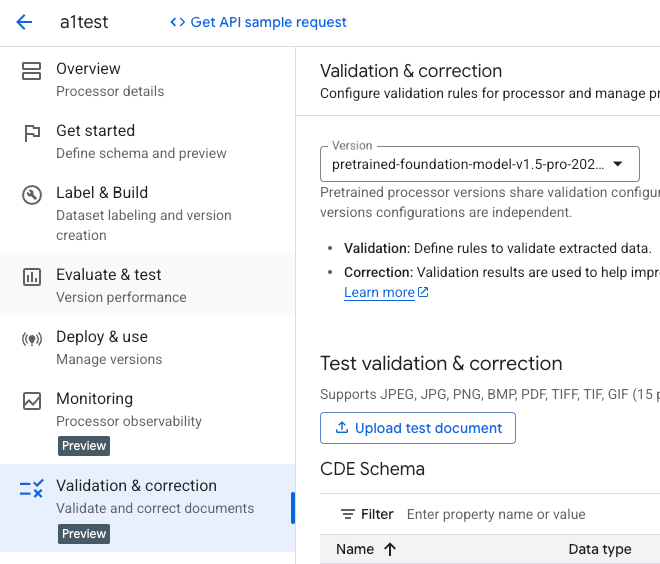
Before processing a document, go to Rule management.
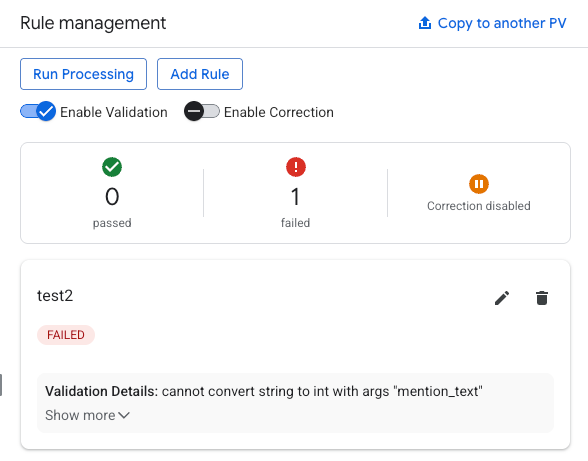
Select the Enable Validation toggle.
Optional: select the Enable Correction toggle.
Rule creation
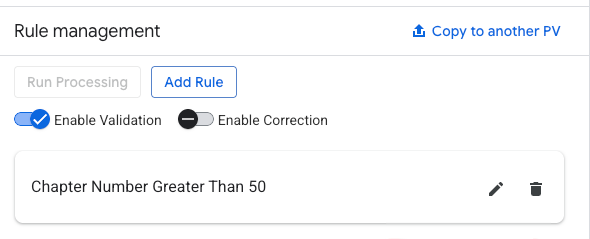
Click Add Rule.
In the rule creation form, enter a natural language prompt.
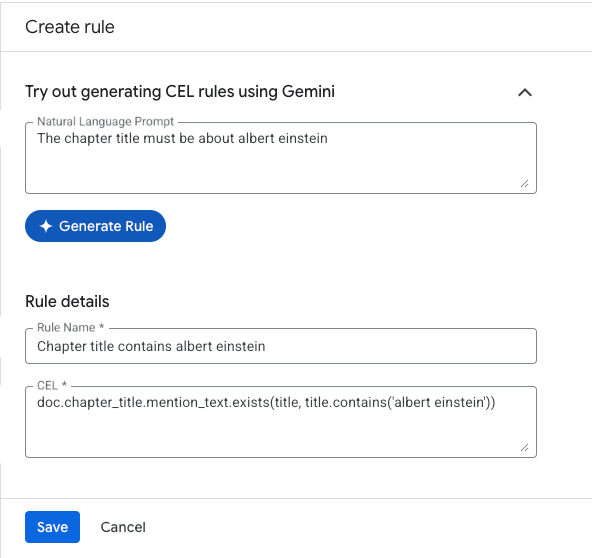
Give the rule a name, and use Common Expression Language (CEL) to define the behavior.
Optional. Use the Edit or Delete options to manage existing rules.
Copy configuration across processors
In the Rule management section, click Copy to another PV.
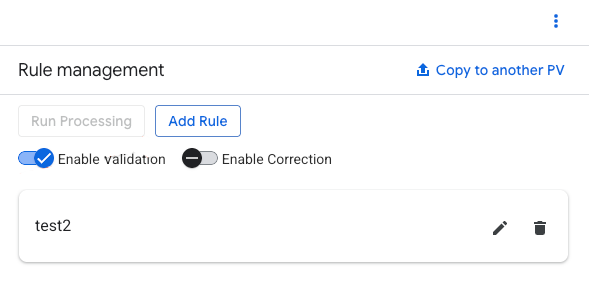
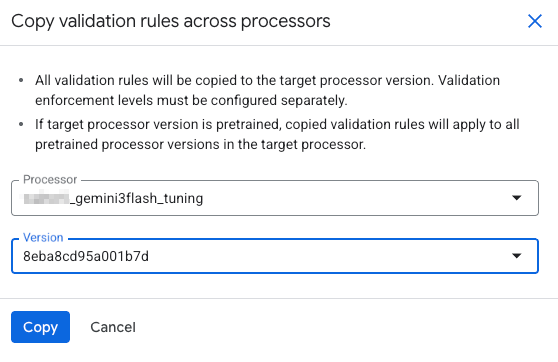
Select the processor name and version to copy the configuration to.
Rule results
In the Manage Dataset page, navigate to Rule management.
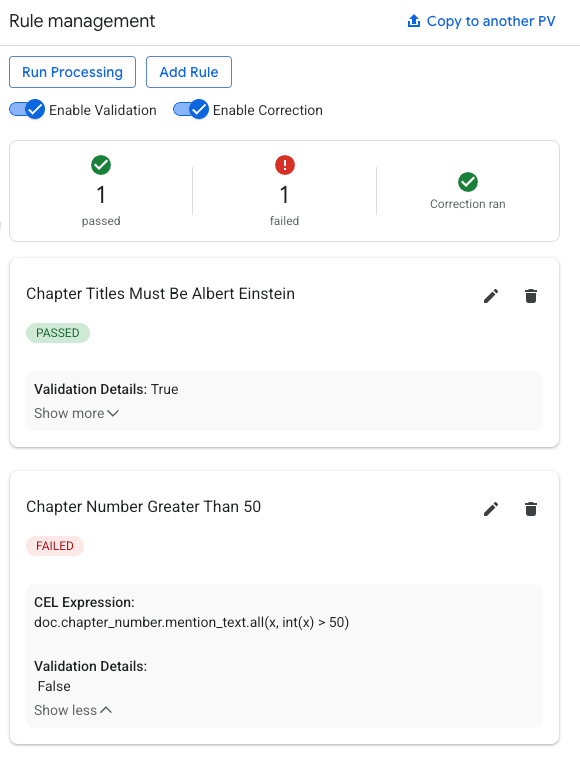
Evaluate the total passed and failed tests.
Check to see a breakdown of individual rule results.
You can compare changes to see new entities created post correction in green, and modified entities in yellow.
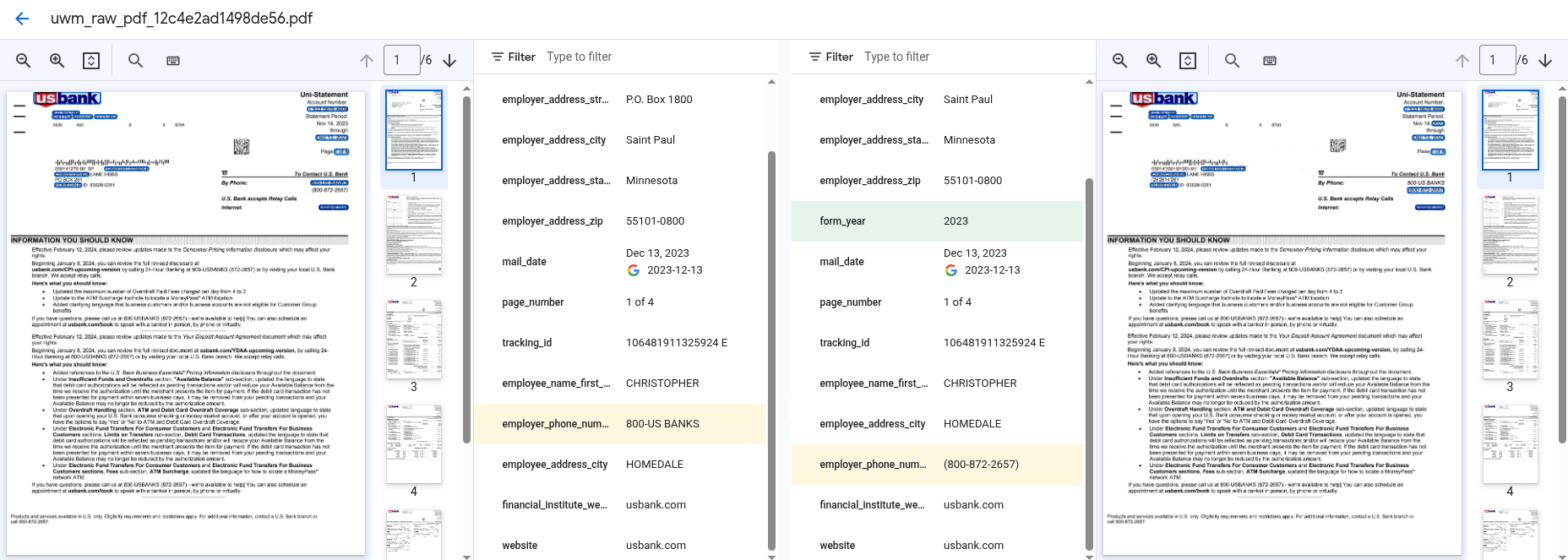
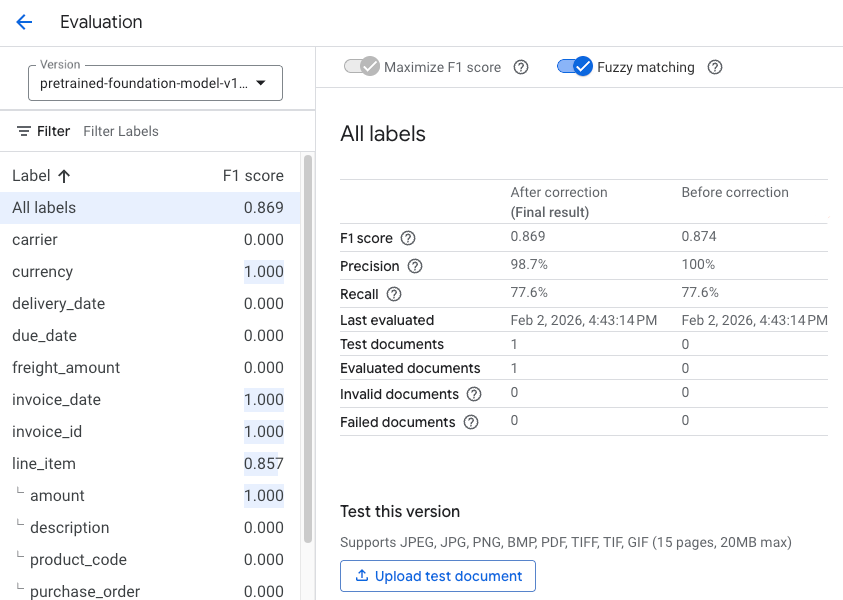
In the Evaluate & test section, there will be columns for scores both before and after activating correction.
Evaluation
Processor version evaluations include key metrics for both post-correction and pre-correction results if correction is enabled. Use these metrics to assess the impact of the correction process on extraction quality.
What's next
- Learn about schema extraction.
- Explore derived signature detection.